Readme
We recommend users to upgrade to the Secure Gateway Server build -
(How do I find my build Number?)
| If you are upgrading Secure Gateway Server | Action to be performed |
|---|---|
| from build #90102 and below | Uninstall the old Secure Gateway Server and reinstall the latest Secure Gateway Server EXE given below. It's important to note that this procedure will not lead to any data loss. Find additional information here. |
| from build #90103 and above | Upgrade directly using the latest hotfix PPM given below. |
Note: This update is applicable only for customers with Vulnerability Manager Plus build 10.0.424 and above.
More Download Options
Mirror Download64 bit.exe
Important:
- We recommend you upgrading to a 64-bit OS as we're discontinuing support for 32-bit Secure Gateway Server from August 1, 2022. Learn more.
- Customers who are evaluating and planning to purchase a secure gateway server (aka new Secure Gateway Server users) can avail the 64-bit option.
Note: After installing this Hotfix / exe, the agent computers running on Windows 2003 and Windows XP will no longer be able to communicate via Secure Gateway Server with the server.
Steps to Install Hotfix :
Important!
- Go to Secure gateway server installed machine . To know the name of the SGS installed Machine login to server webconsole and navigate to Admin > NAT settings > Secure gateway server > Installed machine.
- Open Services.msc and Stop the "ManageEngine Secure Gateway Server" service.
- Ensure that the Central Server is running during Secure Gateway Server upgradation.
- Create a backup of ManageEngine Secure Gateway Server before proceeding with the upgrade.To create a backup, follow the below step:
- Zip the entire \ME_Secure_Gateway_Server folder and paste it in another location.
- If you have installed ManageEngine Secure Gateway Server on Windows Vista, Windows 7, Windows 2008, Windows 8, or Windows 2012, you should login as a default administrator before running the Update Manager tool.
- If the ManageEngine Secure Gateway Server Service is being monitored by a 3rd party tool or a script that will restart the service, ensure that you disable it until you complete the upgrade process
- Execute the UpdateManager.bat file present in the <Installed Dir>/ME_Secure_Gateway_Server/bin directory.
- Click "Browse" and select the.ppm file that you have downloaded.
- Click "Install" to install the hotfix. This may take few minutes depending on the amount of data that needs to be migrated.
- Wait until the hotfix is fully installed. Once the hotfix is installed successfully, the SGS configuration window will pop-up.
- On providing the necessary configuration details, the SGS service will be re-installed and started automatically.
Note: Upgrading your Secure Gateway Server will not cause any loss of data.
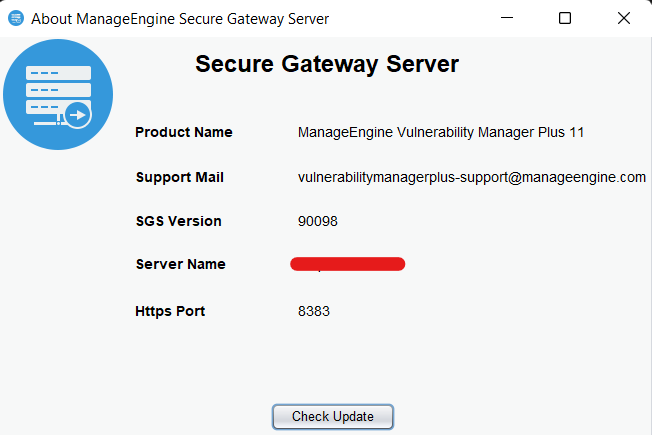
How do I find my Build Number?
Enter Secure Gateway Server through start menu and click the About option. The About box appears and you will find the build number mentioned below the title Secure Gateway Server.