Web Filtering
Block malicious and non-work-related sites, and control access by category, site, or time window.
About
About Web Filtering
A network-level control for what employees can reach in the browser.
What it does
Web filtering manages user access to enterprise-approved websites based on pre-determined security policies. It can enforce internet usage policies, block malicious sites, or restrict non-work-related content, and is typically implemented at the network level to improve productivity and security.
Benefits
Benefits of Web Filtering
A single control point for security, compliance, and productivity.
What it protects against
Web filtering protects networks from threats, helps ensure compliance with regulations like HIPAA and GDPR, improves employee focus by blocking non-work-related sites during work hours, optimizes network performance, mitigates legal risks, and safeguards sensitive data by blocking unauthorized file-sharing sites.
Endpoint Central MSP's web filter helps prevent malware, improves productivity, and ensures security — letting IT admins control downloads, set browsing times, block harmful sites, manage policies centrally, and protect remote workers.
Configuration
Implementing Web Filtering
Turn on the built-in threat protections, then layer time- and category-based access rules on top.
Create a policy and enable threat protections
- Go to Browsers → Policies → Web Filter.
- Click Create Policy and name the policy.
- Enable Block Malicious Websites to block access to malware sites.
- Enable SSL certificate protection to ensure SSL certificate encryption.
- Enable Restrict over-riding SSL certificate errors to stop users from ignoring or bypassing invalid/untrusted SSL certificate warnings.
- Enable Block third party websites that inject code to stop pages from loading external content that could inject malicious code.
- Enable Block websites with excessive ads to prevent access to sites with an excessive amount of advertising.

Filtering by category, site, and time window
URL Filter controls website access based on specific time intervals. Allow or block access using AI-classified categories — Education, News, Entertainment, and so on — or by specifying individual websites or website groups. Access time windows are specified in HH:MM:SS format.
Override Category Restriction lets a blocked domain within a category be overridden; every such request is recorded under Web Activity in the Insights tab. While configuring website groups, specific sites can also be excluded from filtering with Define exclusion list for URL filter.

Customizing the block page and deploying
The message and logo shown on blocked pages can be customized, or the page can redirect elsewhere entirely. Allow users to contact admin from a blocked page lets end users send mail to the administrator directly from that page.
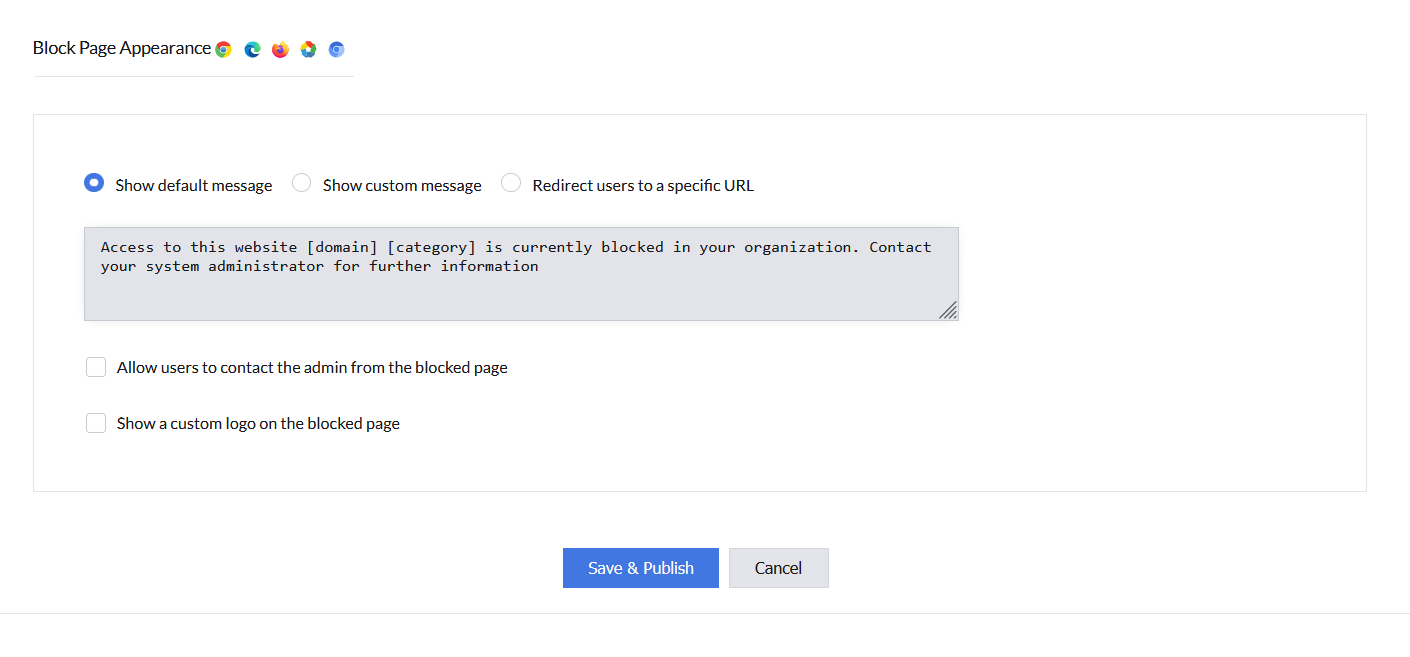
- Click Save & Publish to save the policy.
- Deploy the policy with the computers or groups where web-application access should be restricted.
Domain Pattern Matching and URL Syntax
Web Filter URL entries support specific domain patterns to control which variations of a site are blocked or allowed.
Accepted URL Formats
- Bare/Apex Domain:
example.com- Matches the root domain and all subdomains: example.com, www.example.com, mail.example.com, etc.
- Do NOT include protocols (http://, https://) or www prefix
- Wildcard Subdomains:
*.example.com- Matches all subdomains of example.com: www.example.com, mail.example.com, api.example.com
- Does NOT match the bare domain (example.com) alone
- To match both bare and subdomains, add two entries:
example.comAND*.example.com
- Specific Subdomain:
mail.example.com- Matches only that specific subdomain
- Does not match www.example.com or other subdomains
What NOT to Include
- Protocol:
https://example.com(remove the https://) - WWW prefix:
www.example.comas a required entry (use bare domain instead) - Paths:
example.com/page(only domain matching is supported) - Ports:
example.com:8080(ports are not part of matching) - Query strings:
example.com?query=value(not supported)
Examples
| Entry | Matches | Does NOT Match |
|---|---|---|
google.com | google.com, www.google.com, mail.google.com, drive.google.com | None (matches bare domain and all subdomains) |
*.google.com | www.google.com, mail.google.com, drive.google.com | google.com (bare domain alone) |
mail.google.com | mail.google.com only | google.com, www.google.com, drive.google.com |
- Bare domains (example.com) are more efficient than adding separate entries for www and subdomains
- Web Filter rules apply to HTTPS traffic as well as HTTP
- Wildcard-based URLs such as
*.example.comfor MDM iOS/iPadOS profiles are NOT supported (iPadOS requires full domain entries)