macOS Patch Deployment Policy
Create a macOS Deployment Policy
Create a deployment policy for Mac devices:
- Go to Threats & Patches → Deployment → Deployment Policies.
- Click the Create Policy button. Select Mac from the dropdown menu.
- Under Name & Description:
- Enter a Name that describes the policy.
- You can enter a Description. Include the purpose of the policy or the target deployment scope.
Configure Deployment Controls and Schedules
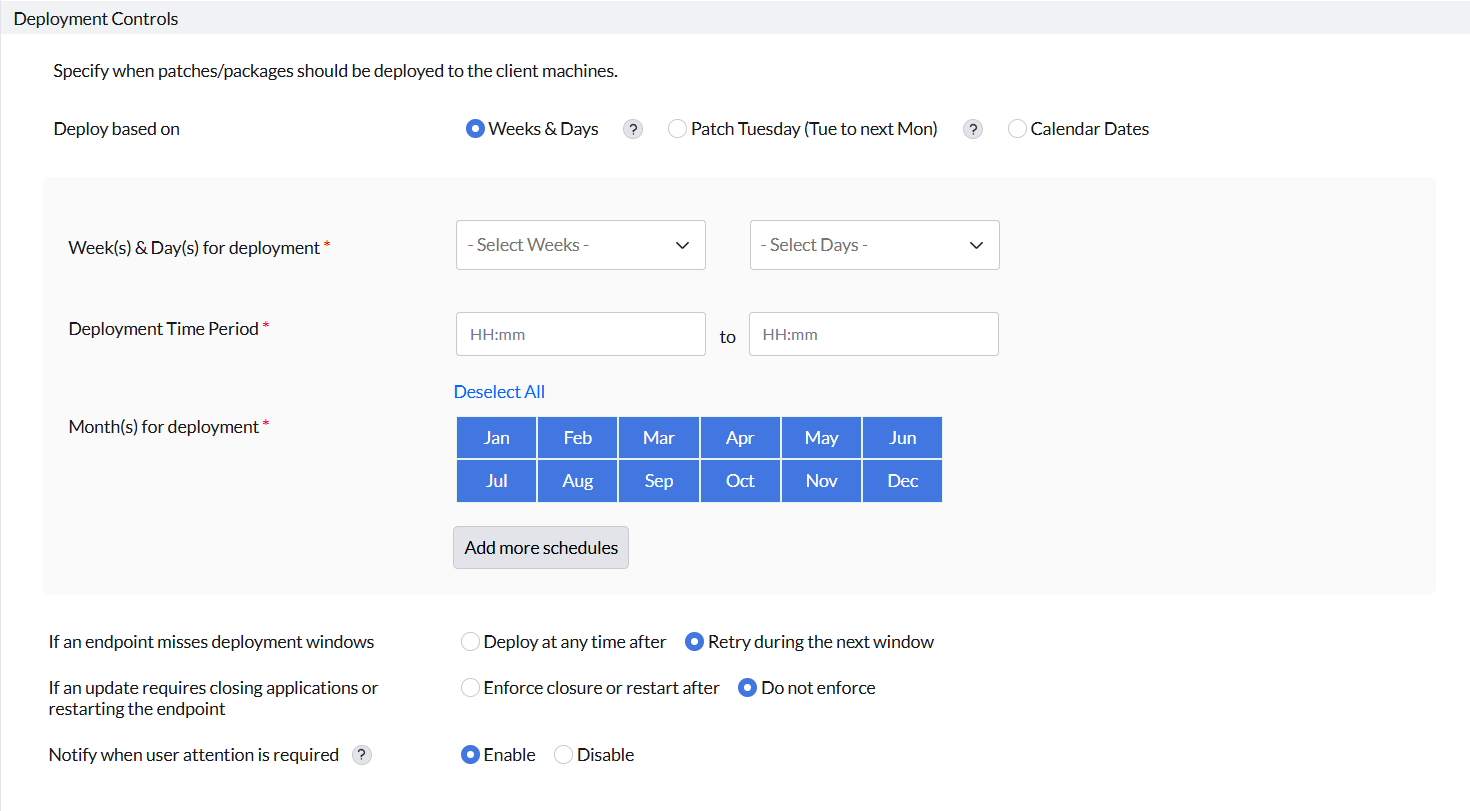
Under Deployment Controls, set when the agent-based flow deploys patches and software packages.
- Under Deploy based on, choose one of the following scheduling modes:
- Weeks & Days: Under Select Weeks and Select Days, choose the values that apply.
- Patch Tuesday (Tue to next Mon): Schedule deployment during the Patch Tuesday cycle.
- Calendar Dates: Choose the applicable calendar dates.
- Set the Deployment Time Period. This period is the time interval when deployment can occur on the client computer. The minimum permitted duration is 3 hours. This duration gives the agent sufficient time to communicate with the product server. It also gives the agent time to receive the inputs required to initiate deployment.
- Under Month(s) for deployment, select the months when the policy applies. Click Deselect All to clear the selections. Click Add more schedules to define multiple deployment intervals.
Configure Missed Window and Enforcement Settings
- Under If an endpoint misses deployment windows, choose how the policy handles overdue updates:
- Deploy at any time after: Enter the number of days. After that number of days, an update becomes eligible for deployment outside the configured time period. After this threshold, deployment proceeds when the endpoint is reachable.
- Retry during the next window: Deployment waits until the endpoint enters its next scheduled deployment window. Deployment then attempts the installation.
- Under If an update requires closing applications or restarting the endpoint, choose an enforcement option:
- Enforce closure or restart after: Enter the number of days. After those days, the agent can force running applications to close or restart the endpoint when the update requires it.
- Do not enforce: The agent does not force application closure or a restart. The update remains dependent on the user. The user must close the application or start the required restart.
Deployment precedence and conflict resolution
The same patch can target one Mac endpoint in more than one deployment task. The nearest enforcement deadline among those deployments becomes the effective enforcement time.
Enforcement day and time calculation
For agent-based deployments, the product calculates the "days after" threshold in calendar days. This threshold applies to the missed-window settings and to the closure or restart settings. The deployment start day differs by deployment type:
- Manual Deployment tasks: The configured Install After date is the deployment start day. If Install After is not configured, the task creation date is the deployment start day.
- Automate Patch Deployment (APD) tasks: Apply the delay configured under Deploy patches after to the selected option. The result is the deployment start day. Days from release uses the vendor release date. Days from approval uses the patch approval date.
- Test and Approve workflows: Apply the delay configured under Deploy patches after to the vendor release date. The result is the deployment start day.
Add the configured number of calendar days to the applicable deployment start day. The threshold takes effect at 12:00 AM on that date. This calculation uses the endpoint's local time zone.
Configure User Notifications
macOS controls the final restart countdown, its length, and whether Not Now is available. A deployment policy cannot change this native countdown. The product prompt that appears before the update starts can include Postpone.
- Under Notify end users when action is required, select:
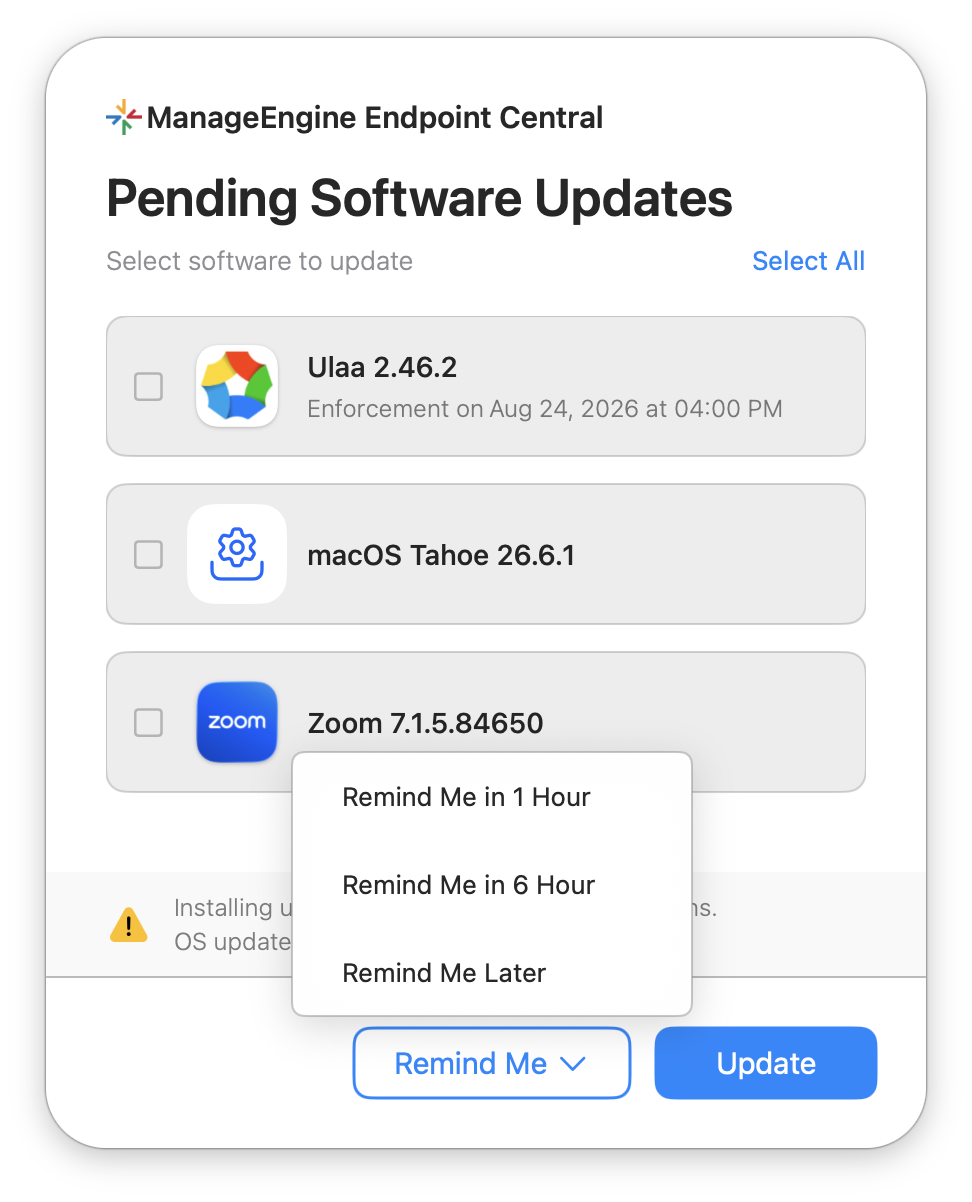
- Enable: The policy shows an interactive notification when an update requires an application to close or requires credentials. The user can proceed or postpone. If the user postpones, the notification appears again after the selected reminder interval. The effective enforcement time constrains the available reminder interval. The interval cannot postpone enforcement beyond that time:
When a notification appears again after the user selects Remind Me Reminder interval Next notification display 1 hour One hour after the user selects Remind Me. 6 hours Six hours after the user selects Remind Me. Remind Me Later After 24 hours, in the next scheduled deployment window. - Disable: This option suppresses end-user notifications. A confirmation appears before the policy is saved.
- Enable: The policy shows an interactive notification when an update requires an application to close or requires credentials. The user can proceed or postpone. If the user postpones, the notification appears again after the selected reminder interval. The effective enforcement time constrains the available reminder interval. The interval cannot postpone enforcement beyond that time:
Save and Apply the Policy
- Click Save to store the policy.
- Select the saved policy when creating:
- Automate Patch Deployment (APD) tasks: Under Choose Deployment Setting → Apply Deployment Policy.
- Manual Deployment tasks: Under the Deployment Policy dropdown.
- Test and Approve workflows: Under Deployment Policy → Apply Deployment Policy.
Preview the Password Prompt
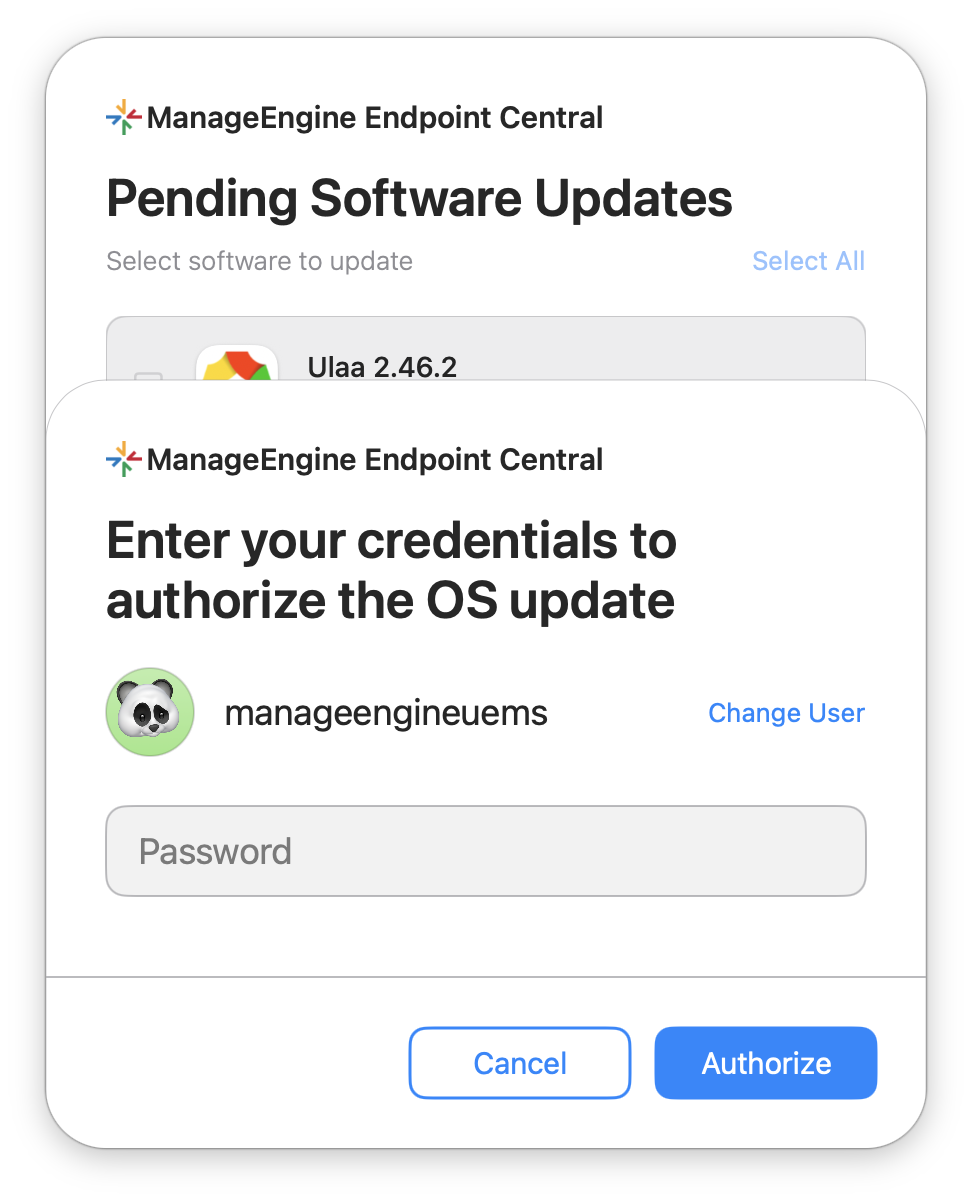
On Apple silicon Macs, macOS uses an available bootstrap token to authorize an OS update. macOS can display a password prompt to the logged-in user. This can occur when no bootstrap token is available and the agent-based flow handles the update. Inform users about the prompt format so that they can authenticate securely during scheduled update cycles.