Patch Deployment Policy
Deployment Policy and its Need
A deployment policy sets how patches are deployed on managed endpoints, including endpoints in different locations. Configure the policy for your deployment requirements.
When you deploy software or a patch with Endpoint Central MSP, you can set the installation time, whether users can skip deployment, and the reboot policy. Save these settings as a policy, and use the policy in a configuration or task. You can mark a policy as the default policy. The default policy applies to each configuration or task that you create after it.
To let users postpone patch installation, configure the pre-deployment notification and skip controls in the deployment policy. Configure post-deployment reboot notifications separately. These controls apply to deployment tasks managed by Endpoint Central MSP. They do not control the native Windows Update or macOS update-deferral settings.
Create a policy from the Deployment Policies page. Go to Threats and Patches -> Deployment -> Deployment Policies. When a task must run at its next eligible opportunity, select the built-in Deploy Anytime at the Earliest policy from Apply Deployment Policy. Built-in policies appear under Created by Others.
Wake on LAN applies to:
- Windows
Pre-deployment activities apply to:
- Windows
- Linux
Post-deployment Reboot/Shutdown applies to:
- Windows
- macOS
- Linux
Post-deployment Custom Script applies to:
- Windows
- Linux
Deployment Schedule
Patch deployment can use high bandwidth and interrupt work. Set the deployment schedule to control when deployment runs.
Deployment policy time zone
A deployment policy runs at the scheduled time in the target endpoint's local time zone, not the server time zone.
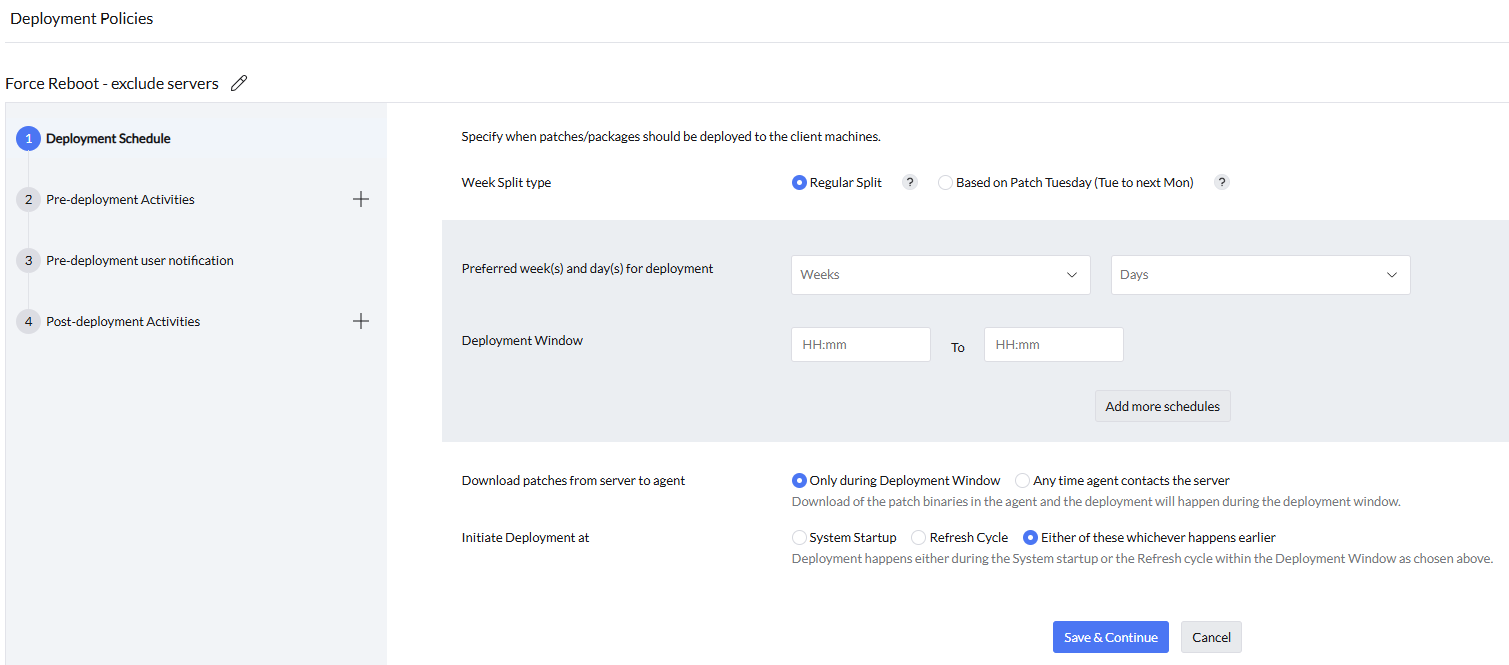
Create the policy:
- Click Create Policy under Deployment Policy.
- Specify a name for the policy.
- Under Deploy based on, choose Weeks & Days, Patch Tuesday (Tue to next Mon), or Calendar Dates. The Patch Tuesday week runs from the second Tuesday of the month through the following Monday. Each later week is the next seven days. For example, if Patch Tuesday falls on the 11th, the Patch Tuesday week is the 11th through the 17th. The first week after Patch Tuesday is the 18th through the 24th. Use the date ranges shown in the policy to confirm the applicable weeks. Specify whether deployment can occur on any day or only on selected days. For deployment only on weekends, select Saturdays and Sundays. When a specific day is selected, an eligible patch waits until the next configured deployment day and window.
- Specify the Deployment Window. This is the time interval for deployment on the client computer. The window uses each target computer's local system time. You can set an interval from 3 hours to 24 hours. Use a minimum of 3 hours. The agent must contact the server at least once in the window to receive the deployment instructions.
- Set "Download patches from server to agent" to run during the deployment window or when the agent contacts the server.
- Under Initiate Deployment at, select System Startup, Refresh Cycle, or Either of these whichever happens earlier. Startup means the computer is turned on from a powered-off state or after a restart. The agent refresh cycle is 90 minutes. The deployment window still applies.
A saved policy modification is received by a target during its next agent refresh. The default agent refresh interval is 90 minutes.
Multiple deployment periods
A Deployment Policy can include multiple deployment periods. Configure the required periods in the deployment template associated with the policy.
Deployment window behavior
For Force reboot immediately after deployment, installation can consume the remaining deployment window and leave the computer Reboot Pending. Review the task result. Allow enough maintenance time for installation and restart, or restart through an approved maintenance action. See current reboot state and task history.
Startup deployment can reduce contention with applications that users have open. It does not establish a repair for an installer failure or an application crash. For a fatal installer result, follow fatal-error troubleshooting and retain the failed setup logs.
The startup or refresh setting determines when the agent checks whether deployment can run. In the normal policy workflow, installation starts only when the configured deployment window permits it.
When Download patches from server to agent is configured to download whenever the agent contacts the server, downloads can occur outside the Deployment Window. Select downloading during the Deployment Window to restrict agent-side downloads to that window.
When Download patches from server to agent is set to download only during the Deployment Window, the agent starts the download only after two conditions are met. The patch must be eligible for deployment, and an applicable deployment window must be open. For example, when deployment is delayed for three days after approval, downloading begins during the applicable window on or after the third day.
If a patch download is in progress when the deployment window ends, the active transfer stops and resumes from its partial progress in the next available deployment window. A patch installation that is already in progress when the deployment window ends is allowed to complete. If you create the APD or deployment task after the deployment window for that day has already ended, the task does not run until the next window.
Enable Patch outside deployment window when systems that repeatedly miss the configured window must be patched after a grace period. Set Force deploy to unpatched systems after they have missed to the required number of deployment days. For a required restart, select whether Force reboot can occur within or outside the deployment or reboot window.
The deployment schedule is evaluated using each endpoint's local time. If only specific deployment days are selected, an eligible endpoint waits until the next selected day and deployment period.
Weeks & Days uses seven-day intervals; the last week is the final seven days of the month. The selected weekday can therefore fall on a different calendar date each month. To schedule relative to Microsoft's monthly release, use Patch Tuesday and select the required week and day.
To avoid waiting for a recurring deployment window, apply the built-in Deploy Anytime at the Earliest policy to the deployment task.
Configuring Pre-Deployment Activities
To deploy configurations to computers that are turned off, enable Automatically wake computers before deployment. This option lets administrators deploy configurations to target computers that are on the network but powered off. If the target computers are connected to the corporate LAN/WAN, Wake On LAN powers them on, and the configuration is deployed. This option does not apply to computers outside the corporate LAN/WAN. Wake On LAN uses the local time zone of each computer.
Wake On LAN runs when the deployment window opens for computers on the corporate LAN. The pre-deployment custom script runs only after the product determines that patches are required. If no patches are required, the script does not run.
Configure Pre-Deployment Reboot for your requirements. You can exclude servers from the reboot to limit downtime. You can skip the reboot for computers that do not require it. You can notify users about the reboot with a custom message.
Pre-Deployment Reboot restarts the computer only after the deployment task has started. When Install Option is During Startup, restart the computer first so the task starts. The policy pre-reboot is the next reboot, not that first restart. If the status remains Yet to Apply or Ready to Execute, refer to Configuration Status Yet To Apply.
Use Custom Script to run actions before patch deployment. For example, close an application that is running on an endpoint before deployment. Create the script and upload it to the script repository. Import the script under this option. Then specify Script Arguments, Dependency Files, and Exit Codes.
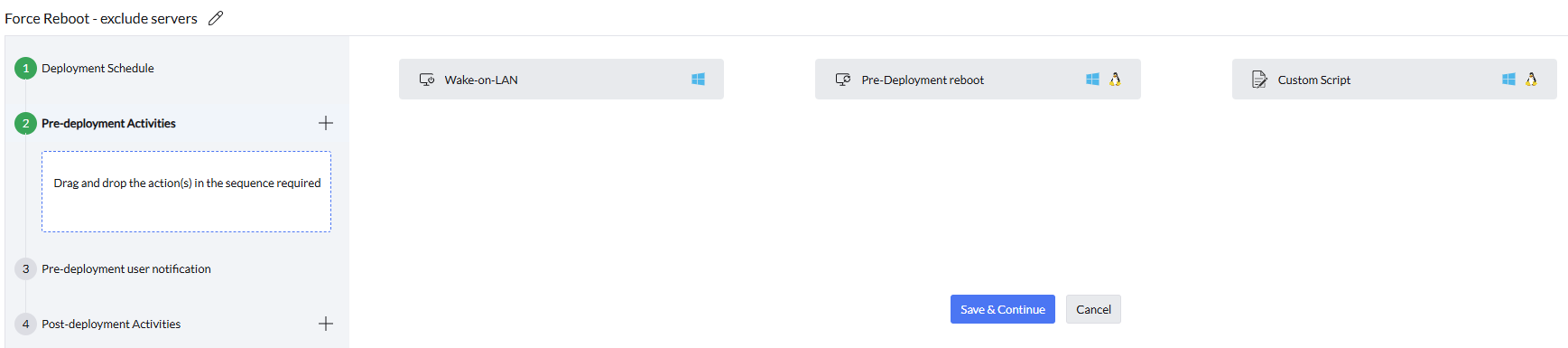
If patch installation is delayed because an application is running, see Patch Update Delayed Since Application Is Used By Another Process. Use application-closing settings or a pre-deployment script only after considering the risk of unsaved user data; do not rely on application-specific patch IDs in a deployment policy.
Pre-deployment script scope
A pre-deployment script cannot run for only selected applications or patches. The script runs before deployment. It does not receive the list of patches or applications that will be installed.
Attach a preparation script to the deployment policy used by the intended patch task. Define the exit codes that indicate success and configure whether deployment can continue if the script fails. Pre-deployment scripts run as part of patch processing. If the task has no patches to process, the script does not run. Test the script and deployment on a test device before deploying to other endpoints.
Pre- and post-deployment scripts belong to the patch task. If no applicable patches are processed, the task can skip its pre/post actions. Do not use a maintenance patch as a no-operation carrier for a standalone script. Component Store Cleanup (Patch ID: 105979) performs a maintenance action; it is not a harmless dummy patch or a no-reboot guarantee. Use a licensed standalone custom-script workflow when available. Check the selected patch and script requirements before choosing a reboot policy. See Windows servicing procedures.
The Pre-Deployment User Notification settings can be configured as follows:
- Provide the "Title of the Message" to be displayed on client computers before deployment begins.
- Enter the message content to inform users before deployment.
- The notification message appears on client computers for the duration specified in the Notification Timeout section.
- Specify whether users can skip deployment by selecting Allow Users to Skip Deployment. If this option is not selected, users cannot skip deployment through this notification. A vendor installer can have its own prompts or cancellation behavior. For a cancelled installation, see Other Installation Failures.
- To display the deployment progress on client computers, enable the "Show deployment progress on the client systems" option.
- Define the number of days after which deployment is forced. Users can skip deployment only for the specified period. After this period, deployment proceeds automatically.
- Set the time limit for deployment to begin if the system remains idle.
The deployment notification configured here is separate from Show Information Balloons While Processing Configurations and Patch Scanning under Agent Tray Icon settings. Disabling that informational balloon does not disable the deployment or deployment-progress notification.
Notification recurrence after a skip
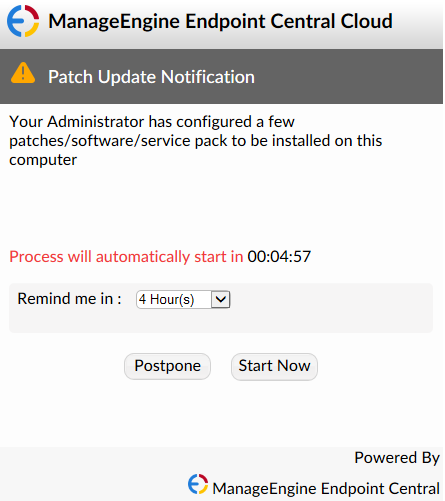
Skip defers the current deployment attempt. The pre-deployment notification can be shown again at the next eligible agent refresh. The default refresh interval is 90 minutes. Endpoint contact, the deployment window and enforcement conditions still apply. Skip is not a user-selected postponement timer that guarantees another prompt exactly 90 minutes later. The notification cannot be limited to a specified number of times per day.
Built-in pre-deployment notification
To avoid notifications during working hours, configure the deployment window and notification or skip rules before deployment. If a notification is already displayed, use its configured skip option when available. To prevent later task processing, suspend the manual deployment task or suspend the APD task from its task list.
Suspension does not abort an installation already in progress or guarantee dismissal of an active notification. cfgUpdate refreshes configuration information; it is not an immediate notification-dismiss command.
Some driver updates display a built-in notification because installation can interrupt network connectivity. The built-in driver installation notification has a default countdown of five minutes. It is separate from the custom pre-deployment user notification configured in the deployment policy; changing the custom notification does not configure this built-in countdown.
The message stating that patches are waiting to be downloaded and installed is a built-in Endpoint Central MSP pre-deployment user notification. It is displayed during the pre-deployment notification stage.
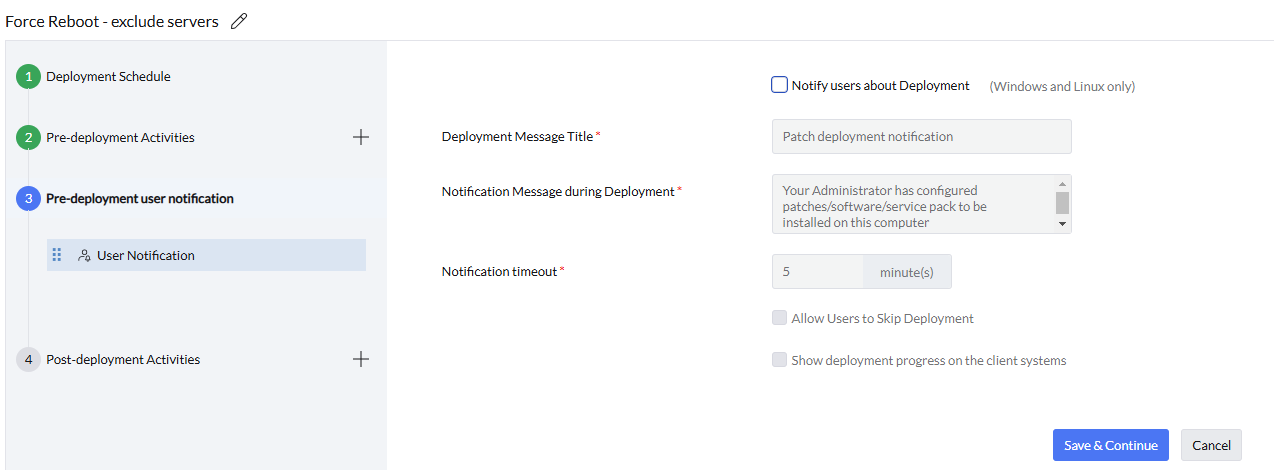
To deploy patches without a pre-deployment user notification, create a deployment policy with that notification disabled, save it, and select the policy in the manual deployment or Automate Patch Deployment task. Disabling the pre-deployment notification does not disable separately configured reboot or application-in-use prompts.
Configuring Post-Deployment Activities
If no post-deployment reboot or shutdown activity is configured, the endpoint is not restarted and no reboot prompt is displayed. When a patch requires a restart, its deployment status remains Reboot Pending until the endpoint is restarted. The option to skip reboot through the deployment policy is available only for Server OS.
Reboot notifications are displayed only to the active user on the target computer. They are not displayed to the administrator who initiated the deployment from another computer.
Unattended servers
For a multi-user server that runs continuously, use a Deployment Window in the maintenance period and Force reboot. An administrator can install from the Self Service Portal during a confirmed window.
- In post-deployment activities, configure Reboot/Shutdown. Choose Force reboot/shutdown or Delay reboot/shutdown. Specify the reboot or shutdown time. Notify users with a custom message. You can also select "Restart and then Shutdown". Use a post-deployment custom script to run actions after patch deployment, such as starting applications that the pre-deployment script closed. Import the script, then specify Script Arguments, Dependency Files, and Exit Codes.
- Select Save to apply the changes.
To schedule a separate restart period, select Force Reboot → Specify reboot Time. Configure the reboot-window days and start/end times. Review Use Deployment Weeks for Reboot Window and enforcement settings, which can affect the schedule. Save the policy and verify that the task uses it. Delay reboot postponement and force timers are separate from a scheduled reboot window.
Reboot notification behavior
After the agent observes that the device has restarted, it clears the stored reboot jobs. A later deployment that requires a reboot can create a new job, so check the associated task if another prompt appears.
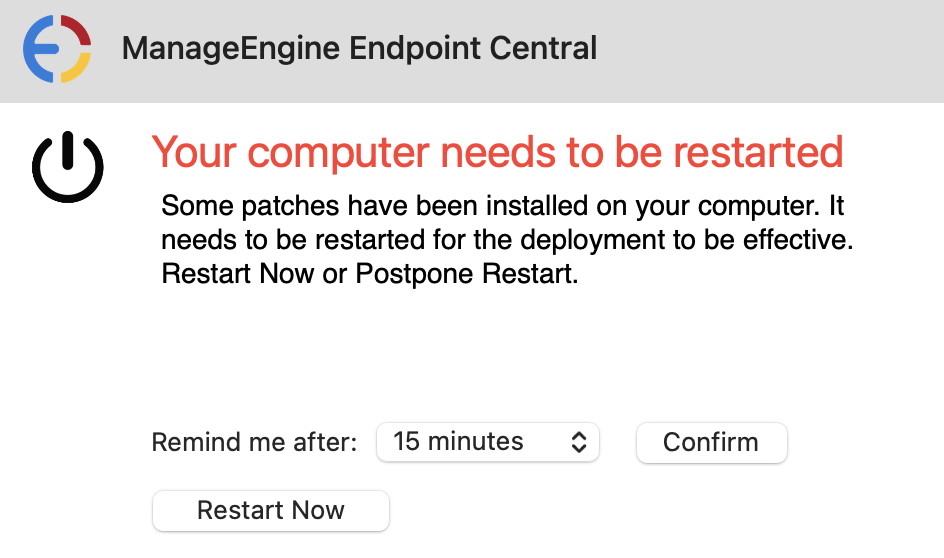
The restart notification prompt uses the default Endpoint Central MSP display. You can customize the notification content and reboot behavior, but not the size or layout of the prompt.
Shutdown blocked message
The Shutdown Blocked message follows the Windows display language. You cannot edit its wording in the deployment policy.
For a delayed reboot, the postponement timer and the force-reboot timer start at the first reboot prompt. Postponing a reboot changes the next reminder but does not restart the force-reboot timer. Shutdown or sleep does not restart these timers. If several reboot jobs are pending, an earlier force-reboot deadline can apply.
No reboot occurs while the endpoint is offline. When the endpoint comes online, the agent continues from the elapsed policy state. If the allowed postponement period has expired, the endpoint proceeds to the force-reboot stage. Available postponement intervals depend on the policy and the time remaining. Make the force-reboot window longer than the postponement intervals. Otherwise, users might not get the longer postpone option.
The delay before the force-reboot stage and the timeout of the final force-reboot prompt are separate settings. Configure the force-reboot prompt timeout to provide a longer final warning. If an endpoint comes online after the configured force-reboot delay has already elapsed, it enters the force-reboot stage immediately.
The Reboot after a time out of 5 minute(s) setting applies only to the force-reboot prompt. Any other reboot prompt remains until the user accepts or postpones it.
Windows or another installation path can complete the required restart before the product's reboot timer runs. If no patch then requires a reboot, the pending queue is cleared and no force-reboot prompt is displayed.
On macOS, the Windows and Linux post-deployment postponement intervals do not apply. When a post-deployment reboot activity is configured, macOS displays the default reboot prompt.
While an Endpoint Central MSP reboot notification is displayed, the computer is not treated as idle. A GPO idle auto-lock does not run during that countdown.
Post-deployment activity order
Post-deployment activities run in their configured order. When Reboot/Shutdown is followed by a Custom Script, the endpoint reboots first and the custom script runs after the endpoint is back online. If Skip reboot for machines that do not require a reboot applies, a post-reboot action is not run for a patch that does not require a reboot.
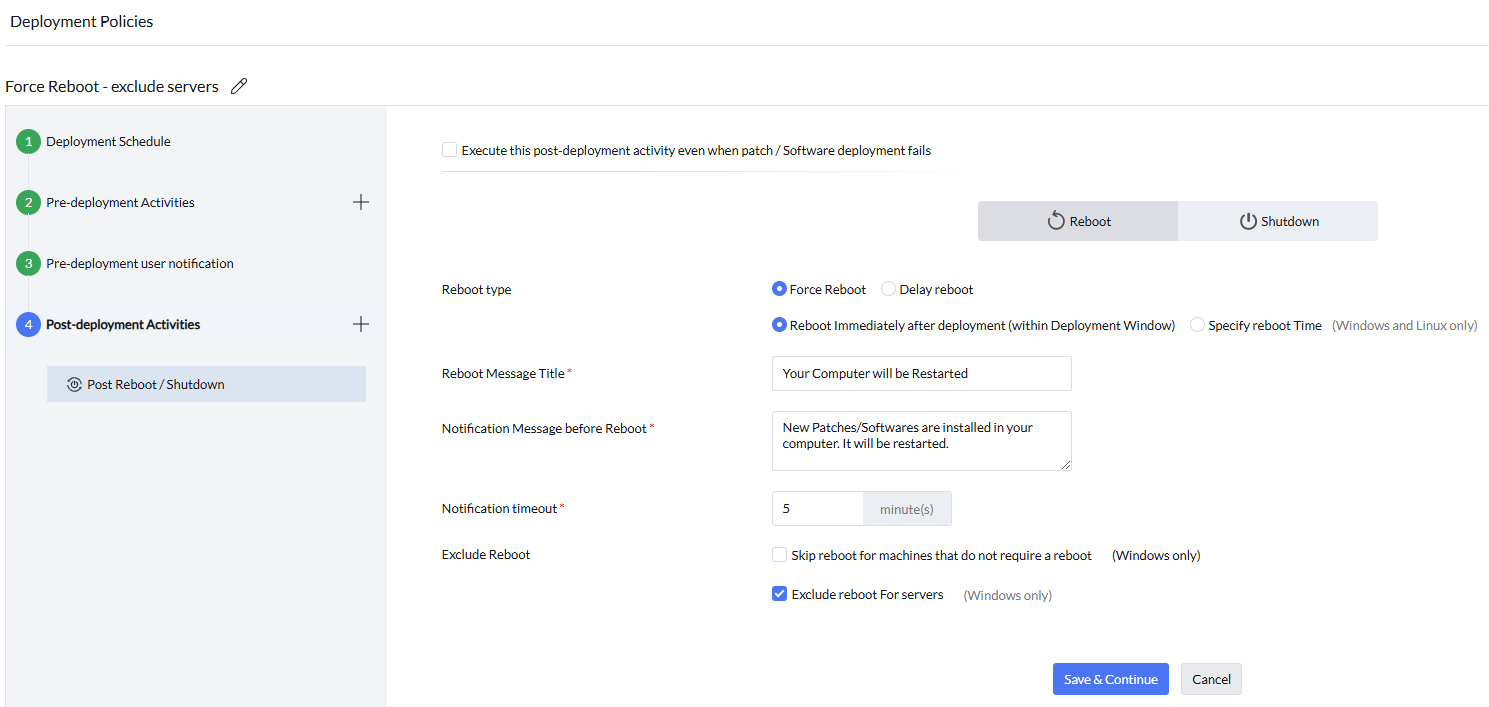
You can apply the saved policy to a configuration. To modify or delete the policy, use Actions.
Notification displayed on the End-User's Device
The Agent Tray balloon shown while configurations or patch scans are being processed is separate from deployment and reboot prompts. To hide only that balloon, navigate to Admin → Agent Settings → Agent Tray Icon, clear Show Information Balloons While Processing Configurations and Patch Scanning, and save the changes.
Windows
Mac
For instructions on configuring deployment windows, enforcement, notifications, and OS updates for macOS, see Configure a macOS Patch Deployment Policy.
Role-based access
Set the deployment policy for your requirements. These policies are linked to configurations and deployment tasks. Only the user who created the deployment policy and an Admin can modify that policy. Patch Management Write and Software Deployment Write, including Full Control, do not grant modify rights on a policy created by another user. To use different settings, create a new deployment policy and assign it to the deployment. To request a change to this restriction, submit a feature request.