Step-by-Step Guide to Create a Rule in ComplianceIQ
This guide explains how to create a flow rule using Network Configuration Manager’s Compliance IQ feature based on CIS (Center for Internet Security) Benchmark Control 1.2.4, which ensures that unused interfaces are disabled.
Flow Rule Creation using ComplianceIQ:
ComplianceIQ rules in Network Configuration Manager define the conditions device configurations must meet to remain compliant. They are the foundation of compliance policies, helping you detect configuration deviations, enforce security requirements, and maintain adherence to organizational standards.
CIS is a globally recognized organization that provides secure configuration benchmarks to protect systems and networks. According to CIS guidelines, leaving unused interfaces enabled poses a physical security risk. An attacker with direct access to a device could exploit an active but unused port to gain unauthorized entry, especially if management access restrictions are not enforced.
To address this, you will create a ComplianceIQ rule that identifies unused interfaces and ensures they are properly disabled. The process involves the following steps:
- Fetch All Interfaces
- Iterate Through Each Interface
- Verify Interface Status (Up/Down)
- Check Administrative Shutdown
- Configure Compliance and Violation Actions
1. Fetch All Interfaces
The first step is to fetch all network interfaces from the device. This data will serve as the input for the compliance rule. To make this step seamless, navigate to ComplianceIQ → Rules → Add Compliance Rule and click on the "+" icon below START and select Block Identification.
Block Details Configuration
From the Add Block Details screen:

- Enter a Name for the block, e.g., Get All Interfaces.
- Set the Scope to Device Command Output.
- Adding a block in the ComplianceIQ rule flow will capture the interface section from the device's configuration or command output.
- The Command Template defines which command should be executed to retrieve the required information. This is usually a CLI command (for example, show running-config or show interfaces), or a custom script supported by the device.
- It determines what raw data is collected for parsing and evaluation. For instance, to retrieve a list of all interfaces, you can use: show interfaces.

- Select the Command you created (for example, Get all interfaces).
- In Start Block, define the matching pattern, e.g., interface ($INTERFACE_NAME.*). This helps capture each interface block using a variable. Characters or content that follow the $INTERFACE_NAME is captured using ".*"
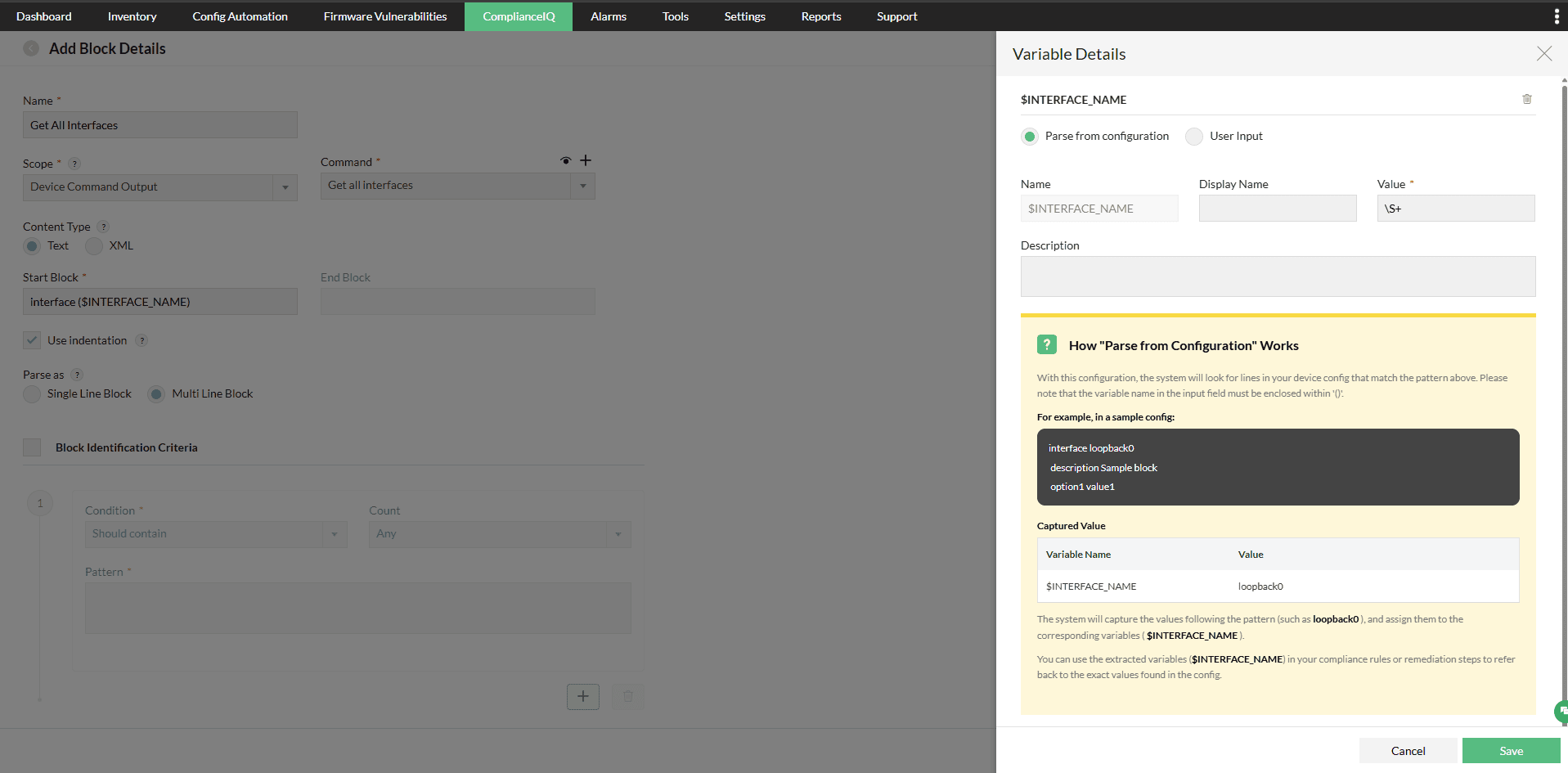
- Choose whether to use indentation and select Multi Line Block for parsing interface configurations spread across multiple lines.
The output captured from this command is parsed according to the variables and block patterns defined here. The parsed output is used in later steps to verify whether each interface is properly disabled.
2. Iterate Through Each Interface
After gathering all interfaces, the next step is to validate them individually. Iterating ensures that each interface is checked for compliance rather than applying conditions only once.
Add a Loop block to process every interface discovered in Step 1. This loop enables ComplianceIQ to apply the subsequent conditions to each captured interface section.
Configuration
- Click the + icon after the Get All Interfaces block in the rule flow.
- Select Loop from the available components.
- Assign a clear Name, such as Validate Each Interface.
- Map the loop to the interface block identified in Step 1 using the $INTERFACE_NAME variable.

Once looping is set up, ComplianceIQ can now evaluate each interface individually, starting with checking its operational status. Without looping, unused interfaces could be skipped, leading to incomplete compliance evaluation.
3. Verify Interface Status (Up/Down)
Determine whether the interface is operationally down. Interfaces that are up are considered active and compliant; interfaces that are down move to the shutdown verification in Step 4.
- If FALSE (not down): Interface is up → Compliant.
- If TRUE (down): Proceed to Step 4 to confirm it’s administratively shut down.
Add Condition Setup
- Navigate to the Add Condition screen.
- Enter a Name for the condition.
- Example: Check interface is down
- Set the Scope to: Parsed Block Output.
- This ensures the rule checks the parsed device configuration.
- Under Criteria, configure the following:
- Condition: Should match
- Count: Any
- Pattern: $INTERFACE_NAME.*down (This pattern checks whether the captured interface is in the shutdown state.)
- Click Save Condition to store the rule condition.

Interfaces that are operationally up are considered active and automatically marked as compliant. Interfaces that are operationally down proceed to Step 4, where ComplianceIQ checks whether they are administratively shut down.
4. Check Administrative Shutdown
Confirm that interfaces identified as operationally down in Step 3 are administratively shut down. This distinguishes deliberately disabled ports from interfaces that are down for other reasons.
- If TRUE: The interface is administratively shutdown. Mark it as Compliant.
- If FALSE: The interface is not shutdown. Mark it as a Violation (Critical).
Add condition Setup
- Navigate to the Add Condition screen.
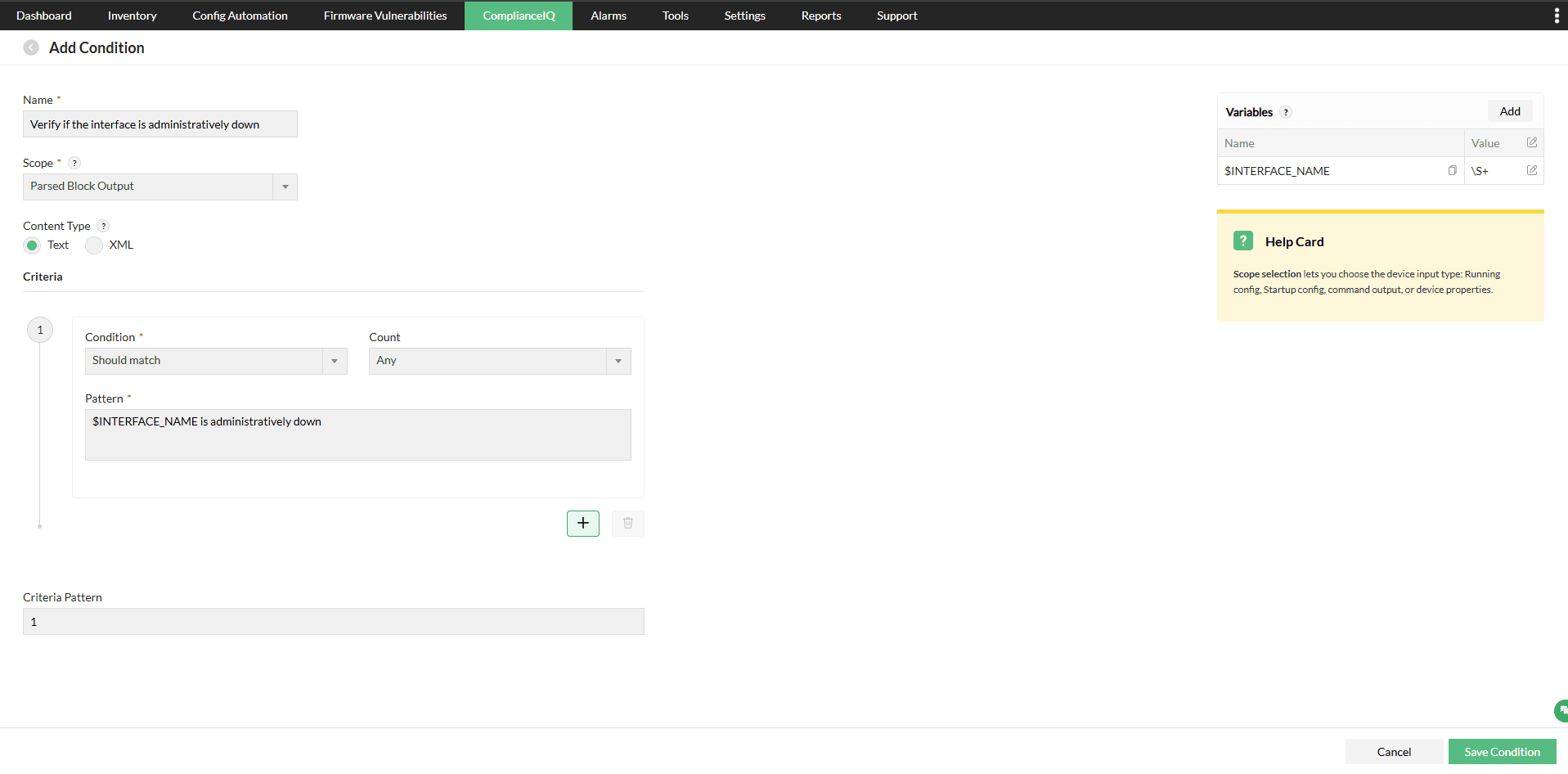
- Enter a Name for the condition.
- Example: Verify if the interface is administratively down
- Set the Scope to: Parsed Block Output.
- This ensures the rule checks the parsed device configuration.
- Under Criteria, configure the following:
- Condition: Should match
- Count: Any
- Pattern: $INTERFACE_NAME is administratively down (This pattern checks if the captured interface is administratively shut down. )
- Add a variable for the interface name:
- Name: $INTERFACE_NAME
- Value: \S+ (regex to capture the interface name).
- Click Save Condition to store the rule condition.
This step finalizes the compliance check. Interfaces identified as unused but left active are flagged as critical violations, as they can create unnecessary entry points or configuration issues. Properly disabled interfaces—containing administratively shutdown—are marked compliant, ensuring adherence to security best practices.
5. Configure Compliance and Violation Actions
Compliant
An interface is marked compliant if:
- It is marked "up", or
- It is unused but administratively shutdown.
Violation
An interface is marked as a violation if it is unused and not administratively disabled. Such cases are flagged as Critical, as they introduce potential security risks.
Violation Remediation
When a violation is detected, ComplianceIQ allows you to define a remediation procedure to address the issue automatically or manually.
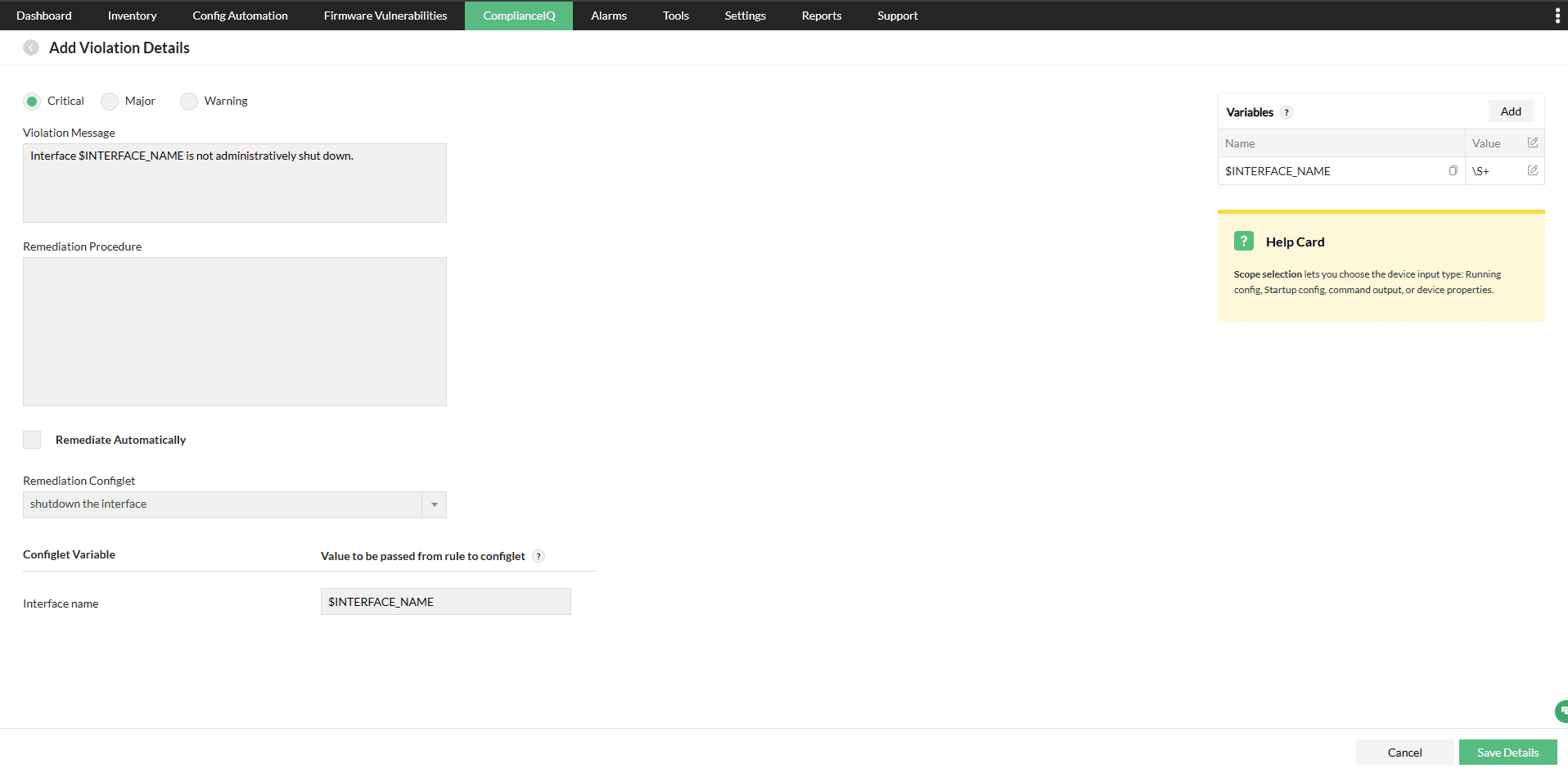
- Violation Message: A descriptive message that identifies the problem, often using variables for specificity.
Example: Interface $INTERFACE_NAME is not administratively shut down. - Remediation Procedure: Defines the corrective action to be taken.
Example: Add administratively down to the violated interface. - Remediate Automatically: If enabled, the remediation configlet executes automatically when a violation is detected.
- Remediation Configlet: A pre-defined script or command sequence used to fix the issue (e.g., shutting down the non-compliant interface).
- Configlet Variable Mapping: Maps rule variables from the compliance check to variables used in the configlet.
Example: If the configlet requires an interface name, it is mapped to $INTERFACE_NAME captured in the rule.
Understanding Variable Value Propagation in Configlets
- The compliance rule identifies the violating element (e.g., an interface).
- The rule captures its value in a variable (e.g., $INTERFACE_NAME).
- During remediation, this variable is passed into the remediation configlet.
- The configlet executes the command with the exact interface name, ensuring the correct element is remediated.