Create Users
Contents |
Creating New Users
You can create users in Network Configuration Manager and provide access privileges to them. The power to create users is available only for the admin login account and for those accounts which have 'Full Control' privilege.
Administrator: Administrators have unrestricted access to perform all the operations in Network Configuration Manager. They can add/remove devices, troubleshoot issues, make changes in configurations and more without any limitation.
Operator: Operators have restricted access in Network Configuration Manager. Any change made to a configuration by an operator will not be uploaded directly to a device unless an Admin approves it.
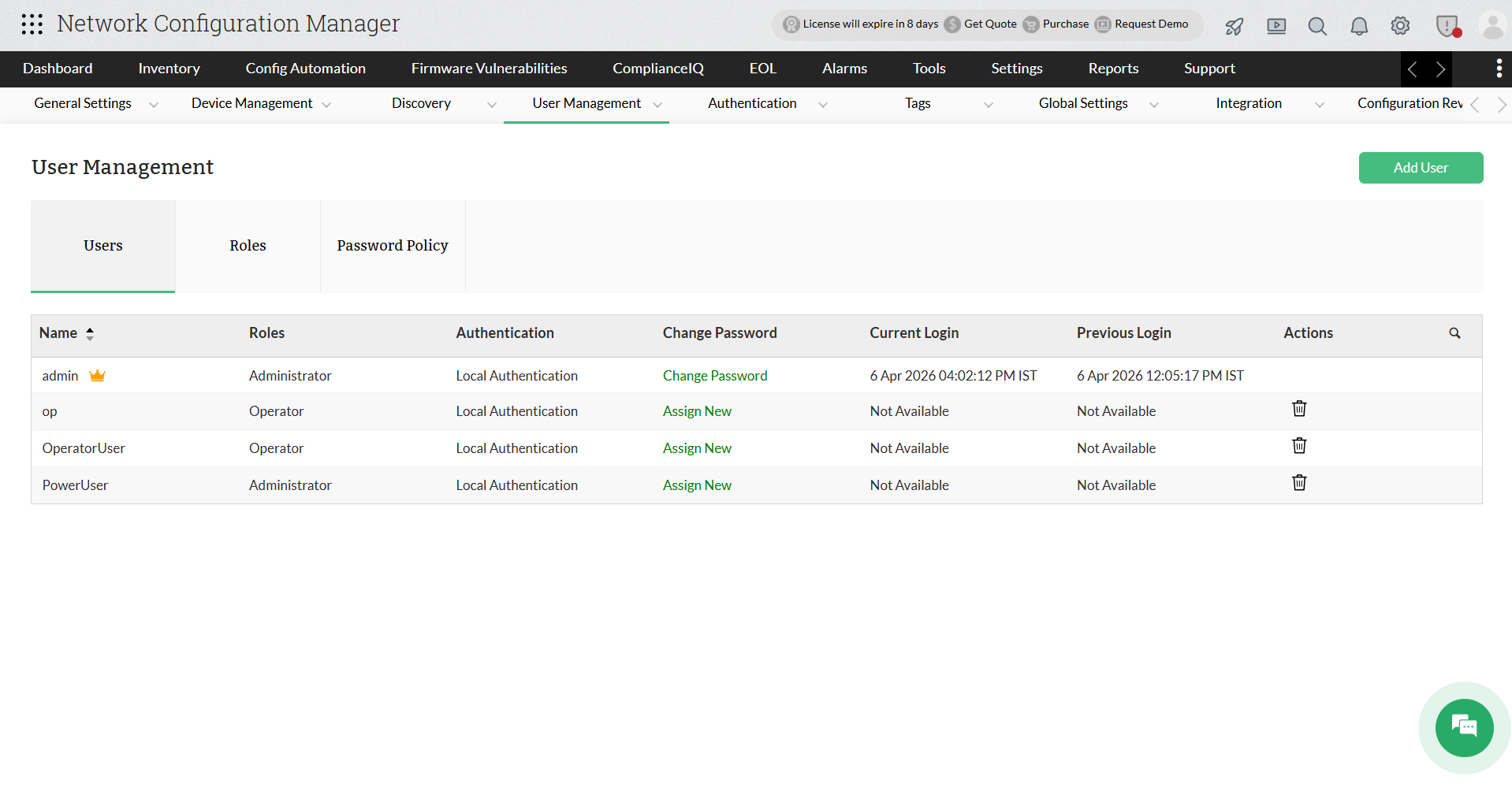
Steps to add a user
- Go to Settings → User Management → Users → Add User.
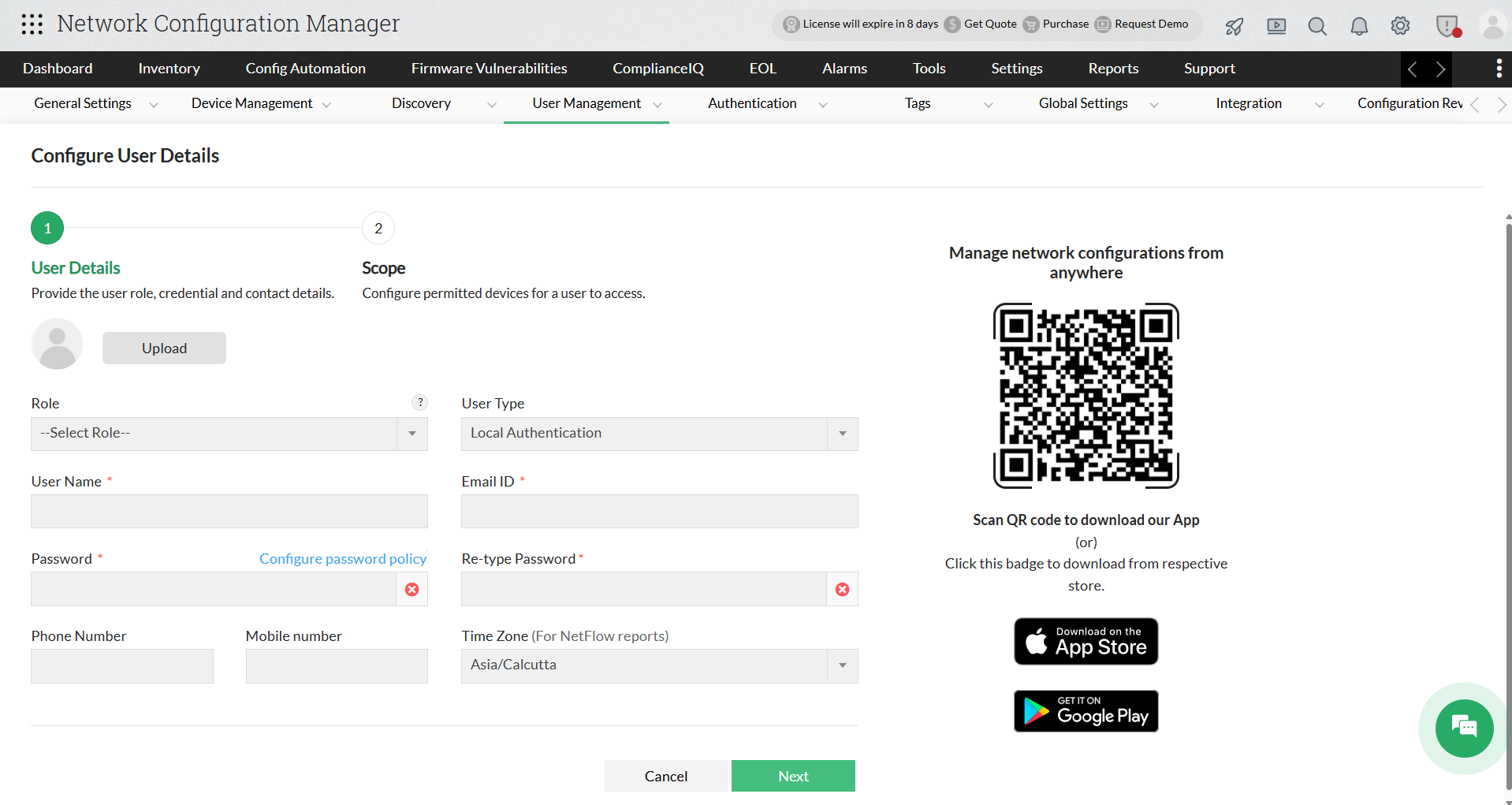
- In the Configure User Details tab, the first step is to provide user role, credential and contact details.
- Select user role in Role as Administrator or Operator from the drop down list.
- Select User Type from the drop down list:
- Local Authentication
- Radius Authentication
- AD Authentication
Add a local user
User Details:
- User Name: Provide a user name for the user.
- Password: Create a password for the above user
- Re-type Password: Retype the password for confirmation
- Phone Number: Enter the user's phone number
- Mobile Number: Enter the user's mobile number
- Email ID: Enter the user's mail ID
- Photo: Upload the user's photo if necessary
- Time Zone: Enter the Time zone of the user's location
- Click on "Next" to provide the scope.
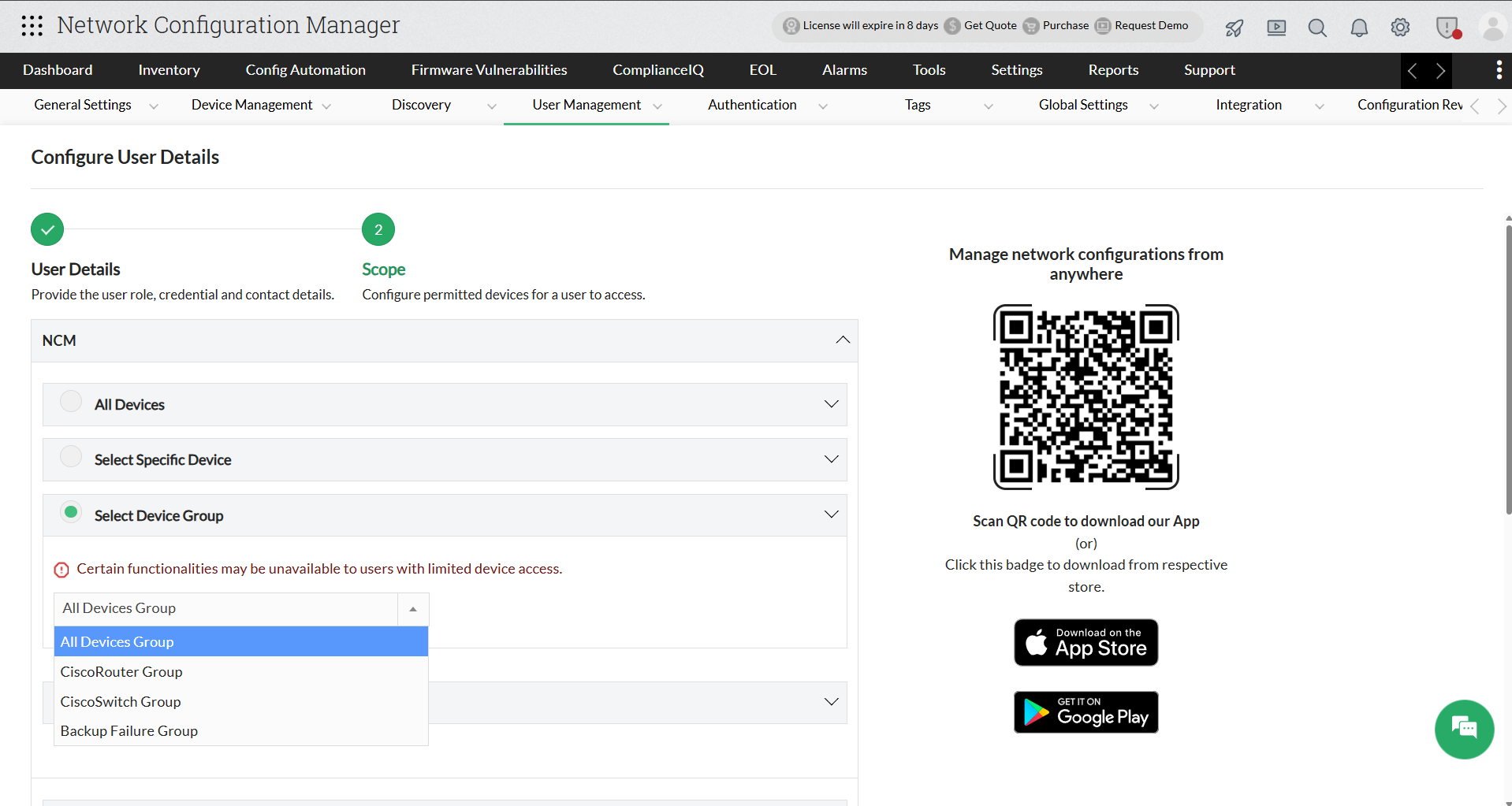
- Scope: You can provide this user an access to specific devices/device groups or all the device groups. If All Devices are selected, the user will have access to all the devices in Network Configuration Manager. If specific devices are selected, the user will be able to view and manage only those devices.
- Once the scope is defined, click on "save" to add the user.
Logout and try logging in as the new user and check the privileges.
Add a Radius user
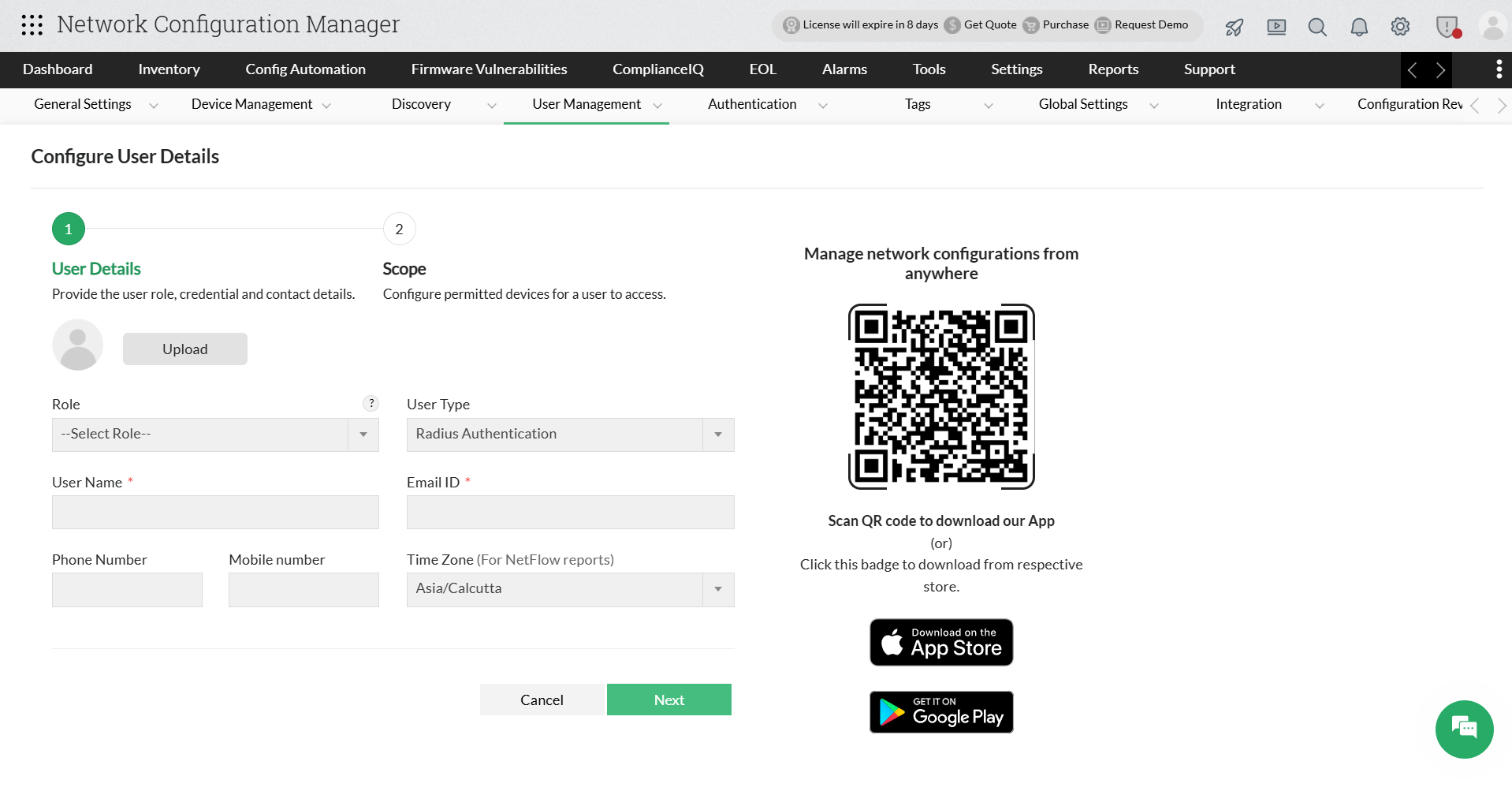
User Details:
- User Name: Name of the Radius user to be added
- Email ID: Email ID for the Radius user
- Phone Number: Enter the user's phone number
- Mobile Number: Enter the user's mobile number
- Time Zone: Enter the Time zone of the user's location
- Scope: You can provide this user an access to specific devices/device groups or all the device groups. If All Devices are selected, the user will have access to all the devices in Network Configuration Manager. If specific devices are selected, the user will be able to view and manage only those devices.
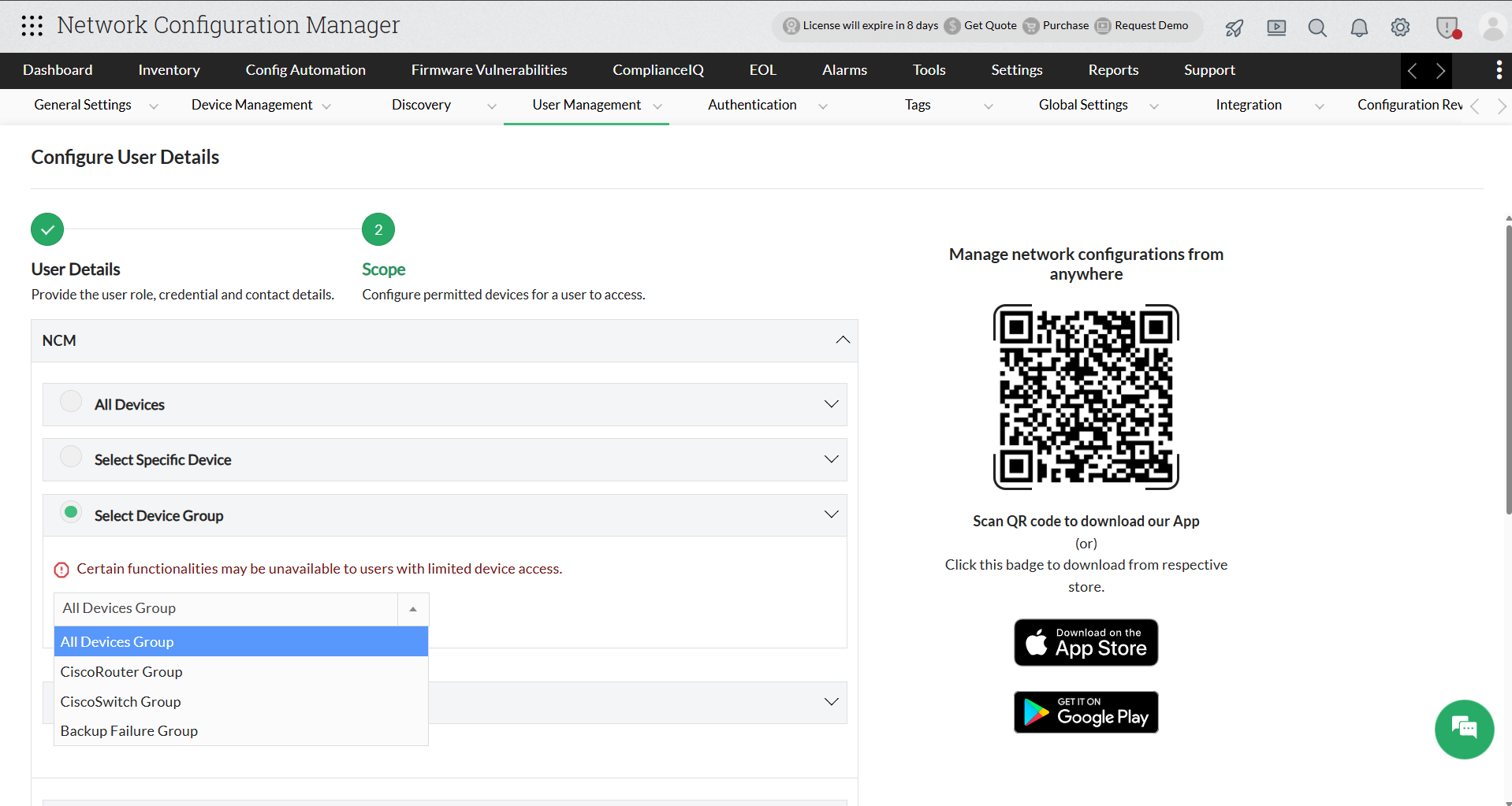
- Click on "save" to add the user according to the scope specified here.
Logout and try logging in as the new user and check the privileges.
Add an AD user
User Details:
- User Name - Name of the AD user to be added
- Email ID - Email ID for the AD user
- Phone Number: Enter the user's phone number
- Mobile Number: Enter the user's mobile number
- Domain Name: Select the desired AD domain from the list of available domains or Click Add Domain to add a new domain
- To add a new domain, provide the domain details such as - "Domain name" and "Domain Controller" and click "save" to add the new domain.
- Time Zone: Enter the Time zone of the user's location
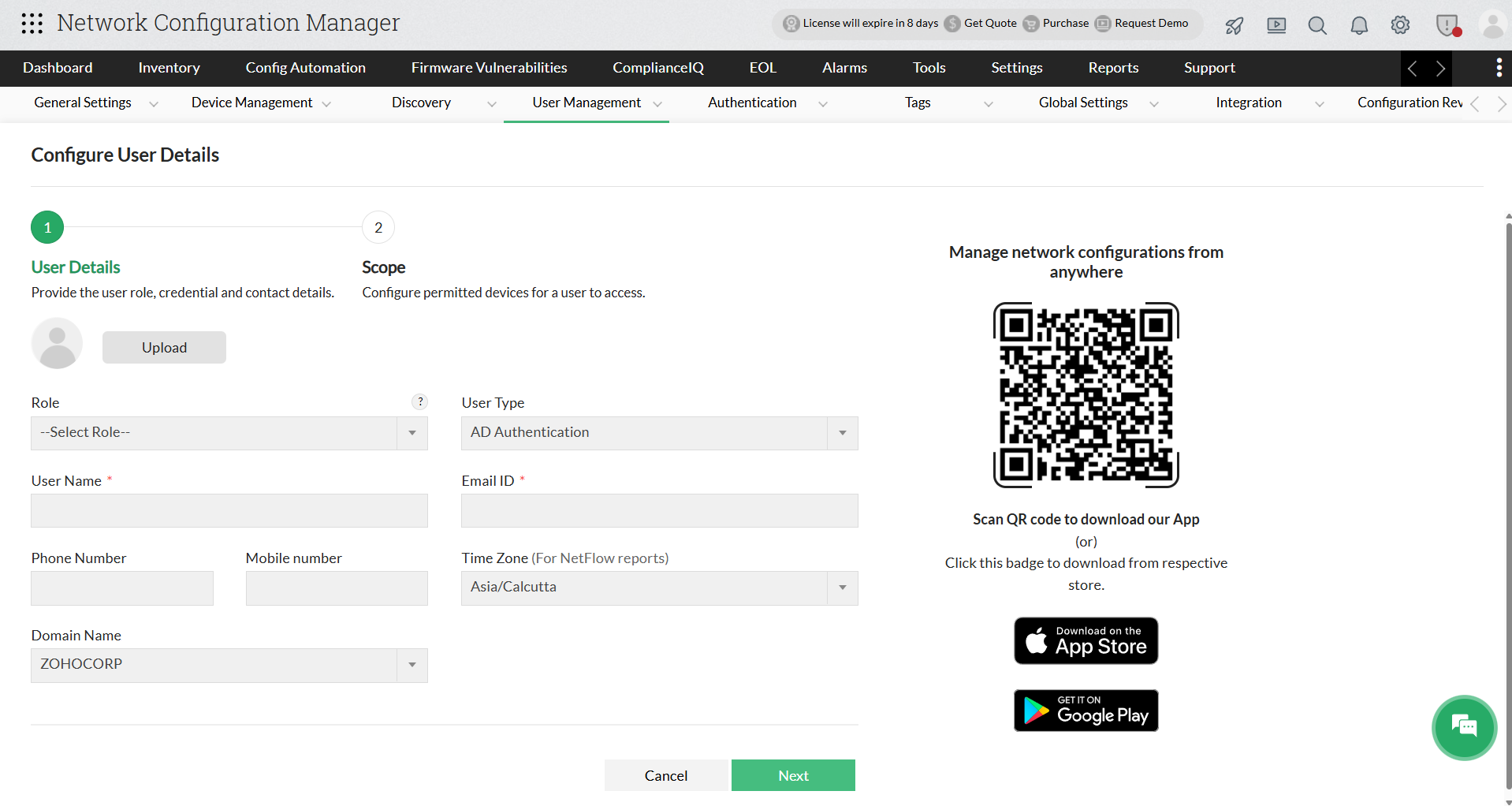
- Scope: You can provide this user an access to specific devices/device groups or all the device groups. If All Devices are selected, the user will have access to all the devices in Network Configuration Manager. If specific devices are selected, the user will be able to view and manage only those devices.
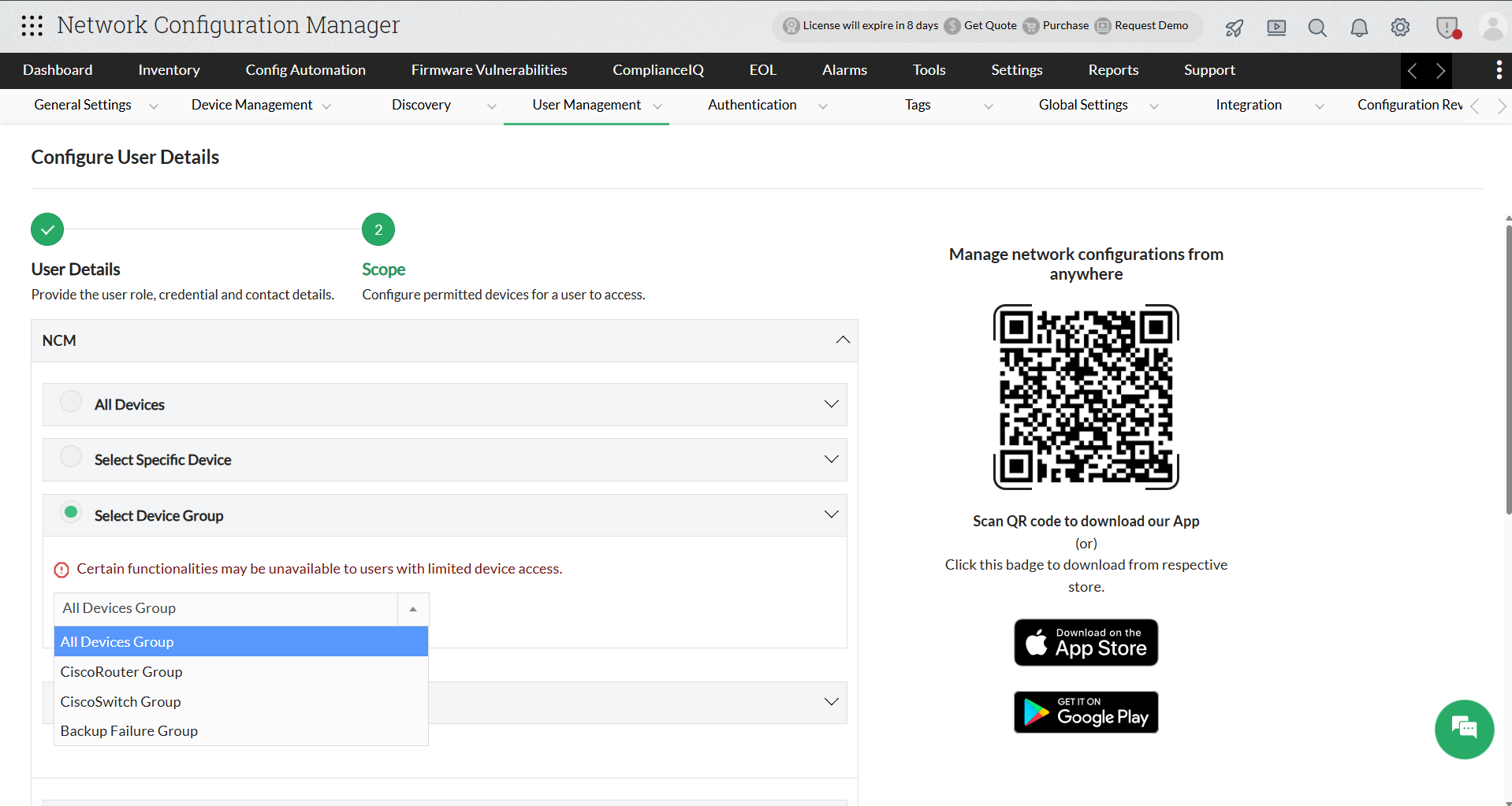
- Click "save" to add the user according to the scope specified here.
Logout and try logging in as the new user and check the privileges.
Feature access for users
Comparison of Feature Access to the Users
| Sl No | Feature Name | Administrator | Operator |
|---|---|---|---|
| 1 | User Management Create/Modify/Delete users | Yes | No |
| 2 | Trigger configuration backup | An admin user can trigger configuration backups for any device in his/her network. | An operator user can only backup configurations of devices assigned. |
| 3 | Make configuration changes | An admin user can make configuration changes in any device and directly upload the draft. He/she can also review changes made by operators and choose to reject/approve change. | An operator can only make configuration changes in the device assigned to him. Once he/she makes configuration changes, he/she can upload the draft. His/Her draft will be uploaded only when an admin approves the changes. |
| 4 | Edit/Delete Device | All devices | No |
| 5 | Dashboard View Customization | All devices | Only the devices assigned to the operator |
| 6 | Advanced Search | Yes | Yes |
| 7 | Enabling/Disabling Pass-Through authentication | Yes | No |
| 8 | Create compliance policies/apply policies to devices | An admin can create new compliance policies, apply on devices and run periodic compliance checks. | An operator can run compliance checks on devices assigned to him/her. He/She cannot create new compliance policies. |
| 9 | Edit configlets and push configlets to devices | Yes, he can push configlets to any device | Can edit configlet commands in all the devices assigned to him/her. Needs the approval of the admin to push the configlets |
| 10 | Firmware vulnerability assessment/Firmware upgrade | All devices | Operators cannot see the firmware vulnerability details. They need admin approval to upgrade firmware. |
| 11 | Scheduling configuration tasks | Can schedule any operation in any device without restrictions | Can schedule configuration operations in the device assigned to him/her. However, admin approval is required for scheduling configlet push operation alone. |
| 12 | Receive change notifications | All device configuration changes | He/She can receive change notifications for devices assigned to him/her. |
| 13 | Sync configurations | Yes | No |
| 14 | Configuration reports | Admin can generate all sorts of configuration reports | An operator can generate reports for devices assigned to him/her |
| 15 | Edit configuration settings | Yes | Yes |
| 16 |
| Yes | Operators can see only the "About" info |
| 17 | Startup-Running Conflict Report | Yes | Yes |
| 18 | Configuration Changes Report | Yes | Yes |
| 19 | Configuration Change Trend | Yes | Yes |
| 20 | Configuration Change Annotation Report | Yes | Yes |
| 21 | Configuration Analysis Report | Yes | No |
| 22 | Security Audit Report | Yes | No |
| 23 | Hardware Inventory Report | Yes | Yes |
| 24 | Device Inventory Report | Yes | Yes |
| 25 | Firmware Inventory Report | Yes | Yes |
| 26 | Network Health Status Report | Yes | Yes |
| 27 | Device Management Status | Yes | Yes |
| 28 | Device Audit | Yes | Yes |
| 29 | CVE ID Report | Yes | Yes |
| 30 | Exposed Devices Report | Yes | Yes |
| 31 | Firmware versions with vulnerabilities | Yes | Yes |
| 32 | User Access | Yes | No |
| 33 | Configuration Upload Request | Yes | No |
| 34 | User Audit | Yes | No |
| 35 | EOL/EOS Report | Yes | No |
| 36 | Compliance Report | Yes | Yes |
| 37 | Configuration Review Report | Yes | No |
| 38 | Custom Report | Yes | No |