Download Service Pack

  • OpManager
  • Applications Manager
  • NetFlow Analyzer
  • Network Configuration Manager
  • Firewall Analyzer
  • OpUtils
  • OpManager
  • Applications Manager
  • NetFlow Analyzer
  • Network Configuration Manager
  • Firewall Analyzer
  • OpUtils

OpManager - Build Number 12.8.736

  • General: Previously, Operator users were able to delete shared dashboards due to an access control validation issue. This issue has now been fixed. (Reported by Sus.)
  • General: Previously, from build 128524 onward, users were redirected to a blank page after session timeout due to an internal error. This issue has now been fixed.
  • General: Due to security reasons, certain special characters has been restricted from Dashboard name during dashboard creation and update.
  • General: Previously, an unauthenticated TCP relay to inventoried hosts vulnerability was identified in SparkGateway (Reported by Sus). This has now been rectified.
  • Enterprise Edition: Previously, from version 128658, switching the probe in the Unified Console View (UCV) caused the APM List page to open automatically in a new tab when the dashboard contained APM-based alarms. This issue has now been fixed.
  • Enterprise Edition: The query responsible for synchronizing monitor-to-device mappings between the Central Server and Probes has been optimized.
  • OpManager: Previously, an authenticated stored SQL injection vulnerability was identified in the Custom View feature (Reported by Sus). It has now been fixed.
  • OpManager: Previously, from version 12.8.707, there was an issue with hardware sensor data collection for VMware ESX servers and IPMI devices monitored via REST API. This issue has been fixed now.
  • OpManager: Previously, when custom CLI commands were configured for CLI Performance Monitor through XML, polling occasionally started with the default command or skipped execution due to missing configured commands. This issue has now been fixed.
  • OpManager: Previously, unexpected crashes occurred during self-monitoring data collection when host network switching occurred in specific environments. This issue has now been fixed.
  • OpManager: Previously, an authenticated Insecure Direct Object Reference (IDOR) vulnerability was identified in certain Load Balancer endpoints (Reported by Sus). This issue has now been fixed.
  • OpManager: Previously, metric values for Cisco devices were displayed incorrectly when the chassis-associated OID instance returned an empty value. This issue has now been fixed.
  • OpManager: Previously, in version 12.8.658, the Alarms widget did not display the details of APM plugin alarms correctly. This issue has now been fixed.
  • NCM: Previously, from version 12.8.665 onwards, old compliance data was not deleted during rule disassociation. This issue has now been fixed.
  • NCM: Previously, there was a Server-Side Template Injection vulnerability (CVE-2026-12370) in Configlet processing that could potentially lead to remote code execution (RCE). This issue has now been fixed. (Reported by C&N)
  • General: Previously, an issue occurred with AlarmsOne integration connectivity when a large number of alarms were generated at the same time. This issue has now been fixed.
  • Firewall: Support ID: 13362857 - User addition on the Central Server was failing from version 12.8.670 onwards. This issue has now been fixed.
  • OpUtils: Previously, from version 128623 onwards, IP Address Manager, Switch Port Mapper, and Rogue Detection Tool data was not populated correctly in the Central UI of the NetFlow Analyzer Enterprise setup. This issue has been fixed.
  • OpUtils: In Switch Port Mapper, from version 128567 onwards, the Scheduler skipped scanning some switches when Publish was enabled. This issue has been fixed.

Eligible Build Numbers: 12.8.000 and above.

OpManager Service Pack OpManager Download

* - To migrate from build numbers 12.4.000 to 12.4.196 to the latest build, click here.

* -SHA256 for the PPM: 986b7318402b876b7d6247ba7811a5d0b9ed41aa5dfa1dea833bf09b88ceea20


Read and accept the License Agreement before downloading this software.

Steps to upgrade Service Pack:

I. For builds 12.8.000 and above

  1. Shut down OpManager/NetFlow Analyzer/Network Configuration Manager/Firewall Analyzer/OpUtils. (If the application is running as a Windows service, stop the service from Control Panel > Services window and close the window.)
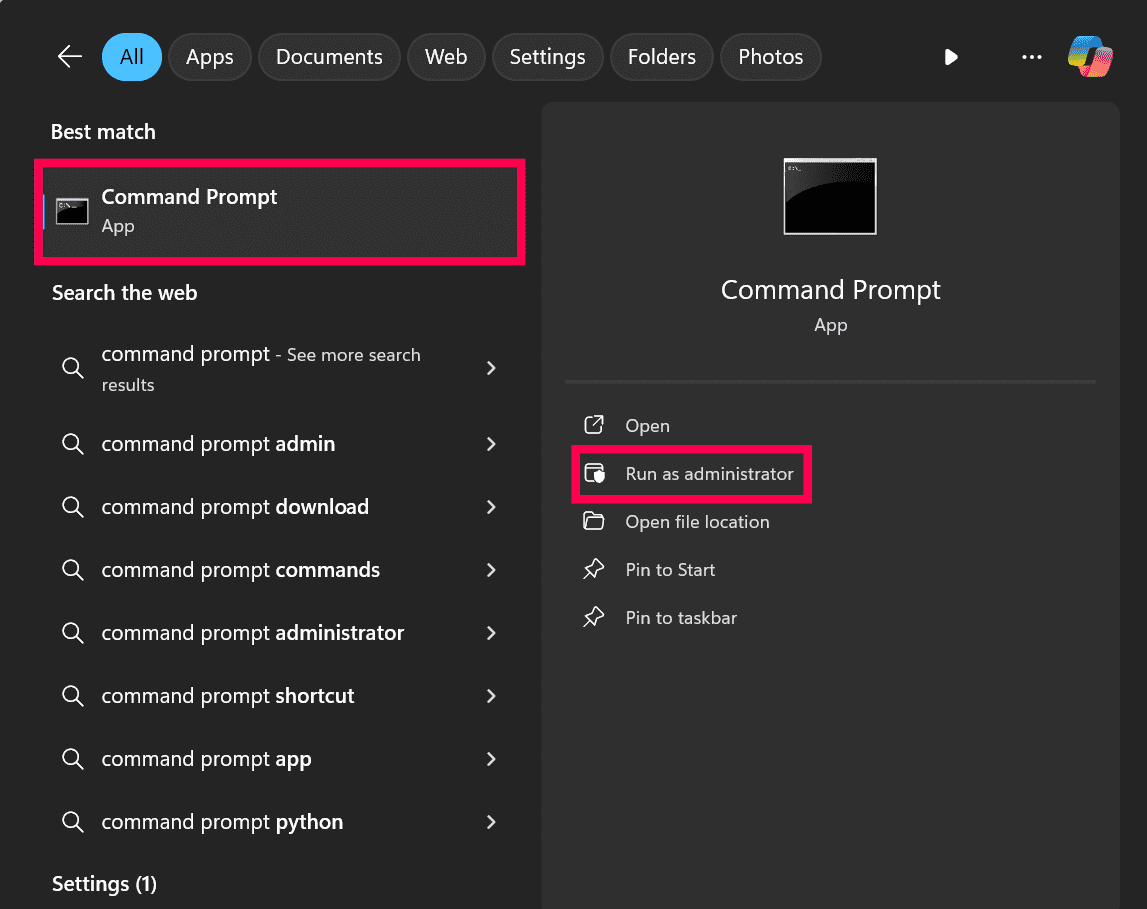
  2. Start the Command Prompt as an administrator: Search for “cmd”, right-click Command Prompt, then select Run as administrator.
  3. Backup database - click here. to know the steps.
  4. End the processes: Open the Task Manager and make sure the processes java.exe or wrapper.exe of the application are terminated.
  5. Backup the application folder. Make a copy of the '<OpManager-home-directory>' folder. This will back up the product configuration settings.
  6. Launch Update Manager:
    1. Windows OS: Go to the <OpManager-home-directory>/bin folder and run the script UpdateManager.bat
    2. Linux OS: Go to the <OpManager-home-directory>/bin folder and run the script UpdateManager.sh
  7. Click the Browse button to select the upgrade pack file (the .ppm file that you downloaded) and choose Install.
  8. Follow the on-screen instructions to apply the service pack
  9. Once the upgrade is complete, start the service for the changes to take effect.

Note: Applications Manager plugin, if present, should be upgraded to version 14540 or above before upgrading OpManager from version 12.5 to 12.5.100 and higher versions.

II. For builds 12.7.000 to 12.7.317

Upgrade to build 12.8.004

To download 12.8.004, click here.

III. For builds 12.6.000 to 12.6.329

Upgrade to build 12.7.007

To download 12.7.007, click here.

IV. For builds 12.5.000 - 12.5.664

Upgrade to build 12.6.007

To download 12.6.007, click here.

V. For builds 12.4.000 - 12.4.196

Step 1: Upgrade to build 12.5.011

To download 12.5.011, click here.

** Points to note:

  • Back up your DB and VM snapshot folder before initiating the upgrade.
  • Antivirus has to be disabled until the upgrade is complete.
  • All files and folders under the <OpManagerHome>/pgsql directory should be closed before initiating the upgrade.
  • No file under the <OpManagerHome>/pgsql directory should be opened during the upgrade process.
  • The free disk space should be greater than 1.25x the size of the <OpManagerHome>/pgsql/data folder.

Step 2: Upgrade to build 12.5.383

** Points to note:

  • You will not be able to upgrade from build 12.5.011 to 12.5.383 if the historical migration is not complete.
  • The migration details can be checked under Settings > General Settings > Migration Status.
  • Applications Manager plugin, if present, should be upgraded to version 14540 or above before upgrading OpManager from version 12.5 to 12.5.100 and higher versions.

Applications Manager Build Number 180900

Upgrade to the latest PPM with feature enhancements and recent bug fixes.

Applications Manager Service Pack Applications Manager Download

* -SHA256 for the PPM: 035da7c12a6cbcb7dbf6dd012f0ba3c514c4d308b6616e7916374a3cb40f7135

* - This pack can be updated directly by users with Build No. 170000 & above.
* - For older versions, visit this page.

Read and accept the License Agreement before downloading this software.

Steps to update service pack:

  1. Shut down Applications Manager as you normally do.
  2. Start command prompt as an administrator. View screenshot
  3. Via command prompt, execute the shutdownApplicationsManager.bat -force command (shutdownApplicationsManager.sh -force for Linux) from the 'Applications Manager Home' folder.
  4. As a best practice, take complete backup of 'Applications Manager Home' directory. SQL backend users should connect to SQL Management Studio & backup the AMDB database as well. click here. to know how to backup SQL database.
  5. Run the updateManager.bat script (updateManager.sh -c for Linux) under the 'Applications Manager Home/bin' folder which invokes the Update Manager tool.
  6. Browse and select the Service pack file (.ppm) saved in your computer.
  7. You might be asked to import the ManageEngine public key certificate (ppmsigner_publickey.crt) file during the upgrade process. If asked, download the certificate file, then browse and select the downloaded file to proceed further.
    Note: This is a one-time process done to verify the integrity of the service pack (.ppm) file.
  8. Click Install to initiate the upgrade process.
  9. Once you see the "Installed" message on your screen, click Finish to complete the installation.
  10. Start Applications Manager Server.

Note: To rollback to the old version, rename the existing 'Applications Manager Home' directory and restore the complete backup copy of this directory. SQL backend users should connect to SQL Management Studio & restore the AMDB database backup as well. Click here to know how to restore the SQL database backup.

NetFlow Analyzer - Build Number 12.8.736

Eligible Build Numbers: 12.8.000 and above.

NetFlow Analyzer Service Pack NetFlow Analyzer Download

* - To migrate from build numbers 12.4.000 to 12.4.196 to the latest build, click here.

* -SHA256 for the PPM: 986b7318402b876b7d6247ba7811a5d0b9ed41aa5dfa1dea833bf09b88ceea20


Read and accept the License Agreement before downloading this software.

Steps to upgrade Service Pack:

I. For builds 12.8.000 and above

  1. Shut down OpManager/NetFlow Analyzer/Network Configuration Manager/Firewall Analyzer/OpUtils. (If the application is running as a Windows service, stop the service from Control Panel > Services window and close the window.)
  2. Start the Command Prompt as an administrator: Search for “cmd”, right-click Command Prompt, then select Run as administrator.
  3. Backup database - click here. to know the steps.
  4. End the processes: Open the Task Manager and make sure the processes java.exe or wrapper.exe of the application are terminated.
  5. Backup the application folder. Make a copy of the '<OpManager-home-directory>' folder. This will back up the product configuration settings.
  6. Launch Update Manager:
    1. Windows OS: Go to the <OpManager-home-directory>/bin folder and run the script UpdateManager.bat
    2. Linux OS: Go to the <OpManager-home-directory>/bin folder and run the script UpdateManager.sh
  7. Click the Browse button to select the upgrade pack file (the .ppm file that you downloaded) and choose Install.
  8. Follow the on-screen instructions to apply the service pack
  9. Once the upgrade is complete, start the service for the changes to take effect.

II. For builds 12.7.000 to 12.7.317

Upgrade to build 12.8.004

To download 12.8.004, click here.

III. For builds 12.6.000 to 12.6.329

Upgrade to build 12.7.006

To download 12.7.006, click here.

IV. For builds 12.5.000 - 12.5.664

Upgrade to build 12.6.007

To download 12.6.007, click here.

V. For builds 12.4.000 - 12.4.196

Step 1: Upgrade to build 12.5.011

To download 12.5.011, click here.

** Points to note:

  • Back up your DB and VM snapshot folder before initiating the upgrade.
  • Antivirus has to be disabled until the upgrade is complete.
  • All files and folders under the <OpManagerHome>/pgsql directory should be closed before initiating the upgrade.
  • No file under the <OpManagerHome>/pgsql directory should be opened during the upgrade process.
  • The free disk space should be greater than 1.25x the size of the <OpManagerHome>/pgsql/data folder.

Step 2: Upgrade to build 12.5.383

** Points to note:

  • You will not be able to upgrade from build 12.5.011 to 12.5.383 if the historical migration is not complete.
  • The migration details can be checked under Settings > General Settings > Migration Status.

Network Configuration Manager - Build Number 12.8.736

Eligible Build Numbers: 12.8.000 and above.

Network Configuration Manager Service Pack Network Configuration Manager Download

* - To migrate from build numbers 12.4.000 to 12.4.196 to the latest build, click here.

* -SHA256 for the PPM: 986b7318402b876b7d6247ba7811a5d0b9ed41aa5dfa1dea833bf09b88ceea20

Read and accept the License Agreement before downloading this software.

Steps to upgrade Service Pack:

I. For builds 12.8.000 and above

  1. Shut down OpManager/NetFlow Analyzer/Network Configuration Manager/Firewall Analyzer/OpUtils. (If the application is running as a Windows service, stop the service from Control Panel > Services window and close the window.)
  2. Start the Command Prompt as an administrator: Search for “cmd”, right-click Command Prompt, then select Run as administrator.
  3. Backup database - click here. to know the steps.
  4. End the processes: Open the Task Manager and make sure the processes java.exe or wrapper.exe of the application are terminated.
  5. Backup the application folder. Make a copy of the '<OpManager-home-directory>' folder. This will back up the product configuration settings.
  6. Launch Update Manager:
    1. Windows OS: Go to the <OpManager-home-directory>/bin folder and run the script UpdateManager.bat
    2. Linux OS: Go to the <OpManager-home-directory>/bin folder and run the script UpdateManager.sh
  7. Click the Browse button to select the upgrade pack file (the .ppm file that you downloaded) and choose Install.
  8. Follow the on-screen instructions to apply the service pack
  9. Once the upgrade is complete, start the service for the changes to take effect.

II. For builds 12.7.000 to 12.7.317

Upgrade to build 12.8.004

To download 12.8.004, click here.

III. For builds 12.6.000 to 12.6.329

Upgrade to build 12.7.006

To download 12.7.006, click here.

IV. For builds 12.5.000 - 12.5.664

Upgrade to build 12.6.007

To download 12.6.007 click here.

V. For builds 12.4.000 - 12.4.196

Step 1: Upgrade to build 12.5.011

To download 12.5.011, click here.

** Points to note:

  • Back up your DB and VM snapshot folder before initiating the upgrade.
  • Antivirus has to be disabled until the upgrade is complete.
  • All files and folders under the <OpManagerHome>/pgsql directory should be closed before initiating the upgrade.
  • No file under the <OpManagerHome>/pgsql directory should be opened during the upgrade process.
  • The free disk space should be greater than 1.25x the size of the <OpManagerHome>/pgsql/data folder.

Step 2: Upgrade to build 12.5.383

** Points to note:

  • You will not be able to upgrade from build 12.5.011 to 12.5.383 if the historical migration is not complete.
  • The migration details can be checked under Settings > General Settings > Migration Status.

Firewall Analyzer - Build Number 12.8.736

Eligible Build Numbers: 12.8.000 and above.

Firewall Analyzer Service Pack Firewall Analyzer Download

* - To migrate from build numbers 12.4.000 to 12.4.196 to the latest build, click here.

* -SHA256 for the PPM: 986b7318402b876b7d6247ba7811a5d0b9ed41aa5dfa1dea833bf09b88ceea20

Read and accept the License Agreement before downloading this software.

Steps to upgrade Service Pack:

I. For builds 12.8.000 and above

  1. Shut down OpManager/NetFlow Analyzer/Network Configuration Manager/Firewall Analyzer/OpUtils. (If the application is running as a Windows service, stop the service from Control Panel > Services window and close the window.)
  2. Start the Command Prompt as an administrator: Search for “cmd”, right-click Command Prompt, then select Run as administrator.
  3. Backup database - click here. to know the steps.
  4. End the processes: Open the Task Manager and make sure the processes java.exe or wrapper.exe of the application are terminated.
  5. Backup the application folder. Make a copy of the '<OpManager-home-directory>' folder. This will back up the product configuration settings.
  6. Launch Update Manager:
    1. Windows OS: Go to the <OpManager-home-directory>/bin folder and run the script UpdateManager.bat
    2. Linux OS: Go to the <OpManager-home-directory>/bin folder and run the script UpdateManager.sh
  7. Click the Browse button to select the upgrade pack file (the .ppm file that you downloaded) and choose Install.
  8. Follow the on-screen instructions to apply the service pack
  9. Once the upgrade is complete, start the service for the changes to take effect.

II. For builds 12.7.000 to 12.7.317

Upgrade to build 12.8.004

To download 12.8.004, click here.

III. For builds 12.6.000 to 12.6.329

Upgrade to build 12.7.007

To download 12.7.007, click here.

IV. For builds 12.5.000 - 12.5.664

Upgrade to build 12.6.007

To download 12.6.007, click here.

V. For builds 12.4.000 - 12.4.196

Step 1: Upgrade to build 12.5.011

To download 12.5.011, click here.

** Points to note:

  • Back up your DB and VM snapshot folder before initiating the upgrade.
  • Antivirus has to be disabled until the upgrade is complete.
  • All files and folders under the <OpManagerHome>/pgsql directory should be closed before initiating the upgrade.
  • No file under the <OpManagerHome>/pgsql directory should be opened during the upgrade process.
  • The free disk space should be greater than 1.25x the size of the <OpManagerHome>/pgsql/data folder.

Step 2: Upgrade to build 12.5.383

** Points to note:

  • You will not be able to upgrade from build 12.5.011 to 12.5.383 if the historical migration is not complete.
  • The migration details can be checked under Settings > General Settings > Migration Status.

OpUtils - Build Number 12.8.736

Eligible Build Numbers: 12.8.000 and above.

OpUtils Service Pack OpUtils Download

* - To migrate from build numbers 12.4.000 to 12.4.196 to the latest build, click here.

* -SHA256 for the PPM: 986b7318402b876b7d6247ba7811a5d0b9ed41aa5dfa1dea833bf09b88ceea20

Read and accept the License Agreement before downloading this software.

Steps to upgrade Service Pack:

I. For builds 12.8.000 and above

  1. Shut down OpManager/NetFlow Analyzer/Network Configuration Manager/Firewall Analyzer/OpUtils. (If the application is running as a Windows service, stop the service from Control Panel > Services window and close the window.)
  2. Start the Command Prompt as an administrator: Search for “cmd”, right-click Command Prompt, then select Run as administrator.
  3. Backup database - click here. to know the steps.
  4. End the processes: Open the Task Manager and make sure the processes java.exe or wrapper.exe of the application are terminated.
  5. Backup the application folder. Make a copy of the '<OpManager-home-directory>' folder. This will back up the product configuration settings.
  6. Launch Update Manager:
    1. Windows OS: Go to the <OpManager-home-directory>/bin folder and run the script UpdateManager.bat
    2. Linux OS: Go to the <OpManager-home-directory>/bin folder and run the script UpdateManager.sh
  7. Click the Browse button to select the upgrade pack file (the .ppm file that you downloaded) and choose Install.
  8. Follow the on-screen instructions to apply the service pack
  9. Once the upgrade is complete, start the service for the changes to take effect.

II. For builds 12.7.000 to 12.7.317

Upgrade to build 12.8.004

To download 12.8.004, click here.

III. For builds 12.6.000 to 12.6.329

Upgrade to build 12.7.006

To download 12.7.006, click here.

IV. For builds 12.5.000 - 12.5.664

Upgrade to build 12.6.007

To download 12.6.007, click here.

V. For builds 12.4.000 - 12.4.196

Step 1: Upgrade to build 12.5.011

To download 12.5.011, click here.

** Points to note:

  • Back up your DB and VM snapshot folder before initiating the upgrade.
  • Antivirus has to be disabled until the upgrade is complete.
  • All files and folders under the <OpManagerHome>/pgsql directory should be closed before initiating the upgrade.
  • No file under the <OpManagerHome>/pgsql directory should be opened during the upgrade process.
  • The free disk space should be greater than 1.25x the size of the <OpManagerHome>/pgsql/data folder.

Step 2: Upgrade to build 12.5.383

** Points to note:

  • You will not be able to upgrade from build 12.5.011 to 12.5.383 if the historical migration is not complete.
  • The migration details can be checked under Settings > General Settings > Migration Status.