Troubleshooting Errors in Windows Updates
Learn how to troubleshoot and resolve common Windows Update errors, such as component store corruption, missing files, or .NET update failures.
Problem
At times, you may encounter an error during the installation of Windows updates.
Applies to
- Error code: -4294965695
- Error code: -2145116147
- Error code: -2145124318
- Error code: -2145124322
- Error code: -2145124348
- Error code: -2146498172
- Error code: -2146498173
- Error code: -2146498304
- Error code: -2146762496
- Error code: -1906441913
- Error code: -2146498170
- Error code: -2146498168
- Error code: -2145099757
- Error code: -2146498547
- Error code: -2146498171
- Error code: -1073740791
- Error code: -2145124345
- Error code: -2145124333
- Error code: -2145124338
- Error code: -2145091565
- Error code: -2146498513
- Error code: -2146498299
- Error code: -2145099760
- Error code: -2146498530
- Error code: -1073741807
- Error code: -2145124323
- Error code: -2146885628
- Error code: -1073741819
- Error code: -2147024816
- Error code: -2145099774
- Error code: -2146498160
- Error code: -1906440620
- Error code: -2147956481
- Error code: -1906441221
- Error code: -1906441208
- Error code: -1906441222
- Error code: -2145091564
- Error code: -2146498174
- Error code: -2147219196
- Error code: -2145099769
- Error code: -2146498159
- Error code: -1047526399
- Error code: -1906441223
- Error code: -1072365564
- Error code: -1073740760
- Error code: -14081
- Error code: -2145124297
- Error code: -2145124341
- Error code: -2146498167
- Error code: -2146498529
- Cannot find object or property
- Catastrophic failure
- The referenced assembly could not be found
- Incorrect function
- Data error [cyclic redundancy check]
- The component store has been corrupted
- No signature was present in the subject
- Specific file not found
- The file or directory is corrupted and unreadable
- Transaction support within the specified resource manager is not started or was shutdown due to an error
- The service did not start due to a logon failure
- The Data is Invalid
- Reached the end of the file
- One or more required members of the transaction are not present
- Element not found
- OLE received a packet with an invalid header
- Class does not exist
- The directory name is invalid
- The Configuration Registry Database is Corrupt
- The request failed due to a fatal device hardware error
- The WOF driver encountered a corruption in the compressed file's Resource Table
- An illegal character was encountered. For a multi-byte character set this includes a lead byte without a succeeding trail byte. For the Unicode character set this includes the characters 0xFFFF and 0xFFFE
- Windows was unable to parse the requested XML data
- No such interface supported
- The timestamp signature and/or certificate could not be verified or is malformed
- An error occurred closing file. Please check the file to make sure it is not corrupted.
- The file exists
- The specified buffer contains ill-formed data
- An identity contains two definitions for the same attribute
- Transaction support within the specified resource manager is not started or was shut down due to an error
- The parameter is incorrect
- Class not registered
- The WOF driver encountered a corruption in the compressed file's Resource Table
- The system cannot find the file specified. Error code: 2
- Unspecified error
- An attempt was made to create more links on a file than the file system supports
- One or more errors occurred while processing the request
- The interface is unknown
0x8007000D (-2147024883) means The data is invalid. Check the failure stage. For package or download validation, see Invalid-data patch installation troubleshooting.
-2145124329 (0x80240017, WU_E_NOT_APPLICABLE) means the update is not applicable. Check OS build, edition, architecture, prerequisites, and whether it is already installed. This code alone does not indicate component-store corruption. See patch applicability checks.
Cause
The result -2146498169 corresponds to 0x800F0987 (PSFX_E_NULL_DELTA_HYDRATION_FAILED). Record the Windows build, KB or Patch ID, and matching Windows servicing logs. Check Microsoft's repair guidance for that operating system. Do not choose a repair only because nearby error numbers appear in this article. Microsoft's matched error guidance for Azure Windows Server VMs is limited to that environment and does not cover Windows client scenarios.
Corrupted or missing Windows Update component files can prevent detection, download, or installation and cause repeated servicing failures. Check the exact error and failure stage before selecting a repair procedure. Invalid package data or an inapplicable update does not by itself establish component-store corruption. Retain the full error and Windows servicing logs if the cause is unclear.
For an unlisted vendor installer result, including an unknown negative result from an application or driver installer, follow Other Installation Failures. Record the exact numeric result, Patch ID, product/version, and failure time, and provide the installer and agent logs. Check vendor-specific guidance before applying a Windows servicing repair.
Resolution
Choose the relevant procedure:
For Windows .NET updates
- Search for patch ID 108183 - Microsoft .NET Framework Repair Tool in Supported Patches. If it is not listed, go to Patch Database Settings → Windows, enable Optional Updates, and search again.
- Select the patch and click Install patch.
- Deploy the configuration to the affected targets.
- After successful execution, retry the failed patches.
If the issue persists:
- Uninstall and reinstall the affected .NET Framework version, where appropriate.
- Restart the system, perform a patch scan, and deploy the failed patches if they remain in Missing Patches.
- If the issue still persists, follow the Windows OS update resolution below.
For Windows OS updates
If repair does not resolve the failure, retain its deployment result and record the original Patch ID or KB, full error, Windows build, and reboot/retry result. Collect affected agent action logs and Windows servicing logs. Do not extend the ISO-based client repair procedure below to Windows Server. For server servicing diagnosis, see Microsoft's Windows Server invalid-data troubleshooting.
- Search for Component Store Cleanup (Patch ID: 105979) in Supported Patches. If it is not listed, go to Patch Database Settings > Windows, enable Optional Updates, and search again. Follow the Component Store Cleanup procedure. This update is distinct from the OS-specific Windows update component restore updates below.
- Select the patch and click Install patch.
- Deploy the configuration to affected targets.
- After successful execution, retry the failed patches.
If the issue persists, deploy the Windows update component restore patch using Patch Manager Plus. This repair is intended to address operating-system servicing issues without removing user data; back up important data before performing OS repair operations.
Downloading the ISO file
Applicable from build 2605 and above: Manual ISO upload is not mandatory for Windows update component restore.
Key points:
- Dependency patches do not appear in the Uploaded Patches view by default.
- The system automatically handles ISO download and deployment during restore.
- If ISO download fails, the dependency patch appears in Uploaded Patches for manual intervention.
- If a previously uploaded ISO is available, deployment continues using that file.
- If previously uploaded patches are later deleted, the dependency patch does not appear in Uploaded Patches but is automatically downloaded again on the next deployment attempt.
- When manual upload is required, download the Windows ISO from VLSC through Microsoft 365 Admin Center or MSDN.
- You can also obtain eligible ISO media from the Microsoft Software Download Center, subject to licensing requirements.
- Ensure that the ISO matches the target computer's edition, architecture, version, and OS language.
Deploying the Windows update component restore patch using Patch Manager Plus
If the console lists the Windows update component restore update as a Feature Pack, locate it in Feature Packs and follow the OS-specific ISO selection or upload procedure.
Manual ISO upload (when required):
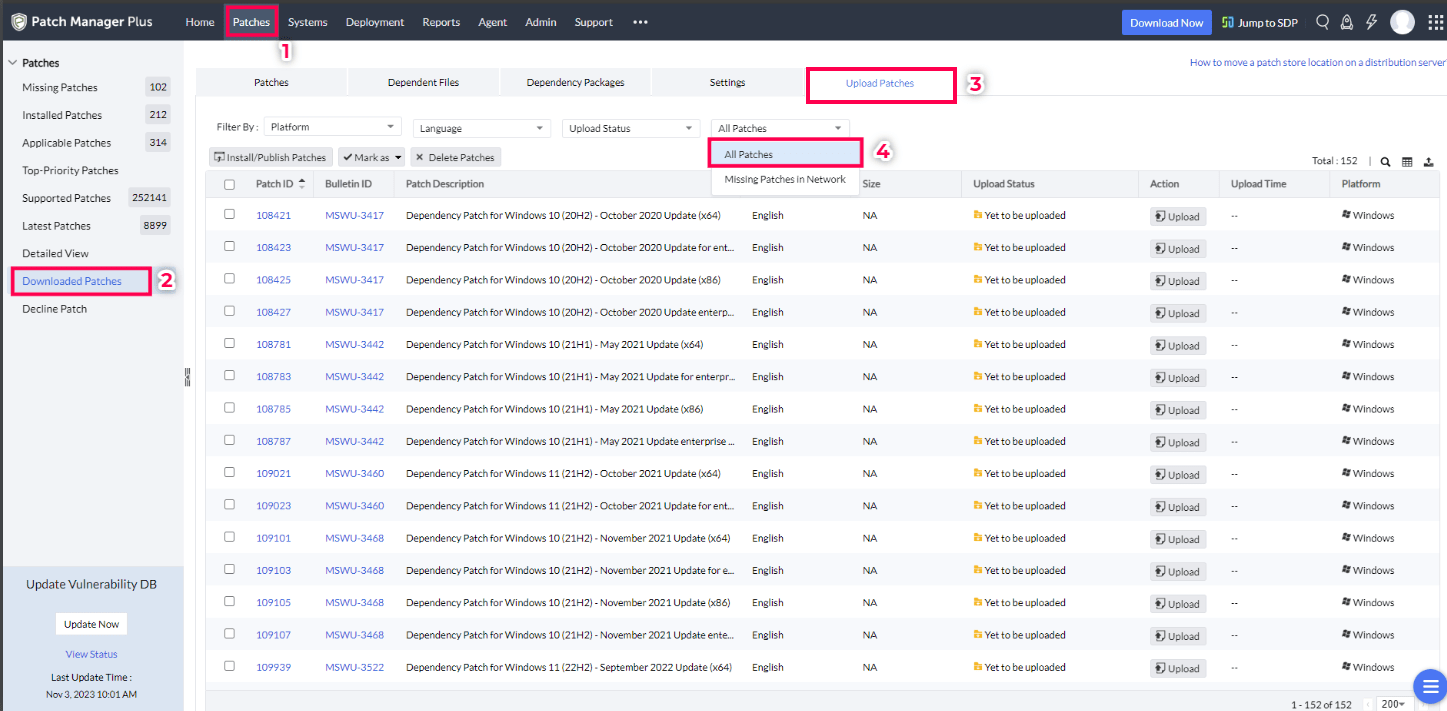
- Navigate to Patches → Downloaded Patches → Upload Patches and select All Patches in the filter.
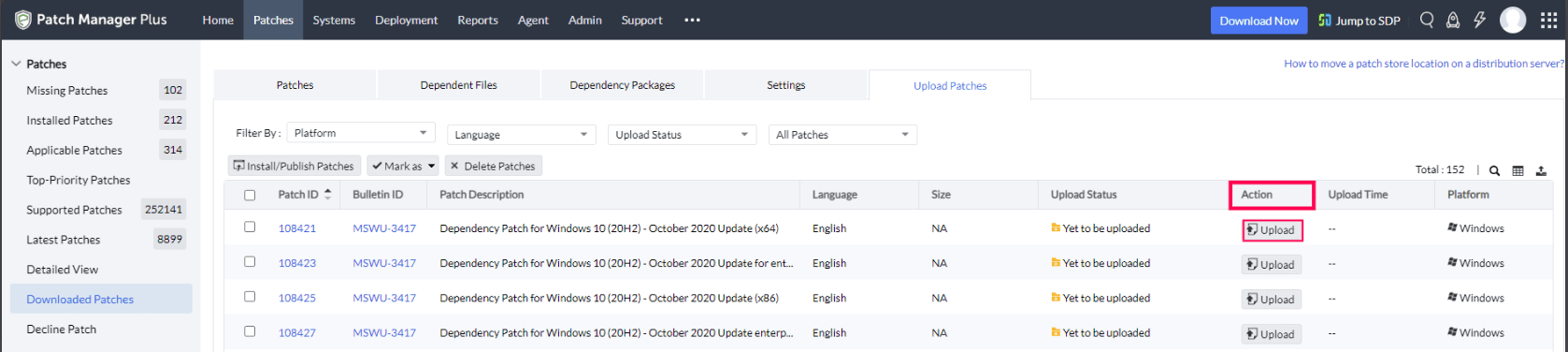
- Find the required dependency patch and click Upload in the Action column.
- Select the ISO file, choose a checksum type, and enter the checksum value.
If integrity validation fails, compare the exact dependency, ISO format and checksum required by that update before uploading again. Follow upload checksum checks; for a failed transfer-integrity check, use download checksum checks.
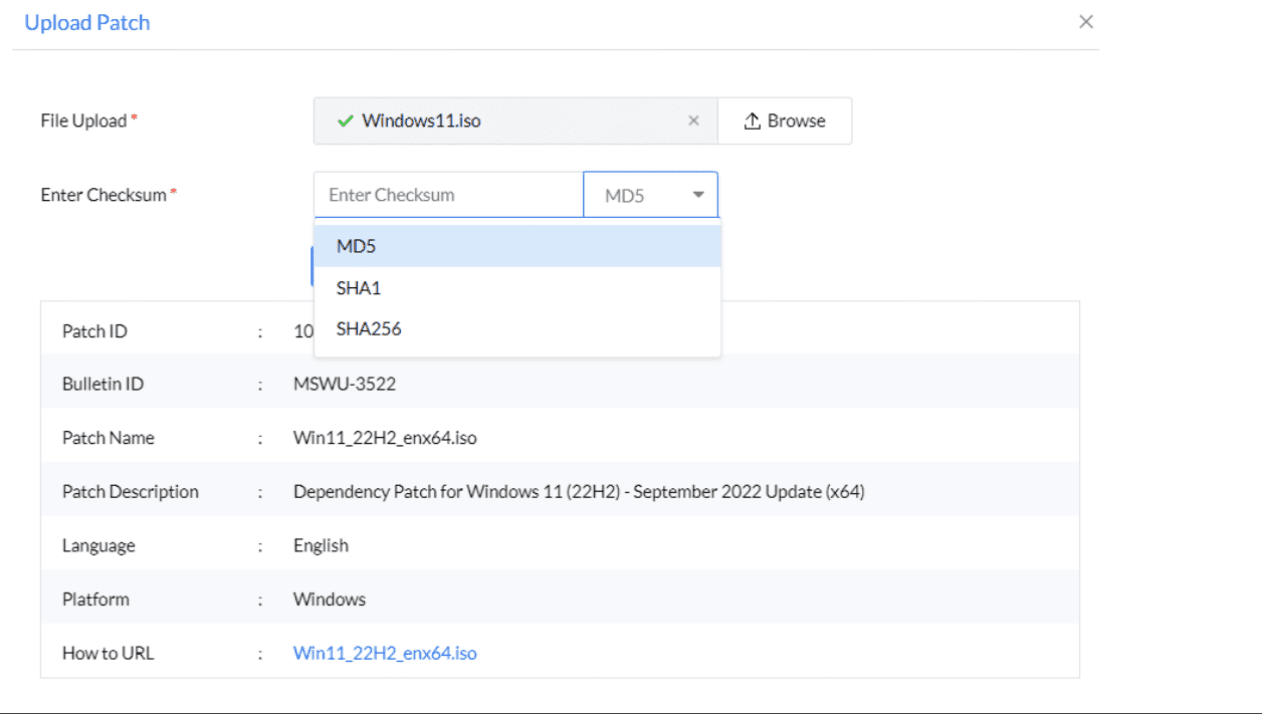
- Once the checksum is validated, click Upload. For checksum calculation, refer here.
- After uploading the dependency patch, deploy the matching Windows update component restore patch from Feature Packs if it is listed there; otherwise use the applicable update view, including Supported Patches on consoles that list it there.
If the Windows update still fails after repair and a manual installation also fails, contact Microsoft or the OS vendor for further diagnosis.