SSH CLI-Based APIs in PAM360
SSH CLI-based APIs are widely used in IT infrastructure management where secure access to sensitive systems is essential. They enable seamless automation of administrative tasks, reducing the need for manual intervention and improving overall system efficiency. APIs based on SSH CLI (Command Line Interface) offer a powerful and secure method for automating and managing remote systems over a secure shell connection. Unlike traditional RESTful or HTTP-based APIs, SSH CLI-based APIs leverage the Secure Shell (SSH) protocol, which provides encrypted communication between client and server. This type of API allows developers and system administrators to execute commands and perform administrative tasks on remote machines through programmatic access to the SSH protocol.
Setting up CLI for Scripts over SSH involves a following few operations. At the end of the document you will have learned about the following sections:
- Creating SSH CLI API User Accounts in PAM360
- Configuring the SSH Server
- Configuring the Client to Enable Applications Access to PAM360
- Commands for Application-to-Application Password Management
- Accessing PAM360 Secondary Server for Application-to-Application Password Management
- Troubleshooting Tips
1. Creating SSH CLI API User Accounts in PAM360
The first step in configuring and using password management APIs for Application-to-Application Password Management is to create SSH CLI API user accounts in PAM360. These accounts are dedicated to users who will access only the password management APIs.
Each API user account must be associated with a specific endpoint (either a server or a desktop) from which the API will be utilized. This ensures that user accounts are uniquely identified by their combination of username and hostname (e.g., `user@hostname`). This setup allows PAM360 to securely authenticate and track API users, ensuring precise control over access and activities.
For detailed instructions on how to create an SSH CLI API user account, refer to the PAM360 help documentation.
2. Configuring the SSH Server
PAM360 includes an integrated SSH server, which is essential for facilitating SSH CLI-based API interactions. By default, the SSH server runs on port 6622, but you can configure it to operate on a different port if needed. To utilize the password management API, the SSH server must be started and properly configured.
Follow these steps to configure the SSH server port and start the server:
- Navigate to Admin >> Configuration >> Password Management API.
- In the interface that opens, select SSH-CLI from the left-hand pane.
- Edit the SSH Server Port as desired and click Start SSHD Server to activate the SSH server.
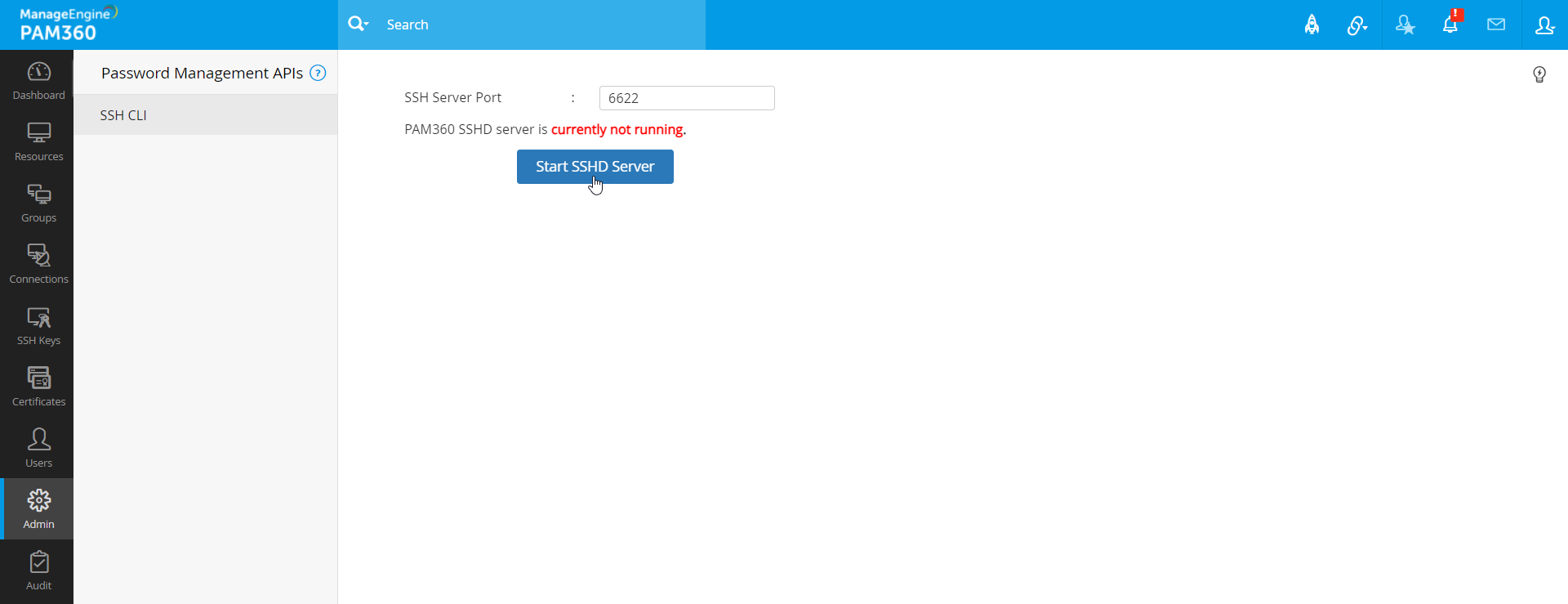
Once the SSH server is running, PAM360 will be ready to handle secure, command-line-based API interactions for password management.
3. Configurations on the Client Side to Enable Applications Access to PAM360
After creating the necessary API user accounts and starting the SSH server in PAM360, API users can access PAM360 to manage the passwords assigned to them. It is important to note that PAM360’s ownership and sharing mechanisms apply to API users as well, meaning they can only retrieve passwords, modify passwords, or create accounts that are specifically allocated to them. These operations are facilitated through PAM360's Password Management APIs.
3.1 How does the Access Work between the Client and PAM360 Server?
For secure authentication, each API user should hold/associated-with an SSH public-private key pair. The public key is known to the PAM360 server, while the private key remains with the user machine. The public keys allowed for authentication are listed in the `<PAM360_HOME>/<user_name>/.ssh/authorized_keys` file.
When a user attempts to log in, the SSH client specifies which key pair it wants to use for authentication. The PAM360 server verifies if the specified key is allowed. If permitted, the server sends a challenge i.e. a random number encrypted using the user’s public key. The user’s SSH client decrypts this challenge using their private key, proving ownership of the private key without ever disclosing it to the server. Once the challenge is successfully decrypted, the user is authenticated and granted access to perform password management operations within PAM360.
3.2 API Users Accessing PAM360 for Password Operations
As outlined above, API users are allowed to access PAM360 to retrieve passwords and perform other password-specific operations, but only from the designated host specified during the user creation process. Each API user is tied to a specific host (server or desktop), and PAM360 enforces this restriction for security purposes.
For password retrieval or any other password management operation, the application running on the specified host must connect to PAM360 via the SSH server. The SSH server serves as the intermediary, facilitating the secure connection between the application and PAM360 to handle password operations.
The SSH server can be accessed using any standard OpenSSH command. However, in addition to the standard SSH command, users must include PAM360-specific commands as shown below to perform the required password management tasks. This setup ensures a secure, controlled environment for managing passwords and performing sensitive operations through API-based interactions.
ssh -q[-p port] user@hostname [-i private_key][PAM360 specific command]
For Example: ssh -q-p 6622 test@test-server -i s/home/guest/id_rsa[PAM360 specific command]
For MSP Edition use the below command:
ssh -q[-p port] ORGNAME/user@hostname [-i private_key][PAM360 specific command]
For Example: ssh -q-p 6622MANAGEENGINE/test@test-server-i /home/guest/id_rsa[PAM360 specific command]
4. Specific Commands for Application-to-Application Password Management
For automatic A-to-A password management, you need to use specific commands in your application invoking the API. Use the following commands for the desired operations:
4.1 Retrieving a Password
ssh -q[-p port] user@hostname [-i private_key] RETRIEVE --resource=<RESOURCE NAME As present in PAM360> --account=<ACCOUNT NAME As Present in PAM360> --reason=<REASON For Password Access> --ticketid=<TICKET ID For Password Access>
For Example: ssh -q-p 6622 test@test-server-i /home/guest/id_rsa RETRIEVE --resource=test-server --account=root --reason=Testing password retrieval using ssh client API --ticketid=7
4.2 Resetting a Password
a. Local Password Reset
ssh -q[-p port] user@hostname [-i private_key] RESET_LOCAL --resource=<RESOURCE NAME AS PRESENT IN PAM360> --account=<ACCOUNT_NAME As Present in PAM360> --newpassword=<NEW PASSWORD> --reason=<Reason for Password Reset> --ticketid=<TICKET ID For Password Reset>
For Example: ssh -q-p 6622test@test-server-i /home/guest/id_rsa RESET_LOCAL --resource=test-server --account=root--newpassword=rootnew --reason=Rotating Password --ticketid=7
b. Remote Password Reset
ssh -q[-p port]user@hostname[-i private_key] RESET_REMOTE --resource=<RESOURCE NAME AS PRESENT IN PAM360> --account=<ACCOUNT_NAME As Present in PAM360> --newpassword=<NEW PASSWORD> --reason=<Reason for Password Reset> --ticketid=<TICKET ID For Password Reset>
For Example: ssh -q-p 6622test@test-server-i /home/guest/id_rsa RESET_REMOTE --resource=test-server --account=root --newpassword=rootnew --reason=Rotating Password --ticketid=7
4.3 Creating a New Resource and an Account
ssh -q[-p port]user@hostname[-i private_key] CREATE --resource=<RESOURCE NAME To Be Created> --account=<ACCOUNT NAME to be created>--newpassword=<PASSWORD of the Account being added> --resourcetype=<Type of the Resource Being Added> --notes=<Reference Notes>
For Example: ssh -q-p 6622test@test-server-i /home/guest/id_rsa CREATE --resource=testresource --account=testaccount --newpassword=test password--resourcetype=Windows --notes=A New resource is added
5. Accessing PAM360 Secondary Server for Application-to-Application Password Management
If you have configured a High Availability (HA) setup in PAM360, applications can automatically switch to the secondary server for Application-to-Application Password Management when the primary server goes down. To ensure this failover process works smoothly, follow these configuration steps:
- Navigate to the PAM360 primary installation folder and copy the entire sshd directory.
- Now, paste it into the PAM360 secondary installation folder
Caution
You should copy and paste the sshd folder each time a new API user is created. This ensures that the SSH settings, including authorized keys, are mirrored in the secondary server.
As mentioned earlier, PAM360 includes a built-in SSH server, which must be activated on the secondary server to support Application-to-Application Password Management in the event of a primary server failure. Follow these steps to start the SSH server on the Secondary installation:
- Stop the PAM360 primary server.
- Log in to the PAM360 secondary server web Interface and navigate to Admin >> Configuration >> Password Management API >> SSH CLI.
- If desired, modify the SSH-CLI server port (by default, the SSH server runs on port 6622).
- Click Start SSHD Server to activate the SSH server on the Secondary server.
By following these simple steps, the secondary PAM360 server will be ready to take over for Application-to-Application Password Management if the primary server becomes unavailable, ensuring seamless operation without disruption.
5.1 Commands for Application-to-Application Password Management in PAM360 Secondary Server
Once the above configuration is done, password access in high availability mode will be seamless. However, as write operations are not permitted when primary server is down, applications would only be able to RETRIEVE passwords. They will not be allowed to carry out password reset and resource/account creation.
For retrieving a password, use the following command:
ssh -q[-p port] user@PAM360_Secondary_hostname[-i private_key] RETRIEVE --resource=<RESOURCE NAME As present in PAM360> --account=<ACCOUNT NAME As Present in PAM360> --reason=<REASON For Password Access>
For Example: ssh -q-p 6622test@test-secondary-server-i /home/guest/id_rsa RETRIEVE --resource=test-server --account=root --reason=Testing password retrieval using ssh client API
6. Troubleshooting Tips
1. When I executed the above command, I did not get any response from PAM360?
Remove the -q option in the above commands. You will receive warning/error messages on the screen. For example, to retrieve password, execute the command as:
ssh [-p port] user@hostname [-i private_key] RETRIEVE --resource=<RESOURCE NAME As present in PAM360> --account=<ACCOUNT NAME As Present in PAM360> --reason=≪REASON For Password Access>
Now, contact PAM360 support with the message displayed on the screen.
2. When I try to retrieve a password from PAM360 secondary server in High Availability mode, I do not get the required password?
Every time after adding a new API user, the entire sshd folder available under <PAM360-Primary-Installation-Directory> has to be copied and pasted under <PAM360-Secondary-Installation-Directory>. If this is done, you will be able to access the passwords from PAM360 Secondary.