How to find, disable, and delete inactive users in Active Directory
Last updated on:In this article:
Objective
This article explains how to find, disable, and delete inactive Active Directory (AD) user accounts using ManageEngine ADManager Plus. It helps you identify dormant accounts across domains or specific OUs, disable them before deletion, and automate recurring cleanup to support offboarding, security and compliance reviews, and better directory hygiene.
Prerequisites
- A running installation of ADManager Plus with at least one AD domain added and configured for management.
- An ADManager Plus admin or technician account with access to the management tasks outlined in this article.
Steps to find inactive users
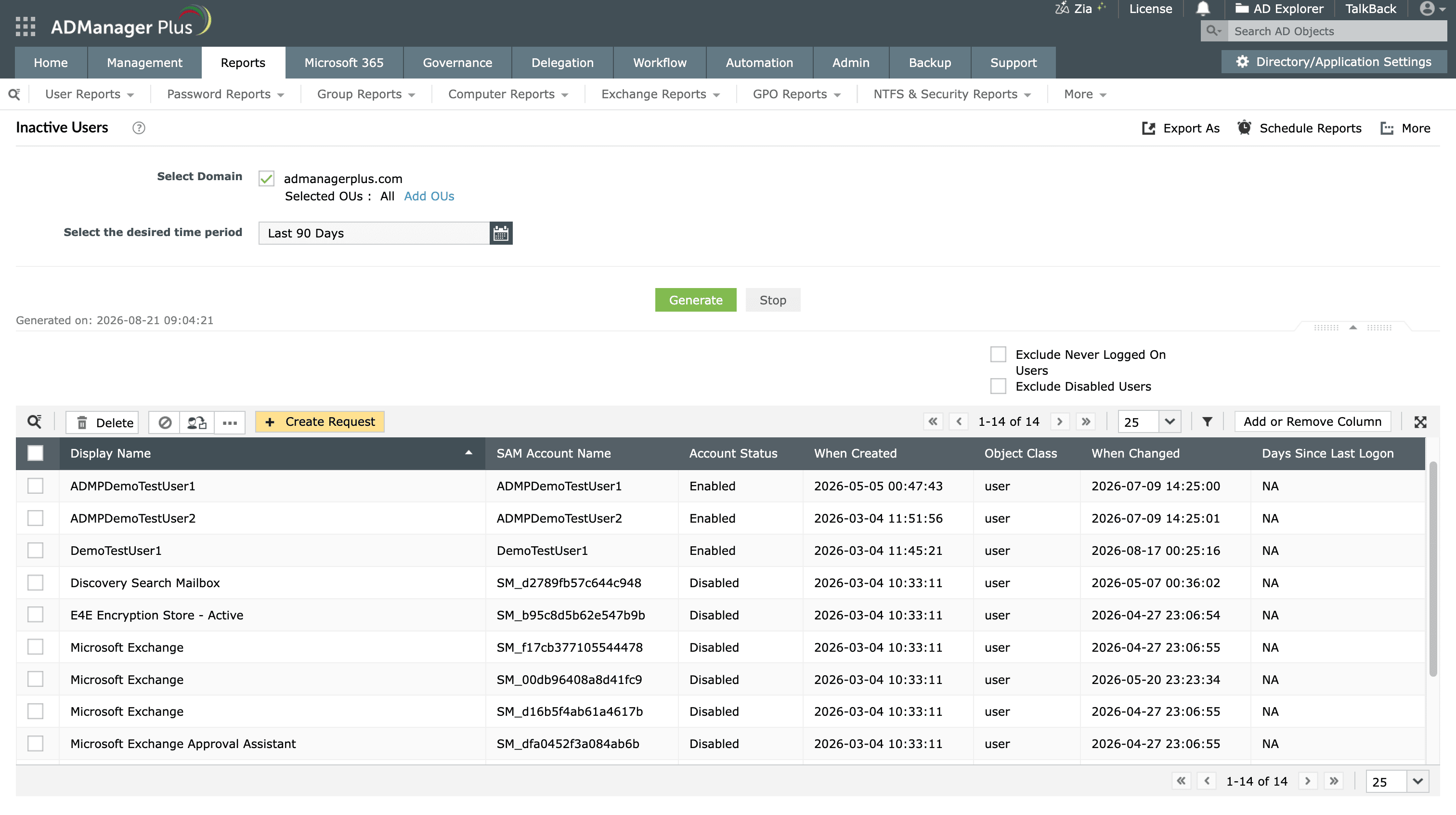
Finding stale accounts is the first step in the cleanup process. Use the Inactive Users report to instantly identify all dormant AD users based on their logon activity.
- Log in to ADManager Plus.
- Navigate to Reports > User Reports > Logon Reports > Inactive Users.
- Select the domain and OUs you would like to scan.
- Specify the inactivity period you would like to track, for example, 90 days.
- Click Generate.
- To refine the results, check the Exclude Never Logged On Users or Exclude Disabled Users option.
Steps to disable or delete inactive users
Once the report is generated, ADManager Plus lets you take action directly from the results, individually or in bulk, using its on-the-fly management capabilities.
The recommended approach is to disable before you delete. Disabling an account blocks new sign-ins while preserving the object, so if an account turns out to be still needed, it can be re-enabled without a restore. A common pattern is to disable the account, move it to a staging OU, wait a defined period such as 30 days, verify it is no longer needed, and only then delete, which is the safest way to remove unused accounts.
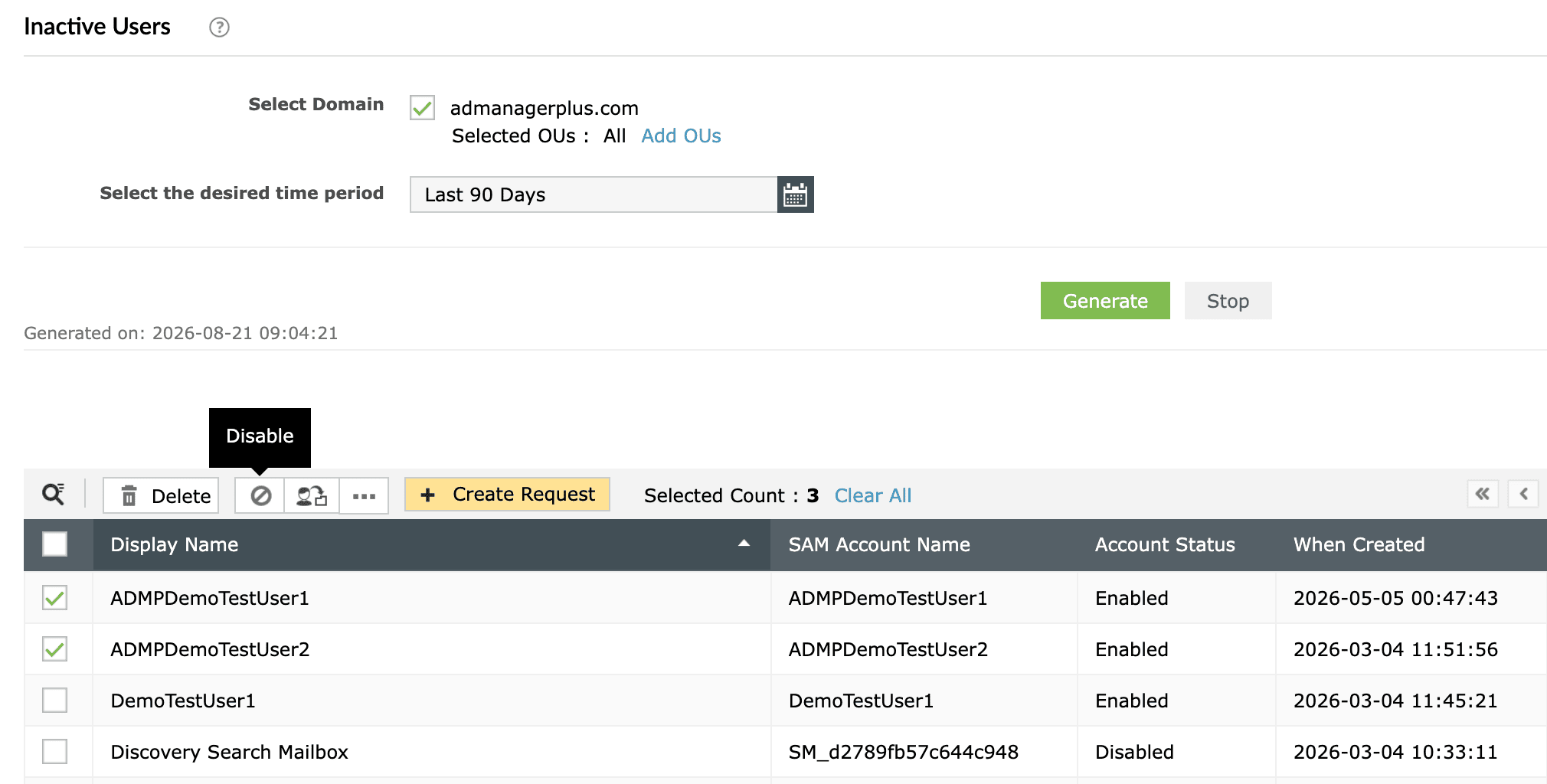
- From the generated Inactive Users report, select the accounts you wish to manage by checking the boxes next to their names.
- Click the Disable icon above the report list to disable the selected users.
- When you are ready to permanently remove accounts, select the disabled accounts then click the Delete icon. You can also move accounts to another OU or perform other cleanup actions instantly using the ellipsis icon (...).
Steps to automate the entire cleanup process
You can also automate the cleanup process by continuously tracking inactive accounts and managing them according to your organization's policies, allowing directory hygiene to be maintained without recurring manual effort.
- Navigate to the Automation tab.
- Click + Create New Automation.
- Provide a suitable name and description for the automation.
- Under Tasks to automate, select the follow-up task to perform on the inactive users. For example, to disable inactive users, select the Disable users option.
- In the From Report drop-down, go to Logon Reports and select Inactive Users.
- Define the inactivity period and click OK.
- Schedule the automation to run at regular intervals and click Save.
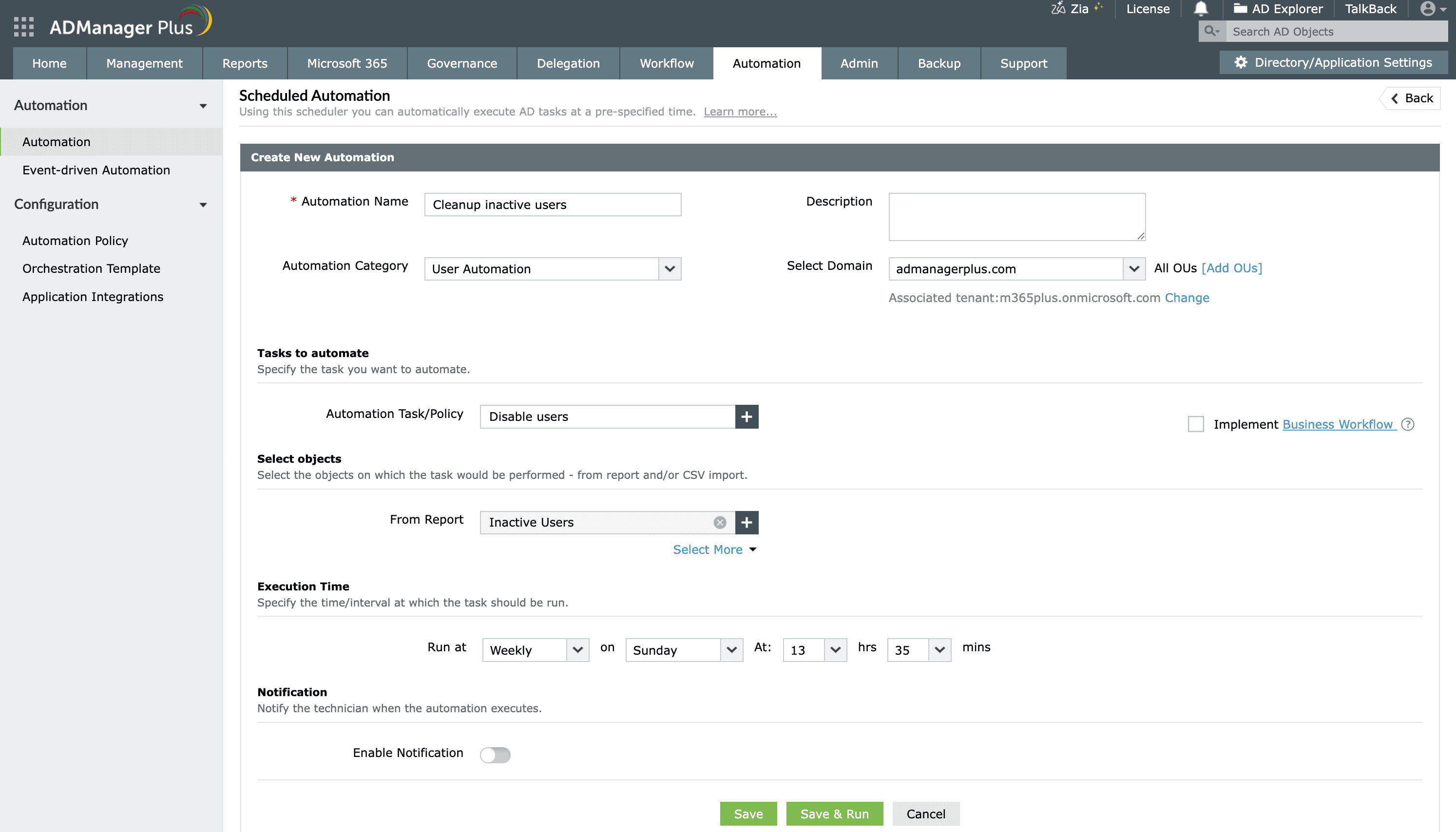
By implementing this automation, your AD stays secure and clean without recurring manual effort, freeing your IT team to focus on more critical tasks. You can chain follow-up tasks (for example, disable first, then move to a quarantine OU, then delete after a set period) to mirror the disable-before-delete workflow automatically.
Validation and confirmation
After disabling or deleting accounts, confirm the cleanup worked as intended and that no active users were affected:
- Regenerate the Inactive Users report. Accounts you disabled should now show a disabled status and deleted accounts should no longer appear.
- Check technician audit logs to confirm each management action completed successfully.
Tips
- Review the Inactive Users report before acting and keep an exported copy as a record and rollback reference.
- Adopt the disable-before-delete workflow as a standing policy: Disable an account, then wait a defined window (such as 30 days) rather than deleting immediately.
- Scope reports to specific OUs rather than running them domain-wide so each cleanup stays contained and predictable.
- Explicitly exclude service accounts and other special-purpose accounts from automated cleanup.