How to isolate inactive user accounts by moving them to another OU
Last updated on:In this page
Objective
Moving inactive or unused user accounts to a dedicated container or OU is a recommended security practice. Isolating these accounts helps prevent them from being exploited as potential security vulnerabilities and ensures better management of inactive identities.
Prerequisites
- A destination OU or container must already exist in Active Directory.
- You must be logged in as an ADManager Plus administrator or a help desk technician with the move users role delegated for the target domain or OUs.
- The user accounts to be isolated should be identifiable through an appropriate user report (such as Account Expired Users, Disabled Users, or Inactive Users).
Steps to isolate inactive user accounts by moving them to another OU
Method 1: Isolate users manually
- Navigate to Reports > User Reports.
- Select the appropriate report based on your requirement. For example, Account Expired Users to identify expired user accounts.
- Choose the required Domain and click Generate.
- From the generated report, select the user accounts you want to isolate. Use the Quick Search option to locate specific users if needed.
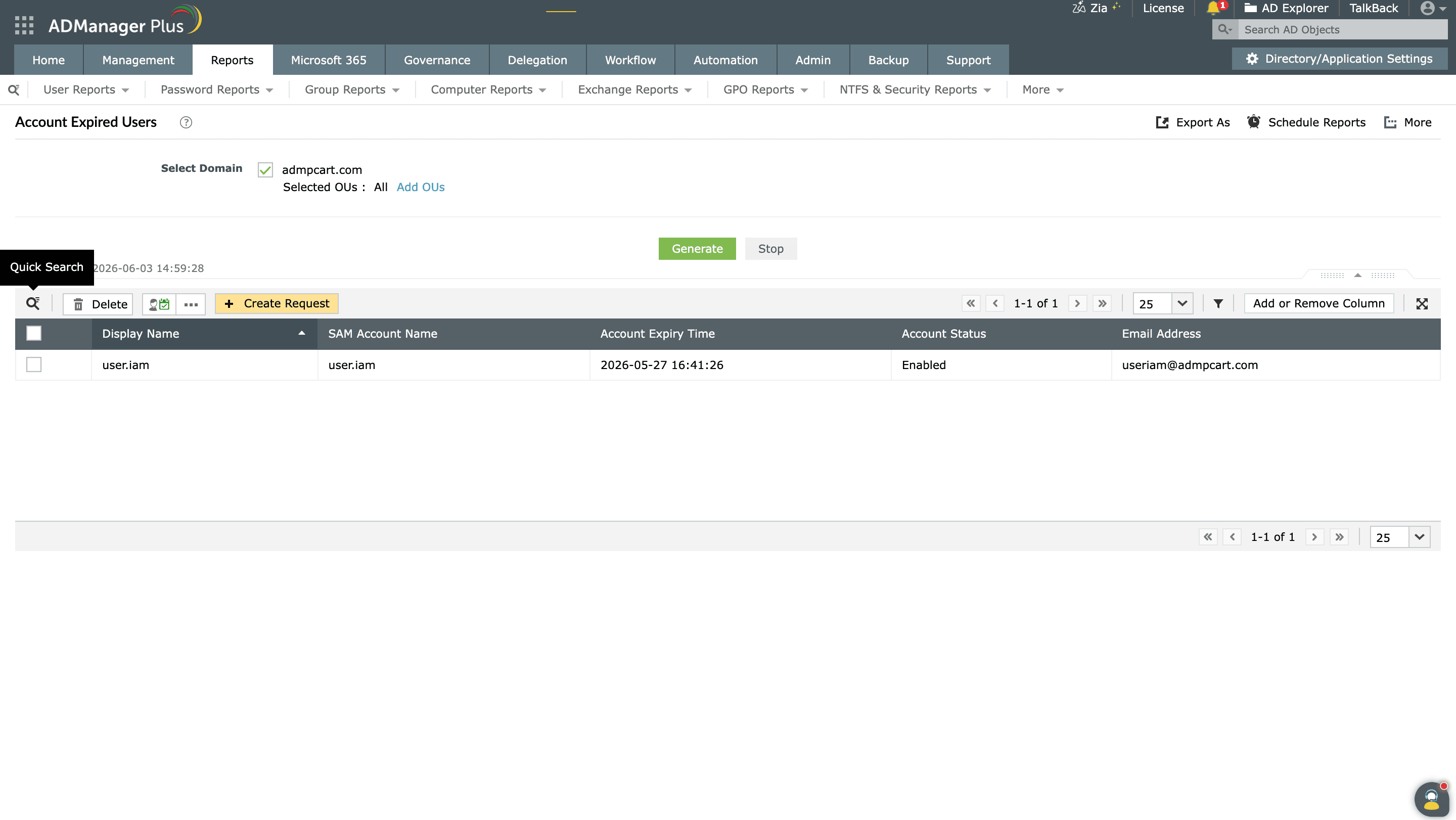
The Quick Search option in the Account Expired Users report in ADManager Plus - Click More Actions at the top of the report.
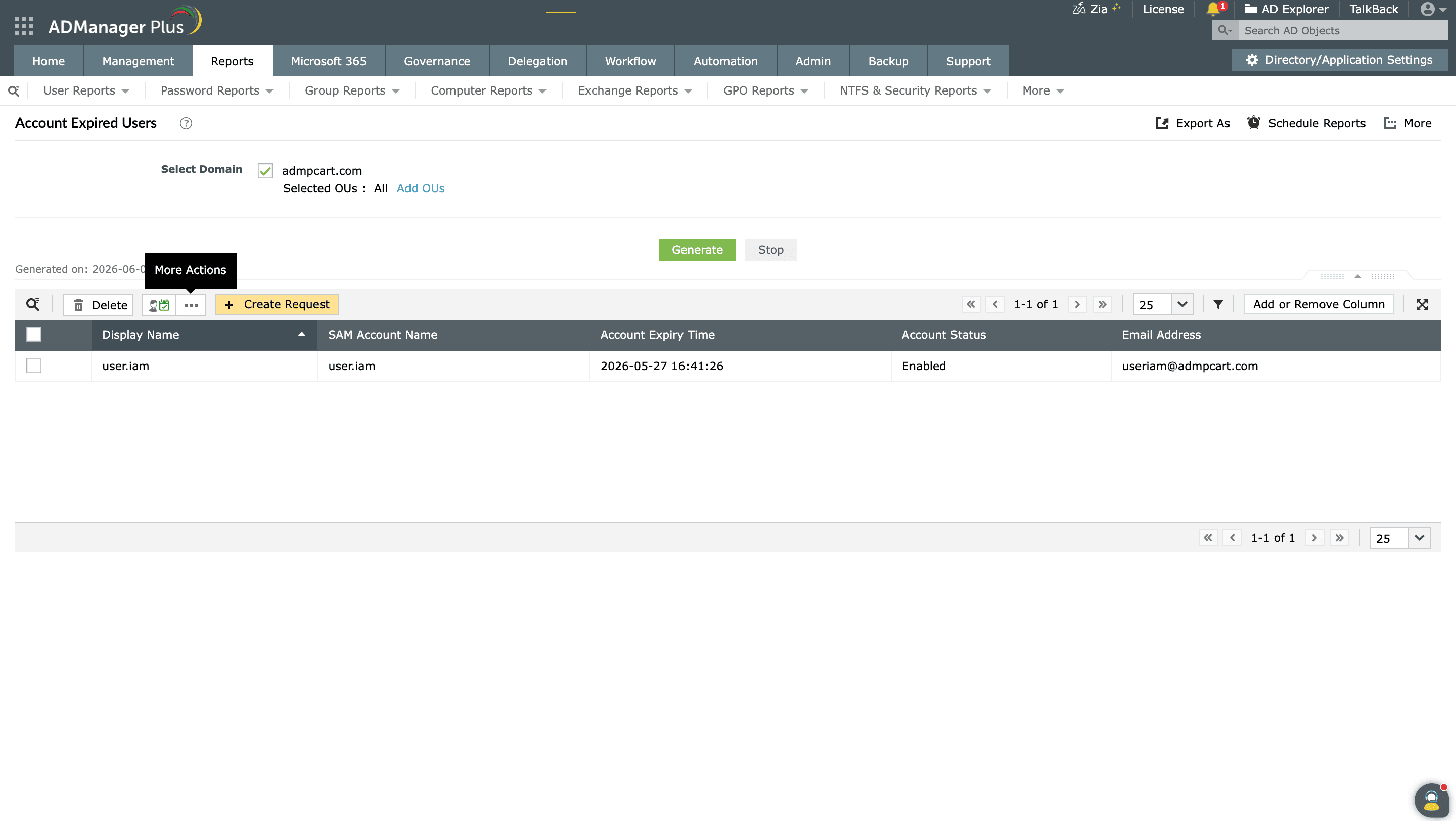
The Account Expired Users report in ADManager Plus with the More Actions menu available for selected users - In the Action dropdown, select Move Users from the General Attributes category, and then click Go.
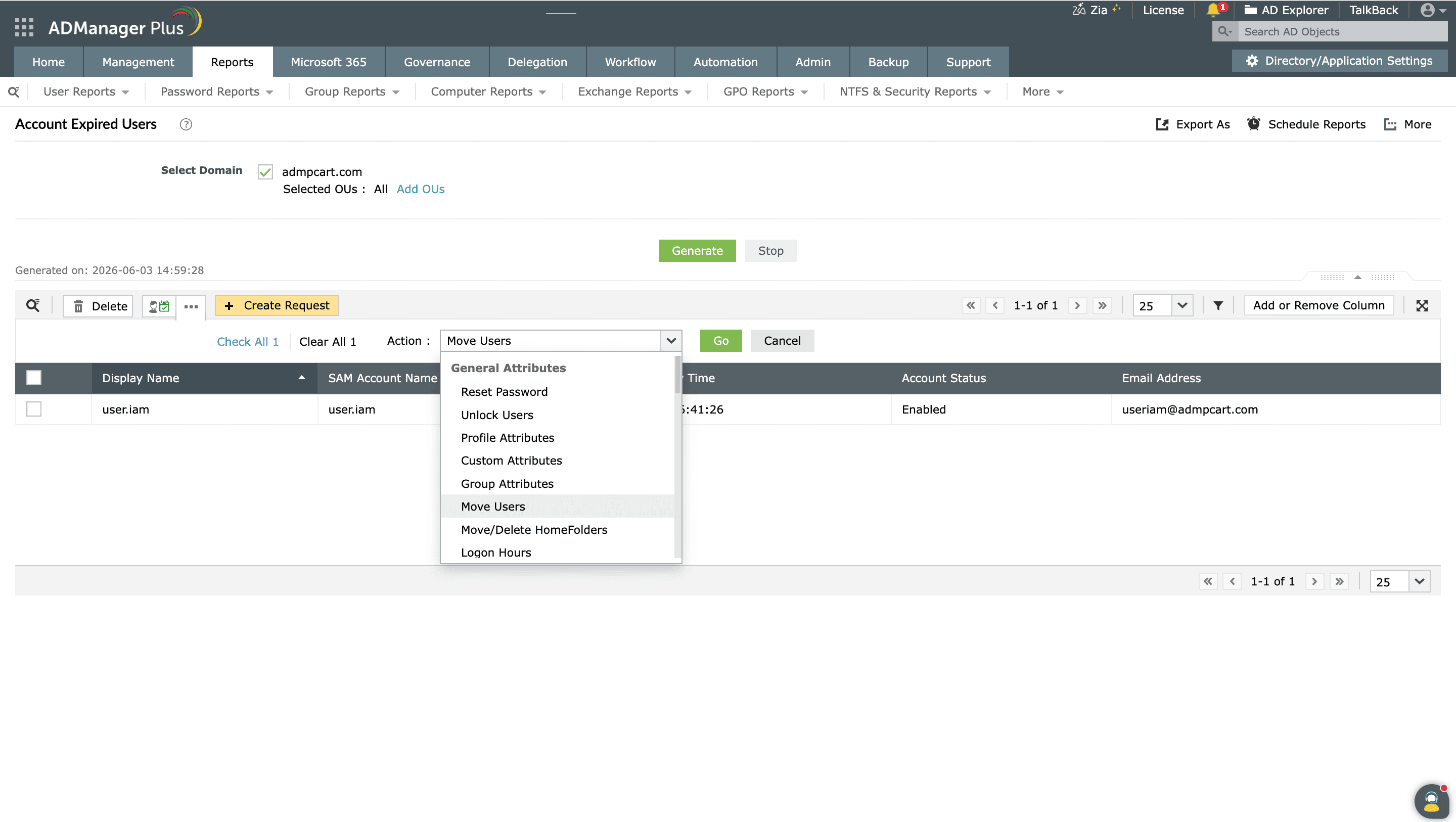
The bulk action menu in the Account Expired Users report with the Move Users option selected. - On the Move Users to a different container page, verify the selected user accounts.
- Click the + icon next to Select Container and choose the destination OU or container.
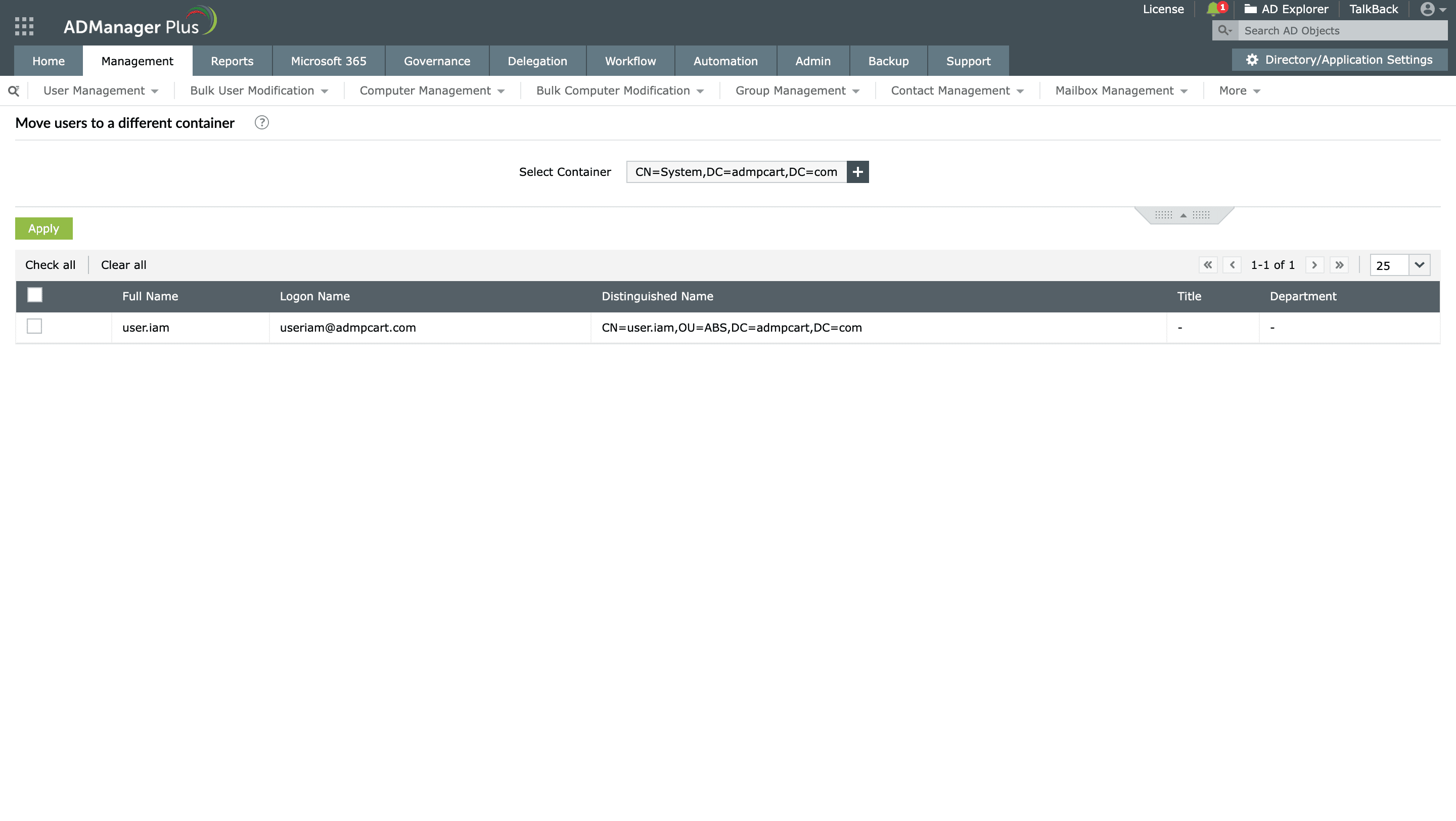
The Move Users page in ADManager Plus with a destination container selected for expired user accounts. - Select the required users and click Apply.
- The selected user accounts will be moved to the chosen container or OU.


Method 2: Isolate users automatically
- Navigate to Automation tab.
- In the Scheduled Automations page, click Create New Automation.
- Enter a suitable Name and Description for the automation.
- Select User Automation as the Automation Category.
- Choose the required Domain and OUs.
- In the Tasks to automate section, select Move Users from the Automation Task/Policy dropdown.
- In the Select objects section, choose how the target user accounts should be identified:
- From Report: Select the report that contains the user accounts to be moved. Click + next to From Reports and choose the appropriate report. For example, Account Expired Users.
- Data Source: Choose Direct CSV and upload a CSV file with the user accounts to be moved.
- Configure the Execution Time, including the schedule and frequency for the automation.
- Click Save to schedule the automation, or Save &Run to schedule it and execute it immediately.
Scheduled automation configuration in ADManager Plus to automatically move expired user accounts to a specified container.

Tips
- Create a dedicated OU specifically for inactive, disabled, or expired accounts to simplify management and auditing.
- Review user reports periodically to ensure inactive accounts are identified promptly.
- Use automation to isolate inactive accounts consistently and reduce manual effort.
- Test the automation with a small set of users before deploying it organization-wide.
- Ensure only authorized administrators have permissions to move user accounts between OUs.