Sooner or later you need to know who can do what to an object in Active Directory (AD). Maybe an account has access it shouldn't, maybe an audit is coming, or maybe you just inherited a domain and have no idea how its permissions were set up. Every AD object carries an access control list that answers the question, and there are several ways to read it.
This guide walks through how to view AD permissions using PowerShell's Get-Acl cmdlet, native graphical tools, and ManageEngine ADManager Plus.
Before you can read an object's permissions, ensure you have the following:
PowerShell can display permissions in text format and is useful when you need to inspect or export access control list (ACL) information programmatically. The AD PowerShell provider exposes directory objects through the AD: drive, and you can address an object directly by using its distinguished name. First, load the AD module using the following PowerShell command:
Import-Module ActiveDirectory
Then read the ACL for an object by its distinguished name and expand the individual entries:
									(Get-Acl "AD:\OU=Sales,DC=corp,DC=com").Access |

									Select-Object IdentityReference, ActiveDirectoryRights, AccessControlType, IsInherited
Each row is one Access Control Entry (ACE): who it applies to (IdentityReference), what they can do (ActiveDirectoryRights), whether it's an Allow or Deny (AccessControlType), and whether it was inherited (IsInherited).
Use the following PowerShell command to pass the object's distinguished name to -Path:
									(Get-Acl "AD:\CN=Jane Smith,OU=Sales,DC=corp,DC=com").Access |

									Select-Object IdentityReference, ActiveDirectoryRights, AccessControlType, IsInherited
Alternatively, pipe the object directly from Get-ADUser, Get-ADGroup, or Get-ADComputer:
									$user = Get-ADUser -Identity jsmith

									(Get-Acl "AD:\$($user.DistinguishedName)").Access |

									Select-Object IdentityReference, ActiveDirectoryRights, AccessControlType
Filter by IdentityReference to trace permissions assigned to a target user or group:
									(Get-Acl "AD:\OU=Sales,DC=corp,DC=com").Access |

									Where-Object { $_.IdentityReference -like "*Helpdesk*" }
Filter on IsInherited to isolate direct assignments from inherited parent rights:
									(Get-Acl "AD:\OU=Sales,DC=corp,DC=com").Access |

									Where-Object { -not $_.IsInherited } |

									Select-Object IdentityReference, ActiveDirectoryRights, AccessControlType
Pipe the results to Export-Csv for auditing or reporting:
									(Get-Acl "AD:\OU=Sales,DC=corp,DC=com").Access |

									Select-Object IdentityReference, ActiveDirectoryRights, AccessControlType, IsInherited |

									Export-Csv -Path "C:\Reports\Sales-OU-permissions.csv" -NoTypeInformation
Loop through every organizational unit (OU) and tag entries with their respective path:
									Get-ADOrganizationalUnit -Filter * | ForEach-Object {

									$ou = $_.DistinguishedName

									(Get-Acl "AD:\$ou").Access | Select-Object `

									@{Name="OU"; Expression={$ou}}, IdentityReference, ActiveDirectoryRights, AccessControlType, IsInherited

									} | Export-Csv -Path "C:\Reports\All-OU-permissions.csv" -NoTypeInformation
The following parameters are frequently used when auditing permissions and querying AD objects with PowerShell.
| Parameter | Description |
|---|---|
| -Path | Specifies the AD path (using the AD:\ drive provider and distinguished name) for Get-Acl. |
| -Identity | Specifies the target user, group, computer, or OU by SamAccountName, distinguished name, SID, or GUID. |
| -Filter | Specifies a search query to filter AD objects (e.g., -Filter * to return all items). |
| -SearchBase | Restricts an AD search query to a specific OU or container distinguished name. |
| -Server | Targets a specific AD domain controller or instance. |
| -Credential | Runs the command using specified alternate user credentials. |
| -AuthType | Specifies the authentication method (Negotiate or Basic). |
Active Directory Users and Computers (ADUC) is where most permission-checking starts. It works the same for a user, group, computer, or OU:
The Security tab shows the access control entries assigned to the object, but a user's effective access can also depend on group memberships, inherited permissions, and applicable Allow and Deny entries. The Effective Access tab evaluates these factors for the selected security principal:
The Delegation of Control Wizard records delegated rights directly in the OU's ACL. Therefore, you can review delegated permissions by examining the OU's security settings:
The Active Directory Administrative Center (ADAC) shows the same object security through a newer interface compared to ADUC:
Permissions on a Group Policy Object are separate from the OU it's linked to, and you read them in the Group Policy Management Console (GPMC):
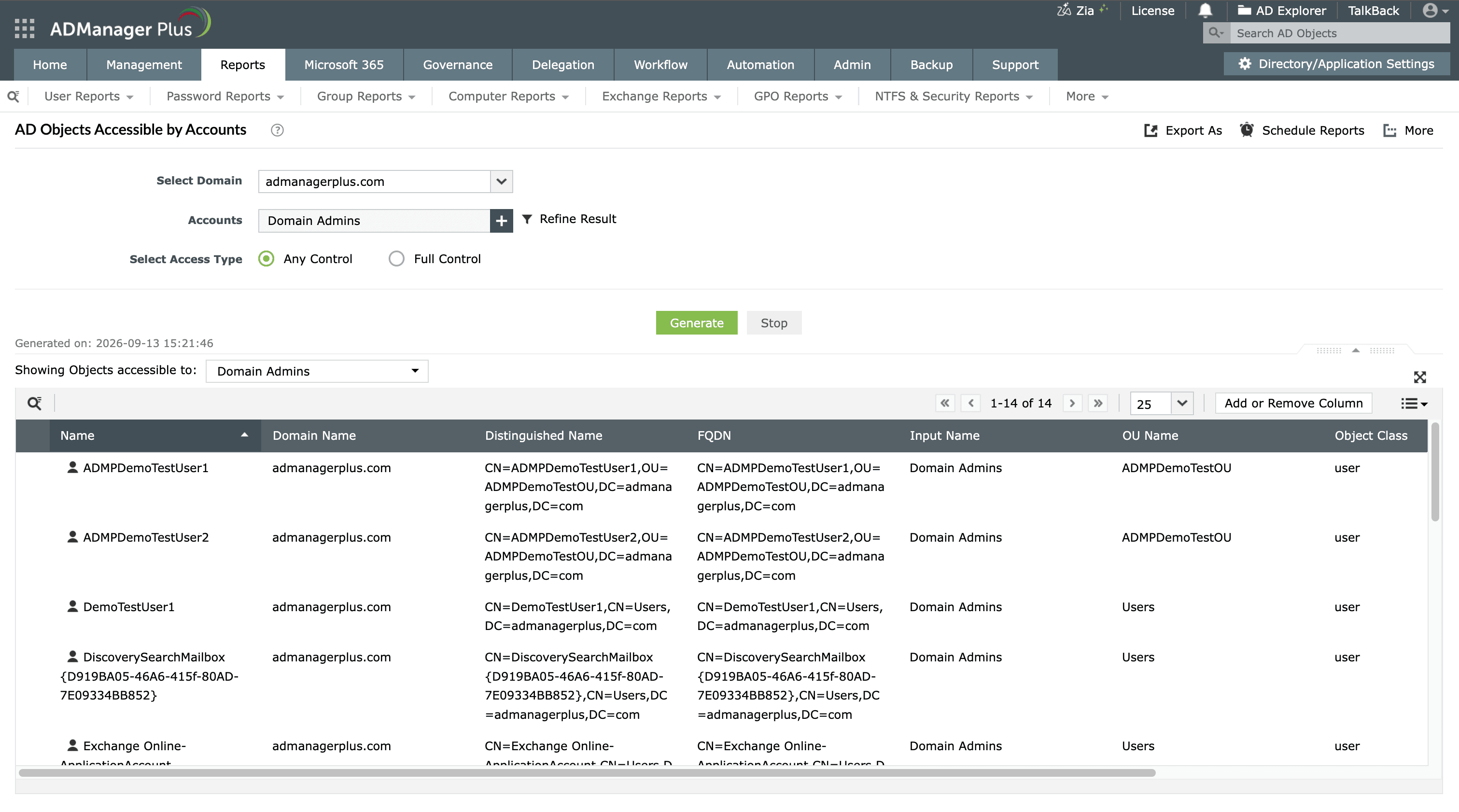
ADManager Plus is a web-based tool for managing and reporting on AD, Microsoft 365, and Exchange. Instead of reading ACLs one object at a time, it enables you to run prebuilt permission reports:
ADManager Plus displays the AD objects each account can access across the domain will be displayed. Export the report to PDF, CSV, XLS, or HTML, or schedule the report to run and auto-email on a recurring basis.
Native tools work well when you need to inspect individual objects, but reviewing permissions across a larger environment can require additional manual work or scripting:
ADManager Plus is a web-based tool for managing and reporting on AD, Microsoft 365, and Exchange that replaces scripts and repetitive console checks with a single place to view, audit, and act on the directory:
Use the Effective Access tab in Active Directory Users and Computers (ADUC) to check what permissions a specific user has. Open the object's Properties, select Security, then Advanced, go to Effective Access, select the user or group, and click View effective access. For a scripted check, read the ACL with Get-Acl and filter by the account. ADManager Plus simplifies this process with prebuilt permission reports.
NTFS permissions on a shared folder are separate from an object's Active Directory (AD) permissions, though AD security groups usually drive them. Check them on the folder's Properties > Security tab in File Explorer, where the ACL lists which users and groups have read, write, or full control. For a more detailed view with scheduling capabilities, view ADManager Plus' NTFS permission reports.
If the Security tab is missing in ADUC, it is because Advanced Features is off. The Security tab is hidden by default; turn it on from the View menu in ADUC, then reopen the object's Properties to display it.
Yes, you can export AD permissions to a report. Natively, you'd script it with Get-Acl piped to Export-Csv, resolving any GUID-based rights to readable names yourself. For a ready-made report across many accounts or objects, ADManager Plus generates AD reports that you can schedule, auto-email, and export to PDF, CSV, XLS, or HTML—without any scripting.

