Support
 
Phone Live Chat
 
Support
 
US: +1 888 720 9500
 
Intl: +1 925 924 9500
Aus: +1 800 631 268
UK: 0800 028 6590
CN: +86 400 660 8680

Direct Inward Dialing: +1 408 916 9393


How to remove an Exchange mailbox

Removing an Exchange mailbox is a routine offboarding and cleanup task, but what remove does depends on the environment and the exact cmdlet. The difference matters because some of these actions also delete the user account. This guide covers removing a mailbox in both Exchange Online and on-premises Exchange Server using three methods: PowerShell, the Exchange admin center, and ManageEngine ADManager Plus.

 
  • PowerShell
  • Exchange admin center
  • ADManager Plus
  • Troubleshooting
  • Why ADManager Plus
  • Real-world use cases
  • FAQ
 

How to remove a mailbox using PowerShell

Prerequisites

  • Permissions: Have the Recipient Management or Organization Management role in Exchange.
  • For Exchange Server: Run the commands in the Exchange Management Shell on the Exchange server, which loads the on-premises cmdlets.
  • For Exchange Online: Install and connect to the Exchange Online Management module once, then connect:
    Install-Module -Name ExchangeOnlineManagement
    Connect-ExchangeOnline -UserPrincipalName admin@contoso.onmicrosoft.com
  • Check for holds: Confirm the mailbox isn’t on litigation or legal hold before removing it.
Important:

A removed mailbox and its contents are only recoverable within the deleted-mailbox retention period (30 days by default in Exchange Online), and removing an on-premises mailbox also removes the AD account. If you only want to free up the mailbox but keep the user, disable it rather than remove it. Check for a litigation or legal hold first, since a mailbox on hold is retained and may not delete as expected.

Remove a mailbox in Exchange Online

Use Remove-Mailbox to delete an Exchange Online mailbox. For a user mailbox, this also deletes the associated Microsoft 365 user account. The user and mailbox are normally recoverable for 30 days.

Remove-Mailbox -Identity "sales@zylker.com"

If you need to retain the user account, remove its Exchange Online license instead. Review any retention or hold requirements before proceeding.

Verify removal and view soft-deleted mailboxes

Confirm the mailbox is gone by trying to retrieve it; a not found result means it was removed. In Exchange Online, you can also list soft-deleted mailboxes that are still within the retention window:

# Confirm the mailbox no longer exists
Get-Mailbox -Identity "James Bond" -ErrorAction SilentlyContinue
# List soft-deleted mailboxes (Exchange Online)
Get-Mailbox -SoftDeletedMailbox | Select-Object Name, PrimarySmtpAddress, WhenSoftDeleted

Permanently delete a soft-deleted mailbox

A soft-deleted mailbox is purged automatically at the end of the retention period, but you can remove it immediately with Remove-Mailbox -PermanentlyDelete, referencing it by its distinguished name or ExchangeGUID:

Remove-Mailbox -Identity "James Bond" -PermanentlyDelete -Confirm:$false
Important:

A permanently deleted mailbox is gone, with no recovery after the retention period is bypassed. Be certain before using -PermanentlyDelete, and confirm no hold applies.

Remove a mailbox in Exchange Server

On-premises, Remove-Mailbox deletes the mailbox and the AD user account. Run it in the Exchange Management Shell:

Remove-Mailbox -Identity "James Bond"

To delete the mailbox but keep the AD account, use Disable-Mailbox instead, which disconnects the mailbox:

Disable-Mailbox -Identity "James Bond"

Preview either command first with -WhatIf, which reports what would happen without making the change, and use -Confirm:$false to skip the prompt in a script:

Remove-Mailbox -Identity "James Bond" -WhatIf

Remove a remote mailbox in a hybrid environment

A remote mailbox is an on-premises AD user with Exchange attributes linked to a mailbox hosted in Exchange Online. Use the on-premises Exchange Management Shell to manage its removal. The cmdlet you choose determines whether the AD user account is retained.

Use Remove-RemoteMailbox to delete the on-premises user account and its associated Exchange Online mailbox:

Remove-RemoteMailbox -Identity "jbond"

The cloud mailbox removal depends on directory synchronization and is not immediate.

To remove the mailbox but keep the AD user account, remove the user’s Exchange Online license first. Then run Disable-RemoteMailbox to remove the Exchange attributes from the on-premises account and request removal of the cloud mailbox through directory synchronization:

Disable-RemoteMailbox -Identity "jbond"

The AD user account remains available for other services. If the mailbox has an online archive, disable the archive first and allow directory synchronization to complete before disabling the remote mailbox:

Disable-RemoteMailbox -Identity "jbond" -Archive=

This sequence helps prevent archive GUID mismatch errors.

Note:

If Exchange Online Delicensing Resiliency is enabled, additional steps are required to complete delicensing before running Disable-RemoteMailbox. Follow Microsoft’s delicensing guidance. Review applicable holds and retention requirements before proceeding.

Supported cmdlets and parameters

Parameter/cmdlet Description
Remove-Mailbox Deletes a mailbox (and the AD account on-premises); soft-deletes in Exchange Online.
Disable-Mailbox Deletes the mailbox but keeps the user account, creating a disconnected mailbox.
-Identity The mailbox to act on, by name, alias, email address, or distinguished name.
-PermanentlyDelete Purges a soft-deleted mailbox immediately in Exchange Online.
-WhatIf Previews the action without applying it.
-Confirm:$false Suppresses the confirmation prompt for unattended scripts.
Get-Mailbox -SoftDeletedMailbox Lists soft-deleted mailboxes still within the retention window.

Limitations of using PowerShell

  • Behavior differs by environment: The same Remove-Mailbox cmdlet soft-deletes in Exchange Online but hard-deletes the account on-premises, which is easy to get wrong.
  • Bulk removal needs scripting: Removing many mailboxes, or removing them using a CSV, means writing and testing a loop with error handling.
  • No built-in approval or audit trail: A mistaken removal runs with nothing to catch it and there's no native record of who removed which mailbox.
  • Delegation is coarse: Letting help desk staff remove mailboxes safely, scoped to a set of users, requires building and securing wrapper scripts.

How to remove a mailbox using the Exchange admin center

The Exchange admin center is the graphical route, and the path differs slightly by environment.

Prerequisites

  • Permissions: Have the Recipient Management or Organization Management role in Exchange, or an equivalent admin role in Microsoft 365 (the User Administrator or Global Administrator role for deleting a user in Exchange Online).
  • Check for holds: Confirm the mailbox isn’t on litigation or legal hold before removing it.

In Exchange Online

A user mailbox in Exchange Online is removed by deleting its Microsoft 365 user account, so it's handled from the Microsoft 365 admin center:

  1. Sign in to the Microsoft 365 admin center and go to Users > Active users.
  2. Select the user whose mailbox you want to remove, then choose Delete user.
  3. Confirm the action. The mailbox becomes a soft-deleted mailbox, recoverable for 30 days, and the user (and its license) is removed.

For a shared mailbox, delete it from the Exchange admin center under Recipients > Mailboxes instead, since it has no licensed user.

In Exchange Server

On-premises, the Exchange admin center removes the mailbox directly:

  1. Open the Exchange admin center and go to Recipients > Mailboxes.
  2. Select the mailbox, then choose Delete to remove the mailbox and its AD account, or use the Disable option to keep the account and disconnect the mailbox.

Limitations of using the Exchange admin center

  • Manual selection for bulk removal: Bulk deletion is supported, however, admins must select the accounts or mailboxes manually. Scheduled or condition-based removals require PowerShell or automation tools.
  • Split across two consoles: Removing an Exchange Online user mailbox happens in the Microsoft 365 admin center, while shared and on-premises mailboxes are handled in the Exchange admin center.
  • No preview or scripting: The GUI gives no equivalent of -WhatIf, and recurring or conditional removals can’t be automated from the console.
  • Limited handling of special cases: Disconnected, soft-deleted, and system mailboxes (arbitration, public folder) aren’t removed through the standard Exchange admin center flow; those still need the Exchange Management Shell.

How to remove a mailbox using ADManager Plus

ManageEngine ADManager Plus is a unified AD, Exchange, and Microsoft 365 management and reporting tool that removes mailboxes one at a time or in bulk from a point-and-click console.
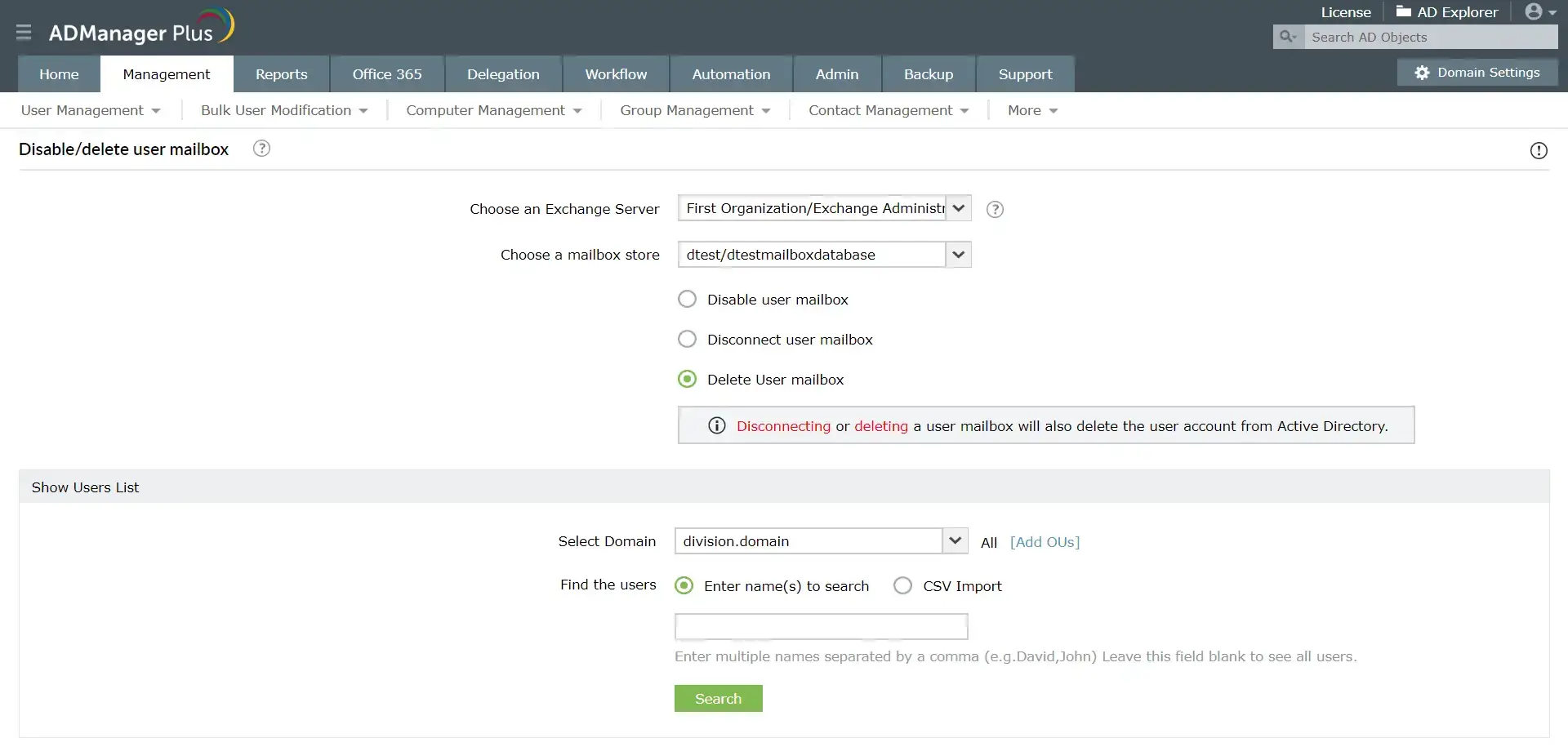
Disable or delete a mailbox in Exchange Server

  1. Navigate to the Management tab > User Management > Exchange Mailbox Tasks > Disable/Delete User Mailbox.
  2. Select the relevant Exchange Server and mailbox, and choose whether to disable (keep the account) or delete the mailbox.
  3. Add users whose mailboxes you want to remove, or import them from a CSV file.
  4. Confirm the user list on the next screen and click Apply.
Deleting a mailbox in Exchange Server using ADManager Plus.

Delete a mailbox in Exchange Online

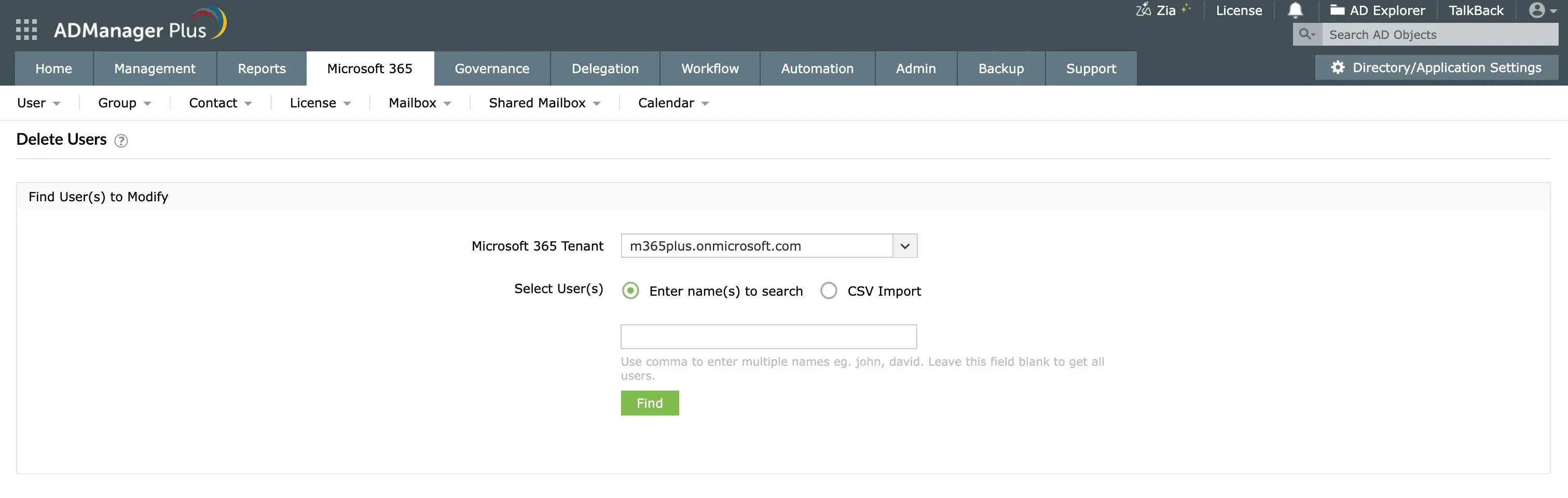
  1. Navigate to the Microsoft 365 tab > Management > User Management > Delete Users.
  2. Select the Microsoft 365 tenant and enter the name of the user. To add users in bulk, select CSV Import.
  3. Confirm the user list in the next screen and click Apply. This will delete the Microsoft 365 user account and also the associated Exchange Online mailbox.
Deleting a mailbox in Exchange Online using ADManager Plus.

Disable or delete a remote mailbox

  1. Navigate to Microsoft 365 > Management > Mailbox Management > Disable/Delete Remote Mailbox.
  2. Select Disable Remote Mailbox, Disable Remote Archive Only, or Remove Remote Mailbox.
  3. Select the domain and the required OUs.
  4. Select the users whose remote mailboxes you want to manage and click Apply.

Troubleshooting special mailbox types and removal errors

  • Cannot remove a mailbox in Outlook: Outlook removes an email account from the client profile, not the mailbox from Exchange. To delete the mailbox itself, use the admin center, PowerShell, or ADManager Plus, as above; removing it from Outlook leaves the mailbox intact on the server.
  • The mailbox won't delete (it's on hold): A mailbox on litigation or legal hold is retained and resists deletion. Remove the hold first if deletion is genuinely intended, or leave it in place for compliance.
  • "This mailbox can't be removed" for a special type: Arbitration, audit, and public folder mailboxes are system mailboxes that need extra switches (for example, Remove-Mailbox -Arbitration or -PublicFolder) and shouldn't be removed casually, since some are required for the organization to function.
  • The cmdlet isn't recognized: You're in the wrong shell. Use the Exchange Management Shell for on-premises cmdlets, or connect with Connect-ExchangeOnline for Exchange Online.

  • The removed mailbox still appears: In Exchange Online, a removed user mailbox is soft-deleted and lingers for the retention period. Use Get-Mailbox -SoftDeletedMailbox to see it, and -PermanentlyDelete to purge it early.

How ADManager Plus helps you manage Exchange and Microsoft 365 mailboxes

ADManager Plus replaces scripts and one-off portal work with a single console for AD, Microsoft 365, and Exchange management and reporting:

  • Disable or delete mailboxes across Exchange Server and Exchange Online, one or in bulk from a CSV file with no scripting.
  • Run mailbox and Exchange reports, such as inactive or soft-deleted mailboxes, and act on the results in place.
  • Automate offboarding, removing mailboxes as part of a joiner-mover-leaver sequence, with approval workflows for sensitive changes.
  • Delegate mailbox management to help desk technicians through role-based, granular permissions scoped to specific OUs or Exchange servers without elevating their native rights.

Real-world use cases

Use case 1: Remove a departed employee's mailbox without deleting the account

A common offboarding need is to free up or remove the mailbox while keeping the user account, for example, when the account is still needed for sign-in to other systems. On-premises, that's exactly what Disable-Mailbox does.

Disable-Mailbox -Identity "James Bond" -Confirm:$false

With ADManager Plus

  1. Navigate to the Management tab > User Management > Exchange Mailbox Tasks > Disable/Delete User Mailbox.
  2. Select the Exchange Server and mailbox, and choose the Disable user mailbox option.
  3. Add the departed employee, confirm on the next screen, and click Apply.

Use case 2: Remove mailboxes in bulk during offboarding

When a group leaves, you need to remove their mailboxes together. Loop a CSV of identities through the cmdlet, with error handling so one bad row doesn't stop the run.

Import-Csv "C:\Imports\leavers.csv" | ForEach-Object {
    try {
        Remove-Mailbox -Identity $_.Identity -Confirm:$false -ErrorAction Stop
        Write-Host "Removed: $($_.Identity)"
    } catch {
        Write-Warning "Failed: $($_.Identity) - $($_.Exception.Message)"
    }
}

With ADManager Plus

  1. Navigate to the Management tab > User Management > Exchange Mailbox Tasks > Disable/Delete User Mailbox.
  2. Select the Exchange Server and mailbox, and choose the Delete user mailbox option.
  3. Select Import CSV to add the user list, then click Go.

Use case 3: Remove an Exchange Online mailbox but keep the user for app access

A user no longer needs email but still needs their Microsoft 365 apps. Deleting the user would remove everything, so instead you remove the Exchange Online license, which tombstones the mailbox for 30 days (reassigning the same license within that window restores it with all mail). A cleaner long-term option is to convert the mailbox to a shared mailbox, which keeps it in full without a license and doesn’t affect the user’s other services.

# Convert to a shared mailbox (keeps the mailbox, frees the license)
Set-Mailbox -Identity "jbond@zylker.com" -Type Shared

With ADManager Plus

Modify the user’s licenses to remove the Exchange Online plan, or convert the mailbox type:
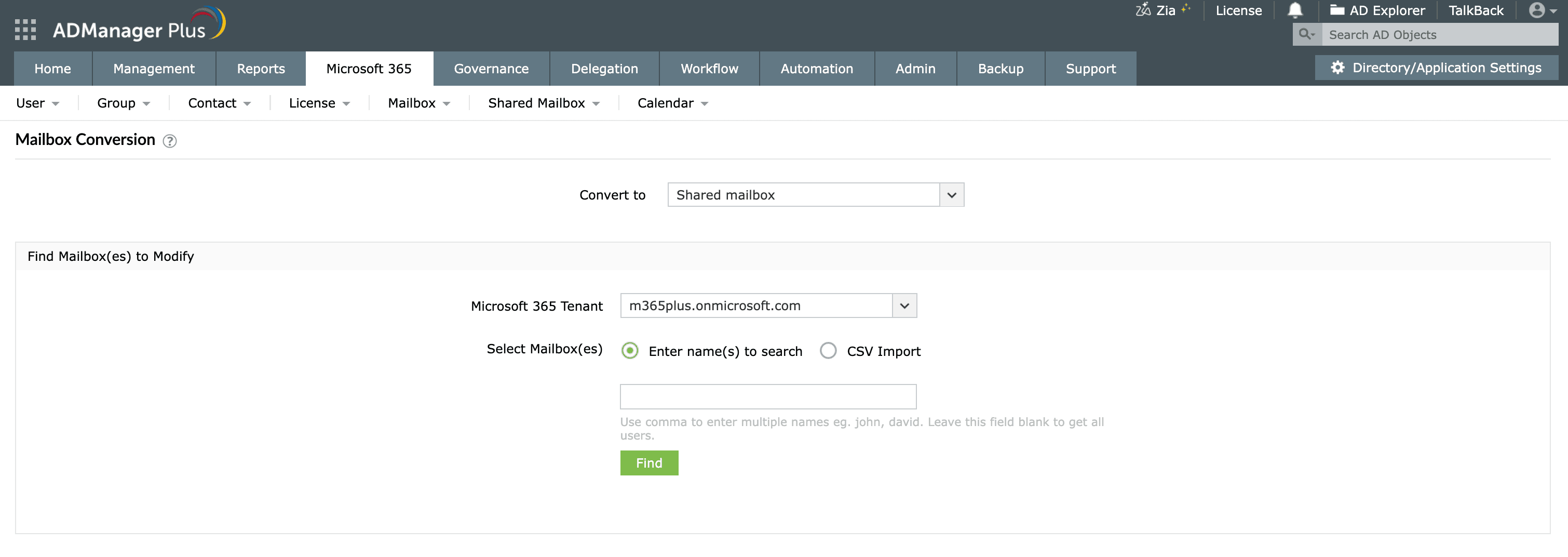
  1. Navigate to the Microsoft 365 tab > Management > Mailbox Management > Mailbox Conversion.
  2. Choose Shared mailbox from the Convert to drop-down.
  3. Select the Microsoft 365 tenant and the mailbox to be converted, then click Find. Confirm on the next screen and click Apply.
Converting a mailbox to a shared mailbox in Exchange Online using ADManager Plus.

FAQ

Removing deletes the mailbox and, in on-premises Exchange, the AD user account it belongs to. In Exchange Online, removing a mailbox is tied to deleting the Microsoft 365 user or removing its license.

Disabling deletes the mailbox but keeps the user account, disconnecting the two. The mailbox becomes a disconnected (on-premises) or soft-deleted (Exchange Online) mailbox that can be reconnected or recovered within the retention period.

Yes, in Exchange Online a removed mailbox is soft-deleted and retained (30 days by default). List them by running:

Get-Mailbox -SoftDeletedMailbox | Select-Object Name, PrimarySmtpAddress, WhenSoftDeleted

You can recover one within the window, or purge it early with Remove-Mailbox -PermanentlyDelete.

For a script-free approach, generate the Soft Deleted Mailboxes report in ADManager Plus.

If others still need the mailbox, convert it to a shared mailbox and configure the required access and licensing. Keep the associated user account, as deleting it also deletes the shared mailbox.

Granting another user Full Access allows them to open an existing mailbox but does not preserve it after deletion. Configure access after conversion and before removing any licenses that are no longer required.


ADManager Plus Trusted By

The one-stop solution to Active Directory Management and Reporting