Endpoint Enrollment and Management
Endpoint enrollment and management helps you keep track of all devices that are enrolled and ready to use Endpoint Central. This section gives you a centralized view of device details, ensuring only trusted applications can access internal applications.
Navigate to Endpoints to view a complete list of devices associated with your environment.
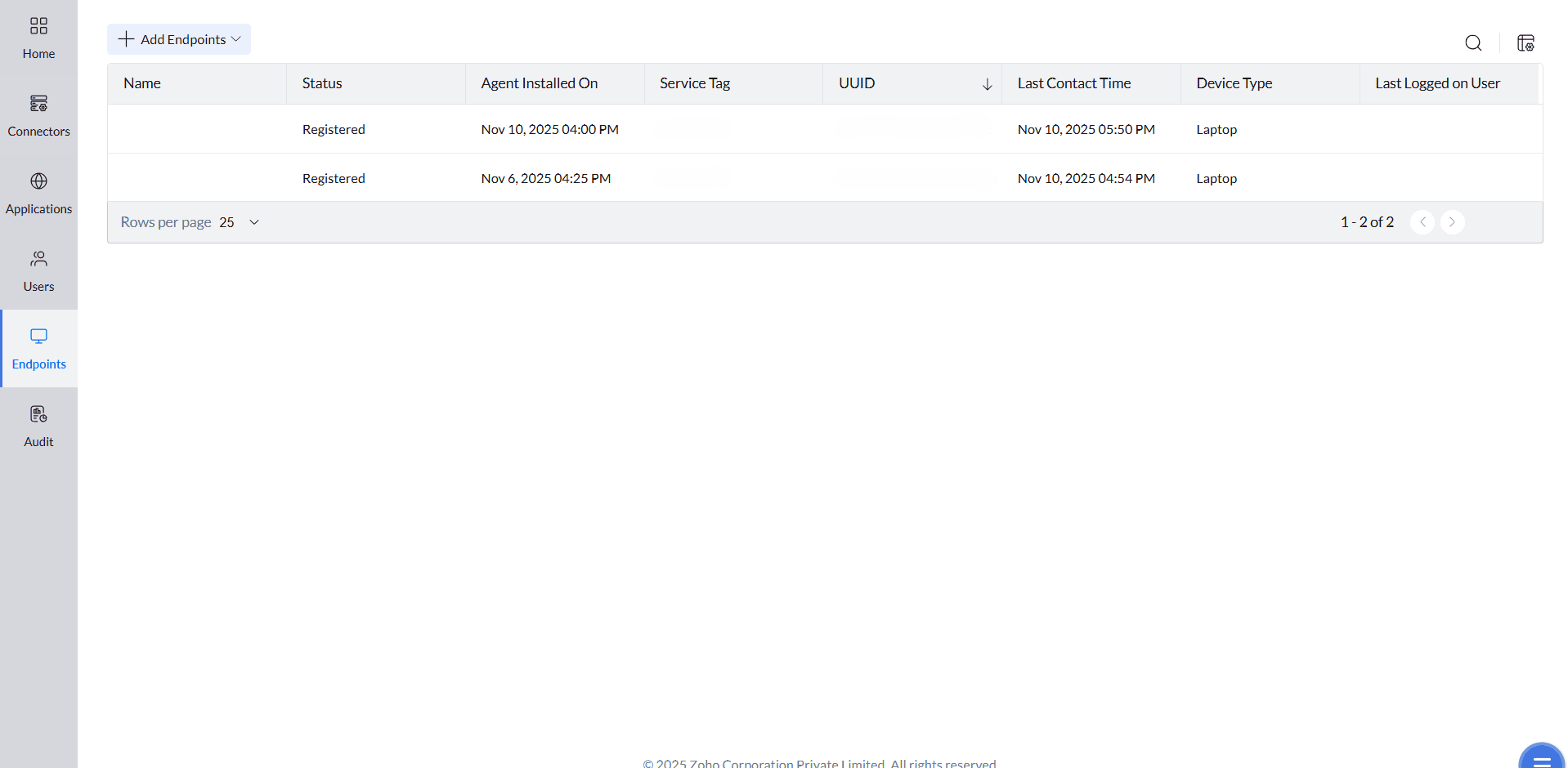
All devices that have the Endpoint Central agent installed will automatically appear in this list and will have Endpoint Central enabled.
Supported Endpoint Operating Systems
| Platform | Supported version |
|---|---|
| iOS | iOS 17 |
| iPadOS | iPadOS 17 |
| macOS | macOS 14 |
| Windows | Windows 11 |
| Android | Android 9 and above |
Endpoint Enrollment
Windows devices
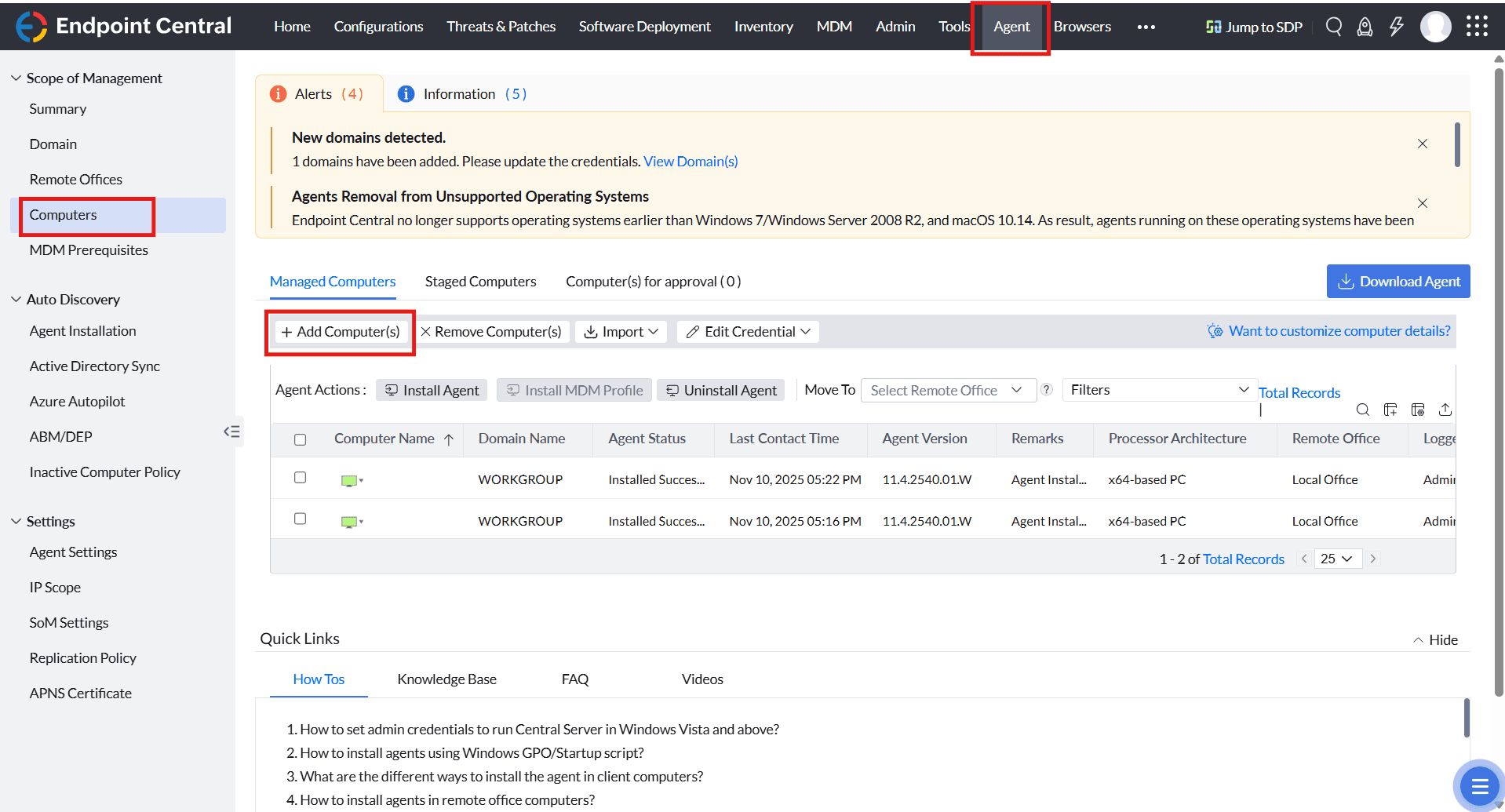
You can enroll new endpoints using the Agent → Computers → Add Computers option, which remotely installs the agent on the discovered devices.
For detailed steps on installing the agent, refer to the Windows agent installation guide .
Android devices
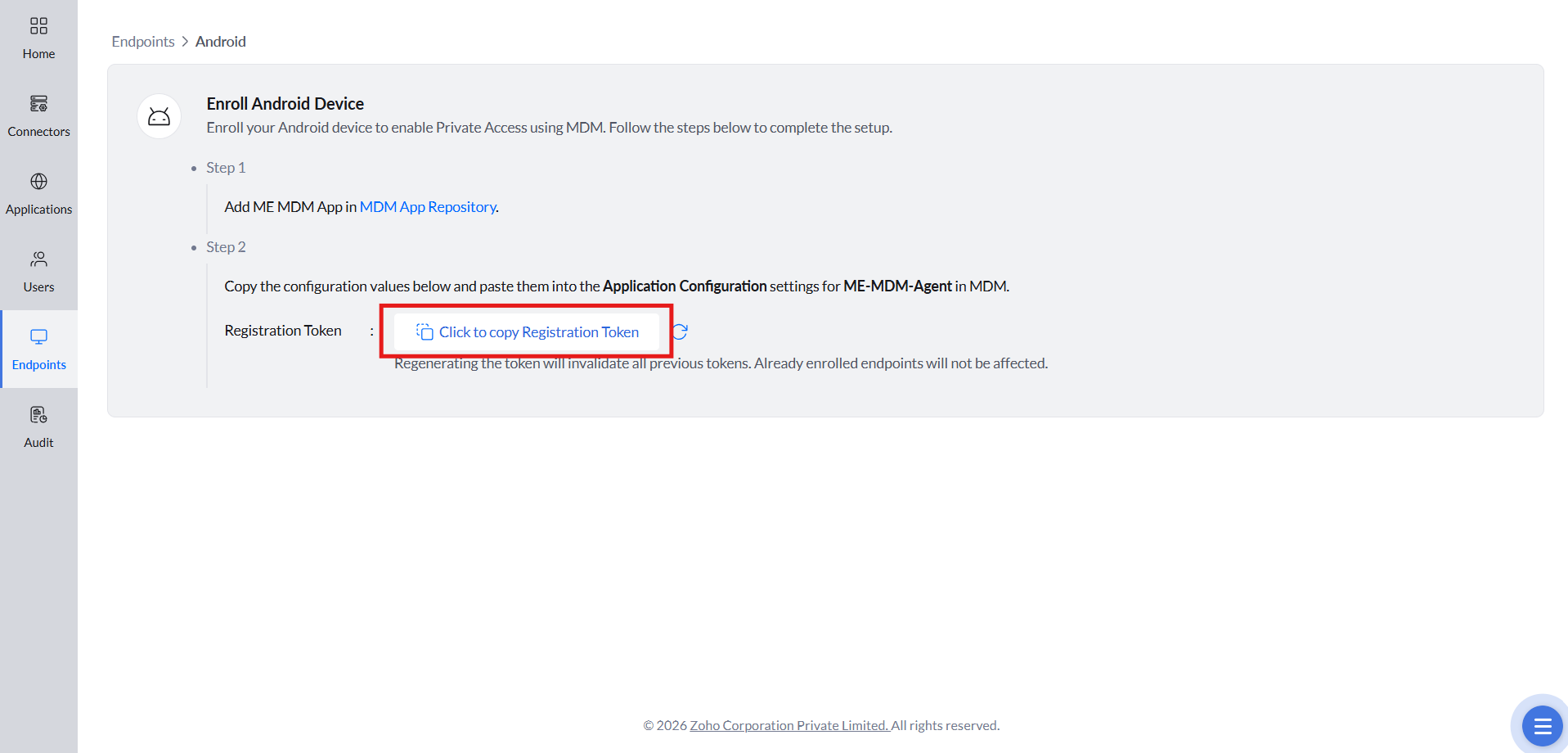
- Navigate to Endpoints → Add Endpoint → Android . Copy the Registration Token displayed.
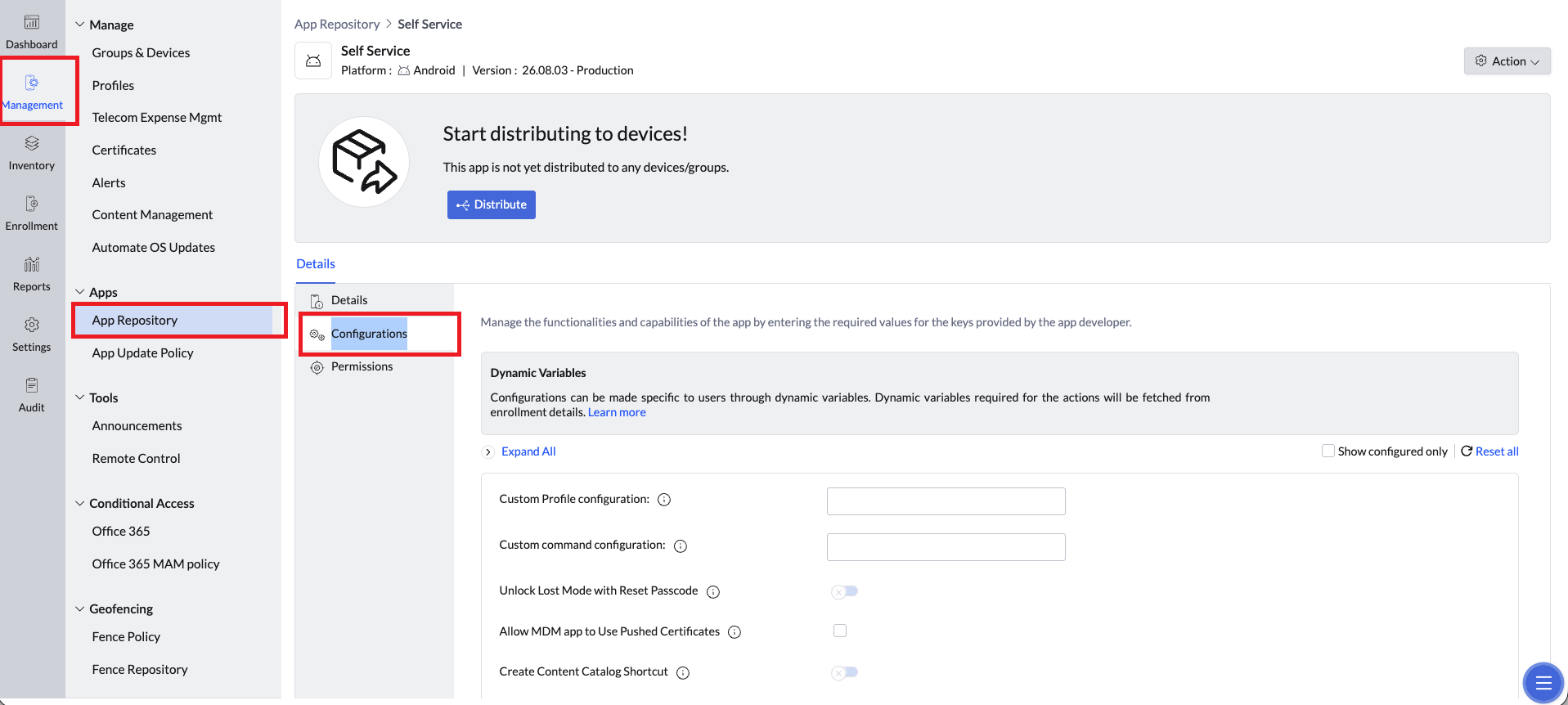
- Before adding the ME MDM app, ensure that Managed Google Play is configured in MDM . Then, navigate to MDM → Management → App Repository and select MDM Android Self Service App .
- Select Configurations .
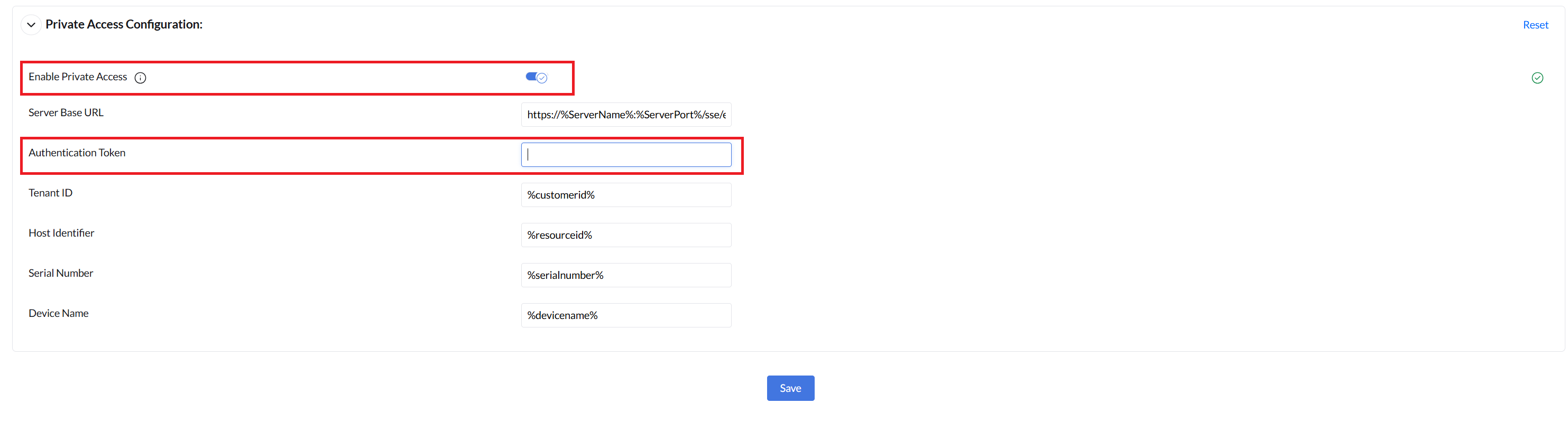
- Scroll down to Private Access Configuration .
Paste the copied token in the Authentication Token field, turn on Enable Private Access , and click Save .
- Distribute the app to the required devices via MDM. The devices will complete registration automatically after installation.
iOS devices
Create a Built-in PKI Server in your MDM.
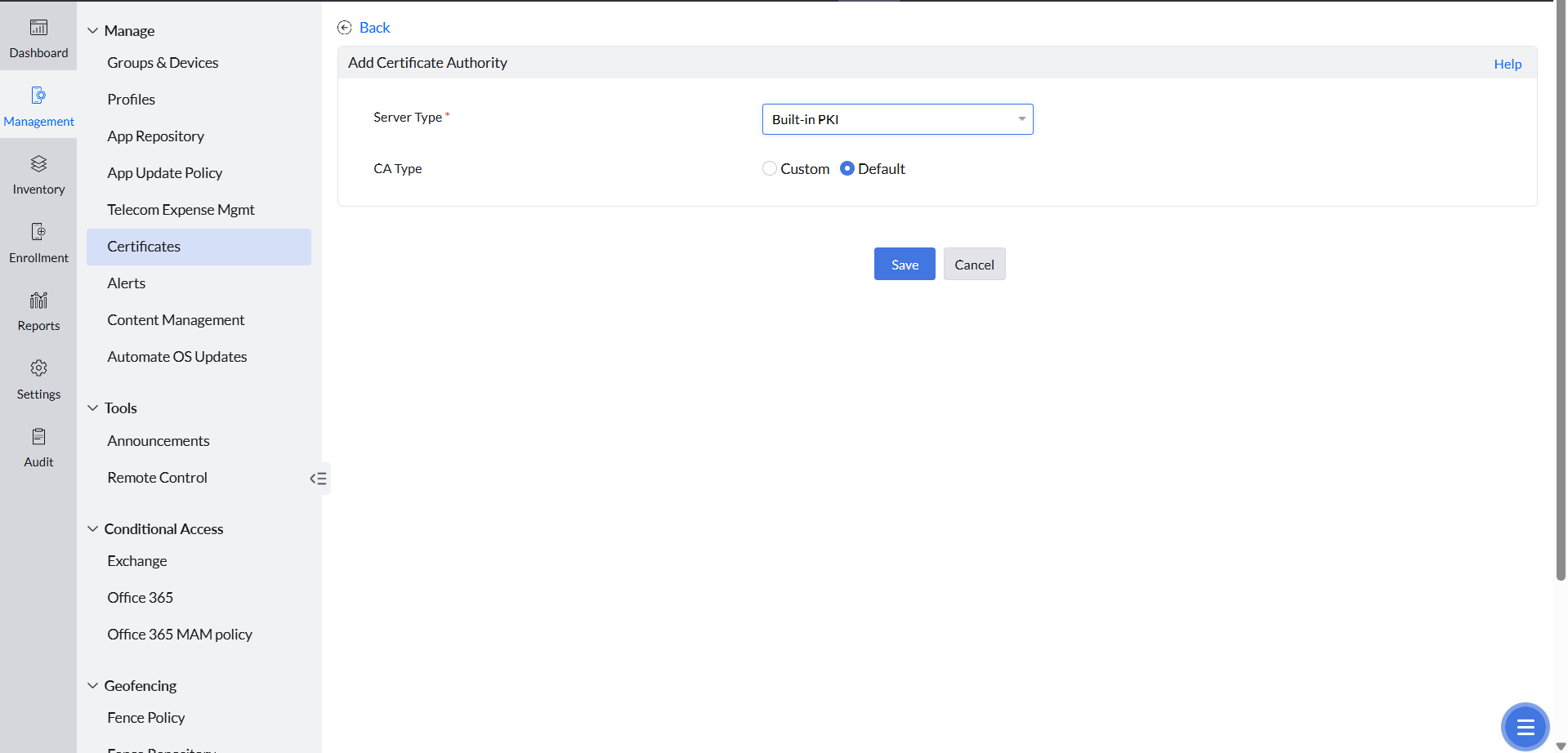
Download and upload the CA certificate used for device authentication.
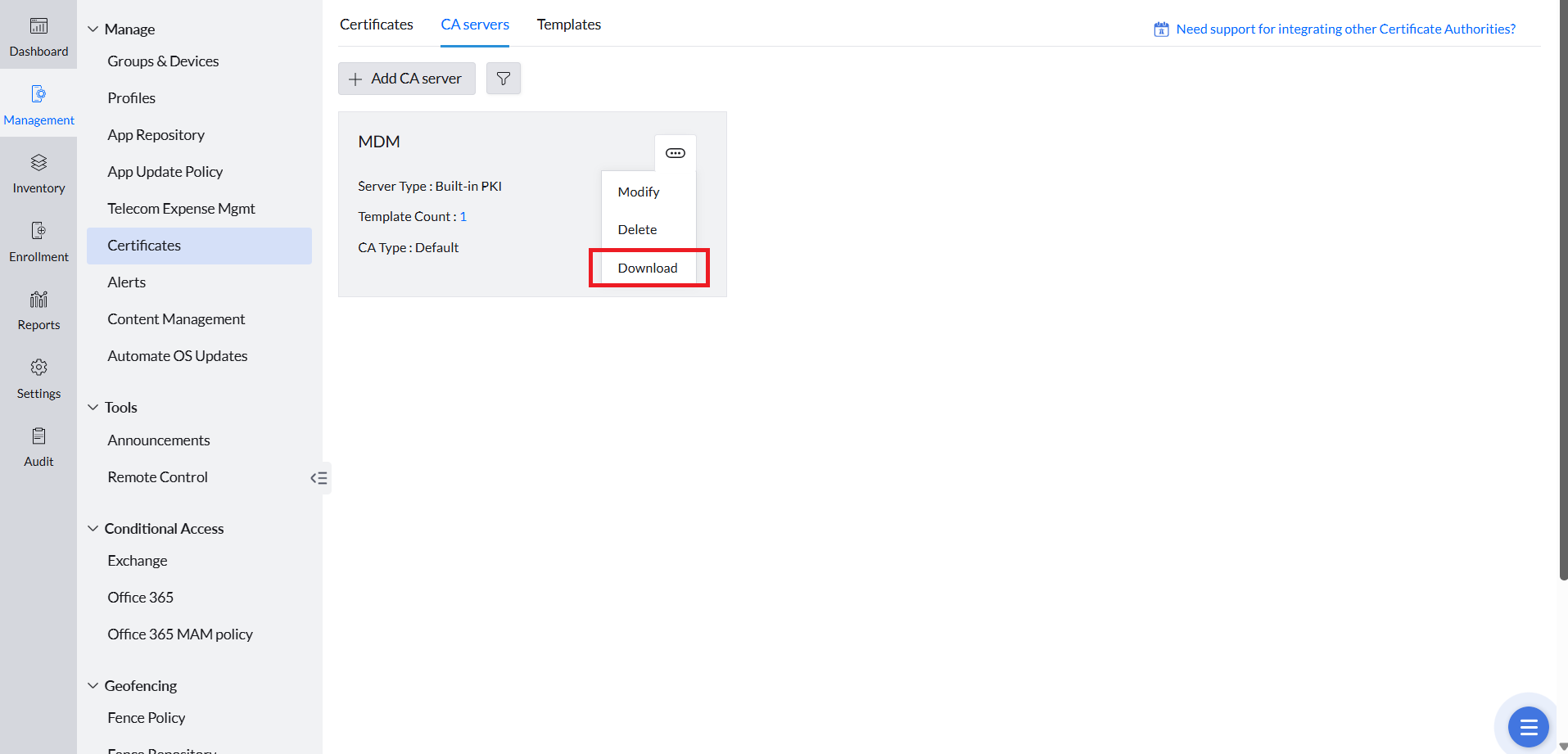
- Download the relay configuration file .
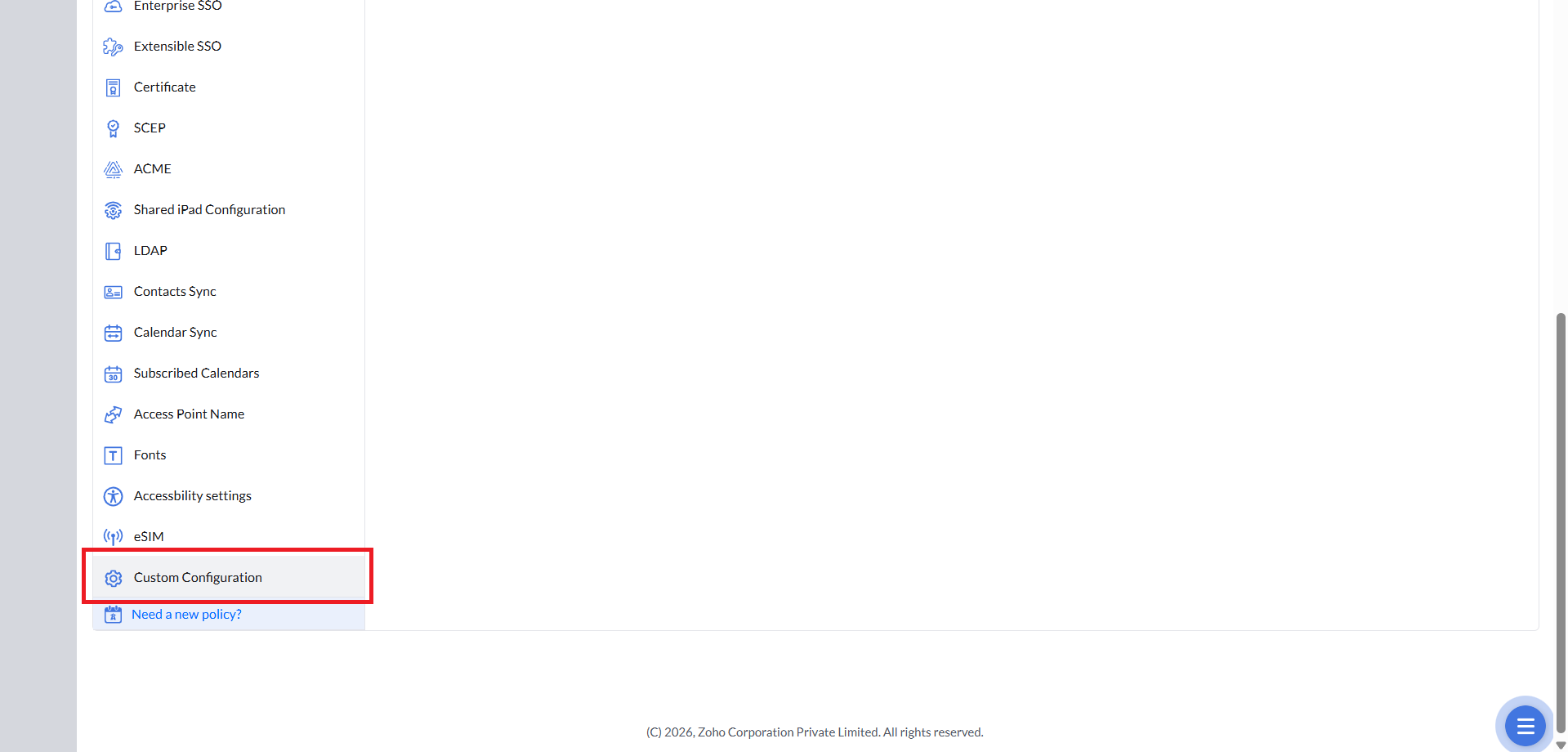
- Create a new Apple configuration profile by navigating to MDM → Create Profile → iOS/iPadOS .
Enter a Profile Name, then go to Custom Configuration and upload the downloaded relay configuration file.
Navigate to SCEP and choose the required template.
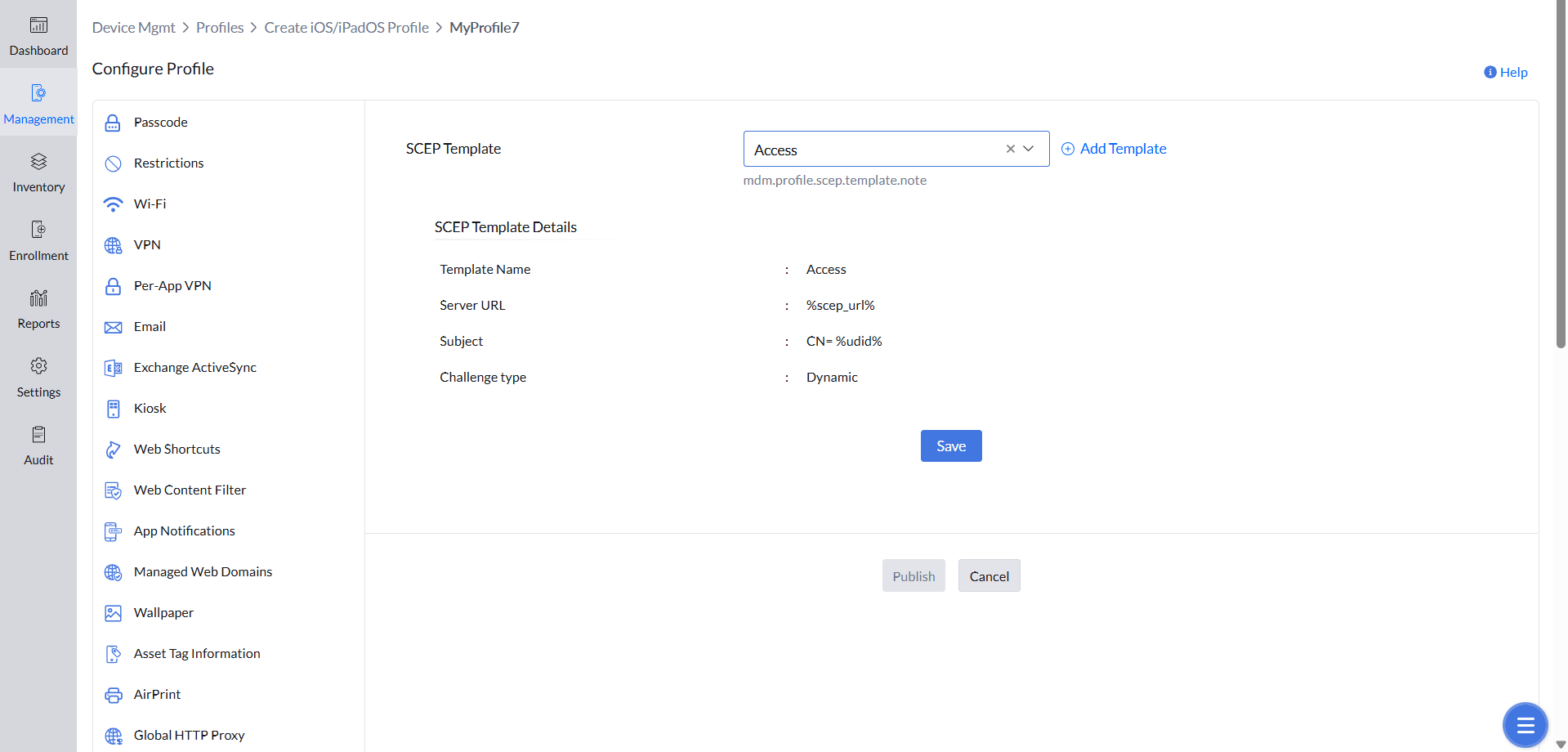
- Deploy the profile to your targeted Apple devices.
For more details on configuring built-in PKI, refer to Managing Certificates with Internal PKI .
Device enrollment ensures that only verified endpoints with a valid agent are allowed to connect. This allows you to enforce security policies and enable Endpoint Central securely across your environment.
End User Access
Once a device is enrolled, end users can manually launch Endpoint Central from their respective app on each platform. Users are required to authenticate with their username and password before access is granted.
Windows devices
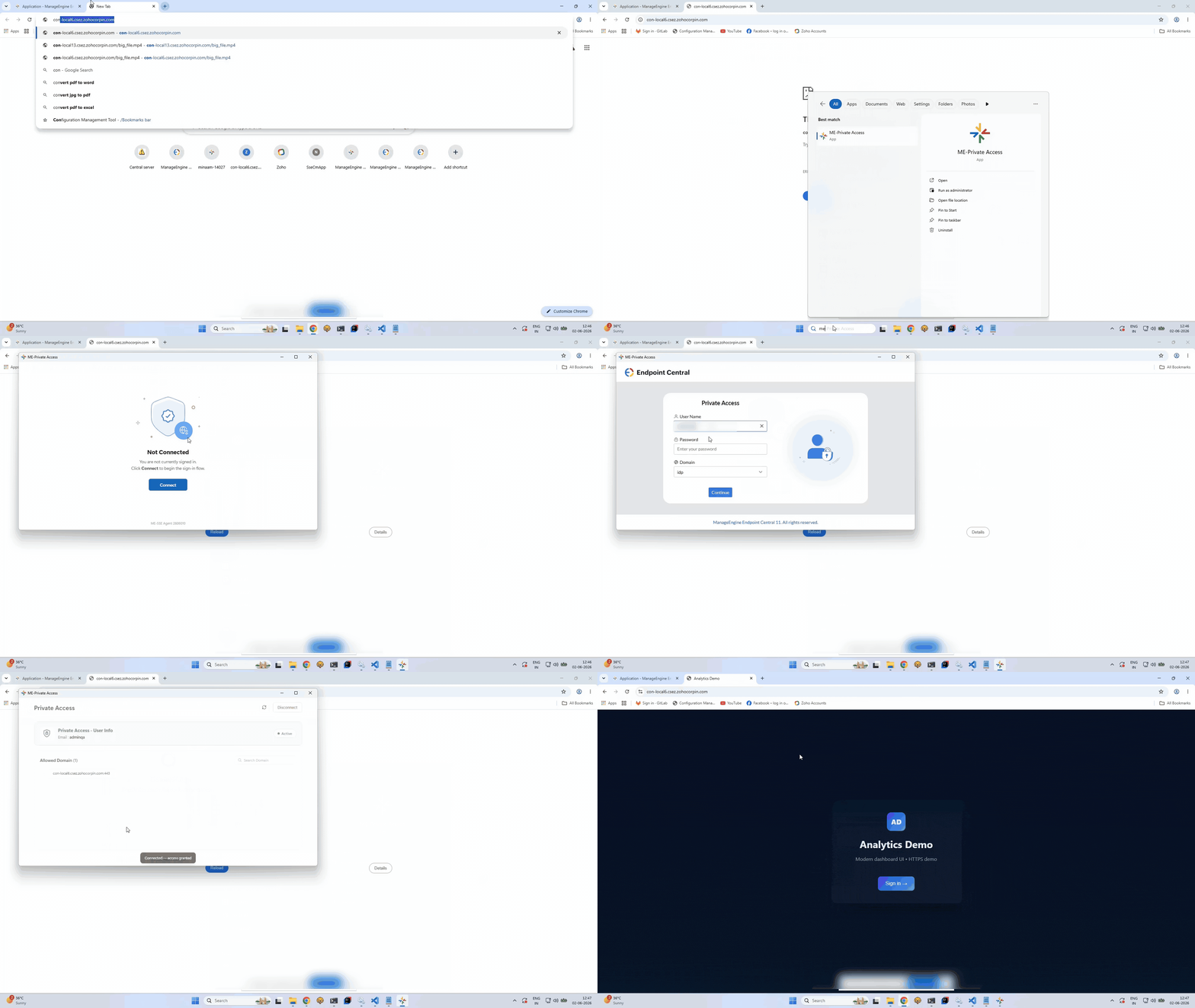
- Open ME Endpoint Central App on the endpoint.
- Enter your username and password when prompted.
- Once authenticated, Endpoint Central is active and internal applications are accessible.
Android devices
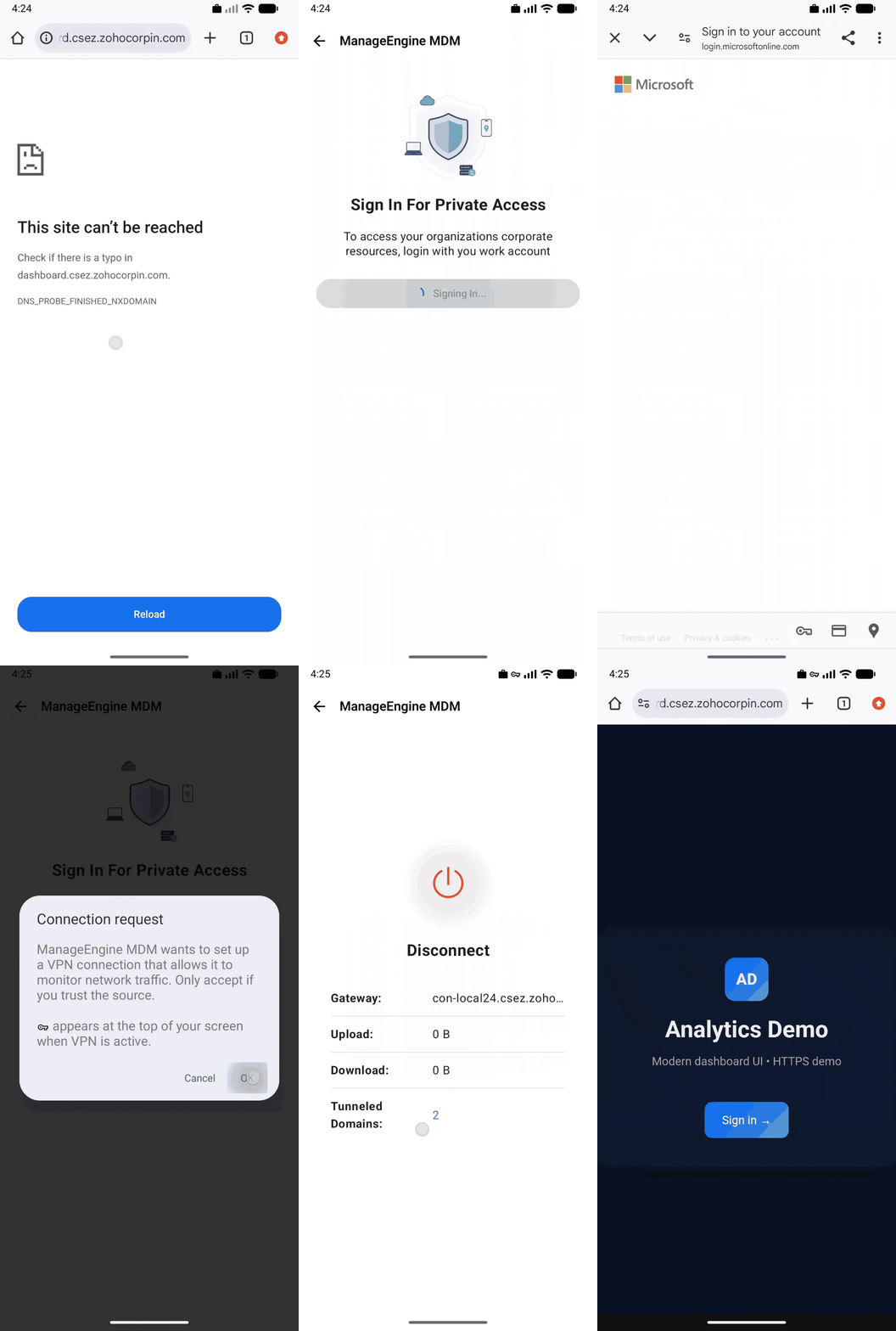
- Open the ME MDM App on the device.
- Navigate to the Endpoint Central section.
- Enter your username and password when prompted.
- Once authenticated, Endpoint Central is active and internal applications are accessible.
iOS devices
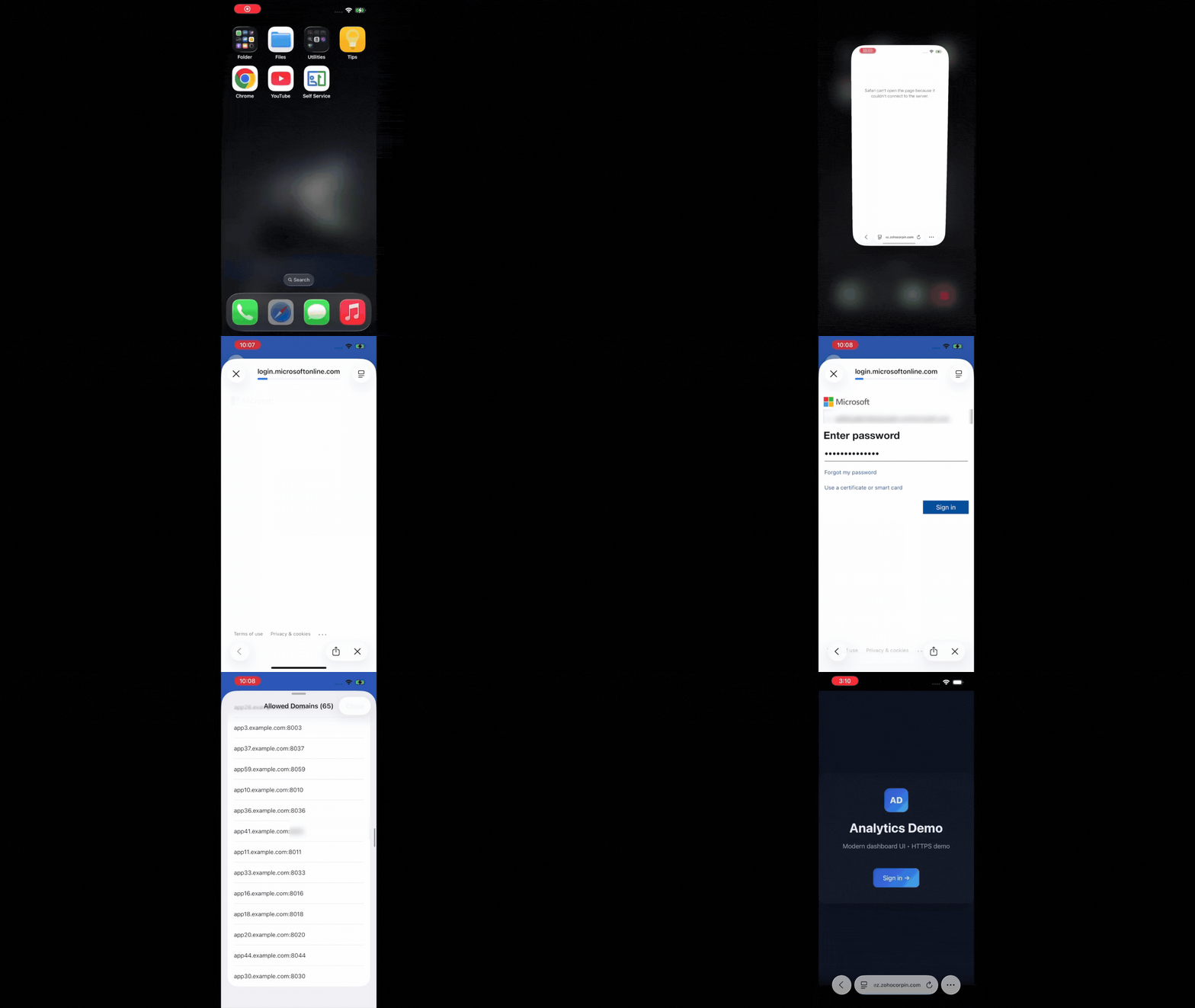
- Open the ME MDM App on the device.
- Navigate to the Endpoint Central section.
- Enter your username and password when prompted.
- Once authenticated, Endpoint Central is active and internal applications are accessible.