Preventing Security Misconfigurations
Endpoint Central continuously monitors all systems in your network for security misconfigurations and provides fixes to address them without impacting critical operations.
Overview
Most of the time, security configurations of network systems are unmanaged, improperly configured, or left as default. As organizations increasingly rely on complex IT infrastructures, the potential for misconfiguration grows. There might be chances for default credentials, inactive or disabled firewall and antivirus, elevated privileges, and open shares that might arise security concerns. A misconfigured system may leave an organization vulnerable to cyberattacks such as data breaches, ransomware, and denial-of-service attacks. Thus, identifying and addressing misconfigurations promptly is critical to maintaining the integrity, availability, and confidentiality of systems and data.
Endpoint Central uses predefined templates for security configurations designed to harden your systems. These templates are curated from CIS (Center for Internet Security) and STIG (Security Technical Implementation Guide) benchmarks, ensuring adherence to industry standards. Any deviation from these templates will be listed as a misconfiguration and the console will provide necessary fixes or resolutions to address the same.
Applies to:
- Windows
- Linux
Viewing the System Misconfigurations
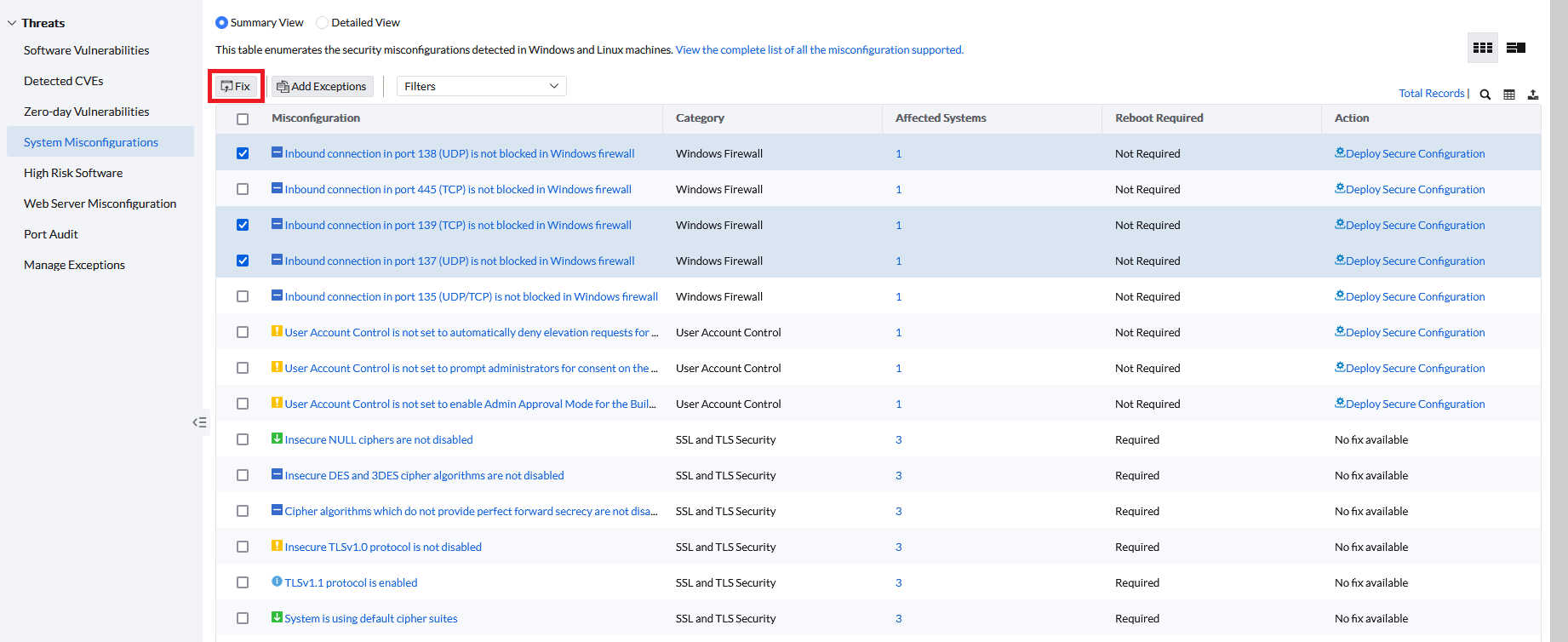
To view the security misconfigurations present across the managed computers, navigate to Threats & Patches → Threats → System Misconfiguration.
All misconfigurations are listed in this window. Under Category, you can see the misconfiguration type. Under Affected Systems, you can see the count of managed computers with that misconfiguration — clicking on the count shows the names of affected systems individually. Under Action, you can see whether a fix is available, and if so, whether a reboot is required under the Reboot Required column.
Click the Filters button to filter and prioritize misconfigurations based on specific criteria.
The Antivirus (not considering Windows Defender) not installed check determines whether a third-party antivirus solution is installed. Windows Defender is the default antivirus solution provided by Microsoft and is not considered a third-party antivirus solution for this check. Therefore, a system that uses only Windows Defender can be reported with this security misconfiguration. If you do not want this check to be detected or reported for specific systems, add it to the Exceptions list.
To detect and remediate the Simple Network Management Protocol (SNMP) is not disabled misconfiguration under the Legacy Protocols category, refer to How to disable SNMP.
Deploying Secure Configuration
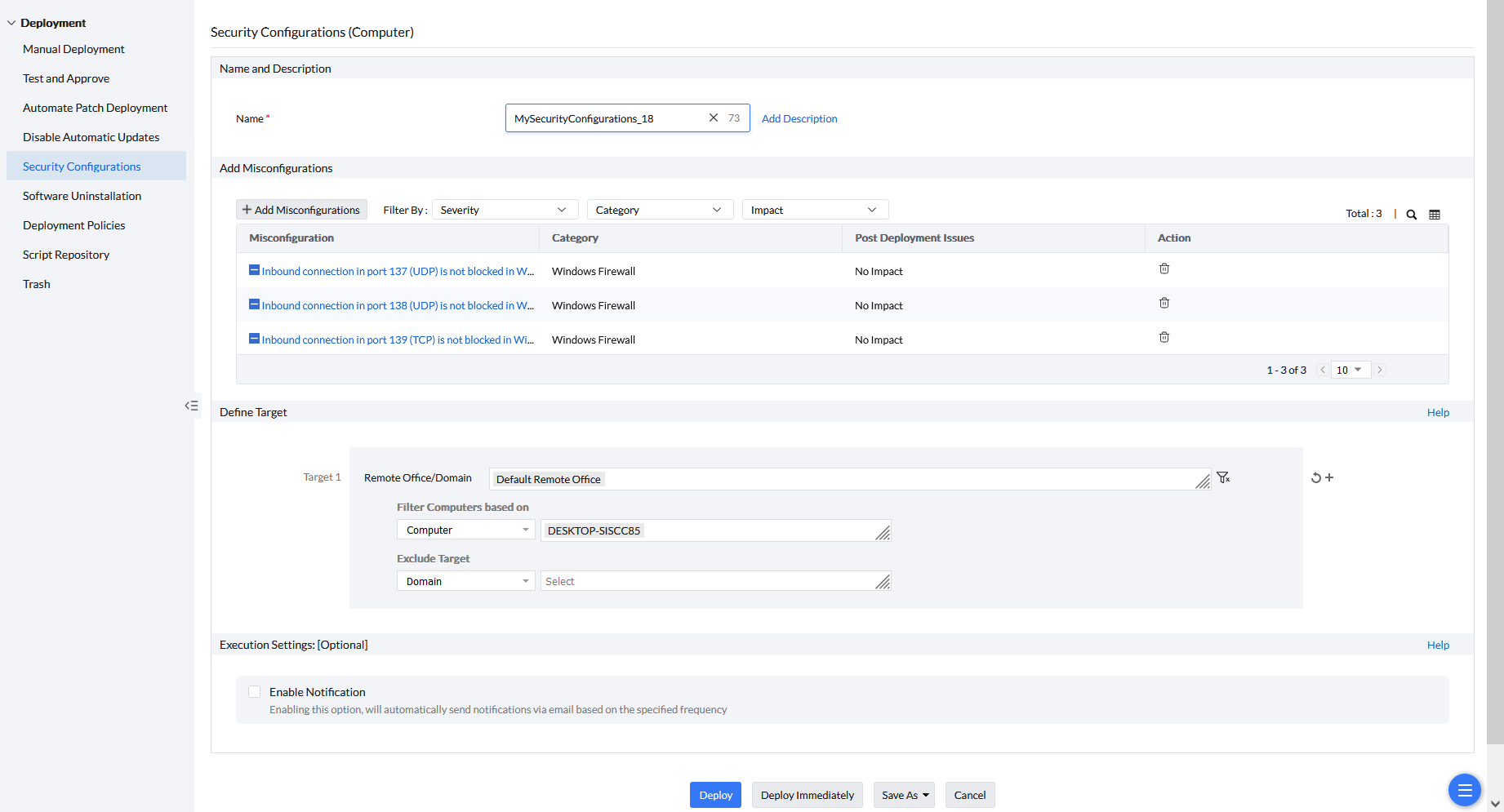
After filtering, select the misconfigurations for which you need to deploy the fix by enabling the checkbox beside that misconfiguration and clicking Fix. You will be redirected to the System Configurations window.
Name and Description
Under this section, you can name the configuration of your choice and add a description by clicking Add Description.
Add Misconfiguration
Under this section, you can see the selected misconfigurations for which you want to deploy the fix. Under the Post Deployment Issues section, you can see the impact this fix may have on the computer after deployment. If there are no impacts, No Impact will be mentioned. If you wish to add more misconfigurations to fix, click Add Misconfiguration, filter, and add the required ones.
Define Target
After choosing the misconfigurations to fix, you can include or exclude target computers of your choice under the Define Targets section. To learn more about defining targets, refer to this page.
Execution Settings
After defining the targets, configure the Execution Settings (optional). Under this section, if you want to configure notifications about this activity, select the Enable Notifications option. To learn more, refer to this page.
Deploy
After configuring the required settings:
- Click Deploy Immediately to deploy fixes to a maximum of 200 computers right away, with the remaining selected computers receiving their fixes in their subsequent refresh cycle.
- Click Deploy to deploy fixes to all selected computers in their subsequent refresh cycle.
- System Misconfiguration status for each system will be updated after a patch scan.
- Sometimes, security settings might be inappropriately configured in Domain GPO and cannot be overridden from the console. To manually resolve these misconfigurations, refer to these articles.
- You can track the status of security configuration deployments from Deployment → Security Configurations.
- If any misconfiguration fix deployment has failed on a computer, that computer will be listed under Attention Required. To view those computers, navigate to Threats & Patches → Systems → Attention Required, click Failed Security Configurations, select the computers where deployment has failed, and click Deploy Failed Configuration to reinitiate the deployment.
Revert a Windows misconfiguration
To roll back a Windows security misconfiguration:
- Navigate to Configuration → Script repository → Templates and select misconfiguration reverts.
- Select the revert script for that misconfiguration and click Add to script repository. Script names start with revert. If the script requires arguments, use the arguments in the script description.
- Navigate to Configurations → Windows → Custom script → Computer.
- Name the configuration, select the revert script, select the target computers, and click Deploy.
- Check the result under Threats & Patches → Deployment → Security Configurations.