Office Patch Download Failure
Problem
Patch downloads for Microsoft Office applications can fail with the following errors. Affected applications include Microsoft 365, Office 2021, and Office 2019.
Both the main Office patch and its dependency patch must download before you deploy.
- Command execution failure
- Unable to execute command
- Unknown Error Code:- 2147012894
- Unknown Error Code:- 2147012852
Download failed with <code> Please whitelist this url:<url> and also allow extension-[<ext>]. The error code, URL and file extension vary with the failure.
Investigating Problem Causes
For a remark containing Please whitelist this url or allow extension, capture the full error, failed URL and extension. Test that exact URL from the configured downloading host, not only from an endpoint browser. Follow the ODT and dependency checks below; a browser download does not confirm product-service access.
For package selection and upload instructions, see Upload Pending eligibility. Use Office network and execution checks if allowlisting alone has not resolved the download failure.
A failed Office download does not automatically add the package to Upload Patches. Use manual upload only when the matching patch or dependency is explicitly listed with upload instructions.
Office download processing can include extraction, configuration, additional content downloads and packaging. A separately downloaded Office Deployment Tool executable does not replace this complete process. Do not substitute an arbitrary ODT executable when the required package is absent from Upload Pending.
An empty Upload Patches list does not by itself confirm that an Office package is unsupported. It can also reflect the selected filters and the package's download or upload state. Check these before you continue. If no matching upload entry is available, follow the network and ODT checks below. Provide Support with the Patch ID, dependency ID, language, server build and full error. See Upload Pending requirements.
Possible causes include:
- The user cannot access or execute the Setup.exe file.
- Antivirus software blocks the operation.
- The proxy credentials in Proxy Settings are invalid.
Follow these steps to identify and resolve the issue:
Allowlist Office download domains
Allowlist the domains listed on this page in your proxy to download the Office patches.
Test the Office Deployment Tool download
If the download still fails after allowlisting the links, use the following test to check for network or privilege issues:
- Log on to the computer where the server is installed and create a folder named o365.
Copy the XML content below and save it as download.xml. Place the file in the o365 folder that you created in the first step.
Note<Configuration>
<Add OfficeClientEdition="64" Channel="Current">
<Product ID="O365ProPlusRetail">
<Language ID="en-us"/>
</Product>
</Add>
<Display AcceptEULA="TRUE"/>
</Configuration>- Download the office deployment tool and place it in the o365 folder along with download.xml.
- Use 7zip to extract the .exe file in the same path.
Run Command Prompt as administrator and execute these commands:
Notesetup.exe /download download.xml
echo %errorlevel%- After the test, the error level should be 0. If another value appears, contact support.
Check server service-account permissions
If the test returns exit code 0 but the product download still fails, a privilege issue might be present. Follow these steps:
- Open Run (Windows key + R) and enter services.msc.
- Right-click on Patch Manager Plus UEMS - Server > Properties
- Click Log On.
- Click This account. Enter the credentials of the system's admin account and click OK.
- Restart the server and deploy or download the O365 patch.
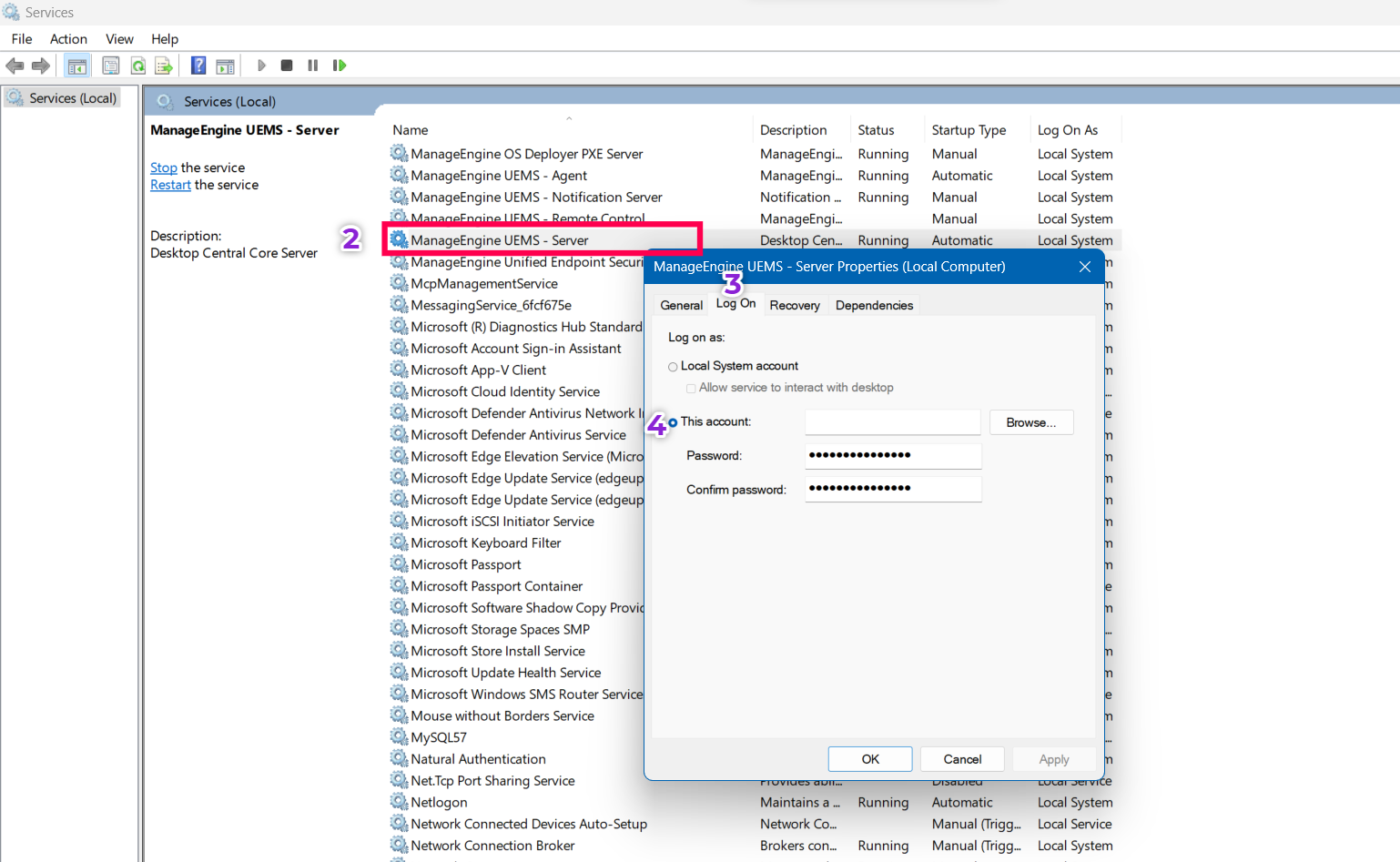
If the problem persists, contact support.
Diagnose hosted Office metadata failures
For a computer served by a Distribution Server, verify the main patch and each dependency for the affected Remote Office. Compare the requested JSON URL and responding host with the replication result. An overall download success does not verify that serving copy. If the 404 continues, collect matching server, Distribution Server and agent logs. See HTTP 404 checks and patch-store checks.
For Failed to download office patch meta json with error code : 404 or Failed to decrypt office meta - <id>.json, identify the stage that failed: downloading the dependency JSON, decrypting it, or downloading the Office files described by it. These are separate stages in the hosted-metadata flow.
- Record the Patch ID and dependency ID, affected computer, server and agent builds, failure time and full error. For a metadata download failure, include the requested JSON URL and the serving server or Distribution Server response.
- If the download succeeded but decryption failed, collect the affected agent logs, the recorded
officemeta.exehelper presence and result, and whether the expected dependency JSON became available. Do not run an undocumented helper command or substitute another JSON file. - Share the bundle and stage-specific evidence with Support if the failure persists. A successful allowlisting test does not establish that decryption succeeded.