Configure Palo Alto Firewalls
Firewall Analyzer supports Palo Alto Firewall PANOS 7.0, 8.0, 9.0 and later versions.
Configure Syslog Monitoring
To use Syslog to monitor a Palo Alto Networks device, create a Syslog server profile and assign it to the device log settings for each log type.
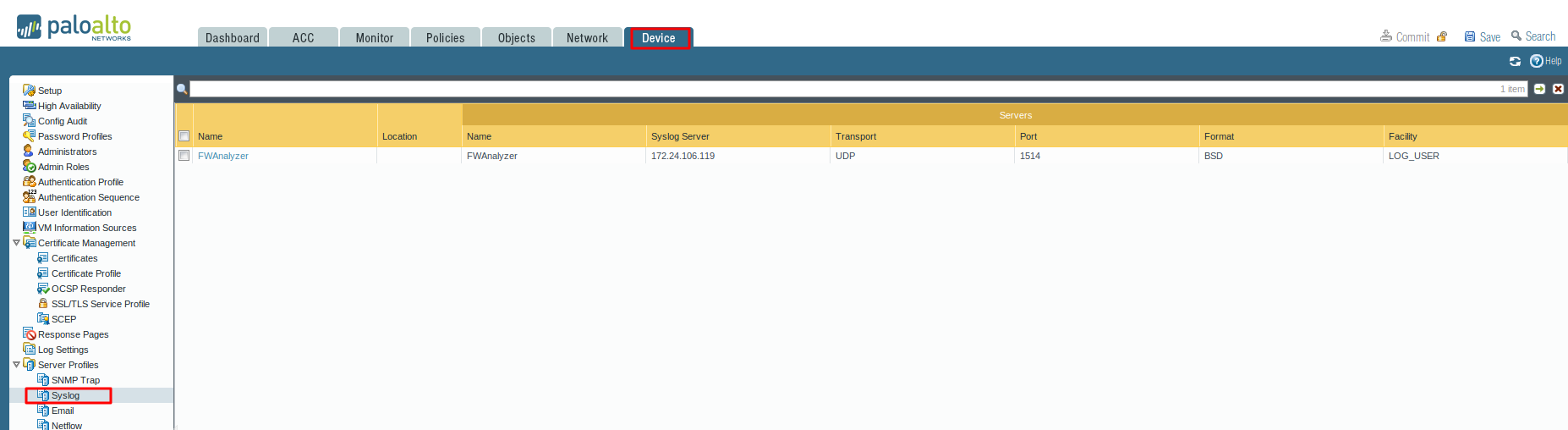
Configure a Syslog server profile
You can use separate profiles to send syslogs for each log type to a different server. To increase availability, define multiple servers (up to four) in a single profile.
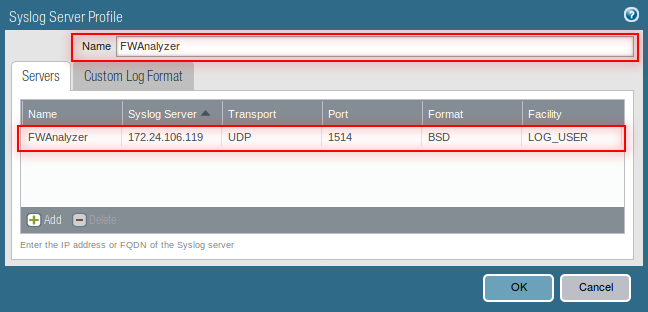
- Select Device > Server Profiles > Syslog
- Click Add and enter a Name for the profile
- If the firewall has more than one virtual system (vsys), select the Location (vsys or Shared) where this profile is available.
- For each syslog server, click Add and enter the information that the firewall requires to connect to it:
- Name —Unique name for the server profile.
- Server —IP address or fully qualified domain name (FQDN) of the syslog server.
- Transport —Select TCP, UDP, or SSL as the method of communication with the syslog server.
- Port —The port number on which to send syslog messages (default is UDP on port 1514); you must use the same port number on the firewall and the syslog server.
- Format —Select the syslog message format to use: BSD (the default) or IETF. Traditionally, BSD format is over UDP and IETF format is over TCP or SSL.
- Facility —Select a syslog standard value (default is LOG_USER) to calculate the priority (PRI) field in your syslog server implementation. Select the value that maps to how you use the PRI field to manage your syslog messages.
- Firewall Analyzer supports 'Default' format for Paloalto firewall device. Kindly ensure that 'Default' format has been enabled under Device > Server Profiles > Syslog > Custom Log Format.
- Click OK to save the server profile.

Configure syslog forwarding for Traffic, Threat, and WildFire Submission logs
Create a log forwarding profile
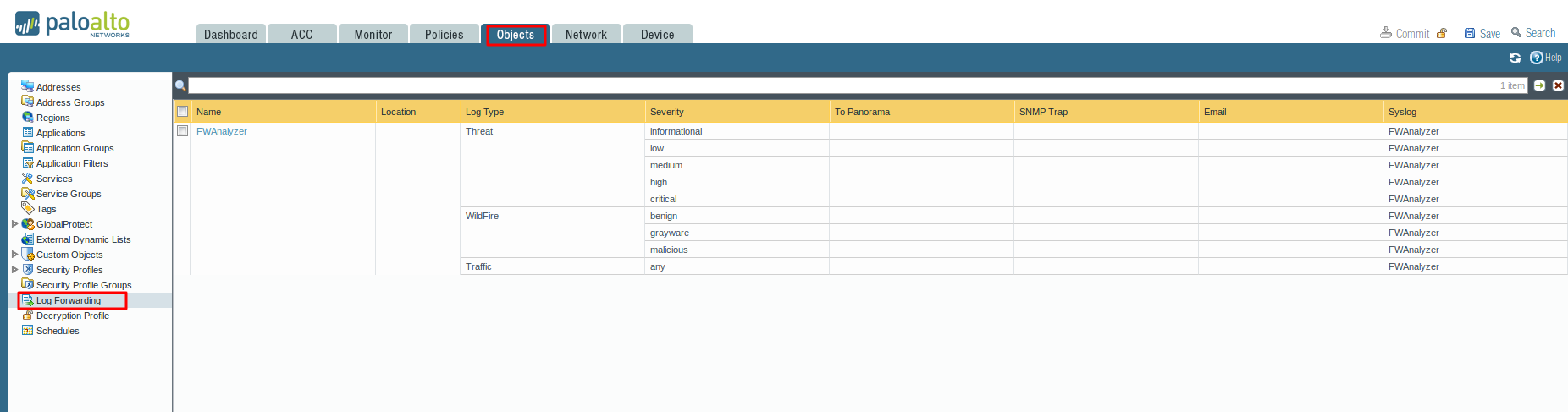
- Select Objects > Log Forwarding, click Add, and enter a Name to identify the profile.
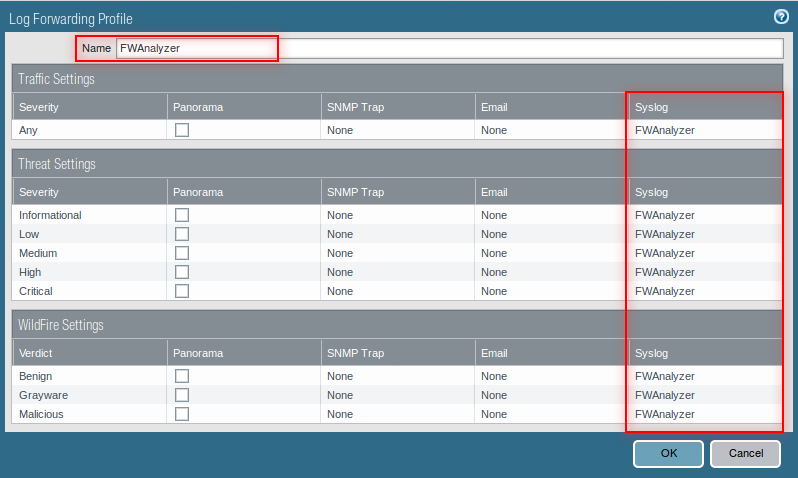
- For each log type and each severity level or WildFire verdict, select the Syslog server profile and click OK.
- Assign the log forwarding profile to security rules.
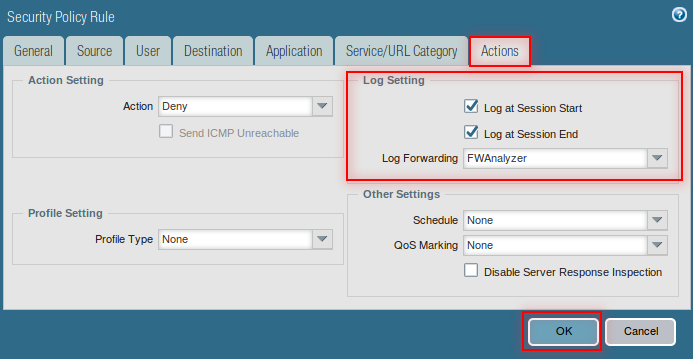
Configure security policy rule action as log forwarding
- Select Policies > Security
- Click the policy in which you want to configure log forwarding
- Select Actions
- Select the profile to which the logs to be forwarded in Log Forwarding dropdown list.
- Click OK

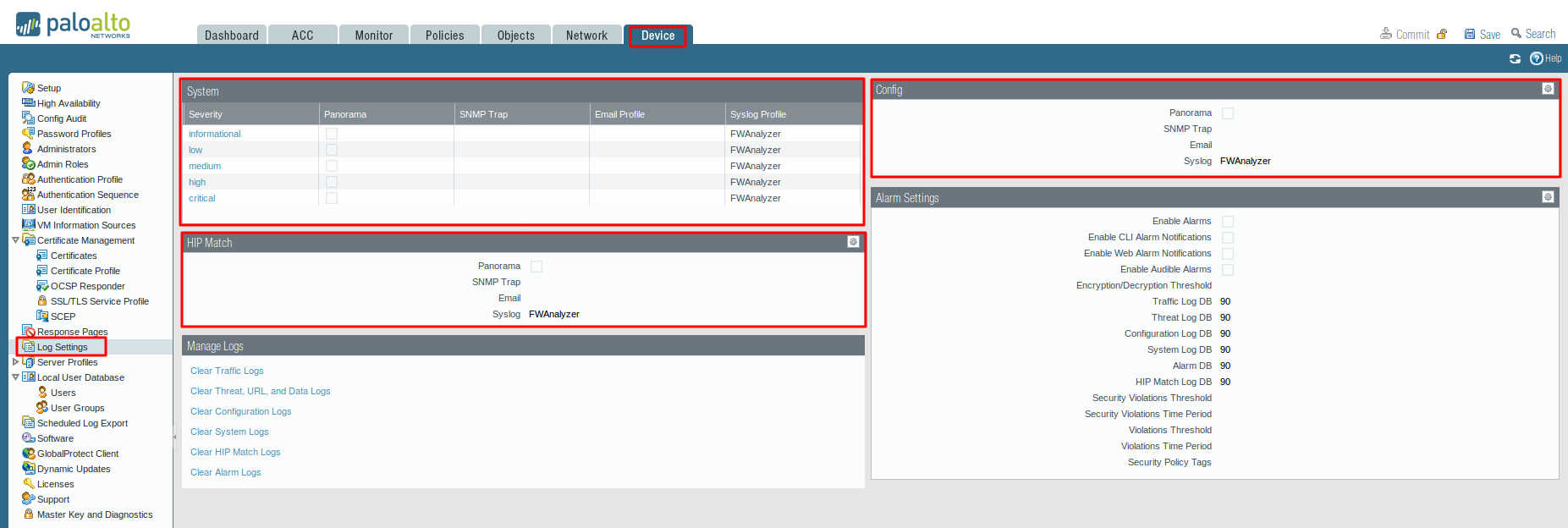
Configure syslog forwarding for System, Config, HIP Match, and Correlation logs
- Select Device > Log Settings.
- For System and Correlation logs, click each Severity level, select the Syslog server profile, and click OK.
- For Config, HIP Match, and Correlation logs, click the Edit icon, select the Syslog server profile, and click OK.
Commit your changes and review the logs on the syslog server
- Click Commit
To review the logs, refer to the documentation of your syslog management software. You can also review the Syslog Field Descriptions.
For more details about Palo Alto firewall configuration management, refer the Palo Alto configuration management and Palo Alto firewall monitoring page.