How to send log files to the OS Deployer support team?
Description
When you face issues while working with OS Deployer, it is mandatory for our experts to refer to your logs to resolve the issues you are facing. To provide an appropriate solution for your issue, you must send us log files along with a description of the issue and screen shots, depending on the issue.
There are two stages in sending the log files, they are:
Extracting the logs
List of OS Deployer Log Files and their Locations
The following are the list of logs, that might be needed for trouble shooting purposes. You can find the steps to archive the logs and the steps involved in sending it to the Endpoint Central support.
<Installation_Directory>\ ManageEngine\UEMS_DistributionServer\ logs, if you are using Endpoint Central 11.2.2309.01 and above
For example,C:\Program Files (x86)\ ManageEngine\UEMS_DistributionServer\ logs or if you are using Endpoint Central below 11.2.2309.01,
<Installation_Directory>\ ManageEngine\Desktopcentral_DistributionServer\ logs
For example,C:\Program Files\ ManageEngine\Desktopcentral_DistributionServer\ logs
<Installation_Directory>\ ME_Secure_Gateway_Server\ logs.
For example, C:\Program Files\ ME_Secure_Gateway_Server\ logs
<SDP Server Home>\server\default\log.
From the computer, where you have installed the Endpoint Central agent, perform the following operations:
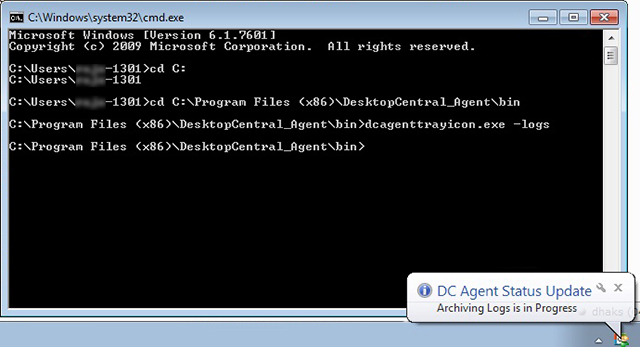
- Go to command prompt and navigate to the location, where Endpoint Central Agent is installed.
For example: C:\Program Files <x86>\ManageEngine\UEMS_Agent\bin, if you are using Endpoint Central 11.2.2309.01 and above and C:\Program Files <x86>\ManageEngine\Desktopcentral_Agent\bin, if you are using Endpoint Central below 11.2.2309.01 - Type, dcagenttrayicon.exe -logs and press enter
- You can see that the Endpoint Central logs will be extracted and archived in the ManageEngine\UEMS_Agent folder, if you are using Endpoint Central 11.2.2309.01 and above or in the ManageEngine\Desktopcentral_Agent folder, if you are using Endpoint Central below 11.2.2309.01.
The file will be saved in .7z format, the file name will be 1_<system name>_ZOHOCORP.7z (Example: 1_win2000_ZOHOCORP.7z)
- Open the Windows Run window (using Windows key + R) and execute "%programdata%/zohomeeting/log." This will open the Zoho Meeting logs folder.
- Zip all the files and include the created zip file while uploading the logs.
- You can upload/send this log file to the Endpoint Central support team.
From the computer, where you have installed the Endpoint Central agent, perform the following operations:
- Go to the Terminal
- As shown in the image, navigate to the folder where Endpoint Central agent is installed
(Example- machine name: ~machine name cd /Library/ManageEngine/UEMS_Agent/bin/dcagenttrayicon.app/Contents/MacOS/), if you are using Endpoint Central 11.2.2309.01 and above or machine name: ~machine name cd /Library/Desktopcentral_Agent/bin/dcagenttrayicon.app/Contents/MacOS/), if you are using Endpoint Central below 11.2.2309.01 - Type ./dcagenttrayicon logs.
- You can see that the Endpoint Central logs will be extracted and archived in the ManageEngine/UEMS_Agent/ folder, if you are using Endpoint Central 11.2.2309.01 and above or in the ManageEngine/Desktopcentral_Agent/ folder, if you are using Endpoint Central below 11.2.2309.01 .
The file will be saved in .zip format, the file name will be 1_<computer name>_ZOHOCORP.zip (Example: 1_MYMAC_ZOHOCORP.zip)

- Navigate to ~/Library/Logs/ZohoAssist. Zip the contents of this folder
- You can upload/send these log files to the Endpoint Central support team.
From the computer, where you have installed the Linux agent, perform the following operations:
- Go to the Terminal
- Navigate to the location where OS Deployer agent logs are located by using this command:
'cd < uems_agent >/logs'
( Default location- : 'cd /usr/local/manageengine/uems_agent') - Type sudo ./CollectLogs.sh
- You can see that the OS Deployer logs will be extracted and archived in the Linux_Agent_Installed_Directory/_UEMSAgent_Logs.zip folder.
The file will be saved in .zip format. - Navigate to /usr/local/.zohoassist. Zip the contents of this folder.
- You can upload/send this log file to the OS Deployer support team.
Perform the following steps, on the computer, from which you are trying to initiate a remote control session or file transfer:
- Go to the computer, from which you have tried to take a remote session or file transfer.
- Login using the same users credentials, that you have used while trying to initiate the remote session or file transfer.
- Locate the logs folder in this location : C:\Users\Administrator\DesktopCentral_Viewer
- Compress this folder into a zip file
Your viewer logs are ready to be uploaded.
Follow the steps detailed in
to upload the logs from the Web Console .To upload the ME MDM Android App's logs to OS Deployer support, you will have to perform the following steps on the managed mobile device.
- Navigate to the Support tab in the MDM server. Click on Create Support file.
- Specify your e-mail address and the description of the problem, which needs to be sent with the logs.
- Select the logs you want to upload:
- Server logs (Applicable only for MDM On-Premises)
- Agent logs
- Select the Agent logs and specify the devices whose logs are to be sent.
- Click Send to send the Support file.
The log files are successfully sent to Mobile Device Manager Plus Support.
This
will guide you in the logs required for the OS deployment module.Note: <Install_Dir>refers to the directory where the server is installed.
Note: <Install_Dir> refers to the directory where the server is installed.
Sending it to OS Deployer support
Ensure that the log files are zipped and ready to be uploaded. Kindly note that the logs can be uploaded from the Web Console by navigating to Support->Create Support File. If the Web Console is not accessible, follow the steps given below to send the log files to our support team.
The zipped log files are successfully uploaded.
Related Articles
Description
While facing issues with OS Deployer, it is necessary for our experts to go through your logs to resolve the issues. To offer you quick and personalized support, you must send us the log files along with a description of the issue and screen shots, depending on the issue. You can follow this document and upload the required logs.
There are two stages in sending the log files, they are:
- Extracting the logs
- Sending it to OS Deployer support
Extracting the logs
To troubleshoot any issues while working with our product, our experts need your logs for a better understanding of the problem. The following is the list of logs, that might be needed by our experts to resolve any issues.
<install_dir>\OSDeployer_Server\logs
C:\Program Files (x86)\ZohoCorp\OSDDSComponent\logs
C:\Program Files (x86)\ZohoCorp\ManageEngine OSDeployer - Image creator\Logs
These logs will be present on the computer where the deployment process is happening.
- Boot the target machine with the bootable media(PXE/USB/ISO).
- Initiate the deployment.
- While getting an error, Click on ALT+TAB keys and select the command prompt.
- Enter diskpart
- On the diskpart window, enter list volume
- Note the drive letter for the USB drive(e.g: D, E, ..etc)
- Enter exit
- On the command prompt window, go to the location given below
X:\Program files\osd\bin\Logs
- Copy the above logs folder to a USB thumb drive by executing the following command
xcopy /e /i "X:\Program files\osd\bin\Logs" "D:\Logs"
NoteD is an example of the drive letter mentioned above. Use the drive letter you have noted in step 3.
C:\Windows\PatcherLogs
- If PXE boot is done in local office:
\OSDeployer_Server\logs - If PXE boot is done in remote office: C:\Program Files(x86)\ZohoCorp\OSDPXEComponent\PXEService\logs
Sending it to OS Deployer support
Ensure that the log files are zipped and ready to be uploaded. Kindly note that the logs can be uploaded from the Web Console by navigating to Support->Create Support File. If the Web Console is not accessible, follow the steps given below to send the log files to our support team.
- From a web browser, connect to this link.
- Specify the Ticket ID, if you have one.
- Add the modules, of which the logs are uploaded.
- Specify your email address and the address to receive notifications.
- Specify the reason.
- Click Add files to browse and select the required log files.
- Click Upload.
- The zipped log files will be successfully uploaded.