QR Code-Based Authentication
QR Code-Based Authentication requires users to scan a QR code using the ADSelfService Plus mobile app to prove their identity. Once enabled and enrolled, users open the app, scan the QR code displayed on the authentication screen, and are verified without entering a password or code.
How it works
When a user reaches the QR Code-Based Authentication step, ADSelfService Plus displays a unique QR code on the screen. The user scans it using the ADSelfService Plus mobile app on their enrolled device. The app communicates the verification back to the server, and authentication completes. Because enrollment is device-based, users who switch to a new device must re-enroll.
Prerequisites
- The Professional edition of ADSelfService Plus is required.
- You must have administrator access to the ADSelfService Plus portal.
- At least one self-service policy must be configured before enabling this authenticator.
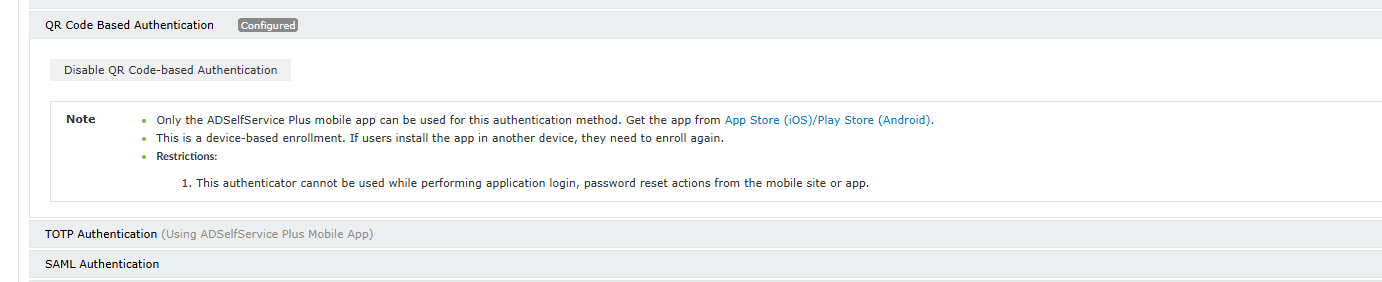
- Users must have the ADSelfService Plus mobile app installed on their device — available on the App Store (iOS) and Play Store (Android).
Limitations
Configuration instructions
The navigation path to the Multi-factor Authentication page differs slightly between AD and Entra ID deployments.
- Active Directory: Go to Configuration > Self-Service > Multi-factor Authentication > Authenticators Setup.
- Entra ID: Select Azure Active Directory from the directory drop-down at the top-left, then go to Configuration > Self-Service > Multi-factor Authentication > Authenticators Setup.
Then:
- From the Choose the Policy drop-down, select the policy you want to configure.
- Click the QR Code-Based Authentication section to expand it.
- Select Enable QR Code-Based Authentication.
Tips
- Because QR Code-Based Authentication is device-based, remind users to re-enroll if they change devices — otherwise they will be unable to complete authentication until they do so. Consider pairing this authenticator with a fallback method such as Email Verification so users are not locked out during a device transition.
- Use the MFA Enrollment tab (Entra ID) or the Enrolled Users Report (AD) to monitor which users have enrolled for QR Code-Based Authentication, and follow up with users who haven't enrolled if this authenticator is set as mandatory in their policy.