Push Registered Devices Report
The Push Registered Devices Report lists all users who have registered for push notifications in the ADSelfService Plus mobile app. Each entry includes the domain name, mobile OS (Android or iOS) and its version, and product details of the registered mobile device.
Prerequisites
- You must have administrator or operator credentials to access the ADSelfService Plus portal.
- At least one AD domain must be configured in ADSelfService Plus.
Generating the report
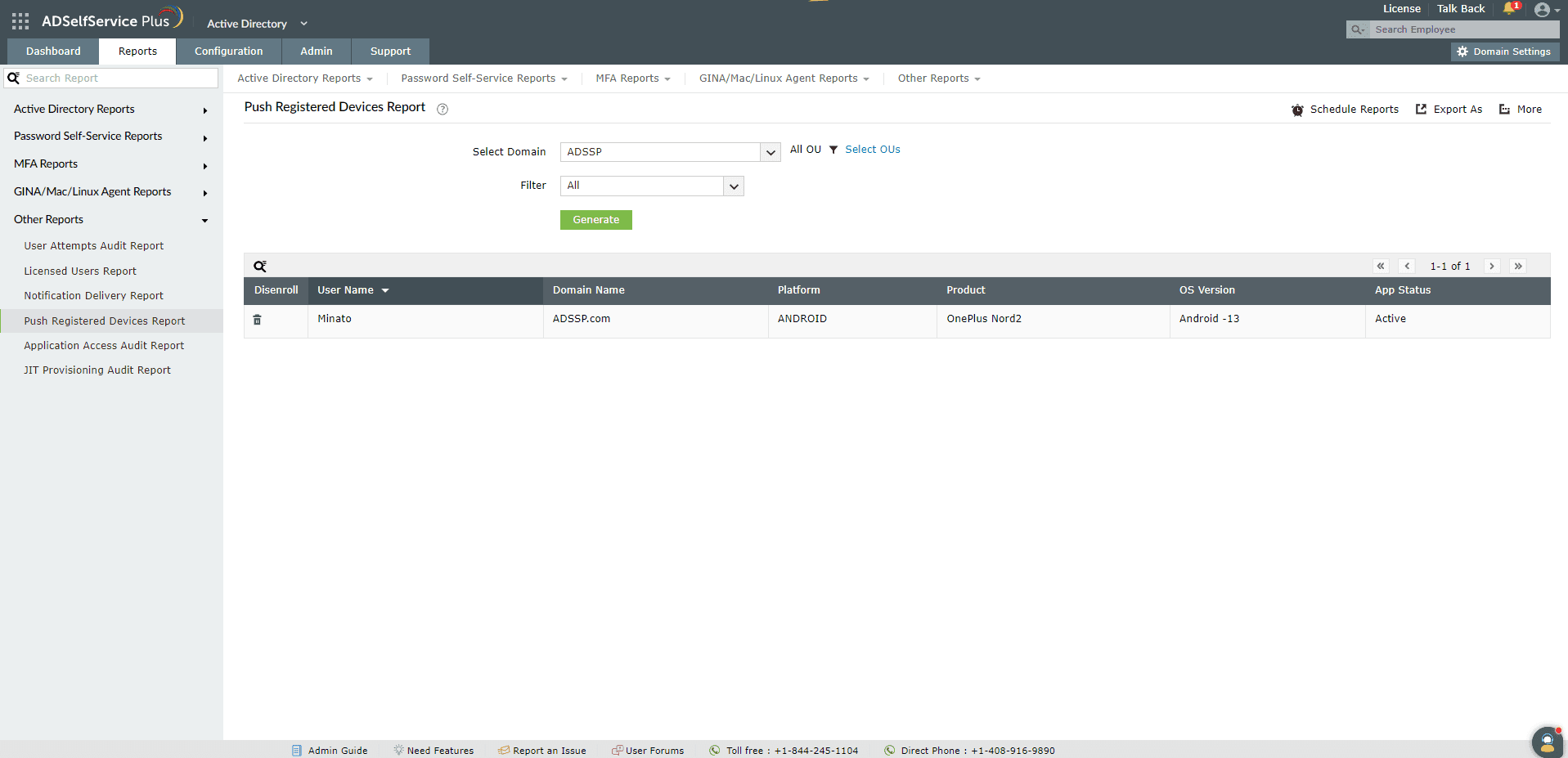
To generate the Push Registered Devices Report:
- Log in to the ADSelfService Plus portal with administrator or operator credentials.
- Go to Reports > Other Reports > Push Registered Users Report.
- Use the Filter option to display devices for iOS, Android, or both.
- Click Generate.
Disenrolling devices from push notifications
Select one or more entries in the report to display the Disenroll button at the top of the report. Use this option to disenroll selected devices from receiving push notifications.
Sorting
Click any column header to sort the report entries in ascending or descending order.
Searching
Click the search icon to search for specific entries within the report. You can search by username. Searches use a contains match — for example, searching for jack returns all usernames containing the sequence jack.
Schedule Reports, Export As, and More
- Schedule Reports — Schedule automatic report generation at set intervals, and email results to administrators or specified addresses.
- Export As — Export the report in CSV, CSVDE, HTML, PDF, or XLS format using the option in the top-right corner.
- More — The More menu in the top-right corner provides the following options:
- Printable View: Preview and print the report.
- Send Mail: Email the report to specified addresses.
- Export Settings: Configure a custom report title and header logo to display on each exported page.
Tips
- Use the Filter option to isolate reports by platform (iOS or Android) when investigating device-specific push notification issues or auditing mobile app enrollment by OS type.
- Periodically review the report and use Disenroll to remove devices that are no longer in use — for example, when a user changes devices or leaves the organization — to keep push notification enrollment data accurate.
The Schedule Reports option at the top-right corner of the page can be used to schedule the generation of reports at specified intervals to set up an automated scheduler. Learn to schedule reports here.