Pricing  Get Quote


Did you know: How to customize Logon-to Domain List?

Solution:

Does your IT environment involve multiple domains?

ADSelfService Plus gives you, the administrator, the liberty to customize the end-user logon page. You can create a drop-down list for the available domains in the user logon page to help the user choose the domain they wish to log on to.
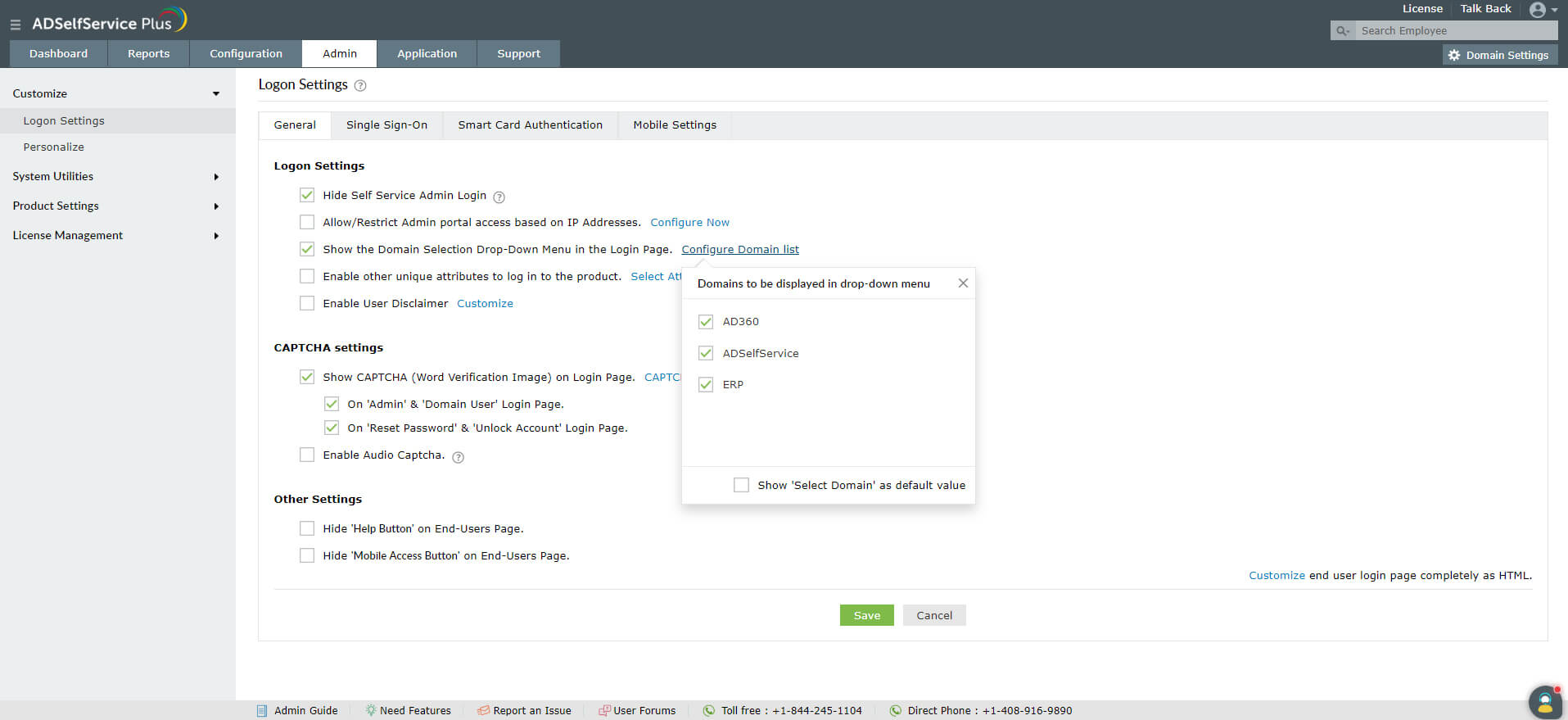
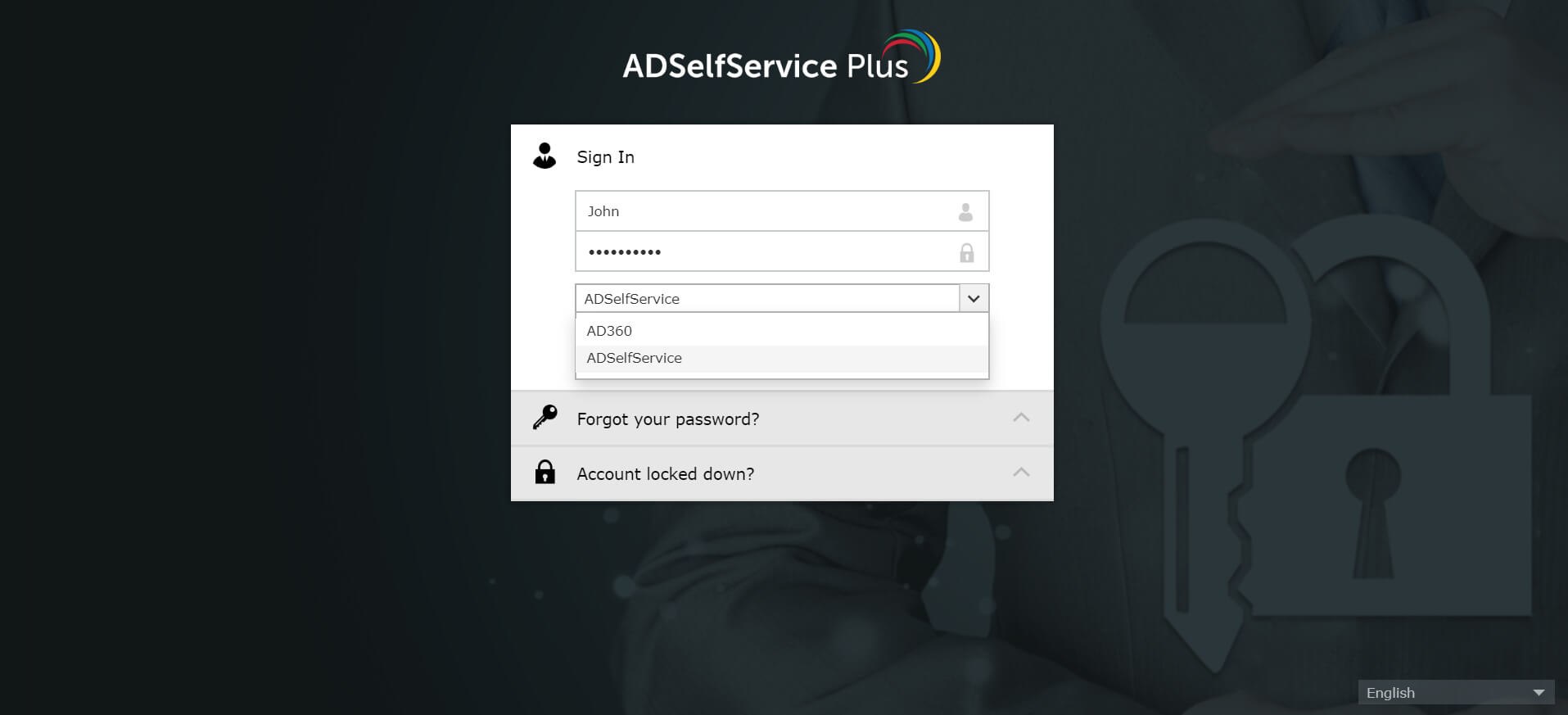
  1. Log in to the ADSelfService Plus admin console.
  2. Navigate to the Admin tab.
  3. Click Customize → Logon Settings → General.
  4. Enable the Show the Domain Selection Drop-Down Menu in the Login Page checkbox.
    Note: Click Configure Domain List to select the domains you want to be displayed in the drop-down on the login page. If you don’t want any domain name as the default value, you can select the Show ‘Select Domain’ as default value checkbox at the bottom.

    domain-logo

  5. Click Save to store the configured settings.

    domain-logo

Customizing the domain list for the ADSelfService Plus mobile app/site:

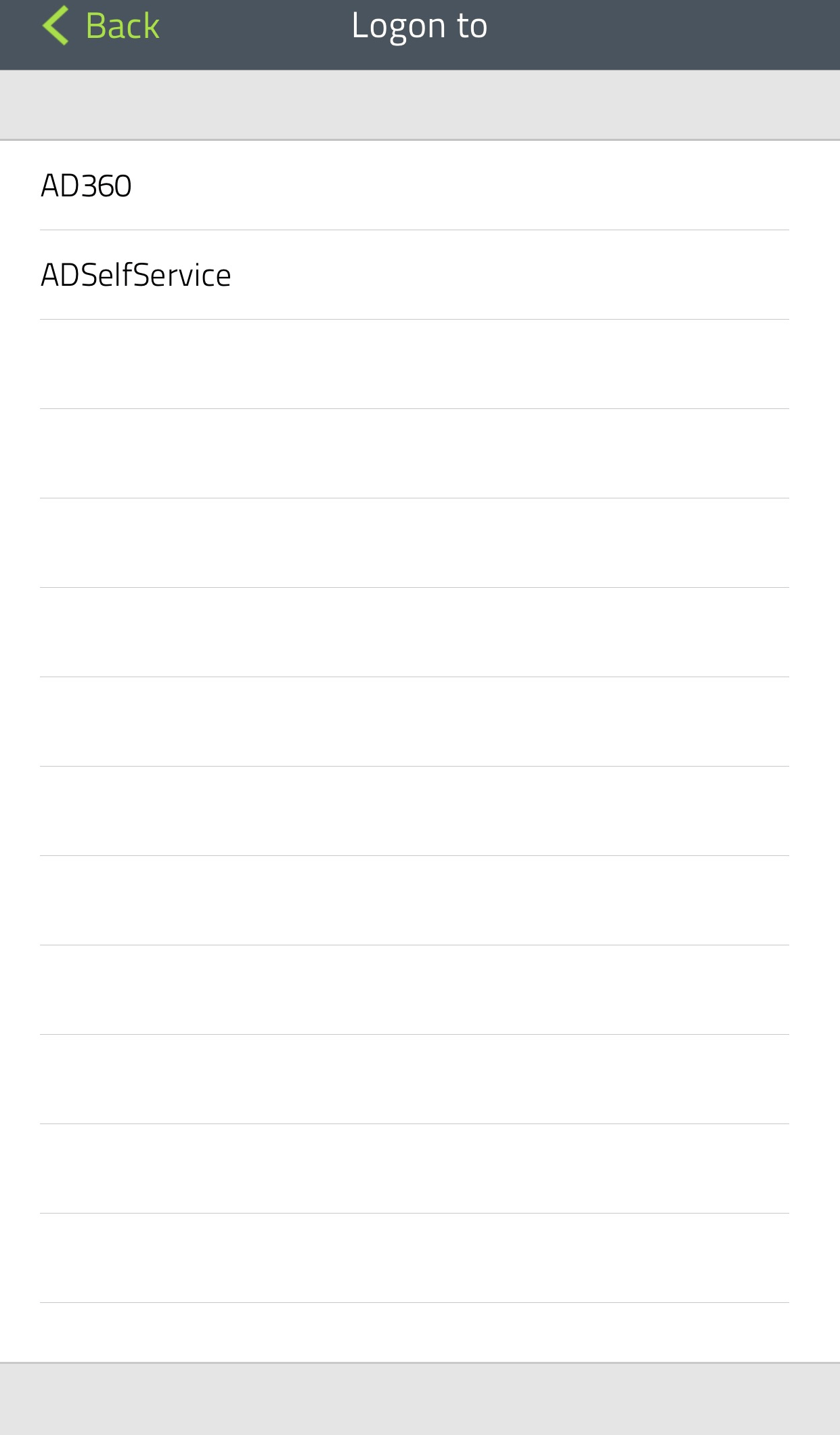
ADSelfService Plus gives you, the admin, the privilege to customize the domain list for the mobile app/site as well. This way, when the end user logs in through their mobile devices, they can choose a domain from the drop-down list in the logon page just as they do from their workstations.
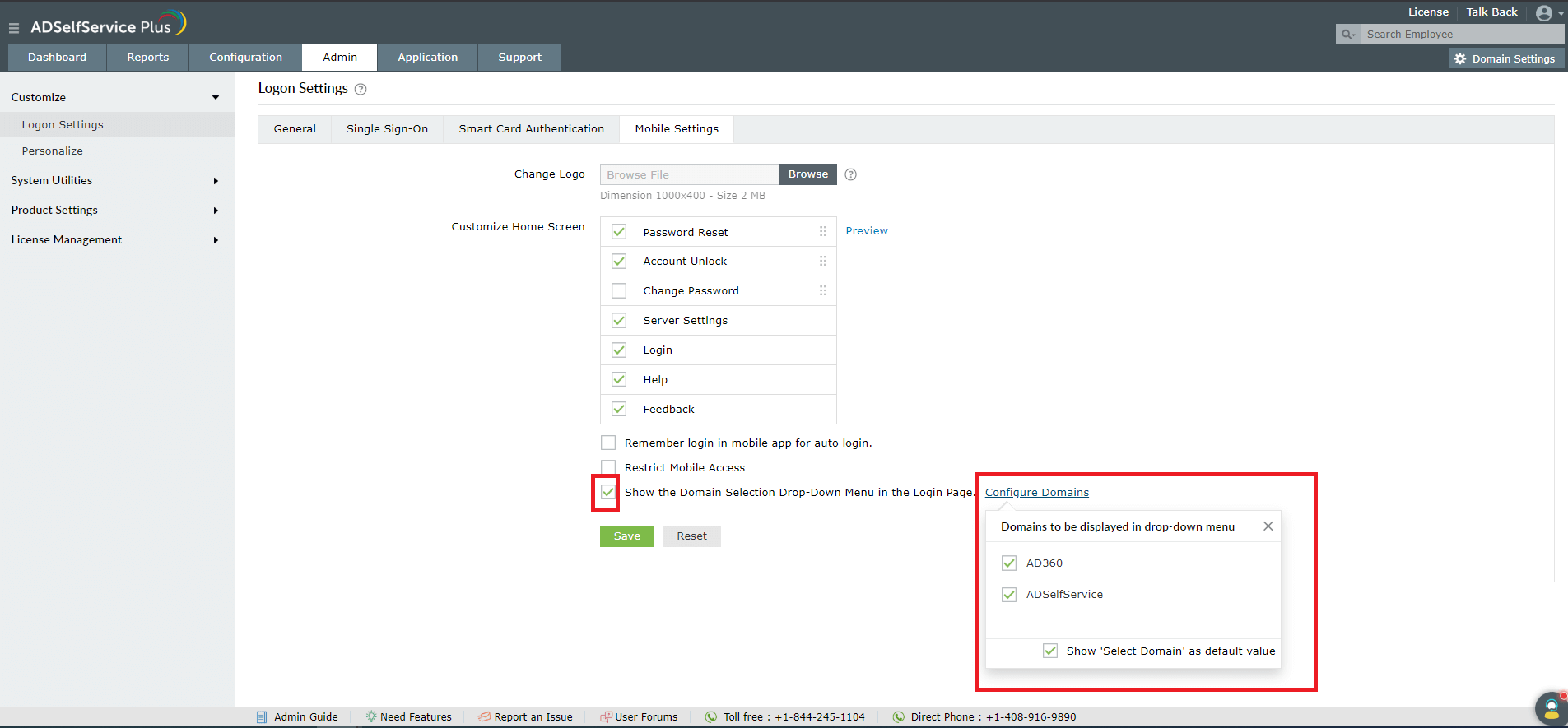
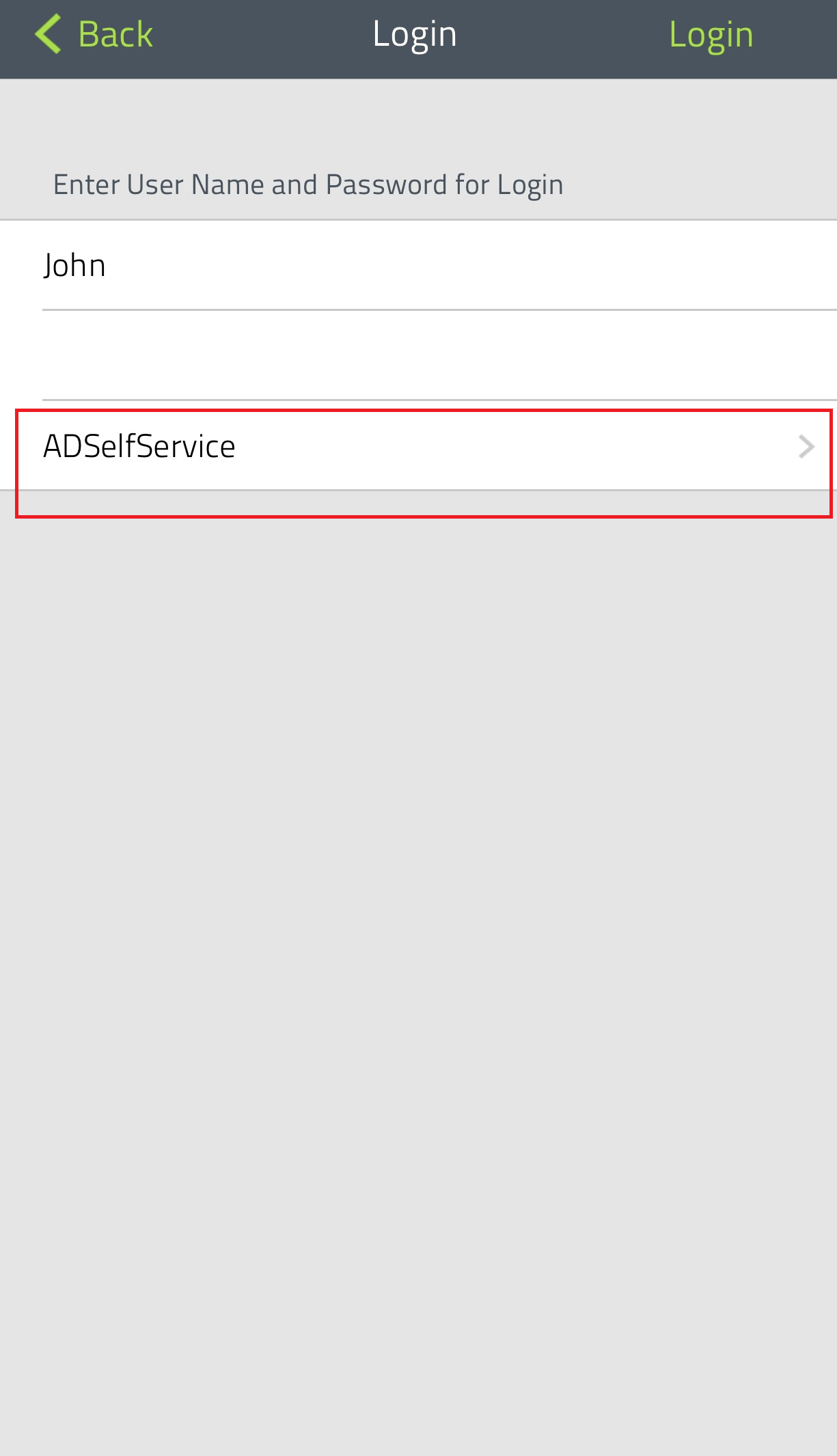
To configure the domain list for mobile:

  1. Log in to the ADSelfService Plus admin console.
  2. Browse to Admin > Customize > Logon Settings > Mobile Settings.
  3. Check the Show the Domain Selection Drop-Down Menu in the Login Page checkbox.
  4. Click Configure Domains and select the domains you want to be displayed on the logon page.
    Note: If you don’t want to set any domain as the default value, check the Show 'Select Domain' as default value checkbox at the bottom.

    domain-logo

  5. Click Save to save your settings.

    domain-logo

    domain-logo

Request for Support

Need further assistance? Fill this form, and we'll contact you rightaway.

  • Name
  •  
  • Business Email *
  •  
  • Phone *
  •  
  • Problem Description *
  •  
  • Country
  •  
  • By clicking 'Submit' you agree to processing of personal data according to the Privacy Policy.
Highlights of ADSelfService Plus

Password self-service

Allow Active Directory users to self-service their password resets and account unlock tasks, freeing them from lengthy help desk calls.

One identity with single sign-on

Get seamless one-click access to 100+ cloud applications. With enterprise single sign-on, users can access all their cloud applications using their Active Directory credentials.

Password and account expiry notification

Intimate Active Directory users of their impending password and account expiry via email and SMS notifications.

Password synchronization

Synchronize Windows Active Directory user passwords and account changes across multiple systems automatically, including Microsoft 365, Google Workspace, IBM iSeries, and more.

Password policy enforcer

Strong passwords resist various hacking threats. Enforce Active Directory users to adhere to compliant passwords by displaying password complexity requirements.

Directory self-update and corporate directory search

Enable Active Directory users to update their latest information themselves. Quick search features help admins scout for information using search keys like contact numbers.


ADSelfService Plus trusted by

Embark on a journey towards identity security and Zero Trust