
We recommend users to move to the latest version of Endpoint Central MSP - Build - (Learn what's new!).
The SHA256 checksum hash value is -
Service Pack path to the latest version
How can I find build number?What is a Failover Server setup?
A Failover server is a secondary server that starts managing your devices if the primary server goes down, thus eliminating any downtime caused. Learn more.
How to check whether you have a Failover Server setup or not?
In the Endpoint Central MSP's web console, go to the Admin tab, under Server Settings, click Failover Server.
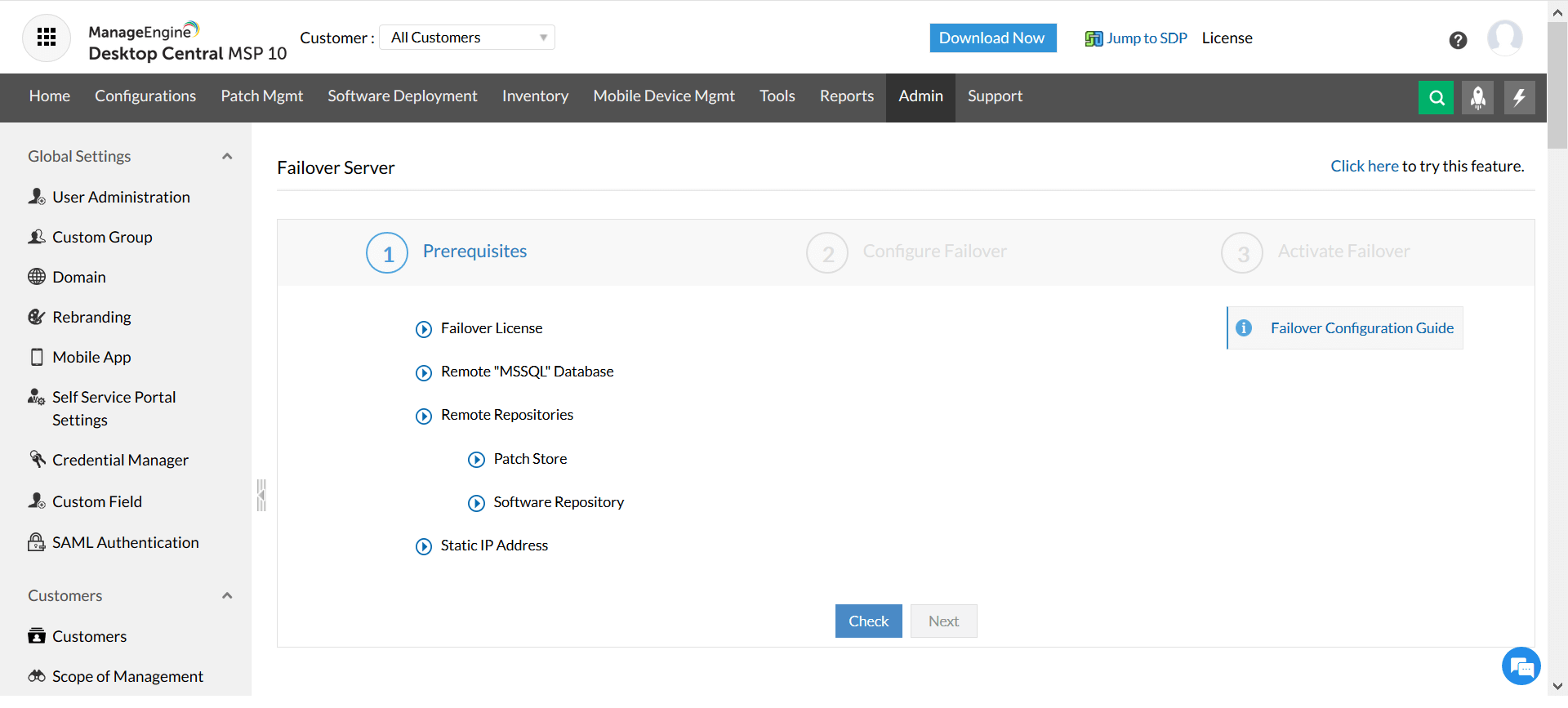
If you do not have a Failover Server setup, then the page will look similar to the image given below:
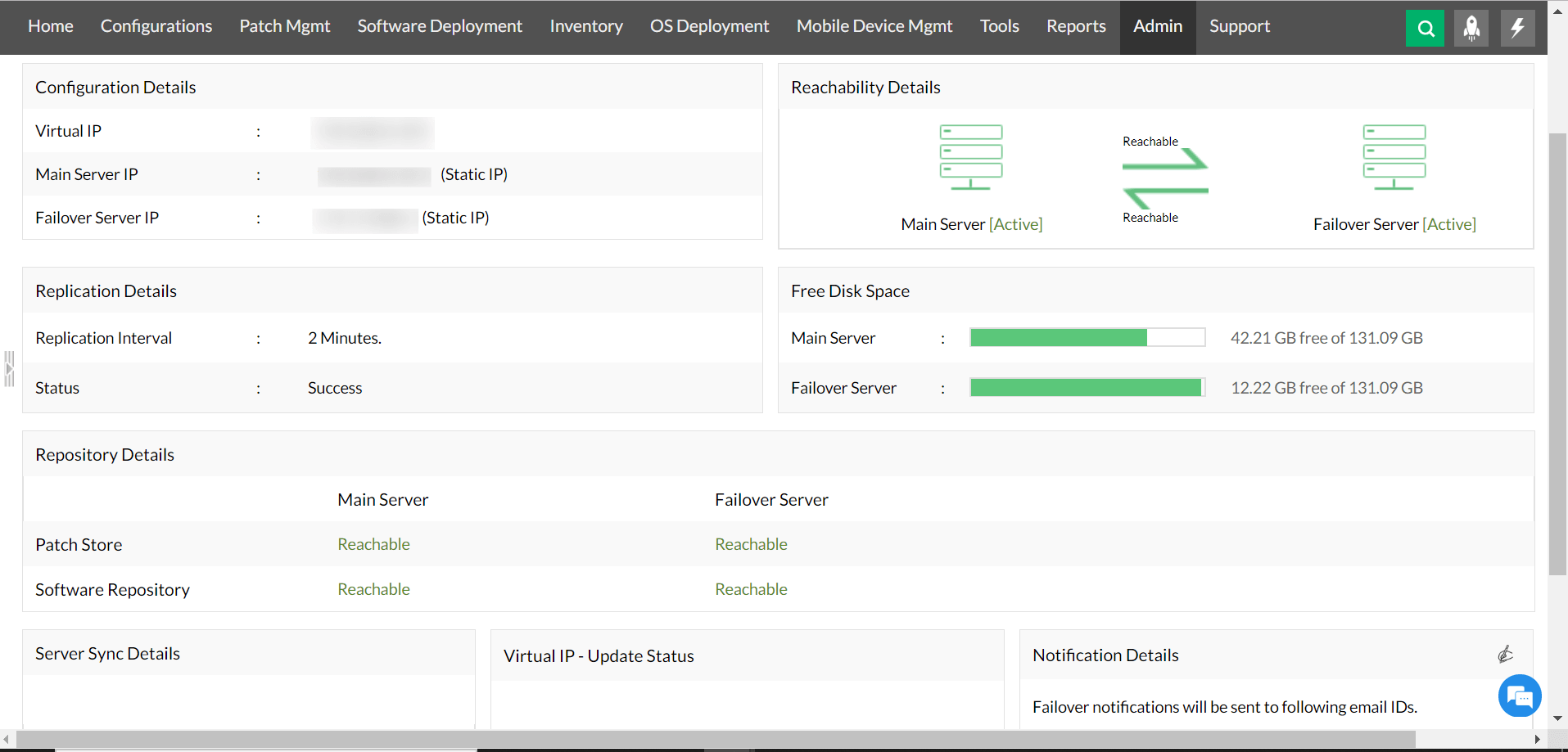
If you do have a Failover Server setup, then the page will look similar to the image given below:
Depending upon the type of setup you have, please follow the instructions below.
Steps to follow if you do not have a Failover Server setup
Steps to follow if you have a Failover Server setup
 Free Edition