1. What is AssetExplorer
ManageEngine AssetExplorer is an IT asset management solution that offers maximum visibility and control over the inventory, usage, entitlements, and purchasing data related to your IT assets. Now you can seamlessly track and manage your hardware and software assets from purchase through retirement–and finally abandon those Excel spreadsheets!
2. What does AssetExplorer do?
AssetExplorer gives you the tools and information you need to:
- Stay compliant with license agreements
- Eliminate spending on unused software
- Manage hardware inventory
- Track and report on IT purchases
- Keep unauthorized applications off the network
3. What is the difference between Windows Domain Scan and Network Scan?
Windows Domain Scan fetches all the Windows Workstations and Servers available in your network. The scan is performed using an Agent or WMI (Windows Management Instrumentation).
Network Scan discovers all the Linux, Solaris, MAC, IBM-AIX machines and devices such as Printers, Routers, Switches and Access Points that are part of your network. In addition, the Windows machines and Workgroup (Windows machines that are not part of a domain) are also fetched.
4. What are the ports and credentials to scan machines using Network Scan?
Linux, Solaris, MAC, IBM-AIX
- Communication Protocol: Telnet or SSH
- Login Credentials: Telnet Credentials
- Port for Telnet: 23
- Port for SSH: 22
Printers, Routers, Switches, Access Points
- Communication Protocol: SNMP + SSH (devices are identified and fetched using SNMP. If SSH credentials is provided, additional information on routers and switches can be fetched)
- Port for SNMP: 161
- Port for SSH: 22
Windows Machines
- Communication Protocol: WMI or Agent
- Login Credentials: Credentials of the domain controller
5. How do I scan Windows workstations/servers that are not part of the network?
The Windows workstations/servers that are not part of a domain/network are scanned using Standalone Workstation Audit. The remote workstations are scanned using a script and the inventory details are pushed to the AE Server. The script can also be configured as Logon/Startup script in the Domain Controller.
Scanning remote workstations involves two simple steps,
- Download the ae_scan.vbs script from AssetExplorer application and execute the script in the workstation to be scanned.
- On executing the script a XML file is generated. Import the XML file into the AssetExplorer application. You can see the standalone workstation details in the list view.
6. How do I scan new workstations added to the network without performing a complete domain scan?
You can scan newly added workstations individually without performing a complete domain scan.
Manual scan: Click Assets -> Workstation -> New scan -> Provide the details about the workstation and click Scan.
Audit Settings: Schedule a scan to identify newly added workstations to the network automatically. Click Admin -> Audit Settings -> Enable Check for newly added workstations and specify the number of days interval in which AssetExplorer should look for new workstations.
Stand alone workstation audit: Please refer to the previous question which has information about the standalone workstation audit.
7. What are Agentless and Agent based scan?
Agentless and Agent based scan are supported by Windows platform. The Agent is client side software installed in the host to scan inventories and provide easy access for remote assistance. On the other hand, Agentless scans inventories using WMI (Windows Management Instrumentation).
8. What are the advantages for agent based scanning?
Some of the advantages of agent based scan are:
- Only one port (TCP 9000) is required during scan, which can be configured under Admin -> Agent settings -> Agent Configuration -> Agent Port.
- Easy to deploy the agent in workstations through active directory.
- Scans workstations on system boot up and pushing the data to AE application.
- Quick access to the remote machine on performing a Remote Control.
- The data transfer in agent scan is very minimal compared to agentless scan, and even less when delta scan (difference in data between two subsequent scans is fetched) is performed.
- Dependencies over DCOM and RPC settings are eliminated.
9. Can I monitor the agent status in workstations?
Yes, you can monitor the agent status like, workstations for which the agent is installed, not installed, and workstations with older agent version. This is available in the Assets tab -> Workstation/Server -> Agent Details link.
10. How do I scan custom-built PCs? The service tag is not set or is filled with some default values?
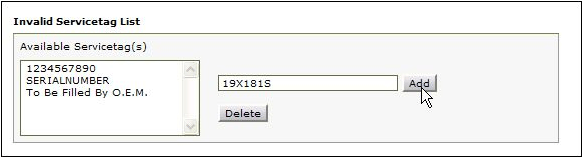
While performing a scan, the Workstations and Servers are uniquely identified based on its Service Tags, Name and MAC address. So for a custom-built PC, the service tag is usually filled with some default values like “System Serial Number”, “To be filled by OEM” or some random numbers like “12345678”. This results with many machines with similar service tags. In such cases, if a scan is performed, one workstation details would be overwritten by the other.
To avoid this, you can add the service tag under Invalid Service Tag list such that, the workstations with the service tag is ignored during a scan.
11. I want to view the assets list belonging to a particular site in a single page. Where can it be configured?
Dynamic group helps you to group assets as per your requirement. Go to Assets -> Groups -> New group -> Provide a name for the group -> select Group Type as “Dynamic Group” -> Define Group criteria. Say for instance, Site is Texas -> Save and view group will list all assets in this particular Texas site.
Similarly, you can group assets based on the product, vendor, user, model, manufacturer, domain, and processor type to name a few.
12. What is Auto-Assign owner?
Auto-Assign automatically assigns owners for successfully scanned workstations easily and efficiently. AssetExplorer provides owner suggestions based on the last logged user for workstations successfully scanned. You also have an option to change the owner during the assignment process. After the Auto-assign owner process, the resource state for workstations is automatically changed from In Store to In Use.
You can find Auto-Assign feature under the Assets tab.
13. I would like to move some assets from one category to another category say, assets listed under workstation category should be moved to the router/printer category.
You can move assets to different categories by changing the Product Type of the asset. First, make note of the Product Name for those workstations you wish to move to the Router/Printer category.
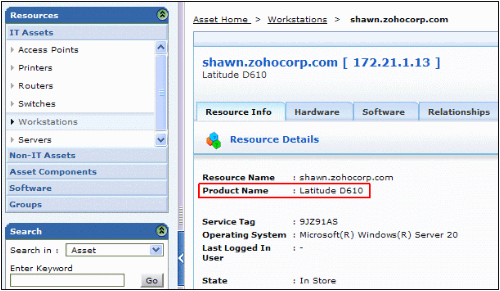
Search for the same product name under Admin -> Product. Edit and change the product type from workstation to as per your choice (Printer or Router).
14. What is Software Metering?
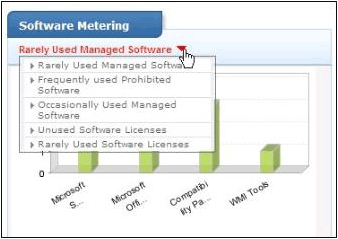
Software Metering gives the usage of software’s scanned in the application. The Software Metering graph can be viewed under the Software tab.
15. How do I associate different sub versions (or minor versions) of the same software into one major version?
AssetExplorer allows you to group minor versions of the software into one major version. Say, you have purchased Adobe Photoshop 7.0 with 4 licenses. The license is applicable for both 7.1 and 7.2 versions and vice versa. In this case 7.0 is the major version and 7.1 and 7.2 are the minor versions. The licenses purchased are the same for all the three versions.
If Adobe Photoshop 7.0 is installed in two different machines and 7.1 & 7.2 is installed in other two different machines. On scanning for Adobe Photoshop software before grouping, AssetExplorer shows the list as different single entries. The purchased licenses for the software would be as' 4 ' for the version 7.0 and ' 0 ' purchases for other versions (7.1 & 7.2)
Using associate minor versions option you can group 7.1 & 7.2 minor versions under 7.0 Major versions. This shows the software list to be a single entry with the number of Purchased licenses and installations. Thus helps you in avoiding individual entry for each Version of the software.
- From the software view list page. Click on the software name. The software details page opens.
- Click on the Actions tab on the right hand side upper corner of the page. Click Associate Minor Versions option. The Associate minor versions page opens.
- Select the minor versions of the selected software from the list to group under the Major version.
16. Can technicians be notified automatically when prohibited software is detected?
Yes, AssetExplorer provides an option to automatically notify technicians on detecting prohibited software under Admin -> Notification Rules under General block -> select “Notify Technicians when Prohibited Software are identified during Domain/Network Scan” check box.
17. Are there any restrictions on the 30-day trial?
No, the trial edition comes with all functionalities for 25 nodes and for unlimited non-IT assets. If you need to manage more number of IT Assets, please request a license from
18. What are the system requirements for AssetExplorer?
Please refer the Systems Requirement
19. Am I eligible for technical support during evaluation?
Yes absolutely. Install a 30-day trial version and register yourself during installation to avail free technical support during evaluation period.
20. Do you offer product training?
AssetExplorer was designed to be easy to deploy, implement, manage, and use, so on-site training is not mandatory. In cases where basic training is preferred, we do offer a comprehensive fee-based online training course. To learn more, please contact our support team at