Public Kafka.
Analytics Plus can stream messages from Apache Kafka topics. Analytics Plus connects to the Kafka broker, reads messages from the specified topics, and adds each message to a stream table as it arrives. One connection can supply several stream tables, with each table reading its own topics.
Before you begin
- Stream Analytics is available only in the Enterprise edition of Analytics Plus.
- The broker must be reachable over the internet. If it accepts connections only from allowlisted addresses, add the Analytics Plus IP addresses.
- The broker must use SASL authentication. You need a username and password with read access to the required topics.
- Messages must be JSON whose keys match the table column names exactly, including case.
Note: Use flat JSON. A nested object is stored in a single text column.
Connecting to Kafka
- Click Import Your Data at the top-right corner of the Home page.
- Select Streaming Data in the Category list, and click Kafka.
- If the Import Streaming Data into Analytics Plus pane appears, click Proceed.
- Enter a Workspace Name if you started from the Home page.
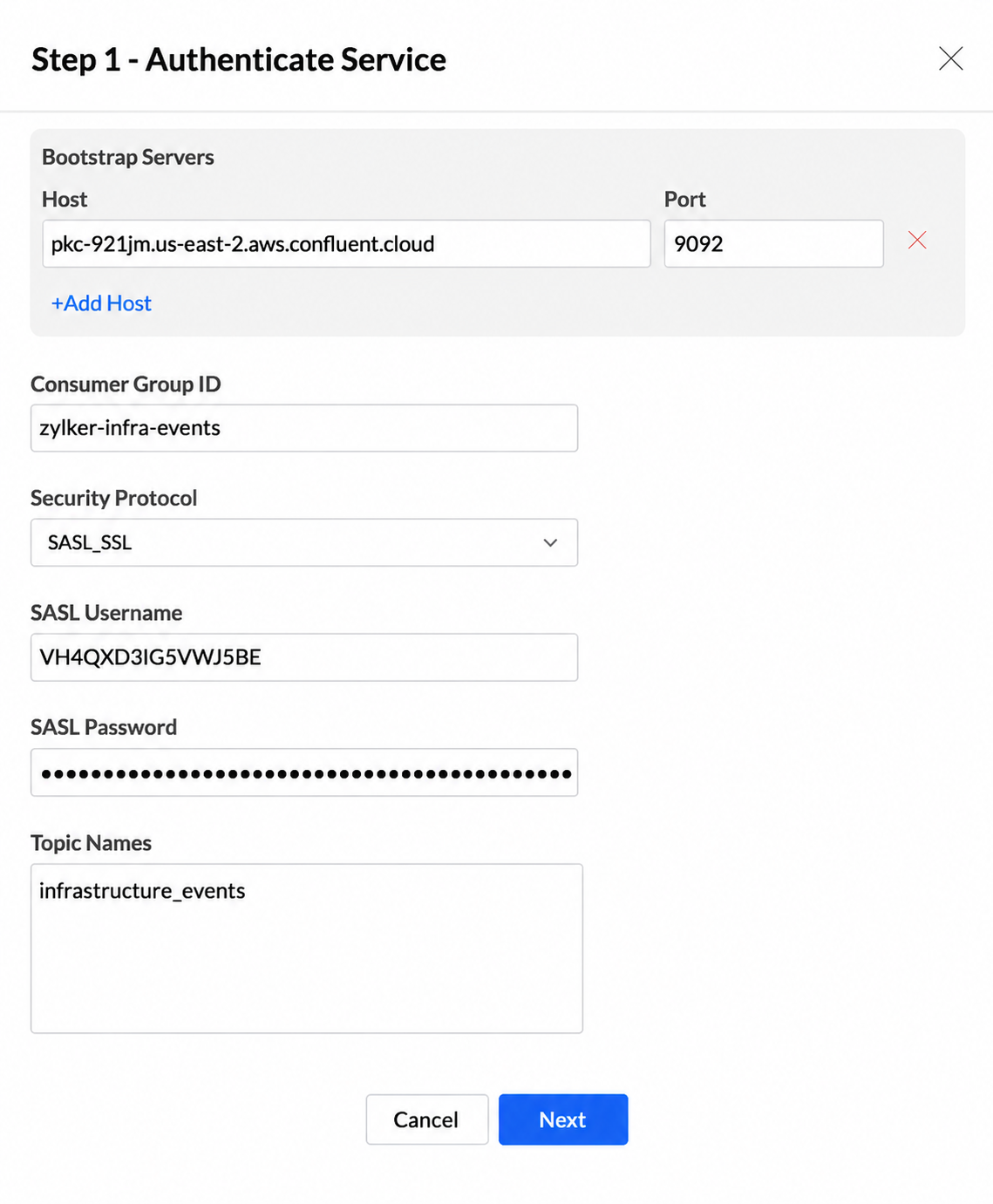
- Under Bootstrap Servers, enter the broker Host and Port. Click + Add Host for another broker.
- Enter a Consumer Group ID.
- Select SASL_PLAINTEXT or SASL_SSL as the Security Protocol.
- Enter the SASL username and password.
- Enter up to five topic names, pressing Enter after each name, and click Next.
Note: Use a Consumer Group ID dedicated to this connection. If another application shares the ID, the stream table can miss messages.
Designing the table
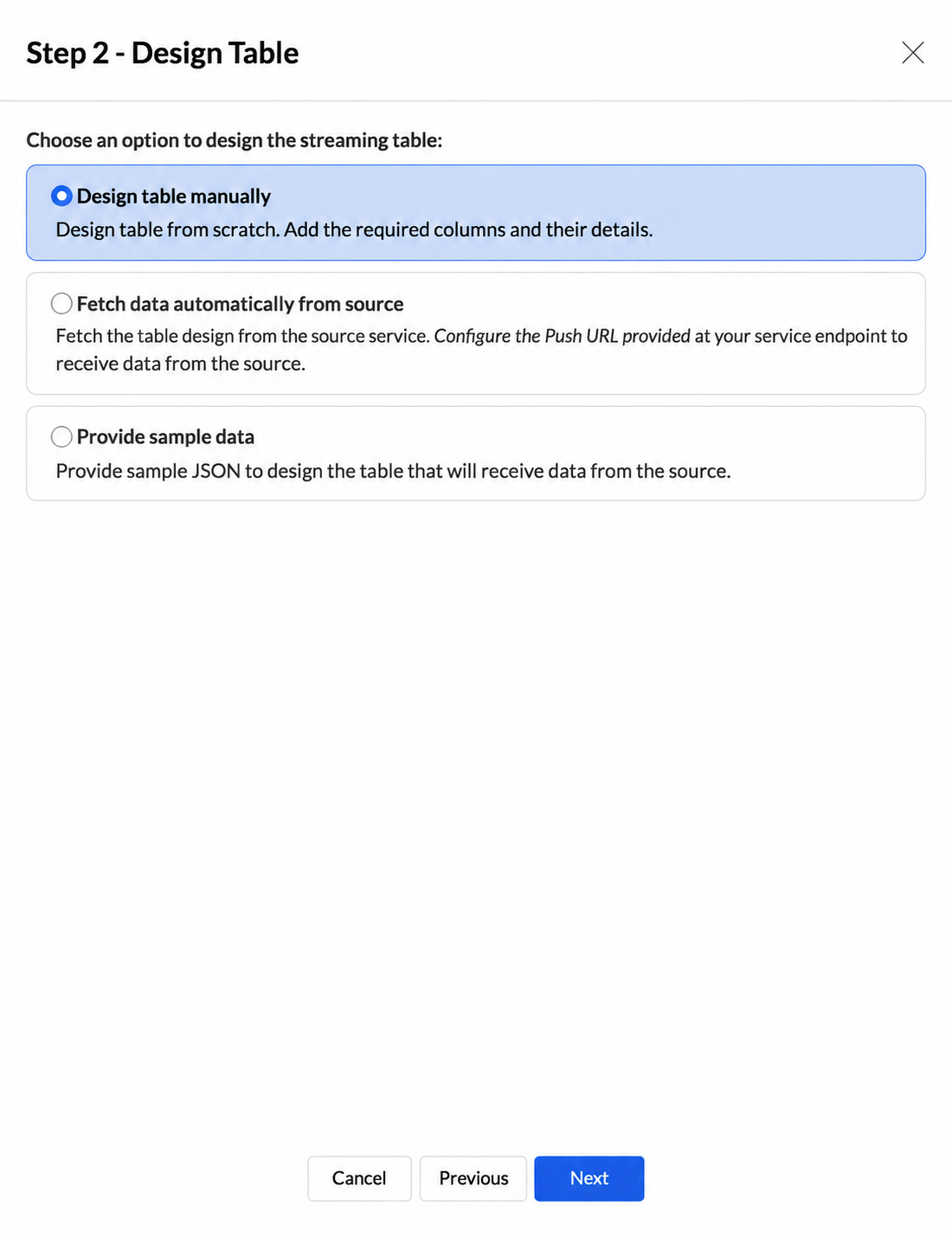
| Option | Use it when | What happens |
| Design table manually | You know the keys and data types. | Add each column yourself. |
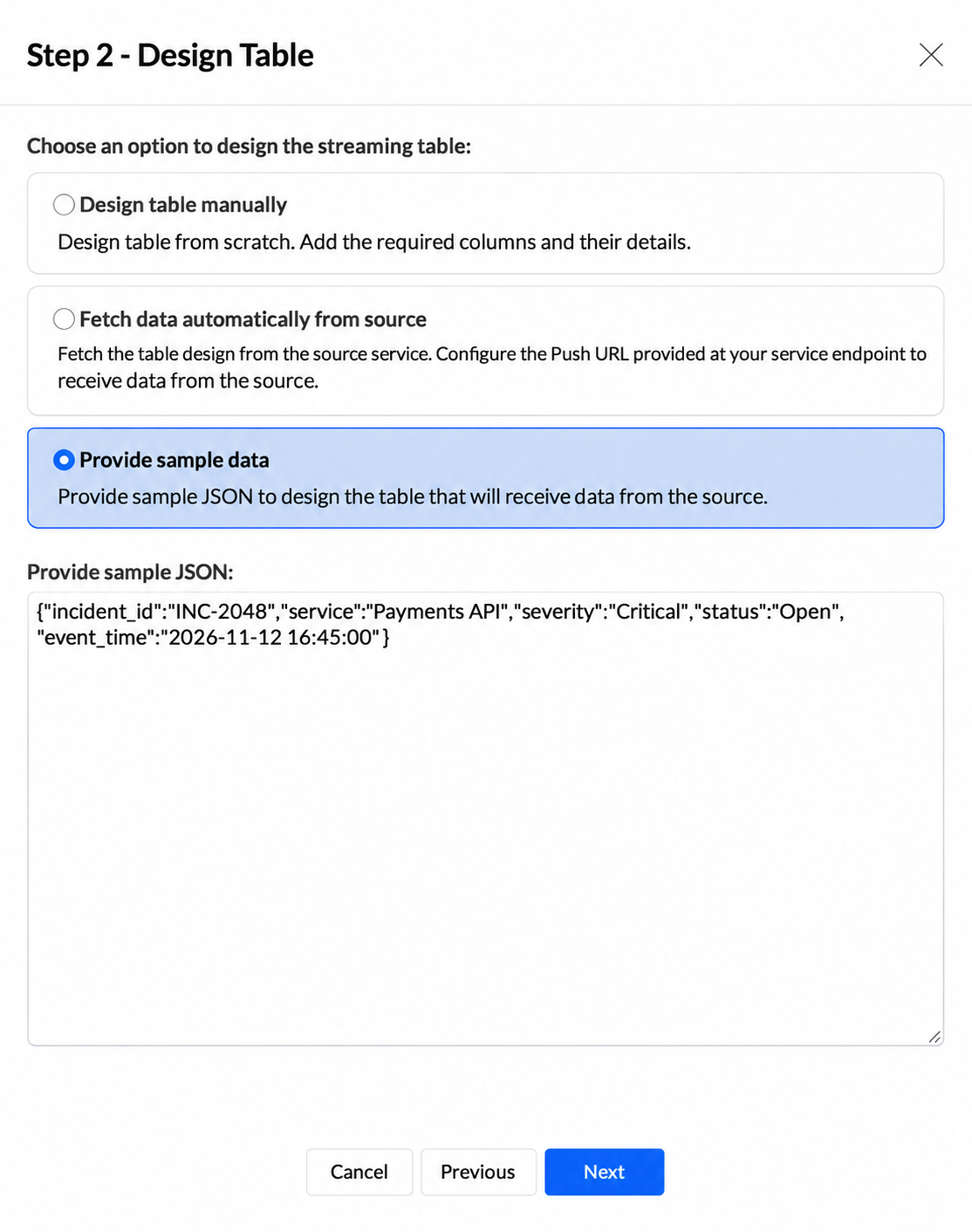
| Provide sample data | You have a sample message. | Analytics Plus fills the columns from the JSON. |
| Fetch data automatically from source | Messages are being published to the topics. | Analytics Plus reads live messages for up to 120 seconds and fills the columns. |
Design the table manually
- Select Design table manually and click Next.
- Click + Add New Column for each JSON key and specify its name and data type.
Provide sample data
- Select Provide sample data.
- Paste a JSON object or array in Provide sample JSON.
- Click Next and review the generated columns.
Fetch data automatically from the source
- Select Fetch data automatically from source.
- Click Fetch Table Metadata. Analytics Plus reads messages for up to 120 seconds.
- When a message arrives, Analytics Plus fills the columns.
Note: If no message arrives within 120 seconds, No data was received for validation appears.
Reviewing table details
- Enter a unique Table Name.
- Review each column's name, data type, mandatory setting, default value, and personal-data setting.
- Add columns if required, and click Next.
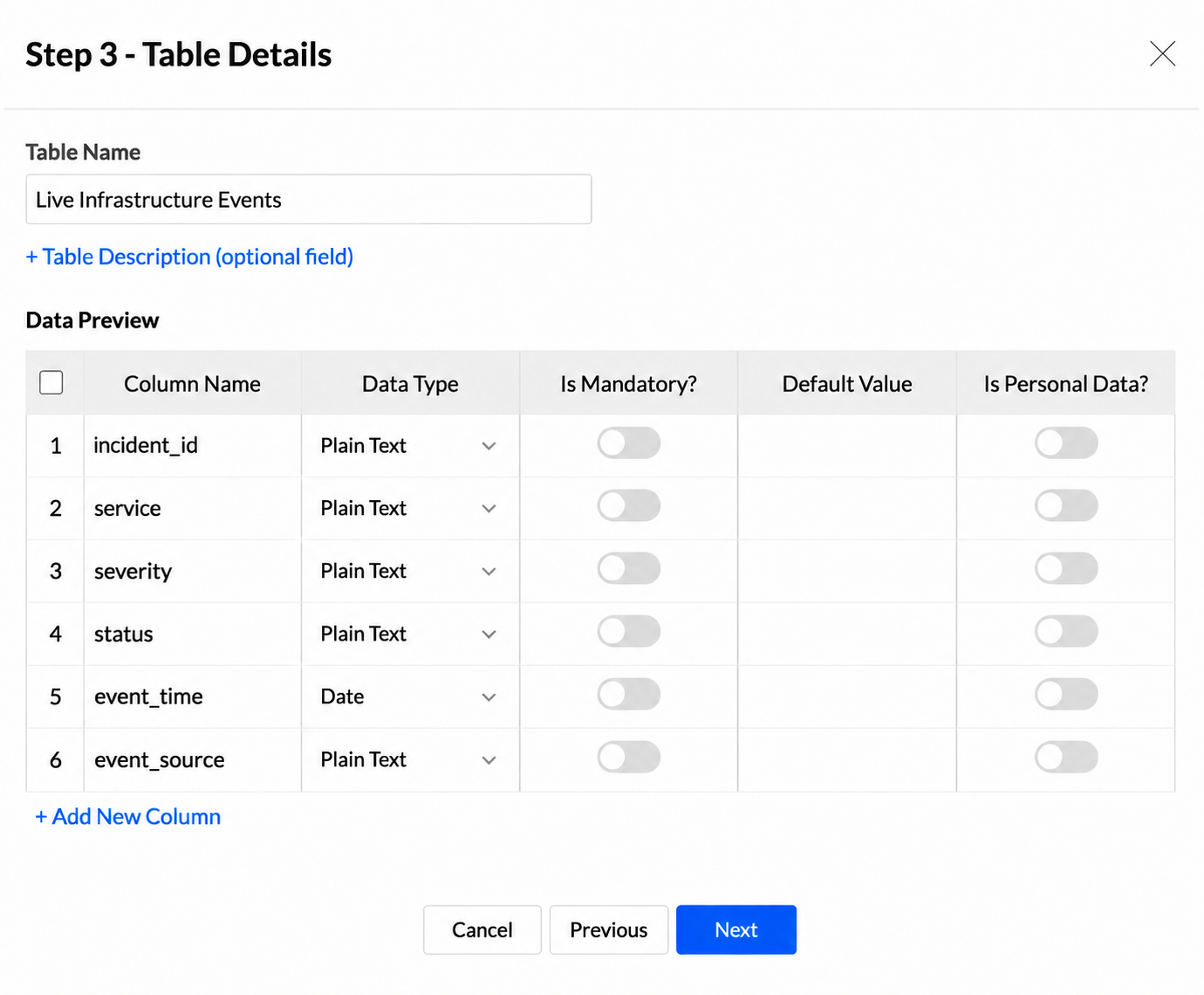
Note: Use Decimal Number when a field can contain decimal values.
Validating and importing data
- Optionally set the retention period and turn on Enable Historical Data.
- Confirm that messages are being published to the topics.
- Click Validate & Import Streaming Data. Analytics Plus reads messages for 120 seconds.
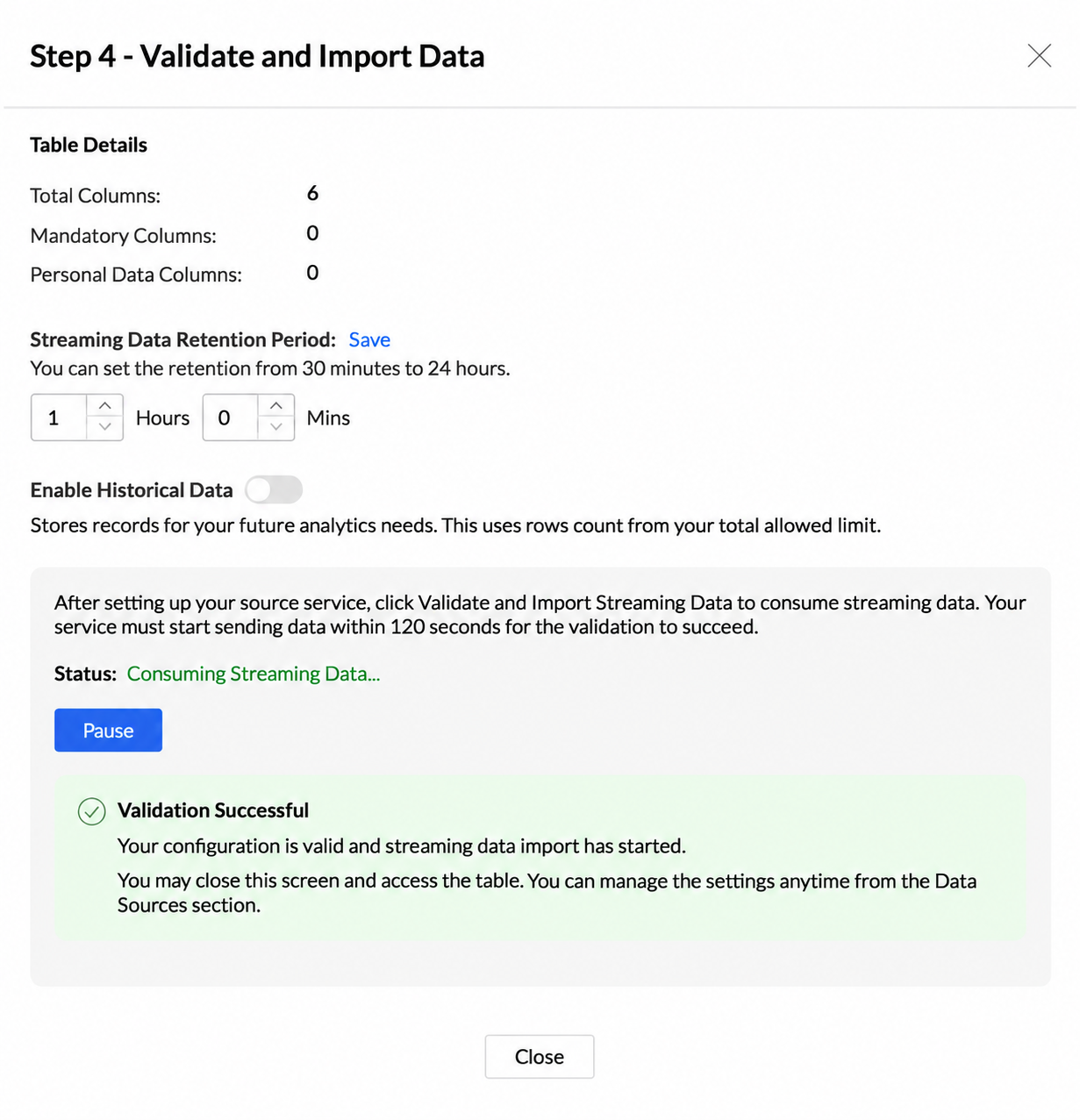
After a matching message arrives, the status changes to Consuming Streaming Data. If validation fails, review the Failure Reason(s), correct the issue, and click Validate Again.
Managing the data source
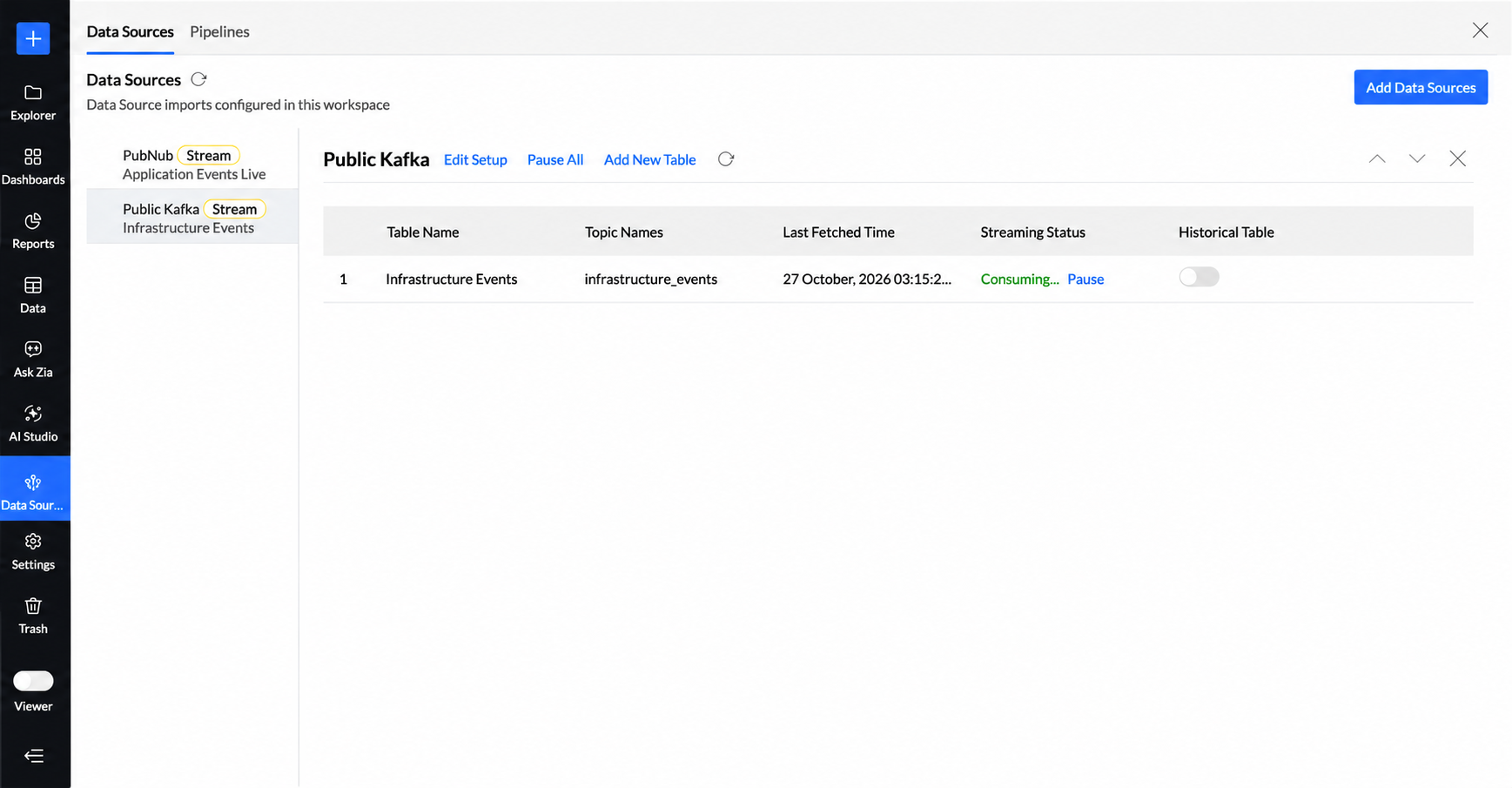
Open Data Sources and select the Public Kafka source. You can:
- View each table's topics, Last Fetched Time, and Streaming Status.
- Validate, pause, or resume individual tables, or use Pause All and Resume All.
- Use Edit Setup to change the broker, consumer group, or credentials.
- Use Add Table to create another table on the same connection.
- Edit a table's topics or retention period and review its latest failure reason.
Note: A topic can be read by only one table in the same data source.
Retention and historical tables
- Rows remain in the stream table for one hour by default. Set a retention period from 30 minutes to 24 hours.
- Enable Historical Data creates
{Stream table name} - Historical_Tablefor each stream table. - Turning the option off stops new rows but preserves the historical table and existing data.
Note: Historical table rows count toward the workspace row limit.
Streaming statuses
- Yet to be validated: Awaiting validation.
- Validating: Reading messages for 120 seconds.
- Consuming: Importing data.
- Paused: Import paused.
- Validation Failed: No matching message arrived.
- Failed: Repeated messages could not be processed.
Limits
- A stream table holds up to 1 million rows or one hour of data.
- Each table can read up to five topics.
- A workspace cannot have two Kafka sources with identical connection details.
- Stream tables cannot be copied.
- Reports refresh about every 30 seconds; dashboards require a manual refresh.
Frequently asked questions
Why is the Kafka broker not reachable?
The broker may be on a private network or behind an IP allowlist. Use an internet-reachable host and, when required, add the Analytics Plus IP addresses.
Why does Analytics Plus report that the same credentials already exist?
A Kafka source with the same connection details already exists in the workspace. Open it on the Data Sources page and click Add Table.
Does pausing a stream delete its data?
No. Existing rows remain until the retention period removes them.