Manage AI
Analytics Plus includes AI agents and features that help IT teams prepare data, write queries and formulas, build reports, and identify operational insights. Manage AI is where the Account Admin configures and governs these capabilities for the organization.
Overview
Manage AI lets the Account Admin:
- Enable or disable individual AI agents and features.
- Select the AI vendor used by each supported capability.
- Control which users can access enabled AI capabilities.
- Configure optimization, AI vendors, credentials, and credit usage.
Access Manage AI
- Sign in to Analytics Plus as the Account Admin.
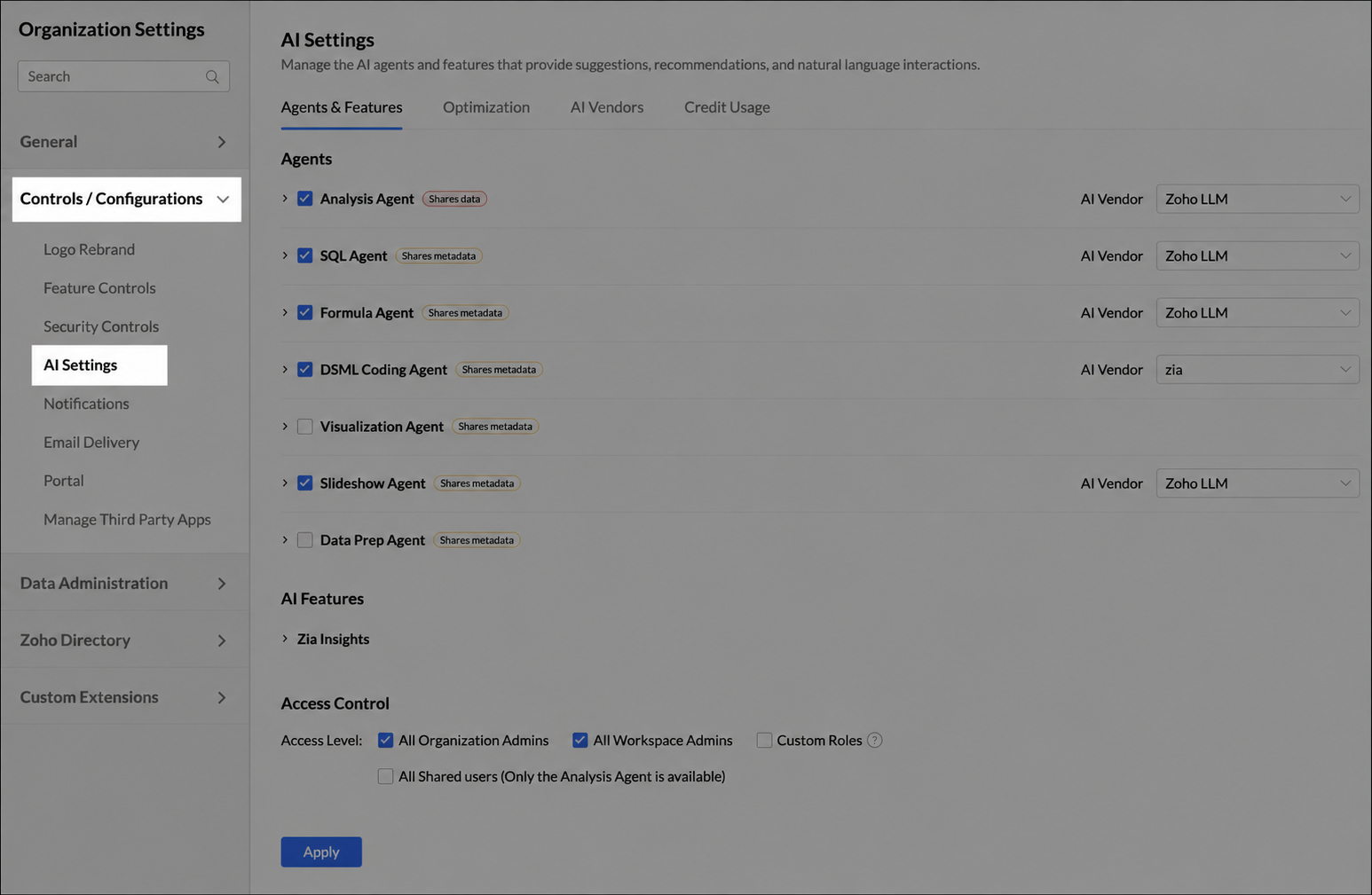
- Go to Organization Settings > Controls / Configurations > Manage AI.
- The Agents & Features tab opens.
Manage agents and AI features
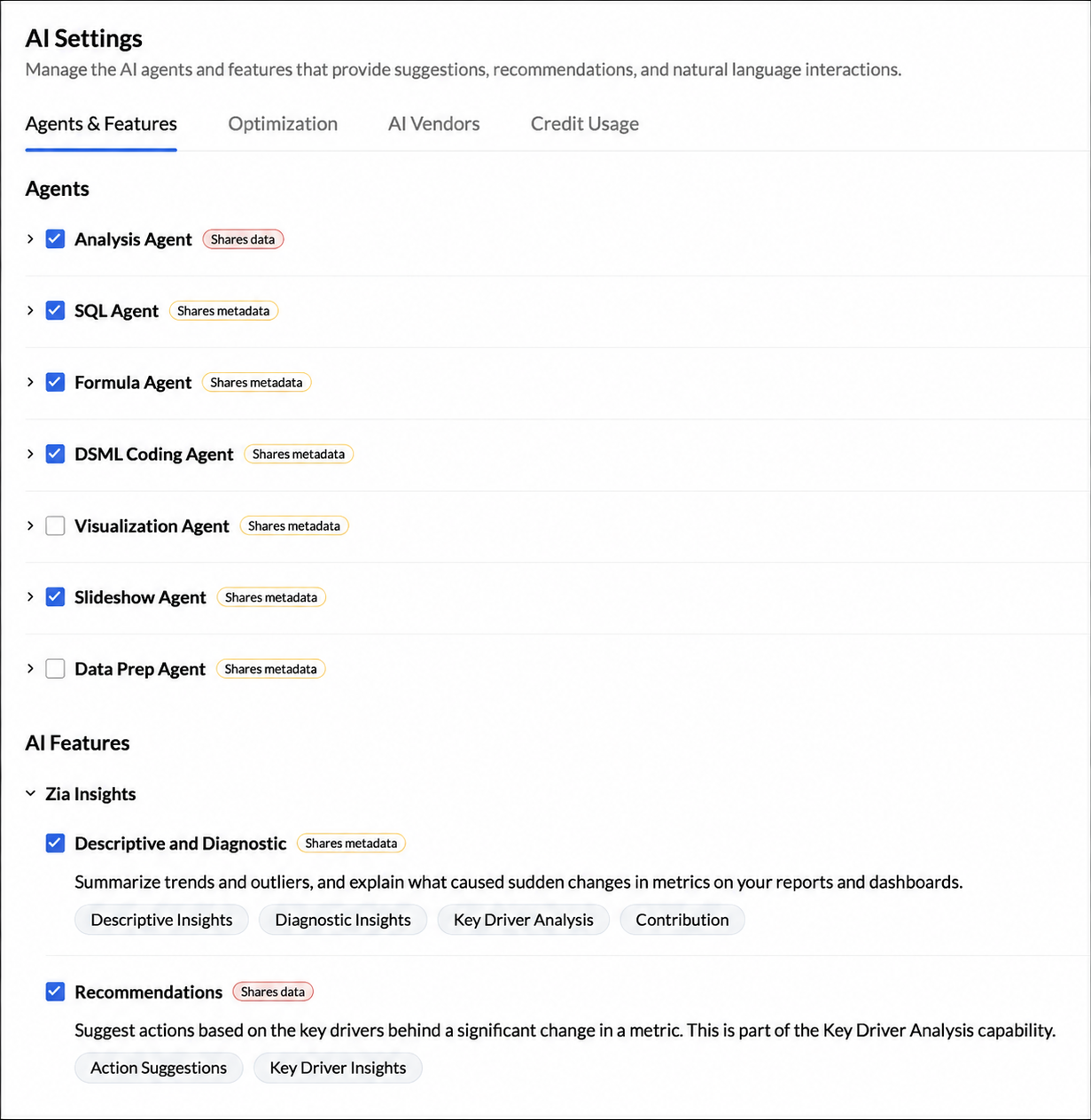
Enable or disable an agent or AI feature
- Open the Agents & Features tab.
- Select or clear the checkbox for the required capability.
- Click Apply.
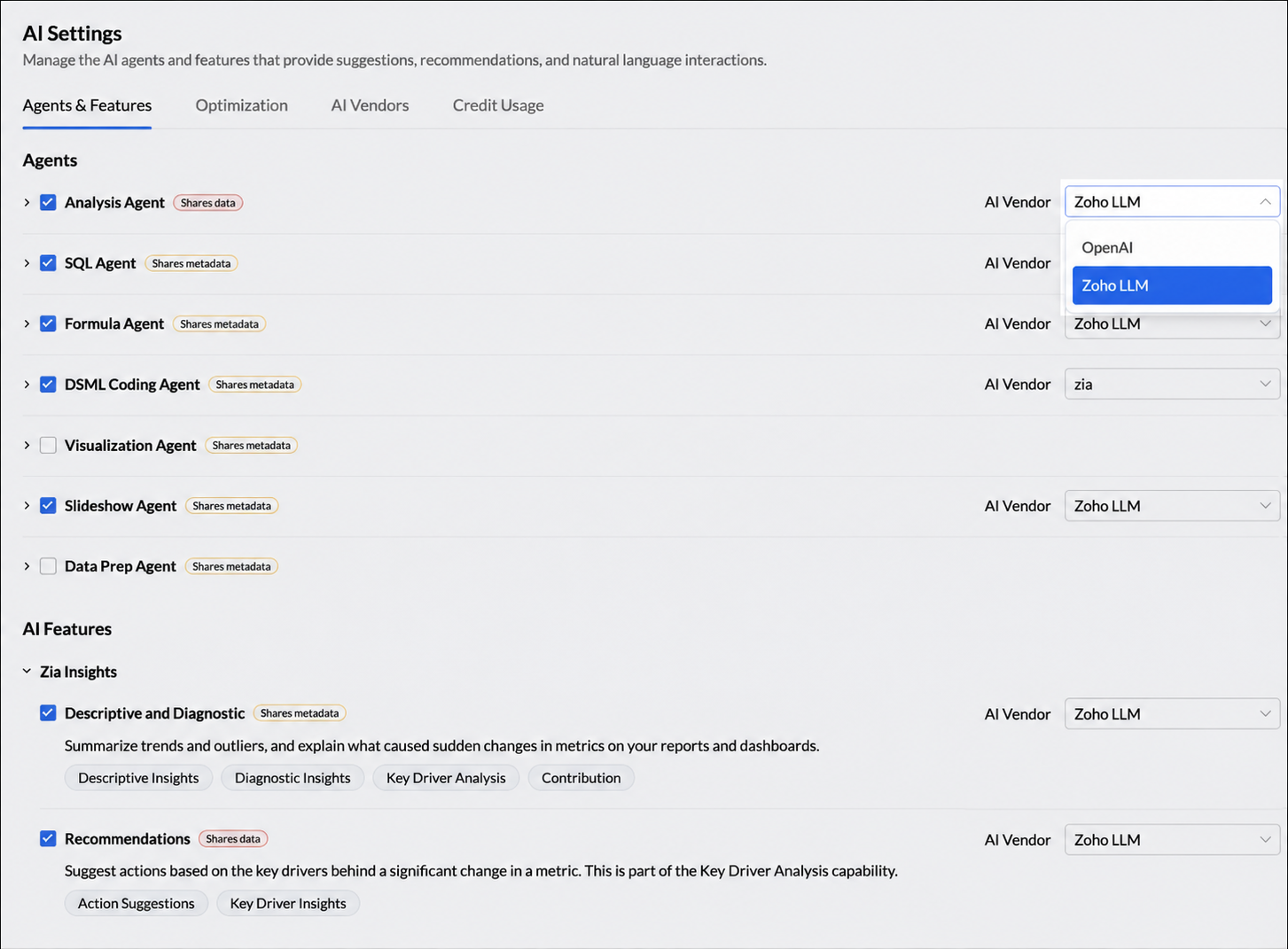
Select an AI vendor
For capabilities that support more than one vendor, use the AI Vendor list to select the required provider, and then click Apply.
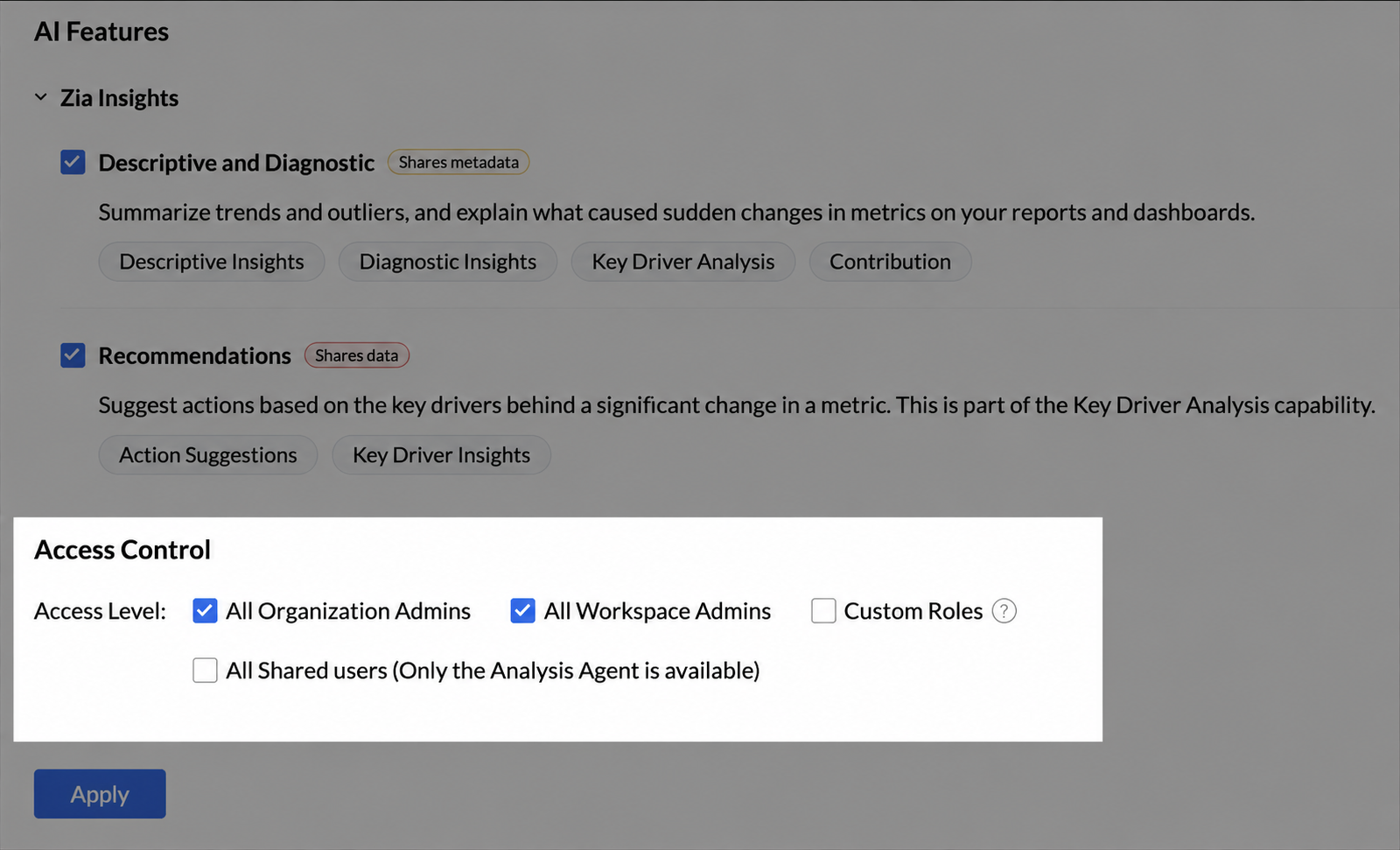
Control access
Use Access Control to specify which users can use enabled agents and AI features. Users with custom roles must also have the corresponding AI and task permissions in their role.
Optimization
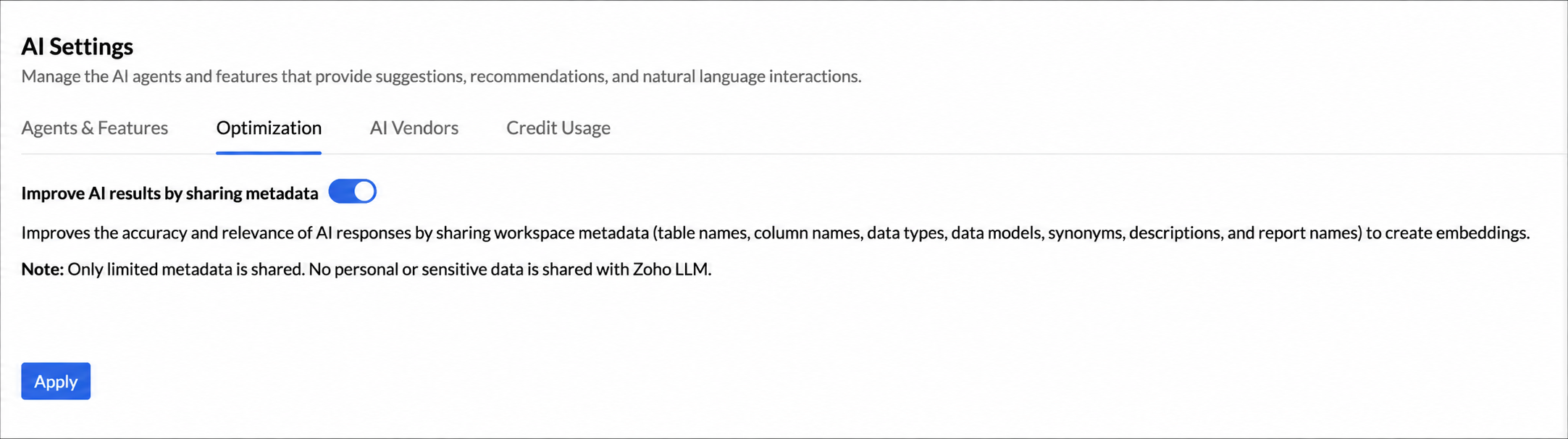
Optimization uses workspace metadata—such as table names, column names, data types, relationships, synonyms, and descriptions—to improve the relevance of AI responses. It does not include the data stored in the tables.
Open the Optimization tab, configure the required settings, and click Apply.
AI vendors
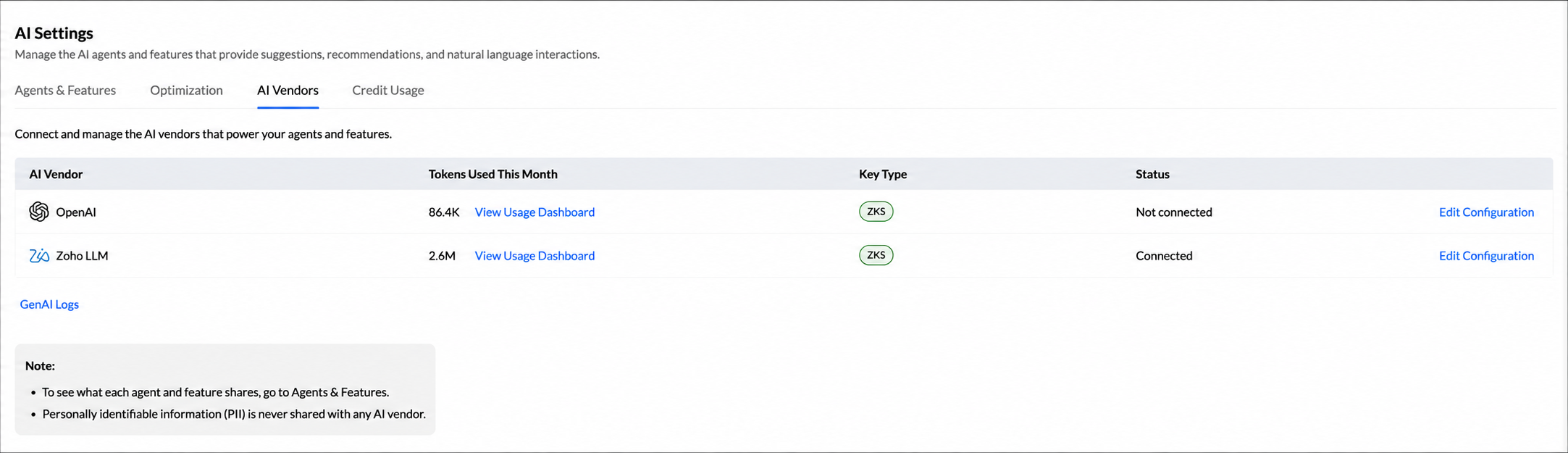
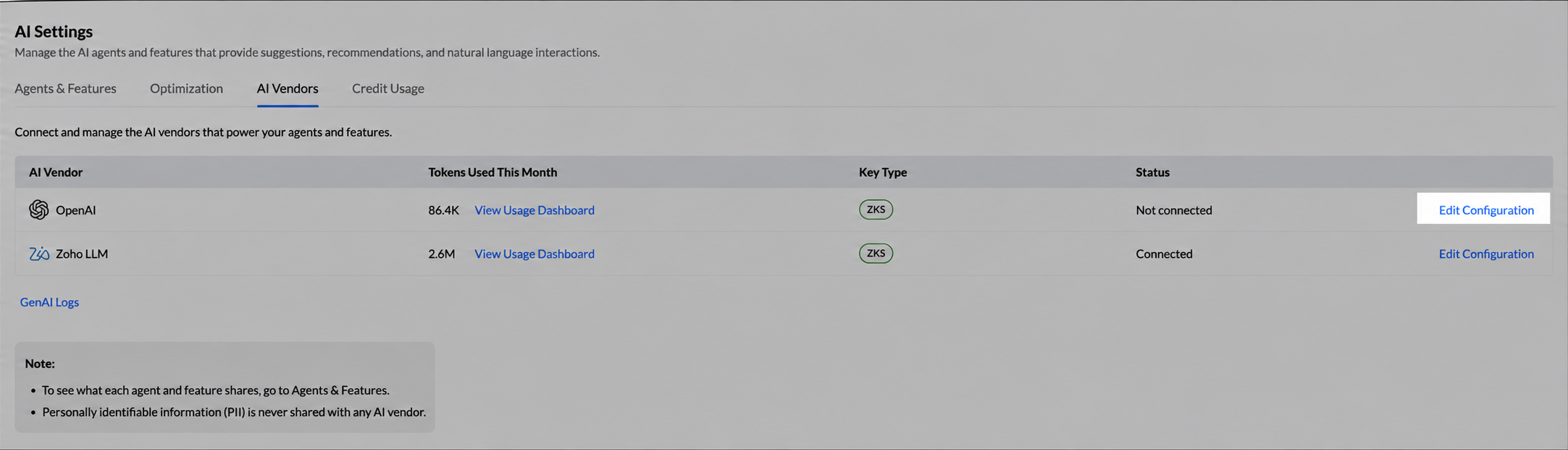
The AI Vendors tab shows the available providers, connection status, authentication mode, and usage. Open a vendor configuration to connect it, change its authentication method, or review the capabilities that use it.
Connect OpenAI with your own API key
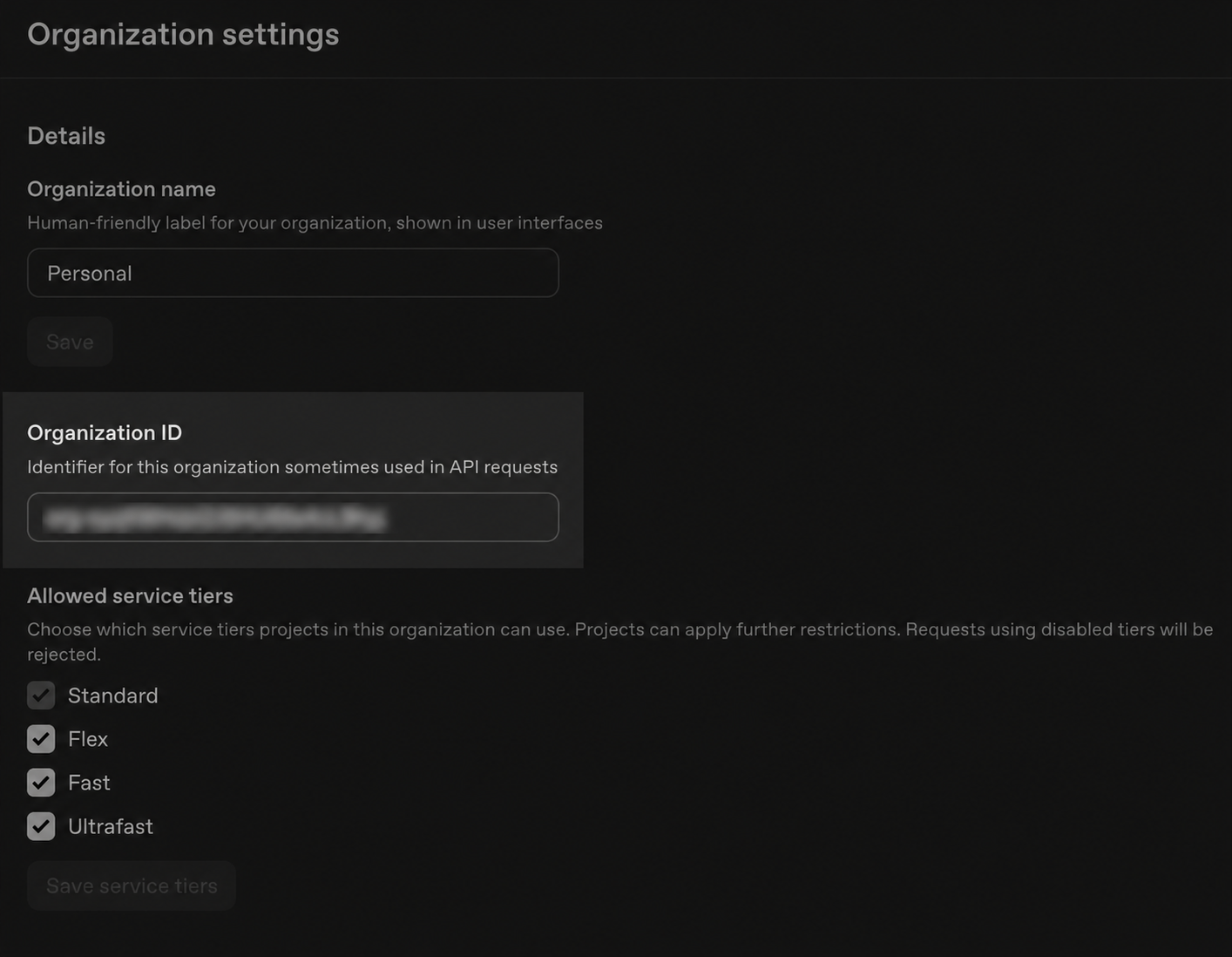
- In the OpenAI platform, open Settings and then Organization settings.
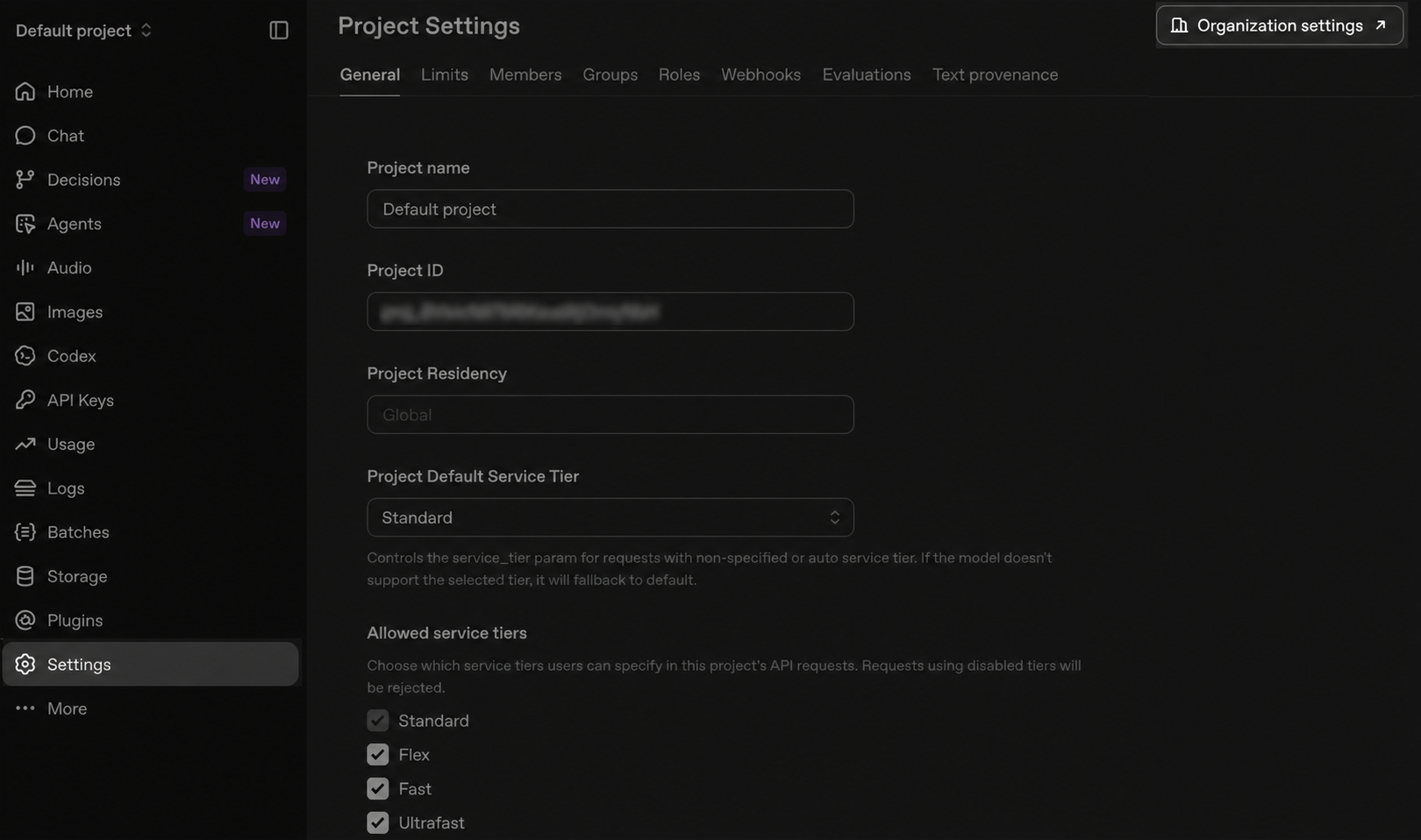
- Copy the organization ID from the organization settings page.
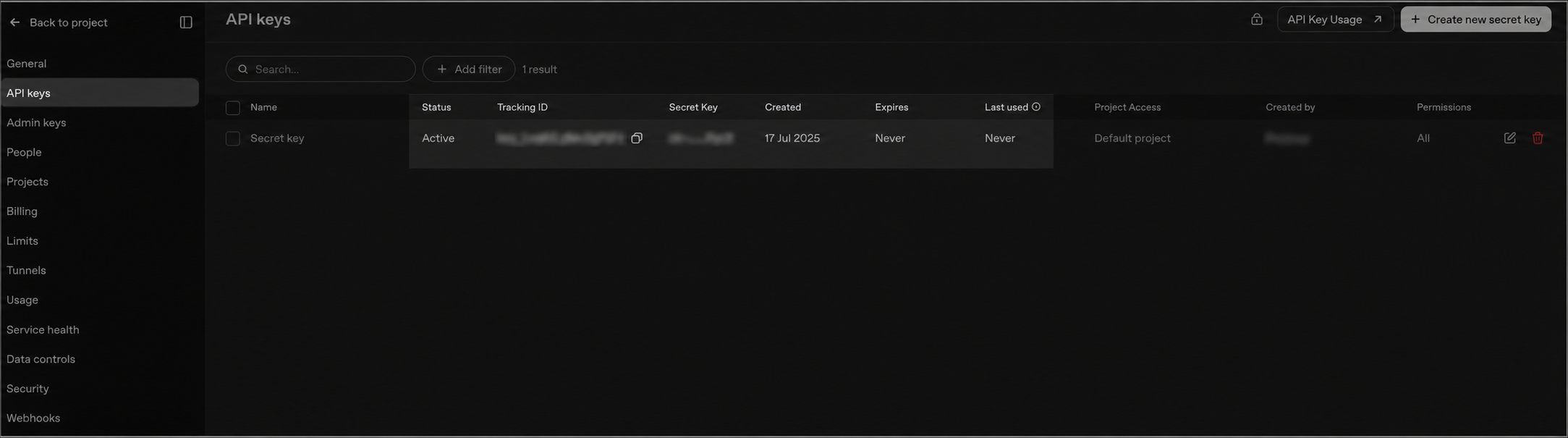
- Create or copy a secret key from the API keys page.
- In Analytics Plus, open the AI Vendors tab and click Connect or Edit Configuration next to OpenAI.
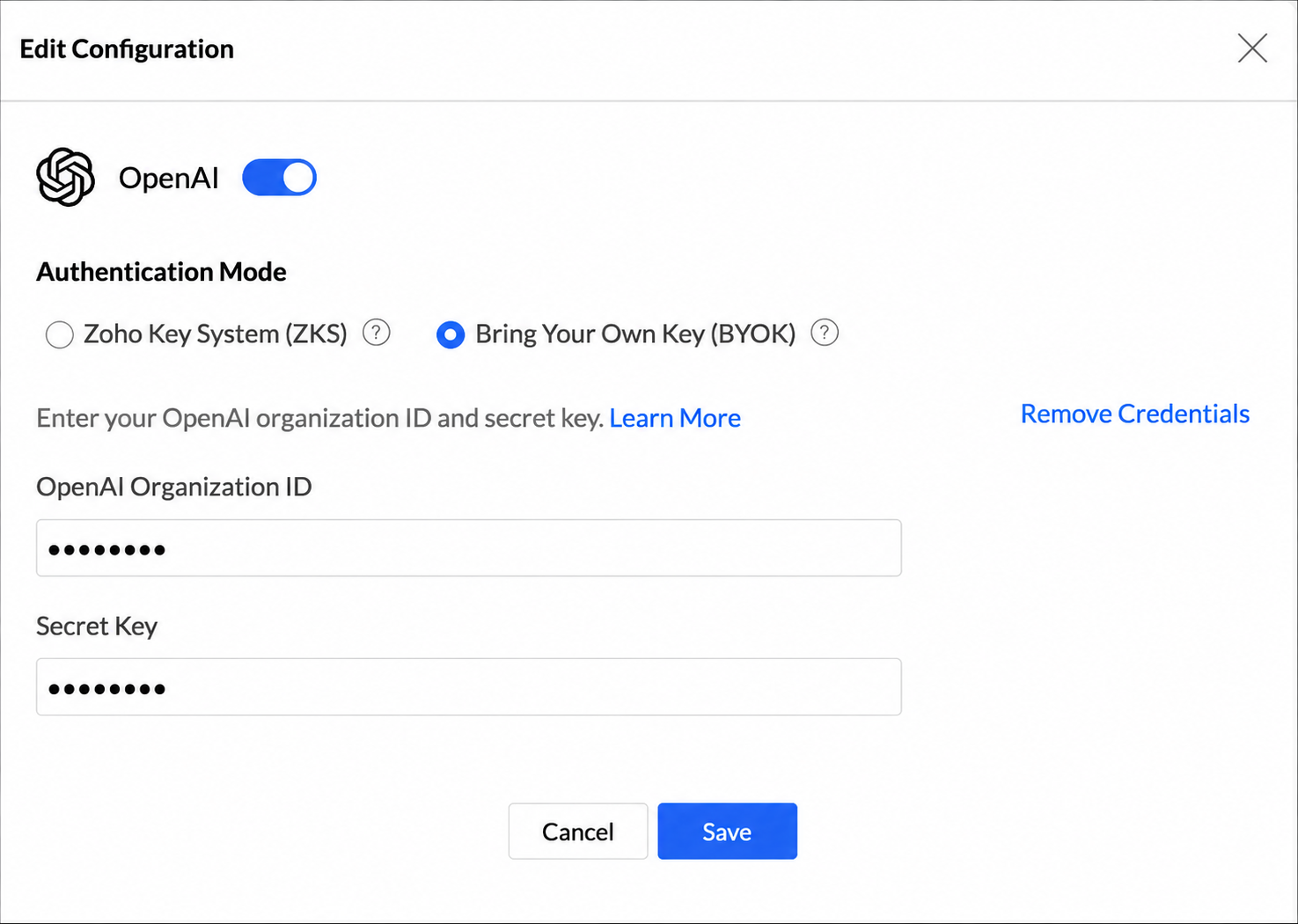
- Turn on OpenAI and select Bring Your Own Key (BYOK).
- Enter the organization ID and secret key, and click Save.
Remove OpenAI credentials
- Click Edit Configuration next to OpenAI.
- Click Remove Credentials.
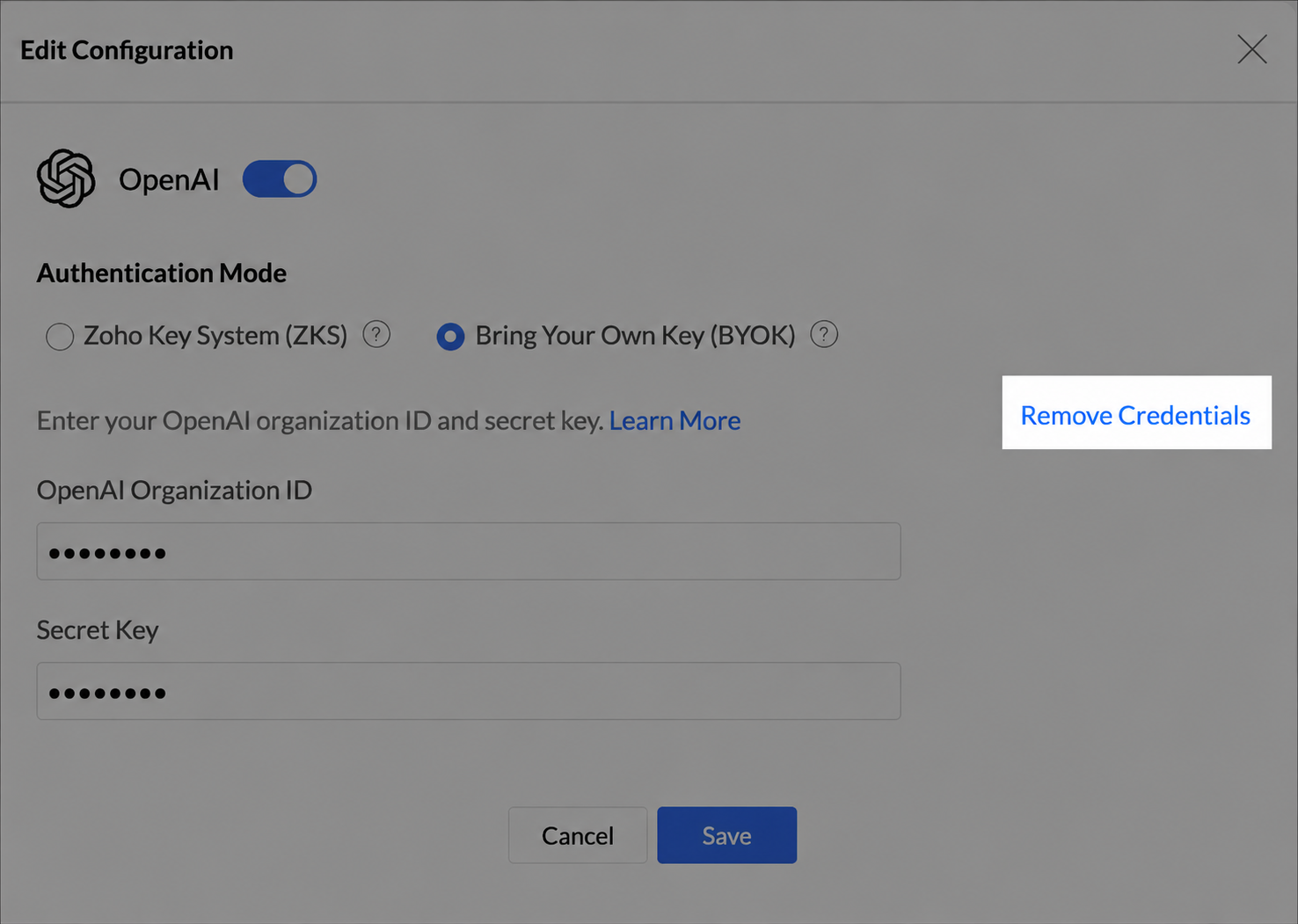
Capabilities that use OpenAI are unavailable until OpenAI is connected and the capabilities are enabled again.
View AI vendor usage
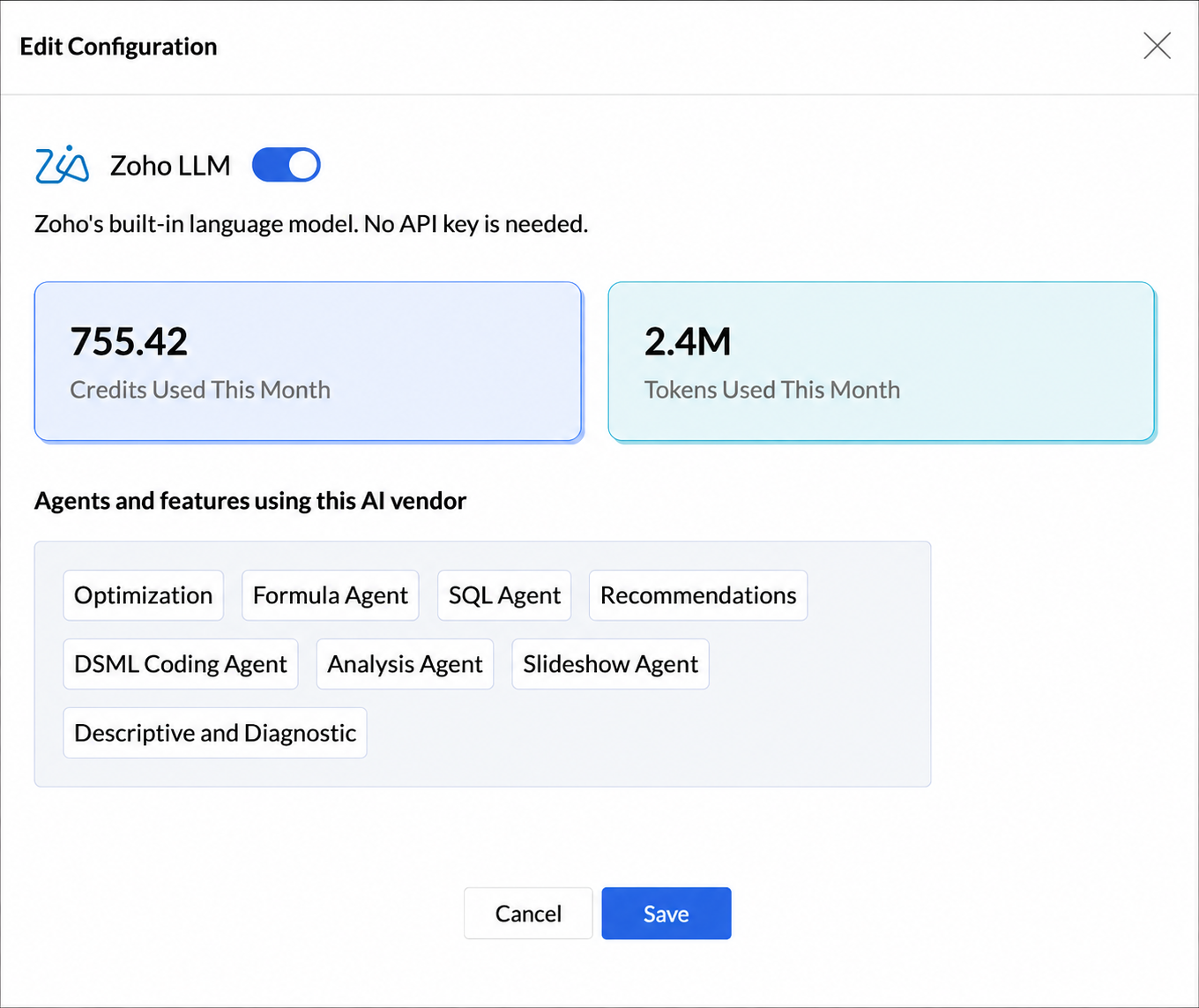
Open a vendor configuration to view the credits and tokens used in the current month and the agents and features that use the vendor.
Enable GenAI logs
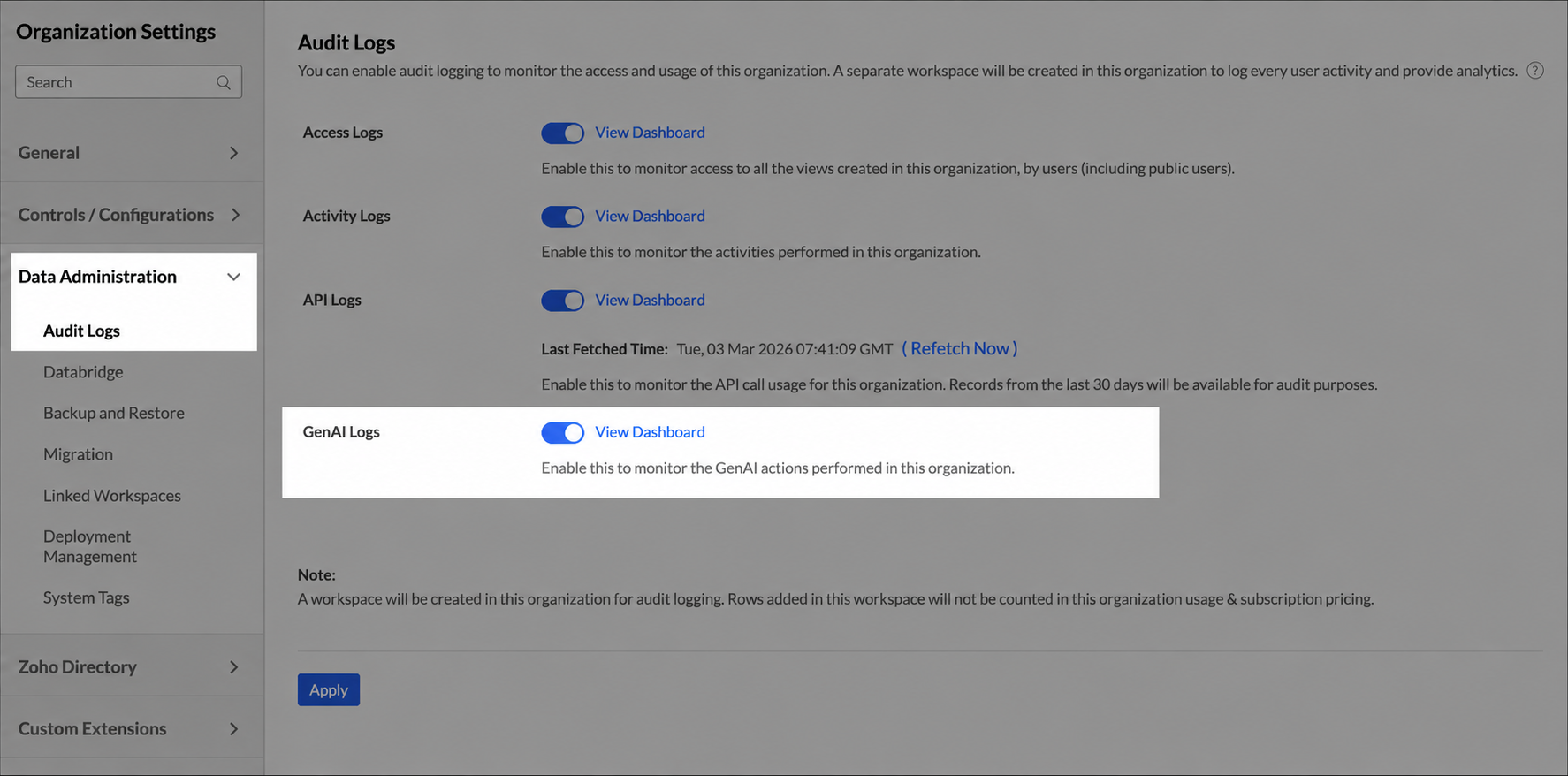
- Go to Organization Settings > Data Administration > Audit Logs.
- Turn on GenAI Logs, and click Apply.
AI credits
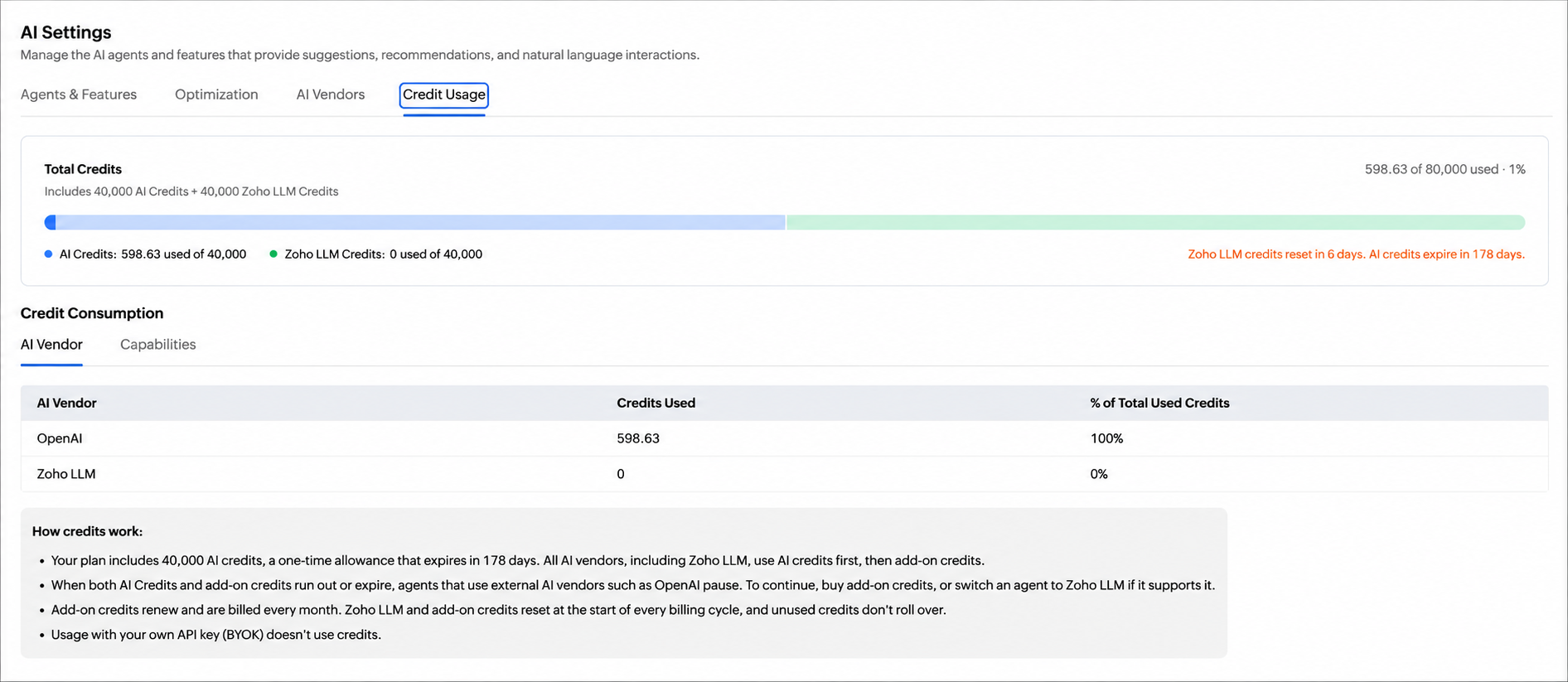
The Credit Usage tab shows the available AI credits, consumption by vendor and capability, and applicable reset or expiry information. Usage through an organization's own API key is billed by that AI vendor and does not consume Analytics Plus AI credits.
Data handling and privacy
Each agent or AI feature shares only the information required to process its request. Depending on the capability, this can include the prompt, data-frame schema, table and column metadata, aggregated values, or selected data. Review the sharing label for a capability before enabling it.