Theme and Tab Customization
Analytics Plus offers extensive possibilities to customize the appearance of your analytics interface effortlessly.
Theme Customization
Themes enable you to enhance the visual appeal of your Analytics application. Analytics Plus provides the following customization options.
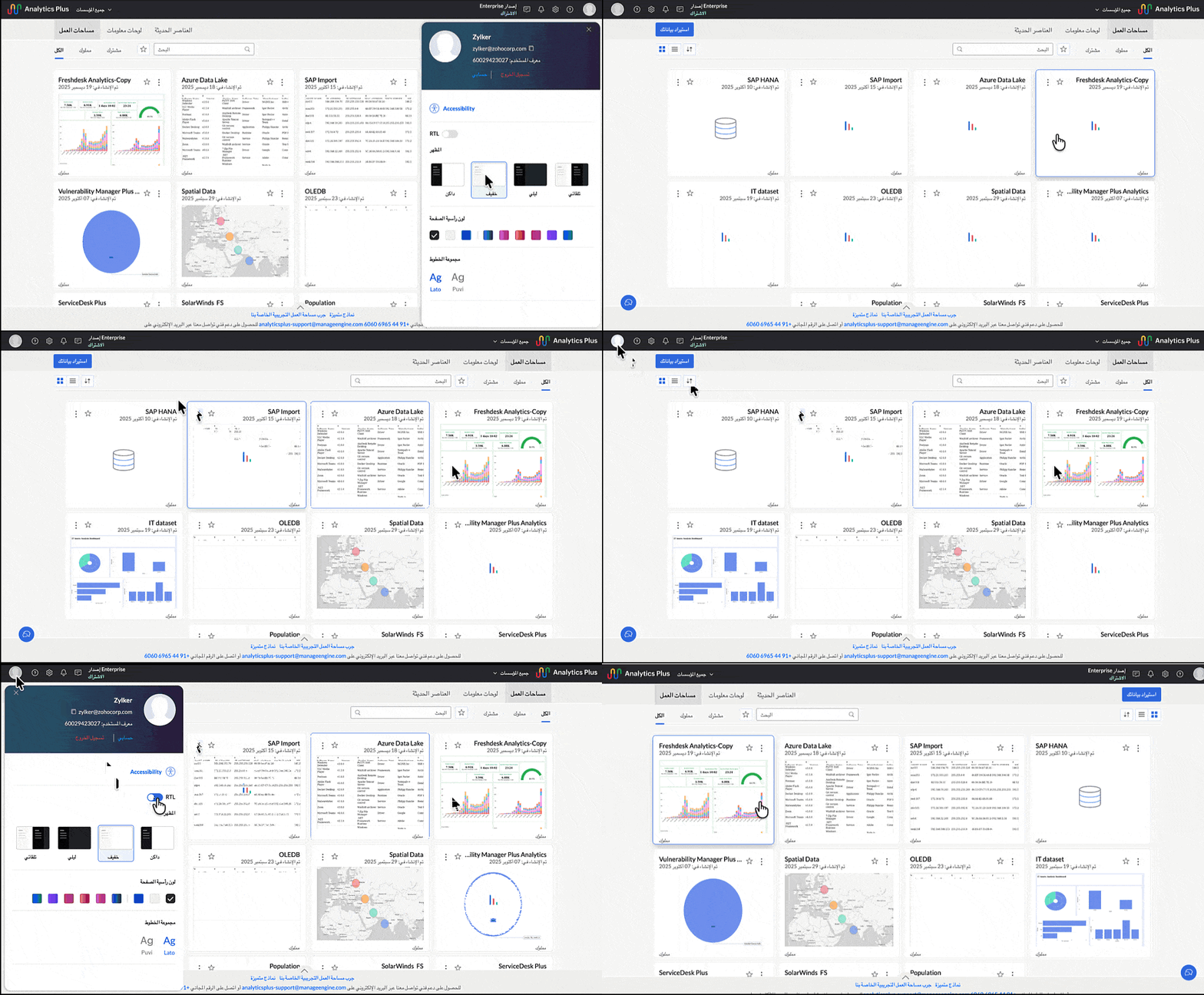
Right to Left User Interface
This option is best suited for languages like Arabic, Hebrew, and Persian that are read from right to left. Access your Profile tab and switch on the toggle to enable RTL User interface.
Appearance:
Analytics Plus allows users to personalize the application interface by choosing a preferred appearance theme. This helps improve visual comfort and accessibility based on lighting conditions and user preference.
Available Themes
You can choose from the following four appearance options:
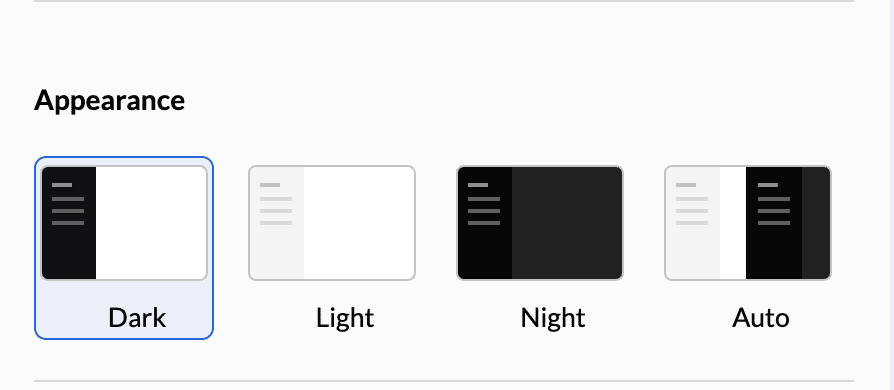
Dark
Applies a dark-colored interface. This theme reduces eye strain in low-light environments and is ideal for extended usage.
Light
Applies a bright, light-colored interface. Recommended for users who prefer a traditional UI experience.
Night
Uses a darker, high-contrast theme optimized specifically for night-time or very low-light usage. This option further minimizes glare compared to the standard Dark theme.
Auto
Automatically switches between Light and Dark themes based on your system’s appearance settings. This ensures the Analytics Plus interface stays in sync with your device preferences.
How to Apply a Theme
Navigate to Settings → Appearance.
Select the required theme option.
The selected theme is applied instantly across the application.
Note: Theme changes affect only the user interface and do not impact reports, dashboards, or exported data.
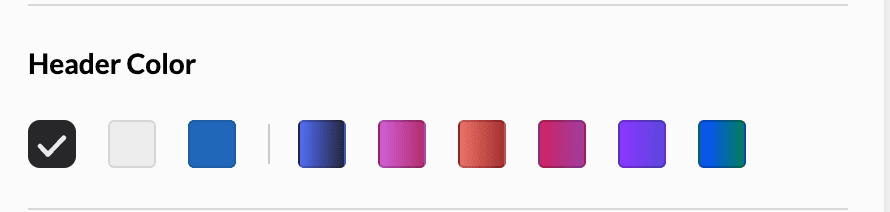
Header Color
Personalize your Analytics Plus experience by adjusting the Header Color. This setting allows you to change the background theme of the top navigation bar to suit your visual preference or brand identity.
Font
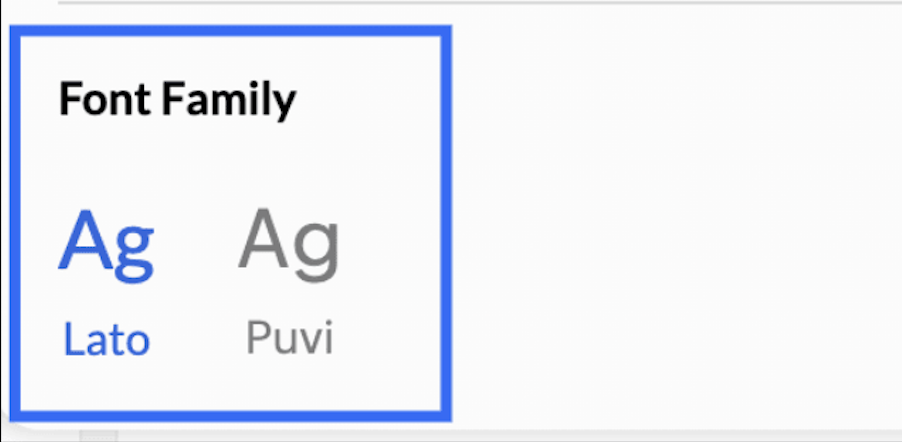
Analytics Plus supports two font families, Lato and Puvi. Both fonts are visually pleasing and give a polished, professional appearance.
Tab Customization
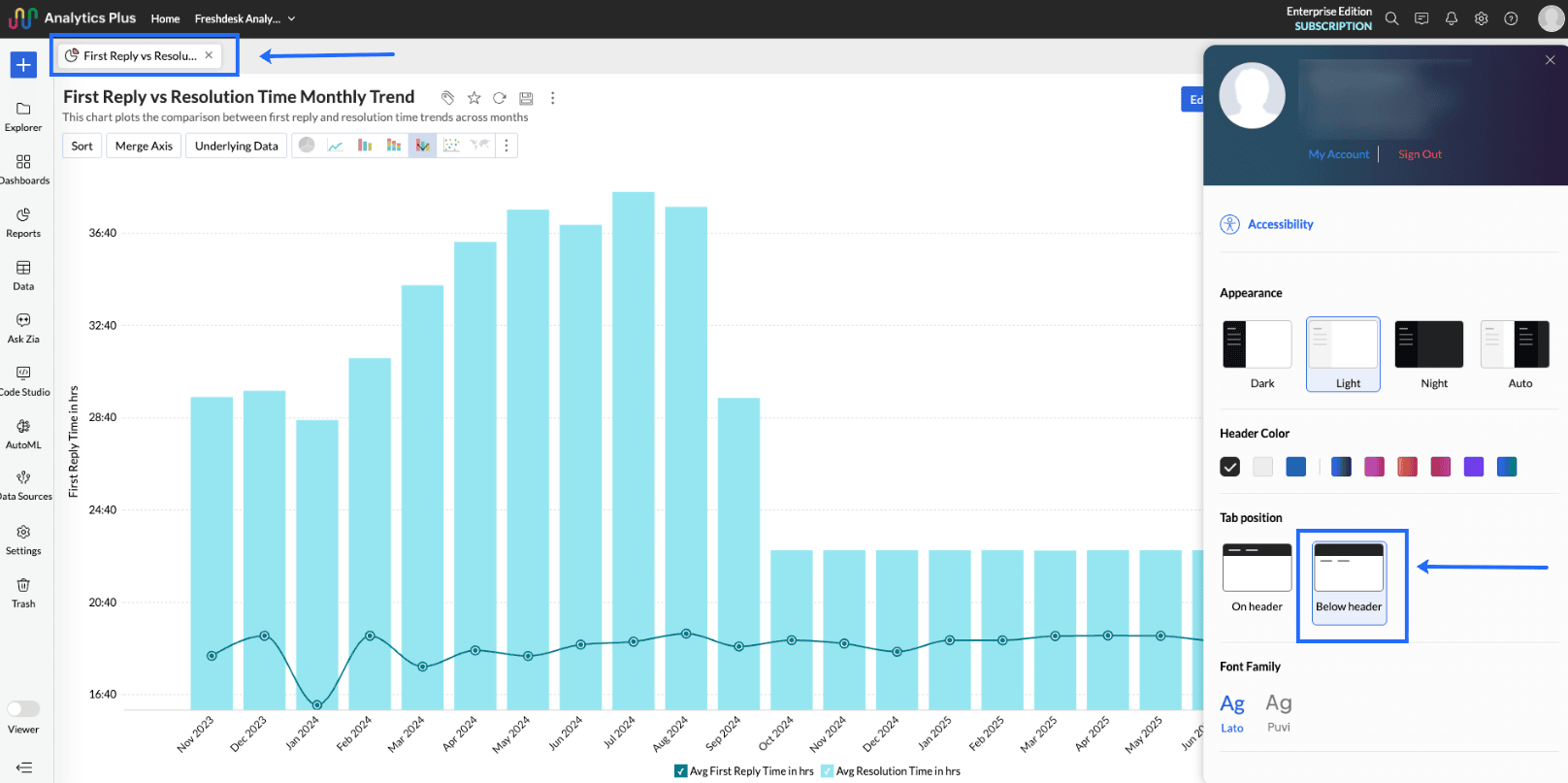
Analytics Plus allows you to customize the position of the tabs. You can choose whether the tabs should be displayed on or below the header tab.
On header: This option is enabled by default and displays tables and reports on the header tab (as shown below)
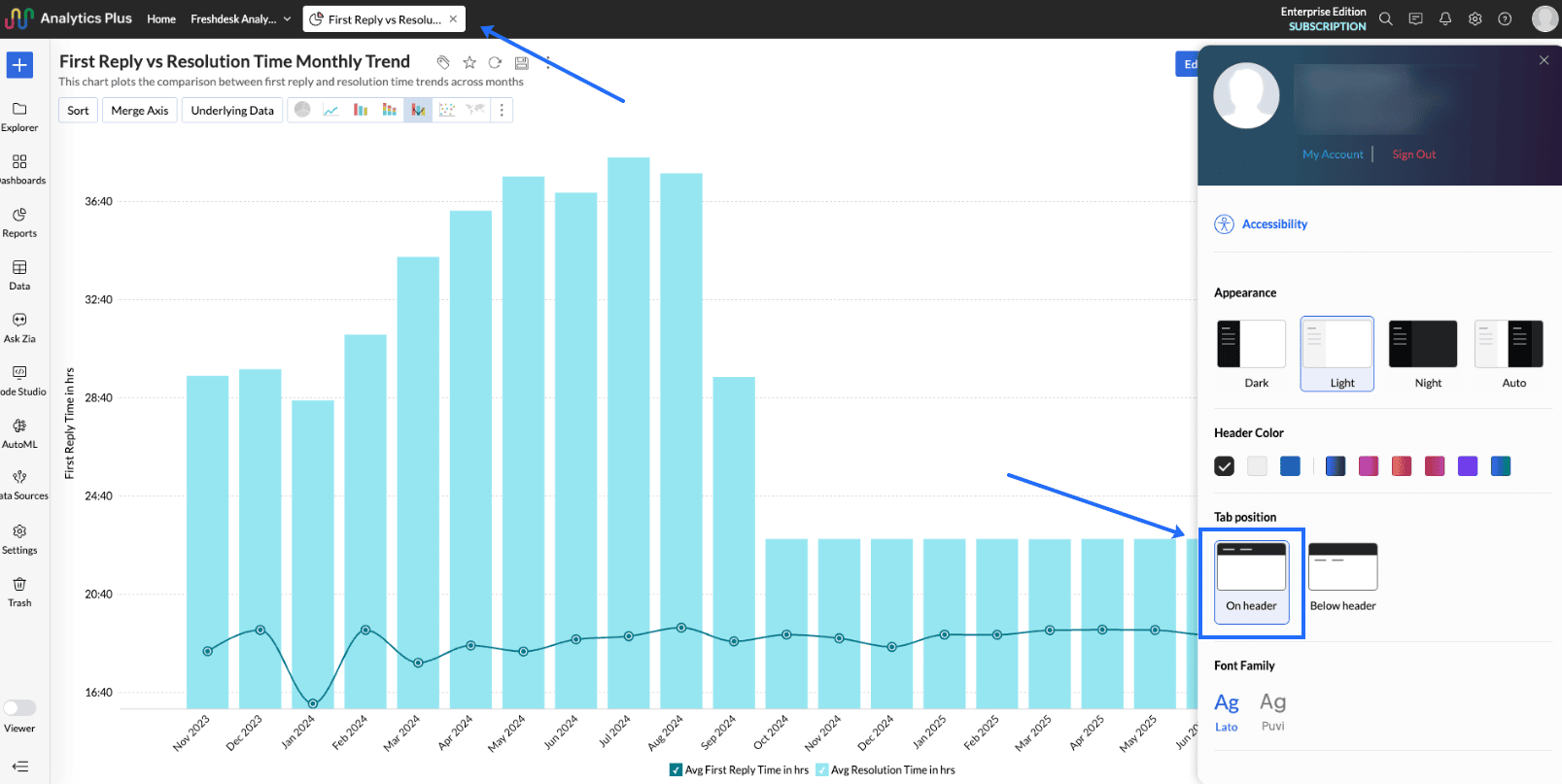
Below header: This option creates a tab below the header tab and displays tables, reports and dashboards below it.