Workflow Automation
Analytics Plus goes beyond traditional alerts by automatically triggering multi-step workflows across connected applications and teams when defined data conditions are met. With the built-in Zoho Flow builder, you can create and manage these workflows visually, without writing code.
What Workflows Make Possible
Complete Pipelines, Not Just Individual Actions:
Each trigger initiates a complete, multi-step sequence of actions across connected applications, such as updating incident tickets, acknowledging alarms, triggering remediation scripts, and more, automatically and in the defined sequence.Visual, No-Code Workflow Creation:
Drag, drop, and connect actions using the embedded Zoho Flow builder directly within Analytics Plus, without writing any code.
Supported App Categories
The extensive library of connectors available in Zoho Flow, supporting over 1000 applications, enables you to connect multiple systems within a single workflow. A few examples include, but not limited to::
ITSM — ServiceDesk Plus, ServiceNow, Jira Service Management, FreshDesk
ITOM — Endpoint Central, Datadog, Site 24x7, Dynatrace
IT Security — Microsoft Entra ID, Cloudfare, Okta
Artificial Intelligence — Anthropic Claude, ChatGPT, Gemini
Database — Supabase, Ninox, Airtable
And many more.
Creating Workflows
Data-driven triggers, such as data alerts, provide a starting point, that initiate workflows.
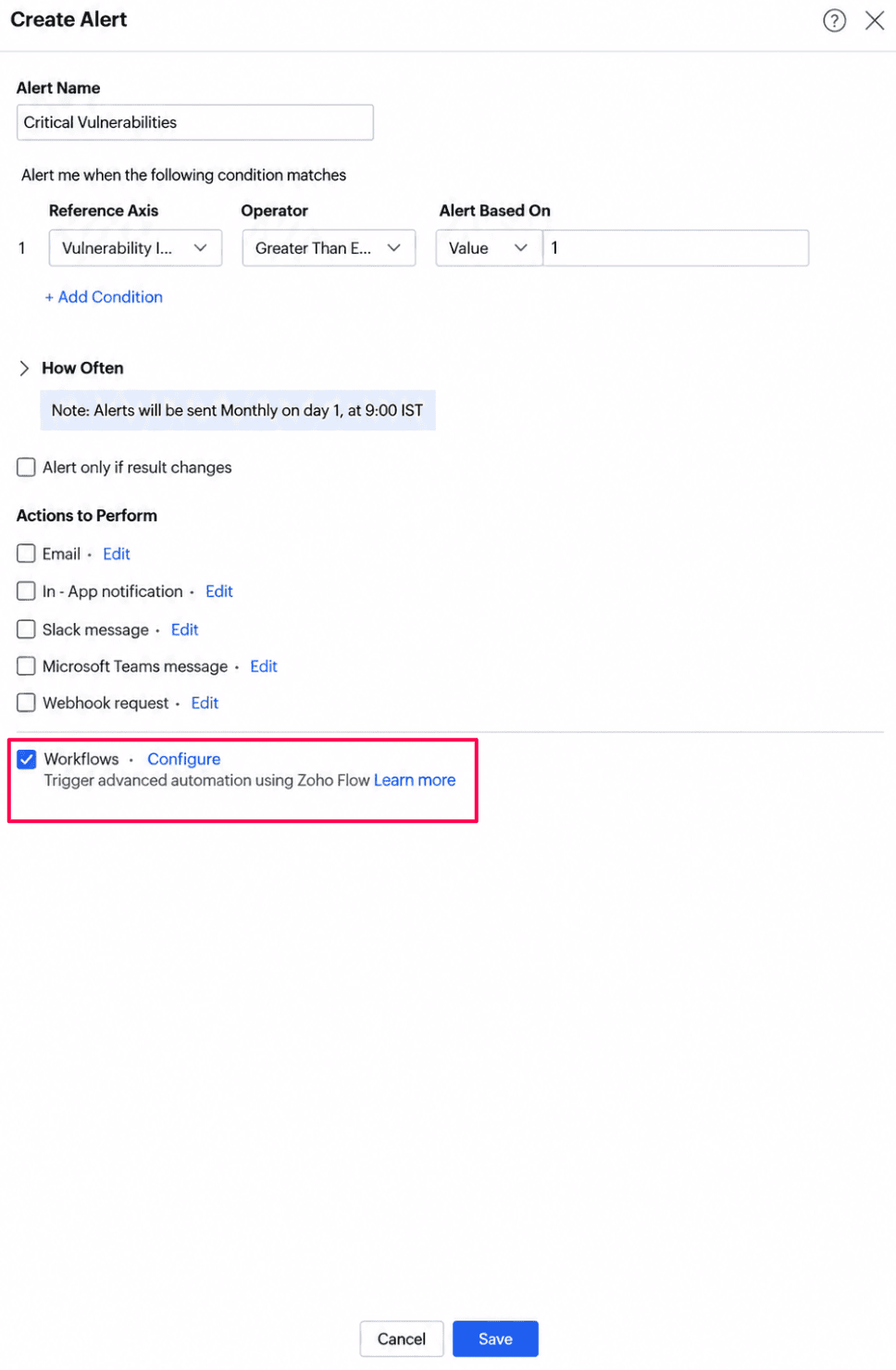
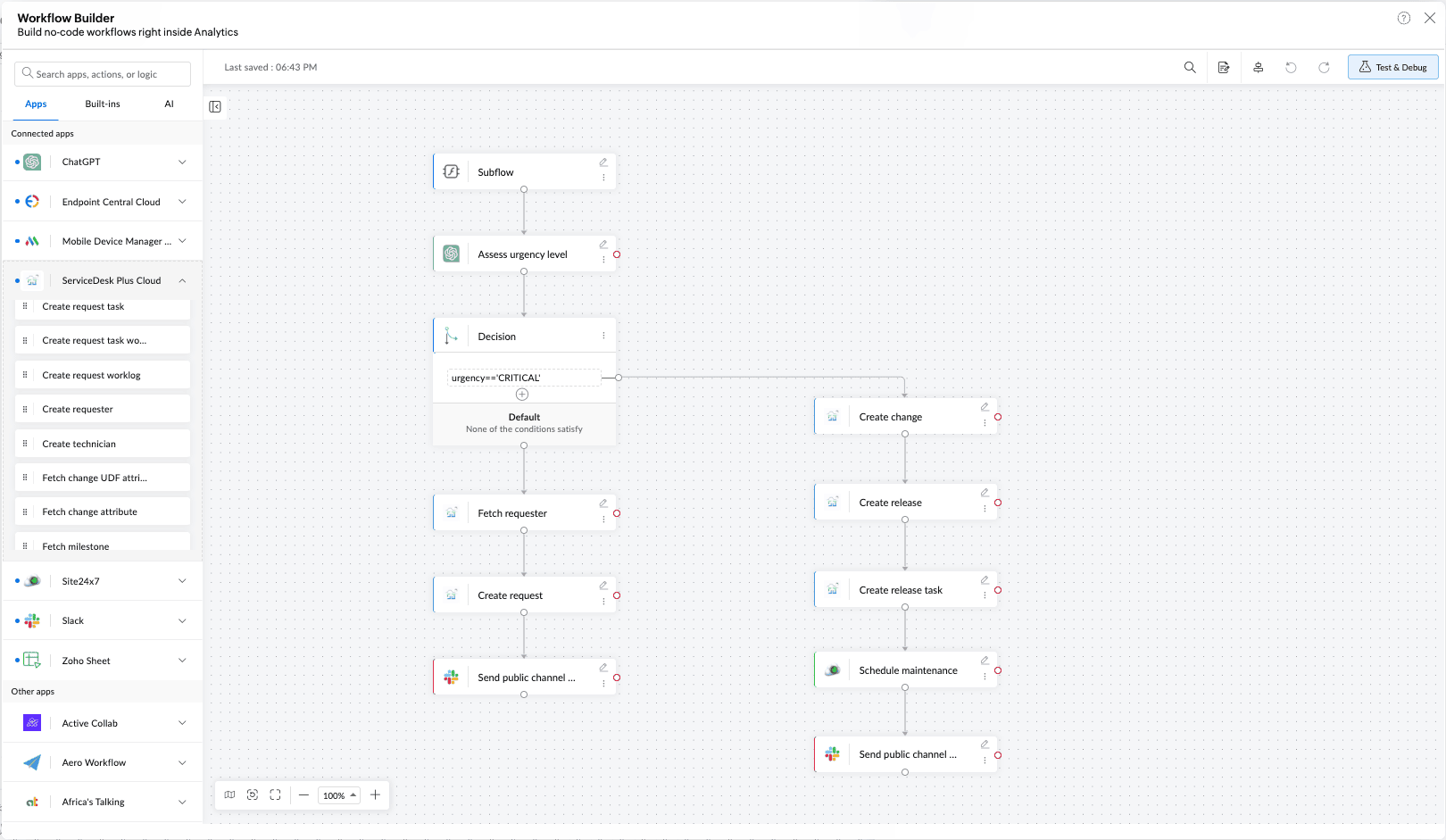
To create a workflow, navigate to Workspace Settings > Alerts and select Create/Manage Alert. Under the Actions to Perform section, navigate to Workflows and click Edit or Configure. This opens the embedded workflow builder within Analytics Plus, providing a visual, drag-and-drop interface to configure triggers, connectors, logic, and actions without switching applications or writing code.
Inside the Workflow Builder
1. Trigger — the starting point:
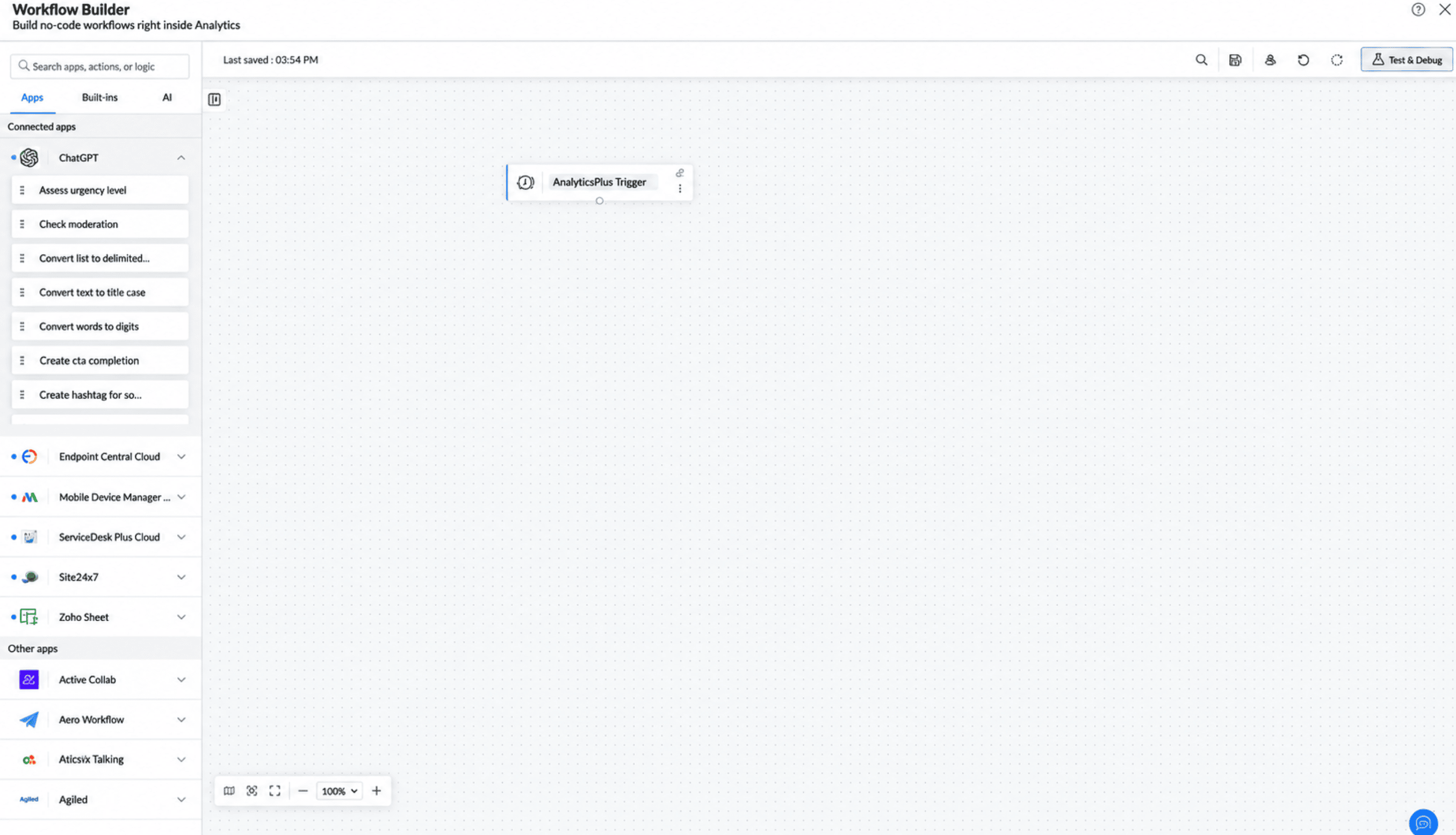
The trigger configured in Analytics Plus serves as the starting point of every workflow and determines when the workflow execution begins.
Once the trigger conditions are met, the subsequent actions in the workflow execute automatically in the configured sequence.
2. Drag and drop connectors:
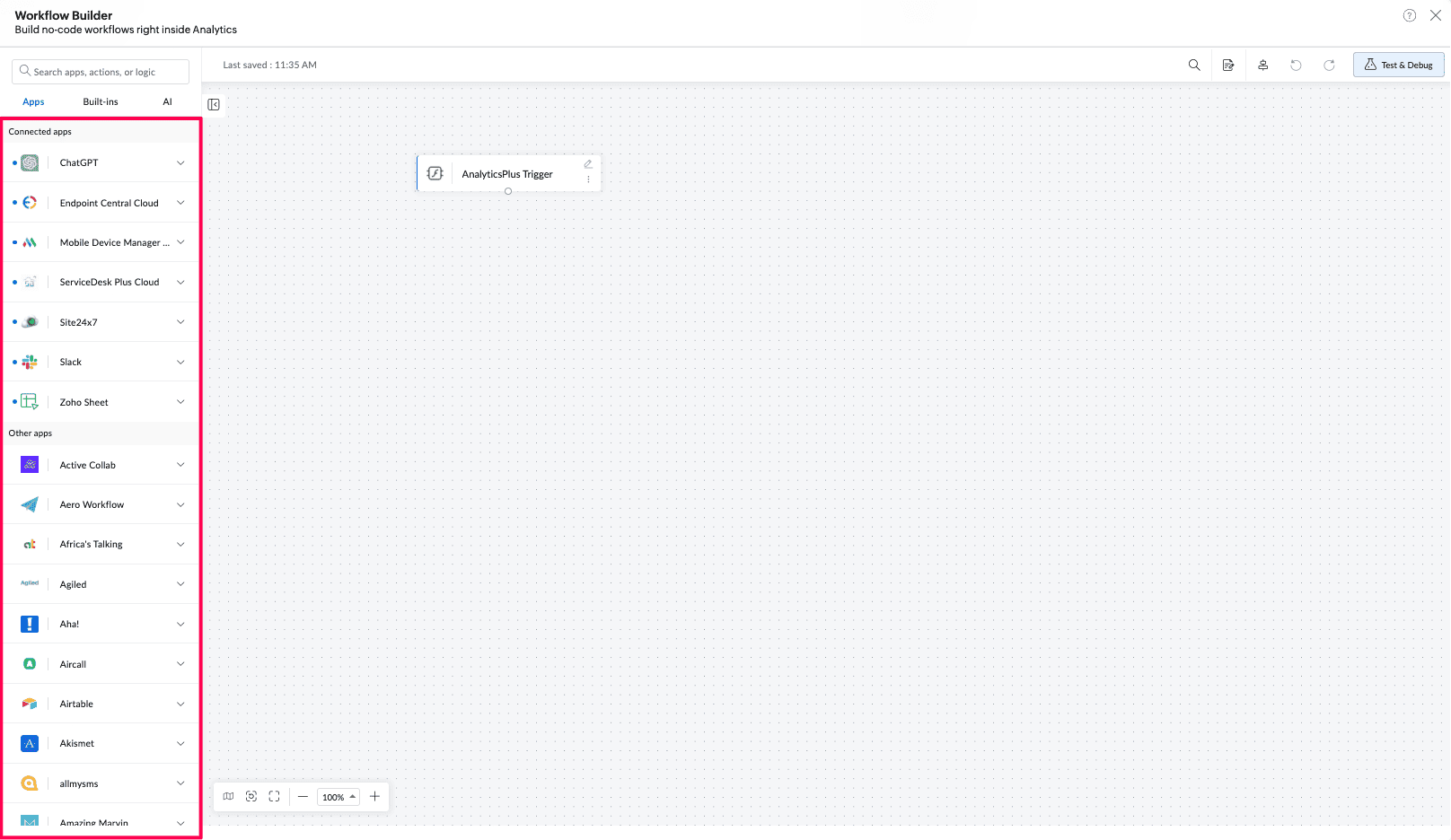
Library of connectors
Drag and drop connectors onto the workflow canvas after configuring the trigger. Each connector represents an action performed in an external application . Connect multiple actions in sequence to configure the workflow.
Use the Search bar in the left pane to quickly locate the required application or action.
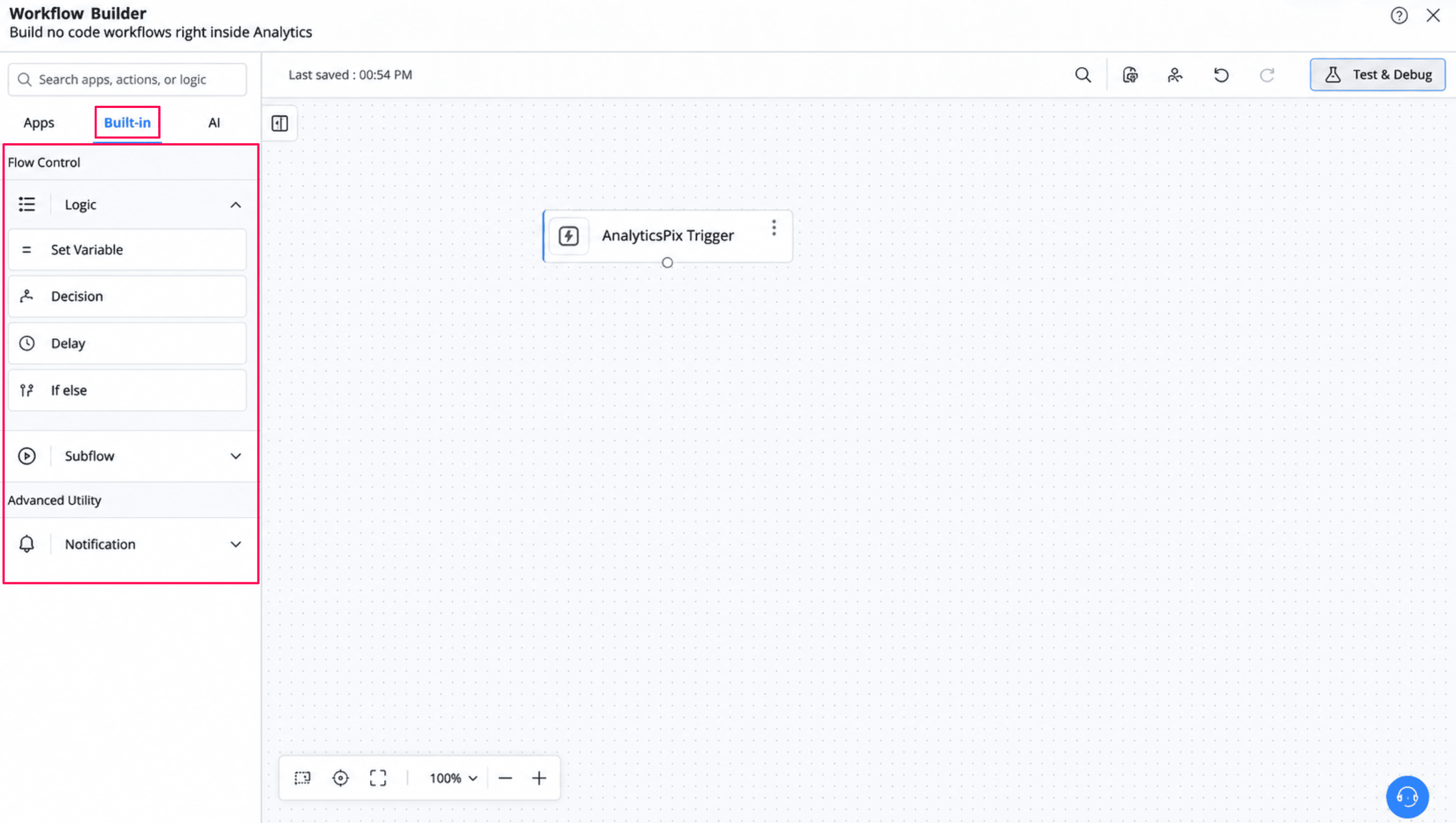
Built-in logic for smarter flows:
Extend workflows beyond sequential actions using Zoho Flow's built-in logic controls. These allow you to:
Set variables that feed values from other applications or previous stages of the workflow
Add conditional branching to account for dynamic conditions
Introduce time delays
Define if-else paths to route actions based on "and/or" conditions
AI utilities for context-aware decisions:
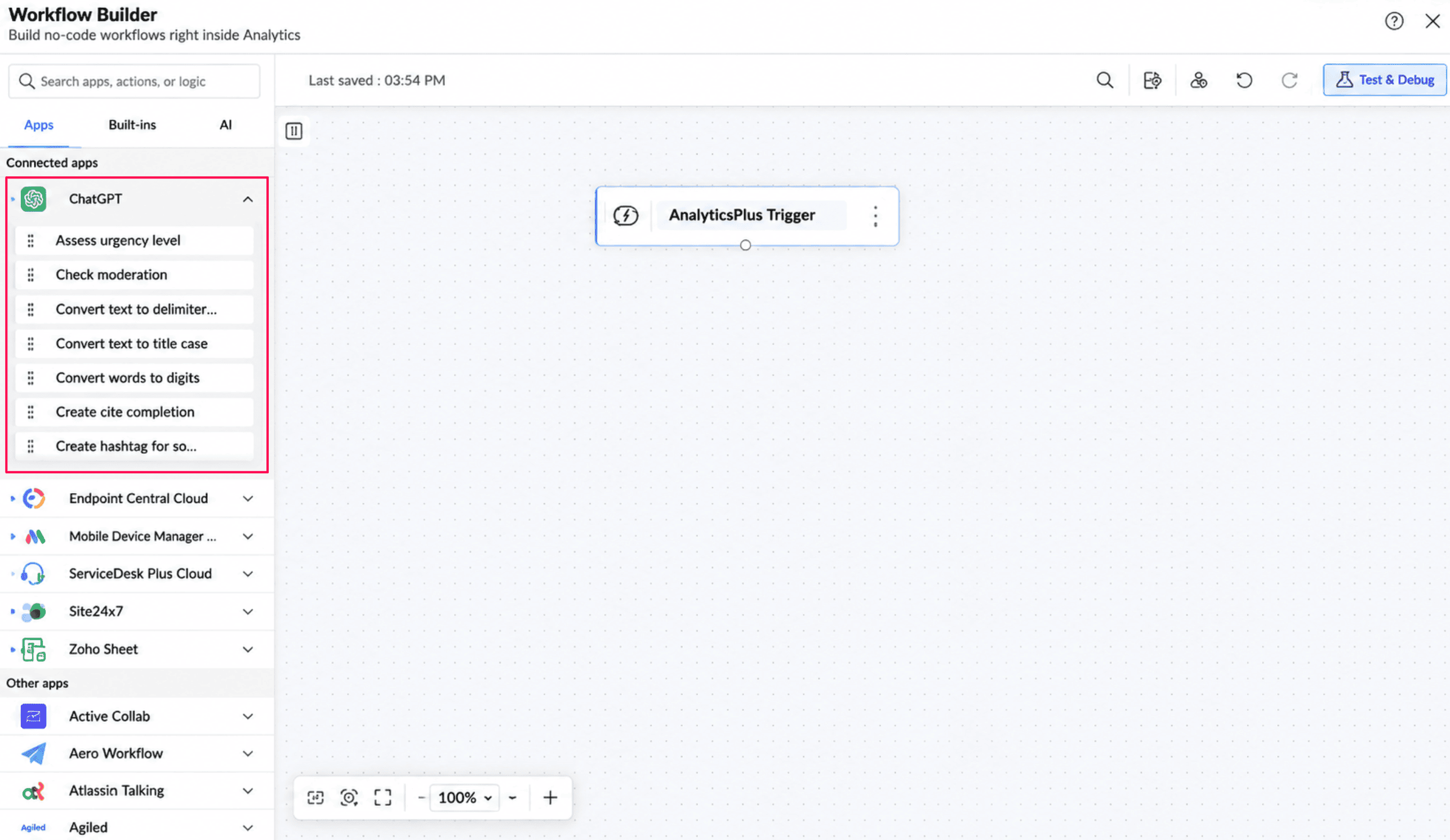
The workflow builder includes built-in AI utilities that enable intelligent processing and decision-making at different stages of a workflow.
Use AI utilities to generate content, summarize text, classify and label data, verify accuracy, mask sensitive information, and perform other AI-driven actions.
Goal-Oriented Orchestration: AI utilities evaluate the context at each step to classify information, support decisions, and generate relevant output, helping workflows achieve defined outcomes beyond executing predefined actions.
Integrate AI application connectors such as OpenAI and Claude (Anthropic) to incorporate large language model capabilities into automation workflows.
These AI connectors can analyze trigger context and support appropriate action paths, such as prioritizing incidents, resolving support issues, or identifying operational risks.
For example, when the number of support tickets exceeds a defined threshold, a workflow can use OpenAI to classify incoming tickets based on urgency and automatically route them to the appropriate support teams, reducing manual intervention.
3. Authorize apps and configure secure connections:
When a connector is added to the workflow canvas, a configuration dialog appears, allowing you to establish a secure connection between the application and Zoho Flow.
Authenticate each connector before including it in the workflow execution.
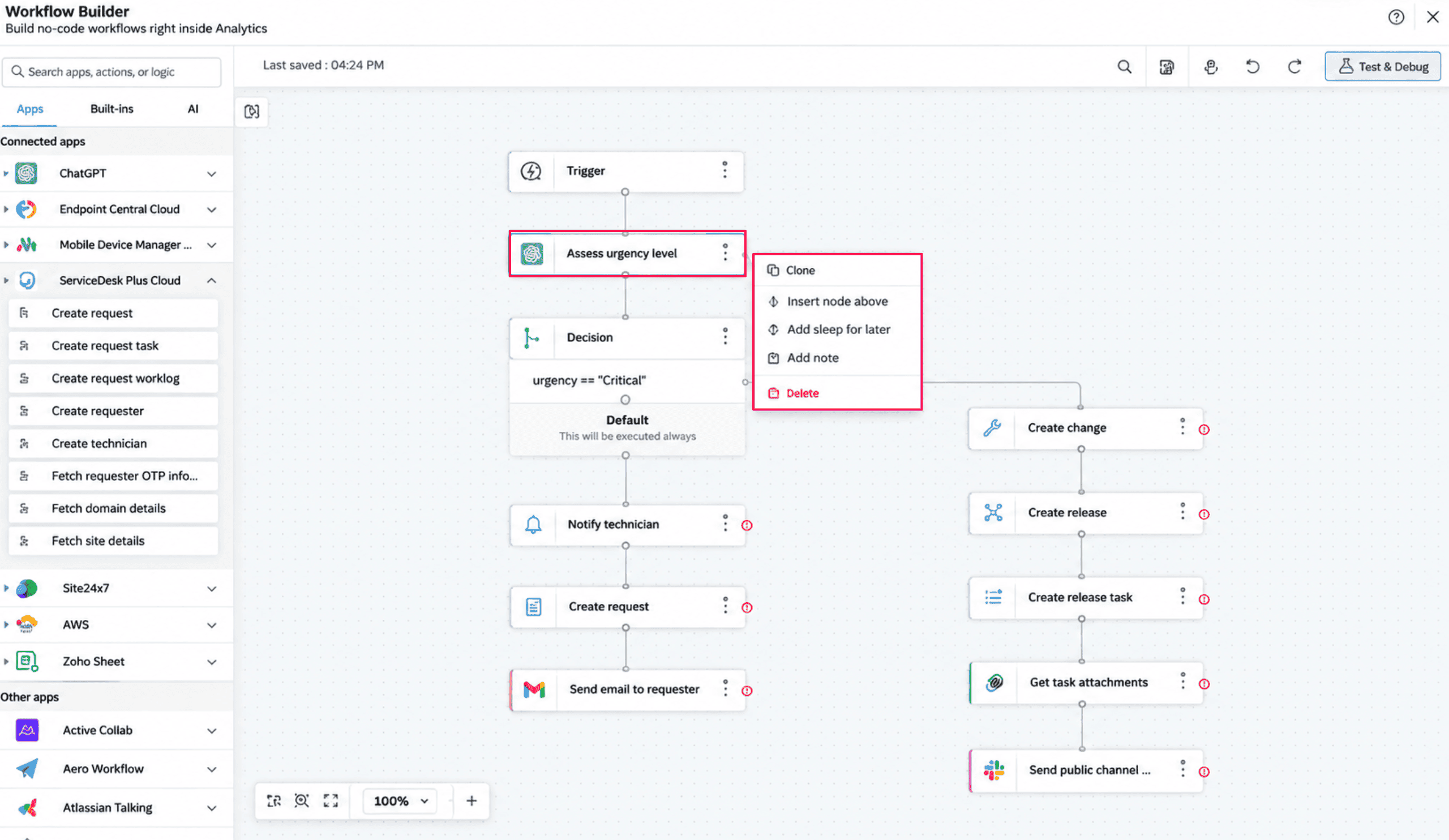
Click the Edit icon next to an application, built-in action, or AI utility to modify its configuration.
Use the More options icon to clone an existing step, add a note, or remove the step from the workflow canvas.
4. Workflow Builder Tools
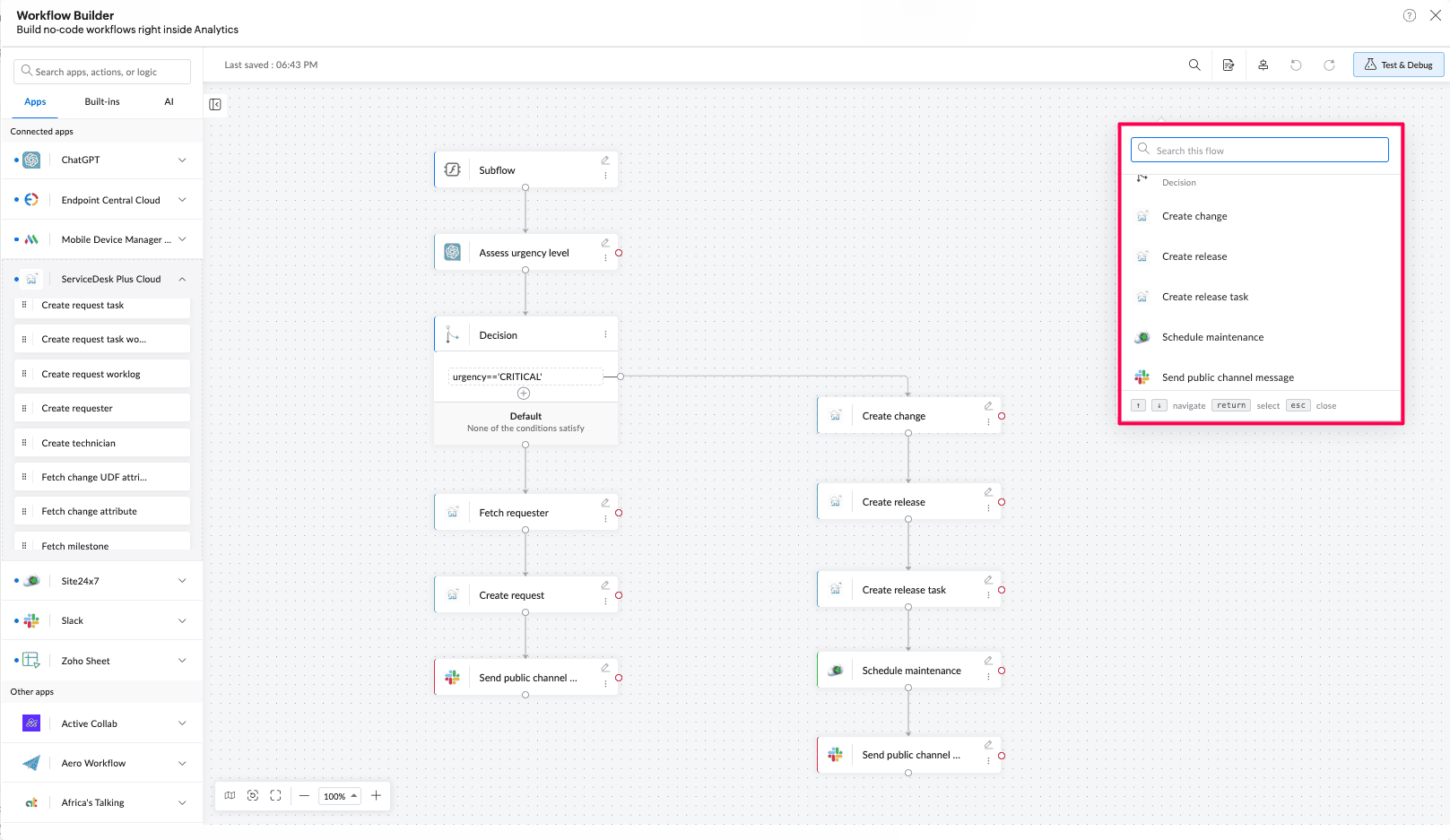
The workflow canvas provides tools to help you create, organize, test, and manage workflows efficiently.
Search Apps & Actions: Quickly locate connectors and actions using the search bar without manually browsing through the available options.
Undo & Redo: Undo or redo changes while configuring the workflow, allowing you to modify actions and refine the workflow structure.
Auto Arrange: Automatically rearrange workflow nodes on the canvas for improved readability and organization.
Live View & Versions: Monitor the active workflow in real time and review previous versions to track configuration changes.
Zoom, Fit & Map: Zoom in to view individual steps, zoom out for a complete overview, fit the workflow within the canvas, or use the mini map to navigate complex workflows.
Test & Debug: Execute workflows in test mode to validate individual steps, identify errors, and resolve configuration issues before activating them.
Managing and Governing Workflows
Once the workflow is configured and tested, you can activate it directly from Analytics Plus. When the defined trigger conditions are met, the workflow executes automatically, performing the configured actions across connected applications without requiring manual intervention.
Workflows provide built-in governance capabilities to ensure reliable execution, monitoring, and accountability as automation requirements scale.
Approvals & Human-in-the-Loop:
Configure approval checkpoints at different stages of a workflow to ensure critical actions proceed only after receiving the required authorization.Monitoring:
Monitor workflow executions in real time to identify successful actions, failed steps, and potential bottlenecks across connected applications.Error Handling & Retries:
Configure retry mechanisms and fallback paths to handle execution failures and ensure workflows can recover from errors without leaving actions incomplete.Audit Trail via Run History:
Access execution logs containing trigger details, workflow steps, execution results, and timestamps to support auditing, troubleshooting, and accountability.