Manage Custom Roles
Overview
Analytics Plus allows you to create custom user roles, beyond the predefined ones, to control what users can access and do within a workspace. Custom roles let you create permission sets that match the responsibilities of specific users or teams, without changing their organization-level roles.
With custom roles, you can:
- Grant fine-grained permissions instead of the broader permission set bundled in a predefined role.
- Give users access to all views of a selected entity in a shared workspace, without sharing each view individually.
- Allow users to create reports and dashboards without granting administrator privileges.
The Server Administrator and Managers can create and manage custom roles.
What is in this page
- How custom roles differ from predefined roles
- Create a custom role
- Manage custom roles
- Frequently asked questions
How custom roles differ from predefined roles
| Capability | Custom role | Viewer | Manager | Workspace Administrator |
| Access to existing views | All views in the workspace based on the selected permissions | Only views explicitly shared with them | Only views explicitly shared with them | All views in the workspace |
| Access to new views | Automatic for the selected entity | No, until shared | No, until shared | Automatic |
| Create or modify reports | Yes, if granted | No | No | Yes |
| Add or modify data | Yes, if granted | No | Yes, in shared tables. | Yes |
| Administrative privileges | None | None | None | All, except renaming, deleting, or backing up the workspace |
Create a custom role
- Click the Settings icon at the top right of your account.
- In the left panel, click Manage Workspace Roles under User Management.
Click Add New Role. The Create Role dialog opens.
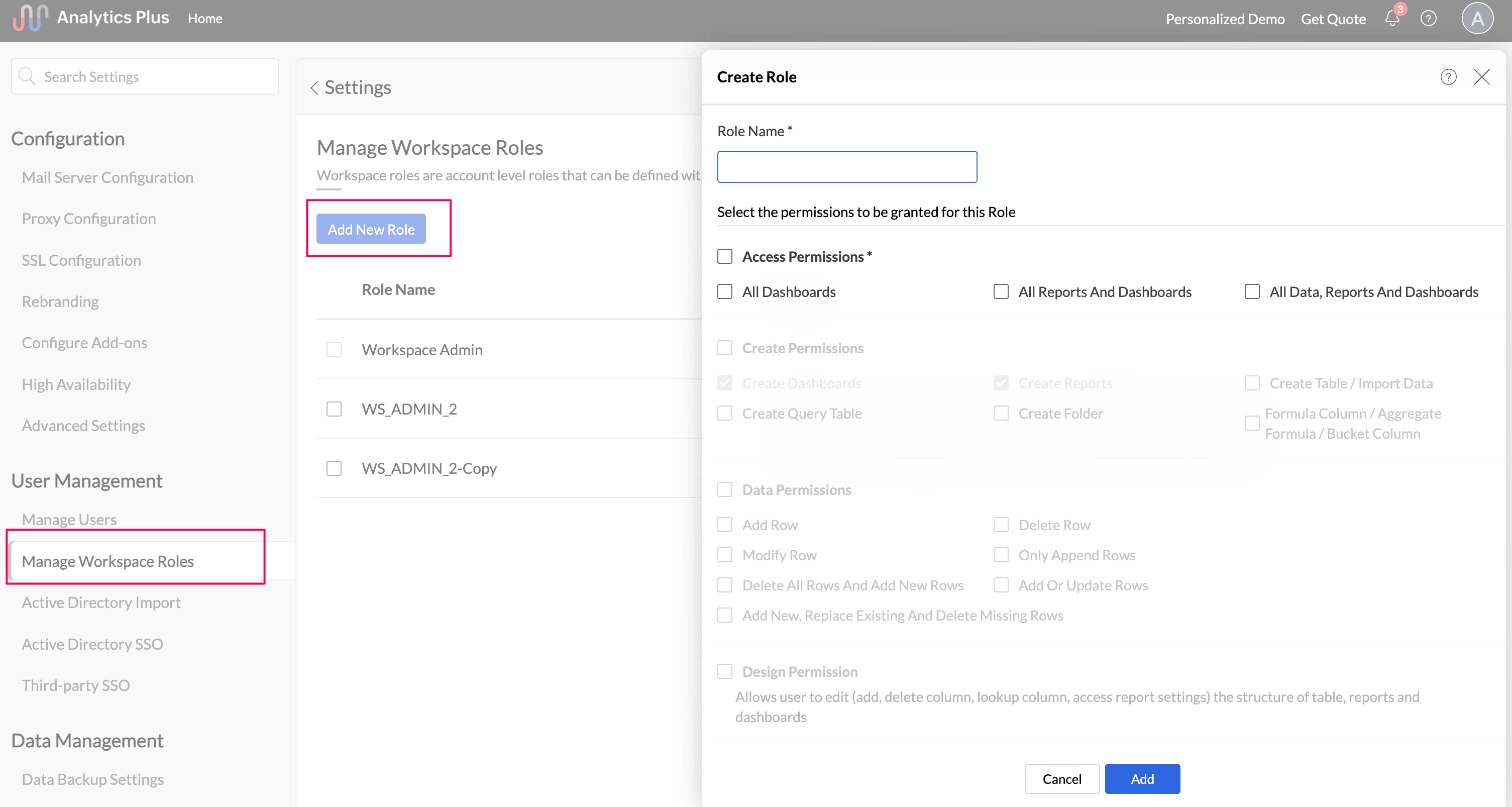
- In the Role Name field, enter a name for the role.
- In the Access Permissions section, select the entities the role can access: All Dashboards, All Reports And Dashboards, or All Data, Reports And Dashboards. The remaining options vary based on this selection.
- Select the other permissions the role requires.
- Click Add. The role is created and listed in the Manage Roles page. You can now assign it to your users.
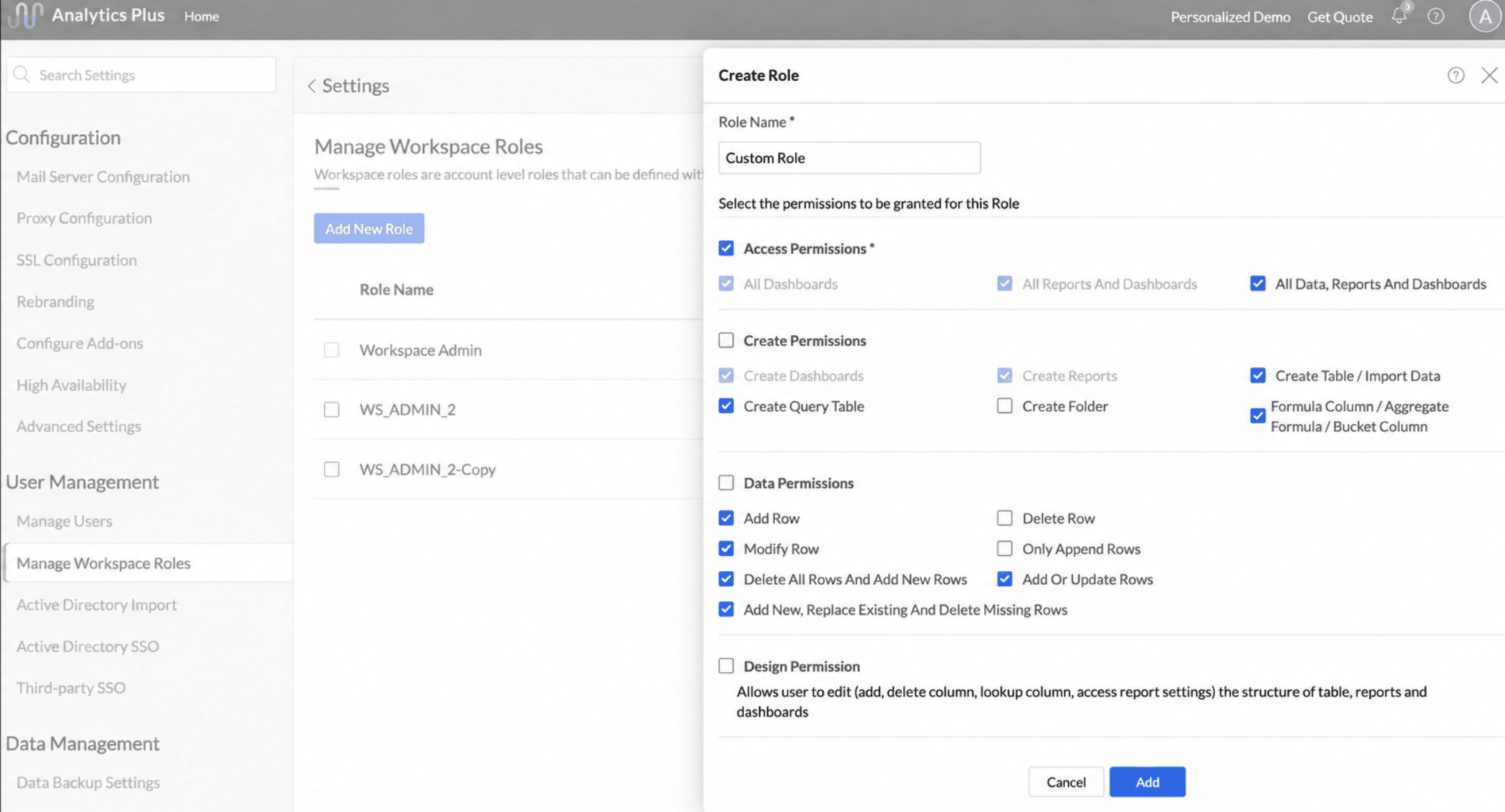
Custom role permissions
A custom role's permissions are broadly categorized into Access permissions, Create permissions, Data permissions, Desgin permissions, Interaction permissions, Sharing and collaboration permissions and Publishing permissions. The overarching scope of a custom role is set by the Access permissions you select when you create the role. Selecting a broader option automatically includes the narrower ones; for example, selecting All Reports And Dashboards also selects All Dashboards.
Access permissions
- All Dashboards: Gives access to all dashboards in the shared workspace. This suits users such as a CIO who views dashboards for analysis but does not work with reports or data.
- All Reports And Dashboards: Gives access to all reports and dashboards in the shared workspace. Users with this permission can also create dashboards and folders. Creating reports requires access to data, so it is available only with the All Data, Reports And Dashboards permission.
- All Data, Reports And Dashboards: Gives access to the data, reports, and dashboards in the shared workspace. Users with this permission can create tables and import data, create query tables, use formula columns and aggregate formulas, and create reports and dashboards.
The remaining permissions all depend on the Access permission selected for the custom role.
Create Permissions
| Permission | Description | All Dashboards access permission | All Reports And Dashboards access permission | All Data Reports And Dashboards access permission |
| Create Dashboards | Allows users to create dashboards. | - | Yes | Yes |
| Create Reports | Allows users to create and edit reports. | - | - | Yes |
| Create Table Import Data | Allows users to create tables and import data. | - | - | Yes |
| Create Query Table | Allows users to create query tables. | - | - | Yes |
| Formula Column Aggregate Formula Bucket Column | Allows users to add formulas and bucket columns. | - | - | Yes |
| Create Folder | Allows users to create folders. | Yes | Yes | Yes |
Data Permissions
Available only with the All Data Reports And Dashboards access permission.
| Permission | Description |
| Add Row | Users can add rows to the table. |
| Delete Row | Users can delete rows in the table. |
| Modify Row | Users can modify rows in the table. |
| Only Append Rows | Users can only append rows in the table while importing. |
| Delete All Rows And Add New Rows | Users can delete all rows and append rows in the table while importing. |
| Add Or Update Rows | Users can append and modify rows in the table while importing. |
| Add New Replace Existing And Delete Missing Rows | Users can add, update, and delete rows in the table while importing. |
| Create Modify And Delete Data Archives | Users can create, modify, and delete data archives. |
Note:
- Archive permissions can be enabled only when all other data permissions are enabled.
Design Permission
Users can edit the structure of tables, reports, and dashboards, including adding and deleting columns, lookup columns, and accessing report settings.
Interaction Permissions
These permissions are available for every access permission type.
| Permission | Description |
| Read Access | Grants read access. Selected by default and cannot be cleared. |
| View Underlying Data | Users can view the underlying data of reports. |
| Drill Down | Users can drill down reports. |
| Drill Through | Users can drill through reports. |
| Drill Actions | Users can use drill actions in reports. |
| Zia Insights | Users can use Zia Insights to get narrative analysis. |
| GenAI Skills | Users can use GenAI skills. |
Sharing & Collaboration Permissions
Available for all access permission types.
| Permission | Description |
| Share Views / Child Reports | Users can re-share views and child views. |
| Commenting Actions | Users can comment on shared views. |
| Private Links | Users can generate private links of tables, reports and dashboards for easy collaboration. |
| Access Admin/Owner Presets | Users can access presets (saved combinations of dashboard user filters) created by admins and owners. |
| Allow Preset Creation | Users can create presets (saved combinations of dashboard user filters). |
Publishing Permissions
| Permission | Description | All Dashboards access permission | All Reports And Dashboards access permission | All Data, Reports And Dashboards access permission |
| Export | Users can export and email data. | Yes | Yes | Yes |
| Manage Email Schedules | Users can create and manage email schedules. The Manage Email Schedule created by them link allows you to restrict which schedules can be managed. | Yes | Yes | Yes |
| Manage Data Alerts | Users can create and manage data alerts. The Manage Alerts created by them link allows you to restrict which alerts can be managed. | - | Yes | Yes |
| Create Slideshow | Users can create slideshow links for views. | Yes | Yes | Yes |
Manage custom roles
The Server Administrator and Manager can manage custom roles from Settings >>User Management >> Manage Roles.
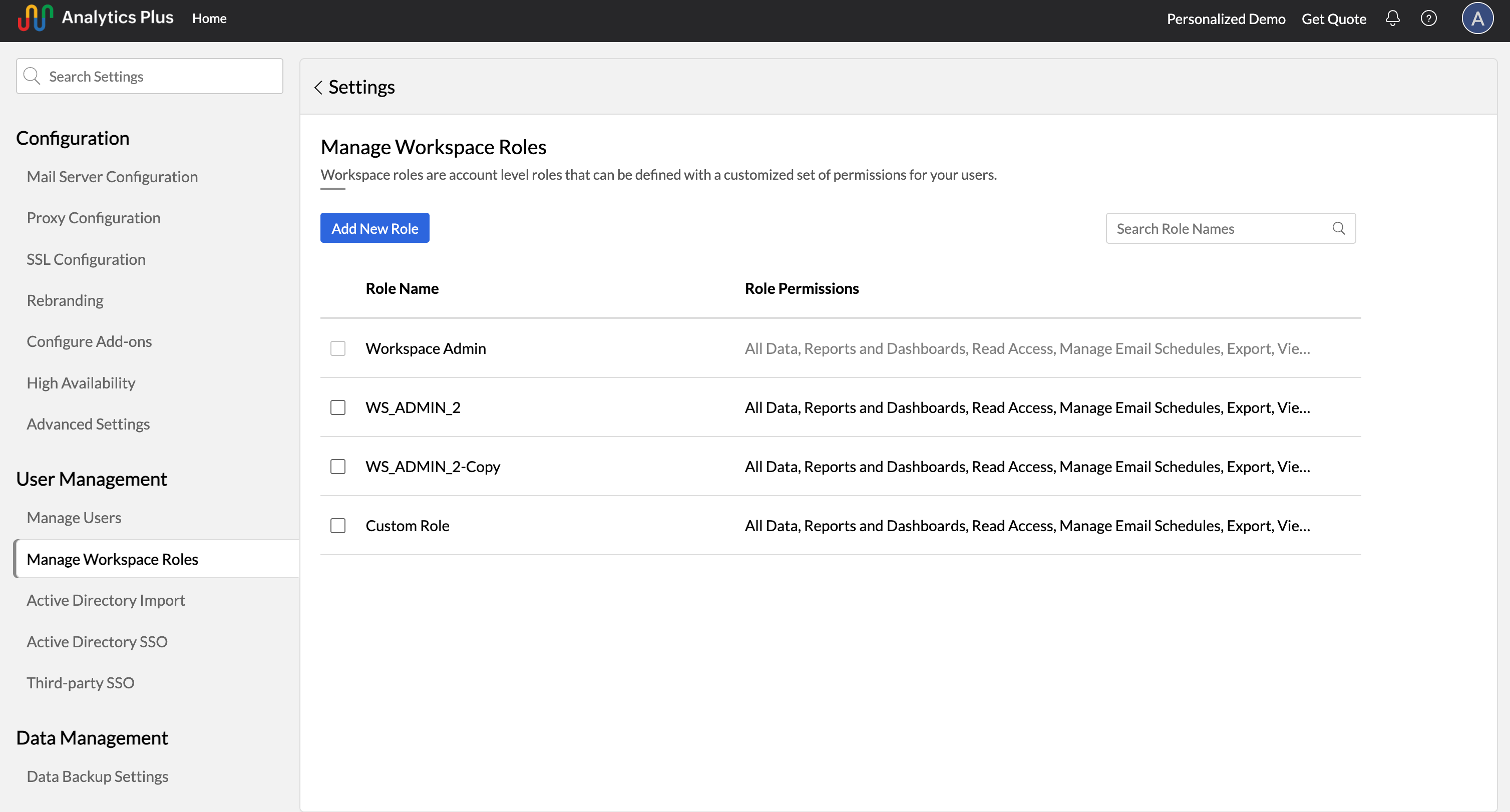
Assign users to a custom role
Users can be assigned a custom role either from the Manage Workspace Roles in the Settings page or from the Manage Users section of a workspace's settings.
From the Settings page:
- Open Settings >> User Management >> Manage Workspace Roles.
- Navigate to the required custom role, and click the Select a workspace to assign users icon that appears on mouse over.
- Select the required workspace and users.
- Click Save.
From a Workspace:
- Open the required workspace.
- Go to Settings >> Manage Users.
- Click Add Users or select an existing user.
- Assign the required custom role.
- Save the changes.
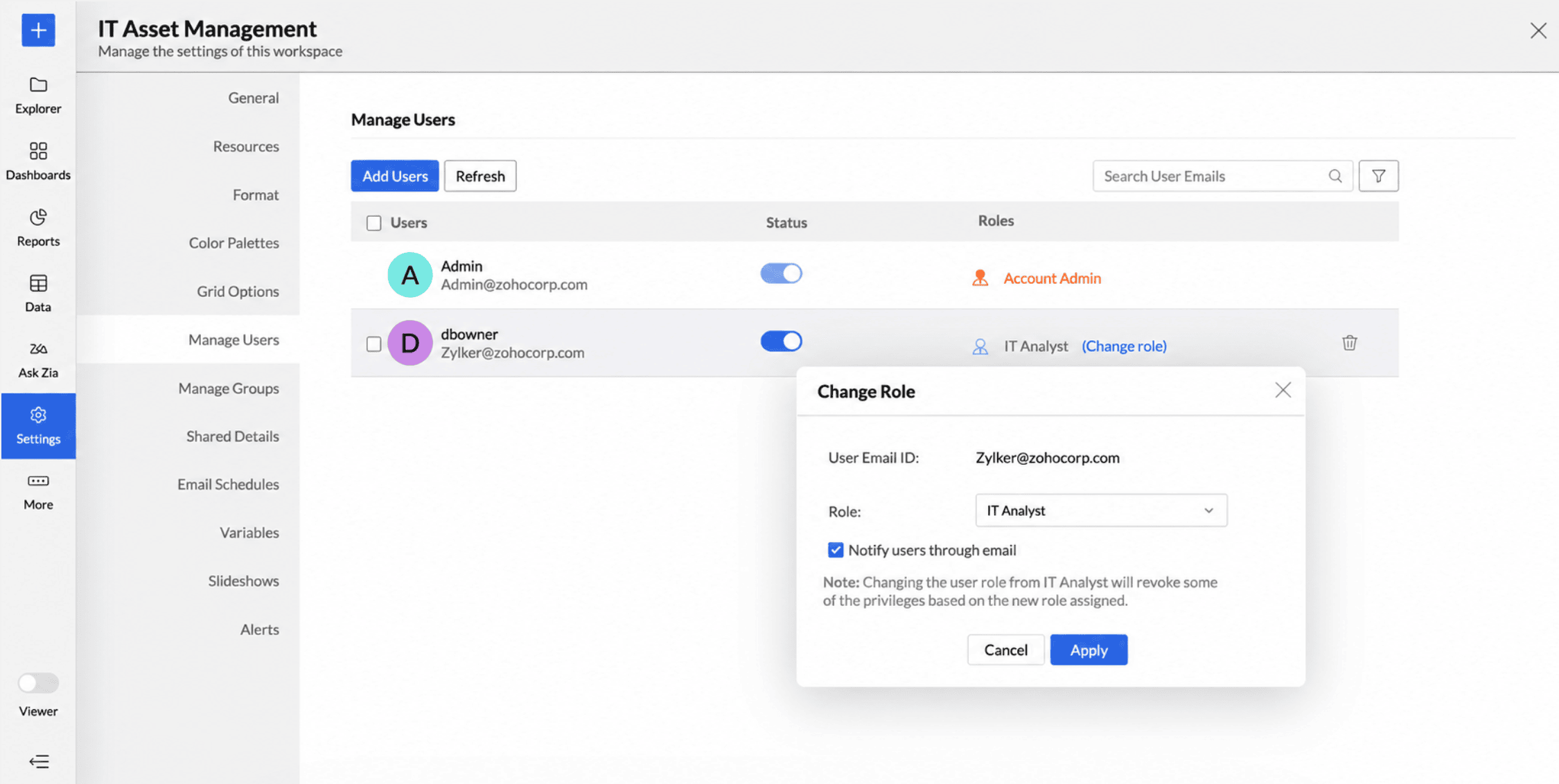
Change an existing user to a custom user role
You can change a user’s role either from the Manage Users page within a workspace or from the Manage Workspace Roles page from the Settings page.
From Manage Users within a workspace:
- Open the required workspace and go to Settings >>Manage Users.
- Select the required user.
- Click Change role.
- Choose the required custom role.
- Click Apply.
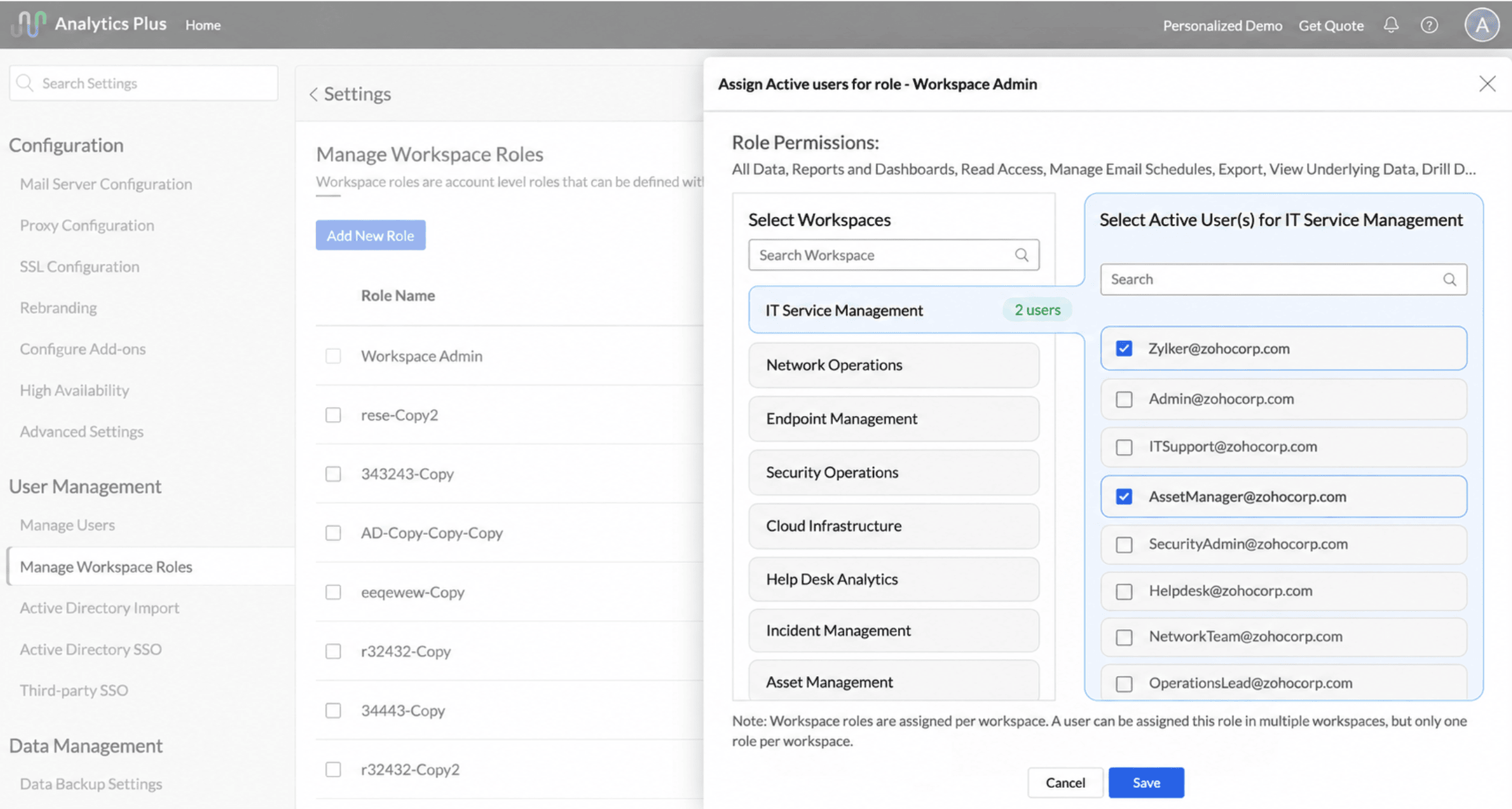
From Manage Workspace Roles:
- Go to Settings >>User Management >> Manage Workspace Roles.
- Select the required custom role.
- Select the workspace.
- Select the user to whom you want to assign the role.
- Click Save.
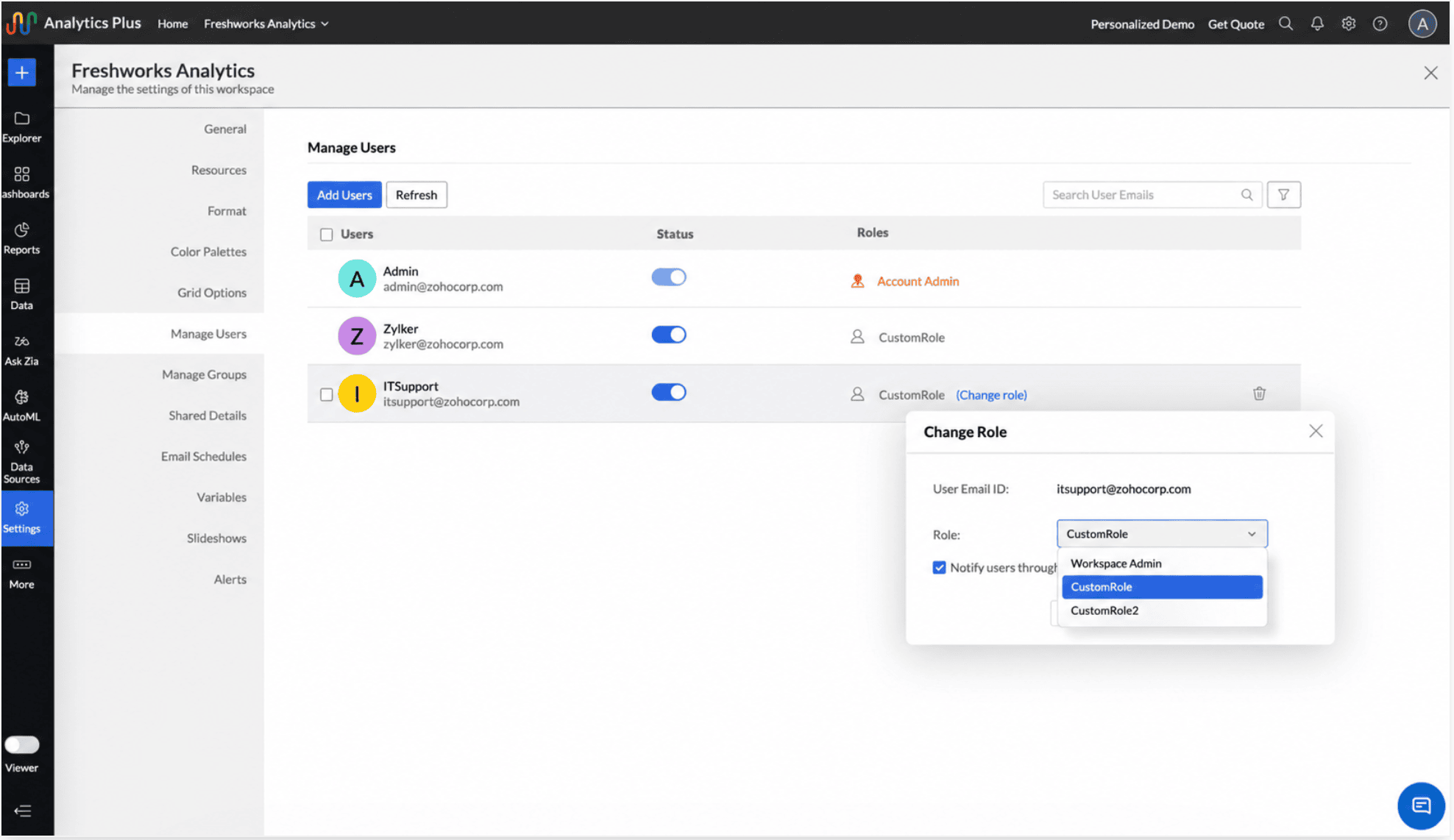
Change a workspace administrator to a custom role
- Open Workspace Settings >> Manage Users.
- Select the required user.
- Change the user from Workspace Administrator to the required custom role.
- Click Apply.
Note:
- If a user assigned to a custom role is removed from a workspace, the role assignment for that workspace is also removed. The user retains any organization-level predefined role, such as Manager, but no longer has access to that workspace through the custom role.
A user can be assigned different custom roles across workspaces, but only one role can be assigned within workspace.
Edit a custom role
- Hover over the role and click Edit.
- Update the required permissions.
- Click OK.
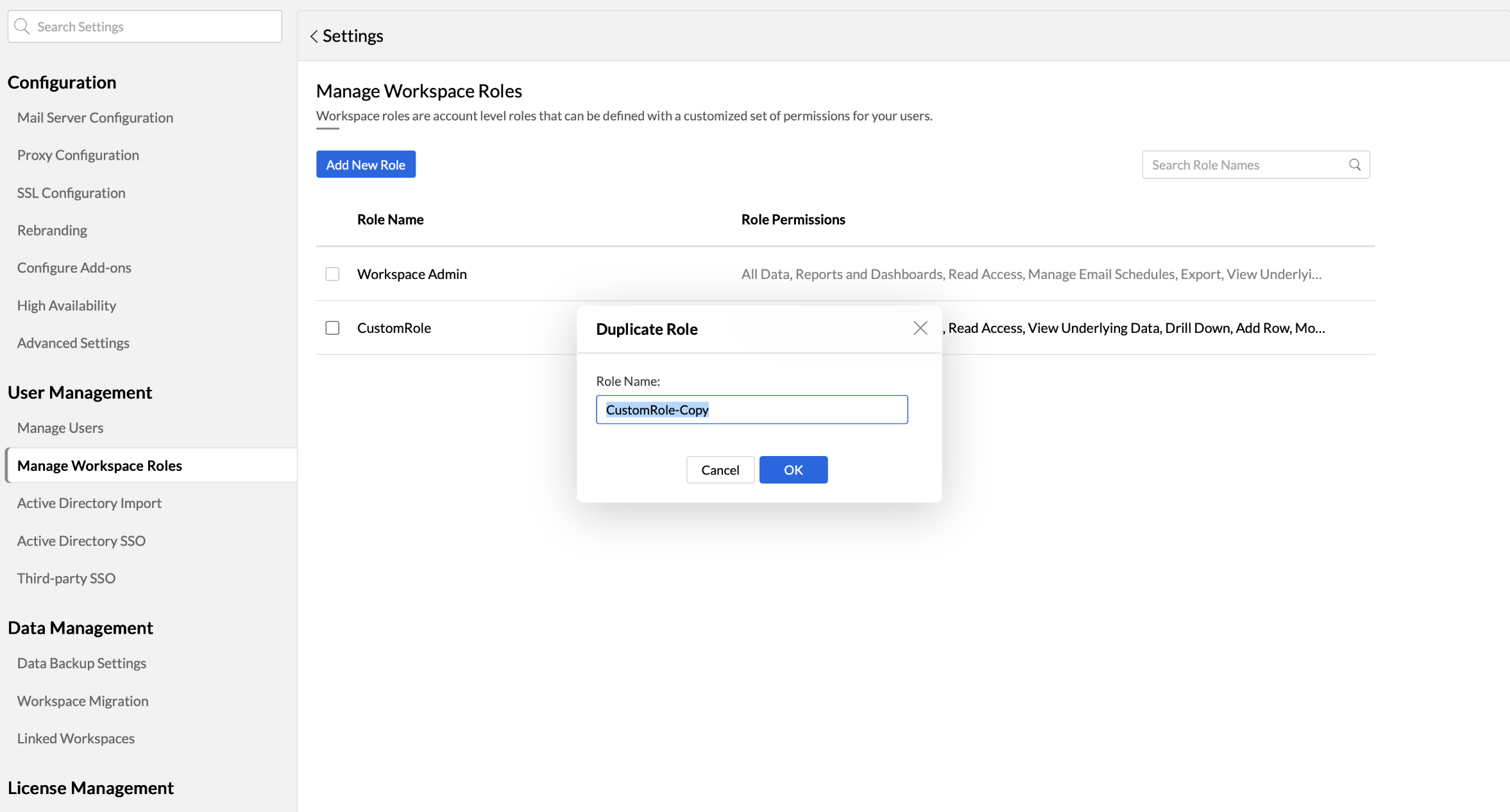
Duplicate a custom role
- Hover over the role and click Duplicate.
- Update the role name, if needed.
- Click OK.
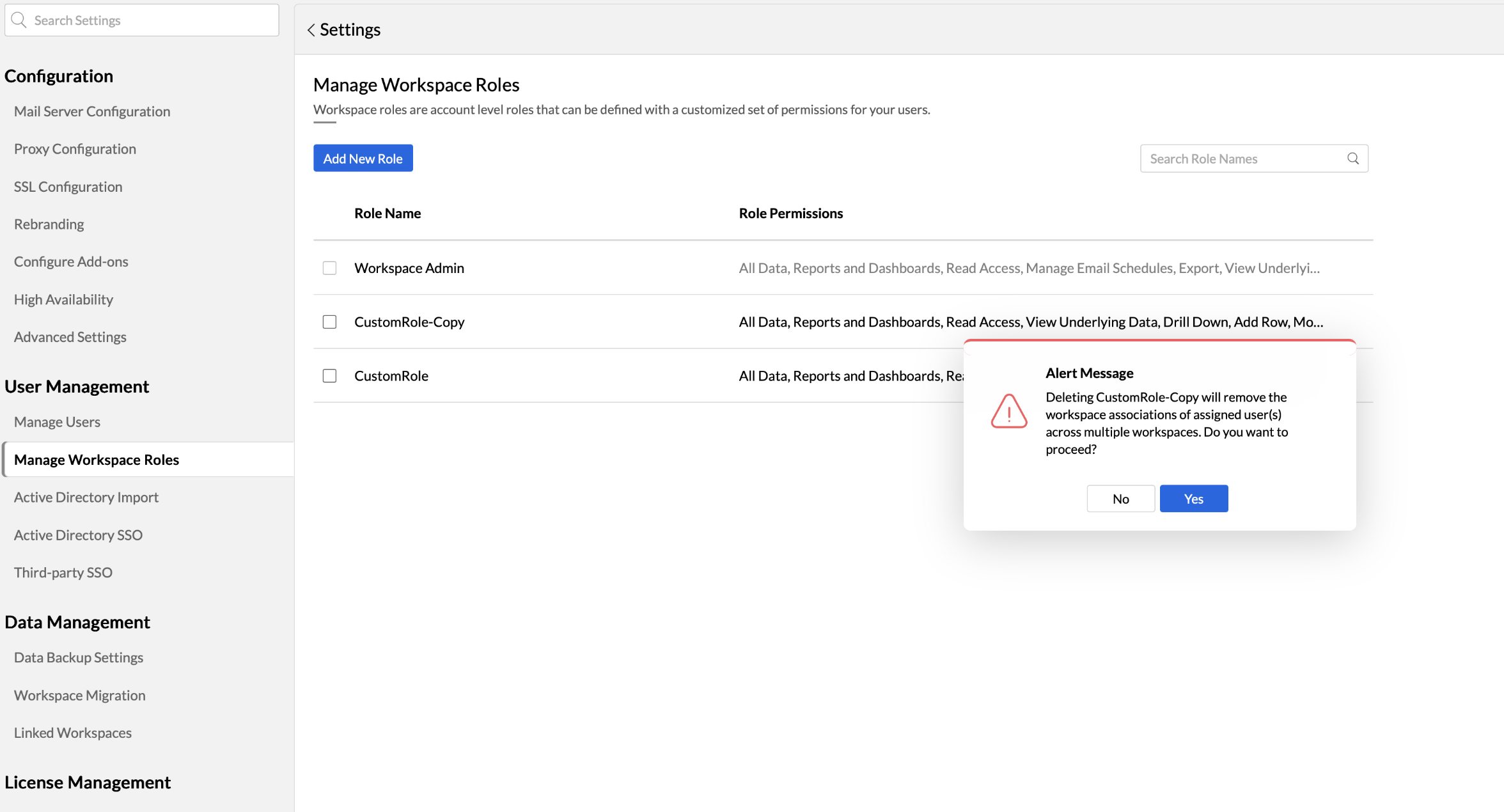
Delete a custom role
- Select one or more custom roles.
- Click Delete Roles.
- Confirm the deletion.
Before deleting a role, reassign its users to another appropriate role so they retain the access they need.
Frequently asked questions
1. Who can create custom roles?
The Server Administrator and Manager user roles can create, edit, duplicate, and delete custom roles.
2. How many custom roles can I create?
You can create any number of custom roles in your organization. A user can be assigned different custom roles across multiple workspaces, with a maximum of one role per workspace. Licensing is calculated based on the number of users, not the number of roles assigned to them.
3. How many users can I assign to a custom role?
You can assign a custom role to any number of users. Each user can have different custom roles across different workspaces, but only one role can be assigned per workspace. Licensing is calculated based on the number of users in your organization, not the roles assigned to them.
4. Can users with a custom role share views?
Yes. Users with a custom role can share the views they have access to if the role includes the Share Views / Child Reports permission under Sharing & Collaboration Permissions.
5. What happens to custom roles if I downgrade my plan?
All users who were assigned a custom role are changed to the predefined User role. Their custom roles are restored when you upgrade again.