Importing data from Microsoft Azure SQL Managed Instance
If you have your data stored in Microsoft Azure SQL Managed Instance, you can easily import the data into Analytics Plus for advanced reporting and analysis. Periodic schedules can be set up to automatically fetch the latest data from the database.
- How do I import data from Microsoft Azure SQL Managed Instance into Analytics Plus?
- How do I edit the data import configuration?
- How long does it take for Microsoft Azure SQL Managed Instance data to be imported?
- Will foreign keys defined between tables in the cloud database be linked in Analytics Plus?
- Is it possible to change the data type of imported columns in Analytics Plus?
- Can I import data from Microsoft Azure SQL Managed Instance into an existing workspace in Analytics Plus?
- Can I synchronize data from Microsoft Azure SQL Managed Instance instantly?
- How do I resolve synchronization failure?
- How do I remove the setup?
Data Import
1. How do I import data from Microsoft Azure SQL Managed Instance into Analytics Plus?
2. How do I edit the data import configuration?
3. How long does it take for Microsoft Azure SQL Managed Instance data to be imported into Analytics Plus?
After setting up data import from your cloud database, you might have to wait some time for the initial fetch to complete. Depending on the amount of data in your application, reports and dashboards might take up to 5 minutes to display all metrics. If you access the workspace before the initial fetch is complete, no data will be displayed.
4. Will foreign keys defined between tables in Microsoft Azure SQL Managed Instance be linked in Analytics Plus?
When importing multiple tables, the foreign keys defined between the tables in the database will be linked in Analytics Plus using lookup columns. However, if you import one table at a time, the foreign keys will not be defined automatically. In such cases, you can manually link the tables using the lookup column functionality. To learn more about lookup columns, click here.
5. Is it possible to change the data type of imported columns in Analytics Plus?
Yes. To learn more about changing the column type in Analytics Plus, click here.
Note: While changing a column's data type in Analytics Plus, ensure that it is compatible with the column's data type in the database for successful data synchronization.
6. Can I import data from Microsoft Azure SQL Managed Instance into an existing workspace in Analytics Plus?
Yes. Follow the steps below to import data into an existing workspace:
- Open the required workspace. Click Create from the side panel and select New Table / Import Data.
- Click the Local Databases tile and follow the steps detailed in the presentation above.
7. Can I synchronize data from Microsoft Azure SQL Managed Instance instantly?
Yes. Follow the steps below:
Open the required workspace and click the Data Sources tab from the side panel.
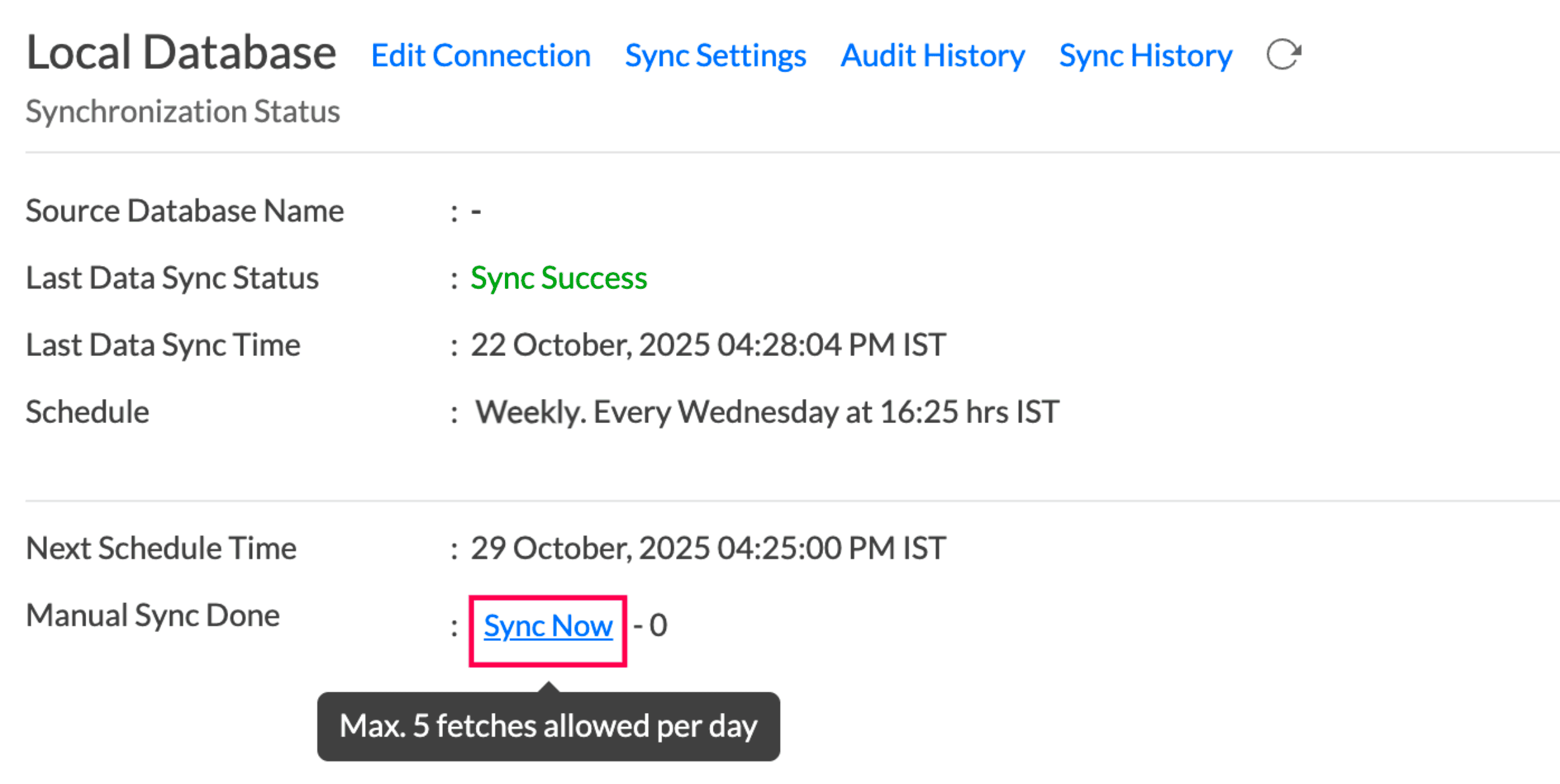
- Click the Sync Now link.
8. How do I resolve synchronization failure?
To resolve synchronization failure, you need to identify the reason behind the failure. Follow the steps below:
- Click the Data Sources button from the side panel and navigate to the required data source.
Click the View Last Import Details icon that appears when you hover over the listed tables. This opens the Import Details page, which provides detailed information about the synchronization failure.
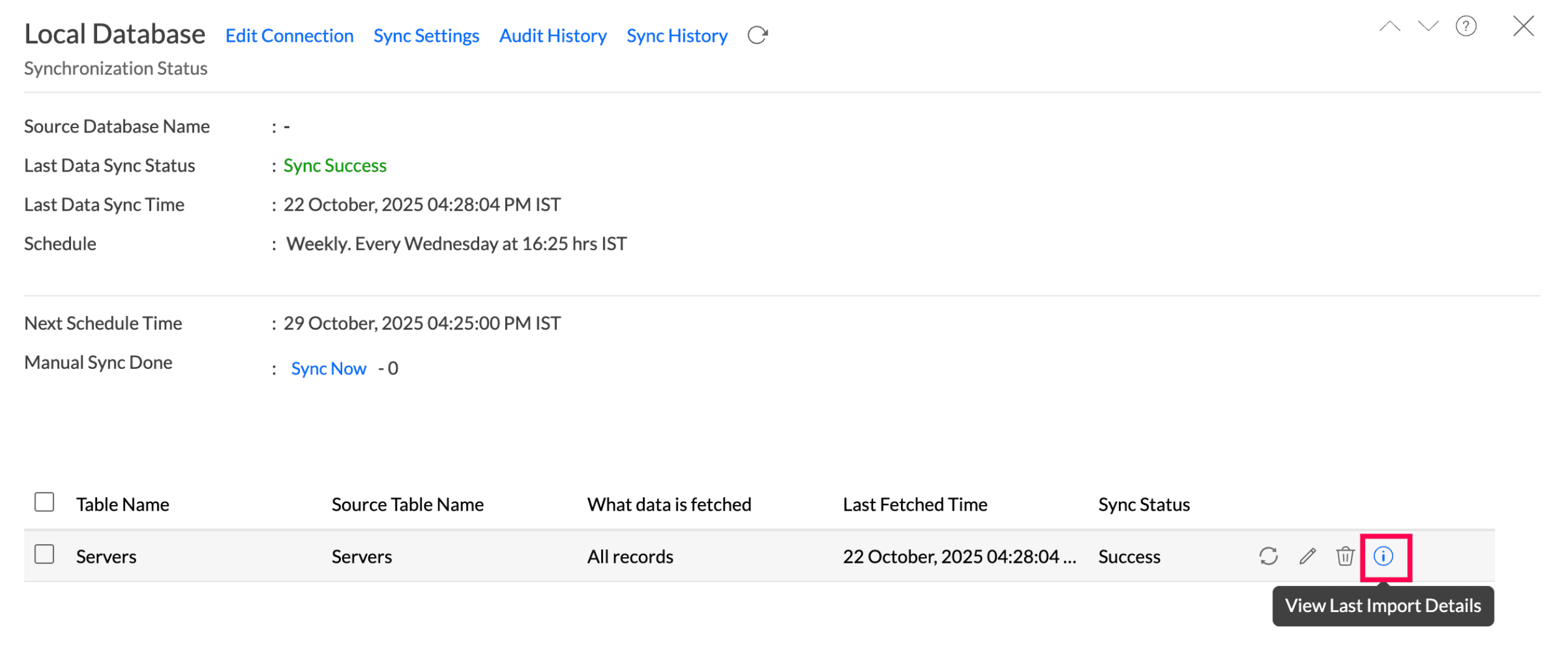
You can also view the Import Details page by opening the required table and selecting Import Data > Last Import Details.
9. How do I remove the setup?
To remove the setup:
Click the Data Sources button from the side panel and navigate to the required data source.
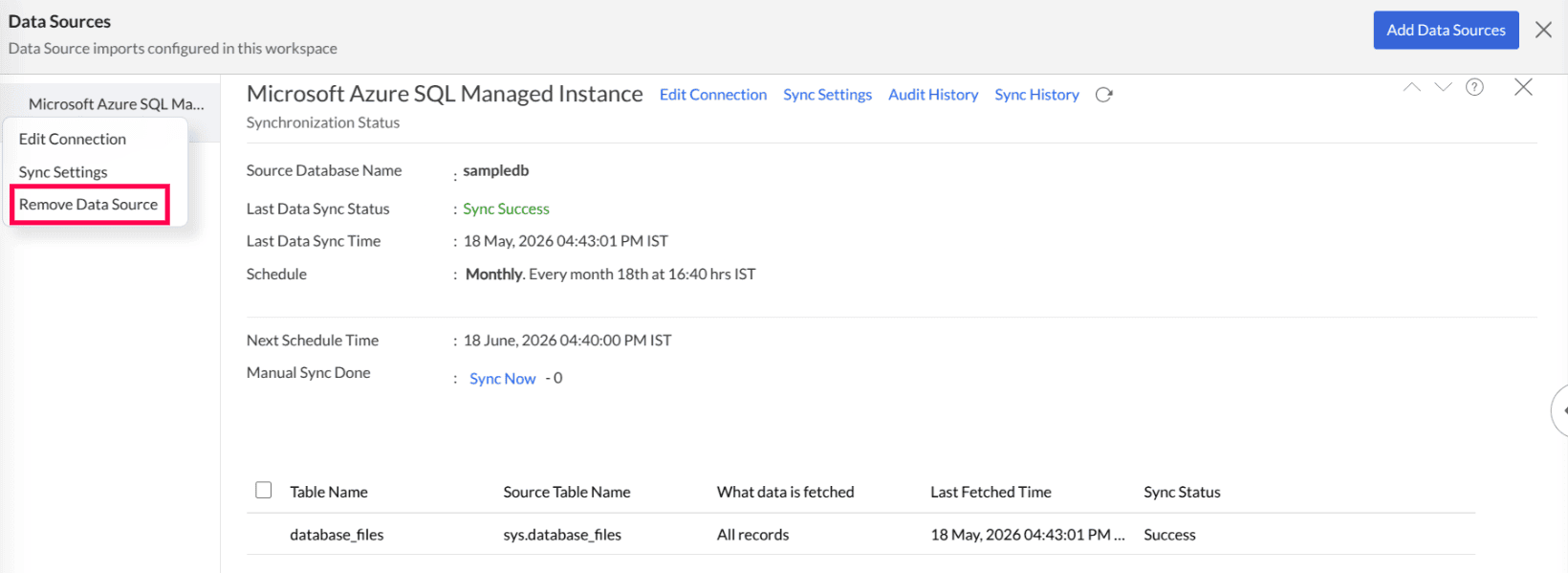
- Click the Settings icon that appears when you hover over the data source name, and select Remove Data Source.