Live Connect
Live Connect enables direct, real-time connection to the data source, ensuring that up-to-the-minute data is used for analysis. In this method, the data is not imported or stored within the Analytics Plus application.
Meta information about the data is obtained, and queries are generated based on the user action and executed directly on the source database. Each time a view is created or accessed, the data is directly fetched from the source database.
On this Page
Why choose Live Connect?
Faster and Real-time Insights: As live connections reflect data changes instantly, this ensures reports and dashboards are always up to date, enabling faster decision-making.
Single Source of truth: Since the data is queried in real time, it eliminates the need to sync different copies of the data which significantly reduces data discrepancies.
Security compliance: Many organizations prefer not to have their data stored in external applications. Live Connect helps mitigate this risk by ensuring that sensitive data remains in its original location, minimising the possibility of exposure. Additionally, Analytics Plus deploys robust encryption mechanisms like SSL (Secure Sockets Layer) and SSH (Secure Shell Protocol) for secure data transmission.
Data Import vs Live Connect
Data Import | Live Connect |
Data is imported and stored in Analytics Plus. | Data will be fetched live using appropriate reporting queries whenever you create or access a report in Analytics Plus. |
Filtered data set can be imported from the data source using customized queries. | Custom Query feature is not available in Live Connect. However, you can create Views in the source database and connect the same to Analytics Plus. |
Multiple data sources can be imported into the same workspace, and they can be combined for reporting & analysis purposes. | Multiple data sources can be imported into the same workspace, and they can be combined for reporting & analysis |
Changes made to the columns, such as addition/deletion, will be synchronised automatically. | Any changes, such as column addition, deletion, or renaming, will not be reflected. You will have to manually map the data using the Sync Design option. |
When importing multiple tables, the foreign keys defined between the tables in the source database will not be linked in Analytics Plus. However, you can manually link the tables in Analytics Plus using the Lookup column feature. | Lookup relationship will be automatically created for tables that are linked via foreign keys in the source database. You can also manually link the tables in Analytics Plus using the Lookup column feature. |
Users can create query tables. | Users cannot create query tables. |
Report loading time will be fast as the data is stored in Analytics Plus. | Report loading time directly depends on the server response time and the amount of data in the source database. |
Configuring a Live Connection
Analytics Plus allows you to configure Live Connect both as a new connection or as an additional data source to an existing workspace.
Follow the below steps to set up a live connection:
Click Import Your Data from the Analytics Plus home page.
Choose Databases and Data lakes.
Select the Data source; here, we are using the Amazon RDS data source for demo.
Specify the End Point, Username, Password, and the Database Name (as in Amazon RDS)
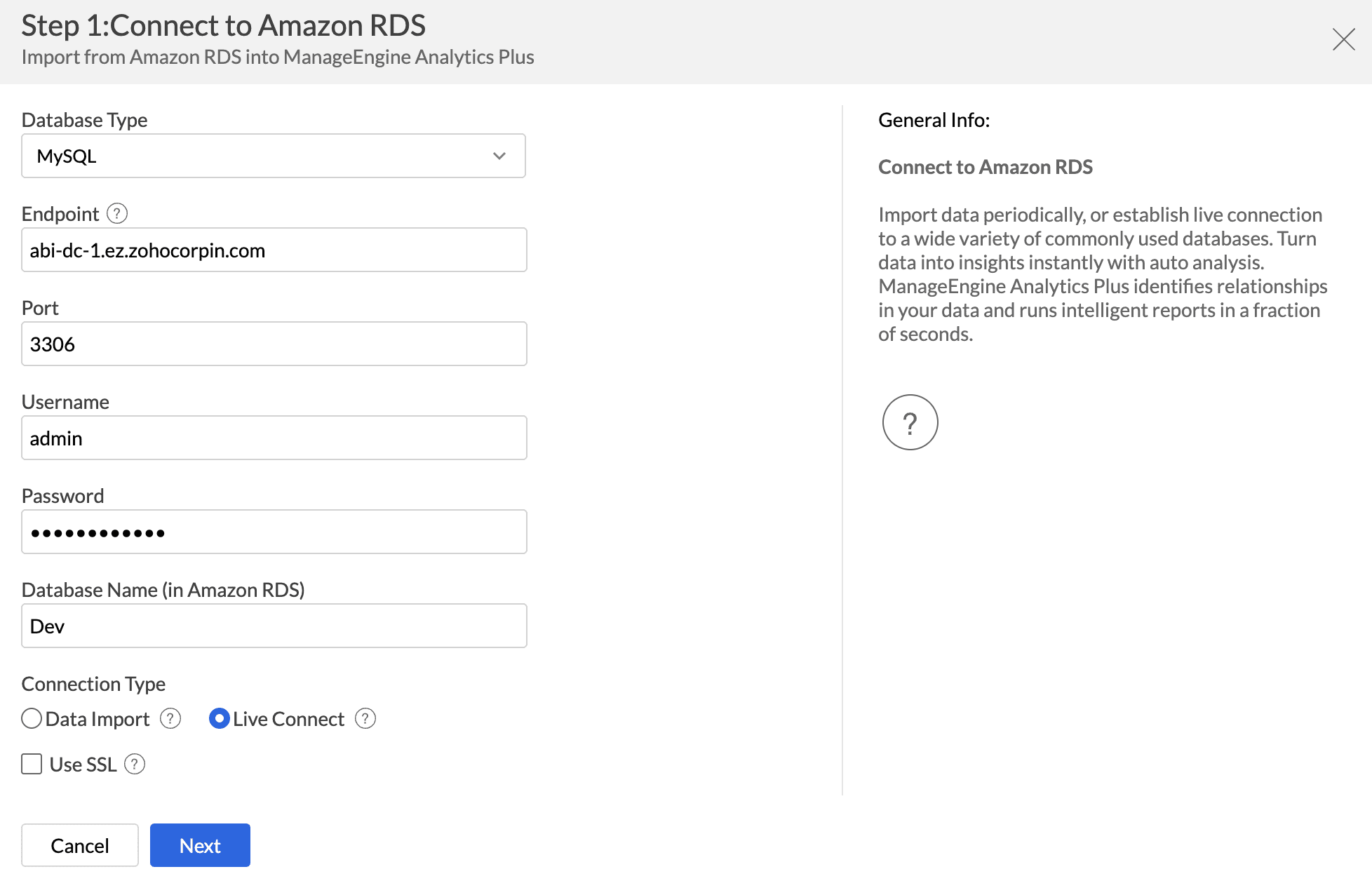
Choose Live Connect from the Connection Type.
Click Next.
Choose the tables you want to connect live with Analytics Plus and click Connect.
Note:
As there is no data import process involved, the loading time depends upon the amount of data stored in the source and response time of the source database.
Currently, lookup rules can be defined only for the tables within the same live connect data source. Lookups cannot be defined for other data sources. However, the reports of both Live Connect and other data sources can be combined by creating dashboards.
Query Tables are supported for selected databases and are currently enabled upon request.
Data Cache for Live Connect
Data Cache in Analytics Plus improves the loading performance of reports and dashboards created using Live Connect. It stores summary values from the live data source, reducing the need to query the source for every request.
Data Cache offers the following benefits:
Faster loading: Load reports and dashboards faster using cached summary values.
Fewer queries: Reduce repeated queries to the live data source.
Configurable refresh: Set the cache refresh interval to suit your requirements.
Access to live data: Fetch the latest data directly from the live source when required.
How Data Cache works
When Data Cache is enabled, Analytics Plus periodically retrieves data from the live source and stores the required summary values in the cache. Reports and dashboards accessed within the configured refresh interval use these cached values, reducing query time and improving loading performance.
For example, if you set the cache refresh interval to three hours, Analytics Plus updates the cache with data from the live source every three hours. Reports and dashboards use the cached values between refreshes. You can also fetch the latest data directly from the live source when required.
Configure Data Cache for Live Connect
You can configure Data Cache when setting up a Live Connect connection or update the settings later from the Data Source page.
When setting up a Live Connect connection
Select Live Connect as the import type.
Select the tables you want to connect to.
Enable the Cache Status toggle.
Specify the Cache Period to define how long cached data is retained before it is refreshed from the live source.
From the Data Source page
Click Data Source in the side navigation panel.
Select the database configured for Live Connect. The Last Cache status is displayed.
Click Edit to modify the settings.
Enable the Cache Status toggle.
Specify the Cache Period to define how long cached data is retained before it is refreshed from the live source.
Click Save.
Manage Data Source - Live Connect
The Data Sources tab is the central hub that helps manage all the connection settings of the data sources in the workspace. User with the Administrator Privilege can access the data sources tab and make necessary changes when needed.
Access the Data Sources tab from the side navigation panel and choose the live connection for which you want to view and modify the settings.

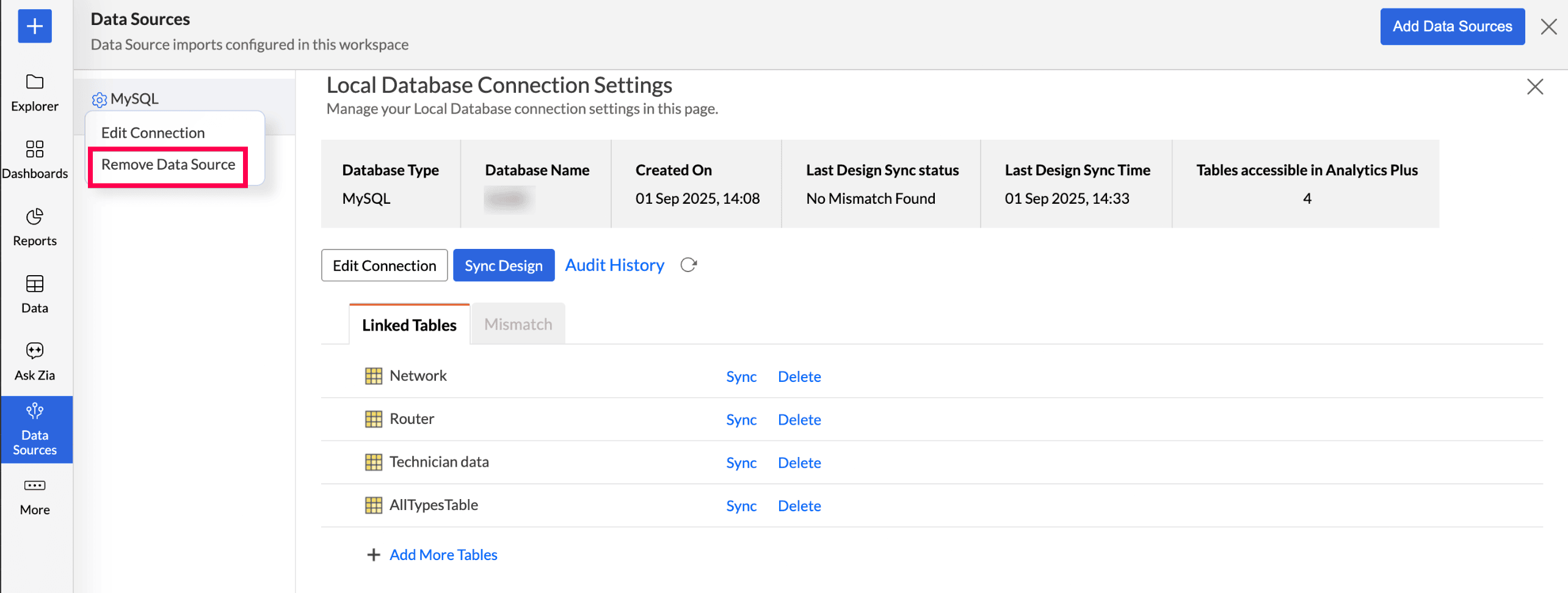
This tab provides the general details like the Database Type, Database Name, Created On date, Sync Status, Sync Time, number of Tables accessible in Analytics Plus.
Edit Connection
Enables admins to re-authenticate and update the connection details such as credentials or configuration settings without causing any interruption to the connection.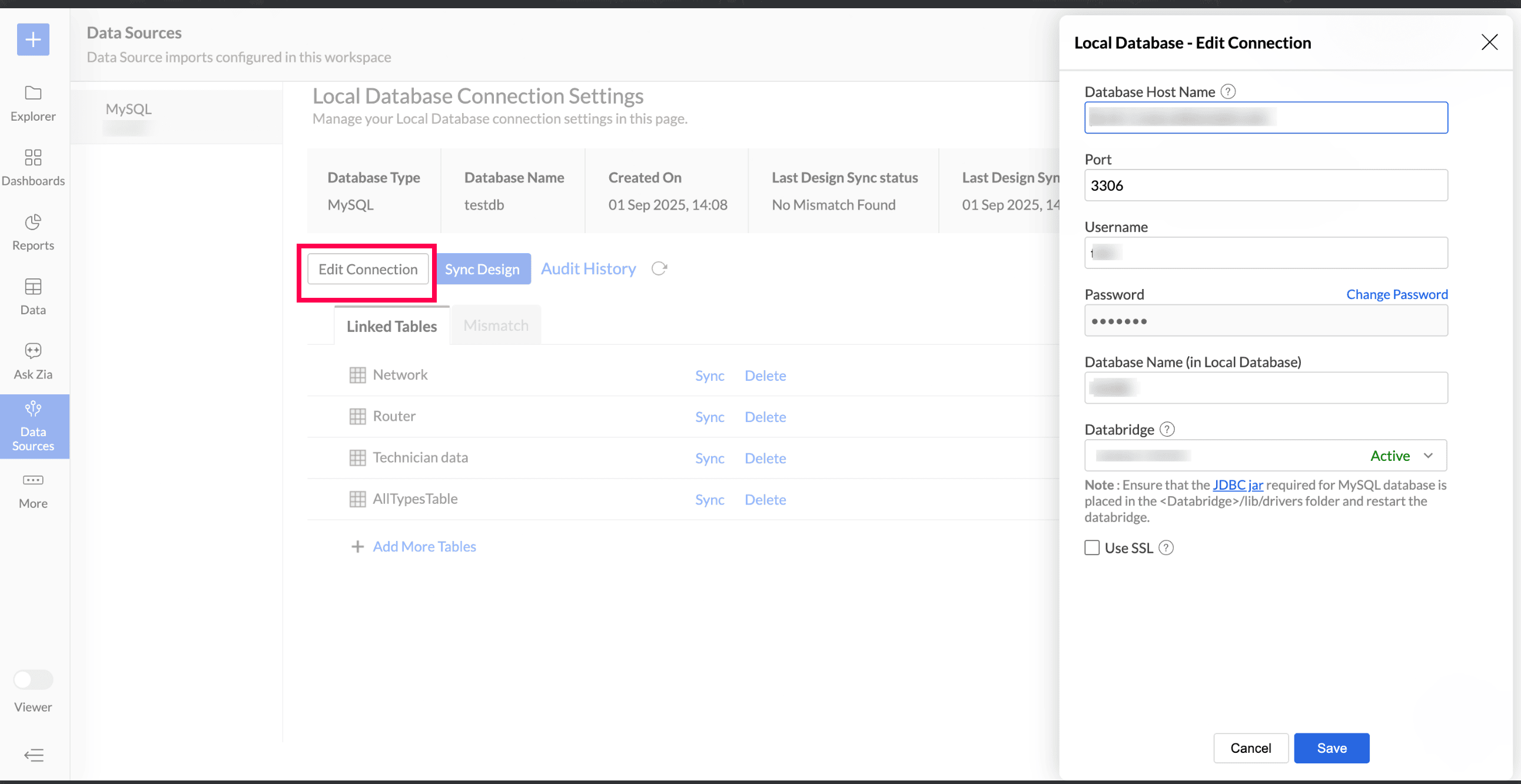
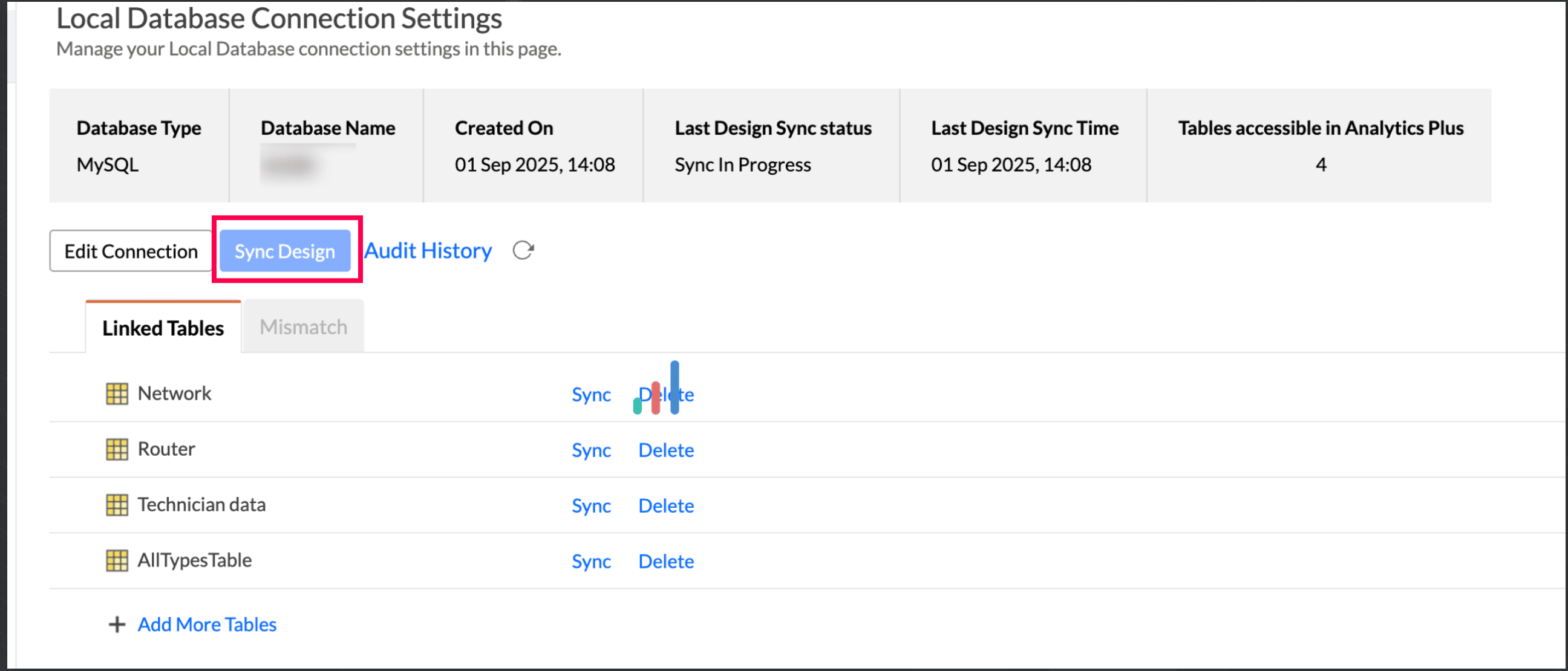
Sync Design
In live connect, changes made to the data, such as a data type change, renaming of tables or columns, addition or deletion of tables in the source application, are not synced automatically. This Sync Design option allows you to accommodate all the changes made. In the case of any dissimilarity between Analytics Plus and the source application, the corresponding tables are listed in the Mismatch tab.
Add Tables
To connect more tables, click the Add More Tables option and choose the tables to connect.
Manage Tables
To include the recent changes made to the data source, click the Sync option adjacent to the table name.
To remove a table, Click the Delete option adjacent to the table name.
Audit History
Audit logs are crucial for maintaining security and troubleshooting issues. They provide a comprehensive record of User and System Actions, including details of the time when the action occurred and information about the administrator who performed the action. Audit logs are maintained for each data source configured in the workspace.
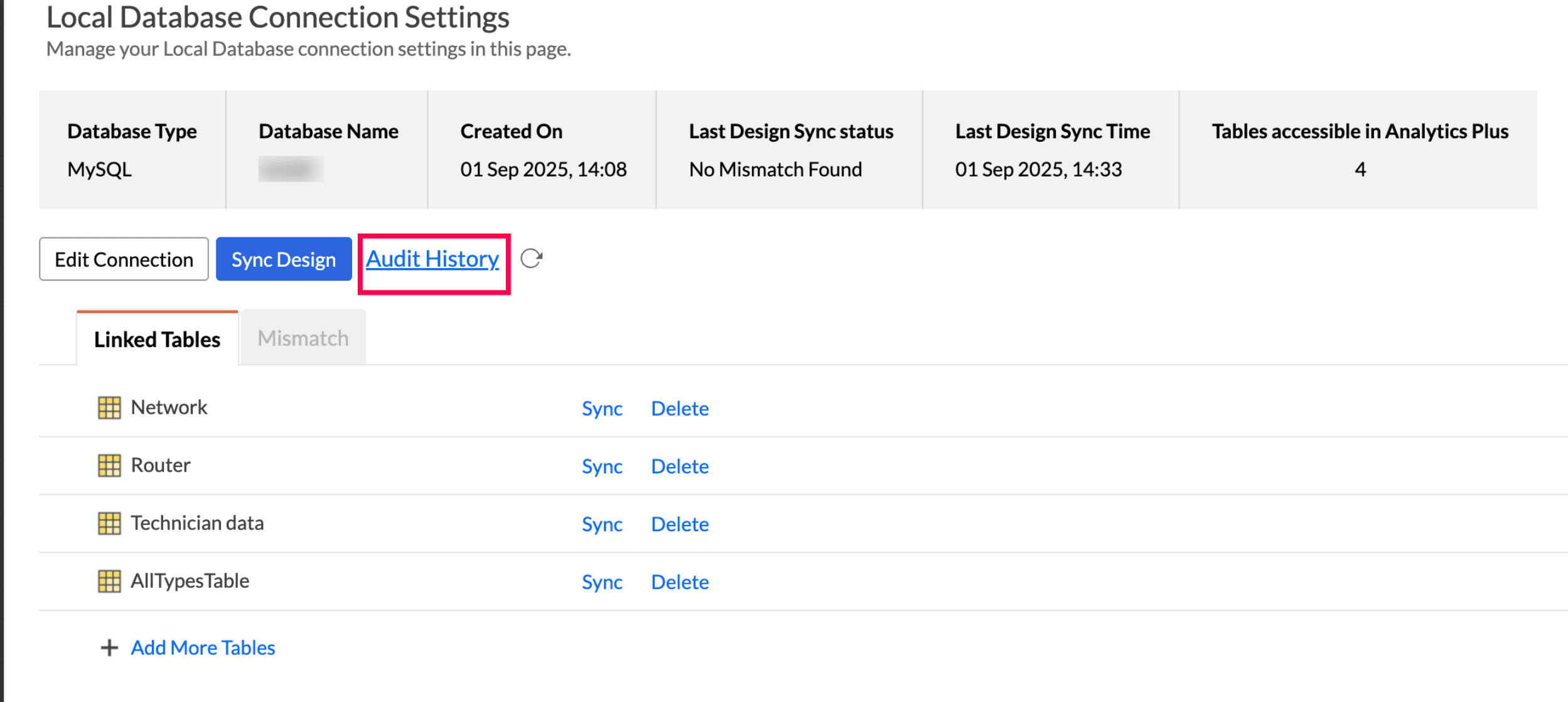
Select any action in the audit history to view complete information about the tables on which the action is performed.
The following are the User Actions and the System Actions that are logged in Analytics Plus
User Actions | Description |
Data Source Creation | Provides the details of the admin who configured the connection. |
Table level Sync Design | Provides the details of the admin who synced the table design |
Sync Design | Provides the details of the admin who synced the design |
Mismatch
When the reports are created over the tables or columns that no longer have a direct mapping in the source database, it will be listed as a mismatch.
So, ensure that the tables/columns in Analytics Plus workspace and the source application always match. The tables/columns that do not match will be listed in the Mismatch tab. Refer to the below presentation to resolve mismatches.
Removing Connection
Analytics Plus allows you to remove a connection from the workspace if it is not required for analysis. All the tables and its related reports will be deleted along with the source.
Access the data source tab and click the Settings icon and choose Remove Data Source from the drop-down menu.
Limitations
Data from your source database will NOT be locally stored in Analytics Plus. Analytics Plus will generate appropriate queries to fetch the required data live from source and show you the report. Hence, the loading time will directly depend on the performance of the source database.
Any changes, such as column addition/deletion/renaming, will not be mapped automatically. The user must manually map the updates made.
Lookup rules can only be defined between tables in a live connection.
Users cannot create query tables.
Users cannot change the data type of the columns in Analytics Plus.
Frequently Asked Questions
1.I got an alert message "This view cannot be accessed due to some changes made in the table" while accessing my tables/reports in Analytics Plus. What should I do?
This alert message will be displayed when Analytics Plus is not able to access the information from the source. This could be because the tables/columns that you are accessing in Analytics Plus are deleted or renamed in the source database.
2. Common Causes for Data Not Loading in Live Connect
In some cases, data may not load when using a Live Connect setup. This can occur due to the following reasons.
1. Insufficient Permissions
This issue can occur when the user accessing the table does not have the required permissions on the source table. The user may not have the required SELECT permission to read data from the table or may not have metadata access to retrieve the table structure.
Resolution
Ensure the user has the required SELECT and metadata permissions for the table in the source database.
Verify access privileges with the database administrator if needed.
2. Logical Errors in Formula Columns
If a formula column was recently created or modified, logical errors in the formula may prevent the data from loading correctly. Refer to the best practices section to learn more.
Resolution
Review the formula logic for accuracy and validate the data used in the formula column.
Check recently created or modified formula columns and correct any errors.
3. Handling Query Timeout Limit in Live Connect
Live Connect has a default query timeout of 2.5 minutes. Any query execution that exceeds this time limit will fail. This usually occurs when the query takes longer to execute due to complex formulas, inefficient joins, or performance issues in the source database.
Best Practices for Formula Creation
Keep formulas simple: Write formulas that perform only the required calculations and avoid unnecessary complexity.
Avoid deeply nested IF statements: Use CASE WHEN expressions instead of multiple nested IF functions to improve readability and performance.
Use materialised views for repeated calculations: If the same calculations are used frequently, consider precomputing them using materialised views in the source database.
Push transformation logic to the database: Push transformation logic to the database.
Best Practices for Building Efficient Reports
Avoid duplicate values: Lookup columns should contain unique values. Duplicate keys can significantly degrade query performance.
Use the correct join path: Ensure that joins between tables do not create duplicate records or circular join paths.
Maintain proper table relationships: Avoid many-to-many joins whenever possible, as they can increase query complexity and slow down execution.
Create indexes on lookup and join columns: Since Live Connect queries run directly on the source database, creating indexes on lookup and join columns can significantly improve query performance in Analytics Plus.