Steps to configure SAML SSO for Namely
About Namely
Namely is a comprehensive HR software platform designed to simplify and enhance human resource management for businesses. It offers a wide range of features, including payroll, benefits administration, talent management, and time tracking.
The following steps will help you enable SSO for Namely from Identity360.
Prerequisites
- The MFA and SSO license for Identity360 is required to enable SSO for enterprise applications.
- Log in to Identity360 as an Admin, Super Admin, or Technician with a role that has Application Integration and Single Sign-on permissions.
- Navigate to Applications > Application Integration > Create New Application and select Namely from the applications displayed.
Note: You can also find Namely using the search bar located at the top.
- Under the General Settings tab, enter the Application Name and Description.
- Under the Choose Capabilities tab, choose SSO and click Continue.
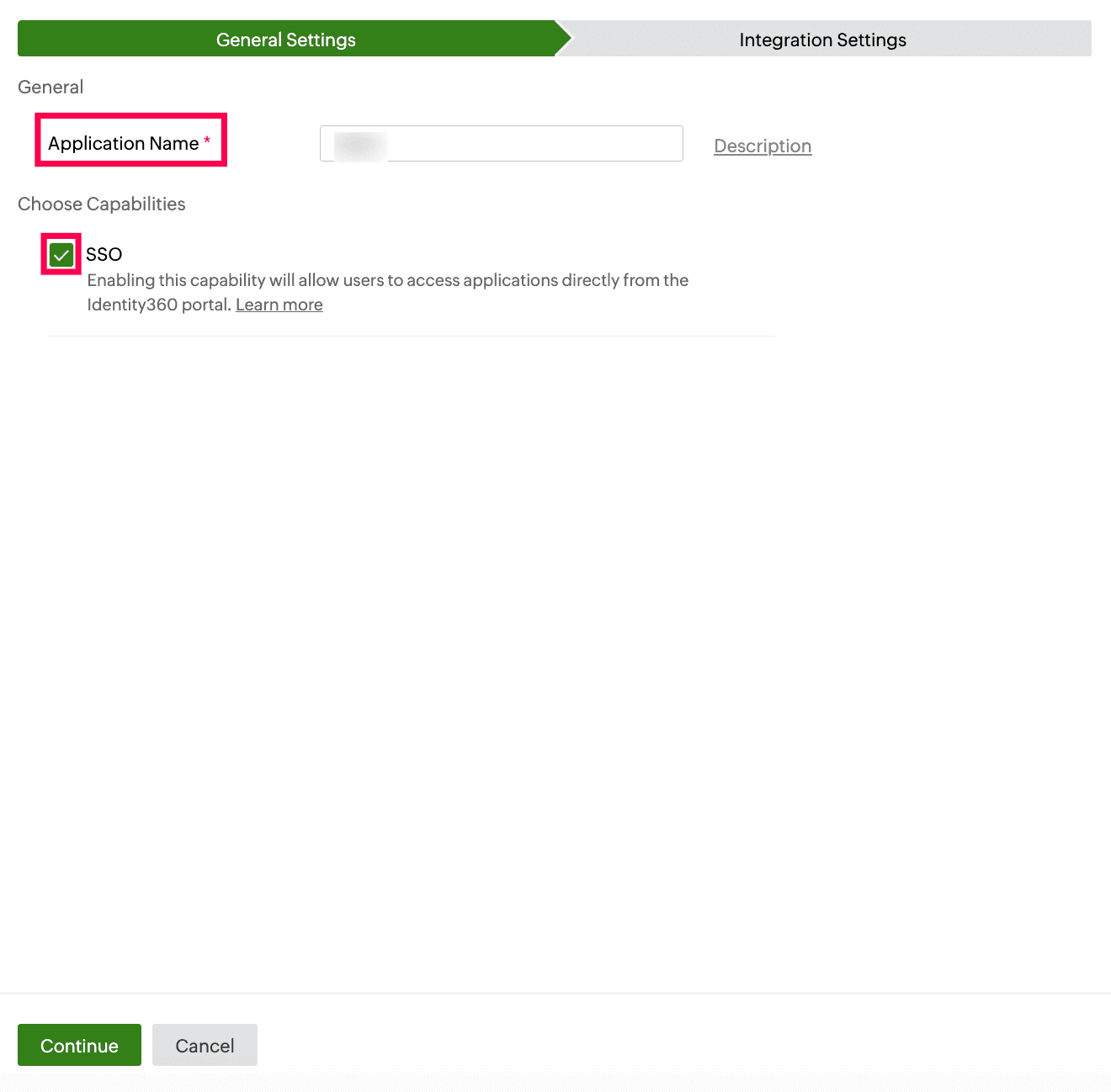 General Settings of SSO configuration for Namely
- Under Integration Settings, navigate to the Single Sign On tab, click Metadata Details. Copy the Login URL and Signing Certificate values. These will be used later during the configuration of Namely.
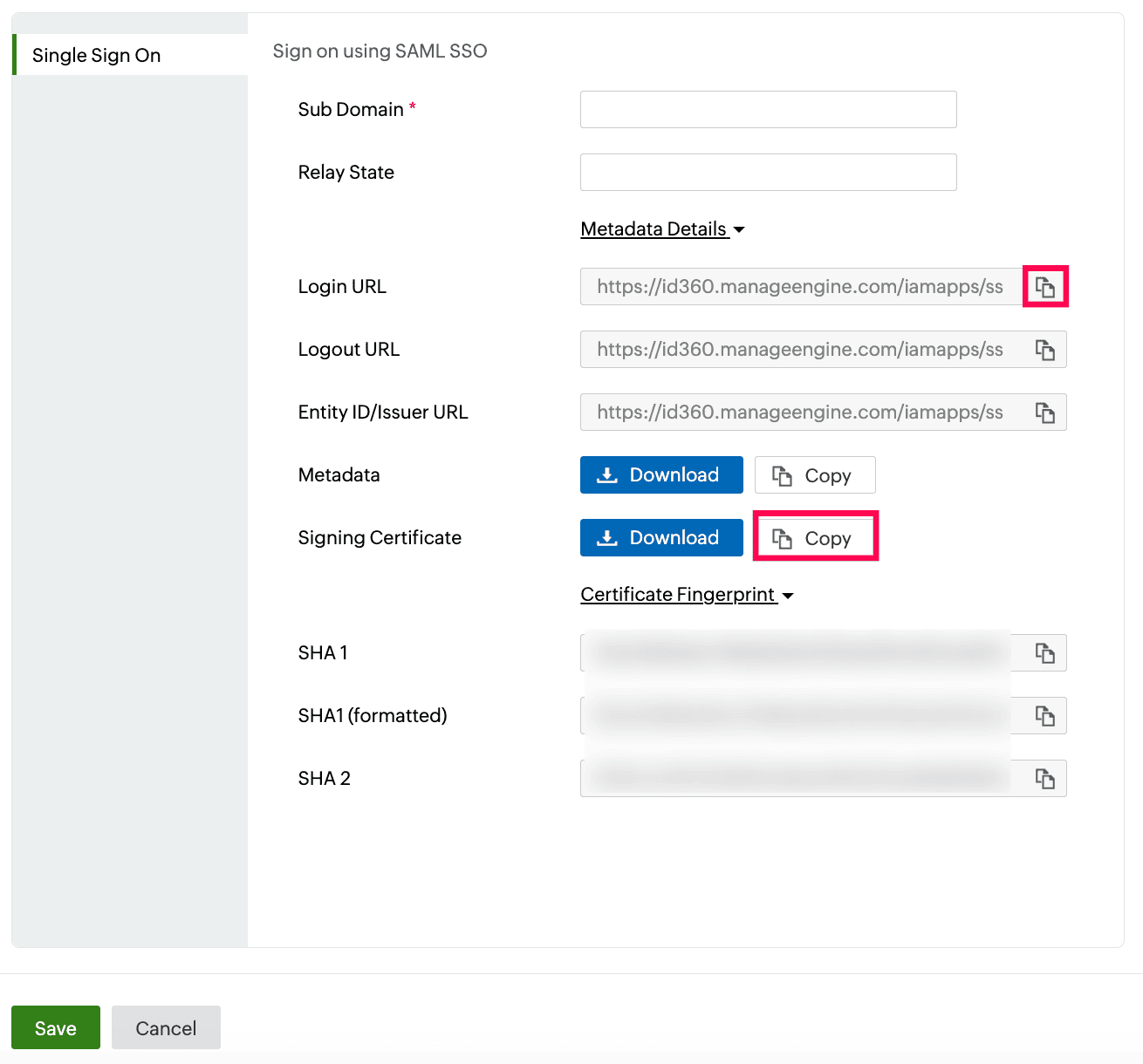 Integration Settings of SSO configuration for Namely
Namely (service provider) configuration steps
- Log in to Namely as an administrator.
- Go to Company > Login Page > Login Methods.
- Check Enable SAML.
- In the Identity provider SSO url field, paste the Login URL copied in step 6 of the prerequisites.
- In the Identity provider certificate field, paste the Signing Certificate copied in step 6 of prerequisites.
- Click Save.
Identity360 (identity provider) configuration steps
- Switch to Identity360's application configuration page.
- Enter the Sub Domain name of your Namely account. For example, if your Namely URL is https://valescorp.namely.com, then valescorp is the subdomain.
- Enter the Relay State parameter, if necessary.
Note: Relay State is an optional parameter used with a SAML message to remember where you were or to direct you to a specific page after logging in.
- Click Save.
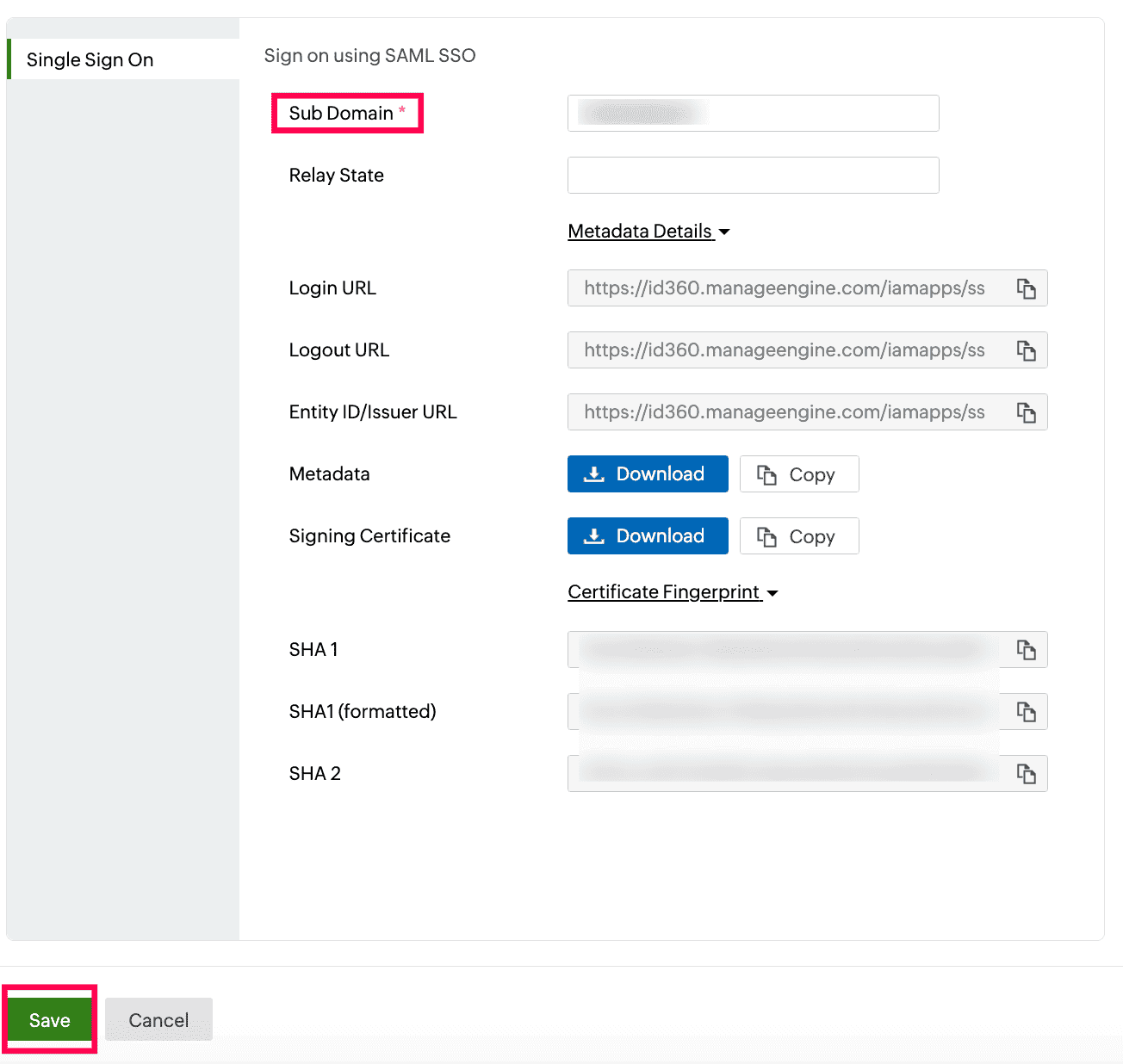 Integration Settings of SSO configuration for Namely
- To learn how to assign users or groups to one or more applications, refer to this page.
Your users will now be able to sign in to Namely through the Identity360 portal.
Note: For Namely, both SP-initiated and IdP-initiated flows are supported.
Steps to enable MFA for Namely
Setting up MFA for Namely using Identity360 involves the following steps:
- Set up one or more authenticators for identity verification when users attempt to log in to Namely. Identity360 supports various authenticators, including Google Authenticator, Zoho OneAuth, and email-based verification codes. Click here for steps to set up the different authenticators.
- Integrate Namely with Identity360 by configuring SSO using the steps listed here.
- Now, activate MFA for Namely by following the steps mentioned here.
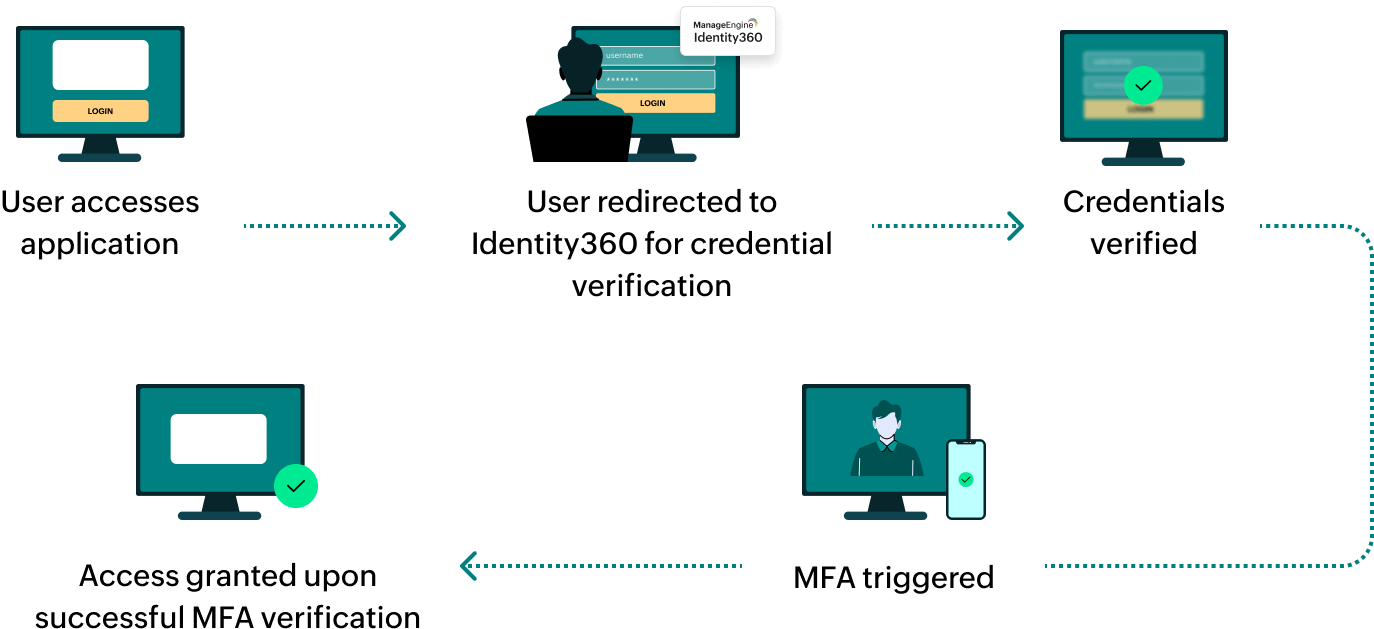
How does MFA for applications work in Identity360?