Last updated: July 24, 2026
How to Enforce Restrictions Inside Office Premises?
Enforce device restrictions like camera disabling only inside office premises by combining enrollment types, geo-fencing, and MDM REST APIs to add/remove devices from policy groups based on badge-in/badge-out events; corporate-owned Android and Apple devices support camera blocking via restriction profiles and geo-fenced areas.
Problem and Use Cases
Companies across industries face challenges in securing proprietary data and preventing unintentional or malicious leaks. Common scenarios include:
- Employees capturing sensitive information (e.g., R&D designs, financial data, patient records) via camera or screenshots.
- Unauthorized sharing of corporate data through personal apps, email, or removable storage (USB/SD cards).
- BYOD (Bring Your Own Device) complexities, where personal and work data coexist, make enforcement tricky.
Industries affected:
- Manufacturing: Prototypes, schematics.
- Finance/Banking: Customer financial data.
- Healthcare: Patient records.
- Education: Secure content and student privacy.
MDM Capabilities
MDM can address these challenges by:
- Enforcing policies based on enrollment type:
- Corporate-Owned Devices: Full device control (e.g., disabling camera, blocking USB).
- BYOD (Work Profile): Work container with controlled app/data access.
- API integrations: Sync with HR/attendance systems to manage device groups dynamically.
- Geo-fencing: Apply/remove restrictions automatically when devices enter/exit office premises.
Implementation
API Integration: To automate device management based on presence
- To Find Device for User, Use MDM API: GET /api/v1/users/{userId}/devices , it returns a list of devices associated with the user
- To Add Device to Group, Use MDM API: POST /api/v1/groups/{groupId}/devices , Body: {"deviceId": "device123"} , it applies all group policies to the device
- To Remove Device from Group, Use MDM API: DELETE /api/v1/groups/{groupId}/devices/{deviceId} , it removes device from policy enforcement group
- To integrate with HRMS/Attendance Systems to trigger device group changes based on badge-in/badge-out events and to automatically apply/remove restrictions when employees enter/exit premises
Android Devices
- For corporate-owned devices (full management):
- Enroll devices in MDM with full administrative privileges such as Zero touch Enrollment, Knox Mobile Enrollment, QR Code (EMM Token) Enrollment
- Create an Android restriction profile that disables the camera app and apply the profile to groups where the devices will be added through API Integration.
- For BYOD (work profile only):
- Enroll devices with work profile management such as Using a direct QR Code or Enrollment link, Self Enrollment.
Note:Camera on the personal side cannot be disabled - Create an Android Restriction Profile to disable camera access for all work profile apps and apply the profile to groups where the devices will be added through API Integration.
- Enroll devices with work profile management such as Using a direct QR Code or Enrollment link, Self Enrollment.
Apple Devices
For corporate-owned devices (full management):
- Enroll devices with work profile management such as Automated Device enrollment(ABM/ASM) , Apple Configurator App in iPhone/Mac
- Create an iOS restriction profile that disables the camera app and apply the profile to groups where the devices will be added through API Integration.
Enforce Camera Restriction with Geo Fence, Time Fence on Android Devices
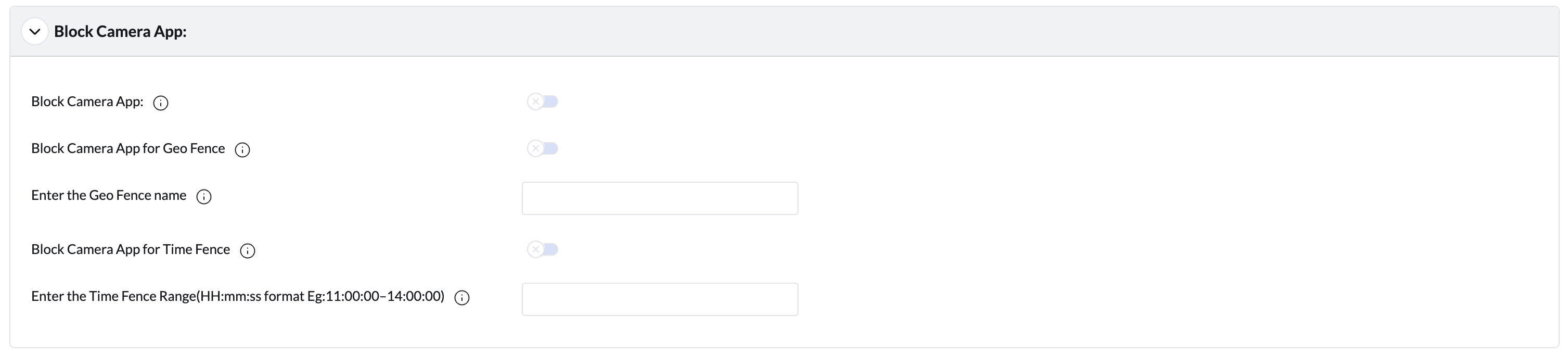
- Define your office premises as a geo-fenced area in MDM
- On the MDM Console navigate to Device Management->App Repository->Open the ManageEngine MDM Self Service app (previously ManageEngine MDM app)->Click on the Configuration->Block Camera App section. Enable the option "Block Camera App for Geo Fence". Additionally, enable the other option as per the need. For more details, visit our Self Service app (previously ME MDM app) Configuration guide.
Best Practices
- For maximum control, use corporate-owned devices with full management
- For BYOD, focus on securing work profile data rather than device-wide controls
- Combine technical controls with employee education about data protection policies
- Regularly audit policy effectiveness and adjust as needed
- Clearly communicate restrictions to employees to maintain trust
Frequently asked questions
Why would I need to restrict the camera only inside office premises?
Industries like manufacturing, finance, healthcare, and education need to prevent employees from capturing sensitive information (e.g., R&D designs, financial data, patient records) via camera while still allowing normal use outside the office.
Can the restriction be applied automatically when a device enters or leaves the office?
Yes. Defining the office as a geo-fenced area in MDM and integrating with your HRMS/attendance system through the MDM REST APIs lets devices be added to or removed from a restricted policy group automatically based on badge-in/badge-out events.
Does this camera restriction work the same way on BYOD Android devices?
Not fully. Corporate-owned Android devices enrolled as Device Owner can have the camera disabled completely. On BYOD devices enrolled with a Work Profile, the restriction profile only disables the camera for work profile apps — the camera on the personal side of the device cannot be disabled.
Is this camera restriction supported on Apple devices too?
Yes, for corporate-owned Apple devices you can create an iOS restriction profile that disables the camera app and apply it to groups managed through the same geo-fence and API integration.