CLI Device Identifier
CLI (Command Line Interface) Identifiers enhance the device classification during discovery by allowing you to classify devices to the right templates. CLI identifiers are introduced in device template of OpManager and it works alongside SNMP OID rules to improve accuracy. With CLI identifiers, you can define rules based on the output of specific CLI commands. If the command output matches the defined criteria, the rule is triggered, enabling the corresponding template to be applied to the device during discovery.
CLI identifiers are useful when SNMP OIDs are missing, unreliable, or incomplete. They provide an alternative way to accurately identify and classify devices using command output.
Components of CLI identifier
- A predefined CLI Command
- A Matching Condition (whether the output contains, equals, or starts with the expected value)
- An Expected Output Value (a keyword or string)
OpManager provides a few predefined CLI commands by default as device identifiers in device template. These commands help to identify Linux devices accurately and apply the appropriate device templates.
| Command Name | Command | Sample Output |
| Linux Distribution | cat /etc/*release | grep -E '^NAME|DISTRIB_ID' | DISTRIB_ID=Ubuntu, NAME="Ubuntu" |
| Kernel Name | uname -s | Linux |
| Kernel Name and Version | uname -sr | Linux 5.15.0-139-generic |
How CLI identifier works
The CLI identification is a process that is executed with the help of a command to match the expected output.
- Command Execution - System executes the predefined command on the target device.
- Output Capture - Once the command is executed on the target, the command output will be captured from the device.
- Criteria Matching - The system compares the captured output with the expected value defined in the rule.
- Rule Evaluation - If the output meets the criteria, the system marks the rule as a match and proceeds to associate to the appropriate device template.
Add CLI identifier in OpManager
- Go to Settings -> Configuration -> Device Templates
- Click on Add Template to create a new device template or select an existing one to edit.
- On the Edit page, select CLI from the Type dropdown menu.
- A list of available CLI commands will appear under Device Identifier.
- Select a command and click Add.
- You’ll be redirected to the Criteria page to enter the expected value and matching condition.
- Click Add to save the criteria.
- Save the device template.
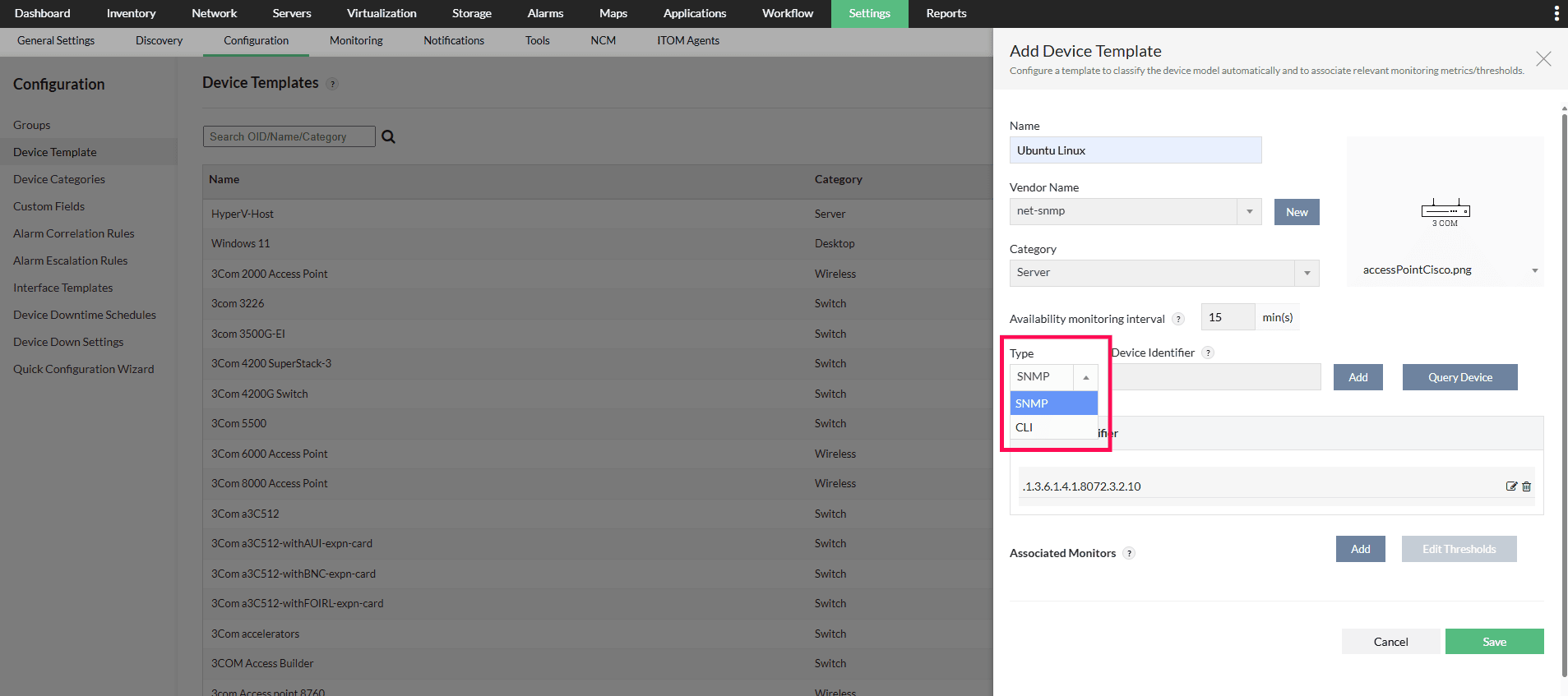
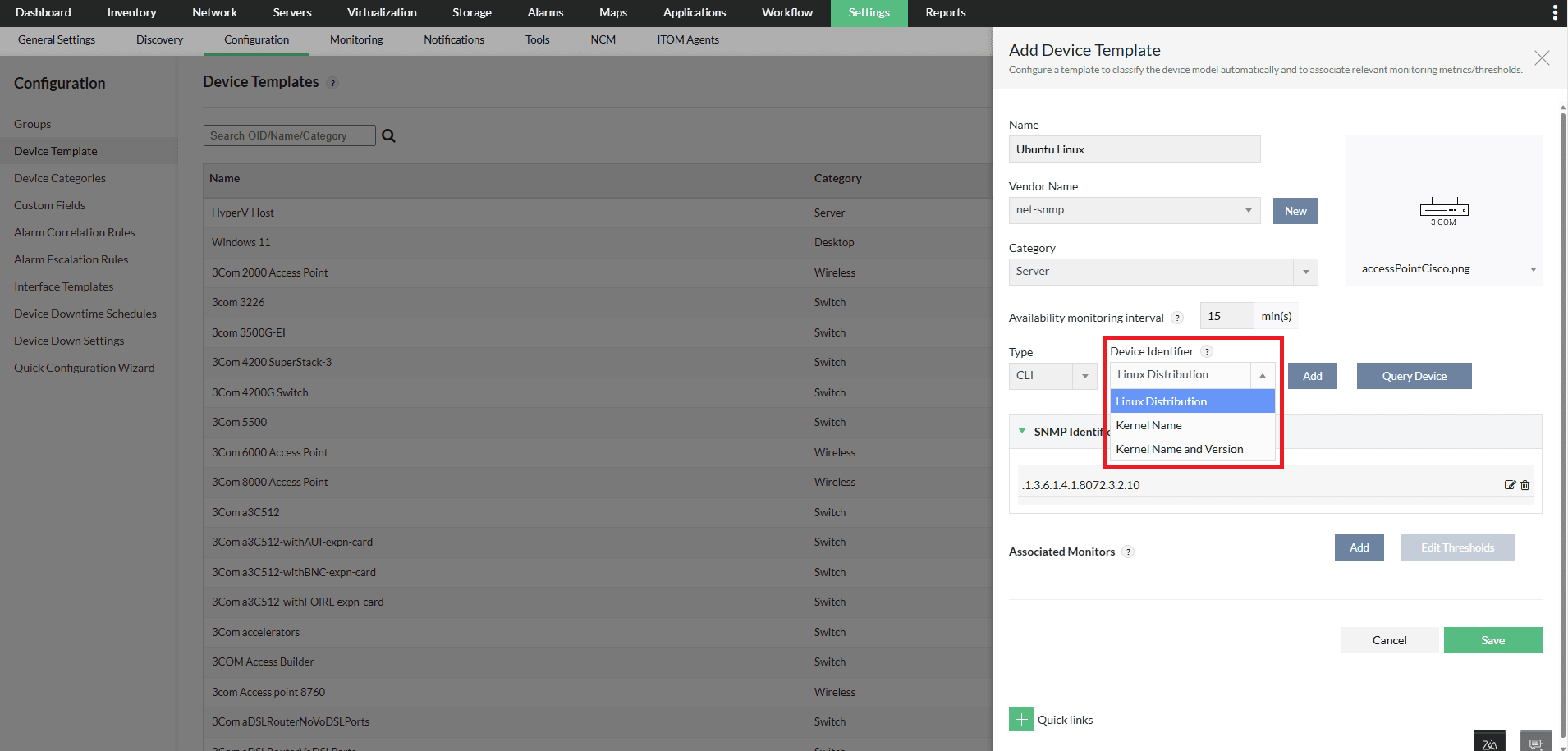
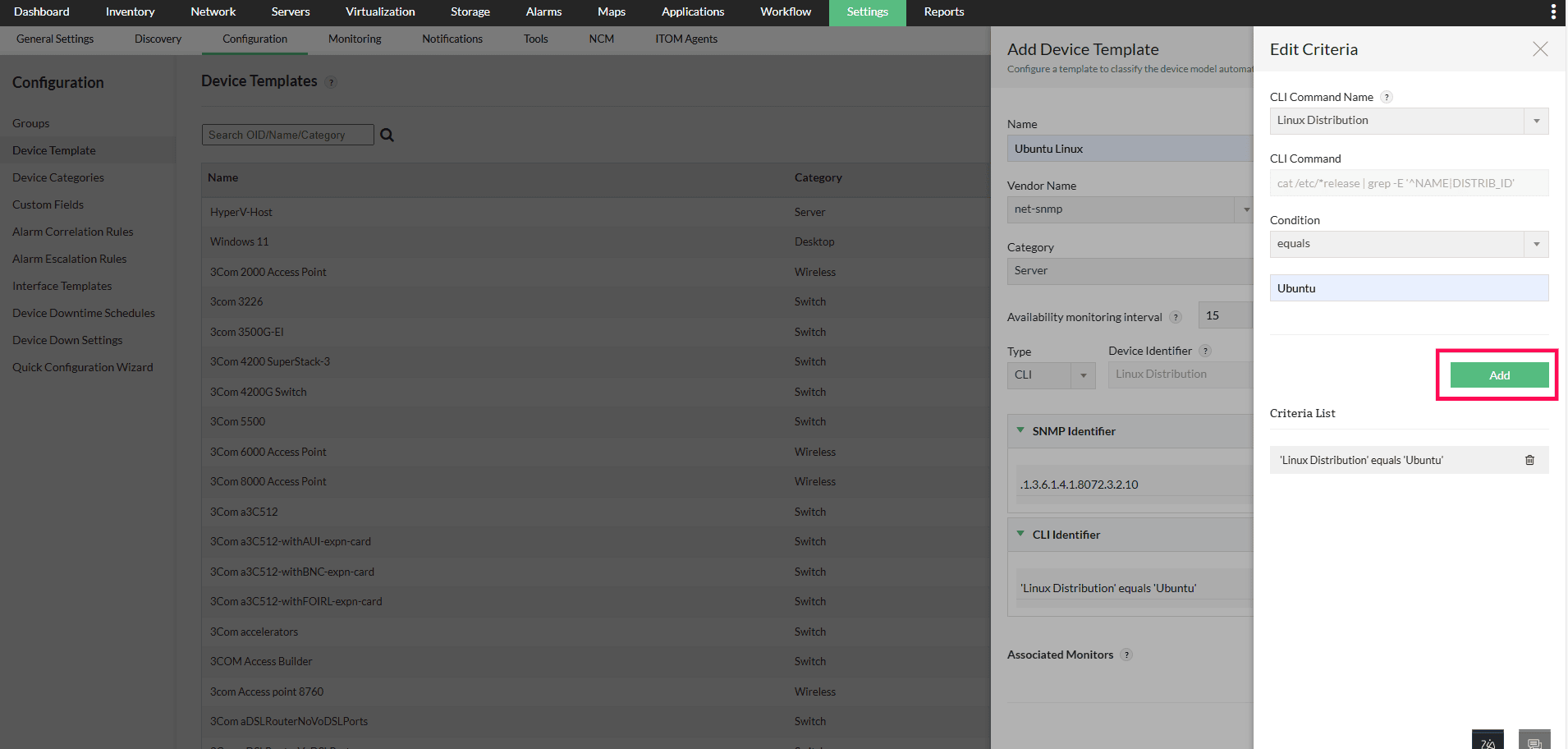
The newly added CLI Identifiers will be used during future device discoveries and rediscoveries.
Before adding CLI identifiers, you can also verify the command response from the Device identifiers by using Query Device option available in the device template.
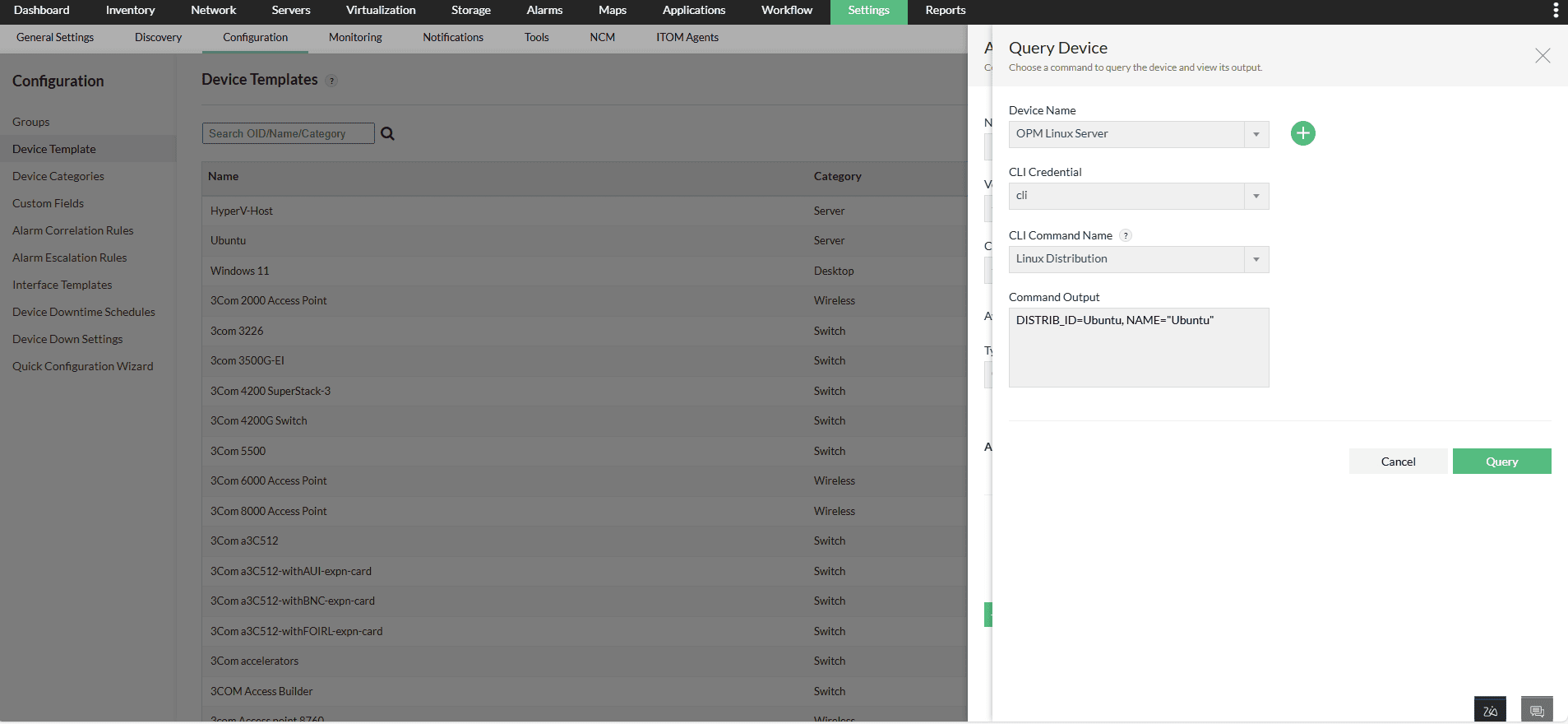
- Use clear and specific keywords in the matching value to minimize false positives.
- Test new CLI device identifiers on an actual device before applying them broadly.
- Choose matching conditions that accurately reflect the expected output format (e.g., “equals,” “starts with,”, “contains,” “regex,” etc.) for more reliable identification.
Learn how SNMP SysOIDs are used in OpManager for SNMP-based identification.