Discovering Nutanix clusters and Prism Central in OpManager
Nutanix is a vendor of distributed computing and storage virtualization solutions, specialising in an area called 'Hyperconverged Infrastructure'. Basically, the idea is to provide an all-inclusive virtual environment, including the storage component of the VM itself. This is to enable data requests to be handled inside the VM itself instead of being sent to an external storage, and so the latency for data retrieval and access reduces to a negligible level.
OpManager makes use of the Prism API framework to fetch performance metrics from the devices in the Nutanix environment. You can discover an individual cluster through Prism Element, or connect to a Nutanix Prism Central instance to discover every cluster, host, and VM it manages through a single connection.
- Cluster: Discover and monitor a single Nutanix cluster through its Prism Element.
- Prism Central: Discover and monitor all clusters, hosts, and VMs managed by a Prism Central instance, without adding each cluster separately.
Discovering your Nutanix environment into OpManager
- Navigate to Settings → Discovery → HCI Discovery → Nutanix.
- Select the discovery type: Cluster or Prism Central.
Note: The discovery type must match the IP address you enter. If you enter a Prism Central IP address in Cluster mode, or a cluster IP address in Prism Central mode, OpManager detects the mismatch from the API response and displays an error prompting you to switch to the correct discovery type.
- Enter the IP address or DNS name of the Nutanix cluster or Prism Central instance.
- From the Nutanix Credential drop-down, select an existing credential profile.
- If the required credential profile is not available, click Add Credential. In the Add Credential (Nutanix) window, provide the following details:
- Click Save to create the credential profile.
- To enable in-depth monitoring of hosts and virtual machines, click Advanced Settings and select the required credential profiles:
- SNMP
- WMI
- CLI
- Click Discover to start discovering the Nutanix environment.
- In the Discovered Devices screen, OpManager lists the discovered entities.
- Cluster discovery: OpManager lists all hosts and virtual machines under the specified Nutanix cluster. Hosts will be discovered by default. Select or clear the checkboxes to choose the virtual machines that need to be monitored.
- Prism Central discovery: OpManager presents a hierarchical tree showing the entire Nutanix estate, including clusters, hosts, and virtual machines, organized under the Prism Central instance. Clusters and hosts will be discovered by default. Select or clear the checkboxes to choose the virtual machines that need to be monitored.
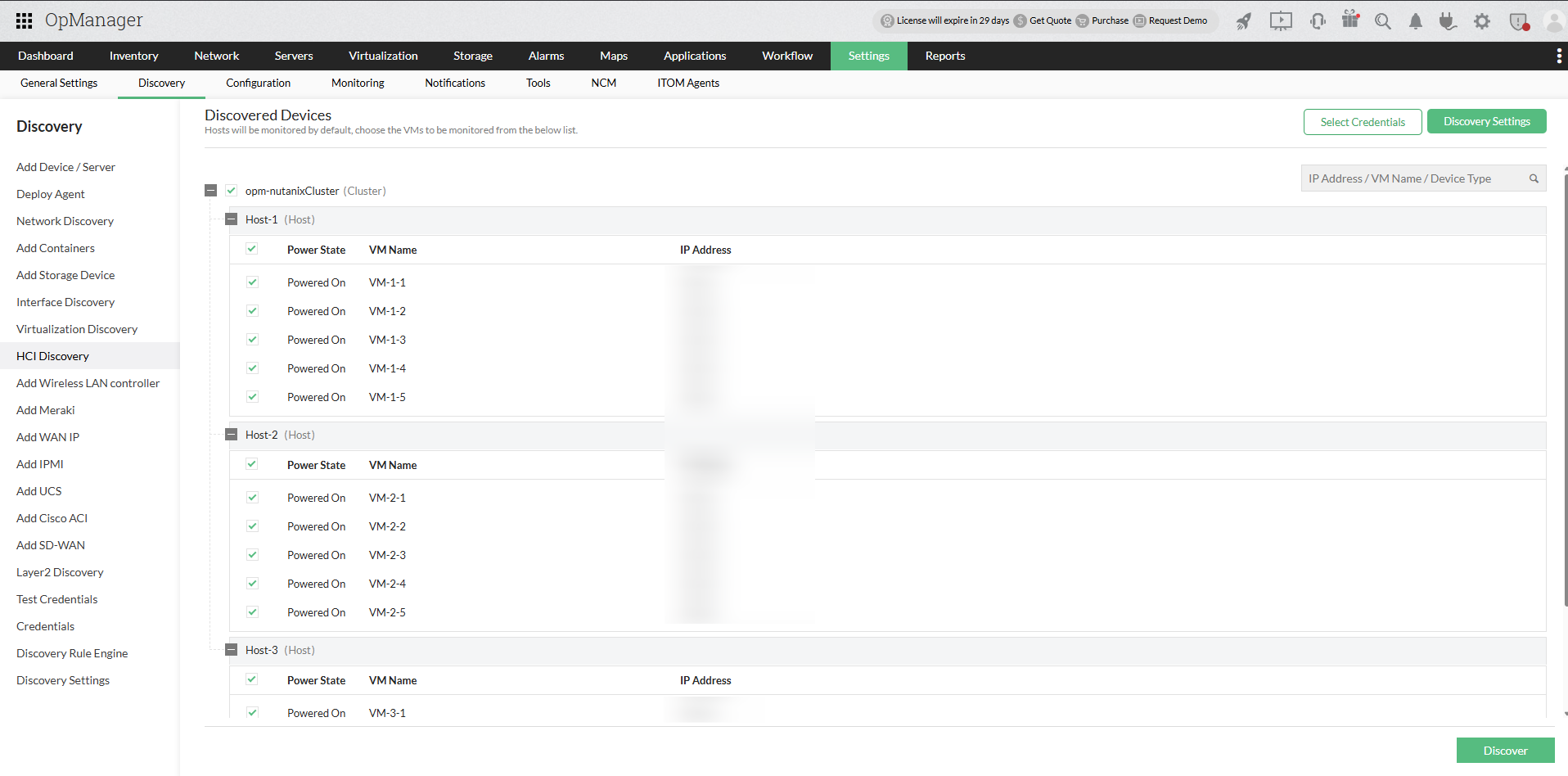
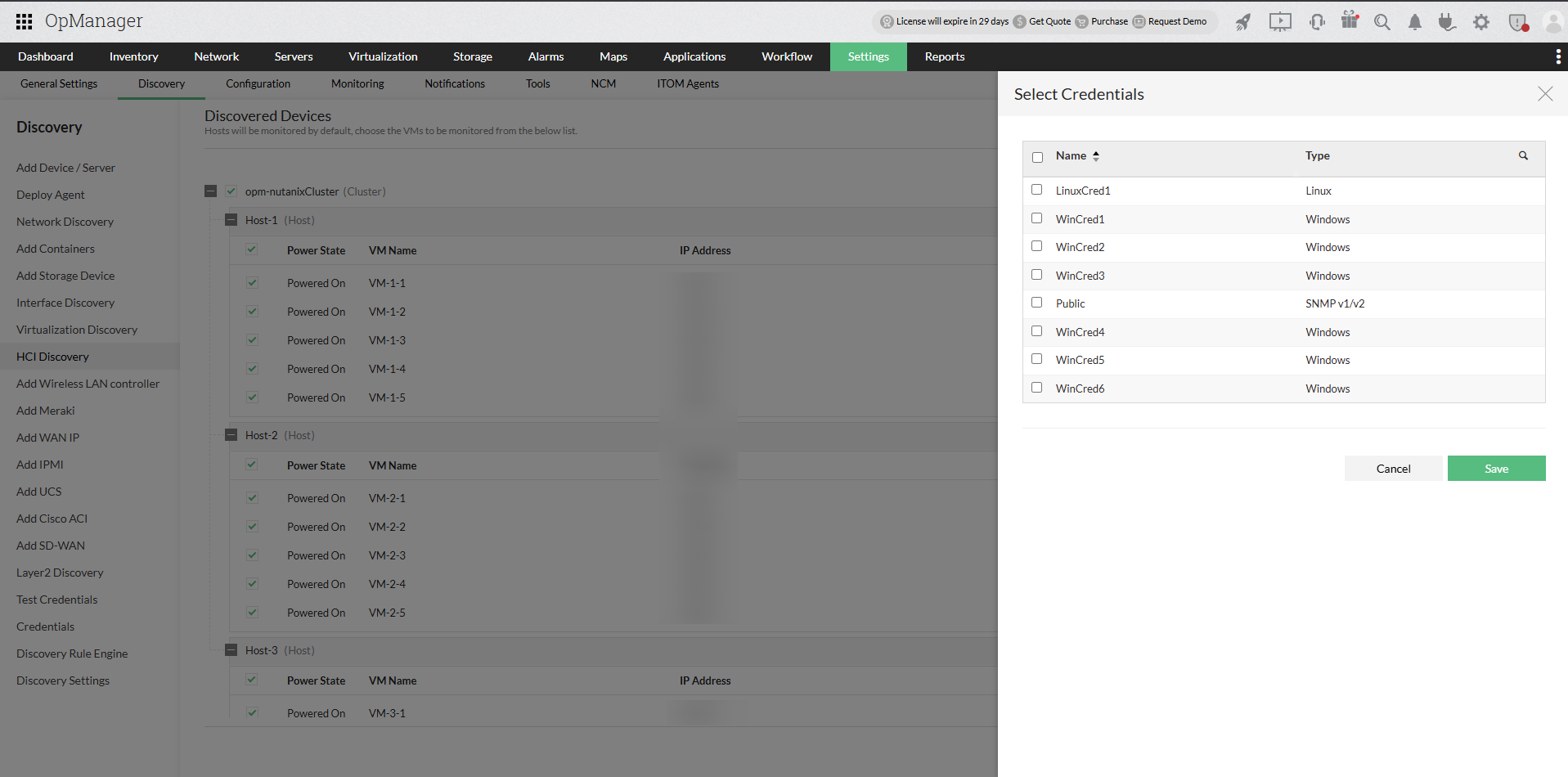
- For OS-level monitoring of the selected hosts and virtual machines, click Select Credentials and choose one or more SNMP, WMI, or CLI credential profiles.
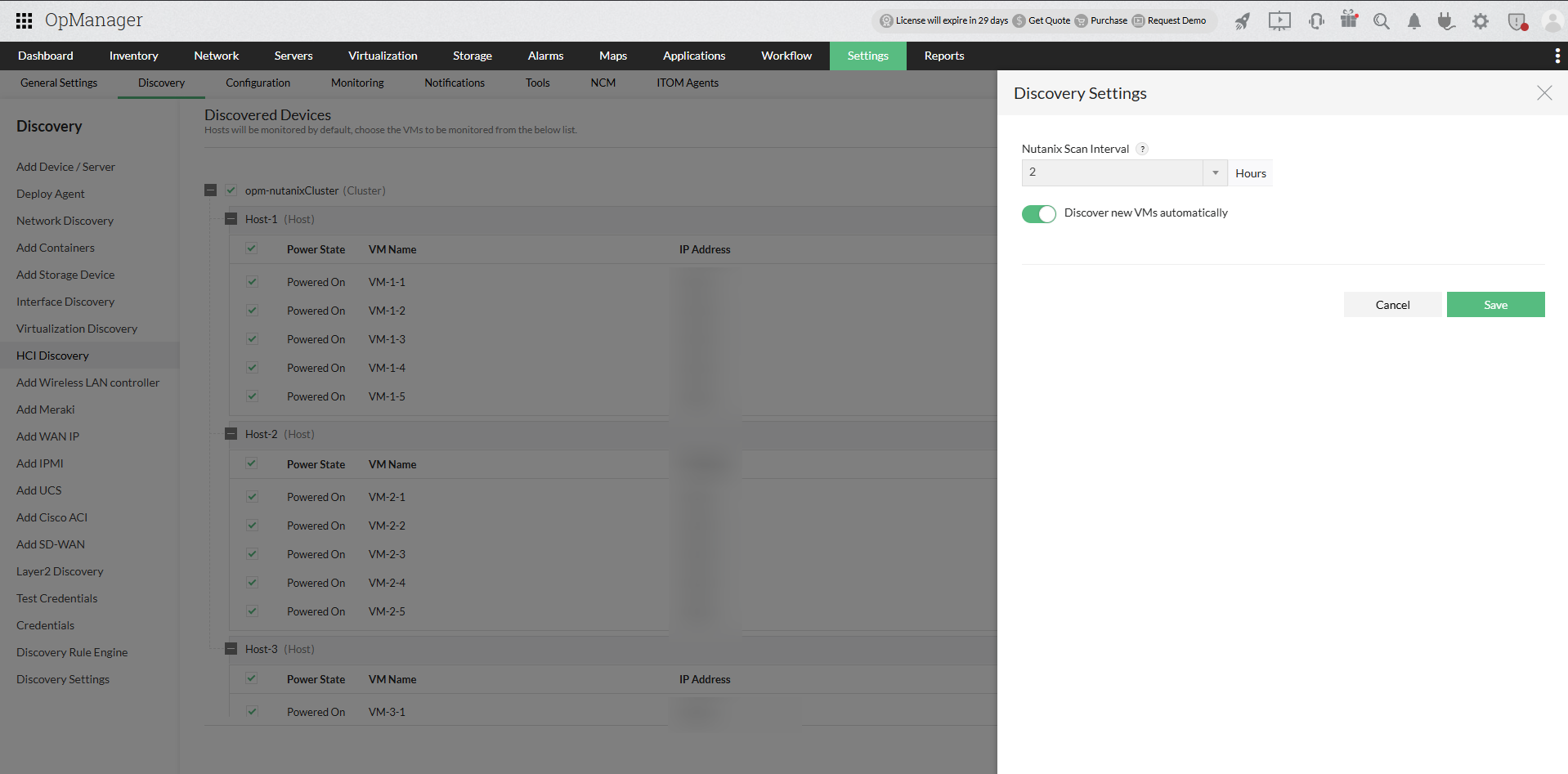
- Click Discovery Settings on the Discovered Devices screen. In the Discovery Settings panel, configure the Nutanix Scan Interval and choose whether to enable or disable automatic discovery of new VMs.
- Click Save to apply the settings.
- Click Discover to proceed. OpManager initiates discovery and adds the clusters, hosts, and selected virtual machines using the configured credentials.
| Field | Description |
|---|---|
| Profile Name | Name of the credential profile |
| Description | Brief description of the credential profile |
| User Name | User name of the Prism Element or Prism Central |
| Password | Password of the Prism Element or Prism Central |
| Protocol | Select HTTP or HTTPS |
| Time Out | Connection timeout value (default: 20 seconds) |
| Port Number | Port used by the Prism Element or Prism Central (default: 9440) |
Once discovery is completed, navigate to Virtualization → Nutanix to view the discovered Nutanix clusters, hosts, and virtual machines. For Prism Central discovery, the Prism Central instance appears here along with all the clusters, hosts, and virtual machines beneath it.
Migrating from cluster-based monitoring
If any of the clusters managed by the Prism Central instance are already being monitored in OpManager through individual Prism Element connections, the overlap will be detected during discovery, and an automatic migration will be performed. Those clusters, along with their hosts and VMs, will be moved under the Prism Central hierarchy. All historical performance data collected under the previous connection will be preserved as-is.
To learn about the Prism Central snapshot page, performance monitors, and reports, refer to Monitoring Nutanix with Prism Central.
- How do I monitor Nutanix with Prism Central?
- What Nutanix reports are available in OpManager?
- How to discover devices and interfaces in OpManager?
- How to add a new credential?
- Can I add a non-admin user account for WMI?
- Can I add devices using SSH?
- Why are devices discovered as 'Unknown'?
- What are devices supported in OpManager?
- Why are interfaces not discovered for my device?
- How can I associate device templates to a newly discovered device?
- How to associate monitors to the discovered device?
- What is a discovery filter?
- How do I configure a new discovery rule?
- How to manage or unmanage a device?
- How to configure device dependencies?
- How can find the missing VMs and hosts?
- How can I discover a VLAN?.
- How does availability monitoring work in OpManager?
- What are the basic system requirements to install and use OpManager?
- How can I troubleshoot issues with device discovery?
- How can I troubleshoot issues with VCenter/ESX discovery?