Monitoring Nutanix with Prism Central
OpManager now extends its Nutanix HCI monitoring capabilities to Nutanix Prism Central, the multi-cluster management platform that provides a single control plane across your entire Nutanix environment, regardless of the geographical location. With Prism Central support, OpManager lets you connect once to a Prism Central instance and automatically discover and monitor all clusters, hosts, VMs, and storage containers beneath it. To monitor individual clusters instead, refer to Discovering Nutanix clusters in OpManager.
Discovering Nutanix via Prism Central
The Prism Central discovery is available as a new discovery mode within the existing Nutanix HCI discovery section.
- Navigate to Settings → Discovery → HCI Discovery → Nutanix.
- Set the discovery type to Prism Central (instead of Cluster).
- Enter the IP address or hostname of the Prism Central instance.
- Select a Nutanix Credential
- To enable in-depth monitoring of hosts and VMs, expand Advanced Settings and configure SNMP, WMI, or CLI credentials profiles.
- Click Discover. OpManager will query the Prism Central API and present a hierarchical tree showing your entire Nutanix estate, including clusters, hosts, and VMs, organized under the Prism Central instance.
- Select the VMs you want to monitor and click Discover. Clusters and hosts will be discovered by default.
- For OS-level monitoring of the selected hosts and VMs, click Select Credentials and choose one or more SNMP, WMI, or CLI credential profiles.
- Click Discovery Settings on the Discovered Devices screen to configure the Nutanix Scan Interval and enable or disable automatic discovery of new VMs.
Once discovery is complete, navigate to Virtualization → Nutanix to view the discovered Prism Central instance along with all its clusters, hosts, and virtual machines.
Migrating from cluster-based monitoring
If any of the clusters managed by the Prism Central instance are already being monitored in OpManager through individual Prism Element connections, the overlap will be detected during discovery, and an automatic migration will be performed. Those clusters, along with their hosts and VMs, will be moved under the Prism Central hierarchy. All historical performance data collected under the previous connection will be preserved as-is.
Monitoring
Snapshot page
Once discovered, a Prism Central snapshot page is created in OpManager, giving you a consolidated view of your entire Nutanix environment from a single screen.
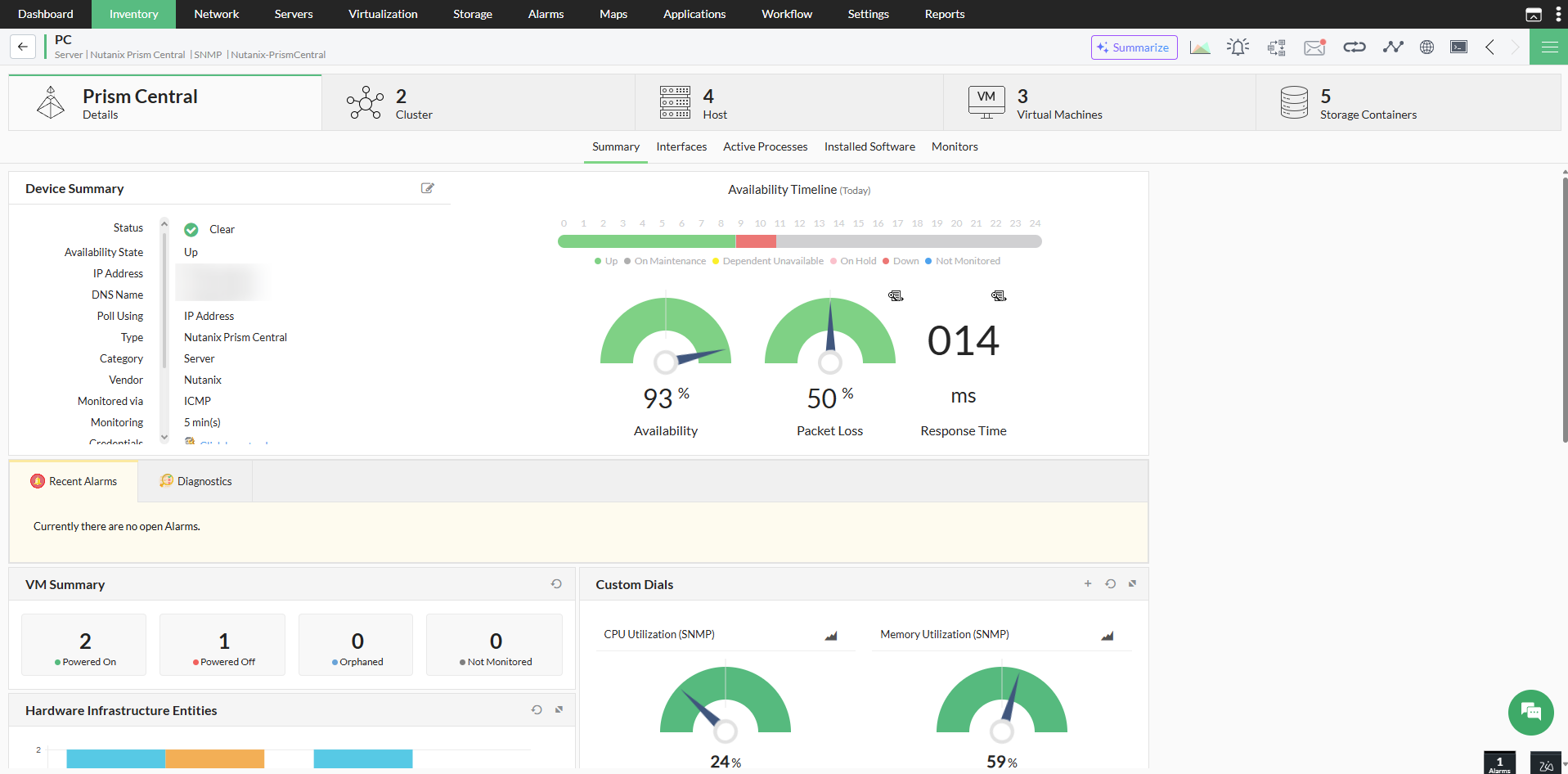
The snapshot page has the following tabs:
- Summary: Prism Central availability status, recent alarms from all child entities, VM power state summary (donut chart), child entity counts (bar graph), and an interactive Cluster Performance Metrics graph. Use the cluster dropdown to select a specific cluster, then choose a monitor to view its historical performance graph directly on the page. On an individual cluster's snapshot page, this widget operates in single-cluster mode without the cluster selector.
- Clusters: All clusters managed by this Prism Central.
- Hosts: All hosts across all clusters.
- Virtual Machines: All VMs across all clusters, including Orphaned VMs.
- Storage Containers: All storage containers and Volume Group details across all clusters.
Reports
Two new reports are available for environments monitored through Prism Central, in addition to the existing Nutanix reports. Both are accessible under Reports → Monitoring → Nutanix Reports.
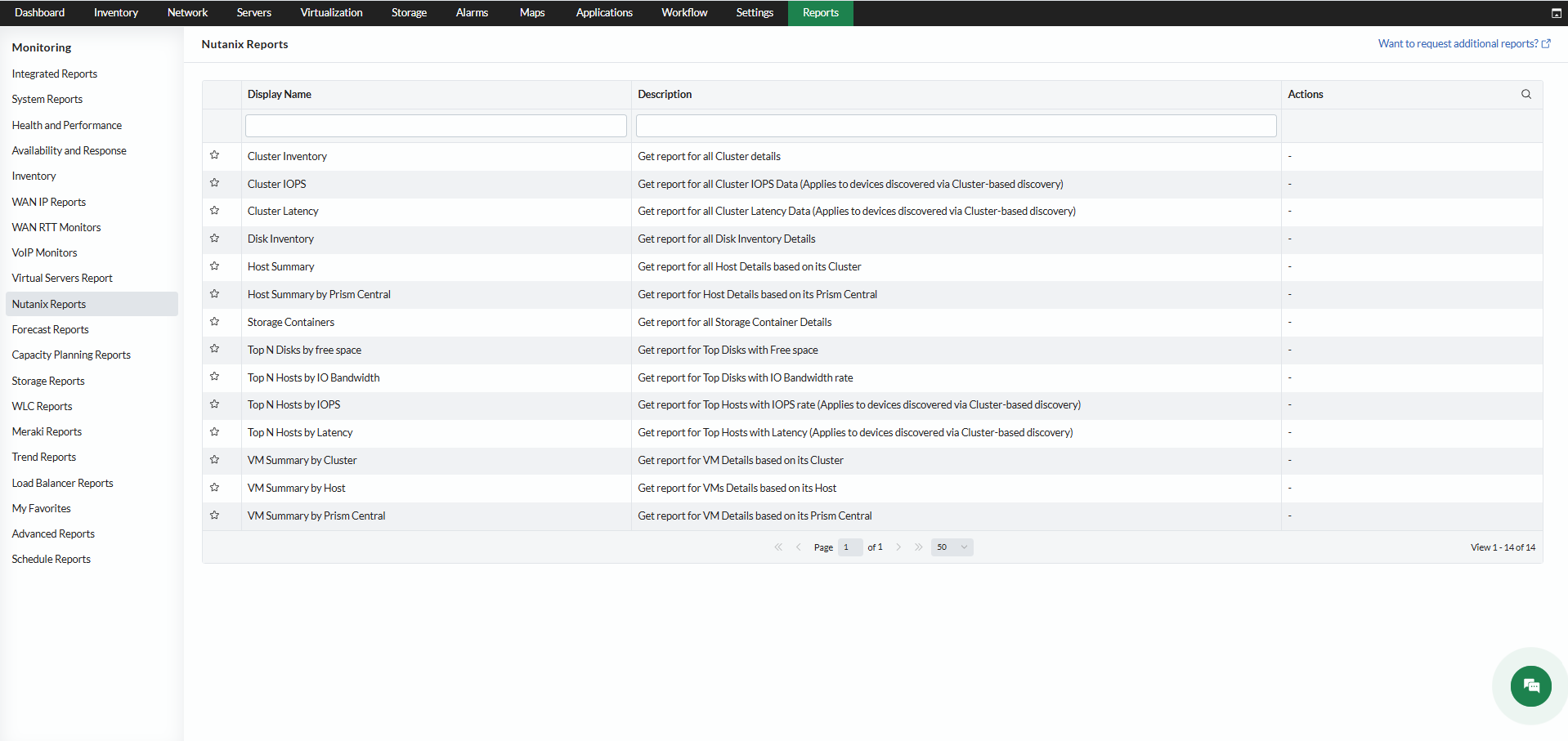
- VM Summary by Prism Central: Lists all VMs across all clusters, grouped by Prism Central.
- Host Summary by Prism Central: Lists all hosts across all clusters, grouped by Prism Central.
For the full list of Nutanix reports in OpManager, refer to Nutanix Reports.