Nutanix Monitoring for Hyper-Converged Infrastructure
Track your Nutanix clusters, host and VMs effectively with ManageEngine OpManager
- Monitor Nutanix clusters, hosts, and VMs from a single pane
- Monitor all clusters through a single Prism Central connection
- Track 30+ performance metrics across your HCI environment
- Get real-time alerts on Nutanix health and availability
Nutanix Monitoring: from single clusters, to your entire estate
OpManager monitors Nutanix performance at every level, from cluster and host health to individual VM statistics. Whether you manage a single cluster through Prism Element or a multi-site estate through Prism Central, you get complete visibility in one place. OpManager also supports VMware, Hyper-V, and other hypervisor environments.
Key benefits: Prism Element
Track Critical Metrics
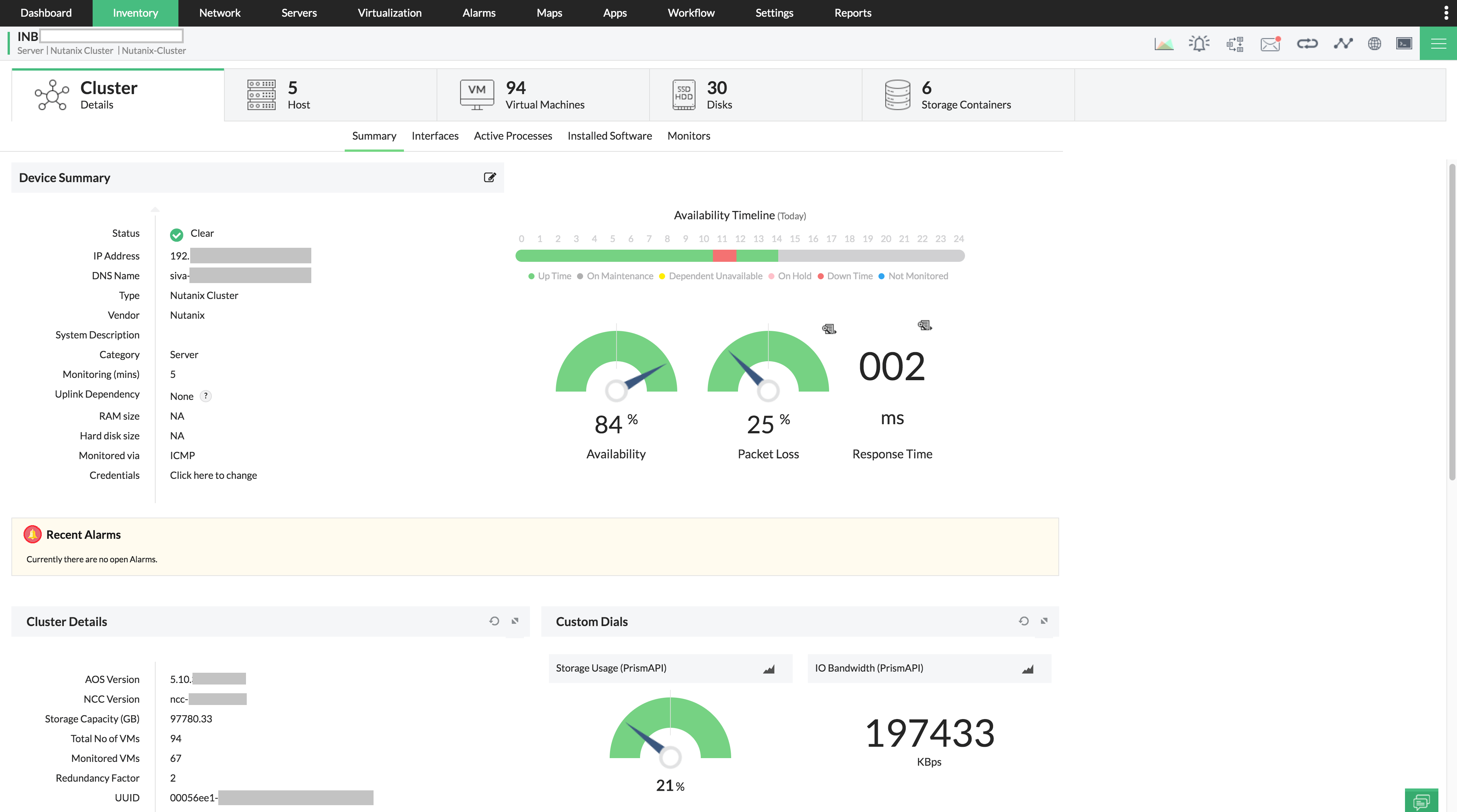
All critical stats and details about your Nutanix cluster are available on the cluster snapshot page, so you never have to navigate between multiple windows to get a complete picture of your environment.
- All critical stats about your Nutanix cluster — health, hosts, and VMs — are available on the cluster snapshot page in easily accessible tab views.
- Nutanix-specific details such as AOS version, NCC version, and redundancy factor are visible on the snapshot page itself.
- Navigate directly to any host’s snapshot page from the Hosts tab of the cluster snapshot page for deeper host-level details.
Real-time Host Monitoring
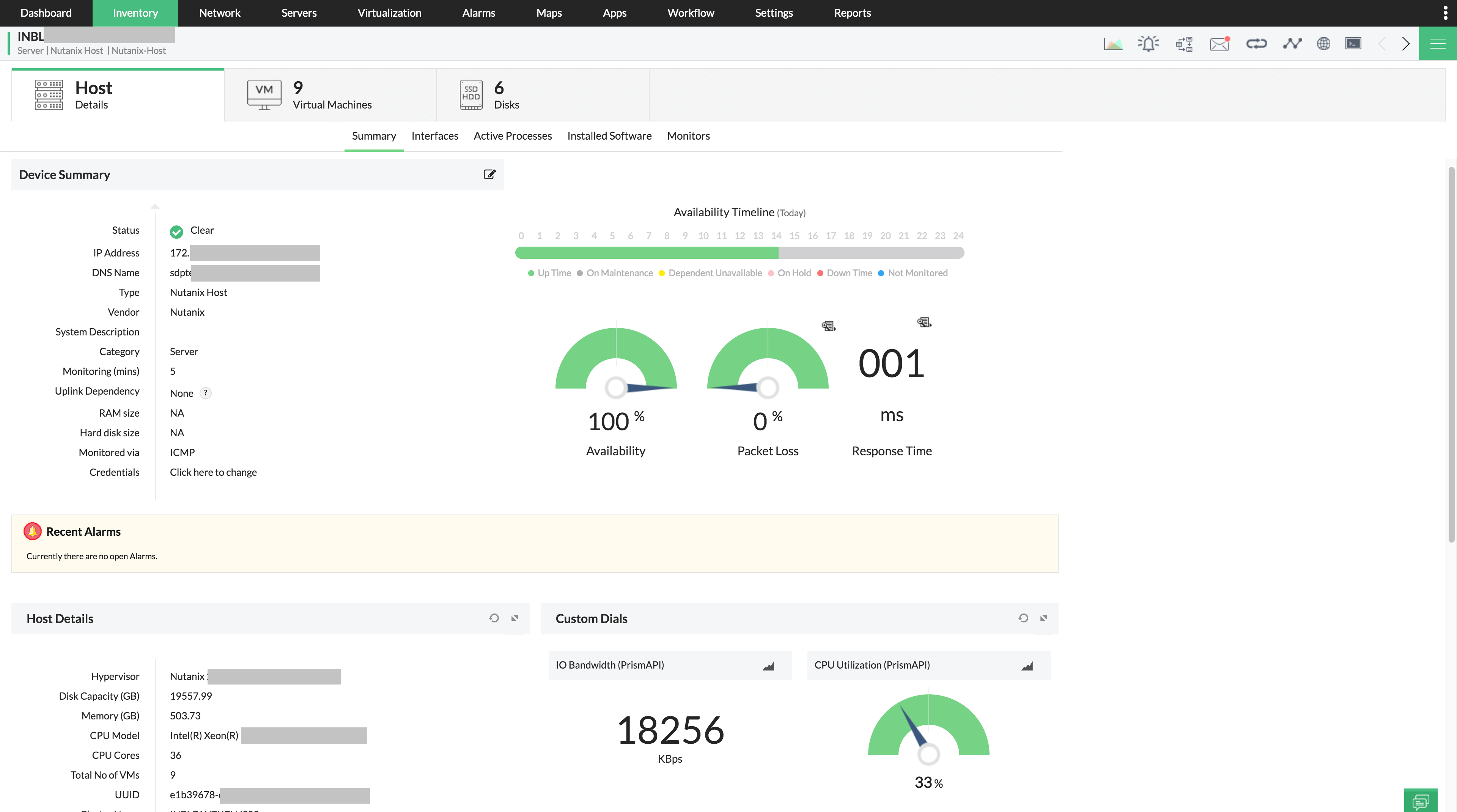
The host snapshot page lists all basic details of the Nutanix host, along with the VMs running on it and the storage disks they are mounted on. Clicking any VM takes you directly to its snapshot page for VM-specific monitoring.
- Hosts running the native Nutanix AHV, Microsoft Hyper-V, or VMware ESXi are all discovered automatically.
- The host snapshot page lists basic host details, along with the VMs running on it and the storage disks they are mounted on.
- Click any VM to go directly to its snapshot page for VM-specific monitoring.
Nutanix VM Monitoring
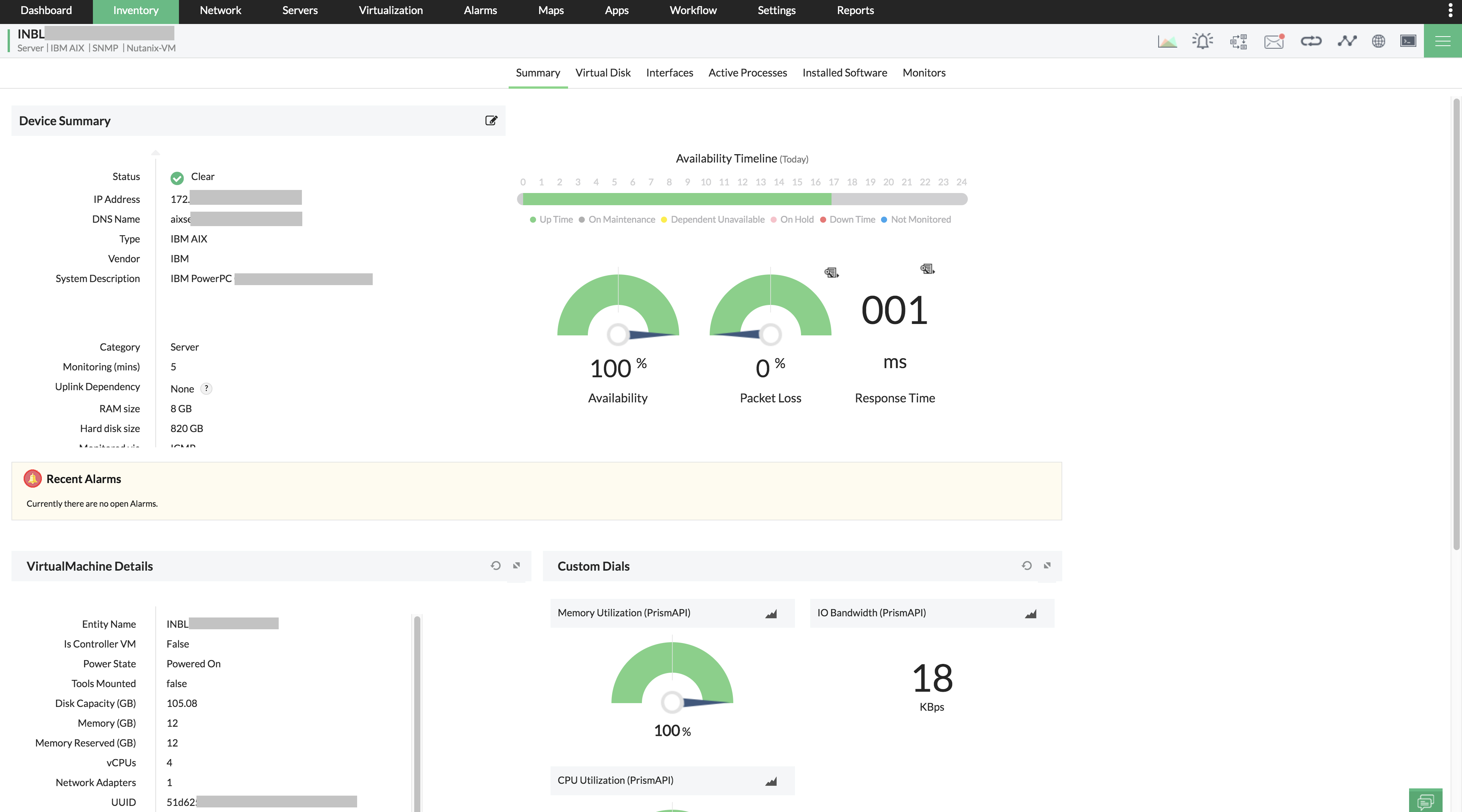
OpManager goes beyond default Prism API monitoring to give you deeper visibility into your Nutanix VMs through SNMP, WMI, and CLI.
- Prism API alone cannot surface all VM-level metrics. Service-specific data such as MSSQL batch request rates and buffer cache stats require SNMP, WMI, or CLI access.
- Select credential profiles for your hosts and VMs during discovery and OpManager applies them automatically to begin extended monitoring.
Performance Tracking
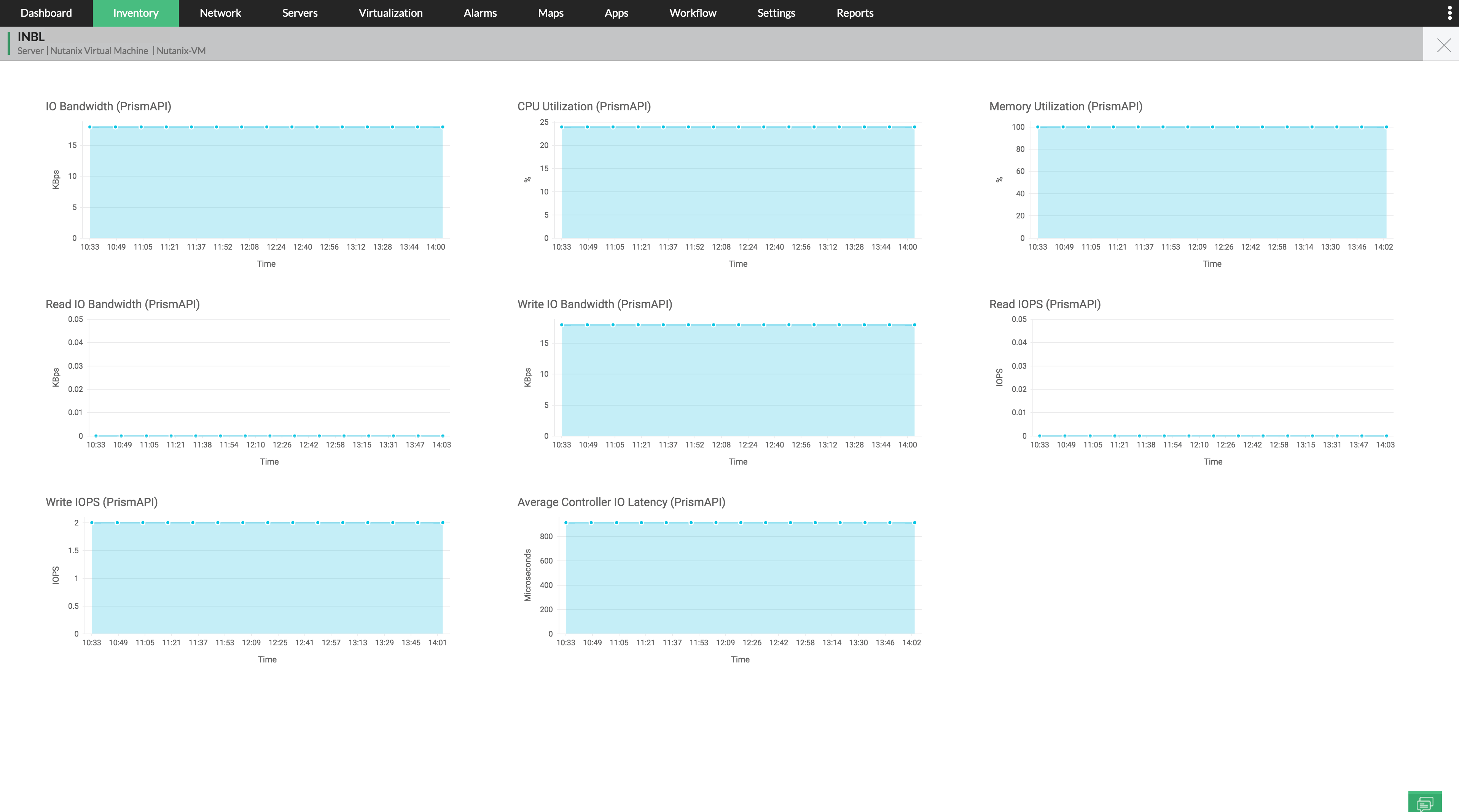
OpManager automatically associates performance monitors to your Nutanix clusters, hosts, and VMs as soon as they are added.
- Over 30 out-of-the-box metrics covering all elements of the Nutanix HCI environment — clusters, hosts, and VMs — are fetched through Prism API by default.
- Custom SNMP or WMI monitors can be added to fetch device-specific metrics that are not available through the default Nutanix monitoring architecture.
In-Depth Reports
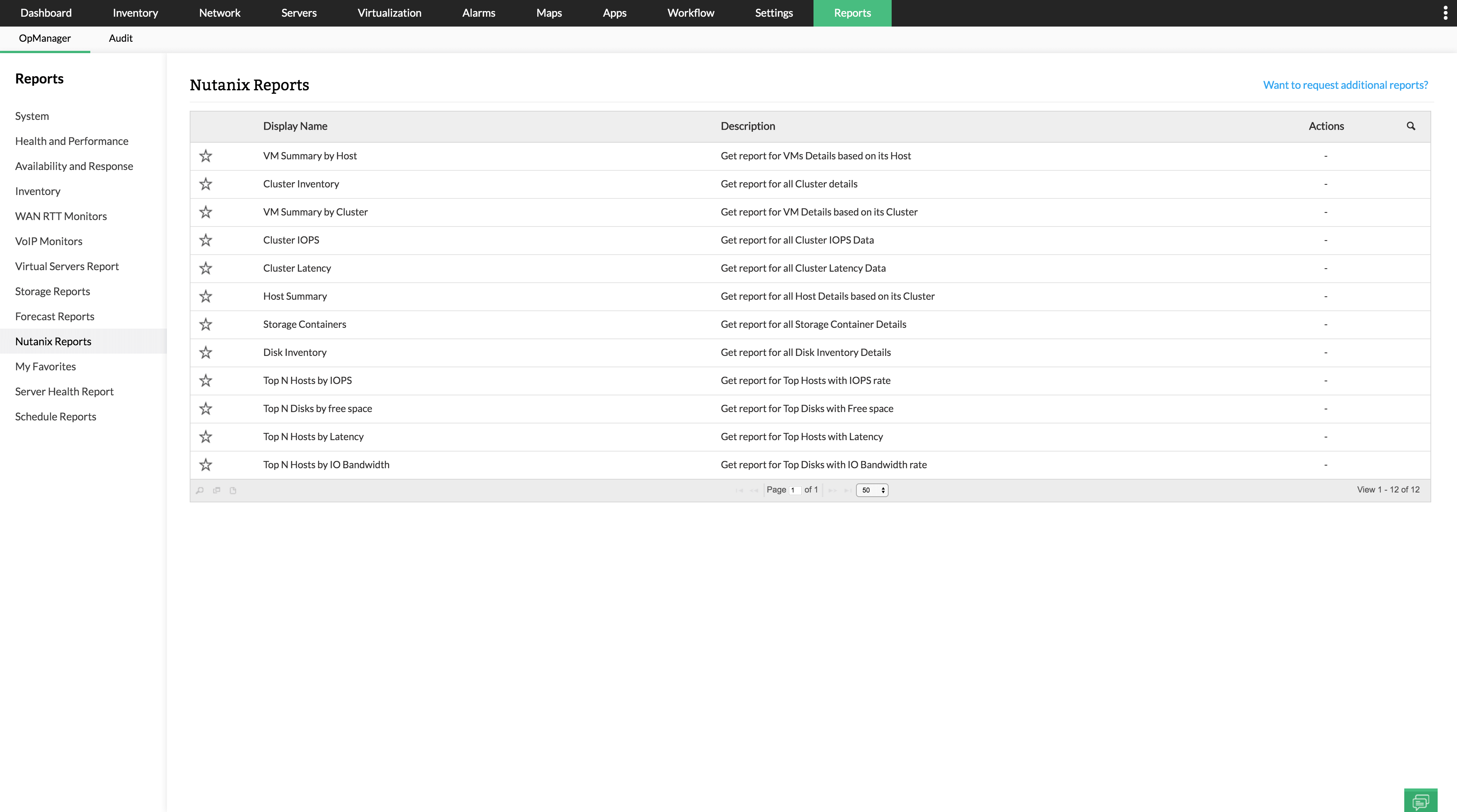
OpManager includes a dedicated Nutanix reports section with built-in reports covering all elements of your HCI environment.
- Out-of-the-box reports include VM Summary by Cluster, VM Summary by Host, Cluster Inventory, Disk Inventory, and Top N hosts by IOPS, free space, latency, and IO bandwidth.
- Custom reports can be created based on specific criteria to track any additional stats your team needs.
- Reports can be scheduled to run daily, weekly, or monthly and delivered to your inbox or saved as PDFs.
Prism Central
For teams managing multiple Nutanix clusters across sites, OpManager extends its monitoring capabilities to Prism Central — the multi-cluster management platform that provides a single control plane across your entire Nutanix environment.
Centralized Discovery
Connect OpManager to one Prism Central instance to automatically discover and monitor all clusters, hosts, VMs, and storage containers beneath it — without adding each cluster individually.
- Select Prism Central as the discovery type, enter credentials, and OpManager presents the full Nutanix estate as a hierarchical tree before you confirm.
- Clusters and hosts are discovered by default; select which VMs to include.

Unified Snapshot Page
Once discovered, a Prism Central snapshot page consolidates your entire Nutanix environment, including all clusters, hosts, VMs, and storage containers into a single screen.
- The Summary tab shows Prism Central availability, recent alarms from all child entities, VM power state distribution, and entity counts across all clusters.
- The interactive Cluster Performance Metrics widget lets you select any cluster and view CPU, Memory, IO, IOPS, or Latency trends directly on the page.

Seamless Migration from Cluster-based Monitoring
Already monitoring individual Nutanix clusters in OpManager? Switching to Prism Central requires no manual cleanup and no data loss.
- OpManager automatically detects clusters already monitored via Prism Element connections when you discover their Prism Central.
- Those clusters, their hosts, and their VMs are moved under the Prism Central hierarchy without any manual intervention.

Prism Central Reports
OpManager extends its Nutanix reporting to Prism Central environments with two additional reports covering your entire multi-cluster estate.
- VM Summary by Prism Central lists all VMs across all clusters, grouped by Prism Central and Cluster.
- Host Summary by Prism Central lists all hosts across all clusters, grouped by Prism Central and Cluster.
- Both reports can be scheduled and exported to PDF or Excel alongside the existing Nutanix report suite.

Frequently Asked Questions
Find answers to common questions about our platform and services.
Resources to dig deeper
Choose the right monitoring tool — without the spreadsheet
A vendor-neutral checklist, common pitfalls, and the 12 questions to ask before signing.
Download (PDF) →Ready to get started?
Download your free trial today and experience the power of intelligent network monitoring.