

- Overview
- Configuration
PAM360
Enhanced privileged access management and streamlined user lifecycle control with ADManager Plus and PAM360 integration
PAM360 is an integrated privileged access management solution designed to streamline control of and access to privileged accounts. PAM360 is an integrated privileged access management solution designed to streamline control of and access to privileged accounts. It provides comprehensive management of privileged accounts, secure remote access, and advanced session monitoring. The ADManager Plus - PAM360 integration streamlines access control by enabling timely elevation and delegation of domain users in Active Directory security groups, allowing just-in-time privilege management and seamless control over domain accounts directly from the PAM360 interface.
Efficient role-based access control
This integration validates users so they have access only to the resources necessary for their roles, thereby enhancing security.
Improved user lifecycle management
This solution facilitates the entire user lifecycle management in a secure and efficient manner from onboarding to offboarding.
Simplified delegation
This integration enables easier and more secure delegation of tasks related to user and privileged account management, reduces the administrative burden.
Integrating PAM360 with ADManager Plus
ADManager Plus offers two ways to integrate with PAM360:
- Widget: Perform privileged-access-related actions directly from the PAM360 console using ADManager Plus capabilities.
- API-based application integration: Enables seamless integration between PAM360 and ADManager Plus by allowing periodic data exchange and automated execution of required AD actions.
How to configure the PAM360 plug-in integration in ADManager Plus
- Log in to ADManager Plus and navigate to the Admin tab.
- Under System Settings, click Integrations.
- Under Applications, click PAM360.
- In the Server Details section, enter the name of the server in which PAM360 is running along with the PAM360 server's port number. Note: HTTPS will be the protocol used for communication between ADManager Plus and PAM360 to ensure security.
- To enable PAM360 technician AD group membership management from within the PAM360 console, select the Enable tight integration with PAM360 option. Note: The Enable Integration button is turned on by default. Toggle it off to disable PAM360 integration.
How to integrate PAM360 with ADManager Plus using APIs
This section provides step-by-step instructions for configuring API-based application integration with PAM360.
Prerequisites
Please ensure to provide an API key with permissions to retrieve desired information and perform tasks in PAM360. Refer to PAM360's API references for more details.
Privileges
- To import users from PAM360 (inbound action): Ensure the account used for authorization has permission to read all user accounts.
- To perform any action or query in PAM360 (outbound action): Ensure the account used for authorization has permission to perform the desired action.
Authorization configuration
- Log in to ADManager Plus and navigate to Directory/Application Settings.
- Go to Application Integrations, then search for and select PAM360.
- Toggle the Enable PAM360 Integration button on.
- In the PAM360 Configuration page, click Authorization.
- Generate the API key and API token in PAM360, and paste the generated value in the Value field for the AUTHTOKEN.
- Click Configure.
Inbound webhook configuration
An inbound webhook enables you to fetch user data from PAM360 to ADManager Plus. To configure an inbound webhook for PAM360:
- Under Inbound Webhook, click PAM360 Endpoint Configuration.
- An endpoint, PAM360 User Endpoint, comes preconfigured
with Endpoint URL, HTTP Method, Headers, and Parameters fields to fetch
user accounts from PAM360. To use the preconfigured endpoint, replace
{Host-Name-of-PAM360-Server OR IP address} with the
host name or IP address of your PAM360
server, and replace {Port} with the port
number on which PAM360 is running in the Endpoint
URL field. However, if you would like to use a new endpoint to
import users, you can configure one using the + Add API
Endpoint button and filling in the required fields as per
PAM360's API references. Learn how here.
Note:
- The API key-value pair is preconfigured as a header for authenticating API requests as configured during authorization configuration.
- Refer to PAM360's API references and configure additional headers and parameters, if needed.
- Macros can be added to the endpoint URL, headers, parameters, and message body to dynamically modify the configuration using the macro chooser.
- Once done, click Test & Save to validate and save
the endpoint, or click Save as Draft to store the
configuration as a draft without testing the endpoint. If you choose
Test & Save, a response window will be displayed.
This response window includes the following tabs:
- Response: Displays API response parameters in a
tree structure. You can set the data type for each field:
- Text (default)
- Number
- Timestamp
- Array
Text, Number, and Timestamp are used for advanced filter criteria. Array is used to select a specific value from a response array (refer to JSON conditional parsing).
- Response Details: Displays the complete response message in text format.
- Request: Displays the request headers, parameters, and message body.
- Response: Displays API response parameters in a
tree structure. You can set the data type for each field:
- Click Save. Note: You can configure multiple endpoints for PAM360 using the + Add API Endpoint button. Learn how here.
- Click Data Source - LDAP Attribute Mapping to match endpoints and to map AD LDAP attributes with the respective attributes in PAM360. ADManager Plus also lets you customize the attribute format from PAM360.
- Click + Add New Configuration and perform the
following:
- Enter the Configuration Name and Description and select the Automation Category from the drop-down menu.
- In the Select endpoint field, select the desired endpoint and a Primary Key that is unique to a user (e.g. employeeIdentifier). Note: When multiple endpoints are configured, this attribute must hold the same value in all the endpoints.
- In the Attribute Mapping field, select the attribute from the LDAP Attribute Name drop-down menu and map it to the corresponding column in PAM360. Macros are also supported in attribute mapping. To create a new custom format, click Add New Format.
- Click Save.
Outbound webhook configuration
An outbound webhook enables you to update the changes made in AD using ADManager Plus in PAM360. It also lets you fetch or forward required details from PAM360 and synchronize them with AD. To configure an outbound webhook for PAM360:
- Under Outbound Webhook, click PAM360 Webhook Configuration.
- Two endpoint configurations—PAM360 Add User Endpoint and PAM360 Delete User Endpoint—are available to create and remove user accounts in PAM360. These endpoints include the required Endpoint URL, HTTP Method, Headers, and Parameters to send user account data from ADManager Plus to PAM360. To use the preconfigured endpoint, replace {Host-Name-of-PAM360-Server OR IP address} with the host name or IP address of your PAM360 server, and replace {Port} with the port number on which PAM360 is running in the Endpoint URL field.
- Click + Add Webhook.
- Enter a name and description for this webhook.
- Decide on the action that has to be performed and refer to PAM360's API references for the API details, such as the URL, headers, parameters, and other requirements that will be needed. Enter the employee details value in the Parameter field.
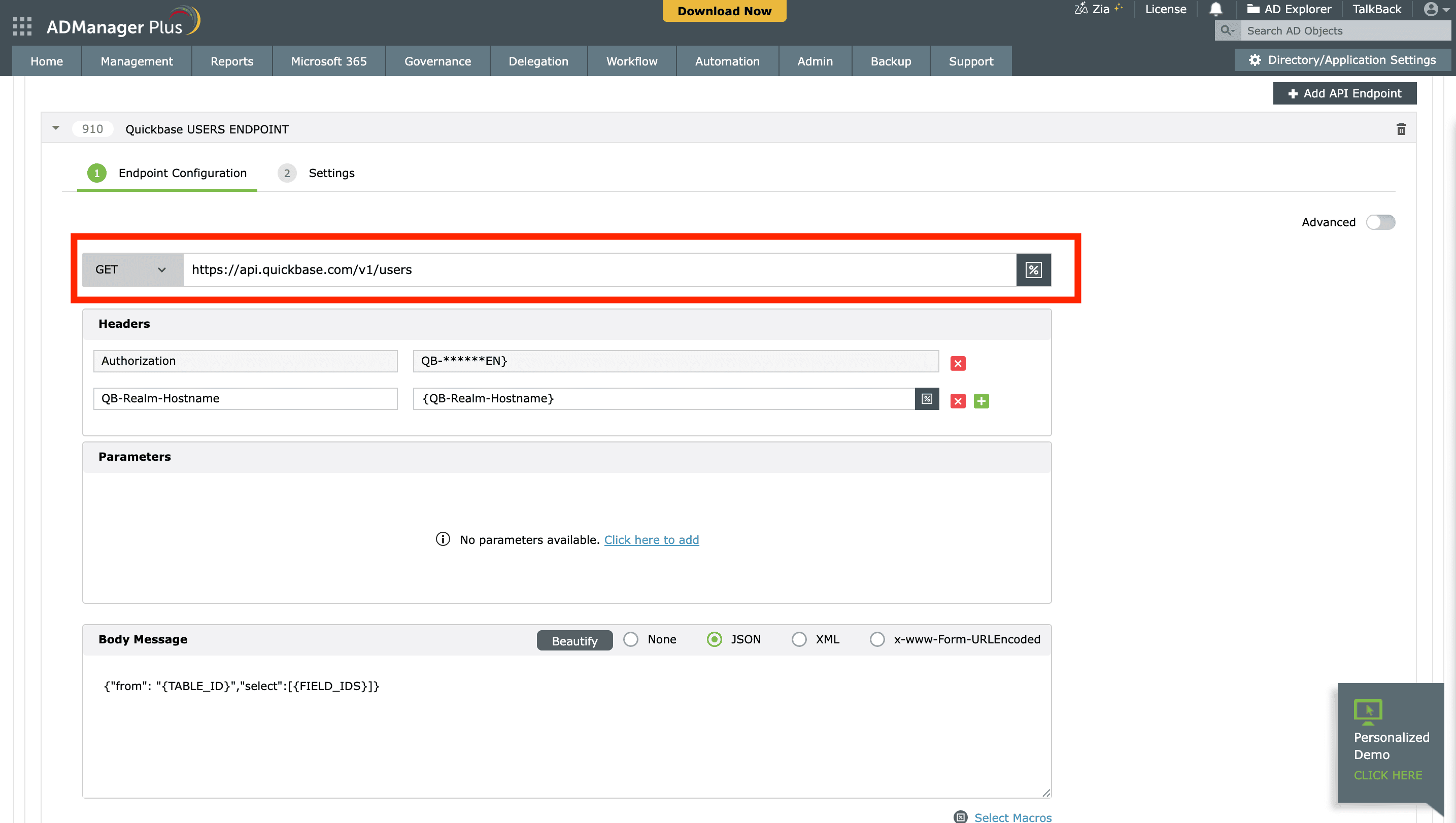
- Select the HTTP method that will enable you to perform the desired action on the endpoint from the GET drop-down menu.
- Enter the endpoint URL.
Reference: The highlighted section is the drop-down and the text box next to it is the endpoint url text box.
- Configure the Headers, Parameters, and Message Type in the appropriate format based on the API call that you would like to perform. Note: Macros can be added to the endpoint URL, headers, parameters, and message body to dynamically modify the configuration using the macro chooser.
- Click Test & Save to validate and save the webhook, or click Save as Draft to store the webhook as a draft without testing.
- If you select Test & Save, a response window is
displayed. Choose the user or group on which the API request should be
tested and click OK. This triggers a real-time call to
the endpoint URL, allowing you to verify whether macros are applied
correctly. You may skip selecting a user or group. However, if you do
make a selection, the macros present in the webhook will be parsed using
the selected object’s values:
- Response: Displays API response parameters in a
tree structure. You can set the data type for each field:
- Text (default)
- Number
- Timestamp
- Response Details: Displays the complete response message in text format.
- Request: Displays the request headers, parameters, and message body.
- Response: Displays API response parameters in a
tree structure. You can set the data type for each field:
- Verify them for the expected API behavior and click Save.
Actions supported:
- Access management
- Group permissions management