Executive Reports for Vulnerability Management
Endpoint Central monitors network health through patch and vulnerability management, logging activities for audits and compliance. IT admins can generate custom reports to ensure adherence to standards. These reports, categorized as Executive and Pre-defined, provide detailed insights into system patching, aiding in vulnerability identification and addressing network security and compliance concerns. To access these reports, navigate to Threats & Patches → Reports.
Executive Reports
Executive Reports are generated and submitted to top leadership staff for in-depth analysis of their network. They are configured by Endpoint Central and can be further scheduled or exported as required. The available executive reports are as follows:
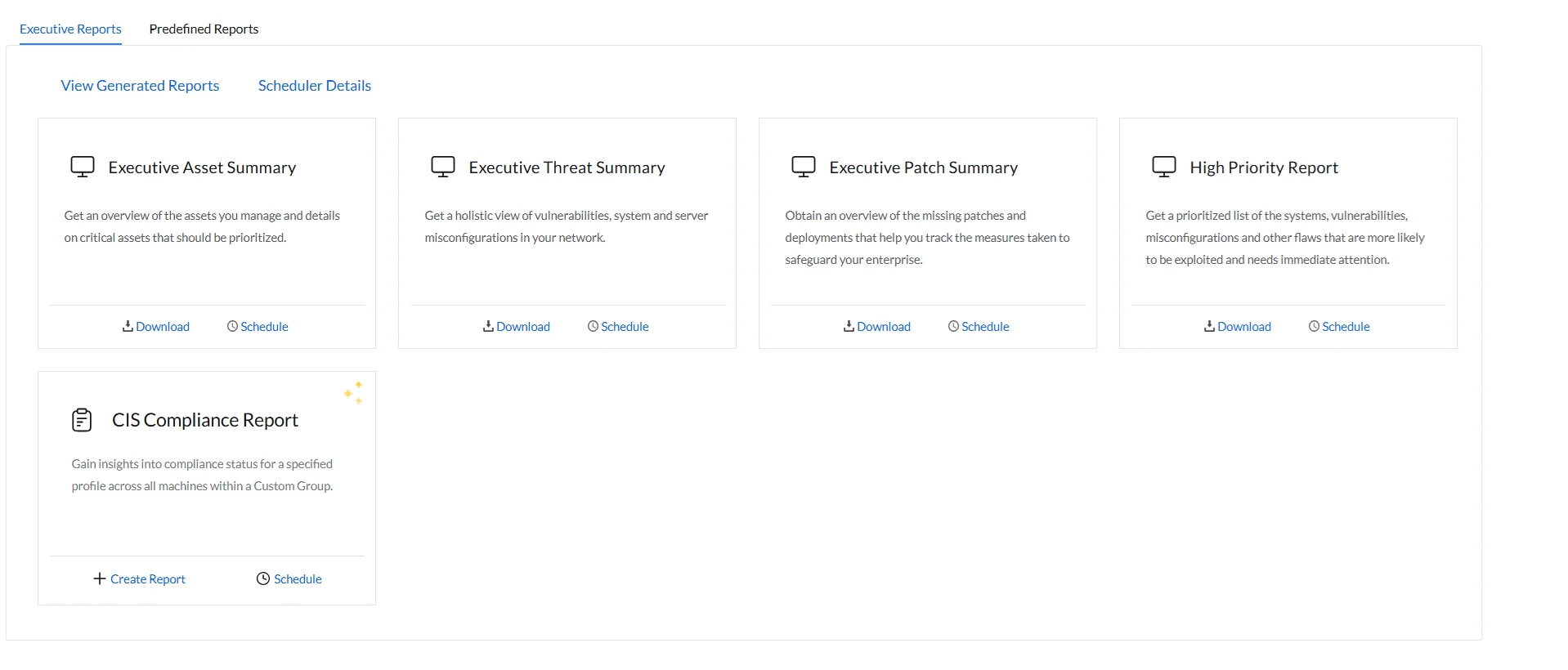
- Executive Asset Summary: Details the assets managed and their health status to help prioritize tasks and achieve compliance at greater speed.
- Executive Threat Summary: Shares the list of vulnerable devices along with network-level security misconfigurations.
- Executive Patch Summary: Helps you track your patch deployment process by detailing missing patches, deployment status, and health status of devices.
- High Priority Report: Provides real-time data on vulnerable devices, potential loopholes, and security breaches, enabling IT administrators to prioritize and patch them accordingly.
- CIS Compliance Report: Provides insights into the compliance status of a specified profile across all machines in a Custom Group, helping you identify non-compliant machines and take corrective actions to align with compliance standards.
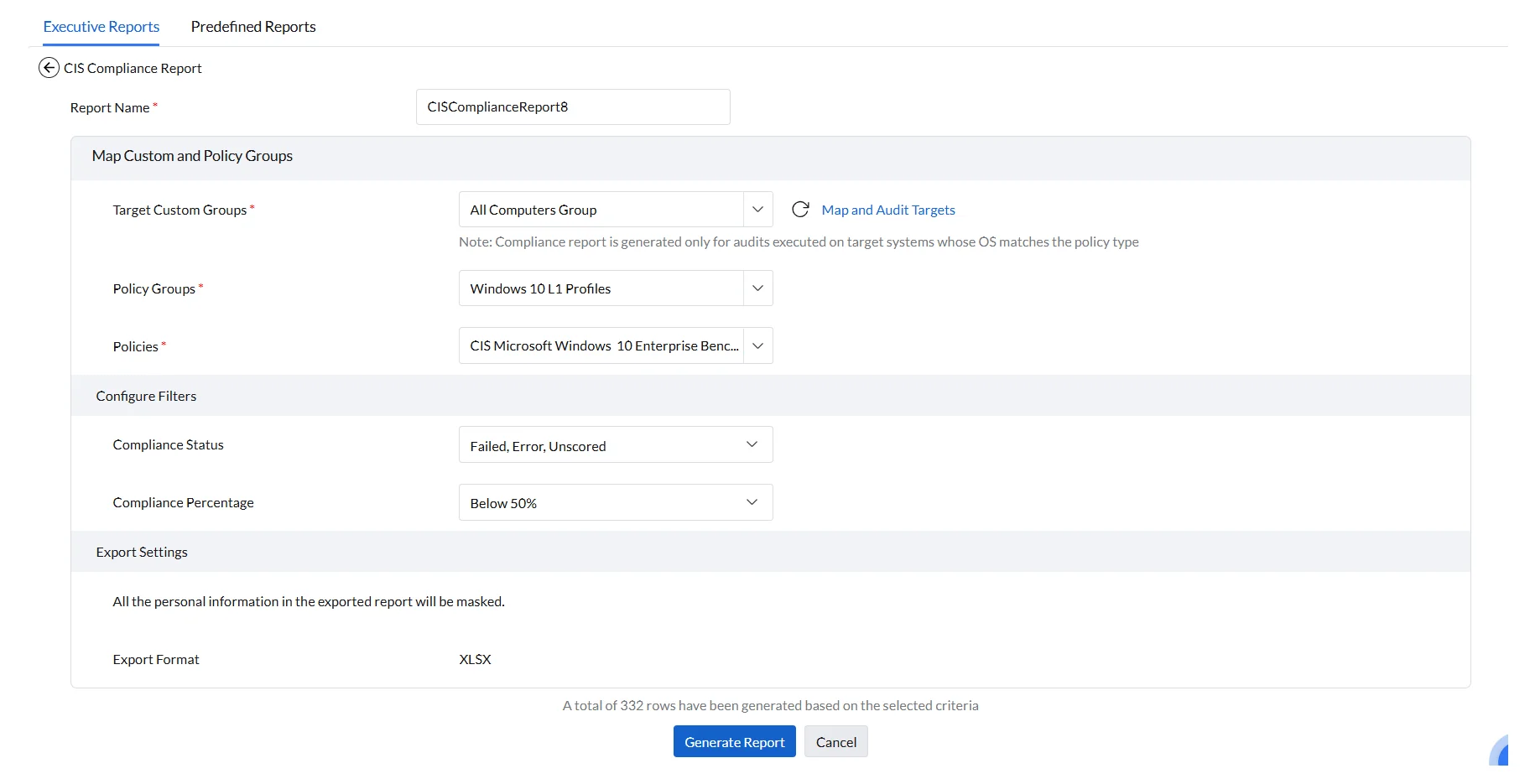
To configure a CIS Compliance report, click Create Report. You will be redirected to the CIS Compliance Report page. Configure the following settings:
- Under Report Name, enter a name for your report.
- Under Map Custom and Policy Group, choose your Target Custom Groups, the Policy Group, and the individual Policies for which you want the report to be generated.
- Under Configure Filters, choose the Compliance Status to include: All, or any of Failed, Error, Unscored, or Passed.
- Also under Configure Filters, choose the Compliance Percentage to include: All, Below 10%, 10—50%, Below 50%, 50—90%, or Above 90%.
After configuring these settings, click Generate Report to download the CIS Compliance Report in XLSX format.