Managing Customers in Log360 Cloud MSSP
Log360 Cloud MSSP allows you to create customer accounts that can be used to collect, store and analyze logs from the respective customer networks. Admins can assign specific technicians to each customer account to manage the respective customer networks. Admins will be able to add, remove, enable or disable customer accounts centrally using the Customers page.
- Adding a new customer
- Enabling/Disabling an existing customer
- Editing an existing customer
- Deleting a customer
Adding a new customer
To add a new customer account in Log360 Cloud MSSP,
- Login to the Log360 Cloud MSSP console.
- Go to Settings → Configuration → General → Manage Customers. This will open the Customers page.

- Click on the +Add New Customer button to open the Add New Customer page.
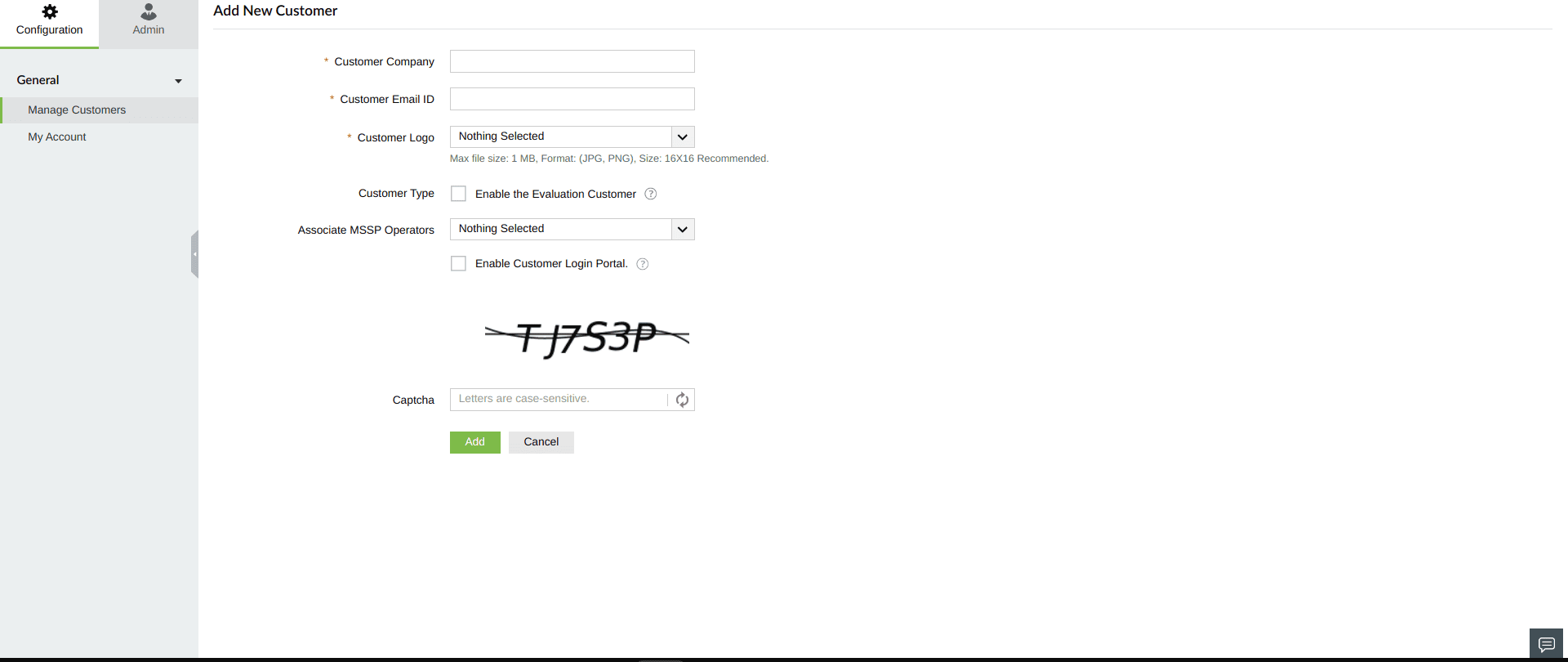
- Enter your customer's company name, Email ID, your customer's logo and the operators who you would like to give access to the particular customer's account.
- Fill in the captcha and click Add.
- A new customer account will be created.
Enabling/Disabling an existing customer
Enabling a customer:
To enable a customer account in Log360 Cloud MSSP,
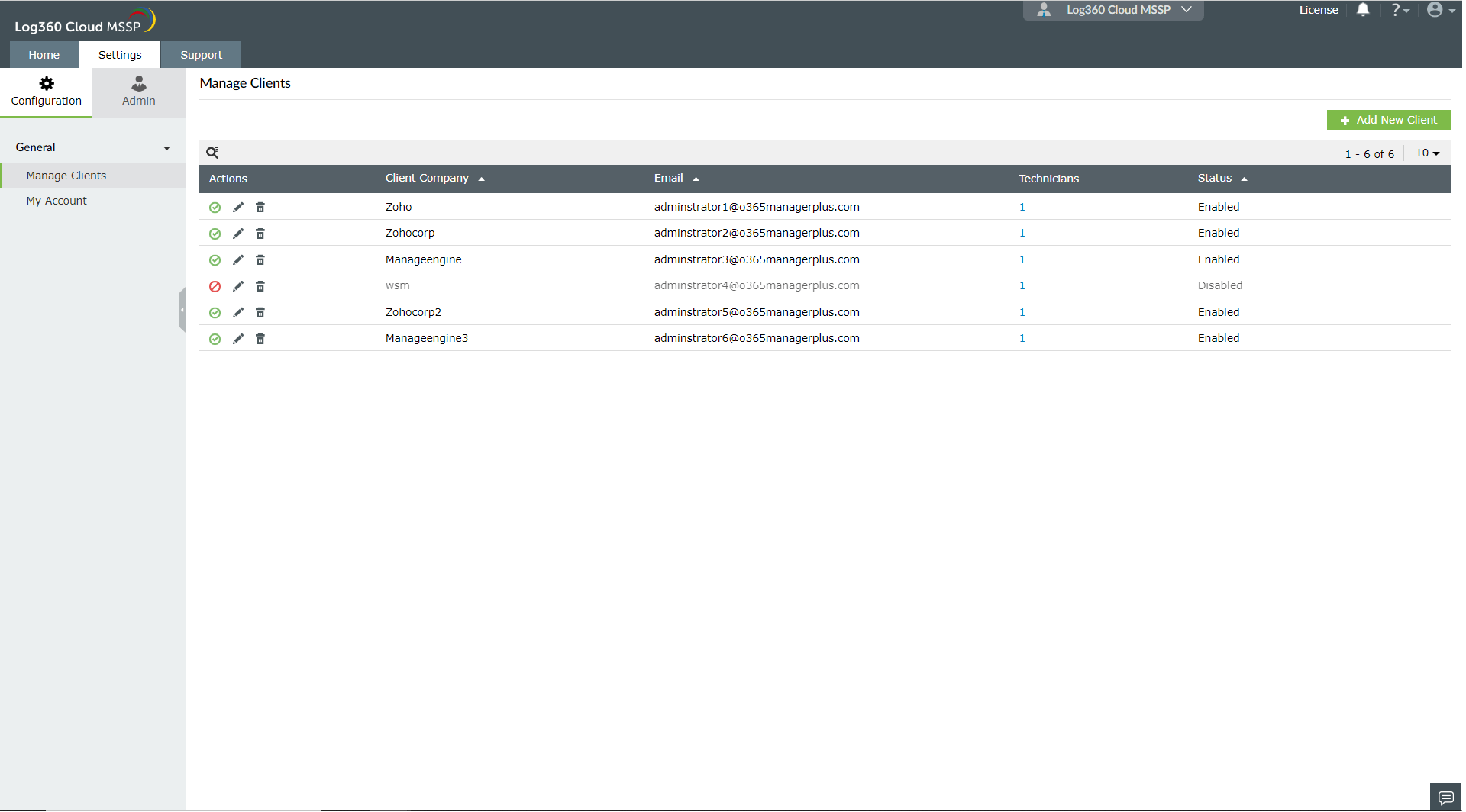
- Go to Settings → Configuration → General → Manage Customers. This will open the Customers page.
- Click icon
 located under the Actions column for the customer account you want to enable.
- The customer account will be enabled.
Disabling a customer:
To disable a customer account in Log360 Cloud MSSP,
- Go to Settings → Configuration → General → Manage Customers. This will open the Customers page.
- Click the icon
 located under the Actions column for the customer account you want to disable.
- Click Yes to disable.
- The customer account will be disabled.
Editing an existing customer
To edit a customer account in Log360 Cloud MSSP,
- Go to Settings → Configuration → General → Manage Customers. This will open the Customers page.
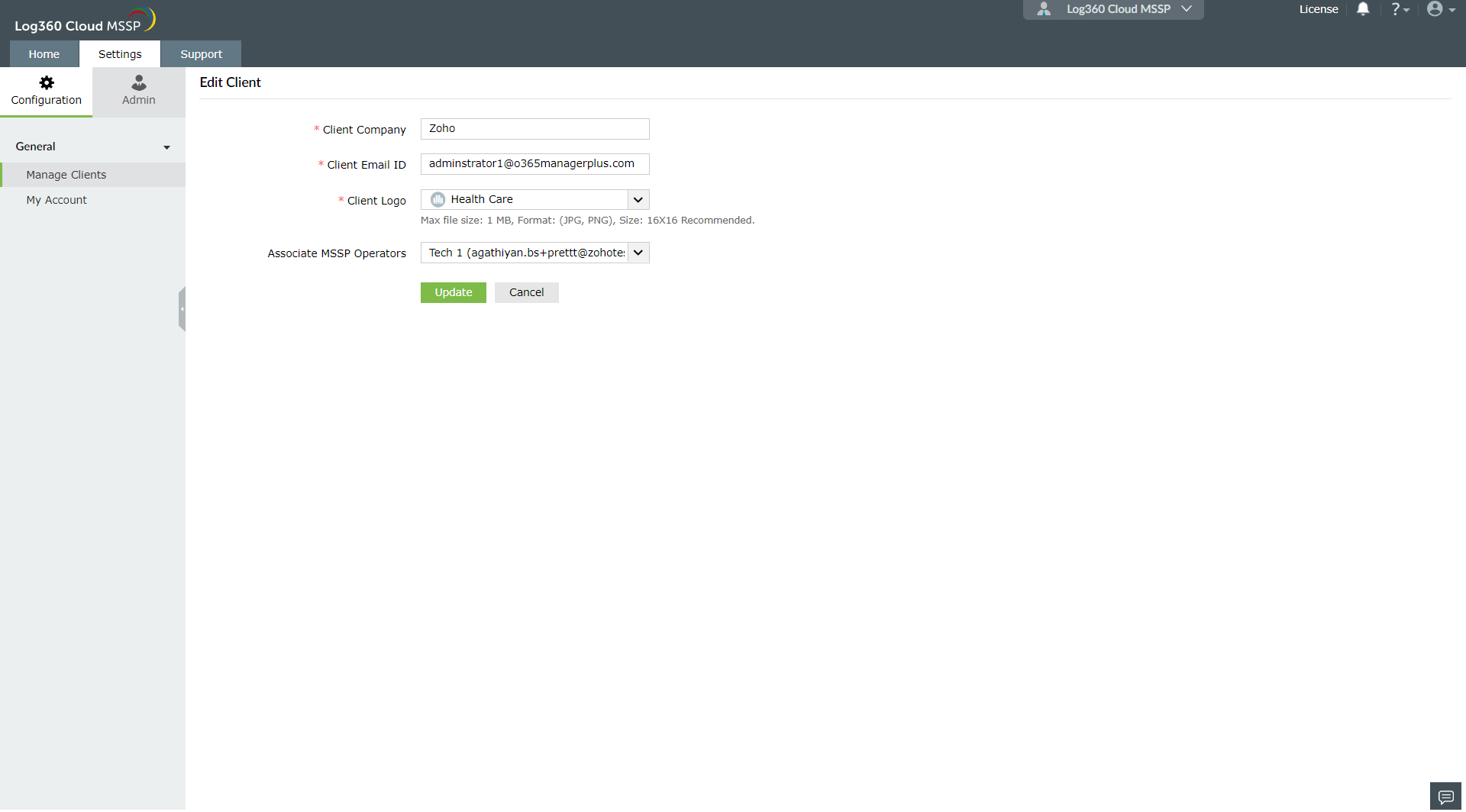
- Click the
 icon located under the Actions column for the customer account you want to edit.
- Enter the customer's company name, email ID, logo, and the associated operators.
- Click Update.
- The edited details will be saved.
Deleting a customer
To delete a customer account in Log360 Cloud MSSP,
- Go to Settings → Configuration → General → Manage Customers. This will open the Customers page.
- Click the
 icon located under the Actions column for the customer account you want to delete.
- Click Yes to confirm the action in the pop-up.
- The customer account will be deleted.
Note: Once you delete a customer, all the associated data will be deleted permanently from the database.