
Manage playbooks
Last updated on:
In this page
Overview
The manage playbooks page displays all playbooks available in the system. Administrators can review status, modify configurations, duplicate existing playbooks, delete unused playbooks, and inspect execution history. This page also provides quick access to system-wide usage analytics and the playbook library where predefined playbooks can be installed for immediate use.
Role based access control
Playbook management privileges depend on the role assigned to the user.
- Administrators: Can create, edit, enable, disable, clone, delete playbooks, import playbooks from the library, trigger executions, and view complete execution history.
- Operators: Can execute all available playbooks on Alerts/Incidents they have access to.
- Guest: Can view the playbooks list and execution records but cannot trigger or modify playbook(s).
List of playbooks
The playbooks list presents key operational information for every playbook configured in the system. A search box is available for keyword filtering, and pagination helps navigate large datasets.
Columns displayed include:
- Actions: Provides quick controls to enable/disable, edit, clone, delete, or view execution history of the playbook.
- Playbook name: Name of the playbook. Clicking on the playbook name opens the Playbook preview pane, which displays:
- The JSON definition of the playbook
- A visual builder diagram showing states, branches, and transitions
- This view is read-only and allows users to understand the design logic without editing.
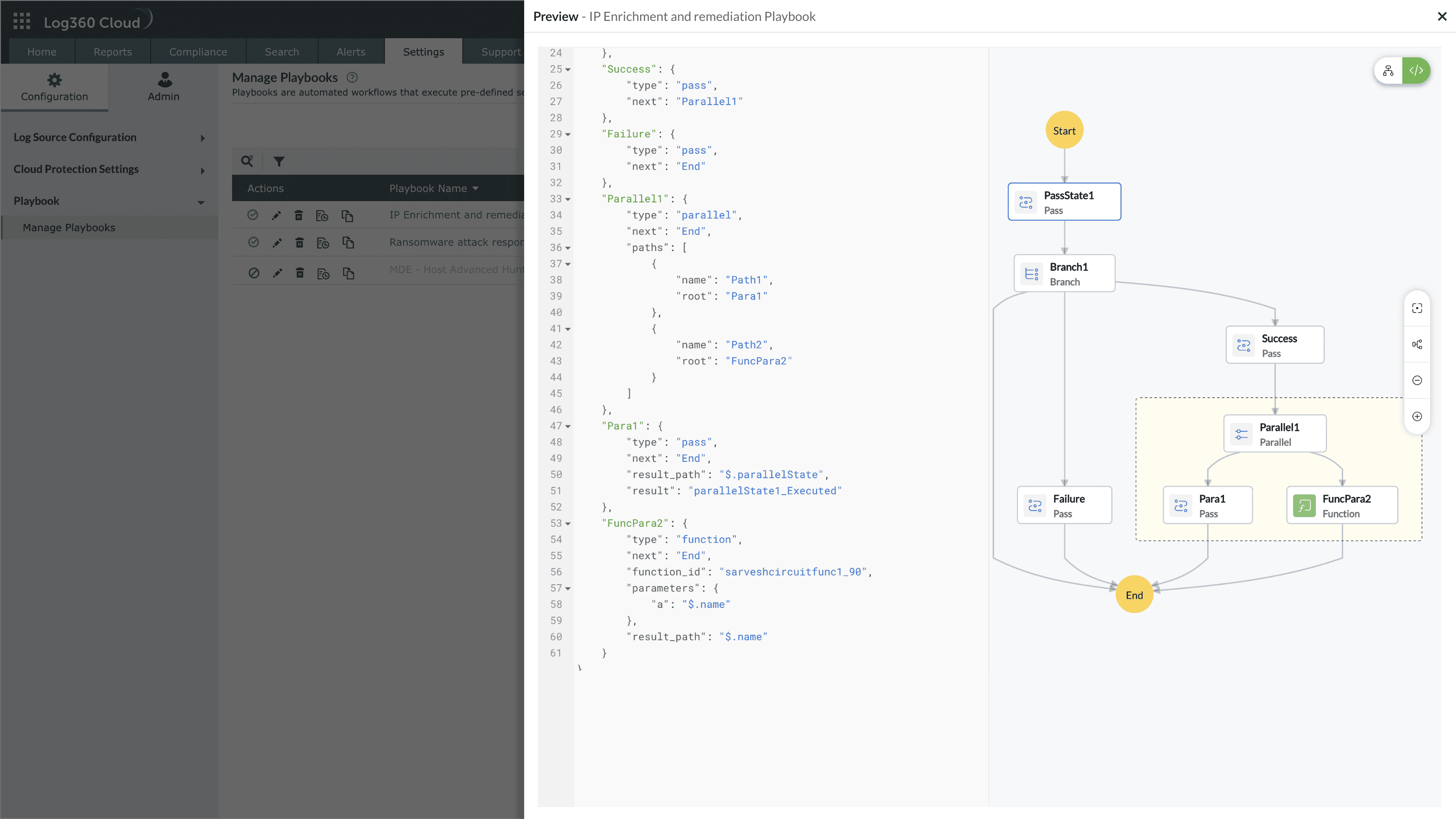
Image : Playbook preview pane slides open upon clicking on the playbook name - Description: Operational summary added while creating the playbook.
- Applies to: Indicates the context the playbook runs on (Alert, Detection, Incident, or Log).
- Tags: Lists the MITRE mappings, category labels, entity type, or custom tags associated with the playbook.
- Total associations: Shows the number of alert profiles or playbooks linked to this playbook. Clicking on the number in this field opens the Playbook Associations pane, listing all modules where the playbook is currently applied. The details include:
- Type of association (alert profile or playbook)
- The specific name of the linked item
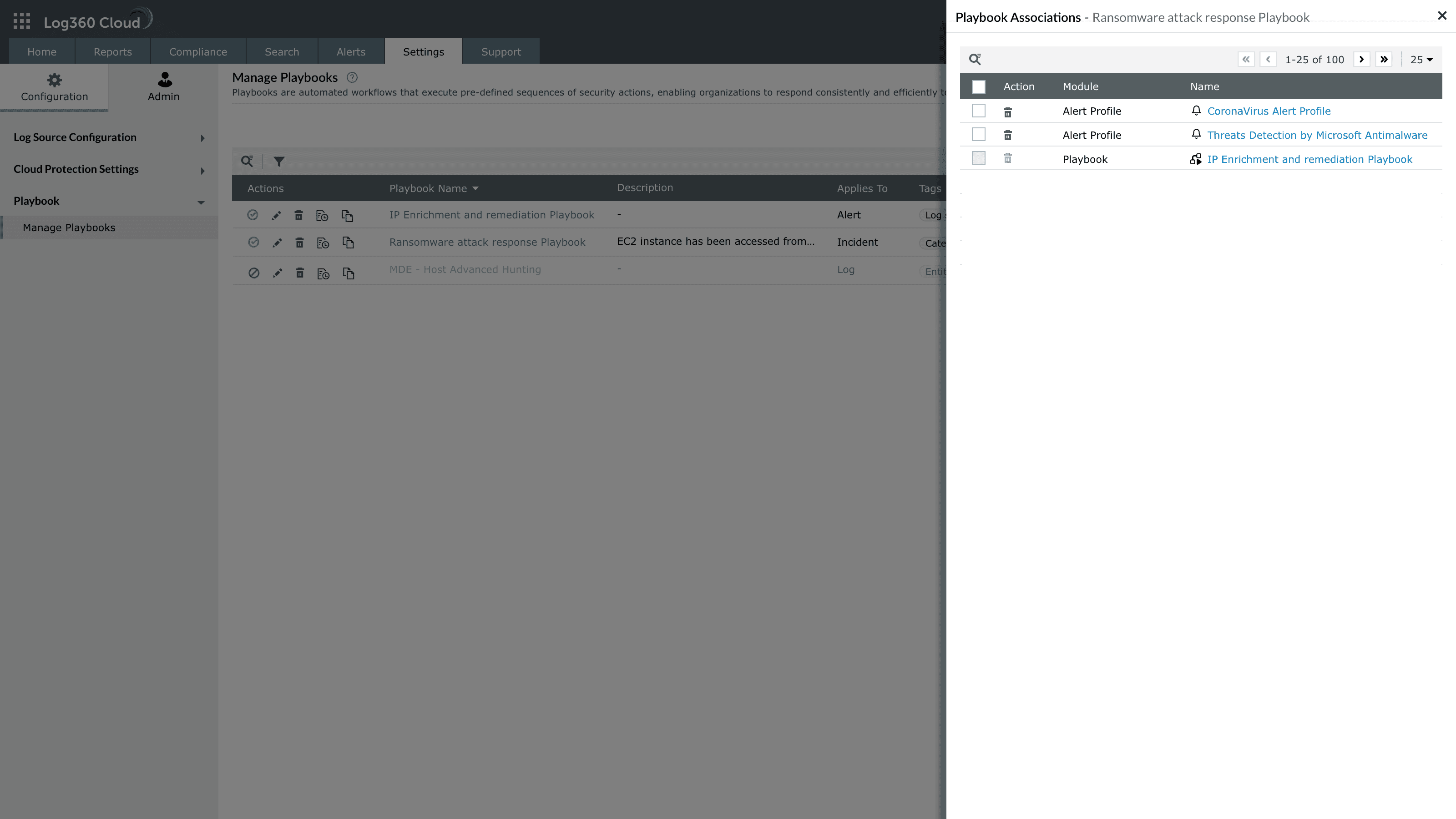
Image : Playbook associations pane displaying total associations - About playbook: Clicking View in the Playbook Details column opens the Create Playbook pane, which displays the information provided by the user during playbook creation. The content is configurable and may include details such as the playbook purpose, execution steps, suggested alert profiles, or integration and connection prerequisites.
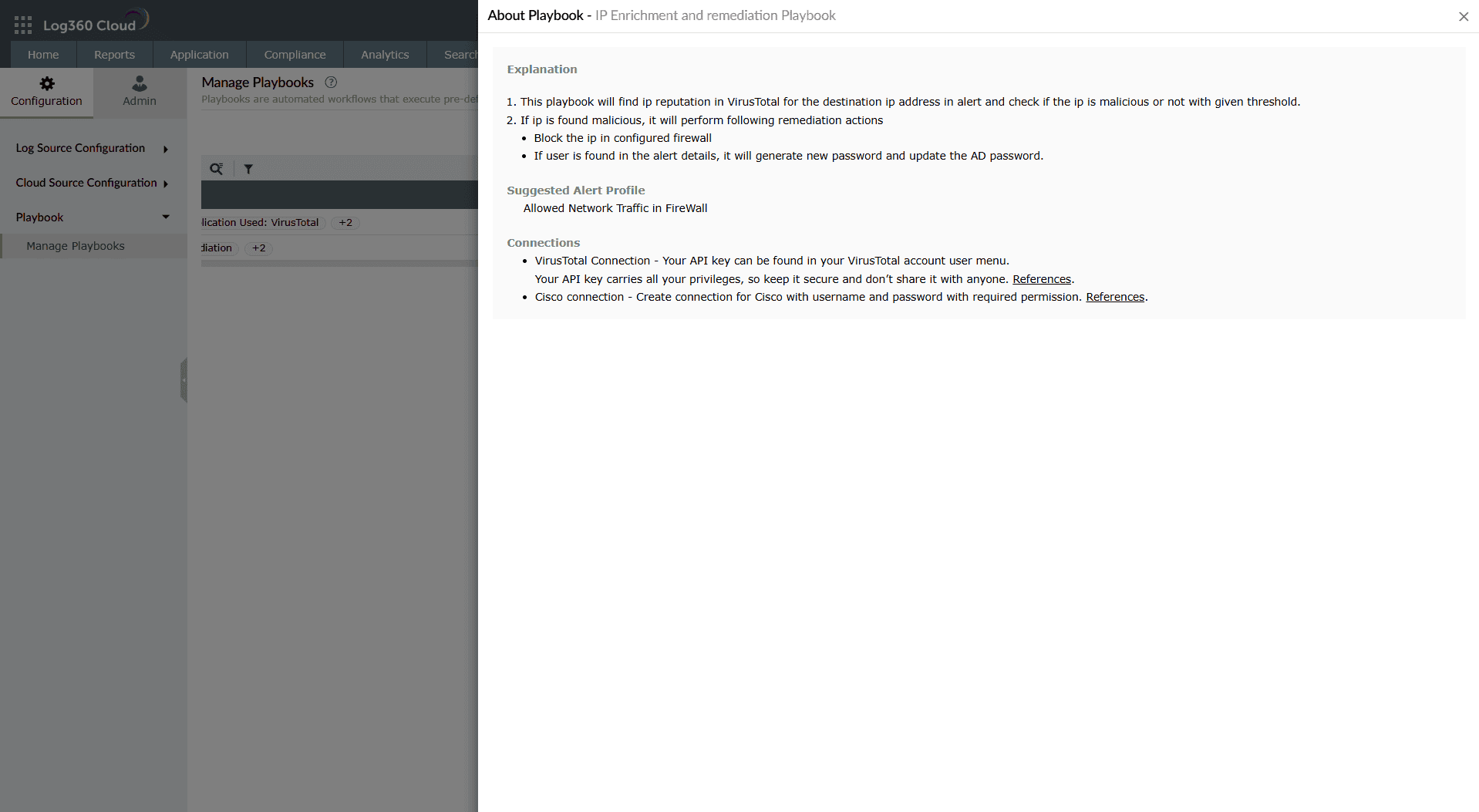
Image : About playbook that opens the Playbook details pane - Created by: The user who created the playbook.
- Created from: Indicates whether the playbook was created manually or imported from the library.
- Created time: Timestamp when the playbook was first created.
- Last modified by: User who made the most recent changes to the playbook.
- Last modified time: Timestamp of the last modification.
Actions available for a playbook
The Actions column provides various actions available for the list of playbooks. Below are the available actions:
- Enable/disable a playbook
- Clone a playbook
- Edit a playbook
- Delete a playbook
- View the execution history of a playbook
Enable/disable a playbook
Enabling a playbook
- Click on the currently disabled icon
 under the Actions column to enable the playbook.
 - As soon as you perform this action, the icon indicates that the playbook is now enabled
 and the below pop-up message appears briefly.

Disabling a playbook
- Click on the currently enabled icon under the Actions column to disable the playbook.
- As soon as you perform this action, the icon indicates that the playbook is now disabled and the below pop-up message appears briefly.

Clone a playbook
This is useful when administrators must build a new playbook based on an existing one without disrupting production playbooks.
- Click on the clone icon
 under the Actions column to duplicate the respective playbook.
 - The Clone Playbook pane slides open in draft mode with the original configuration retained. You can make the necessary changes to this cloned playbook and click on the Clone button.
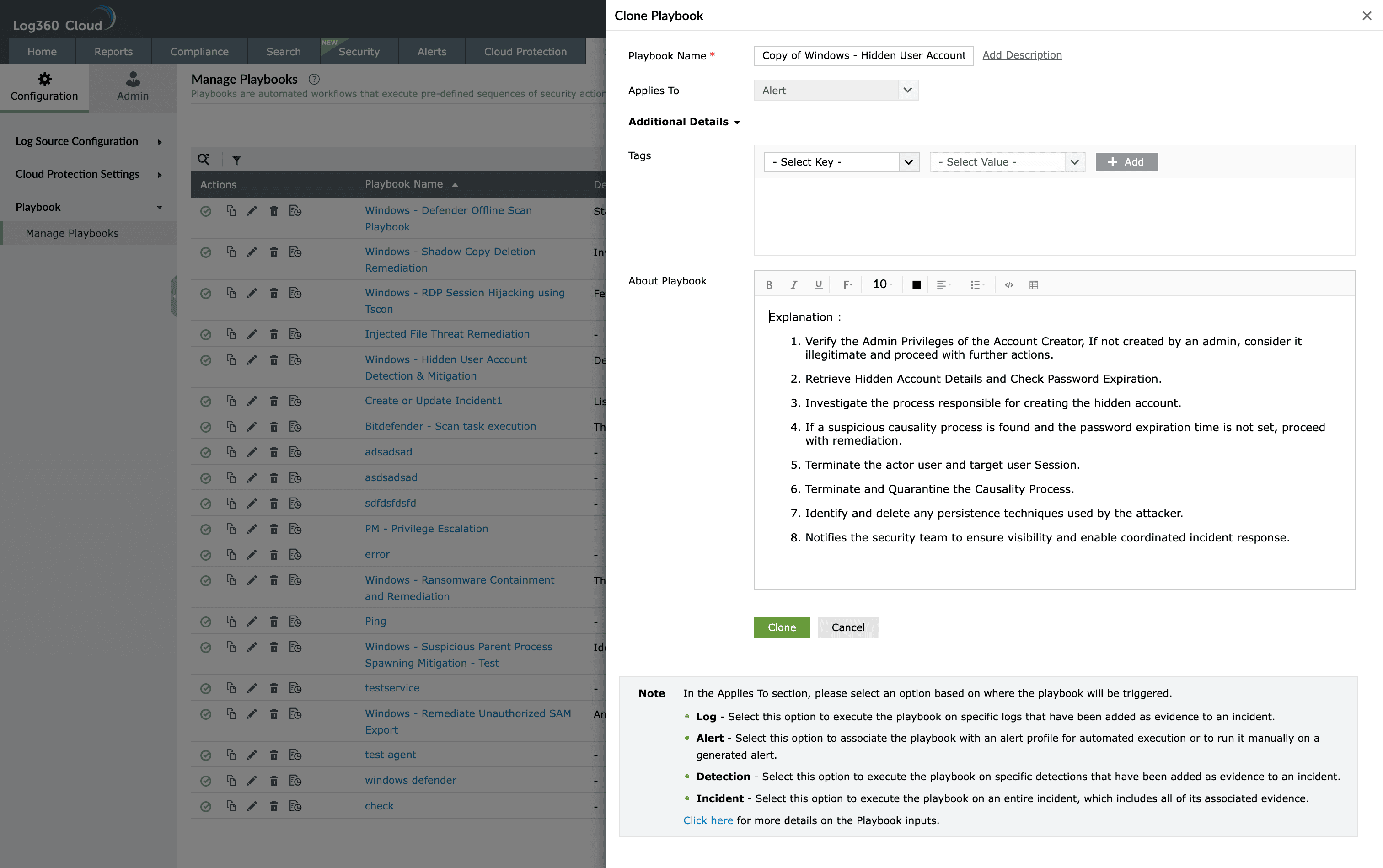
Image : Cloning a playbook - Upon successful completion of action the below pop-up appears and you will be taken to the playbook builder view.

- You can now use the drag-and-drop mechanism to edit the execution path of this cloned playbook.
Edit playbook
- Click on the edit icon
 under the Actions column to edit the respective playbook.
 - You will be taken to the Playbook builder page.
- After editing the playbook, click on Update.
Delete playbook
Conditions and constraints:
- The playbook must not be currently associated with any module in the product. Refer to Case 1 for such a scenario.
- If associations exist, they must be cleared before deletion. Refer to Case 2 for such a scenario.
- Deleted playbooks and their builder definitions cannot be restored.
Case 1: There are no associations for the playbook you want to delete:
- Click on the delete icon
 present in the Action column in Manage Playbooks. A Confirm Deletion pop-up appears.
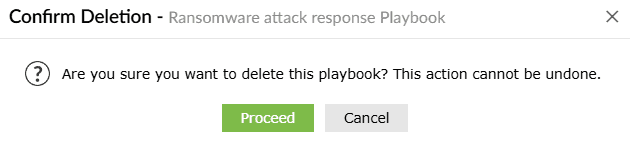
- Click on Proceed.
- Upon successful completion of action, the below pop-up appears.

Case 2: There are associations for the playbook you want to delete:
- Click on the delete icon to delete a playbook in the Manage Playbooks module.
- Upon clicking the delete icon, the below pop-up appears.
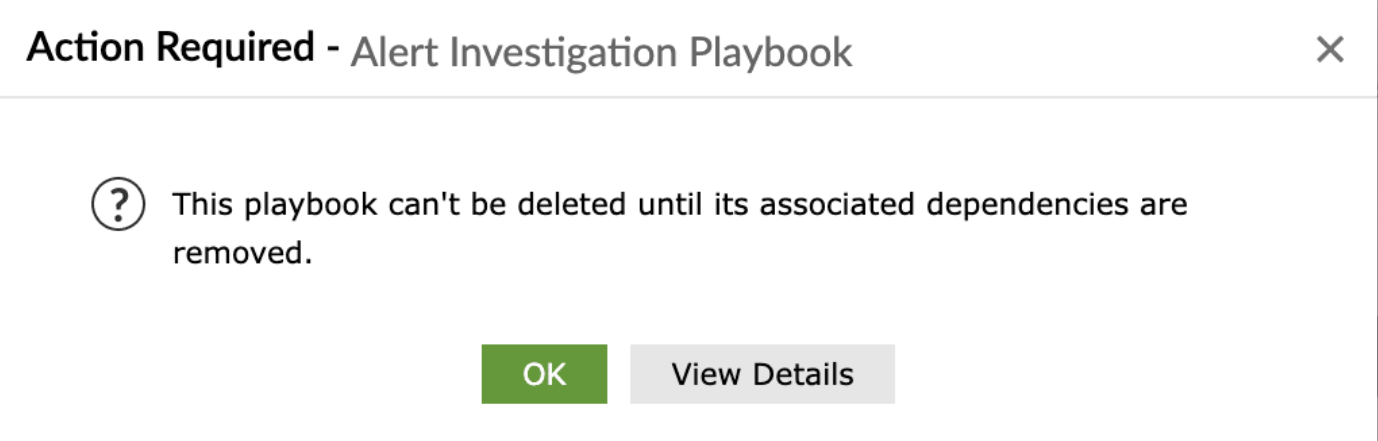
- Click on View Details to view the list of modules this playbook is currently associated with.
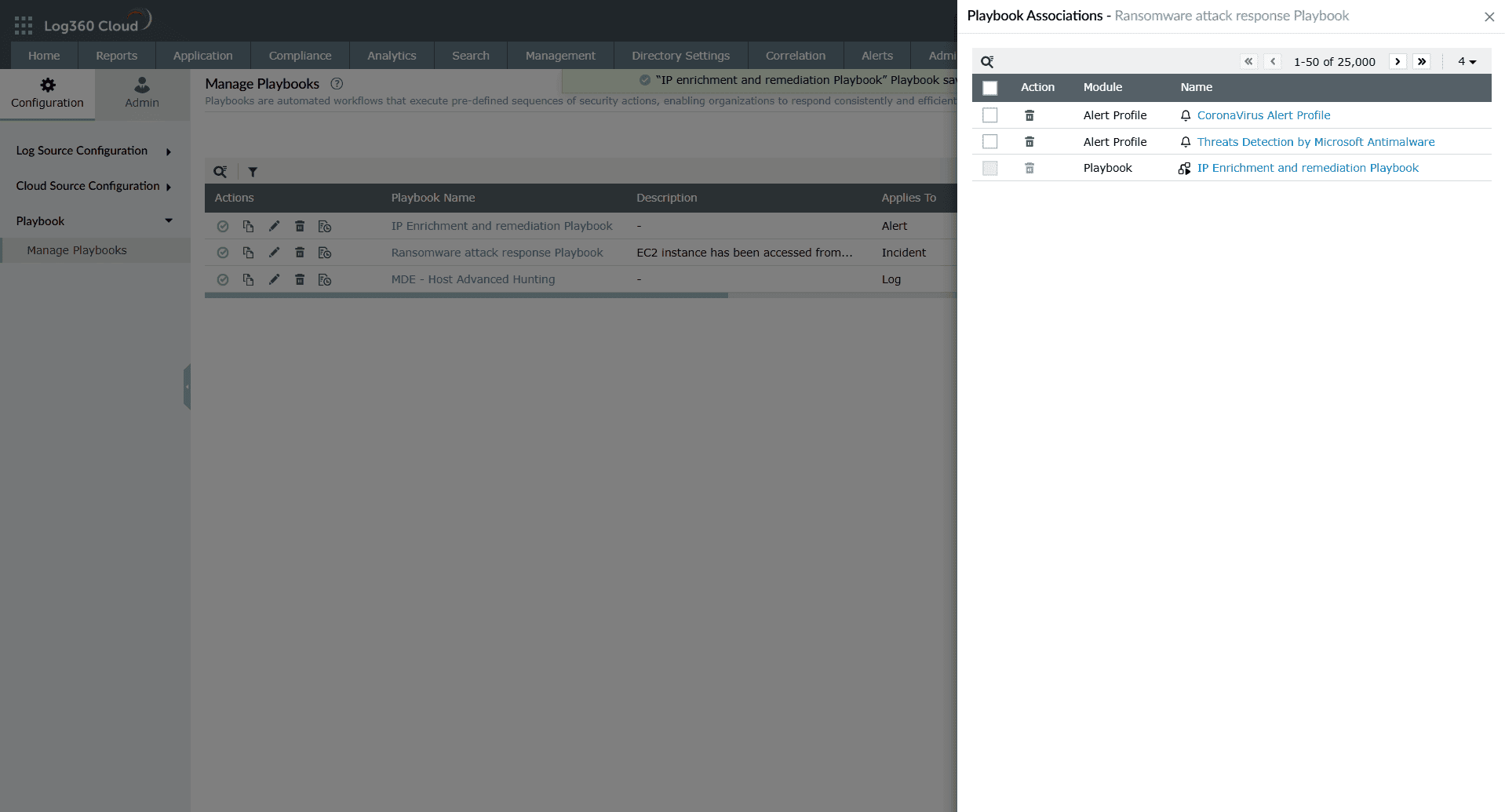
Image : List of playbook associations - From here you can view the below details:
- Action: By clicking on the delete icon present here, you can remove a playbook's association with a module.
- Module: This shows the name of the modules with which this playbook is associated with.
- Name: This shows the name of the Playbooks or Alert Profiles with which this playbook is associated with in the respective modules. Clicking on this name will take you to the associated module.
- Action: By clicking on the delete icon
- Remove a playbook association to delete a playbook: Click on the delete icon present in the Action column in the Playbook Associations pane to remove associations. The below pop-up appears.
Note A playbook that is associated with another playbook cannot be deleted from the Playbook Associations pane. To delete such a playbook, you must first remove its association by editing the parent playbook, and then proceed with the deletion.
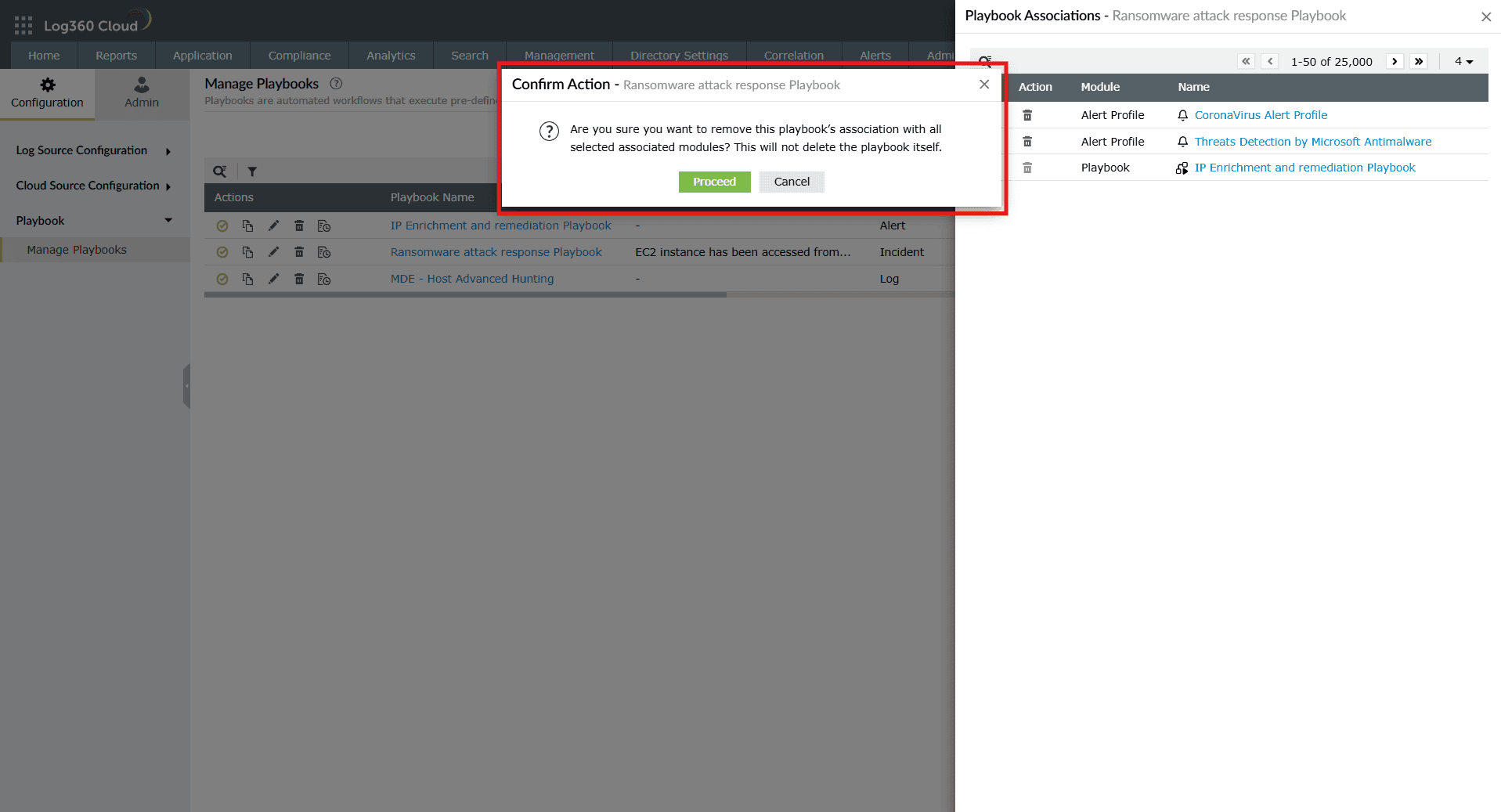
Image : Confirm action to remove a playbook association - Upon successful completion of action, the below pop-up appears.

- Once all associations are removed, you can click on the delete icon in Manage Playbooks module. A Confirm Deletion pop-up appears.
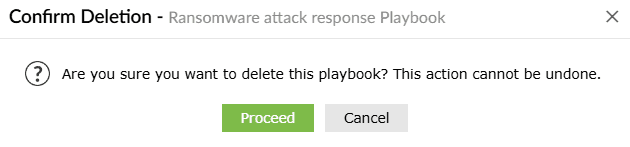
- Click on Proceed.
- Upon successful completion of action, the below pop-up appears.

View execution history
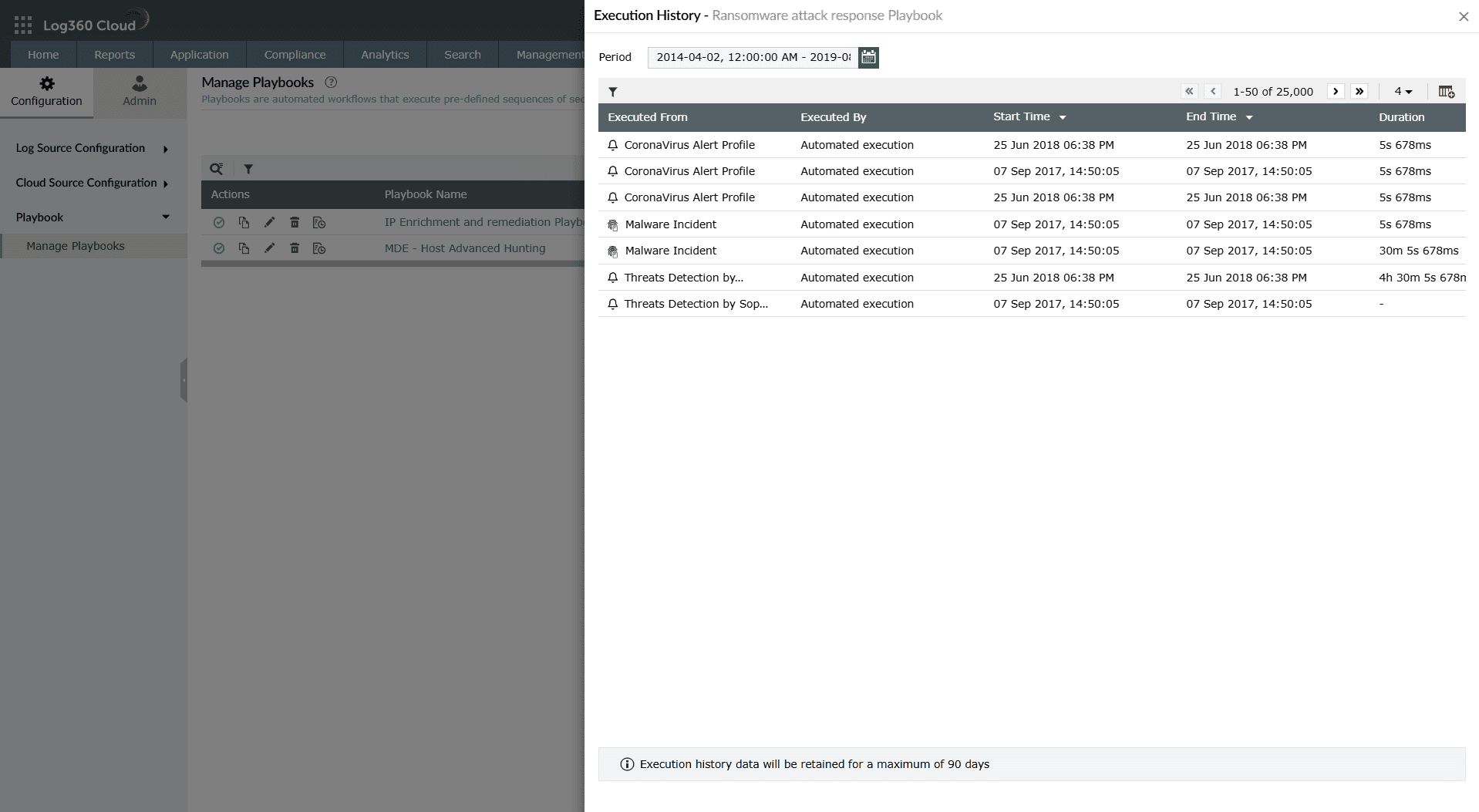
- Click on the View History icon
 in the Actions column to analyze execution logs of the selected playbook. Execution history includes:
- Executed from: Indicates the source that triggered the playbook (alert profile or incident only).
- Executed by: Shows whether the playbook was triggered automatically by the system or manually by a user.
- Start time: The timestamp at which the playbook execution began.
- End time: The timestamp at which the execution completed.
- Duration: Total time taken for the execution to complete.
- Status: Execution result (success, failed, aborted, or in progress).
- Execution details: Opens the detailed step-by-step breakdown of the run.
Other actions
Other actions available in the Manage Playbooks module are as follows:
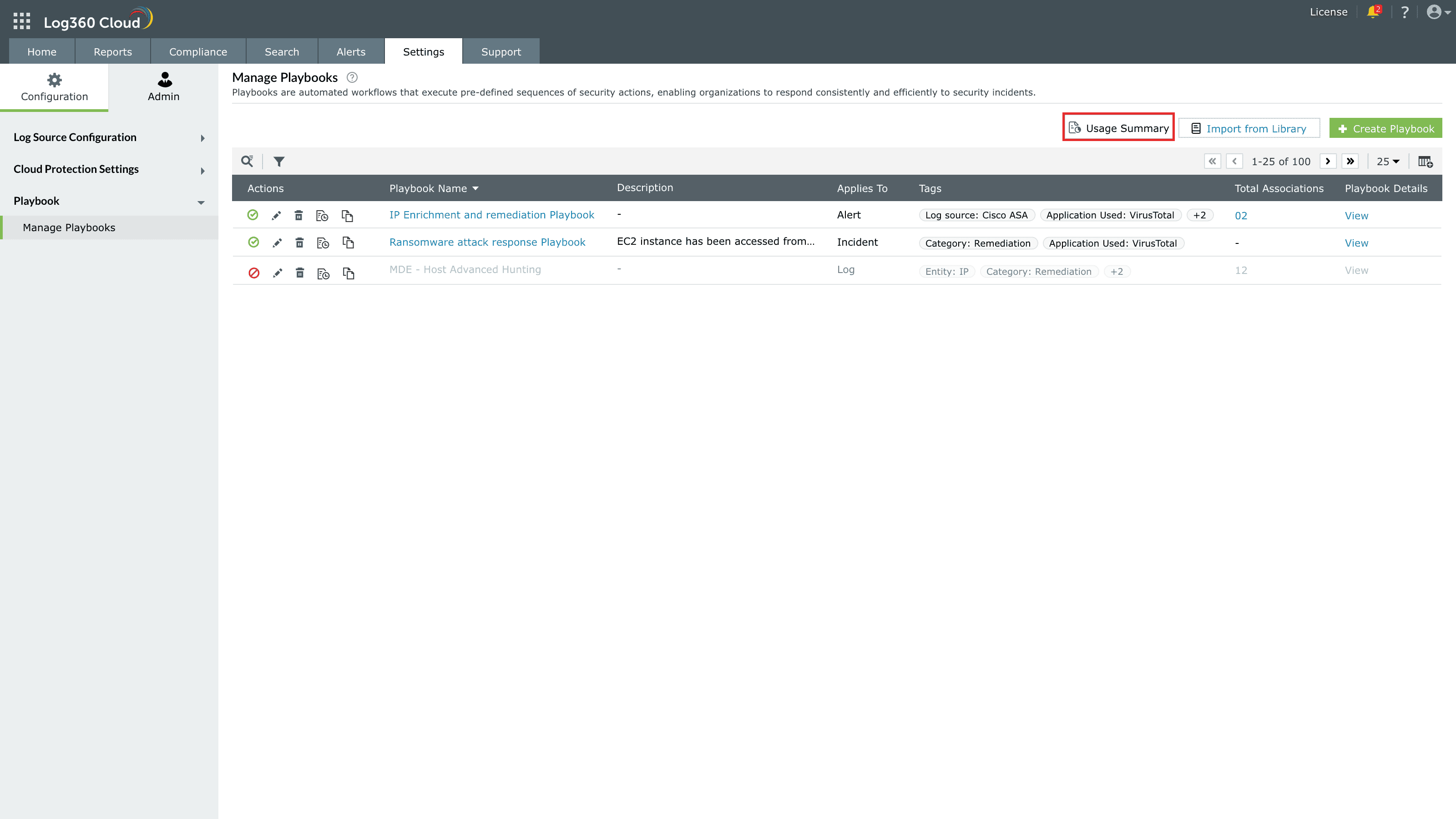
Usage summary
Click on Usage summary to in Manage Playbooks as highlighted in the below image.
The analytics pane slides open displaying global statistics on playbook executions across the environment.
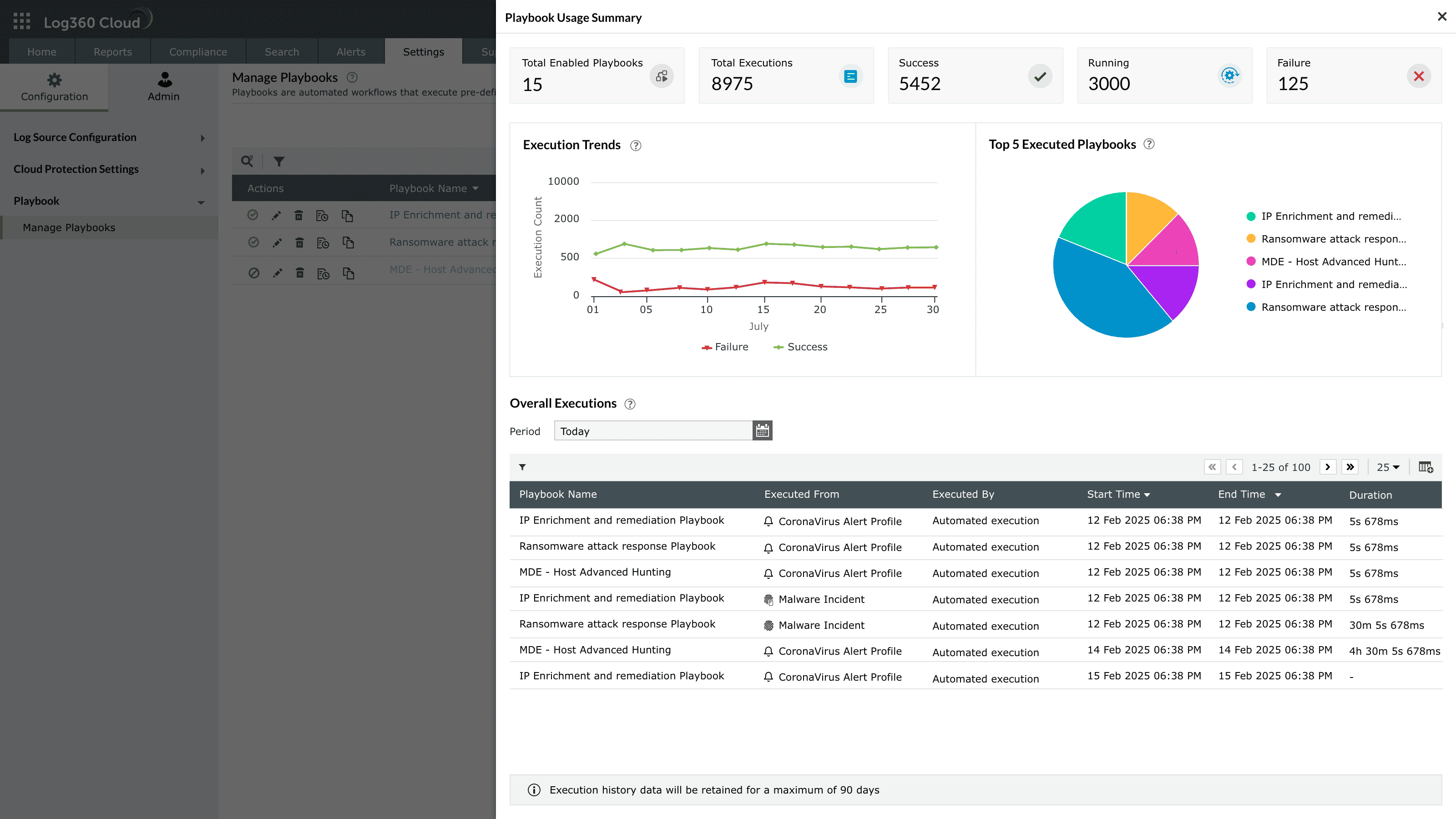
The summary includes:
Top KPI metrics
- Total enabled playbooks: Number of active playbooks in the system.
- Total executions: Total number of playbook runs.
- Success: Executions completed without errors.
- Running: Playbooks currently in progress.
- Failure: Executions that encountered errors.
Execution trends: A line graph visualizing daily success and failure counts for the current month, helping SOC teams detect operational patterns and performance degradation.
Top 5 executed playbooks: A pie chart showing the most frequently triggered playbooks to help identify critical and heavily engaged automation flows.
Overall executions table: Displays detailed execution logs including:
- Playbook name
- Executed from
- Executed by
- Start and end time
This table can be filtered by date range and searched for specific records.
Import from library
Click Import from library to open the playbook library.
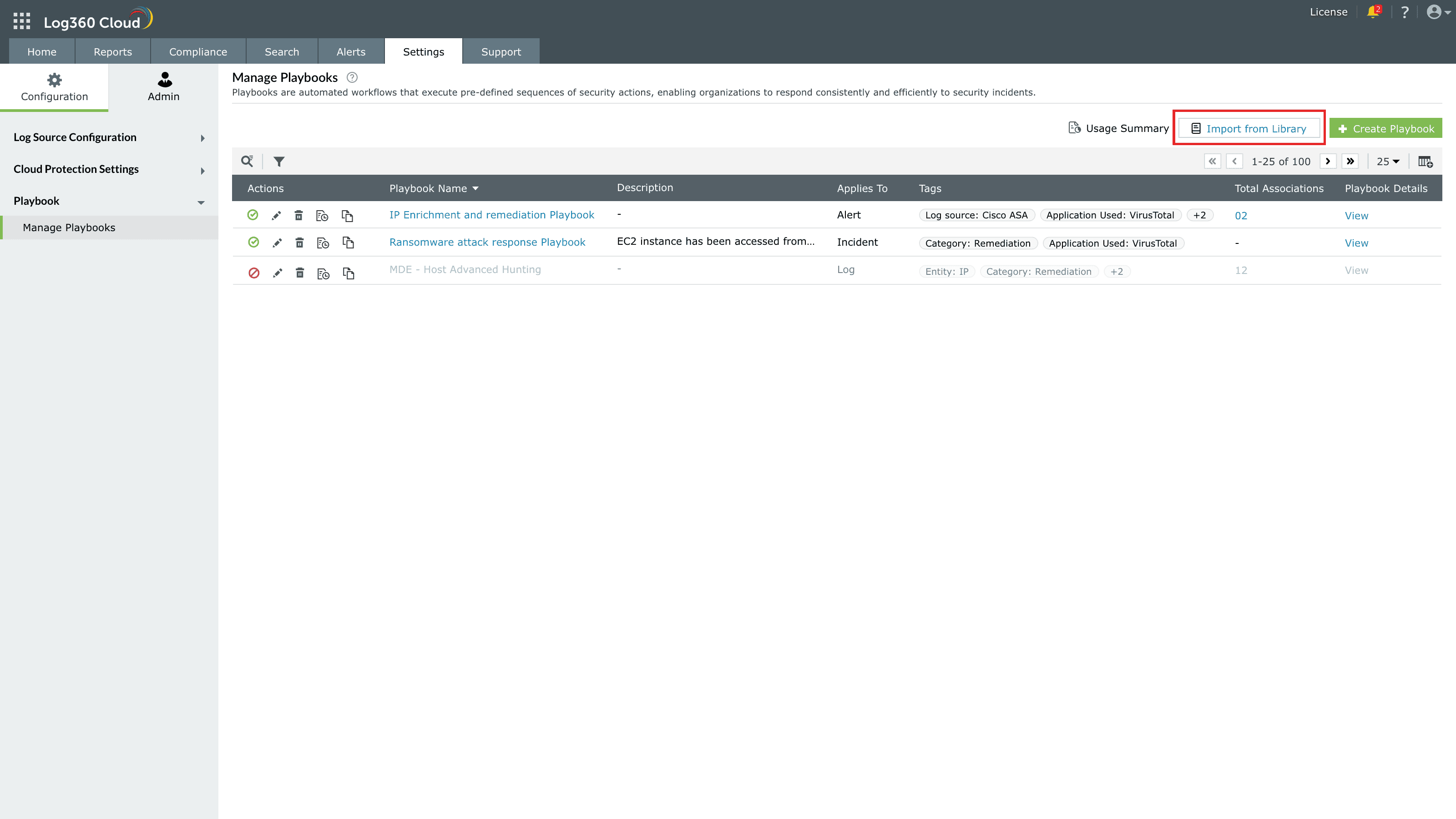
The library provides a set of predefined and production-ready playbooks for enrichment, validation, incident response, and automated remediation. Users can:
- Browse available playbooks
- View metadata and use cases
- Install selected playbooks directly into the system
Once imported, playbooks appear in the Manage Playbooks list and can be customized if required.
Read also
This page described how to manage playbooks in Log360 Cloud including editing, copying, deleting, importing, enabling, disabling, and analyzing execution patterns. To understand more about the related capabilities, refer to the below help documents: