Configuring Probe and Central communication after installation
This page gives a step by step instruction on the steps you need to follow to establish connection between a Probe and Central.
How to configure Central details in Probe
- Navigate to Settings > Configuration > Central details.

- Under the Primary server details choose the protocol - https/http. (HTTPS represents a secure connection.)
- Enter the host name and port in which the central is running.
- Click on Diagnose to check the connection status.
- Click on Save to configure the details.
Note:
- OpManager will notify the user when there is a mismatch between the host name and the SSL certificate. Click here to understand more about the impacts of host name mismatch.
- Once registered, a Probe cannot be connected to a different Central. Each Probe is bound to the Central with which it was originally installed.
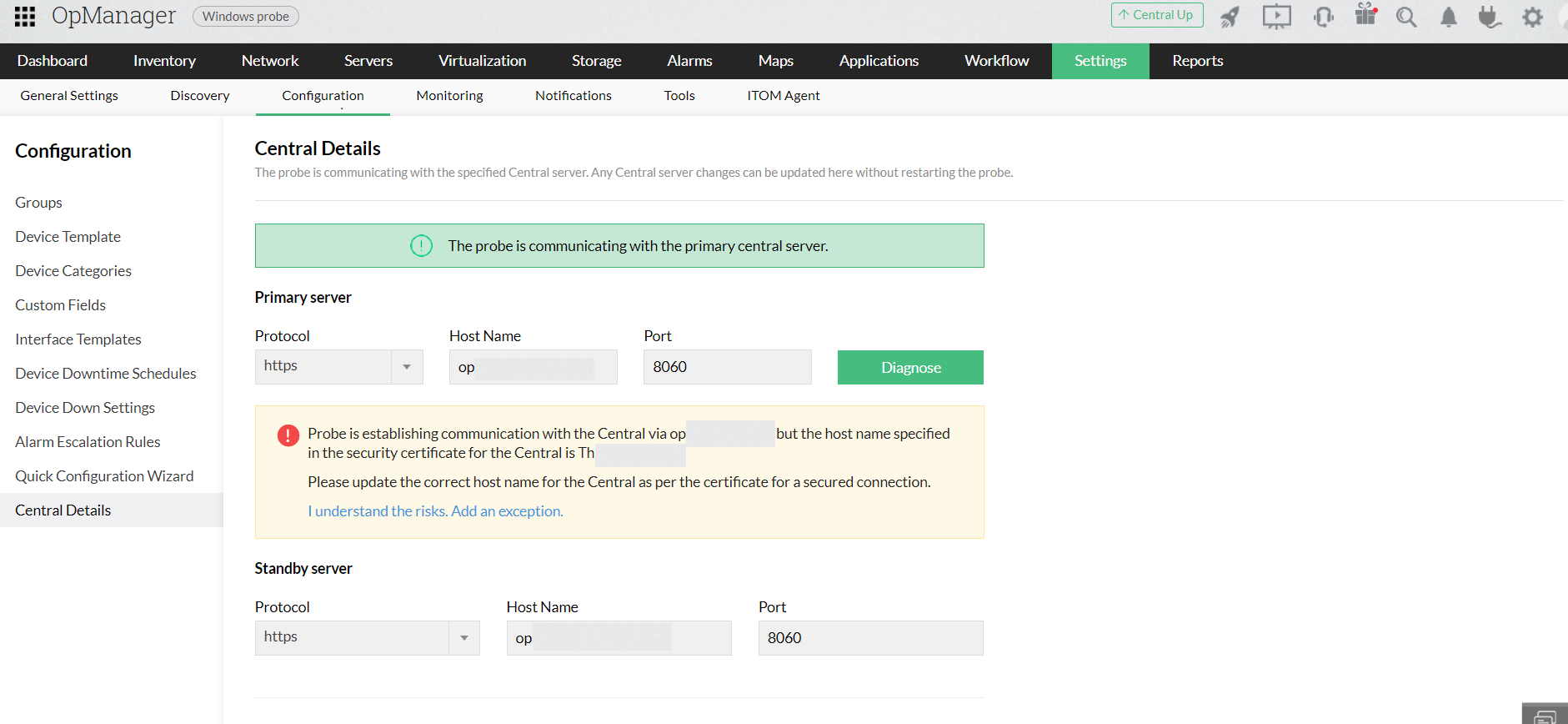
If you face any issues in doing so, kindly click on "I understand the risks. Add an exception."
How to configure Probe details in the Central
The Probe details will be automatically updated in the Central's UI after the installation. In the Probe details page you can view the list of Probes, edit details and delete a Probe.
- Navigate to Setting > Configuration > Probe details in the Central UI.
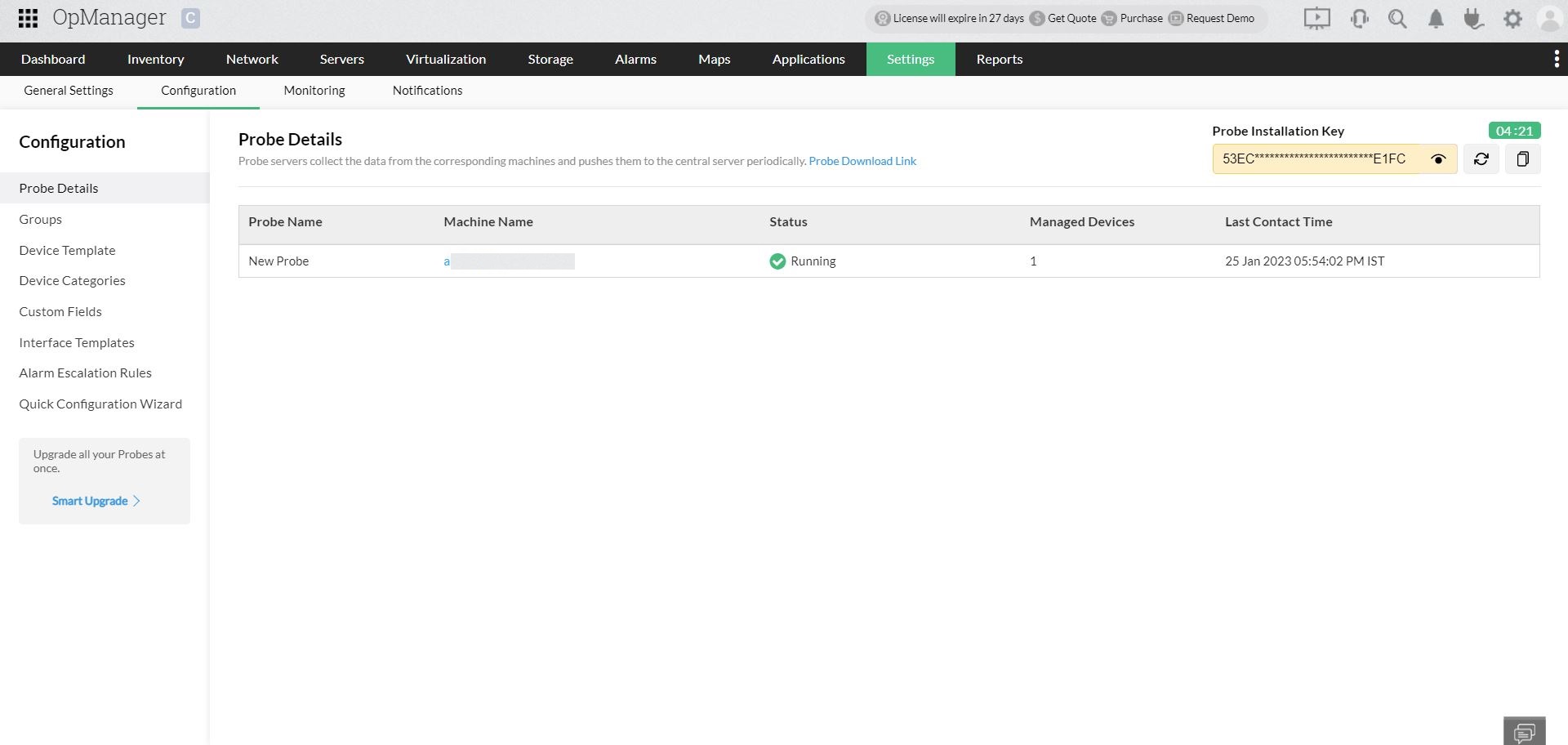
- You will find the list of installed probes already mapped with the Central
- To add new Probes, click on Probe Download Link and follow the installation process.
Probe installation key
On the top right corner of the Probe details page you can find the Probe installation key. You have to enter this key during the Probe installation process. This key will be auto regenerated every 15 minutes as a security measure. (You can use the refresh button to regenerate the key manually.)
Note:
- You can also update the Central and Probe details on the Probe and Central servers respectively by following the steps given above.
Supported actions
Edit Probe details
Click on the Probe name to edit the details. You can rename a Probe, update its NAT configuration, and modify contact details as needed.
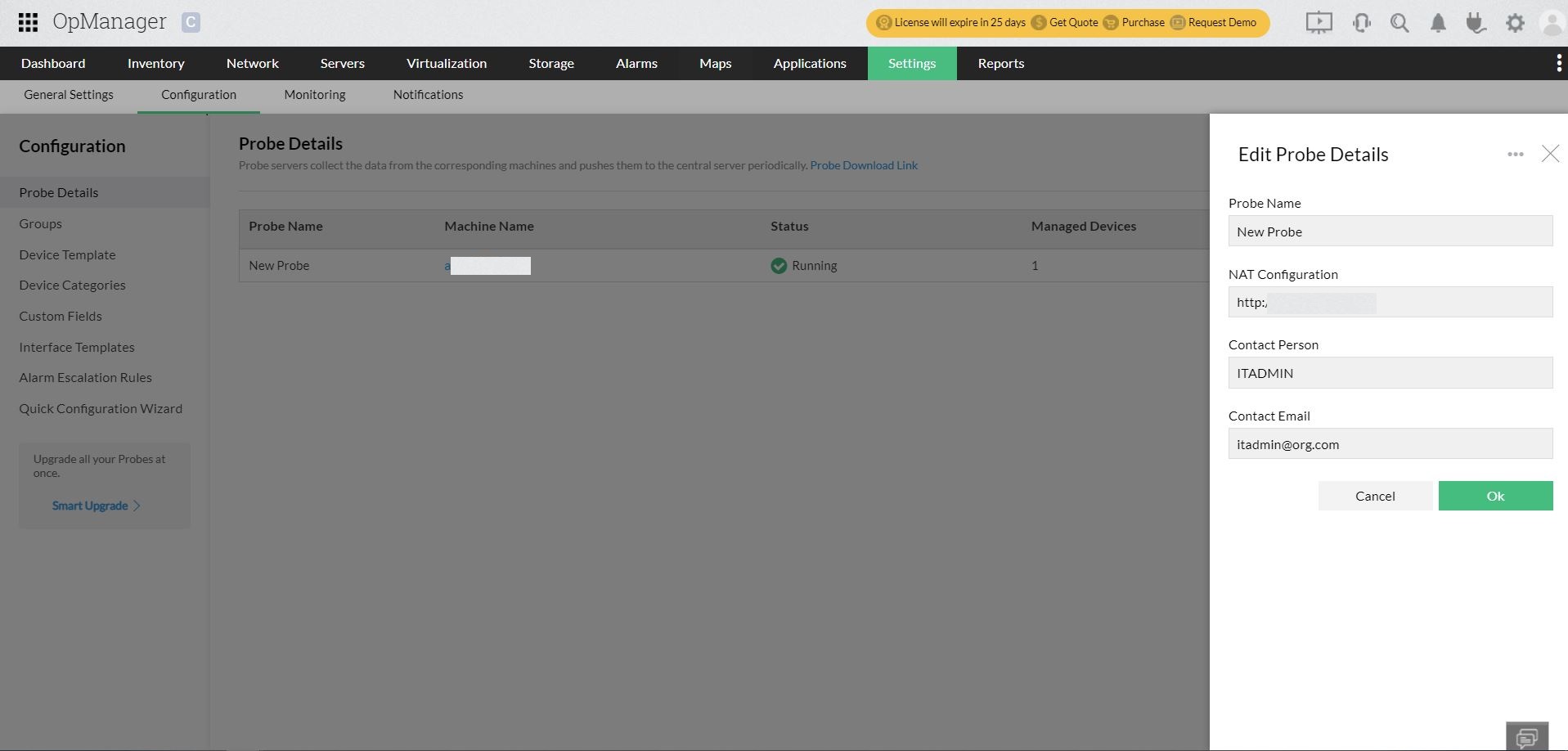
When you migrate a Probe to another server, please ensure that you specify the correct NAT configuration to access the Probe.
The NAT configuration (e.g., https://Probe10.opmanager.com:443) specifies the Probe's hostname, communication protocol (such as HTTPS), and the port number used to communicate with the Central server.
Please note when incorrect Probe details are configured, the Central cannot reach the Probe and fetch monitoring data.
Upgrade Probes
You can upgrade all your Probes and view the progress from a single console with the Smart Upgrade button on the left pane. By uploading the .ppm file you can enable all Probes to download the file and upgrade.
Delete Probes
Before deleting or planning to migrate a Probe, it is recommended to take a backup of the installation and move them to a different server.