OpManager Enterprise Edition - A guide to migration and backup
- Migrating Central and Probe
- Data Backup and Restoration
- Migrating Standard/ Professional To Enterprise Edition
- Enabling HTTPS
- Configuring Central & Probe details
When should you migrate?
- When hardware, server OS, or SQL requirements have been changed.
- When you need new servers for space and better performance.
- If you need to migrate products to a dedicated server.
- When adding a new database or new server type.
Migrating Central and Probe from one server to another server
To move only the installation without moving the database
Steps to migrate Central from one server to another:
- Stop OpManagerCentral service. Execute 'OpManagerService.bat -r' under the OpManagerCentral/bin directory to remove the OpManagerCentral service in the existing machine.
- Take a compressed backup of the entire OpManagerCentral folder.
- Extract the folder to the new system where Central is about to be installed.
- For PgSQL: Open command prompt with administrator privileges in the machine where the Central needs to be installed.
- Go to the OpManagerCentral/bin directory in the new machine and execute 'initPgsql.bat' to give access permission for the database from the new server.
- In the same command prompt, execute ‘OpManagerService.bat -i’ to add OpManagerCentral as a service.
- Start OpManagerCentral from Windows services in the new machine.
- Update Central details for the new machine. Click here for the steps to do so.
- Restart all the probes.
- To clean up the existing machine, uninstall OpManagerCentral.
Steps to migrate Probe from one server to another:
For Windows probe, if OpManager agents are installed for monitoring, kindly carry out the steps in this page before proceeding further.
- Stop OpManagerProbe service. Execute 'OpManagerService.bat -r' under the OpManagerProbe/bin directory to remove the OpManagerProbe service in the existing machine.
- Take a compressed backup of the entire OpManagerProbe folder.
- Extract the folder to the new system where the probe is about to be installed.
- For PgSQL: Open command prompt with administrator privileges in the machine where Probe needs to be installed.
- Go to the OpManagerProbe/bin directory in the new machine and execute 'initPgsql.bat' to give access permission for the database from the new server.
- In the same command prompt, execute'OpManagerService.bat -i' to add OpManagerProbe as a service.
- Start OpManagerProbe from Windows services in the new machine
- Update Probe details for the new machine. Click here for the steps to do so.
- To clean up the existing machine, uninstall OpManagerProbe.
To move both the database and the installed machine
It is not recommended to move the database from one Server Studio to another. Contact opmanager-support@manageengine.com for further assistance.
Data Backup and Restoration
Moving installation from one server to another using backup and restore
Steps to migrate Central:
- Stop the OpManagerCentral service and take a backup using the steps given in this page.
- Stop all the probes to avoid loss of data.
- Do a new, clean installation of Central in the required server.
- Follow the steps given in this page to restore the data.
- Start OpManagerCentral.
- Update Central details for the new machine. Click here for the steps to do so.
Steps to migrate Probe:
For Windows probe, if OpManager agents are installed for monitoring, kindly carry out the steps in this page before proceeding further.
- Stop the OpManagerProbe service and take a backup using the steps given in this page.
- Do a new, clean installation of the probe in the required server.
- After the probe is installed successfully, start the service and check if the probe is communicating properly with the central.
- Stop the newly installed probe.
- Follow the steps given in this page to restore the data.
- Start the OpManagerProbe.
- In Central, go to 'Probe Details' page and verify that the status of the old probe is displayed as "Running" and the status of new probe is displayed as "Server Down".
- Delete the new probe (*Do not delete the old probe*).
- Update Probe details for the new machine. Click here for the steps to do so.
- To clean up the existing machine, uninstall OpManagerProbe.
Migrating from OpManager Standard/Professional to OpManager Enterprise Edition
If you are upgrading to OpManager Enterprise Edition for reasons concerning scalability or remote network monitoring or both, you can migrate from OpManager Standard/Professional without having to start afresh. This means all the configuration and historical data in the existing OpManager installation can be safely ported to the enterprise edition during the migration.
Upon migration, the existing OpManager installation (Standard/Professional Edition) will function as a Probe server. The Central server has to be installed in a new machine.
To migrate to OpManager Enterprise Edition, follow the steps given below:
Step 1: Installing OpManager Central
Install the version of OpManagerCentral corresponding to the version of OpManager Standard/Professional Edition in a new machine.
- OpManagerCentral can be downloaded from this link.
- In the List of Products field, select OpManager.
- In theProduct Version field, enter the version corresponding to the existing OpManager Standard/Professional Edition and click on Submit.
- In the new page, click on the required version from the list.
- Click on the required OpManager_Central_64bit file to download.
Step 2: Database Backup
Backup the existing OpManager Standard/Professional Edition database. To backup the database, follow the steps in this page.
Step 3: Migration
Migrating to OpManager Enterprise Edition can be done in two ways:
- User Interface - Migrating with a step by step wizard
- Console Mode - Migrating with Command Prompt. Console mode is chosen as default migration method if the UI is not supported.
1. Migration using User Interface:
- Go to the bin folder under OpManager installation directory.
- Windows OS: Run the MigrateToEnterprise.bat file as administrator.
- Linux OS: Run the MigrateToEnterprise.sh file as root user.
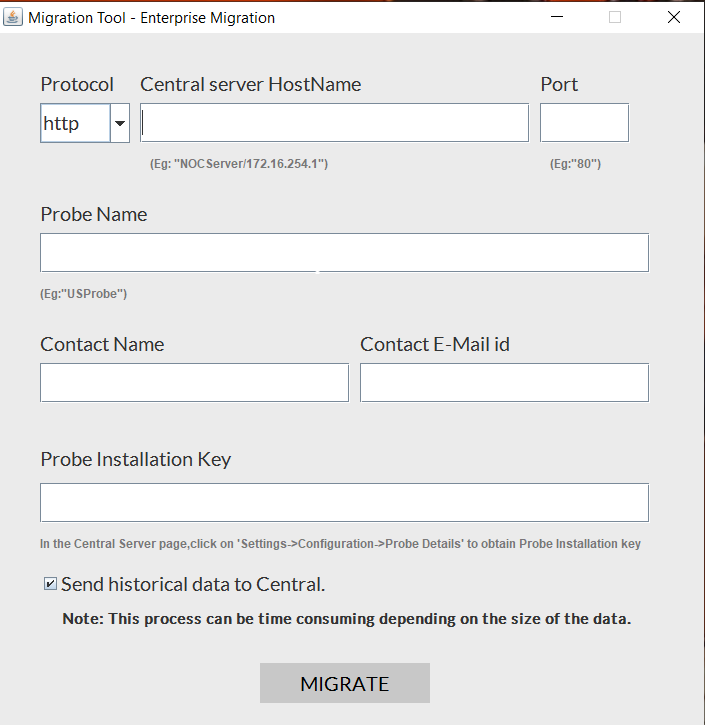
- The Migration Tool wizard appears.
- In the wizard, enter the corresponding < Central Server Name >, < Protocol >, < Port > and the < Probe Installation Key >.
- Enter the required < Probe Name >, < Contact Name > and < Contact E-mail id >.
- Click on MIGRATE.
2. Migration using Console mode:
- Go to the bin folder under OpManager installation directory.
- Windows OS: Run the MigrateToEnterprise.bat file using -c as parameter.
- Linux OS: Run the MigrateToEnterprise.ssh file using -c as parameter.
- Enter the details in the below order.
< Central Protocol >
< Central Name >
< Central Port >
< Probe Name >
< Contact Name >
< Email >
< Probe Installation Key >.
Historical data from probe servers can be sent to the Central server based on user preferences. However, the historical data will still be available in probe server.
The migration process is complete. Now the OpManager installation functions as a probe server and synchronizes data with the Central server.
* Points to note:
- The OpManager Central version (to be downloaded) has to match with the existing OpManager version (Standard/Professional Edition) for successful migration.
- The OpManager version can be found by clicking on the User icon on the top right hand side of the existing OpManager installation.
- The Probe Installation Key can be found under OpManagerCentral > Settings > Configuration > Probe Details.
- Historical data - The past performance data collected by OpManager. Historical data is used for populating graphs, charts and generating reports.