

- Free Edition
- Quick Links
- Active Directory Auditing
- Active Directory auditor
- Active Directory monitoring
- Account lockout analyzer
- Login monitoring software
- Active Directory change notifier
- User logon audit reports
- AD logon logoff tracker
- User logon failure auditing
- Login history tracking tool
- AD change auditor
- Insider threat detection software
- Permissions change auditing
- Entra ID reporting
- Privileged user monitoring
- User behavior analytics tool
- Active Directory security monitoring
- Group Policy auditing tool
- GPO change auditor
- Entra ID auditing
- Audit user account management
- OU change auditor
- Audit group membership changes
- Active Directory auditing and reporting tool
- GPO reporting tool
- Remote desktop monitoring software
- PowerShell logging and auditing
- Azure password protection auditing
- Azure sign-in risk detection
- File Server Auditing
- Windows Server Auditing
- Employee Tracking
- Workstations Auditing
- Compliance Auditing
- Other features
- SIEM Integration
- Windows DNS - Schema Auditing
- Windows security event log monitoring
- SIEM audit solution
- Schedule Active Directory change reports
- Reports from Archived Data
- Aggregated summary reports
- AD new/old attribute changes
- Audit trail
- Audit Active Directory LAPS
- Scheduled Reports & Alerts
- Account lockout examiner
- Industry
- Documents
- Success Stories
- Related Products
- Log360 (On-Premise | Cloud) Comprehensive SIEM and UEBA
- ADManager Plus Active Directory Management & Reporting
- EventLog Analyzer Real-time Log Analysis & Reporting
- ADSelfService Plus Identity security with MFA, SSO, and SSPR
- DataSecurity Plus File server auditing & data discovery
- Exchange Reporter Plus Exchange Server Auditing & Reporting
- M365 Manager Plus Microsoft 365 Management & Reporting Tool
- RecoveryManager Plus Enterprise backup and recovery tool
- SharePoint Manager Plus SharePoint Reporting and Auditing
- AD360 Integrated Identity & Access Management
- AD Free Tools Active Directory FREE Tools
Windows Event ID 4625 – Failed logon
Introduction
Event ID 4625 (viewed in Windows Event Viewer) documents every failed attempt at logging on to a local computer. This event is generated on the computer from where the logon attempt was made. A related event, Event ID 4624 documents successful logons.
Event 4625 applies to the following operating systems: Windows Server 2008 R2 and Windows 7, Windows Server 2012 R2 and Windows 8.1, and Windows Server 2016 and Windows 10. Corresponding events in Windows Server 2003 and earlier included 529, 530, 531, 532, 533, 534, 535, 536, 537, and 539 for failed logons.
Event ID 4625 looks a little different across Windows Server 2008, 2012, and 2016. Highlighted in the screenshots below are the important fields across each of these versions.
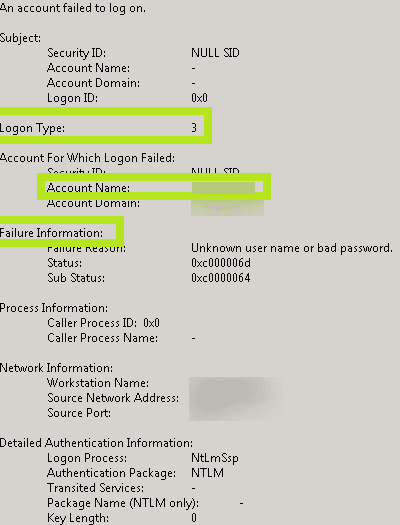
Event 4624 (Windows 2012)
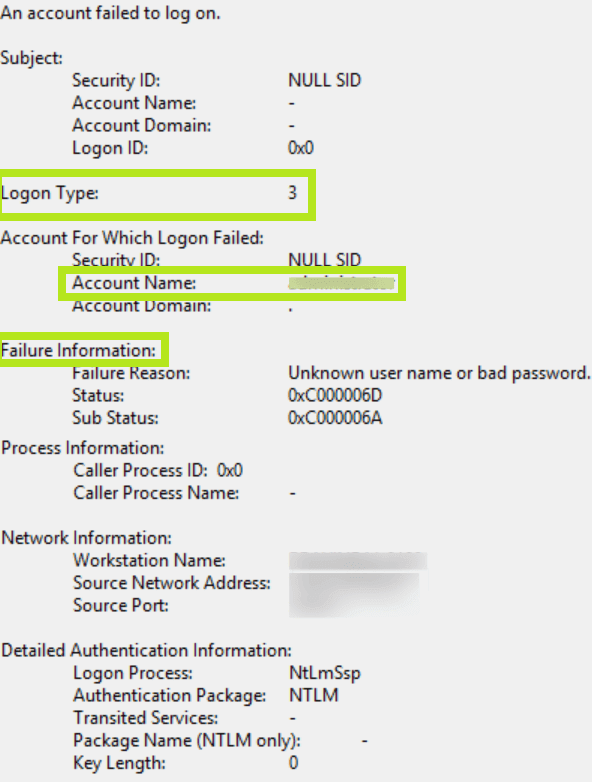
Event 4624 (Windows 2016)
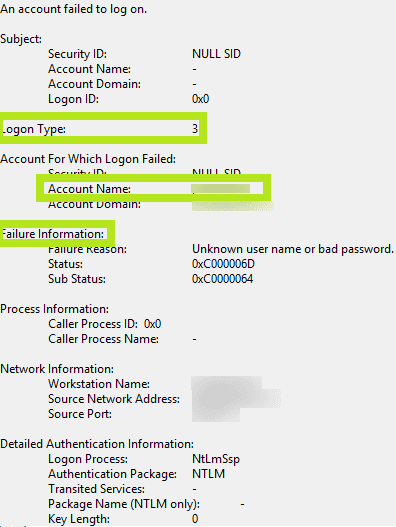
Description of Event Fields
The important information that can be derived from Event 4625 includes:
- Logon Type: This field reveals the kind of logon that was attempted. In other words, it points out how the user tried logging on. There are a total of nine different types of logons. The most common logon types are: logon type 2 (interactive) and logon type 3 (network). Any logon type other than 5 (which denotes a service startup) is a red flag. For a description of the different logon types, see Event ID 4624.
- Account For Which Logon Failed: This section reveals the Account Name of the user who attempted the logon.
- Failure Information: This section explains the reasons for the logon failure. The Failure Reason field includes a short explanation, while the Status and Sub Status fields list hexadecimal codes, the most common of which are explained below.
Other information that can be obtained from Event 4625:
Status and Sub Status Codes Description 0xC0000064 The username is misspelled or does not exist. 0xC000006A The user's password is wrong. 0xC000006D The username or authentication information is incorrect. 0xC0000234 The user is currently locked out. 0xC0000072 The user account is currently disabled. 0xC000006F The user tried to log on outside authorized hours. 0xC0000070 The user tried to log on from an unauthorized workstation. 0xC0000193 The user's account has expired. 0xC0000071 The user's password has expired. 0xC0000133 The domain controller and computer's times are out of sync. 0xC0000224 The user is required to change their password at next logon. 0xc000015b The user has not been granted the requested logon type on that machine. - The Subject section reveals the account on the local system that requested the logon (not the user).
- The Process Information section reveals details surrounding the process that attempted the logon.
- The Network Information section reveals where the user was when they attempted the logon. If the logon was initiated from your current computer, this information will either be blank or reflect that local computer's workstation name and source network address.
- The Detailed Authentication section reveals information about the authentication package used while attempting the logon.
Reasons to monitor failed logons:
Security
To detect brute-force dictionary, and other password guess attacks, which are characterized by a sudden spike in failed logons.
To detect abnormal and possibly malicious internal activity, like a logon attempt from a disabled account or unauthorized workstation, users logging on outside of normal working hours, etc.
Operational
To come up with a benchmark for the Account lockout threshold policy setting, which determines the number of failed sign-in attempts before a user account gets locked.
Compliance
To comply with regulatory mandates precise information surrounding failed logons is necessary.
The need for a third-party tool
In a typical IT environment, the number of events with ID 4625 (failed logon) can run into the thousands each day. Failed logons are useful on their own, but greater insights into network activity can be drawn from clear connections between them and other pertinent events.
For example, while Event 4625 is generated when an account fails to log on and Event 4624 is generated for successful logons, neither of these events reveal if the same account has recently experienced both. You have to correlate Event 4625 with Event 4624 using their respective Logon IDs to figure that out.
Thus, event analysis and correlation needs to be performed. Native tools and PowerShell scripts demand expertise and time when employed to this end, so a third-party tool is truly indispensable.
Applying machine learning, ADAudit Plus creates a baseline of normal activities specific to each user and only notifies security personnel when there is a deviation from this norm.
For example, a user who consistently accesses a critical server outside of business hours wouldn't trigger a false positive alert because that behavior is typical for that user. On the other hand, ADAudit Plus would instantly alert security teams when that same user accesses that server during a time they've never accessed it before, even though the access falls within business hours.