Application Control: Policy Deployment
Associate application groups with device groups, choose a policy mode, and manage enforcement, notifications, revocation, and access events.
Association
Associate application groups
Link application allowlists or blocklists to specific device groups before deploying.
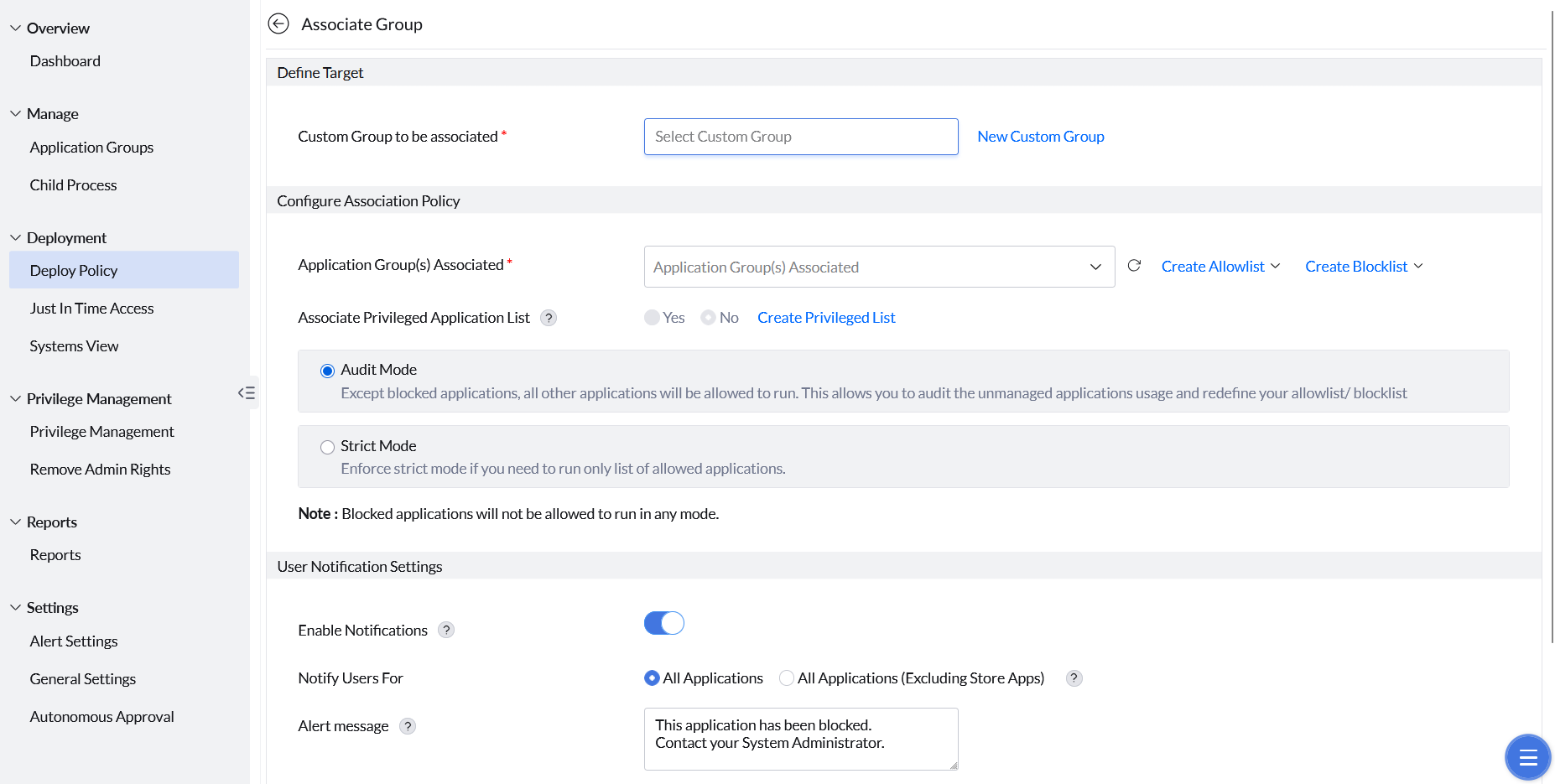
Associate applications with custom groups
Users with similar roles often need the same set of applications. Endpoint Central lets you associate multiple allowlists with a custom device group — and a single allowlist with multiple groups — so you can expand policy coverage without duplicating policies.
For the Endpoint Security add-on, first check that the computers are included in the add-on scope. Custom-group membership alone does not establish that a computer is available to Application Control. If deployment remains at 0%, verify eligibility and agent communication before treating the percentage as a diagnosis.
- Go to Application Groups to create an Allowlist or Blocklist. For instructions on creating application groups, see this page.
- Under Deployment, go to Deploy Policy and create or select a custom group.
- Select the application group to associate with that custom group.
- If required, enable Associate Privileged Application List for privilege management.
- Select Audit Mode or Strict Mode as the enforcement level.
- In Strict mode, the unmanaged applications can be requested if the option is enabled.
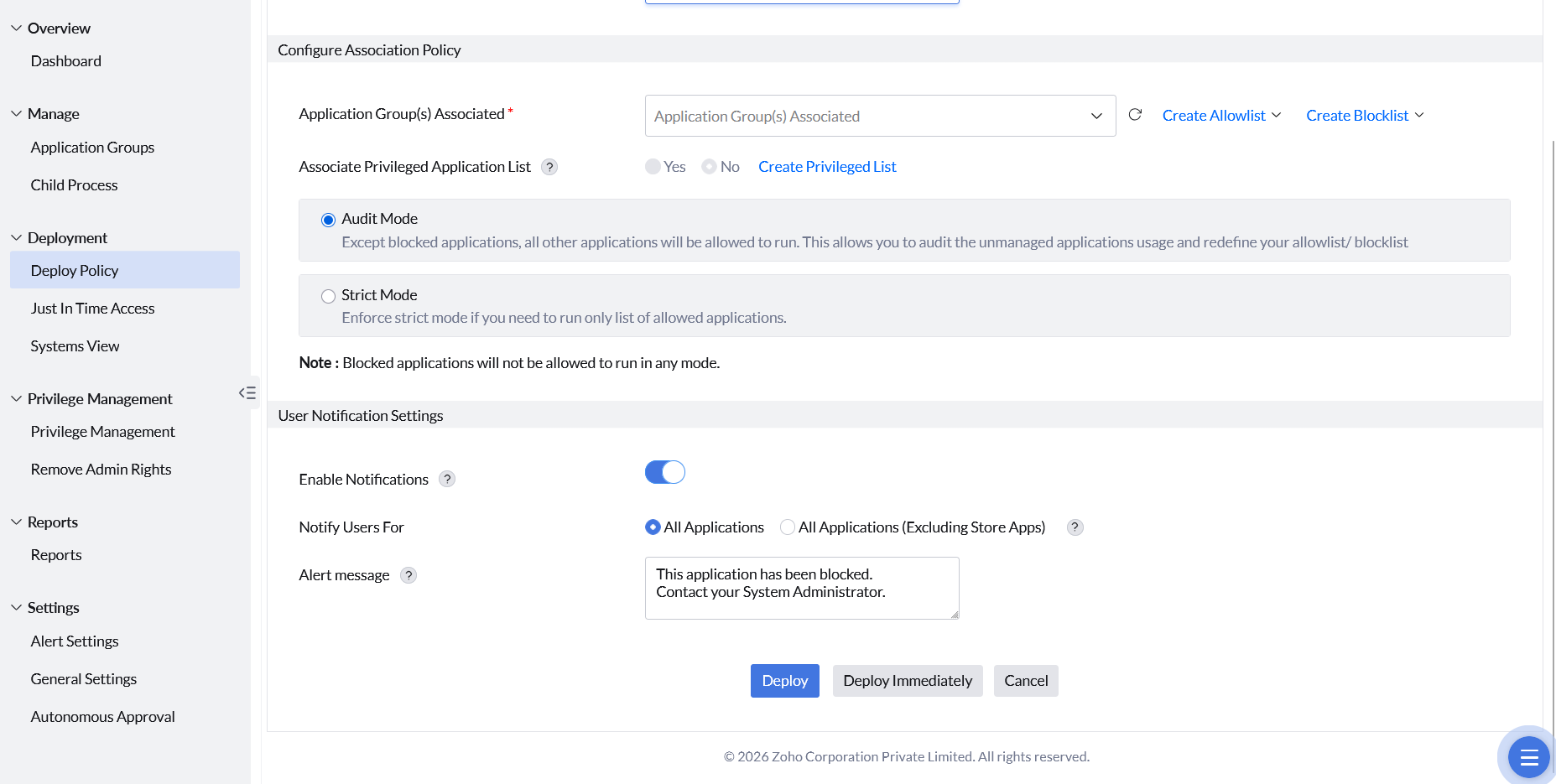
- Configure Custom Notifications and Alert Messages as needed.
- Click Deploy or Deploy Immediately.
Policy Modes
Flexibility Regulator
Choose the enforcement level that matches your organization's current security requirements.
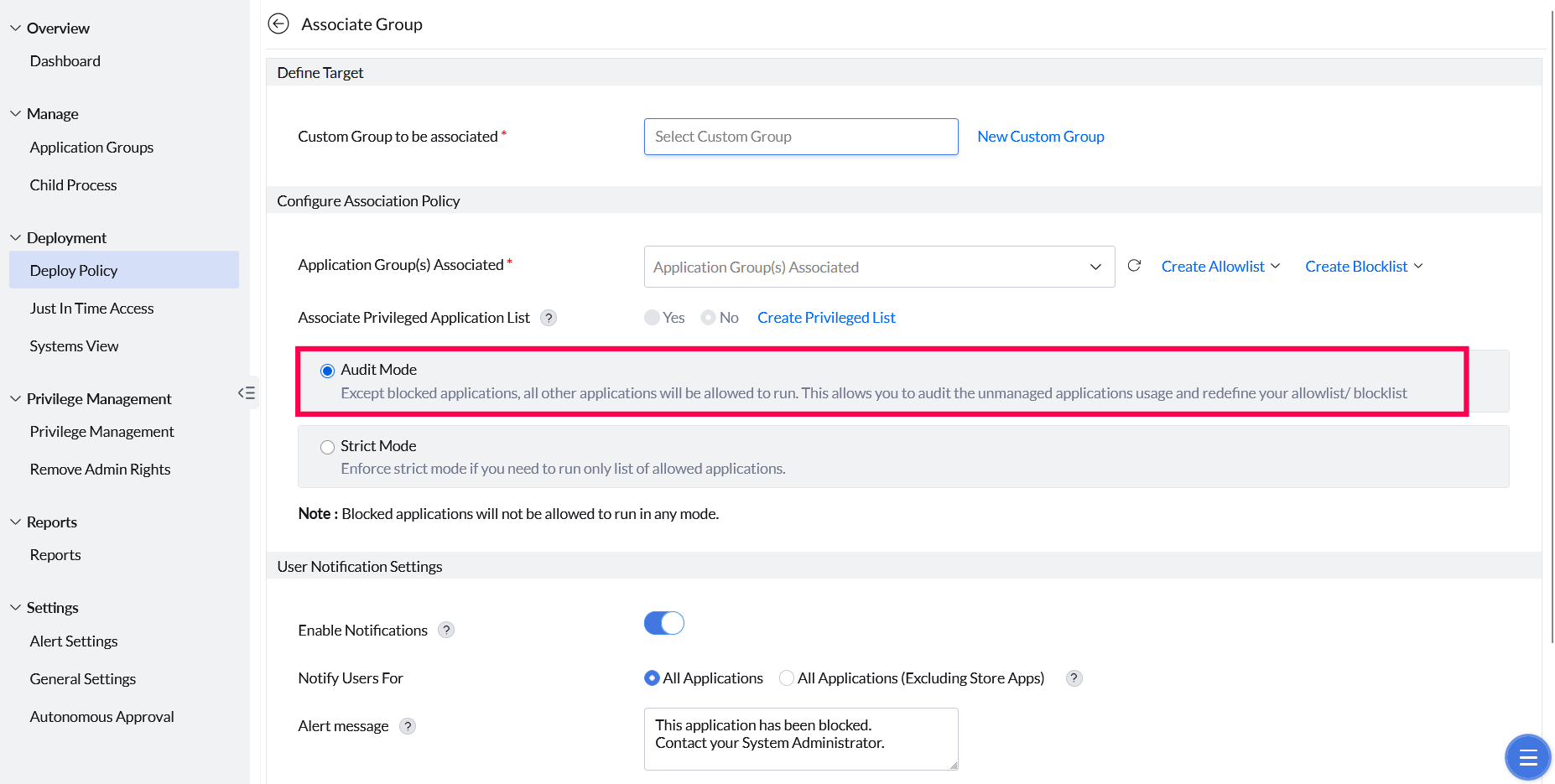
Audit Mode
Audit Mode is the recommended starting point for organizations new to application control. All allowlisted and unmanaged applications run without restriction, while events are collected to help administrators understand which applications users actually need.
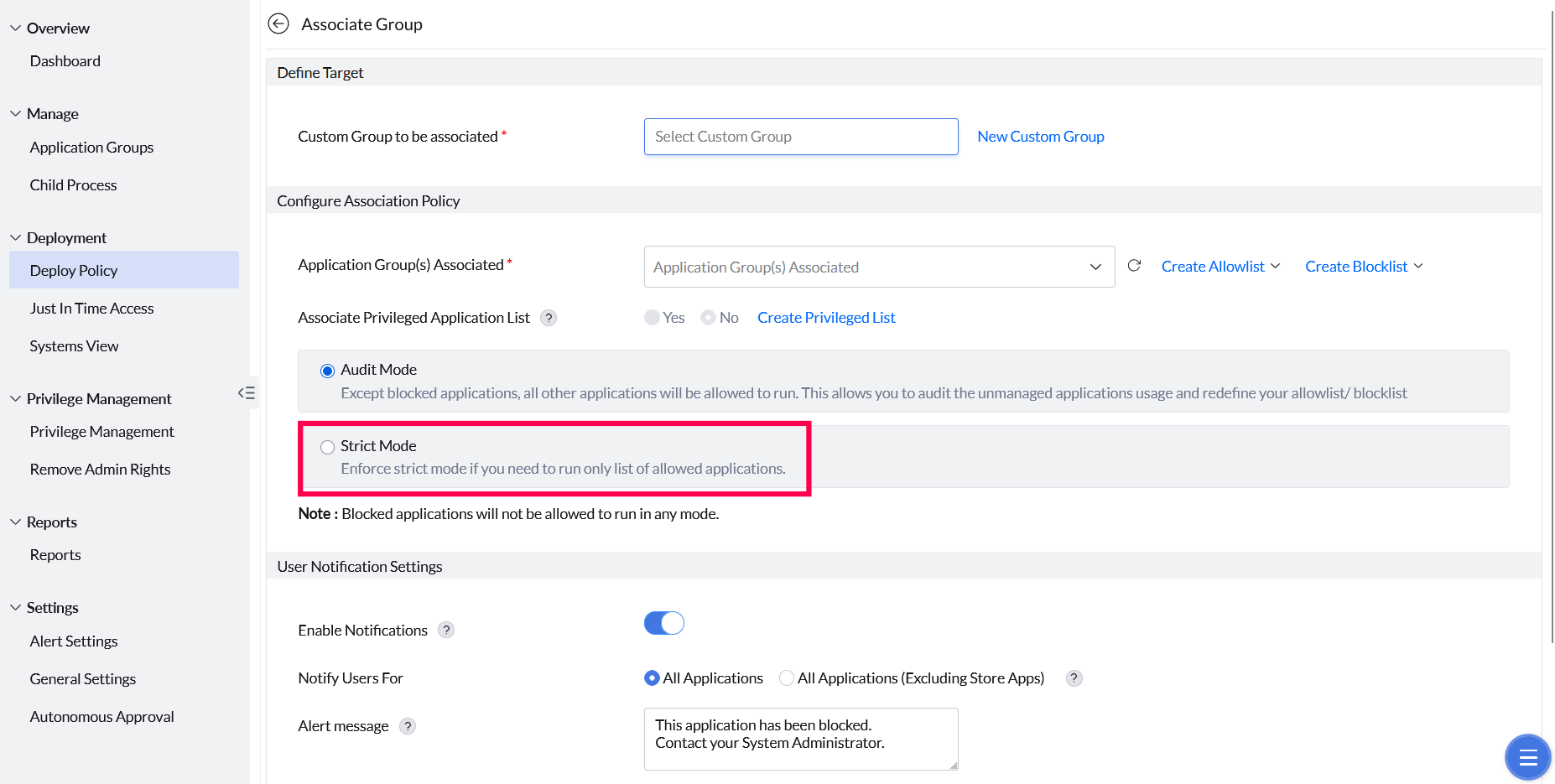
Strict Mode
Strict Mode enforces a zero-trust security model. Only applications explicitly included in the allowlist can execute. Any attempt to run an unmanaged application is immediately blocked and the user is notified.
Notifications
User Notification Settings
Show a custom alert to end users when an application is blocked.
Configure custom block notifications
Configure a custom alert message that appears on the user's device when a policy blocks an application. Customize the notification as needed. Apply it to all blocked applications, or exclude Microsoft Store apps.
For details on end-user notifications, see the User Notifications documentation.
Management
Policy revocation, events, and precedence
Manage the policy lifecycle and resolve conflicts across overlapping policies.
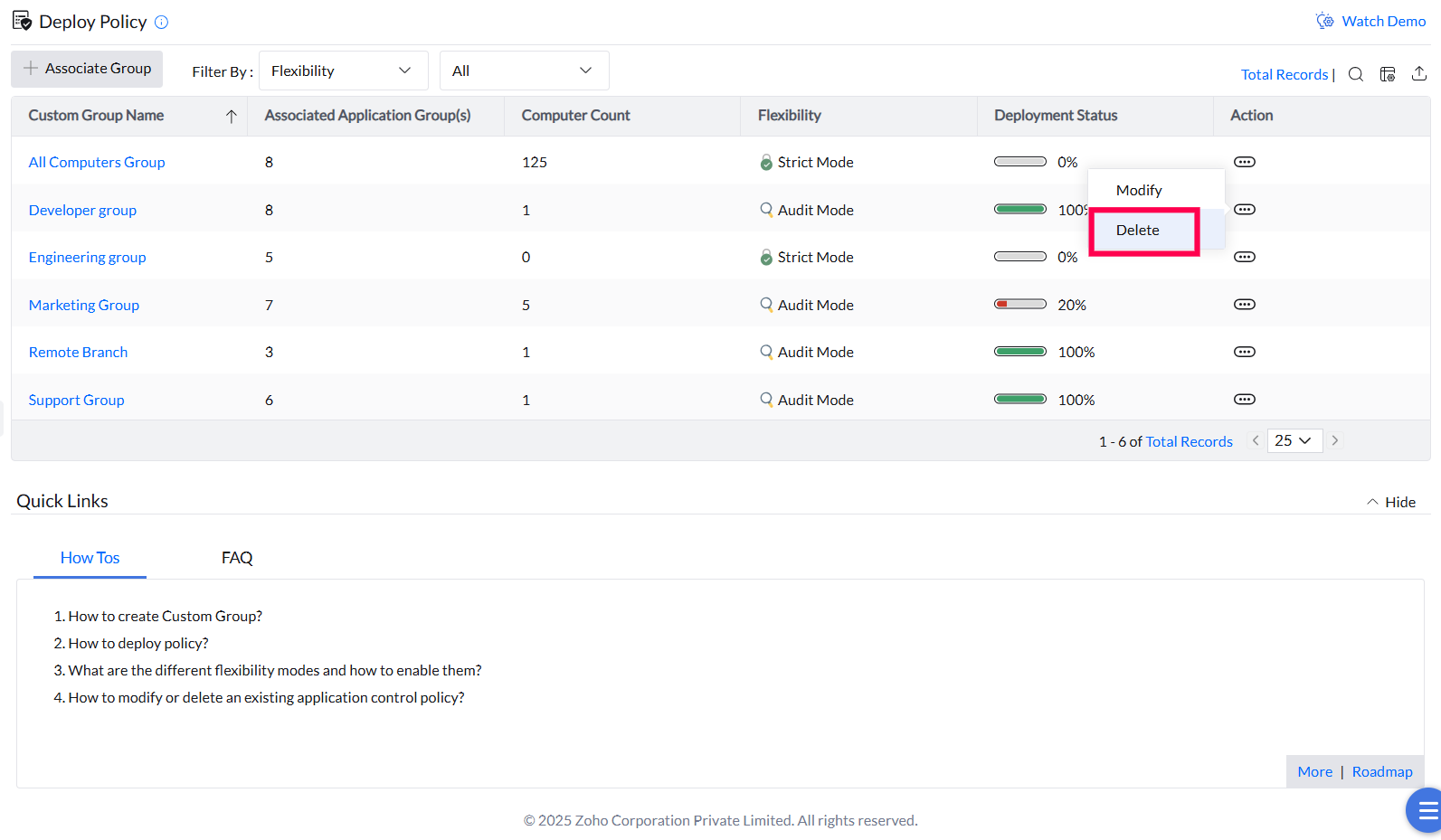
Revoke an application policy
Revoke a deployed policy by deleting it or removing the target machine from its associated custom group. Policy changes, deletions, group modifications, and updates to unmanaged applications are synchronized with agent machines during their 90-minute refresh cycles. In environments with a Distribution Server, changes are replicated there first and then pushed to agents.
Application Access Events
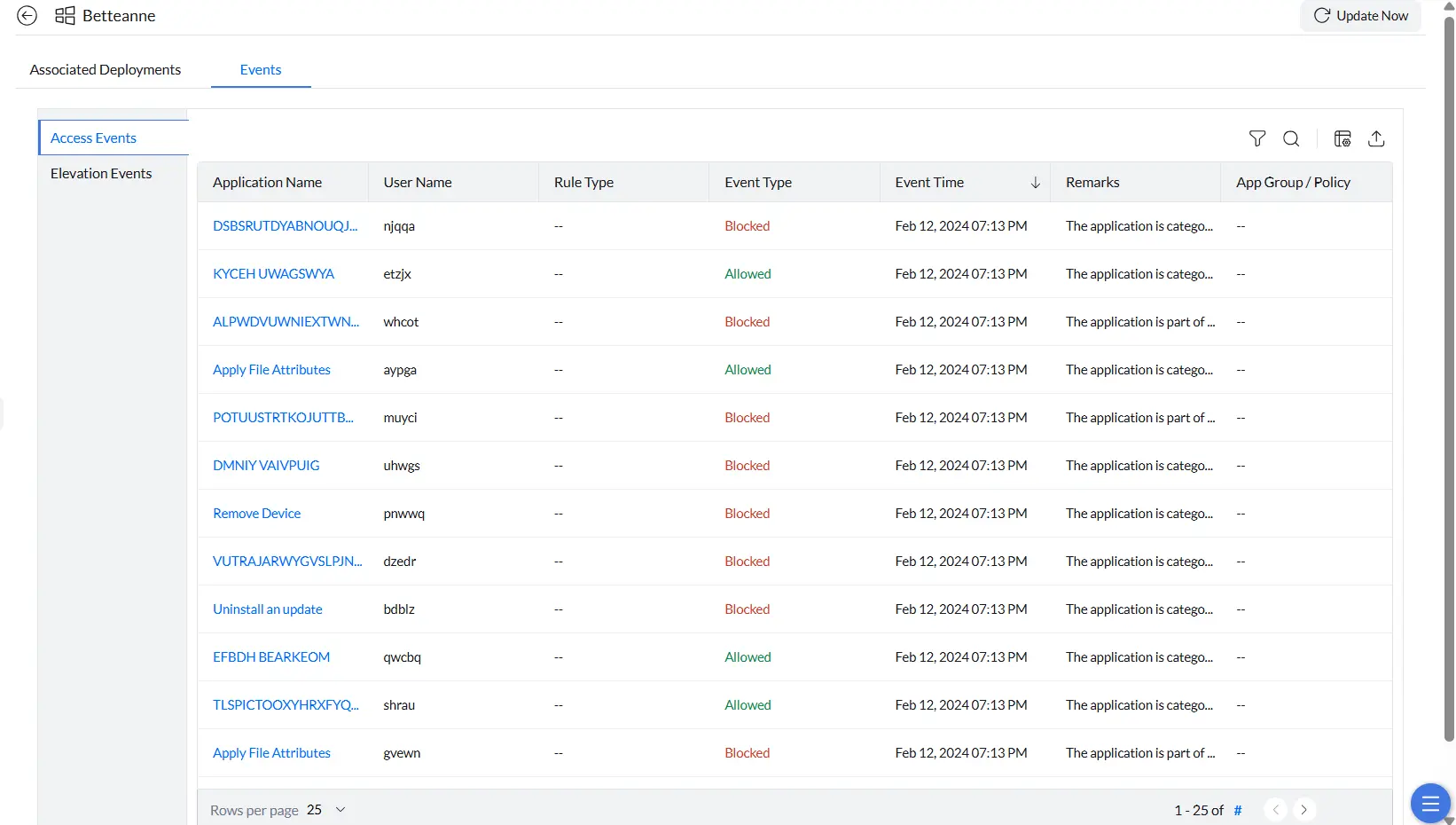
The Access Events view shows a full record of application access attempts on a managed endpoint — both successfully launched and blocked applications. Use this view to monitor user activity, verify policy enforcement, and investigate unauthorized access attempts.
Use the Action Log Viewer to review creation, modification and deletion actions and the administrator responsible. This log is not a field-by-field before-and-after snapshot of the policy settings. Application Access Events answer a different question: what application access was reported on the endpoint. Do not use an audit action alone to reconstruct a previous allowlist, blocklist or enforcement mode.
- Go to Systems and select the target machine.
- Open the Events tab and choose Access Events from the left panel.
- Click Update Now in the top-right corner to refresh events from the endpoint.
- Each event shows the application name, user, event type (Allowed or Blocked), event time, remarks, and the associated application group.
For a consolidated view of explicit blocklist activity, review Blocklisted Application Access reports. The per-computer Blocked filter also includes unmanaged applications blocked in Strict Mode; do not assume that every report aggregates the same event types.
For blocks involving a subprocess launched by an allowed application, review Child Process Control after checking the event and effective rules.
Policy Precedence
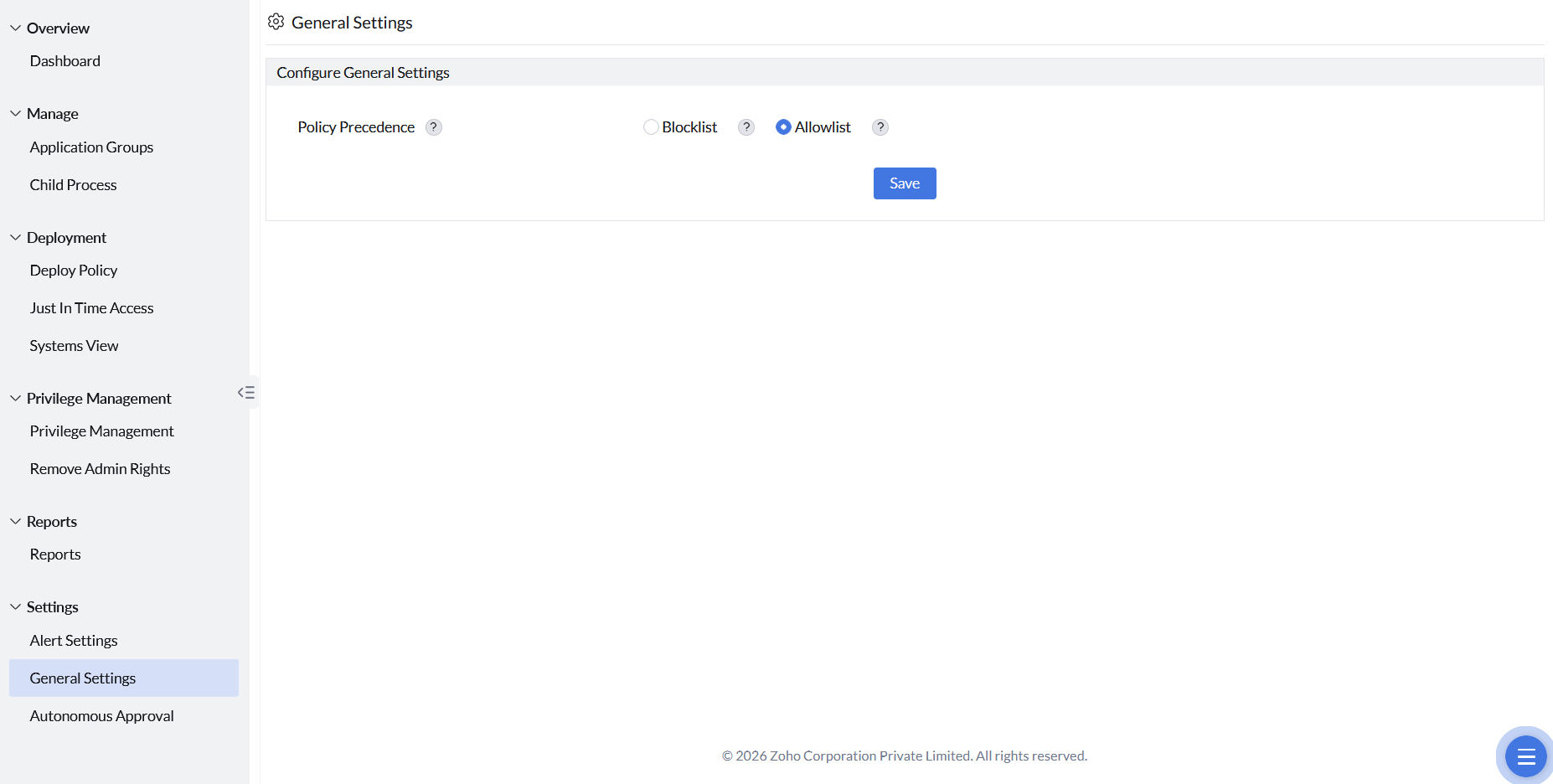
When both allowlist and blocklist policies share the same filter rule and apply to the same endpoint, Policy Precedence determines which takes priority. Configure this under Settings → General Settings.
Verify policy coverage on a computer
Review the affected computer’s associated policies and the latest deployment result. In Systems, if the filter Compliance Status reads "Policy Missing", it can mean that no policy is associated or that associated policies have never been applied. "Policy Exists - Outdated" means the current associated policy set is not fully applied although a policy was applied previously. Review association and deployment status, then verify the agent result.
The Newly added device remark can appear when a computer is first included in a policy target. It can also appear when dynamic-group membership is recalculated. The initial status is In Progress. The remark does not establish a fixed grace period or confirm that the agent has applied the policy.
If the status does not advance, review the computer’s agent contact, add-on scope and policy association. Record the status and remarks when you request support.
If a computer remains missing or a policy stays pending, follow Troubleshoot missing computers and pending policies. Check communication and deployment results before treating custom-group membership as proof of enforcement.
If an application is blocked on one device but allowed on another, compare the application groups and policies associated with each device under Systems. A device can receive policies from more than one custom group. Review the multiple-policy and rule-precedence guidance before changing a single group; also check whether Strict Mode is blocking an unmanaged application.