Privilege Management Policy Deployment
Associate a Privileged Application List with device groups, deploy the policy, and monitor elevation events from the console.
Setup
Configuring Privilege Management
Link the Privileged Application List to the device groups that need controlled elevation access.
Deploying the EPM policy
Once the Privileged Application List is created, deploy it by associating it with the appropriate custom groups. This ensures that only authorized users gain elevated access to approved applications in a secure and controlled manner.
- Navigate to Application Control → Privilege Management.
- To allow self-elevation, enable the toggle for Enable users to elevate applications manually.
- To configure elevated privileges for all allowed applications or specific ones, enable Configure specific application to run with elevated privileges and build the application list.
- Optionally enable Auto Elevation to elevate applications automatically without user prompts.
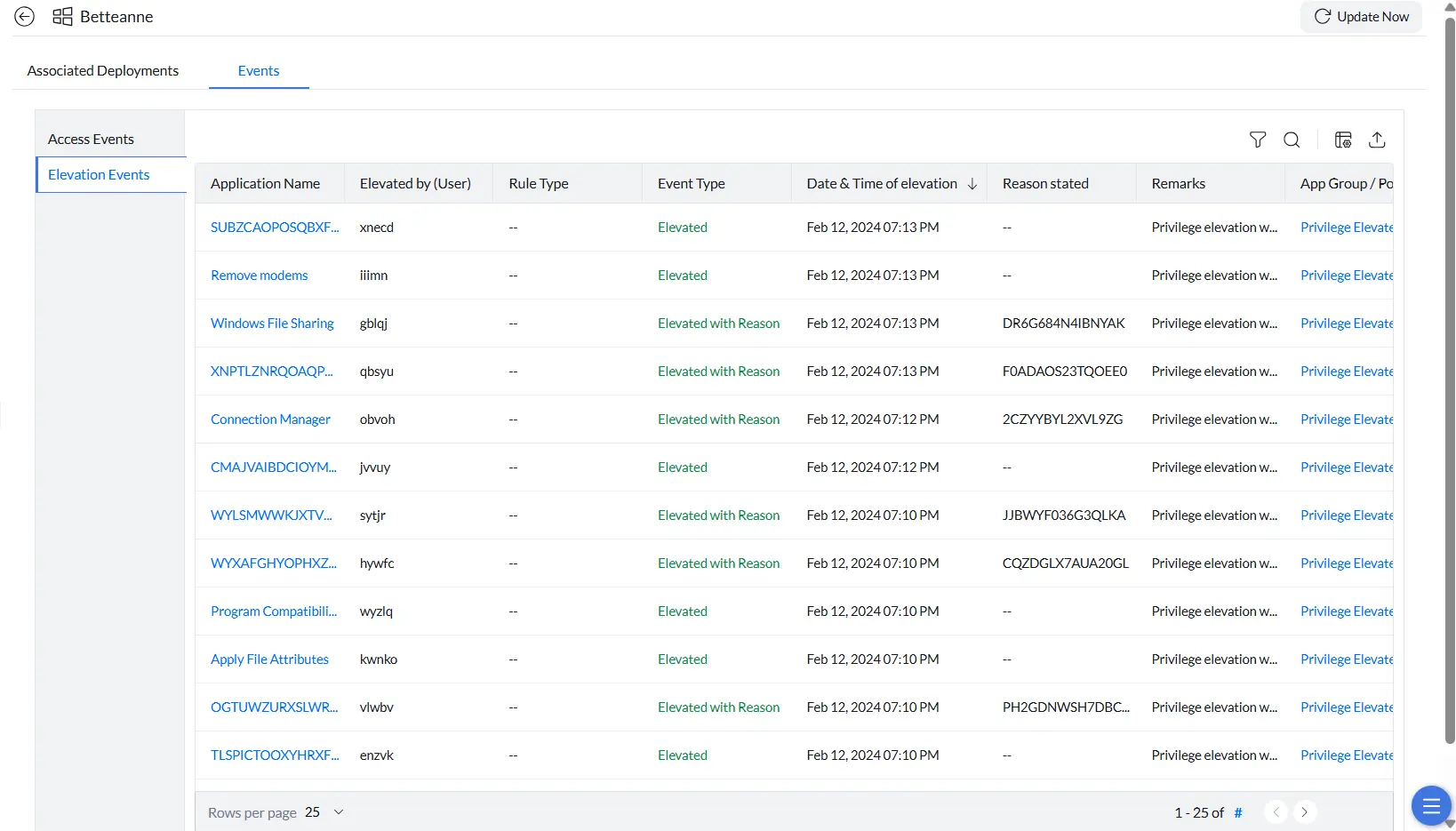
- Navigate to the Policy Deployment tab and select the Custom Group containing the user devices that need privileged access.
- Click Yes to Associate the Privileged Application List with the chosen custom group.
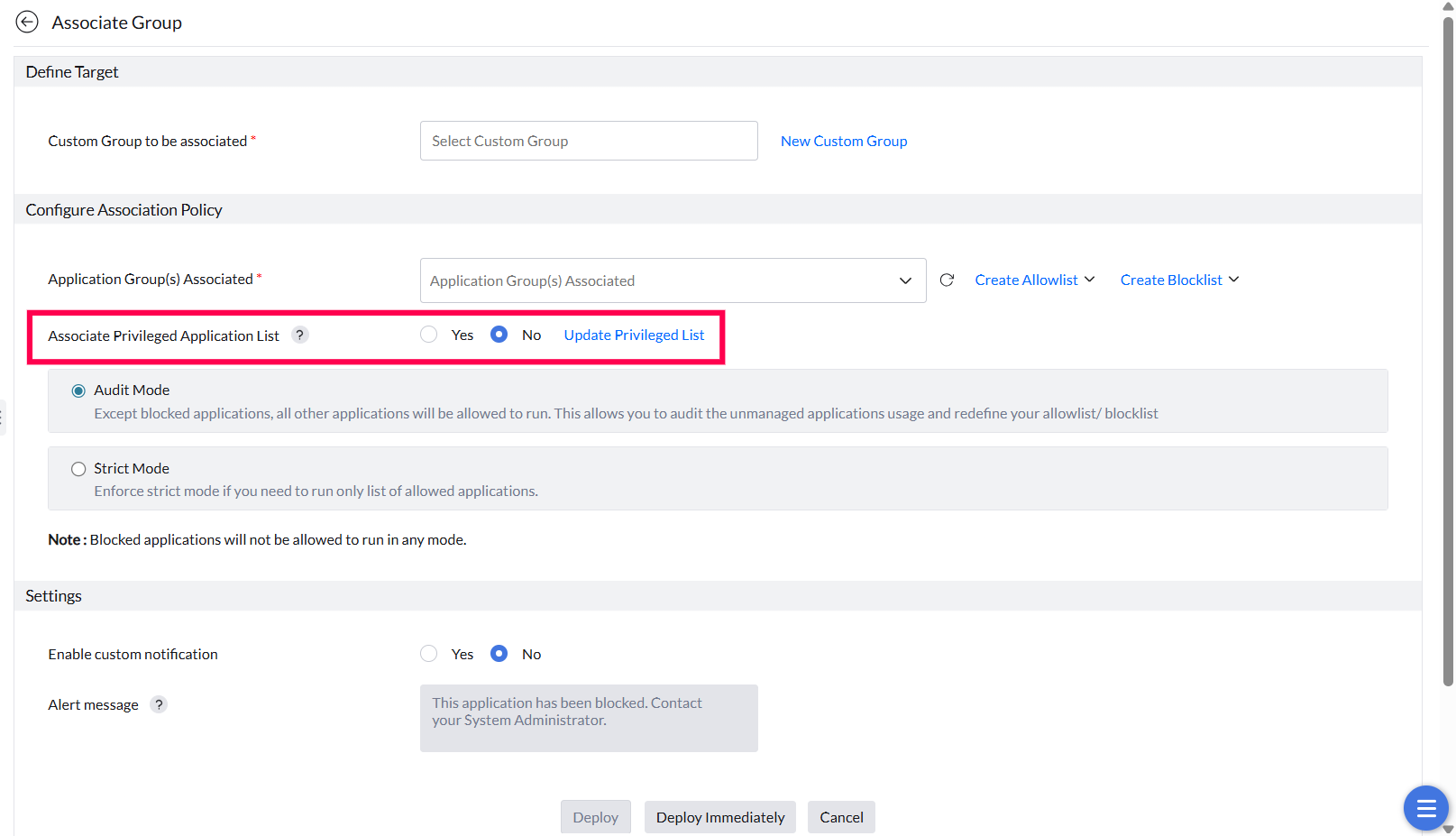
After association, users on the target devices can right-click an application's .exe and choose Run as ManageEngine to execute it with elevated privileges — without entering admin credentials.
Lifecycle
Revoking Application Privileges
Remove elevated access when it's no longer needed and review the full audit trail.
Deleting a policy
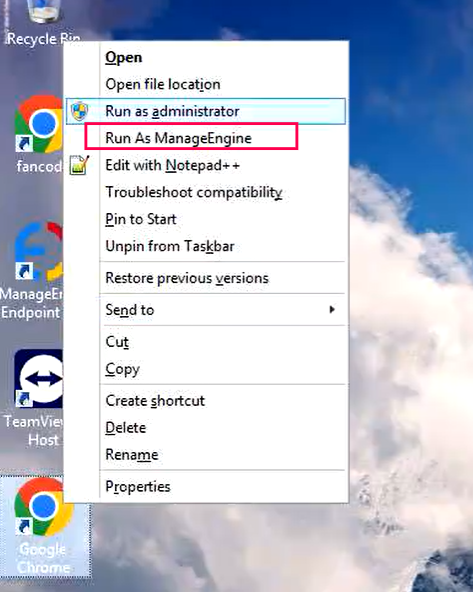
Delete any policy after its requirements have been fulfilled to prevent misuse of elevated privileges. This removes the elevation association from the affected custom groups.
Application Elevation Events
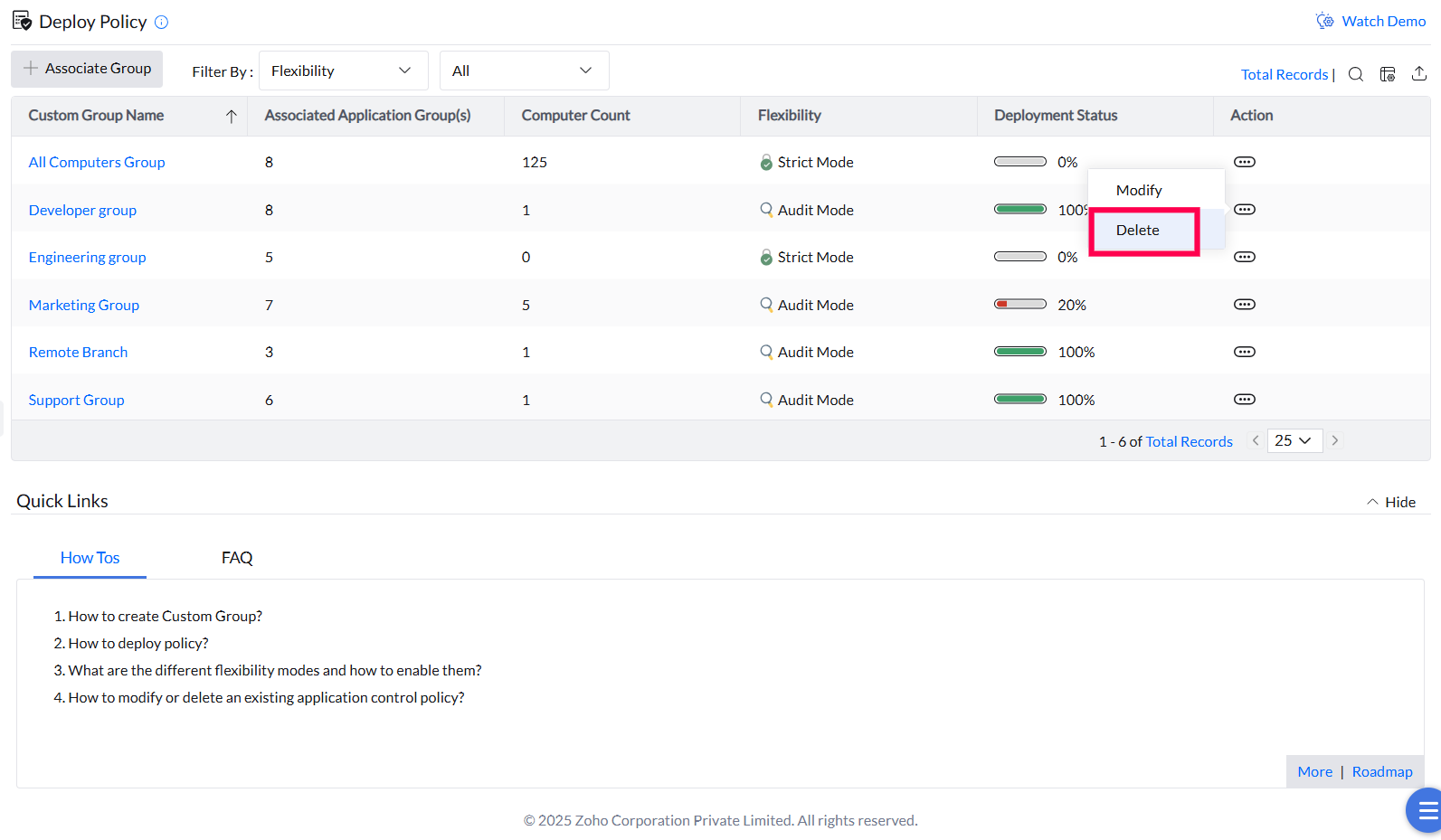
The Elevation Events view provides a detailed audit trail of every application elevated by users on a managed endpoint. Use it to monitor privilege activity and verify that elevated access is being used appropriately.
Viewing elevation events
- Navigate to Systems and select the target machine.
- Open the Events tab and select Elevation Events from the left panel.
- Click Update Now in the top-right corner to fetch the latest events from the endpoint.
Each event record includes the application name, the user who performed the elevation, event type, date and time, the justification provided (if required), remarks, and the associated elevation policy.