Local User MFA for Windows
Local user MFA in ADSelfService Plus strengthens access security for local user accounts that are created and stored directly on a Windows machine, rather than in a centralized directory like Active Directory or Entra ID. These accounts authenticate using locally stored credentials and are commonly used in workgroup environments, on standalone or DMZ systems, and for local administrative tasks on domain-joined endpoints.
ADSelfService Plus enhances the security of these accounts by enforcing MFA for key Windows login scenarios, including:
- Windows machine logins
- Machine unlocks
- User Account Control (UAC) prompts
- Remote Desktop Protocol (RDP) sessions
Machine-based MFA for computers with local users can be enabled for the following types of machines:
- Workgroup computers
- Machines within a DMZ
- Domain-joined computers
How local user MFA works
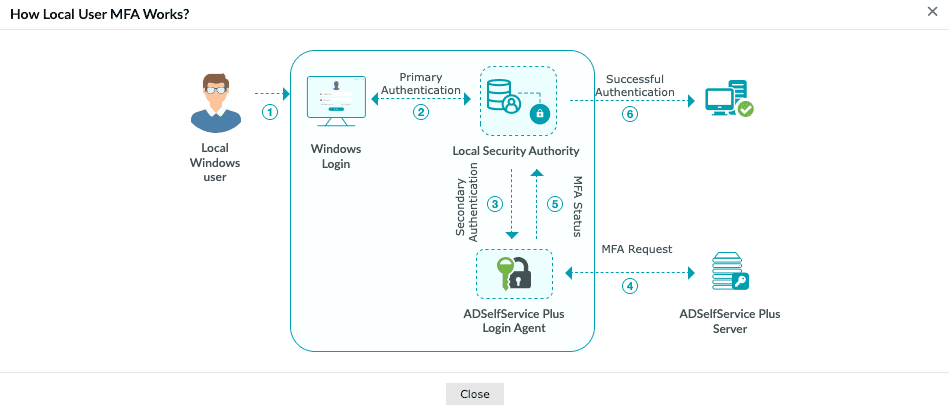
When local user MFA is enabled, ADSelfService Plus creates a virtual domain named localusers.domain. All local user accounts and workgroup machines with the ADSelfService Plus login agent installed are grouped under this virtual domain to facilitate management. The authentication workflow proceeds as follows:
- A local user attempts to log in, unlock the machine, or start an RDP session.
- The Windows Local Security Authority (LSA) validates the user's credentials (username and password).
- Upon successful primary authentication, the ADSelfService Plus login agent invokes secondary authentication based on the configured policy for localusers.domain.
- The login agent communicates with the ADSelfService Plus server to request MFA verification.
- ADSelfService Plus validates the MFA response and sends the authentication status back to the login agent.
- If MFA succeeds, the LSA grants access and the user is logged on to the Windows machine.
[Image: local-user-mfa-architecture.png]
Prerequisites
- ADSelfService Plus Professional edition with Endpoint MFA is required.
- SSL must be enabled: Navigate to Admin > Product Settings > Connection and select the ADSelfService Plus Port [https] option. Refer to this guide to learn how to apply for an SSL certificate and enable HTTPS.
- The Access URL must be set to HTTPS. Navigate to Admin > Product Settings > Connection > Connection Settings > Configure Access URL and set Protocol to HTTPS.
- The ADSelfService Plus Windows login agent must be version 6.12 or higher.
Note: Any existing agents on domain-joined machines where you want to enable local user MFA must be at least version 6.12. Click here for information on updating the agent.
- Target machines must have network connectivity to the ADSelfService Plus server for online MFA verification.
Limitations
General:
- Local user MFA is supported only on Windows machines.
- Local user MFA is not supported for Microsoft accounts (MSA).
- Self-enrollment is not supported for local users. Administrators must enroll users via CSV import or external database synchronization.
- The Windows login agent cannot be pushed remotely to non-domain (workgroup) machines via the ADSelfService Plus console; installation must be performed manually or via third-party deployment tools.
Enrollment:
- Usernames must be unique within localusers.domain. If two different workgroup machines have local accounts with the same username, only one of them can be enrolled.
- If a local user's username is changed on the Windows machine, the user must be re-enrolled in ADSelfService Plus with the updated username.
Offline MFA:
- Offline MFA is not supported for Windows 10 version 1803.
- For remote logins, offline MFA is not supported for Windows RDP client authentication.
Configuration instructions
Step 1: Enable local user MFA
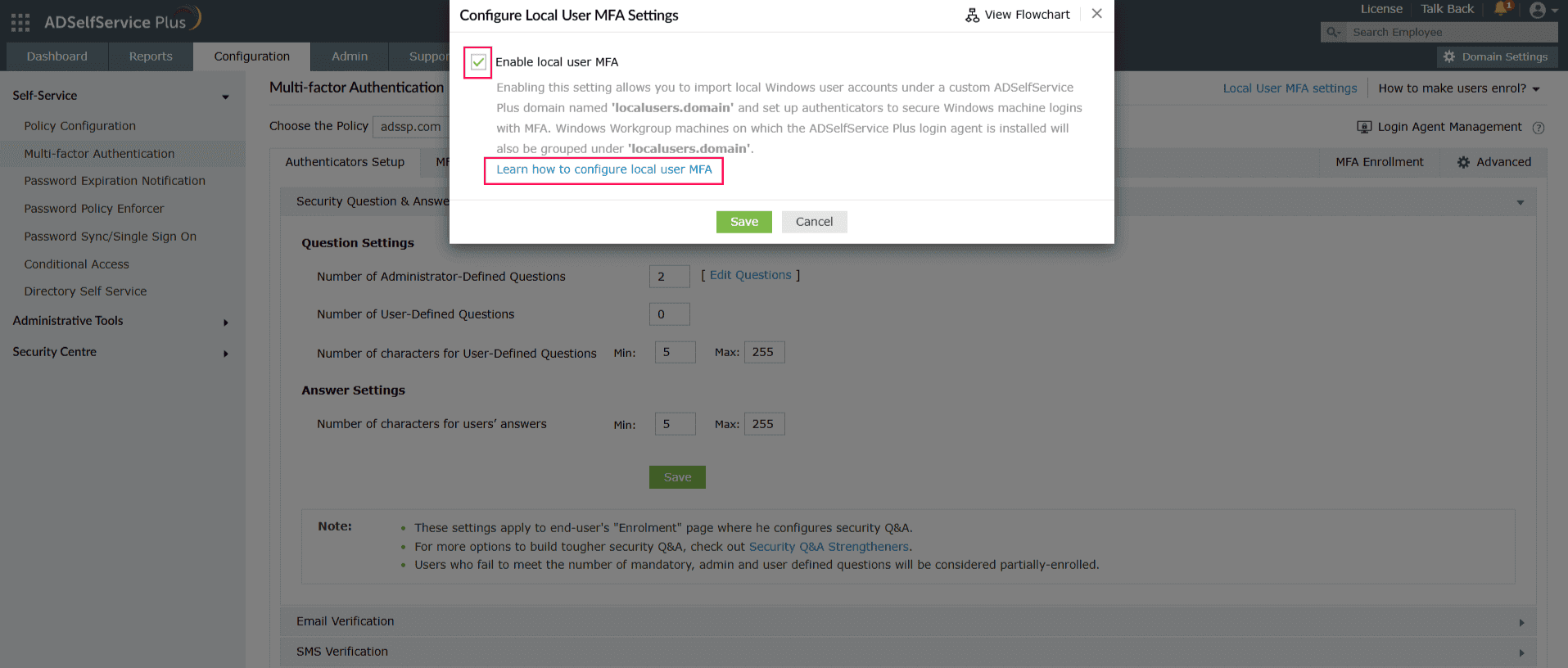
- Log in to the ADSelfService Plus admin portal.
- Select your directory (Active Directory or Microsoft Entra ID) from the directory drop-down at the top-left, and navigate to Configuration > Self-Service > Multi-Factor Authentication.
- Click Local User MFA Settings at the top-right of the page.
- In the pop-up that appears, check Enable local user MFA.
- Click Save.
Step 2: Configure MFA authenticators for local users
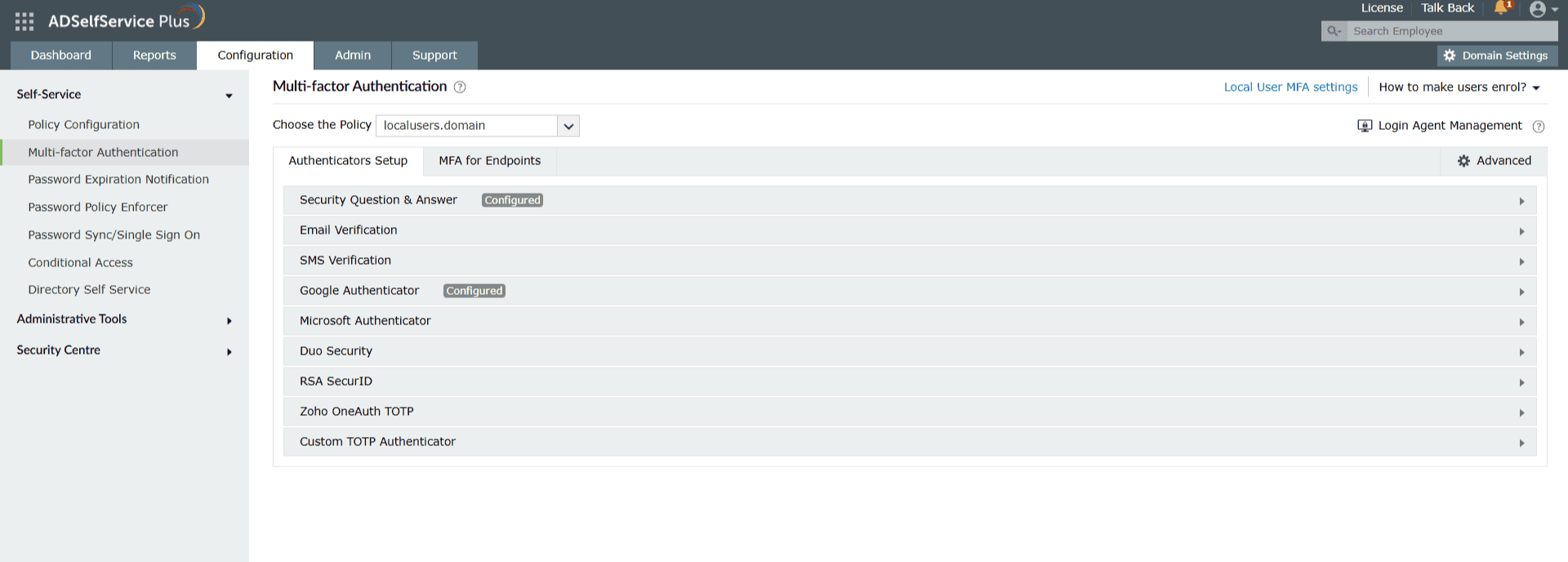
- Ensure your directory (Active Directory or Microsoft Entra ID) is selected from the directory drop-down at the top-left, and navigate to Configuration > Self-Service > Multi-Factor Authentication.
- From the Choose the Policy drop-down, select localusers.domain.
- Click the Authenticators Setup tab and set up the authenticators required for local user MFA.
ADSelfService Plus supports the following authenticators for local user MFA:
Online local user MFA:
- Security Questions and Answers
- Email Verification
- SMS Verification
- Google Authenticator
- Microsoft Authenticator
- Duo Security
- RSA SecurID
- Zoho OneAuth TOTP
- Custom TOTP Authenticator
Offline local user MFA:
- Google Authenticator
- Microsoft Authenticator
- Zoho OneAuth TOTP
- Custom TOTP Authenticator
For detailed steps to configure these authentication methods, refer to the Authenticators section.
Step 3: Assign MFA methods for local user logins
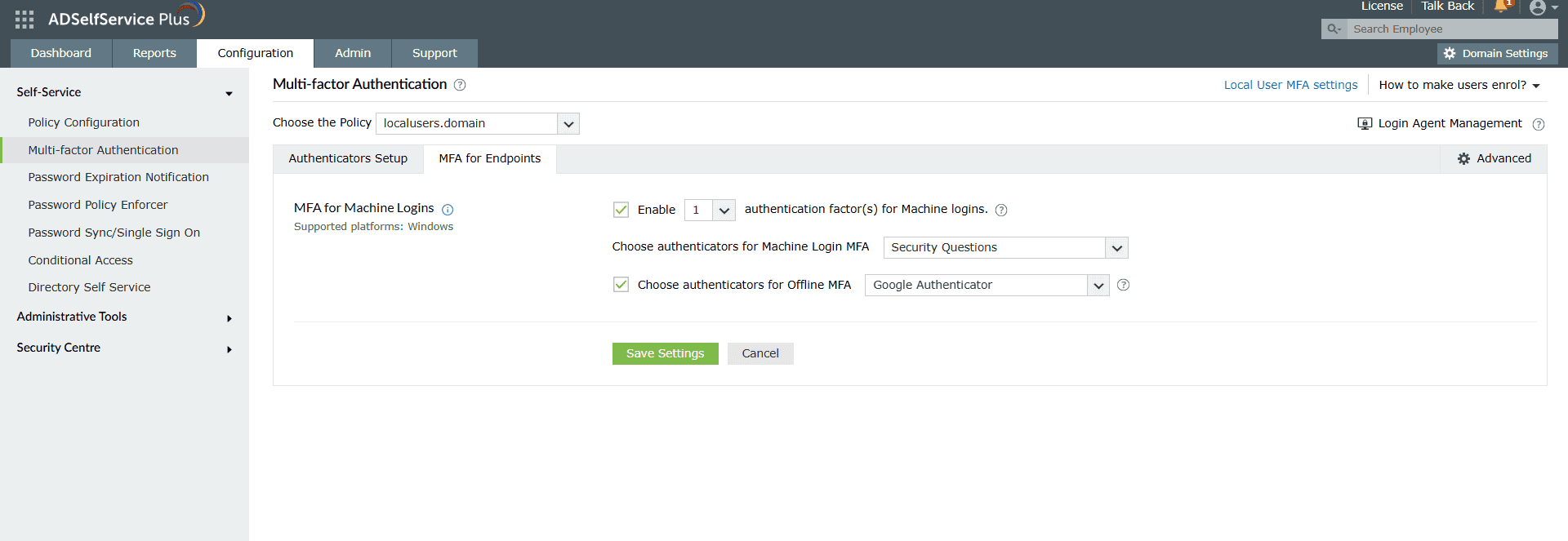
- Ensure your directory (Active Directory or Microsoft Entra ID) is selected from the directory drop-down at the top-left, and navigate to Configuration > Self-Service > Multi-Factor Authentication.
- Select localusers.domain from the Choose the Policy drop-down.
- Go to the MFA for Endpoints tab.
- In the MFA for Machine Login section, select the Enable _ authentication factor(s) for machine logins checkbox. Use the drop-down to select the number of authentication factors to be prompted during logins.
- Use the Choose Authenticators for Machine Login MFA drop-down to select the required authenticators configured in Step 2.
- (Optional) To configure offline MFA for local users who need to be authenticated when disconnected from the network, check the Choose authenticators for offline MFA checkbox and select the required authenticators from the drop-down.
To configure MFA for local users during UAC prompts, RDP logins, and system unlocks:
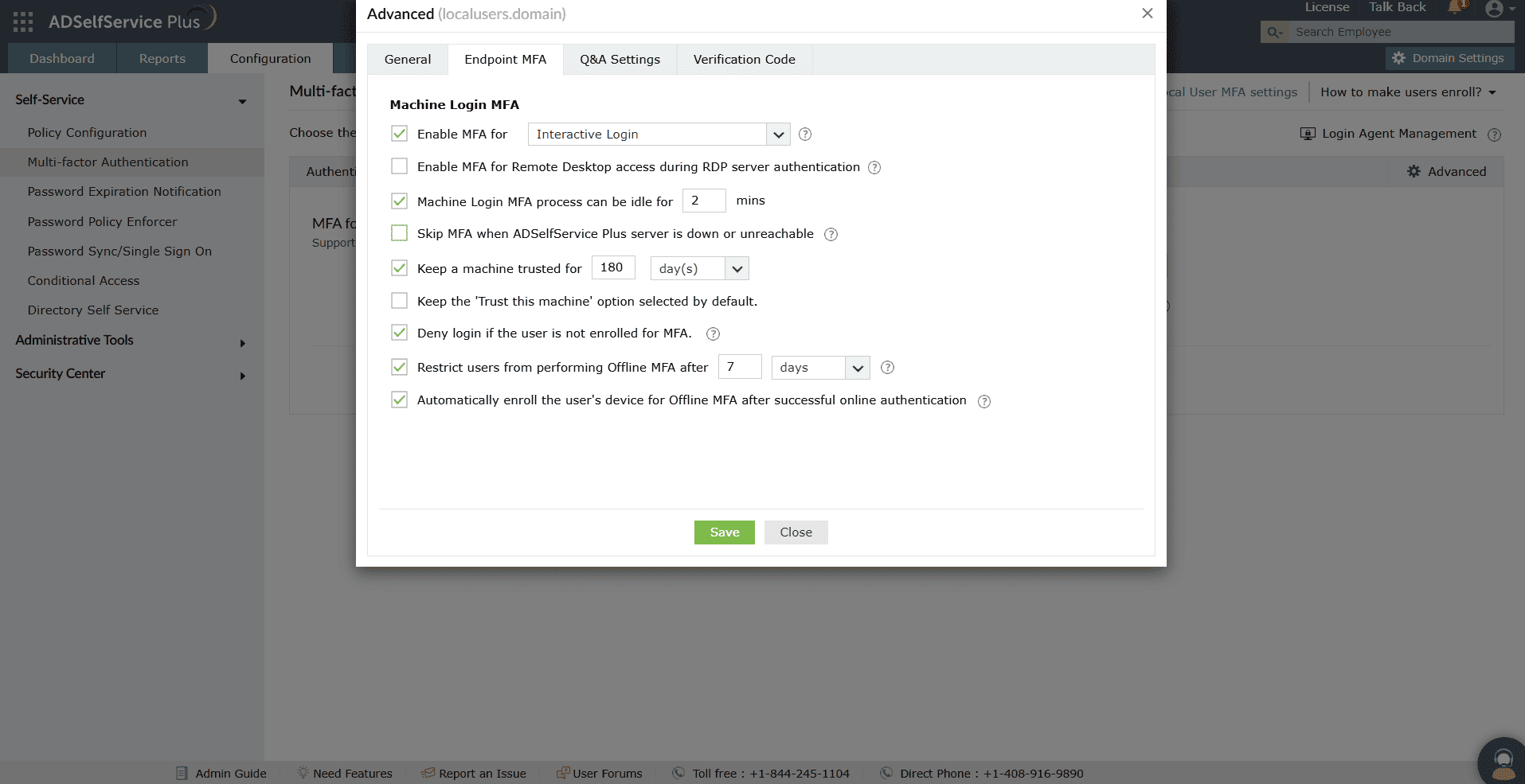
- Click Advanced and go to the Endpoint MFA tab.
- Use the drop-down for the Enable MFA for _ checkbox to select User Account Control and System unlocks.
- Select the Enable MFA for Remote Desktop access during RDP server authentication checkbox.
- Click Save.
To configure device-based local user MFA for machines:
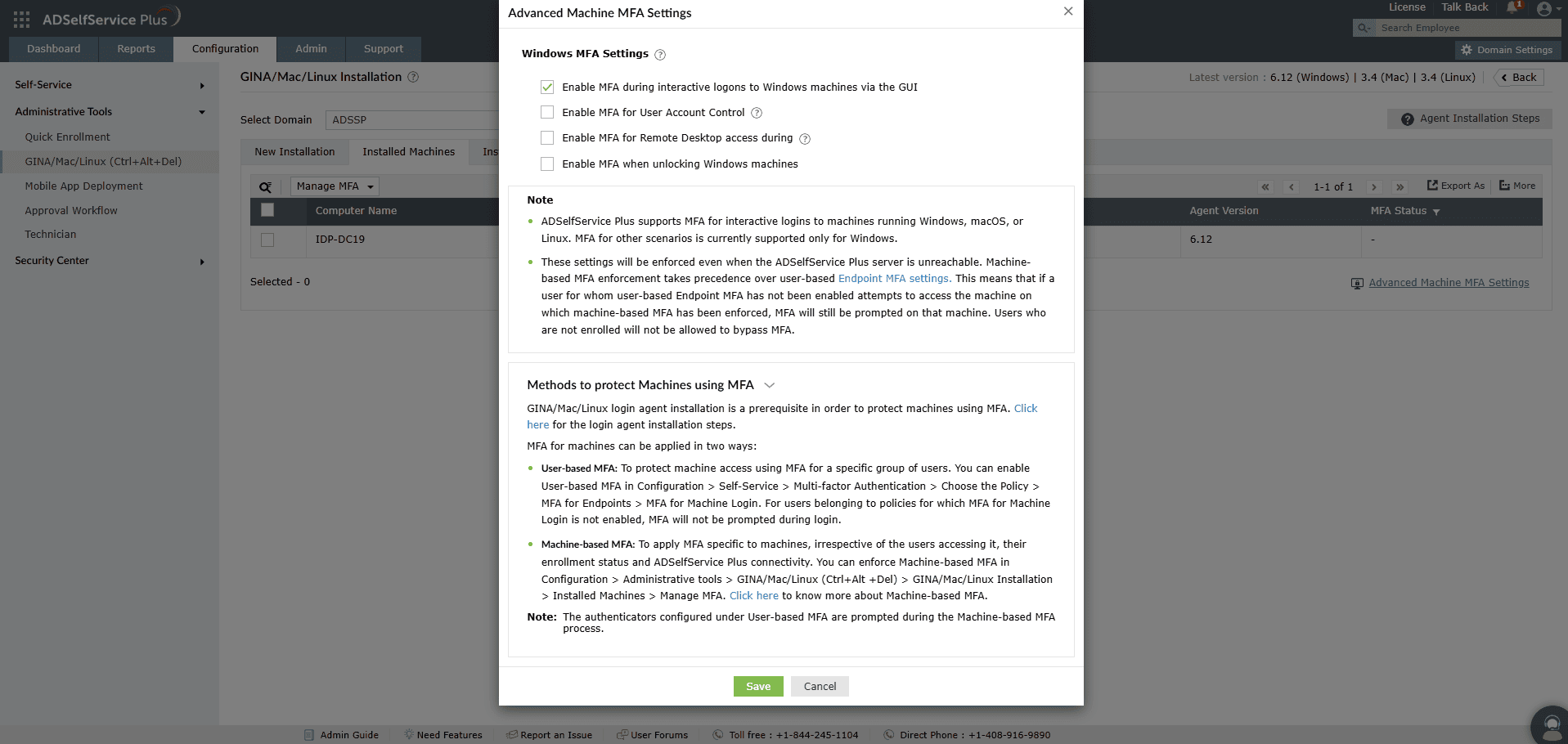
- Navigate to Configuration > Administrative Tools > GINA/Mac/Linux (Ctrl+Alt+Del) > GINA/Mac/Linux Installation > Installed Machines.
- From the Select Domain drop-down, select Workgroup.
- Click Advanced Machine MFA Settings at the bottom-right of the page.
- In the pop-up, select the Windows endpoints you wish to secure with MFA.
- Click Save.
Step 4: Install the Windows login agent
The ADSelfService Plus Windows login agent facilitates communication between the local machine and the ADSelfService Plus server. You must install the agent on every target machine.
- For domain-joined machines: You can install the ADSelfService Plus login agent on domain-joined Windows machines through the ADSelfService Plus admin portal, manually, via a GPO, or through tools like Microsoft Configuration Manager or ManageEngine Endpoint Central.
- For workgroup machines: The login agent cannot be installed or managed on Windows workgroup machines from ADSelfService Plus. You will need to perform these actions manually or through tools like Microsoft Configuration Manager or ManageEngine Endpoint Central.
Once the agent is deployed, view all systems with the login agent installed under Configuration > Administrative Tools > GINA/Mac/Linux Installation > Installed Machines.
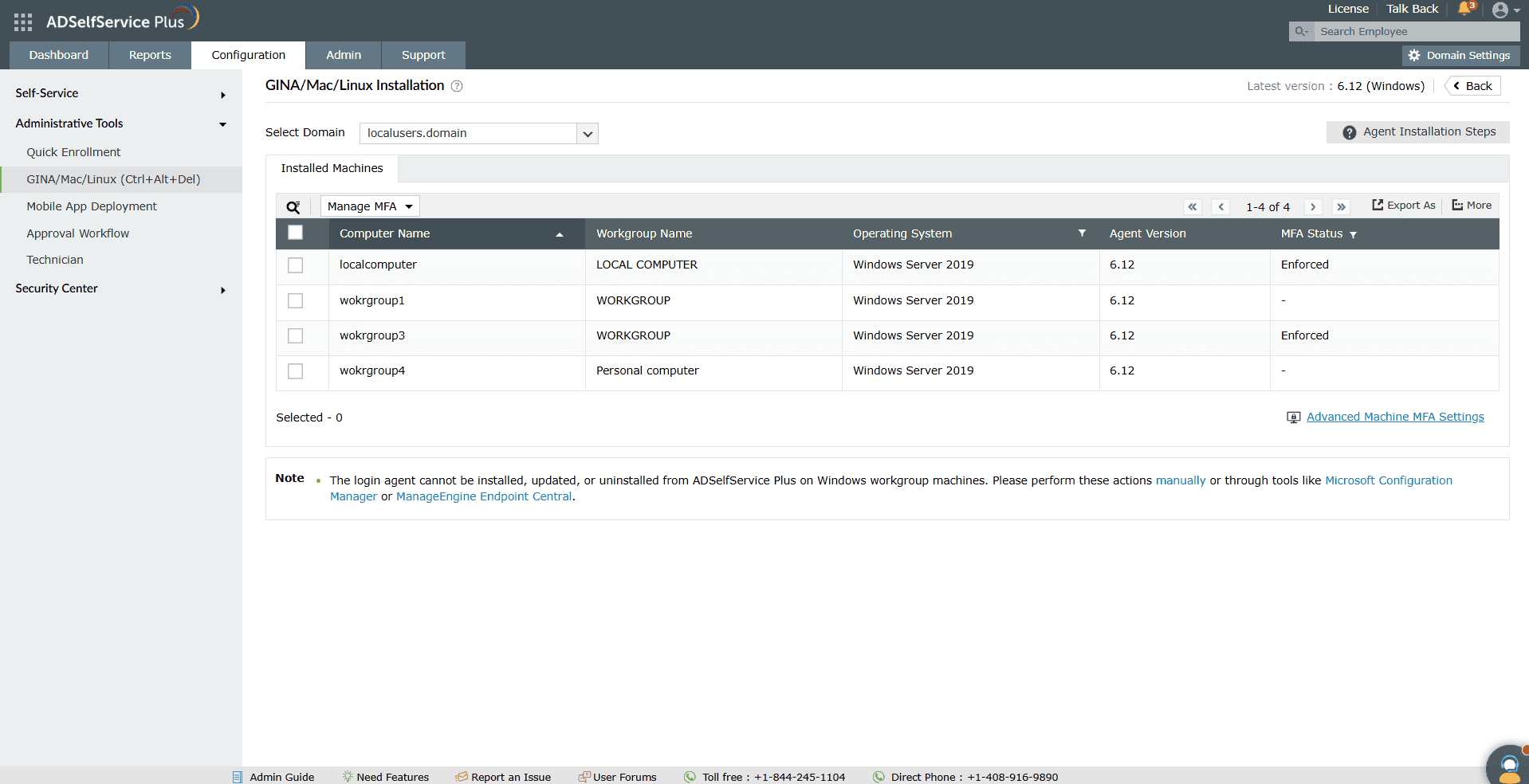
Note: Workgroup machines on which the agent is installed will appear under localusers.domain.
Step 5: Enroll local users
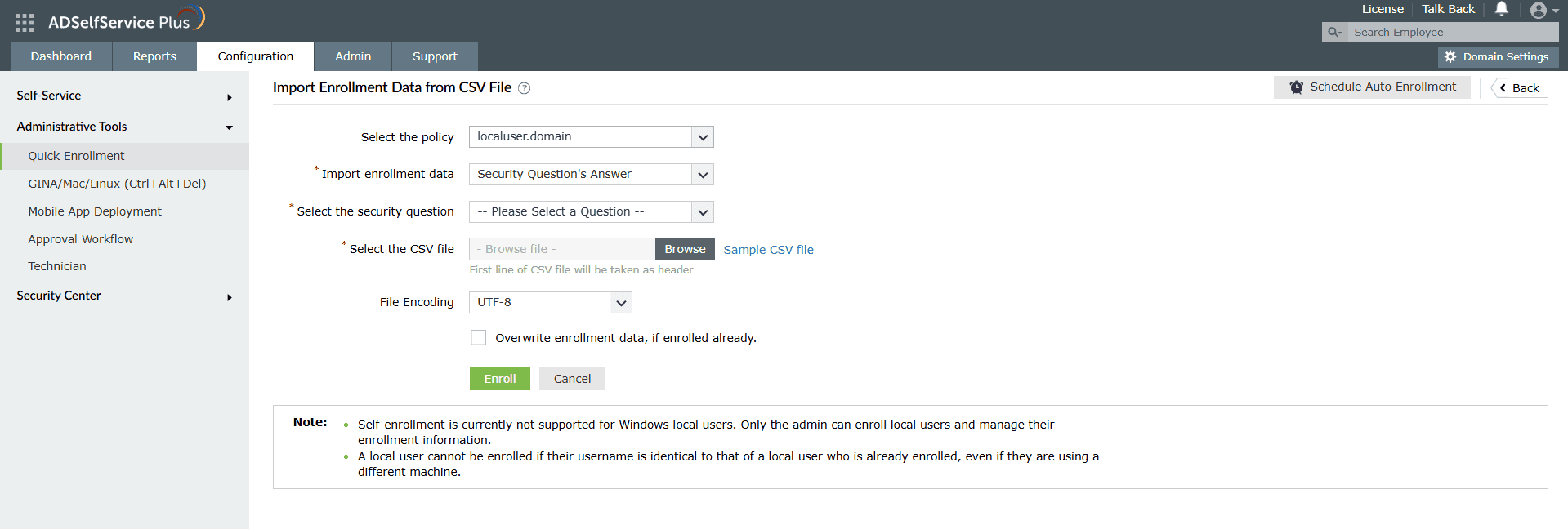
Once the agent is installed, import and enroll local users as follows:
- Navigate to Configuration > Administrative Tools > Quick Enrollment.
- From the Select the policy drop-down, choose localusers.domain.
- Enroll users using one of the following methods:
- CSV import: Navigate to Quick Enrollment > Import enrollment data from CSV file.
- External database: Navigate to Quick Enrollment > Import enrollment data from external database.
Users imported via either method will be listed under localusers.domain.
Tips
- Use the MFA Enrolled Users Report (Reports > MFA Reports > MFA Enrolled Users Report) to monitor enrollment status and generate backup codes for local users who are unable to use their enrolled MFA methods.
- Stagger agent deployment across machines to avoid connectivity spikes to the ADSelfService Plus server.
- Enable Restrict users from performing offline MFA after _ days/attempts (Configuration > Self-Service > Multi-Factor Authentication > Advanced > Endpoint MFA) to ensure policy changes are reflected on machines after users re-authenticate online.
- For workgroup machines, plan a manual or third-party deployment strategy for the login agent before enabling local user MFA.
- Refer to the following reports (Reports > MFA Reports) to monitor and audit local user MFA activity:
- MFA Enrolled Users Report
- MFA Enrollment Audit Report
- MFA Usage Audit Report
- MFA Failures Audit Report
- Agent Installed Machines Report
- Offline MFA Enrolled Machines Report
- Blocked Users Report