Configuring Gmail as SMTP mail server
ADSelfService Plus allows you to use Gmail as an SMTP-SMS server to send notifications, OTP etc to your users. Gmail offers it as a free service and can be used to send unlimited emails.
Steps to configure ADSelfService Plus to use Gmail as your mail server:
- Login to ADSelfService Plus with the administrator credentials.
- Navigate to Admin → Product Settings → Server Settings.
- In the Server Settings page, click the Mail Settings tab.
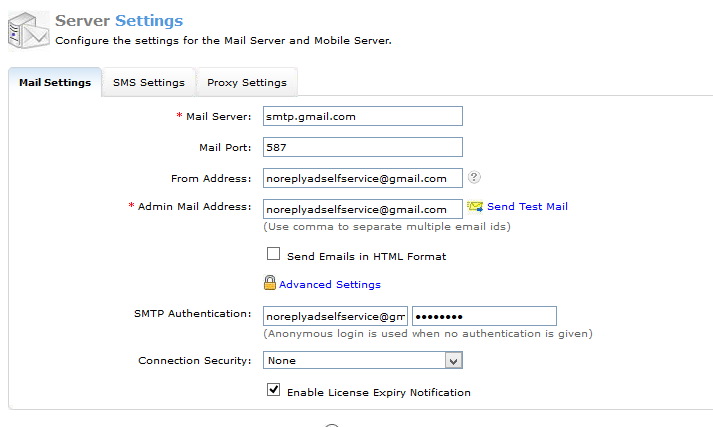
- Enter smtp.gmail.com as the mail server and 587 as the port number. (Refer Image)
- In the From address Field, enter the Gmail address from which you would like to receive the mails.
- Click Advanced Settings.
- Enter your Gmail ID and the app password which you generated. (Refer note)
- Select TLS from the drop-down list.
- Send a test mail to check if the configuration is done correctly.
- Click Save.
Note:
- Port 587 must be kept open to allow outgoing communications.
- An App password is a 16-digit passcode that gives an app or device permission to access your Google Account during SMTP authentication.
Steps to generate an app password:
- Login to the Gmail account.
- Click on the Google apps icon on the top right-hand corner.
- Selec My Account option.
- In the My Account page, select Sign-in & Security.
- Navigate to Signing in to Google option.
- Click on App passwords option in the password & sign-in method section and You will be asked to sign into your Google Account. This app password can be generated only when two-step verification process is enabled for your account.
- In the App passwords page that appears, click Select app and choose the "Other (customized name)" option.
- Click Generate and an app password will be created.
- Send a test message to check if the configuration is done correctly.
Highlights of ADSelfService Plus
Allow Active Directory users to self-service their password resets and account unlock tasks, freeing them from lengthy help desk calls.
Get seamless one-click access to 100+ cloud applications. With enterprise single sign-on, users can access all their cloud applications using their Active Directory credentials.
Intimate Active Directory users of their impending password and account expiry via email and SMS notifications.
Synchronize Windows Active Directory user passwords and account changes across multiple systems automatically, including Microsoft 365, Google Workspace, IBM iSeries, and more.
Strong passwords resist various hacking threats. Enforce Active Directory users to adhere to compliant passwords by displaying password complexity requirements.
Enable Active Directory users to update their latest information themselves. Quick search features help admins scout for information using search keys like contact numbers.

 Free Edition