CloudSpend Multi-Step Budget
Multi-Step Budget in CloudSpend is an advanced cloud cost management feature that helps you track and control cloud spending using multiple budget thresholds. Instead of relying on a single budget limit, you can define step-based thresholds that trigger alerts at different stages of spend.
This approach enables proactive cloud cost monitoring across platforms like AWS, Azure, and Google Cloud Platform. Each step represents a level of budget consumption, allowing teams to identify cost spikes early and take corrective action before a full budget breach occurs.
Multi-step budgets are designed for organizations that need better visibility, structured escalation, and tighter cost governance across cloud environments.
How this is useful
In modern cloud environments, costs grow gradually and often go unnoticed until they exceed limits. Multi-step budgeting helps you catch these changes early and respond in a controlled way:
- It gives early signals when cloud spend starts increasing beyond expected levels.
- It supports gradual escalation instead of triggering high-severity alerts immediately.
- It ensures cost ownership by assigning a responsible individual.
- It reduces unnecessary alerts by notifying only relevant users at each stage.
- It improves cloud cost governance across teams and business units.
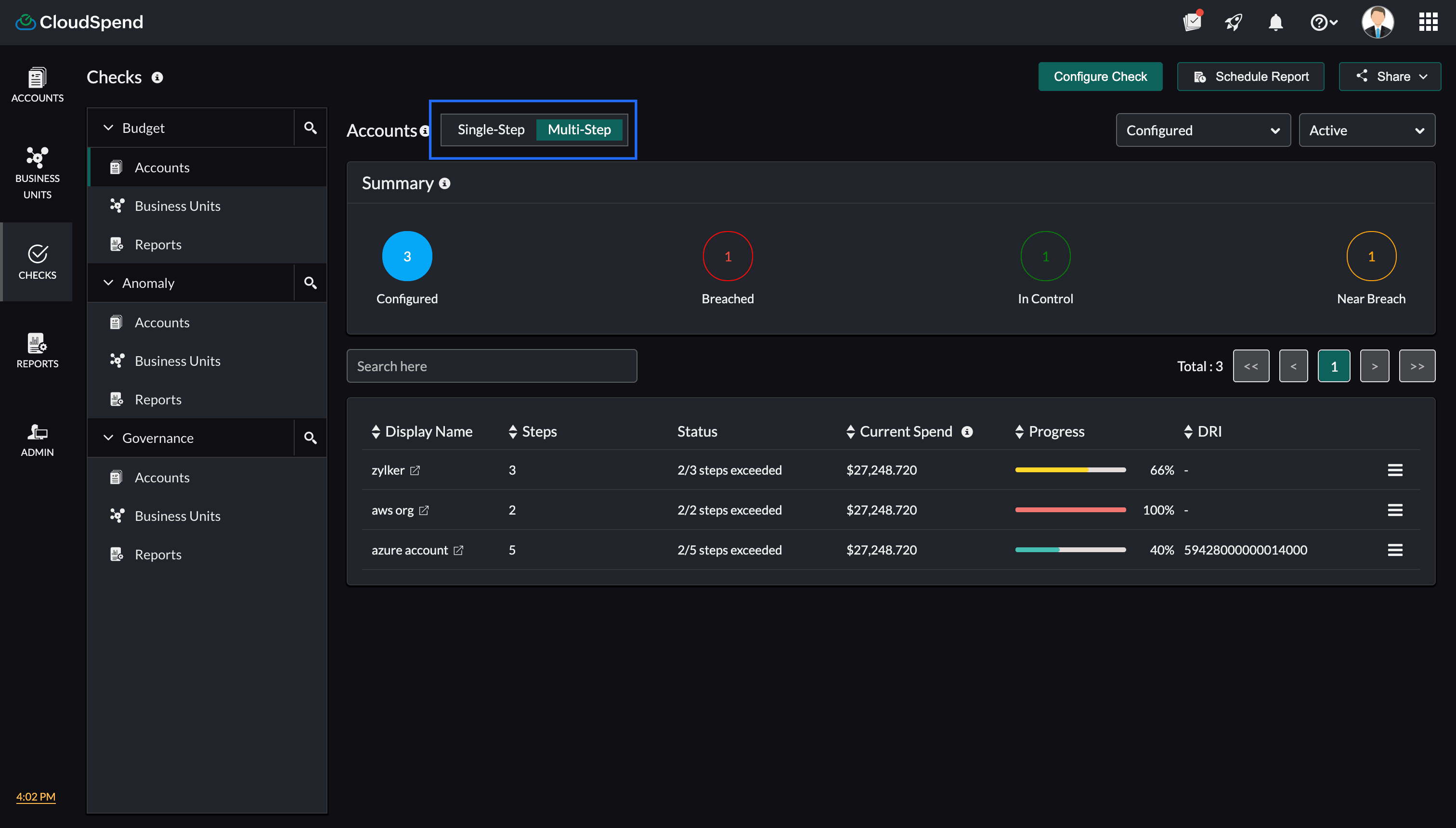
This is especially useful for organizations running workloads across AWS, Azure, or Google Cloud Platform, where spend is distributed and dynamic. You can view and configure Single-Step and Multi-Step budgets based on your requirements. To view Single-Step budgets, select the Single-Step toggle next to Accounts.
Benefits of Multi-Step Budget
The Multi-Step Budget feature provides you with the following benefits:
- Proactive cloud cost control: Identify and act on cost spikes before they become critical.
- Step-based alerting and escalation: Notify different stakeholders based on budget thresholds.
- Improved cloud spend visibility: Monitor cost trends across accounts, services, and regions.
- Flexible budget configuration: Define multiple thresholds within a single budget.
- Custom alert communication: Use email templates to tailor notifications.
- Stronger cost governance: Assign ownership and enforce accountability using a directly responsible individual (DRI).
Use cases
- A SaaS product team running workloads on AWS uses multi-step budgets to manage monthly cloud costs. Instead of waiting for a full budget breach, they define thresholds at 30 percent, 50 percent, and 70 percent. As usage increases, alerts are triggered progressively. Engineers are notified first to check for unnecessary resource usage. If costs continue to rise, team leads and finance teams are alerted. This helps control AWS cloud spend in real time and prevents unexpected billing spikes.
- In a multi-cloud environment using Azure and Google Cloud Platform, different business units share infrastructure costs. A centralized cloud operations team sets up multi-step budgets to monitor usage across departments. Early thresholds notify engineers, while higher thresholds notify business stakeholders. This ensures better cost allocation, accountability, and cloud cost optimization across teams.
- For organizations running seasonal workloads or marketing campaigns, cloud usage can increase rapidly within a short period. Multi-step budgets help track these changes closely. Early alerts provide visibility into rising costs, allowing teams to scale resources efficiently while maintaining budget control.
Configuring Multi-Step Budget check
To configure the Multi-Step Budget check for Accounts, Business Units, and Reports, follow the steps mentioned in the sections below.
Accounts
To configure multi-step budgets for your cost accounts:
- Go to the CloudSpend console.
- In the left navigation pane, choose Checks.
- Select Budget, then the Accounts tab.
- Click Configure Check and complete the following steps:
Step 1: Basic Details
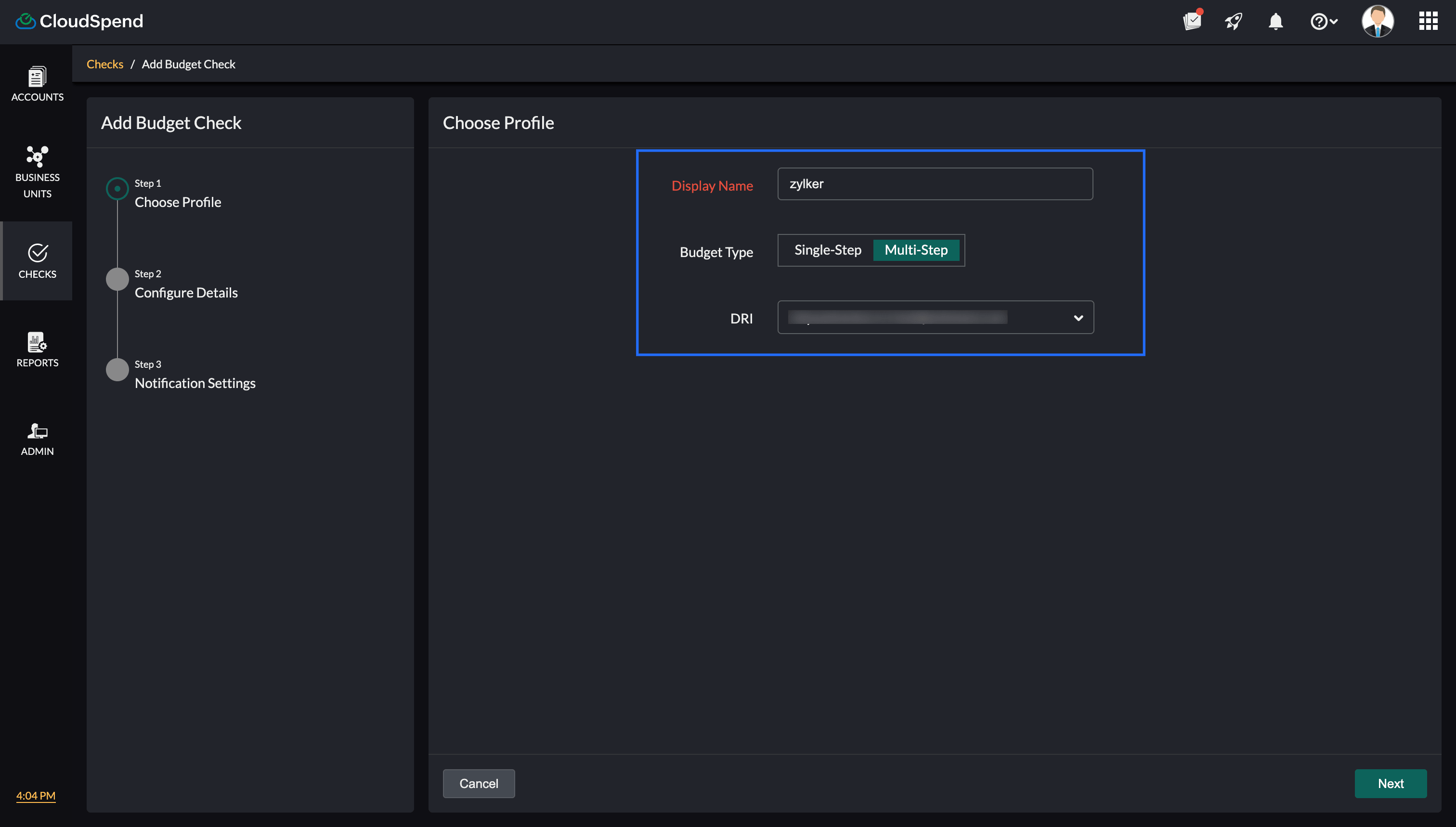
Define the basic configuration for your cloud budget in the Basic Details page:
- Display Name: Enter the name of the budget used for identification across CloudSpend dashboards and reports.
- Budget Type: Select Multi-Step Budget.
- DRI: Assign a responsible owner for this budget. This ensures accountability for cloud cost control.
- Add Label: Enter the label key and label value.
Step 2: Configure Details
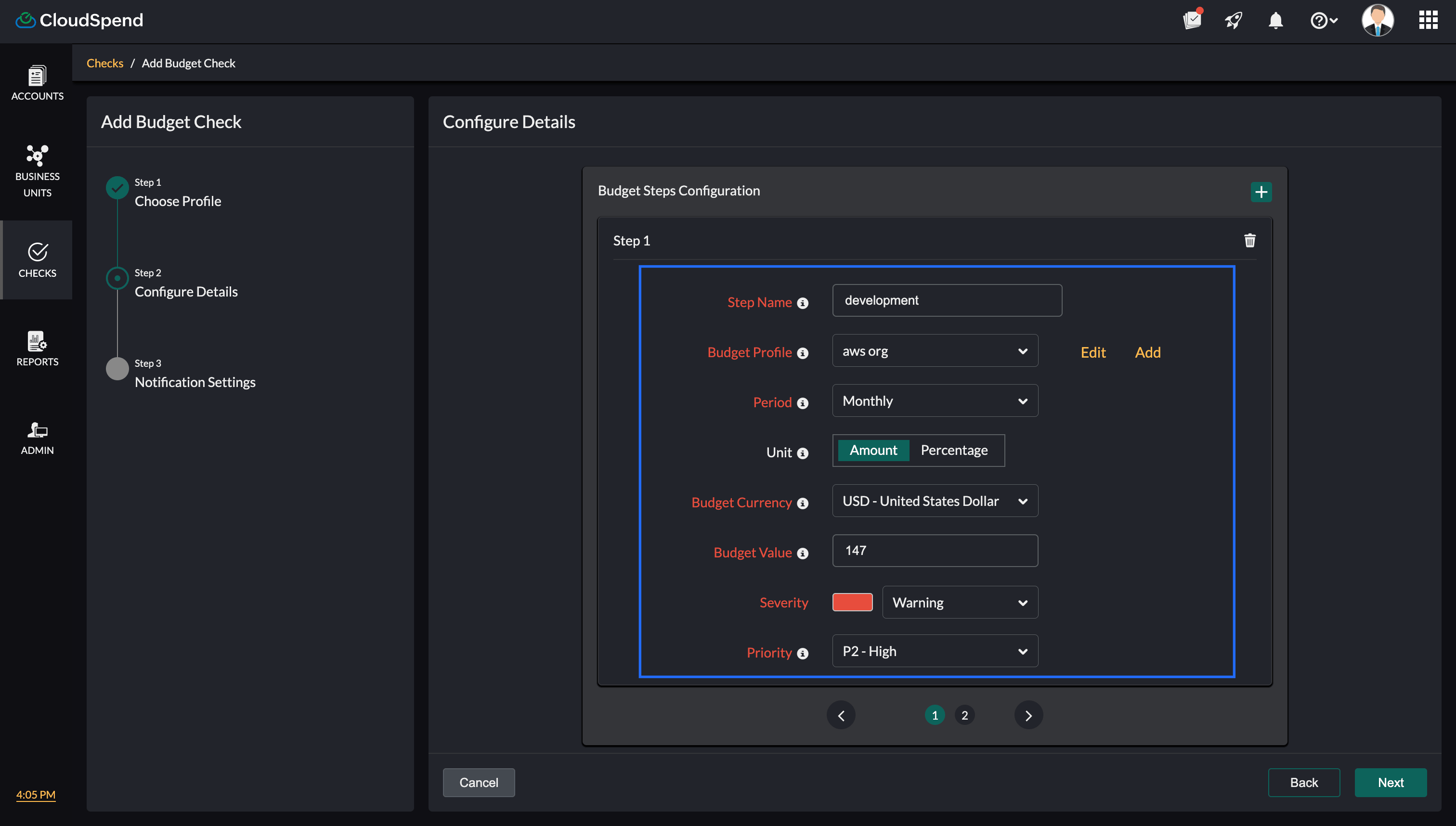
Define budget thresholds using these steps. Each step represents a specific level of budget consumption and helps in tracking cloud spend more granularly.
In the Configure Details page, enter the following details:
- Step Name: A name that represents the stage of budget usage.
- Budget Profile: Defines the scope of the budget, such as account, service, or region. Select the applicable Budget Profile. Budget profiles are reusable across multiple budgets. If you wish to create a new profile, click Add to open the Budget Profile dialog box. To edit a profile, click Edit and after you make the necessary changes, click Save.
- Period: Select the time period for which you want to monitor your cloud spending. The available options include Financial Year, Month to Date (MTD), Year to Date (YTD), Forecast (Month), and Custom Start Date. The selected period determines the duration over which the configured budget is evaluated. Select Custom Start Date when you want to start monitoring your cloud spending from a specific date without defining an end date. CloudSpend evaluates your spending from the selected start date onward, allowing the budget to continue monitoring the account without requiring you to create a new budget for a fixed end date.
- Severity: Select the severity level for the budget alert. The available severity levels determine the importance of the alert when the configured budget threshold is exceeded.
- Priority: Select the priority level for the budget alert. This helps you indicate the importance of the budget breach and prioritize the alert for further action.
- Budget Currency: Select the currency in which you want to configure the budget. The budget value and amount-based thresholds are evaluated using the selected currency.
- Unit: Select how you want to define the budget threshold. You can choose Amount, Percentage, or Percentile.
- Amount: Define the budget as a specific monetary value in the selected currency.
- Percentage: Define the budget based on a percentage value. You can specify whether the threshold represents a rise or drop in cloud spending.
- Percentile: Define the budget using a percentile value.
- Mode: Select how the budget threshold should be applied.
- Basic: Uses a static budget threshold. The configured budget value remains the same for the selected budget period.
- Advanced: Uses a dynamic threshold that grows for each period based on the configured Base Value and Expected Periodic Deviation.
- Budget Value: Enter the value of the cloud cost budget. The value can represent an amount, percentage, or percentile based on the selected Unit. CloudSpend evaluates the actual spending against the configured budget value once an hour. An alert is triggered when the actual spending exceeds the applicable budget threshold.
The actual spending value is based on the approximate charges accrued by the cost account during the selected budget period. These values may change until the cloud bills are finalized. Therefore, the final billable amount may be higher than the charges that triggered the alert notification.
In Basic mode, Budget Value acts as the static threshold for the selected period. In Advanced mode, the Budget Value works with the Base Value and Expected Periodic Deviation to determine the applicable threshold as the budget progresses through each period. - Base Value: Available when Advanced mode is selected. Enter the starting value from which the budget threshold grows for each period.
- Expected Periodic Deviation: Available when Advanced mode is selected. Enter the expected growth to be applied to the Base Value for each period. The value is interpreted according to the selected unit. For Amount, enter the deviation as an amount. For Percentage or Percentile, enter the deviation as a percentage or percentile value. If you select Custom Start Date as the Period, the Expected Periodic Deviation field is disabled.
- Click Next to proceed to the next step. Click Back to return to the previous step.
Adding multiple steps
To add multiple budget steps, click the + icon to add more steps.
Each step can be configured independently with different:
- Budget thresholds
- Severity levels
- Notification rules
This enables fine-grained cloud cost monitoring and escalation.
Step 3: Configure Triggers
Note that this step is available only if you have integrated Site24x7 accounts.
In the Configure Triggers page, configure the following details:
- IT Automation Templates: Automate incident remediation using IT Automation. Select the applicable template. To add an IT automation template, click Add. To refresh the settings, click Refresh.
- Third-party Services: You can choose to receive notifications via third-party services of your choice. Select the required third-party services. To add any third-party services, click Add. To refresh the settings, click Refresh.
- Click Next to proceed to step 4. To go back to the previous page, click Back.
Step 4: Notification Settings
In the Notification Settings page, select the applicable notification profile and click Submit. If you wish to add a new notification profile, click Add.
Cost Centers
To configure multi-step budgets for your Cost Centers:
- Go to the CloudSpend console.
- In the left navigation pane, choose Checks.
- Select Budget, then the Business Units tab.
- Click Configure Check and complete the following steps:
Step 1: Basic Details
Define the basic configuration for your cloud budget in the Basic Details page:
- Display Name: Enter the name of the budget used for identification across CloudSpend dashboards and reports.
- Budget Type: Select Multi-Step Budget.
- DRI: Assign a responsible owner for this budget. This ensures accountability for cloud cost control.
Step 2: Configure Details
Define budget thresholds using steps. Each step represents a specific level of budget consumption and helps in tracking cloud spend more granularly.
In the Configure Details page, enter the following details:
- Step Name: A name that represents the stage of budget usage.
- Budget Profile: Defines the scope of the budget, such as account, service, or region. Select the applicable Budget Profile. Budget profiles are reusable across multiple budgets. If you wish to create a new profile, click Add to open the Budget Profile dialog box. To edit a profile, click Edit and after you make the necessary changes, click Save.
- Period: Select the time period for which you want to monitor your cloud spending. The available options include Financial Year, Month to Date (MTD), Year to Date (YTD), Forecast (Month), and Custom Start Date. The selected period determines the duration over which the configured budget is evaluated. Select Custom Start Date when you want to start monitoring your cloud spending from a specific date without defining an end date. CloudSpend evaluates your spending from the selected start date onward, allowing the budget to continue monitoring the account without requiring you to create a new budget for a fixed end date.
- Severity: Select the severity level for the budget alert. The available severity levels determine the importance of the alert when the configured budget threshold is exceeded.
- Priority: Select the priority level for the budget alert. This helps you indicate the importance of the budget breach and prioritize the alert for further action.
- Budget Currency: Select the currency in which you want to configure the budget. The budget value and amount-based thresholds are evaluated using the selected currency.
- Unit: Select how you want to define the budget threshold. You can choose Amount, Percentage, or Percentile.
- Amount: Define the budget as a specific monetary value in the selected currency.
- Percentage: Define the budget based on a percentage value. You can specify whether the threshold represents a rise or drop in cloud spending.
- Percentile: Define the budget using a percentile value.
- Mode: Select how the budget threshold should be applied.
- Basic: Uses a static budget threshold. The configured budget value remains the same for the selected budget period.
- Advanced: Uses a dynamic threshold that grows for each period based on the configured Base Value and Expected Periodic Deviation.
Budget Value: Enter the value of the cloud cost budget. The value can represent an amount, percentage, or percentile based on the selected Unit. CloudSpend evaluates the actual spending against the configured budget value once an hour. An alert is triggered when the actual spending exceeds the applicable budget threshold.
The actual spending value is based on the approximate charges accrued by the cost account during the selected budget period. These values may change until the cloud bills are finalized. Therefore, the final billable amount may be higher than the charges that triggered the alert notification.
In Basic mode, Budget Value acts as the static threshold for the selected period. In Advanced mode, the Budget Value works with the Base Value and Expected Periodic Deviation to determine the applicable threshold as the budget progresses through each period.- Base Value: Available when Advanced mode is selected. Enter the starting value from which the budget threshold grows for each period.
- Expected Periodic Deviation: Available when Advanced mode is selected. Enter the expected growth to be applied to the Base Value for each period. The value is interpreted according to the selected unit. For Amount, enter the deviation as an amount. For Percentage or Percentile, enter the deviation as a percentage or percentile value. If you select Custom Start Date as the Period, the Expected Periodic Deviation field is disabled.
- Click Next to proceed to the next step. Click Back to return to the previous step.
Adding multiple steps
To add multiple budget steps, click the + icon to add more steps.
Each step can be configured independently with different:
- Budget thresholds
- Severity levels
- Notification rules
This enables fine-grained cloud cost monitoring and escalation.
Step 3: Configure Triggers
Note that this step is available only if you have integrated Site24x7 accounts.
In the Configure Triggers page, configure the following details:
- IT Automation Templates: Automate incident remediation using IT Automation. Select the applicable template. To add an IT automation template, click Add. To refresh the settings, click Refresh.
- Third-party Services: You can choose to receive notifications via third-party services of your choice. Select the required third-party services. To add any third-party services, click Add. To refresh the settings, click Refresh.
- Click Next to proceed to step 4. To go back to the previous page, click Back.
Step 4: Notification Settings
In the Notification Settings page, select the applicable notification profile and click Submit. If you wish to add a new notification profile, click Add.
Reports
To configure multi-step budgets for Reports:
- Go to the CloudSpend console.
- In the left navigation pane, choose Checks.
- Select Budget, then the Reports tab.
- Click Configure Check and complete the following steps:
Step 1: Basic Details
Define the basic configuration for your cloud budget in the Basic Details page:
- Display Name: Enter the name of the budget used for identification across CloudSpend dashboards and reports.
- Budget Type: Select Multi-Step Budget.
- DRI (Direct Responsible Individual): Assign a responsible owner for this budget. This ensures accountability for cloud cost control.
Step 2: Configure Details
- Step Name: A name that represents the stage of budget usage.
- Budget Profile: Defines the scope of the budget, such as account, service, or region. Select the applicable Budget Profile. Budget profiles are reusable across multiple budgets. If you wish to create a new profile, click Add to open the Budget Profile dialog box. To edit a profile, click Edit and after you make the necessary changes, click Save.
- Period: Select the time period for which you want to monitor your cloud spending. The available options include Financial Year, Month to Date (MTD), Year to Date (YTD), Forecast (Month), and Custom Start Date. The selected period determines the duration over which the configured budget is evaluated. Select Custom Start Date when you want to start monitoring your cloud spending from a specific date without defining an end date. CloudSpend evaluates your spending from the selected start date onward, allowing the budget to continue monitoring the account without requiring you to create a new budget for a fixed end date.
- Severity: Select the severity level for the budget alert. The available severity levels determine the importance of the alert when the configured budget threshold is exceeded.
- Priority: Select the priority level for the budget alert. This helps you indicate the importance of the budget breach and prioritize the alert for further action.
- Budget Currency: Select the currency in which you want to configure the budget. The budget value and amount-based thresholds are evaluated using the selected currency.
- Unit: Select how you want to define the budget threshold. You can choose Amount, Percentage, or Percentile.
- Amount: Define the budget as a specific monetary value in the selected currency.
- Percentage: Define the budget based on a percentage value. You can specify whether the threshold represents a rise or drop in cloud spending.
- Percentile: Define the budget using a percentile value.
- Mode: Select how the budget threshold should be applied.
- Basic: Uses a static budget threshold. The configured budget value remains the same for the selected budget period.
- Advanced: Uses a dynamic threshold that grows for each period based on the configured Base Value and Expected Periodic Deviation.
Budget Value: Enter the value of the cloud cost budget. The value can represent an amount, percentage, or percentile based on the selected Unit. CloudSpend evaluates the actual spending against the configured budget value once an hour. An alert is triggered when the actual spending exceeds the applicable budget threshold.
The actual spending value is based on the approximate charges accrued by the cost account during the selected budget period. These values may change until the cloud bills are finalized. Therefore, the final billable amount may be higher than the charges that triggered the alert notification.
In Basic mode, Budget Value acts as the static threshold for the selected period. In Advanced mode, the Budget Value works with the Base Value and Expected Periodic Deviation to determine the applicable threshold as the budget progresses through each period.- Base Value: Available when Advanced mode is selected. Enter the starting value from which the budget threshold grows for each period.
- Expected Periodic Deviation: Available when Advanced mode is selected. Enter the expected growth to be applied to the Base Value for each period. The value is interpreted according to the selected unit. For Amount, enter the deviation as an amount. For Percentage or Percentile, enter the deviation as a percentage or percentile value. If you select Custom Start Date as the Period, the Expected Periodic Deviation field is disabled.
- Click Next to proceed to the next step. Click Back to return to the previous step.
Adding multiple steps
To add multiple budget steps, click the + icon to add more steps.
Each step can be configured independently with different:
- Budget thresholds
- Severity levels
- Notification rules
This enables fine-grained cloud cost monitoring and escalation.
Step 3: Configure Triggers
Note that this step is available only if you have integrated Site24x7 accounts.
In the Configure Triggers page, configure the following details:
- IT Automation Templates: Automate incident remediation using IT Automation. Select the applicable template. To add an IT automation template, click Add. To refresh the settings, click Refresh.
- Third-party Services: You can choose to receive notifications via third-party services of your choice. Select the required third-party services. To add any third-party services, click Add. To refresh the settings, click Refresh.
- Click Next to proceed to step 4. To go back to the previous page, click Back.
Step 4: Notification Settings
In the Notification Settings page, select the applicable notification profile and click Submit. If you wish to add a new notification profile, click Add.
How CloudSpend Calculates Budget Thresholds
CloudSpend calculates your budget threshold based on the Unit and Mode you select. The Budget Value defines the threshold you want to monitor.
Basic mode
In Basic mode, you configure only the Budget Value. The calculation depends on the selected Unit. For Amount, the Budget Value is used directly as the threshold.
| Unit | Budget Value | Calculation | Budget threshold |
|---|---|---|---|
| Amount | $10,000 | $10,000 | $10,000 |
For Percentage, you can select Rise or Drop. The percentage is applied to the applicable cloud spend value for the budget period.
| Unit | Applicable cloud spend value | Budget value | Calculation | Budget threshold |
|---|---|---|---|---|
| Percentage, Rise | $10,000.00 | 50% | $10,000 + (50% × $10,000) | $15,000.00 |
| Percentage, Drop | $10,000.00 | 50% | $10,000 − (50% × $10,000) | $5,000.00 |
For Percentile, the Budget Value represents the percentage of the applicable cloud spend value. The Rise and Drop options are not available.
| Unit | Applicable cloud spend value | Budget value | Calculation | Budget threshold |
|---|---|---|---|---|
| Percentile | $10,000.00 | 50% | 50% × $10,000 | $5,000.00 |
According to the above example, if the applicable cloud spend is $10,000 and you configure a 50% rise, the budget threshold is $15,000. If you configure a 50% drop, the threshold is $5,000. With a 50% Percentile, the threshold is also $5,000.
Advanced mode
In Advanced mode, you configure the Base Value, Expected Periodic Deviation, and Budget Value.
The Base Value is the starting reference for the calculation. For a monthly budget, you can set it to the previous month's cloud spend. For instance, in an MTD budget, you can set it to the previous month's MTD cloud spend.
The Expected Periodic Deviation determines how the threshold changes for each successive month. Each month's calculation uses the original base value. The threshold calculated for one month is not used as the base value for the next month.
For example, assume the Base Value is $10,000, and the Expected Periodic Deviation is 10%.
| Month | Calculation | Budget threshold |
|---|---|---|
| January | $10,000.00 | $10,000.00 |
| February | $10,000 + (10% × $10,000) | $11,000.00 |
| March | $10,000 + (20% × $10,000) | $12,000.00 |
| April | $10,000 + (30% × $10,000) | $13,000.00 |
Notice that March is calculated using the original $10,000 base value, not February's $11,000 threshold.
When an Amount is selected, the Budget Value defines the initial monetary threshold. The Expected Periodic Deviation determines the amount by which the threshold changes for each successive period, based on the base value. For example, if the budget value and base value are $10,000 and the Expected Periodic Deviation is 10%, the threshold is $10,000 for the first month, $11,000 for the second month, $12,000 for the third month, and so on. Each calculation uses the original base value rather than the threshold calculated for the previous month.
The important distinction is that Budget Value is the initial budget amount, while Expected Periodic Deviation determines how much the threshold changes in each subsequent period.
For Percentage, the Budget Value can be configured as a rise or drop. For example, with a Base Value of $10,000, a Budget Value of 50% rise, and an Expected Periodic Deviation of 10%:
| Month | Calculation | Budget threshold |
|---|---|---|
| January | $10,000.00 | $10,000.00 |
| February | $10,000 + (10% × $10,000) | $11,000.00 |
| March | $10,000 + (20% × $10,000) | $12,000.00 |
| April | $10,000 + (30% × $10,000) | $13,000.00 |
The Expected Periodic Deviation increases the percentage applied to the original base value for each successive month.
For a 50% drop, the same Base Value and Expected Periodic Deviation would work as follows:
| Month | Calculation | Budget threshold |
|---|---|---|
| January | $10,000 − (50% × $10,000) | $5,000.00 |
| February | $10,000 − (40% × $10,000) | $6,000.00 |
| March | $10,000 − (30% × $10,000) | $7,000.00 |
| April | $10,000 − (20% × $10,000) | $8,000.00 |
For Percentile, the Budget Value represents the percentage of the Base Value.
For example, with a Base Value of $10,000, a Budget Value of 50%, and an Expected Periodic Deviation of 10%:
| Month | Calculation | Budget threshold |
|---|---|---|
| January | 50% × $10,000 | $5,000.00 |
| February | 60% × $10,000 | $6,000.00 |
| March | 70% × $10,000 | $7,000.00 |
| April | 80% × $10,000 | $8,000.00 |
In all Advanced mode calculations, the original base value remains the reference. The calculated threshold from one month is not carried forward as the base value for the next month.
CloudSpend evaluates actual spending against the applicable budget threshold once every day. If actual spending exceeds the threshold, a budget alert is triggered. Actual spending is based on approximate charges accrued by the cost account and may change until the cloud bill is finalized.
Budget Details
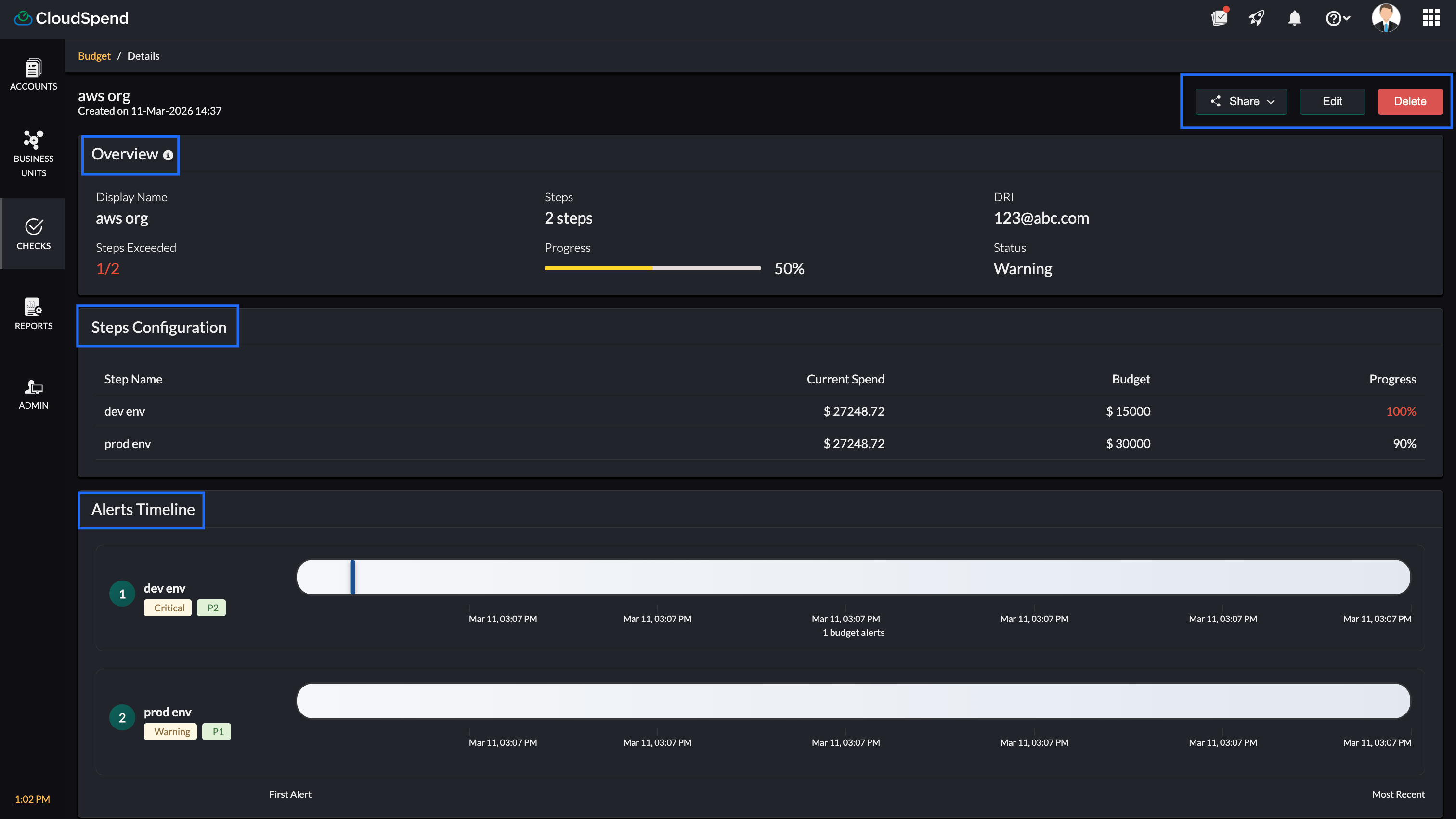
The Budget Details section provides a detailed view of a selected budget, including its status, step-level performance, alerts, and historical data. To access this page, click the new tab icon next to a budget.
This page helps you monitor budget consumption, track threshold breaches, and analyze spend over time.
Overview
The Overview section provides a summary of the budget and its current state.
You can view the following details:
- Display Name: Name of the configured budget.
- Steps: Total number of steps defined for the budget.
- Steps Exceeded: Number of steps where the defined thresholds have been crossed.
- Progress: Indicates the overall budget consumption.
- DRI: Displays the assigned directly responsible individual.
- Status: Shows the current state of the budget based on the highest severity step triggered.
Steps Configuration
The Steps Configuration section shows how each configured step is performing against its defined threshold.
You can view the following details:
- Step Name: Name assigned to the step.
- Current Spend: Actual spend recorded for the step.
- Budget: Configured threshold value for the step.
- Progress: Percentage of the budget consumed for that step.
Click a budget step to view detailed information for that step.
Step Details
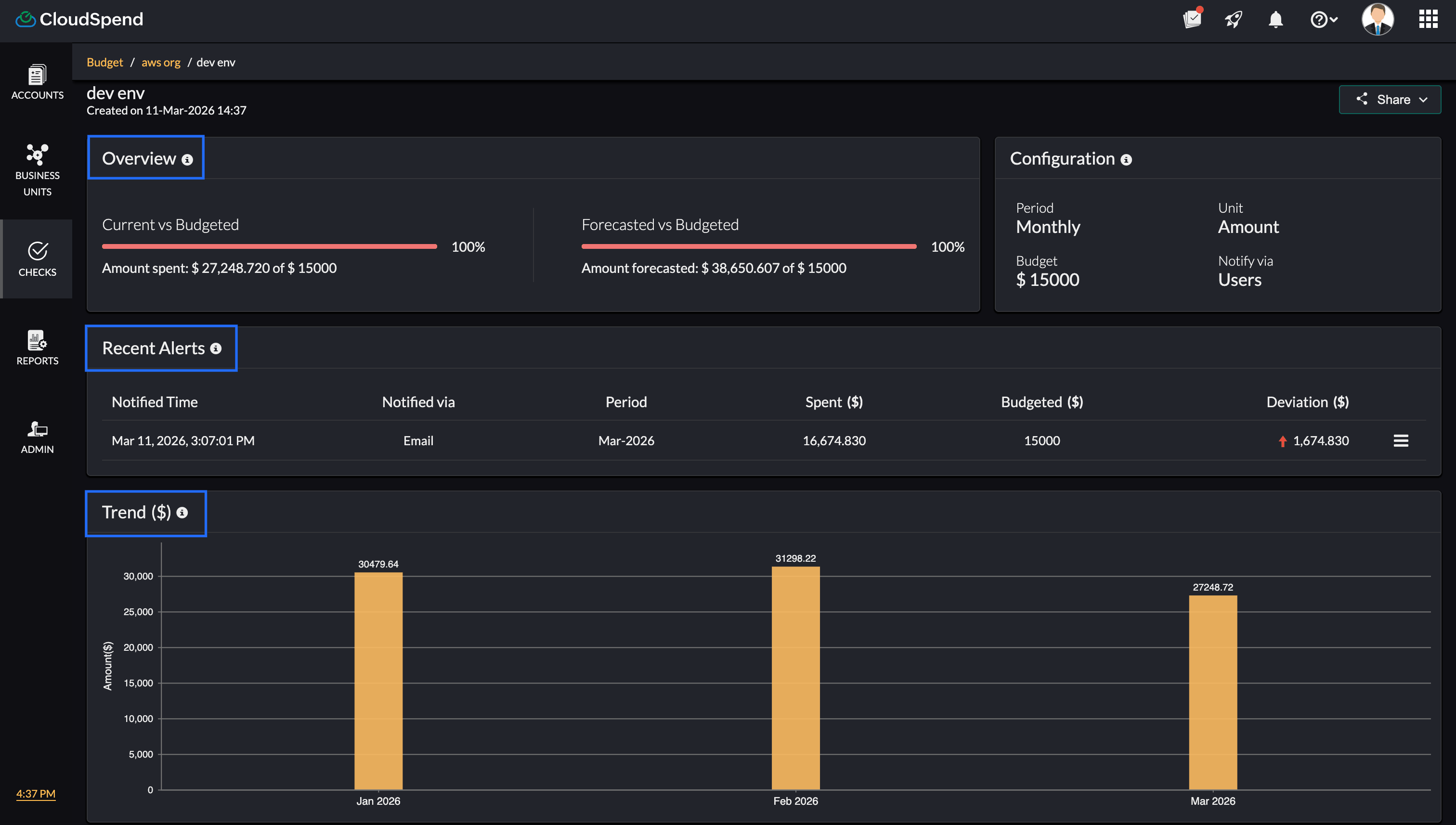
The Budget Step Details page provides a detailed view of a selected step, including its performance, alerts, and trends.
- The Overview section compares current and forecasted spend against the configured budget, along with the percentage consumed.
- The Configuration section displays the step settings, including period, unit type, budget value, and notification method.
- The Recent Alerts section lists the latest alerts with details such as notified time, channel, period, spend, budget, and deviation.
- The Trend section provides a visual representation of spend over time to help identify patterns.
- The History section shows past usage, budgeted values, and deviations for each period.
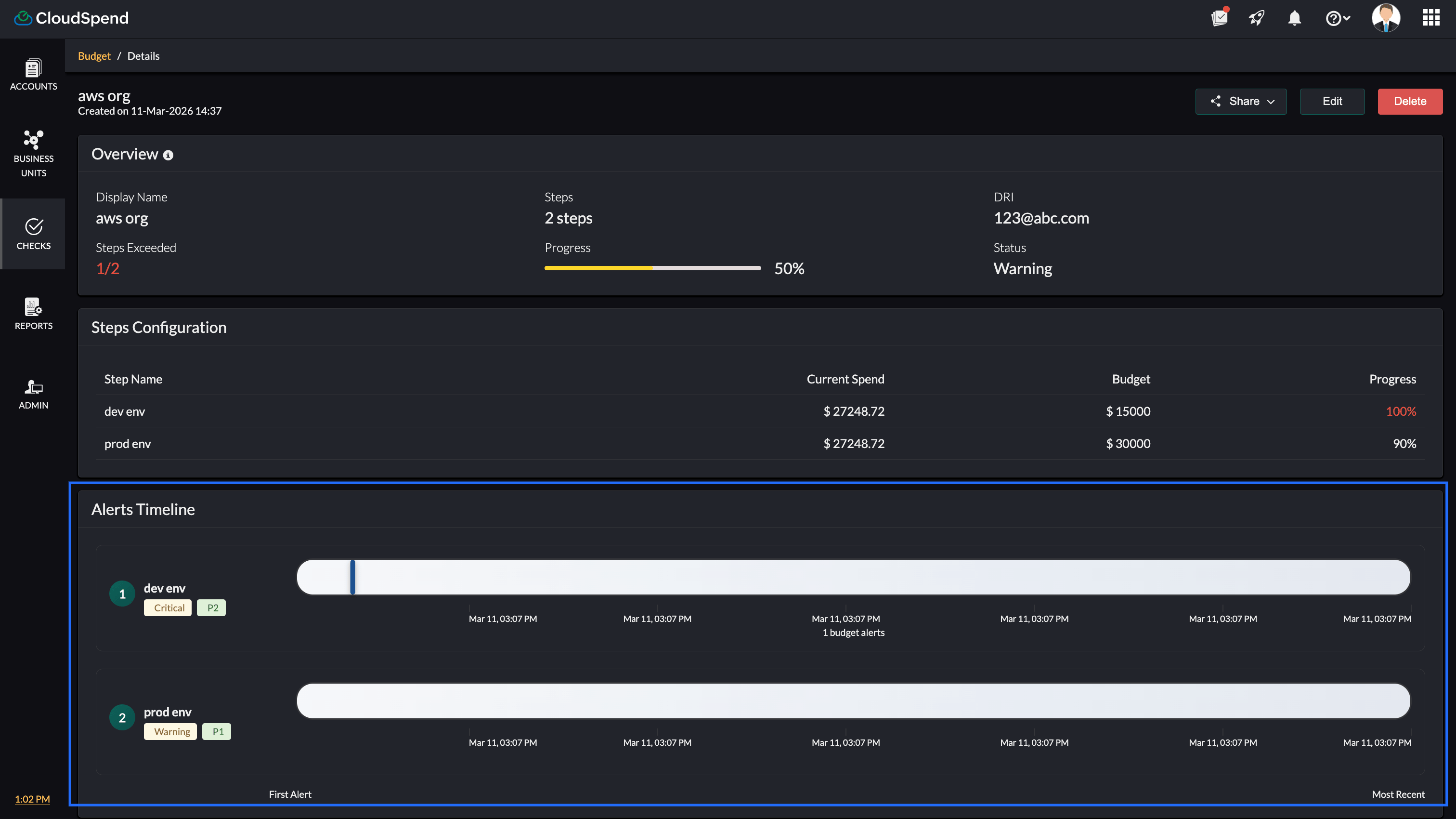
Alerts Timeline
The Alerts Timeline section shows when alerts were triggered across different steps.
- Displays alerts from the first occurrence to the most recent.
- Shows each step separately.
- Indicates alert points using markers.
- Displays severity and priority for each step.
This section helps you understand how the budget progressed over time and when thresholds were crossed.
Recent Alerts
The Recent Alerts section lists the latest alerts triggered for the budget. You can view the following details:
- Notified Time: Time when the alert was sent.
- Step: Step at which the alert was triggered.
- Notified via: Notification channel used.
- Period: Budget period associated with the alert.
- Spent ($): Actual spend at the time of alert.
- Budgeted ($): Configured budget value.
- Deviation ($): Difference between actual spend and budget.
History
The History section provides past budget performance data. You can view the following details:
- Date: The budget period.
- Step: Step that was triggered.
- Usage Value ($): Actual spend recorded.
- Budgeted ($): Configured budget value.
- Deviation ($): Difference between usage and budget.
Schedule report
You can schedule four reports from the budget details section for:
- The Budget Dashboard, which includes the list of all budgets.
- The Budget Details page of individual budget entries.
- The Recent Alerts raised for your budgets.
- An Overview of the expenses and the deviations from the budgeted amounts.
Recent Alerts
View all the alerts that were raised for a particular budget using Recent Alerts and plan your expenses accordingly. You can view the time of notification, the medium through which the notification was sent, the period, the amount spent, the budgeted amount, and the deviation from the budgeted amount. If there are more than five alerts, you will need to click Show more to view all the alerts from the time you've created the budget.
History
Get monthly, quarterly, or yearly historical data related to your budget based on the configured period type using History. This can provide you with information about the amount spent during that period (the usage value), the budgeted value, and the deviation from the budgeted amount. Historical data can help you in understanding the pattern of spending and the fluctuations from the budgeted amount, so you can plan your expenses for the upcoming months.
Budget Period
A Budget Period helps you choose the duration for each budget configured in your account. You can also choose to get notified in case of any variation from the budgeted amount. The various period options available are:
- Monthly*: Set a budget at the beginning of every month. For instance, if you wish to set a budget for the whole month of November, you can choose this option.
- Quarterly*: The budget will be set at the beginning of every quarter. This option can be helpful if you wish to analyze your budgets on a quarterly basis.
- Yearly*: Set the budget at the beginning of every year. This can be used if you wish to plan for the whole year at the very beginning of the year.
- MTD: Comparing the expenditure can help you understand spending patterns and variations. With MTD as the period type, a comparison budget can be created. Using this option, you can compare the cost from the beginning of a month to a specific date in the current month with the cost accrued in the previous month for the same duration (e.g., August 1—12 to September 1—12).
- With this type, you can set the budget value as a Percentage or Amount, with options to choose to view the rise or drop percent, thereby helping you obtain a detailed analysis.
- YTD: With YTD as the period type, a comparison budget will be created. Using this option, you can compare the cost from the beginning of a year to a specific date in the year with the cost accrued in the previous year for the same duration.
- For instance, a YTD comparison budget can be created for the cost accrued from January to September, 2019, and for the cost accrued from January to September, 2020. With this type, you can set the budget value as a Percentage or Amount, with options to view the rise or drop in value.
- Daily: By setting the period type as Daily, you can set a budget on a daily basis. This can help you check the expenses incurred on a day-to-day basis.
- Forecast (Month): With Forecast (Month), you can set the budget in line with the forecast for the current month. This can help ensure that the budget isn't exceeding or dropping below the forecasted amount for the month, thereby helping you manage the expenses in an organized way.
*Note: Regardless of the date of budget creation.
Budget automation in multi-step budgets
When creating a multi step budget in CloudSpend, you can leverage IT automation and third party integrations to streamline your budget management process for Accounts, Business Units, and Reports. These capabilities are configured within each step of the budget through the Configure Triggers stage, where you define the actions that should run when budget thresholds are reached.
CloudSpend sends budget alert notifications when thresholds are breached, ensuring that the right stakeholders are informed and can take timely action. Within each step, the Configure Triggers stage allows you to associate IT Automation Templates that define what actions should be executed based on the conditions set for that step.
For example, you can configure one or more IT Automation Templates to automatically stop or downscale non essential cloud resources, like shutting down a group of EC2 instances or scaling down a Kubernetes cluster, when the budget reaches a certain percentage within a specific step.
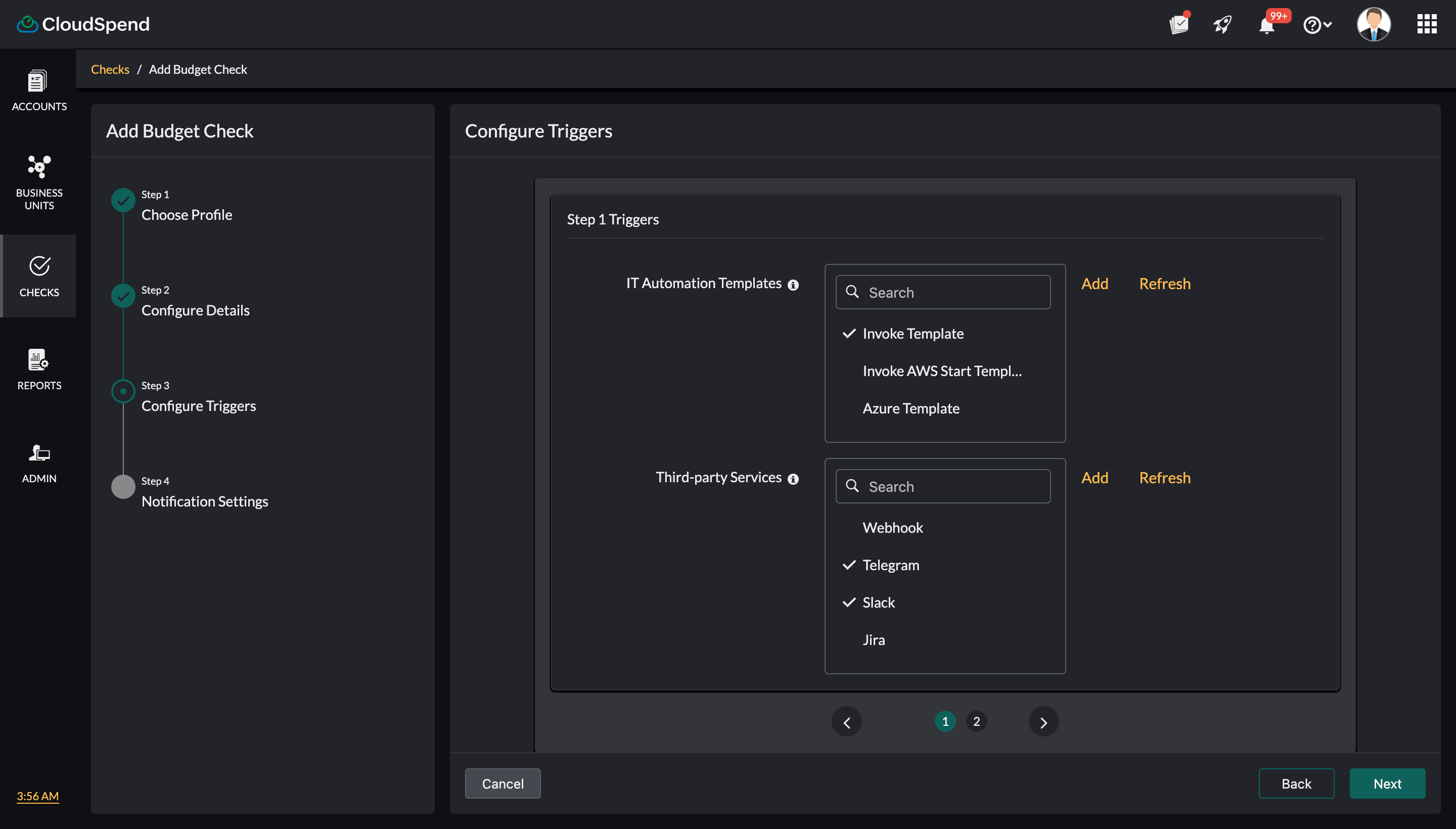
As part of the same Configure Triggers stage in each step, you can also select the applicable Third party Services to enable communication across platforms. With these integrations, you can connect to external ticketing systems, communication platforms like Slack, or ITSM tools to escalate budget related issues, notify teams, or trigger workflows. This ensures that all stakeholders are informed and can take appropriate actions quickly at every stage of the budget.
For instance, when the budget reaches 90% in a given step, a Slack message can be sent to a dedicated channel, informing the team about the expenditure status.
CloudSpend sends budget alert notifications based on the settings defined in the Notification Settings stage. Notifications are triggered only once when a threshold is breached and are sent via email to selected users and user groups within CloudSpend. This ensures that the right stakeholders receive timely updates and can take action when required.
Amount based and Percentage based budgets for cloud cost management
CloudSpend supports both amount based and percentage based budget thresholds across AWS, Azure, and Google Cloud Platform environments. This helps organizations manage cloud costs across Accounts, Business Units, and Reports with better control and visibility.
An amount based budget defines a fixed cloud cost limit in your selected currency. This is useful for teams that plan monthly or yearly cloud budgets and want to track exact spend against allocated cost.
A percentage based budget tracks cloud spend relative to a baseline such as previous usage, forecast, or allocated budget. This helps identify cost increases, usage spikes, and deviations in real time.
How amount based and percentage based budgets are used in CloudSpend
Cloud cost management strategies often require both fixed budget tracking and dynamic usage monitoring. CloudSpend supports this through flexible unit selection within multi step budgets.
Amount based budgets are used for:
- Setting fixed cloud budget limits for AWS accounts, Azure subscriptions, or GCP projects.
- Tracking cloud spending against financial plans and cost allocation models.
- Enforcing strict cost control for production workloads and critical services.
Percentage based budgets are used for:
- Monitoring cloud cost growth across multi cloud environments.
- Tracking spend trends using MTD and YTD comparisons.
- Identifying unusual usage patterns and cost anomalies early.
In multi-step budgets:
- Percentage thresholds help detect early stage cost increases.
- Amount thresholds act as hard limits to prevent budget overruns.
- Different teams receive alerts based on cost consumption stages.
Using both amount based and percentage based budgets improves cloud financial management and cost optimization:
- Enables accurate cloud budget tracking across AWS, Azure, and Google Cloud Platform.
- Improves cloud cost visibility across accounts, business units, and reports.
- Supports FinOps practices by combining cost allocation and usage based monitoring.
- Helps detect cloud cost spikes early using percentage based thresholds.
- Prevents overspending with fixed amount based budget controls.
- Strengthens cloud cost governance with structured alerting and escalation.
This approach is widely used in cloud cost management platforms to manage dynamic workloads, optimize cloud spending, and maintain budget discipline across regions and teams.
Related articles