×![]()
×
×![]()
×
×
Active Directory Integration for Device Control Plus
Configuring the Sync Options
Active Directory resource information is synced according to a pre-configured schedule. Changes in sync frequency will affect Domain, Auto Discovery - Active Directory Sync and Custom group functionalities.
Once the domain is validated, the sync frequency can be configured for that particular domain.
How to Configure Sync Frequency
i. Sync Frequency
Users can choose how often the domain syncs with the server:
- Once a day — Syncs the domain data once every 24 hours.
- Twice a day — Syncs every 12 hours.
- Every 6 hours — Syncs the domain data every 6 hours
ii. Start Time
- Enter a time in 24 hour format to start the sync. Kindly note that the timezone has to be provided based on the location of the domain controller setup to initiate the sync. appropriately.
- NoteChoose the timezone based on the location of the Domain Controller setup to initiate the sync appropriately.
- Click Add Domain
- NoteThe configured sync frequency applies to domain synchronization, the Active Directory-based auto-discovery of computers, and the automatic creation of Custom Groups for the specified domain.
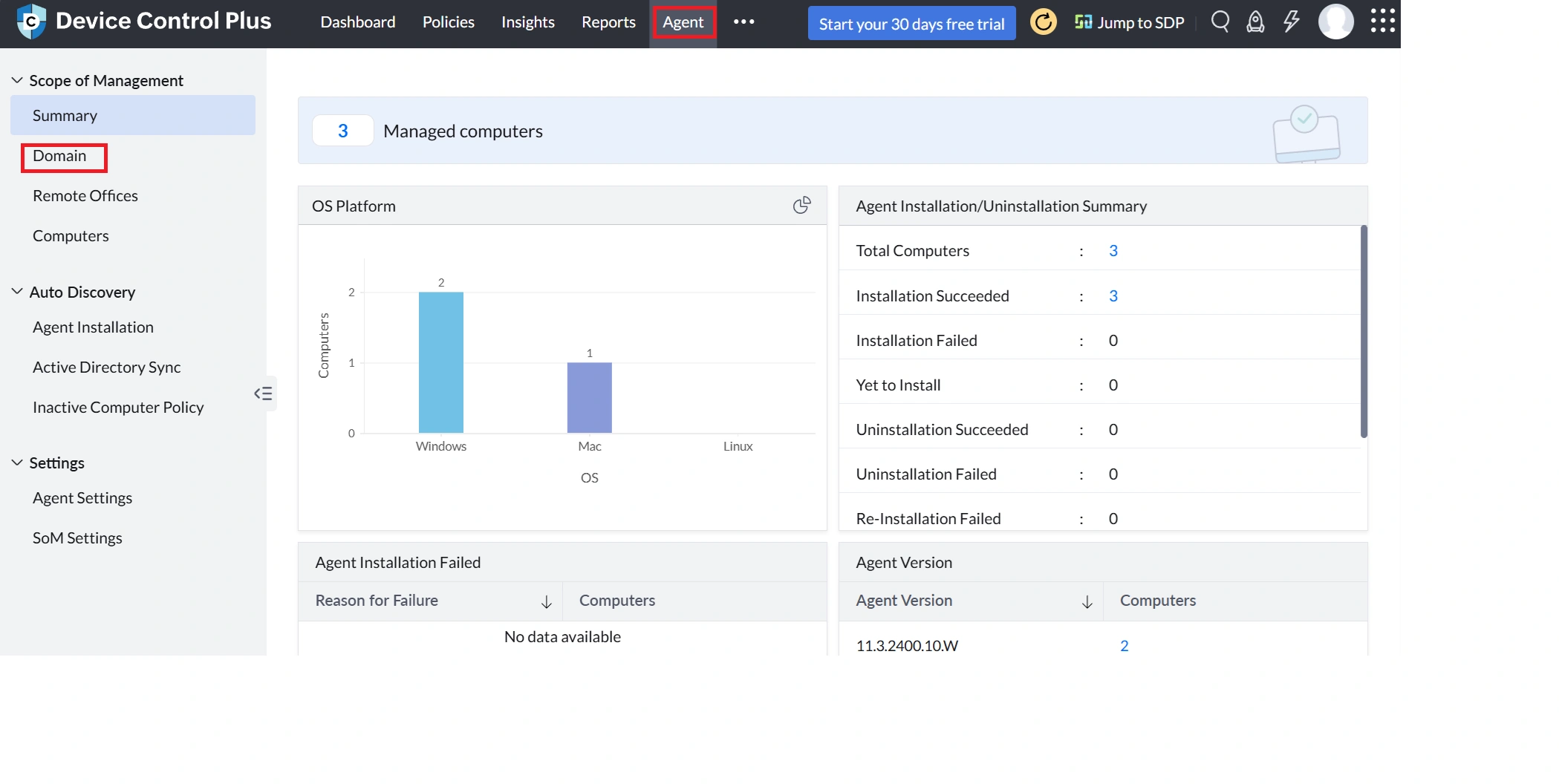
Managing Domains in Device Control Plus
Once a domain is added, you can manage it through the Actions menu.
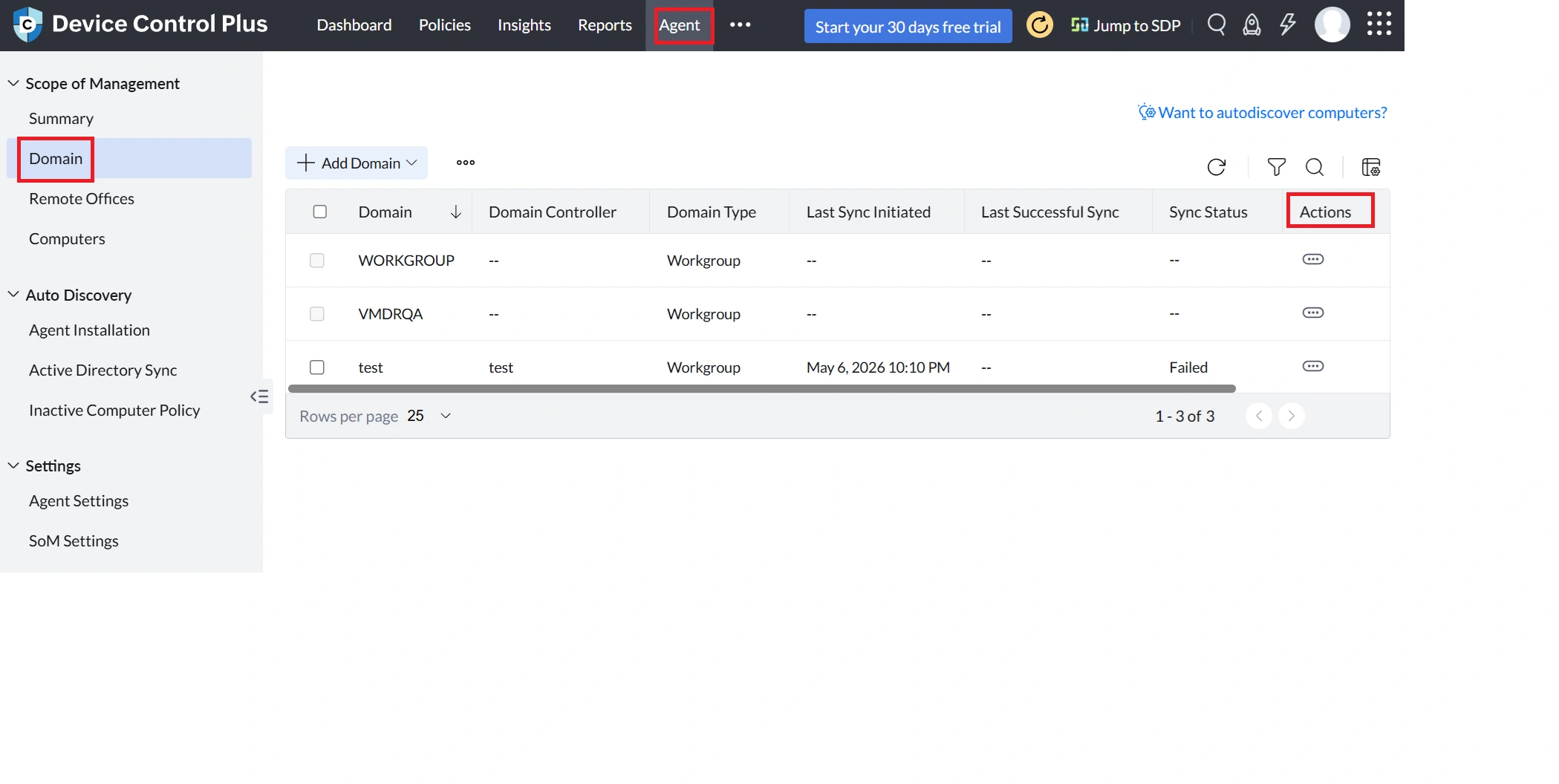
- Add Computer(s): To add Active Directory computers, select the domain, navigate to Actions, and click Add Computers.
- Sync Now:To initiate a domain sync immediately, navigate to the actions menu of the corresponding domain and click sync now.
- Modify Domain: To edit domain details, such as domain controller or Active Directory connector, Navigate to the actions menu of corresponding domain and click Modify Domain.
- Modify Sync Details: To update sync frequency or start time, Navigate to the actions menu of the corresponding domain and click Modify Sync Details.
- Delete: To delete a domain, navigate to Actions for the corresponding domain and click Delete. Kindly note that deleting the domain will erase the domain’s data and related Active Directory reports data. A domain cannot be deleted unless all the computers are removed from Scope of Management.
- Change to Workgroup: To change a domain-based device to a workgroup, select the domain, click the corresponding action, and choose Change to Workgroup
Note
Changing the Domain type from Workgroup to Active Directory will disable all other Active Directory functionalities configured with this Active Directory.
Note
When changing the Active Directory to Workgroup, the DNS Suffix will be required. To find the DNS Suffix, enter
ipconfig /all in the command prompt and locate the data corresponding to Primary DNS Suffix.Troubleshooting Domain Configuration in Device Control Plus
For any issues during domain setup or synchronization, review your administrative credentials, access rights, and Active Directory object permissions. Ensure proper configuration of sync frequency and domain connectivity to avoid disruptions.