Knowledge Base

How to backup Microsoft Entra ID using RecoveryManager Plus

In this article:

Objective

This article explains how to back up Microsoft Entra ID objects using RecoveryManager Plus. Backing up your Microsoft Entra ID environment helps you protect critical identity and access data; ensure compliance; and recover quickly in the event of accidental deletions, human errors, or cyberattacks.

Why back up Microsoft Entra ID?

Microsoft Entra ID is the backbone of cloud identity and access management. Any failure or accidental data loss can cause:

  • Loss of user access to critical applications and services.
  • Downtime that disrupts business operations.
  • Increased security risks due to misconfigurations or compromised accounts.
  • Non-compliance with industry regulations and data retention requirements.

Having a reliable Microsoft Entra ID backup and recovery plan helps eliminate the above risks, ensuring minimal downtime and stronger business resilience against unexpected failures.

Prerequisites

Before setting up backups for Microsoft Entra ID in RecoveryManager Plus, ensure that the account used to configure the tenant in RecoveryManager Plus is assigned the Global Administrator role.

Steps to back up Microsoft Entra ID objects

  1. Log in to RecoveryManager Plus as an administrator.
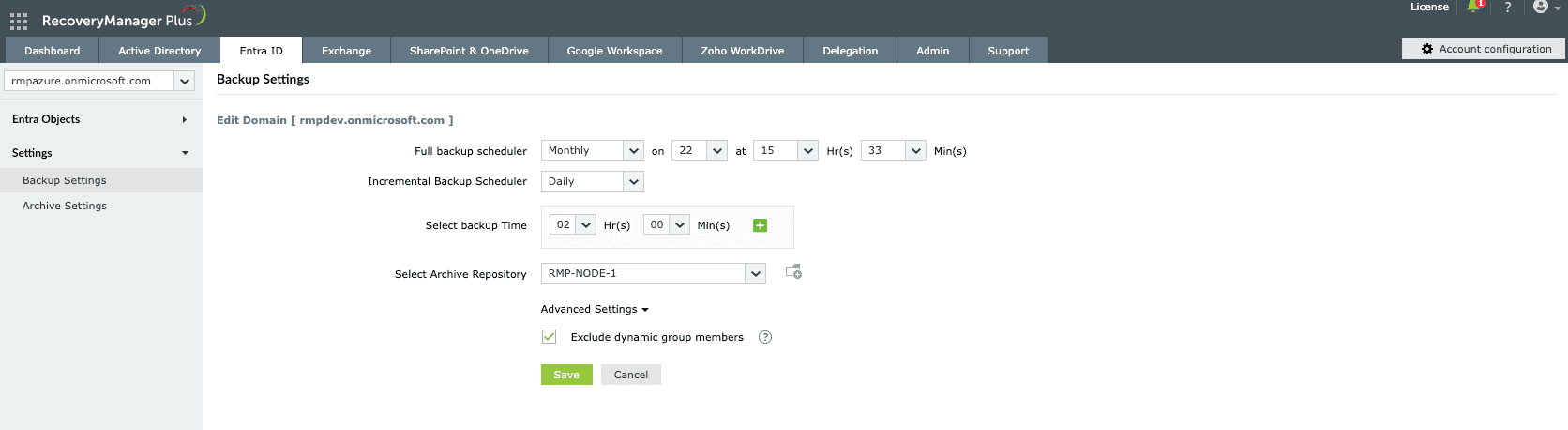
  2. Navigate to the Entra ID tab > Settings > Backup Settings.
  3. Click the edit icon icon-edit located in the Action column of the tenant.
  4. Select the frequency at which full backups must be taken from the list of options available: weekly or monthly.
  5. Select the archive repository in which you wish to store the backups from the drop-down box.
  6. Under Advanced Settings, you can select the check box Exclude dynamic group members backup to exclude backing up dynamic group members as they cannot be modified or restored manually and can only be managed dynamically based on rules defined in Microsoft Entra ID.
  7. Click Save.
    1
     

    Choose the storage repository where archived Microsoft Entra ID data will be saved.

    1
     

    Check this box to exclude dynamic group members from backup.

    Backing up Entra ID using RecoveryManager Plus

    Figure 1: Microsoft Entra ID backup settings in RecoveryManager Plus.

    Choose the storage repository where archived Microsoft Entra ID data will be saved.
    Check this box to exclude dynamic group members from backup.
Best practices

  • Automated backups: Schedule regular backups during non-business hours to reduce performance impact, and automate them to minimize errors and ensure timely backups without manual effort.
  • Backup frequency: Set up backup routines on a daily, weekly, or monthly basis, depending on how critical your data is and how often it gets updated. Align the chosen schedule with your organization's recovery point objectives.
  • Immutable storage: Enable immutable storage to safeguard against accidental or malicious deletions.
  • Encryption: Secure your backups using encryption to prevent unauthorized access and maintain compliance requirements.

Related topics and articles

Last updated on: 29-09-2025

Need further assistance?

Fill this form, and we'll contact you rightaway.

Request Support

  •  
  • *
     
  • *
     
  • *
     
  • By submitting you agree to processing of personal data according to the Privacy Policy.

"Thank you for submitting your request.

Our technical support team will get in touch with you at the earliest."

A single pane of glass for AD, Entra ID, Microsoft 365,
Google Workspace, Exchange, and Zoho WorkDrive backup.
  • » Personal WorkDrive backup
  • » Backup retention
  • » Incremental backup